> ## Documentation Index
> Fetch the complete documentation index at: https://domoinc-openapi-sync-dataflows.mintlify.site/llms.txt
> Use this file to discover all available pages before exploring further.
# Copy Assets to a Different Instance
Sometimes we have multiple instances that all need to use the same app. In some cases it can be easier to just download the code without having to rebuild it.
**You need to have the Domo CLI installed**
* [Instruction how to install the Domo CLI](/portal/Apps/App-Framework/Quickstart/Setup-and-Installation)
* [Domo Apps CLI documentation](/portal/Apps/App-Framework/Tools/domo-CLI)
1. Download the asset from the asset library
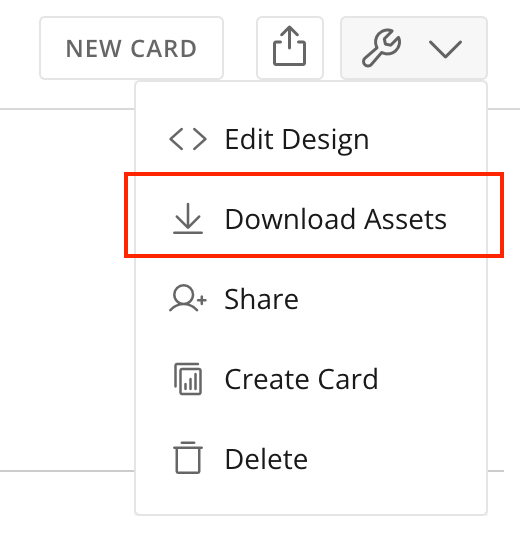 2. Unzip the downloaded bundle
3. Open command line and navigate to the new folder
4. Log into the new instance using `domo login`
5. Remove the `id` from `manifest.json`
6. Publish the asset using `domo publish`
2. Unzip the downloaded bundle
3. Open command line and navigate to the new folder
4. Log into the new instance using `domo login`
5. Remove the `id` from `manifest.json`
6. Publish the asset using `domo publish`