> ## Documentation Index
> Fetch the complete documentation index at: https://domoinc-openapi-sync-dataflows.mintlify.site/llms.txt
> Use this file to discover all available pages before exploring further.
# URL Parameters in Embedded Content
Domo Everywhere supports three main types of URL parameters in embedded content:
Transparent Backgrounds
Pfilters
AppData
ViewId (App Studio Specific)
## Transparent Backgrounds
***
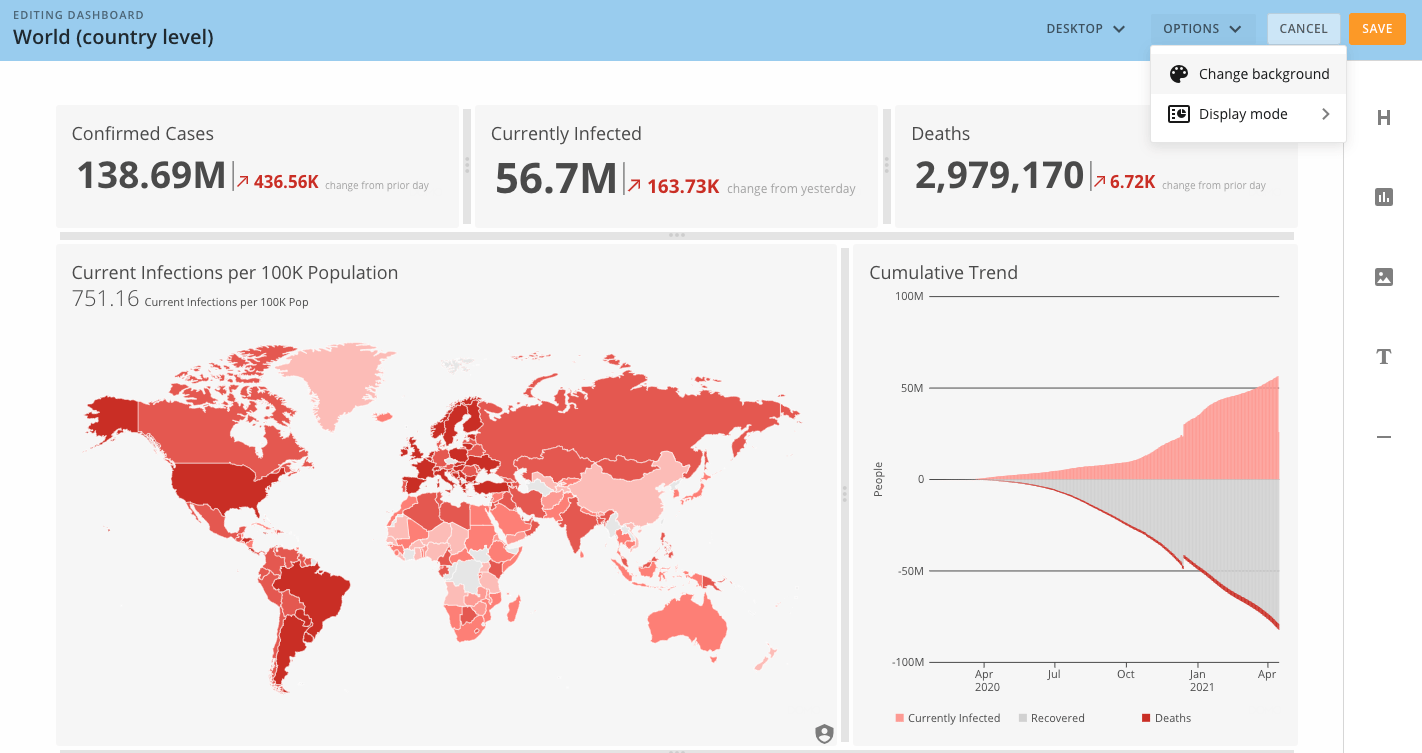
Many embed customers customize the dashboard background color or image to make embedded content feel native.
With this URL parameter, making the background totally transparent can make embedded content seem even more native to the host page.
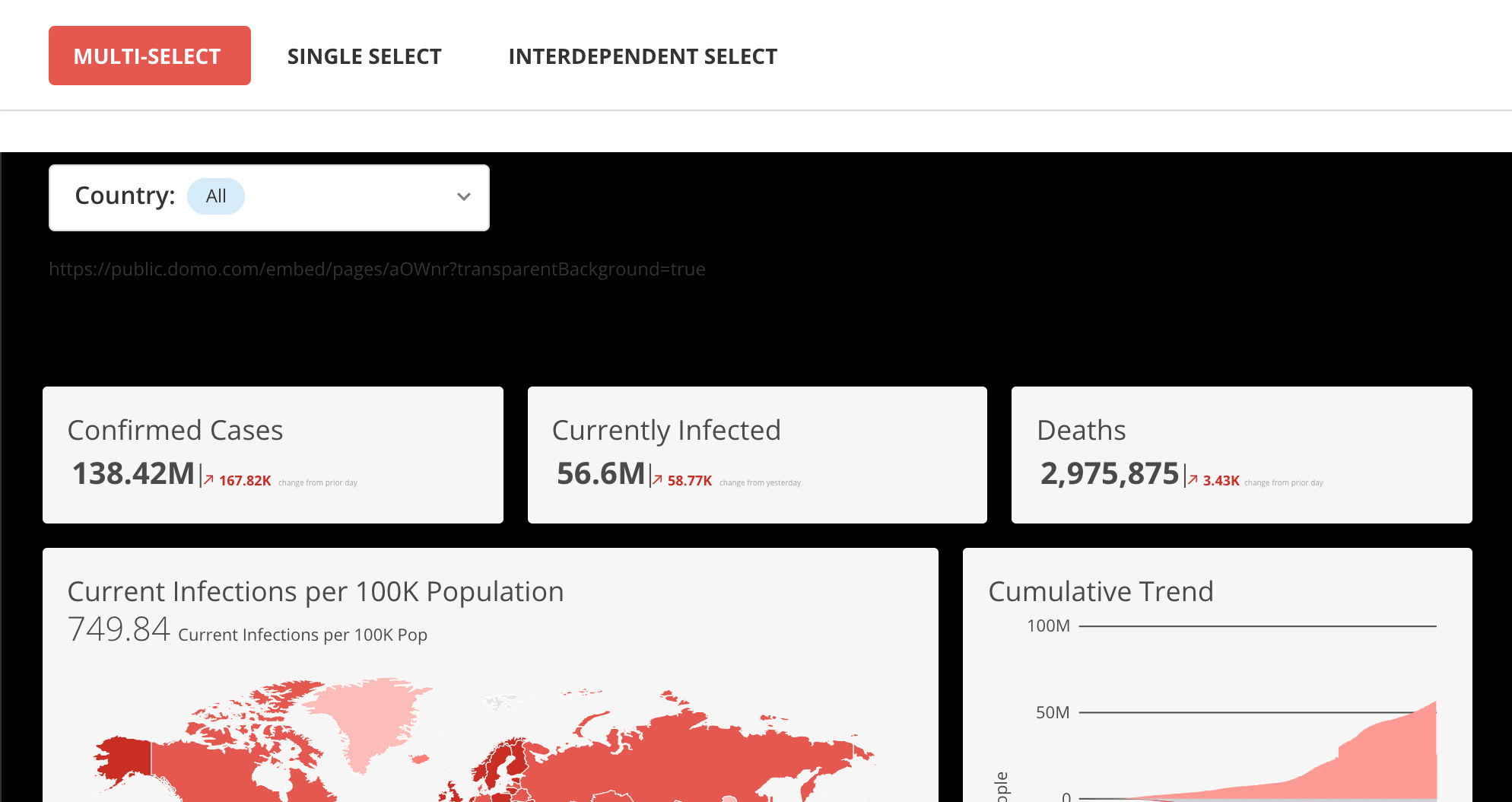
Here is how an embedded dashboard looks when the background is the host page is black and the URL parameter is set to true (?transparentBackground=true)
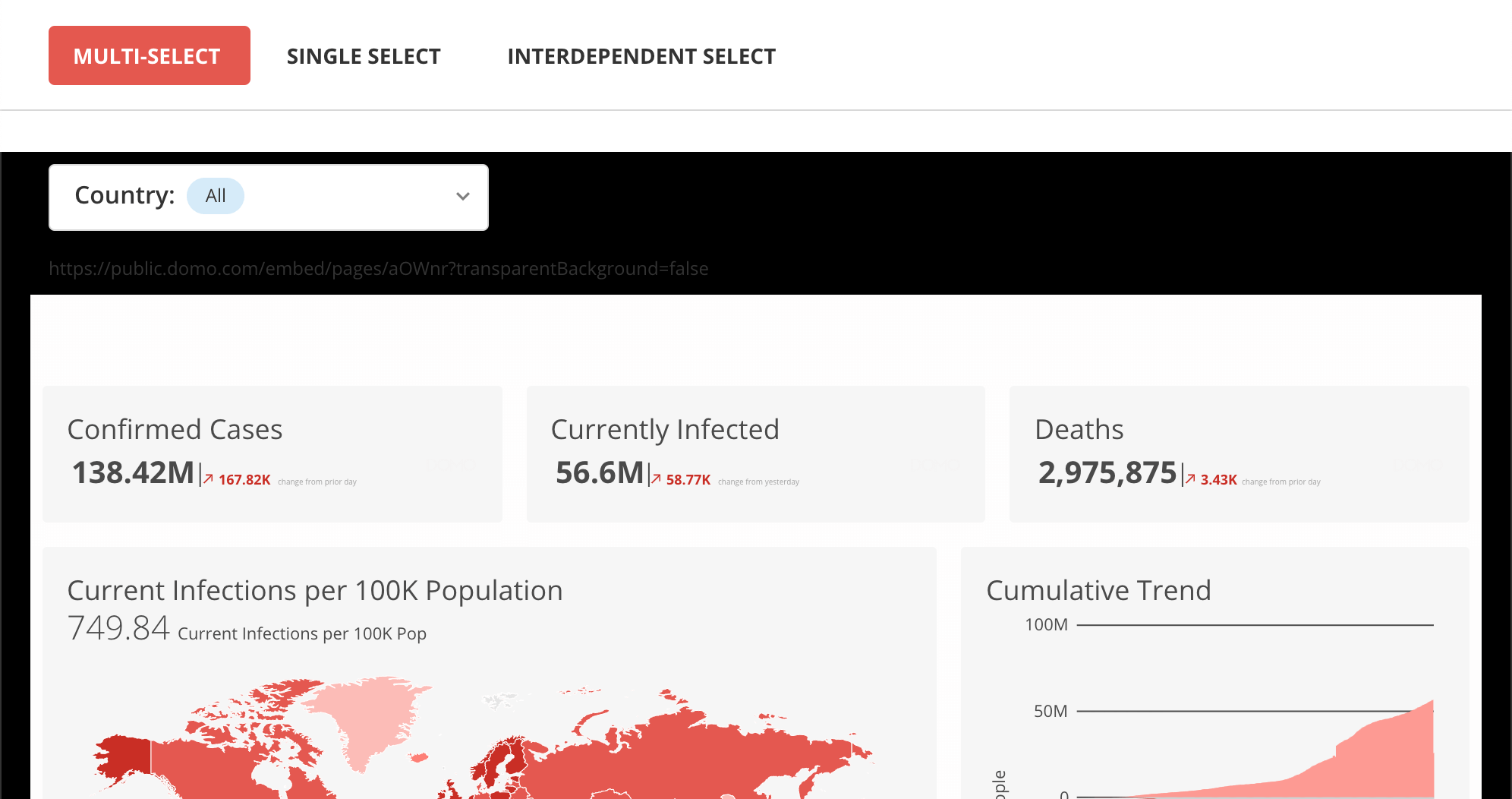
Here is how that same embedded dashboard looks when the background transparency is set to false (?transparentBackground=false)
## PFilters
***
You can use Pfilters (Python particle filters) to apply filters from URL query parameters to embedded Domo Dashboards as a layer after SSO or programmatic filtering.
The Pfilter acts as an array of page filter objects. Any matching column names will be filtered upon page load even if they are based on different DataSets. Results can be validated in POST requests on the network tab.
Review how to link from one embedded dashboard to another while maintaining secure programmatic filters [here](/portal/embed/embed-in-sites-and-apps/programmatic-filtering#linking-across-embedded-dashboards-while-persisting-programmatic-filters).
### Example
The following multi-line example shows Pfilters being used to apply filters to an embedded Domo Dashboard. Note, this example is broken up into multiple lines:
```url theme={"dark"}
example.domo.com/embed/pages/private/ABCDE
?pfilters=[{
"column":"Pos",
"operand":"IN",
"values":["TE","WR"],
},
{
"column":"Location",
"operand":"IN",
"values":["Amsterdam","Anchorage"],
}]
```
### Operands
The operands you can use when writing code with Pfilters are as follows. Note that the values always need square brackets for the array, even when only a single value is included.
* IN
* CONTAINS
* EQUALS
* NOT\_EQUALS
* GREATER\_THAN
* LESS\_THAN
* GREAT\_THAN\_EQUALS\_TO
* LESS\_THAN\_EQUALS\_TO
* BETWEEN
### Persistence of Pfilters across Pages
Domo automatically creates Pfilters when you check Persist Filters in the embed dialog, as shown here:
You can then view the parameters by hovering over the content. (Card interactions must be turned on and set to External link for this to work). This is shown for the "QA pass rate by model" Card in the following example:
When viewers click those links, any parts of the story they had previously clicked will be passed along as Pfilters to the next Page. These filters can either be applied to single Cards or complete Pages (even if the Pages contain many Cards based on various DataSets).
### Persistence of Pfilters across sessions
If you want Pfilters to expand beyond pages to also persist across sessions and refreshes, you'll need to store and load the last known state of the Pfilters. One way to do this is through AppDB.
### Malformed criteria
If a Pfilter is written incorrectly, the unfiltered version renders and a black error bar appears.
## AppData
***
The appData parameter supports passing in general types of inputs to the app. The app developer needs to watch for the parameter, parse the value, and inject it into the most relevant part of the app.
For example, the value of the parameter could then auto-populate a drop-down menu in an app that selects the location. This way, the host page can avoid the delay of waiting for manual inputs. They can now deep-link to a version of the app that already has specific values filled in. Spaces should be encoded as “+” :
```html theme={"dark"}
public.domo.com/embed/pages/abcde?appData=Salt+Lake+City
```
The query parameters on the embed URL will then be automatically passed down into the apps (e.g. xyz.domoapps.prod4.domo.com) contained by the embedded cards or dashboards.
## ViewId
***
App Studio includes many navigatable page views, for control outside of the embeded App Studio app, a viewId can be provided in the URL to tell the app a specific page view to open to directly instead of the default landing page view. As well as this parameter can be used by programmatic filter calls to prevent reloading and ensure the page opens to the page that the filter was set.
To find these view ids, when opening an embedded page, looking at the network traffic, the views can be found in the following request `https://embed.domo.com/embed/app-studio/
 With this URL parameter, making the background totally transparent can make embedded content seem even more native to the host page.
Here is how an embedded dashboard looks when the background is the host page is black and the URL parameter is set to true (?transparentBackground=true)
With this URL parameter, making the background totally transparent can make embedded content seem even more native to the host page.
Here is how an embedded dashboard looks when the background is the host page is black and the URL parameter is set to true (?transparentBackground=true)
 Here is how that same embedded dashboard looks when the background transparency is set to false (?transparentBackground=false)
 ## PFilters
***
You can use Pfilters (Python particle filters) to apply filters from URL query parameters to embedded Domo Dashboards as a layer after SSO or programmatic filtering.
The Pfilter acts as an array of page filter objects. Any matching column names will be filtered upon page load even if they are based on different DataSets. Results can be validated in POST requests on the network tab.
Review how to link from one embedded dashboard to another while maintaining secure programmatic filters [here](/portal/embed/embed-in-sites-and-apps/programmatic-filtering#linking-across-embedded-dashboards-while-persisting-programmatic-filters).
### Example
The following multi-line example shows Pfilters being used to apply filters to an embedded Domo Dashboard. Note, this example is broken up into multiple lines:
```url theme={"dark"}
example.domo.com/embed/pages/private/ABCDE
?pfilters=[{
"column":"Pos",
"operand":"IN",
"values":["TE","WR"],
},
{
"column":"Location",
"operand":"IN",
"values":["Amsterdam","Anchorage"],
}]
```
### Operands
The operands you can use when writing code with Pfilters are as follows. Note that the values always need square brackets for the array, even when only a single value is included.
* IN
* CONTAINS
* EQUALS
* NOT\_EQUALS
* GREATER\_THAN
* LESS\_THAN
* GREAT\_THAN\_EQUALS\_TO
* LESS\_THAN\_EQUALS\_TO
* BETWEEN
### Persistence of Pfilters across Pages
Domo automatically creates Pfilters when you check Persist Filters in the embed dialog, as shown here:
## PFilters
***
You can use Pfilters (Python particle filters) to apply filters from URL query parameters to embedded Domo Dashboards as a layer after SSO or programmatic filtering.
The Pfilter acts as an array of page filter objects. Any matching column names will be filtered upon page load even if they are based on different DataSets. Results can be validated in POST requests on the network tab.
Review how to link from one embedded dashboard to another while maintaining secure programmatic filters [here](/portal/embed/embed-in-sites-and-apps/programmatic-filtering#linking-across-embedded-dashboards-while-persisting-programmatic-filters).
### Example
The following multi-line example shows Pfilters being used to apply filters to an embedded Domo Dashboard. Note, this example is broken up into multiple lines:
```url theme={"dark"}
example.domo.com/embed/pages/private/ABCDE
?pfilters=[{
"column":"Pos",
"operand":"IN",
"values":["TE","WR"],
},
{
"column":"Location",
"operand":"IN",
"values":["Amsterdam","Anchorage"],
}]
```
### Operands
The operands you can use when writing code with Pfilters are as follows. Note that the values always need square brackets for the array, even when only a single value is included.
* IN
* CONTAINS
* EQUALS
* NOT\_EQUALS
* GREATER\_THAN
* LESS\_THAN
* GREAT\_THAN\_EQUALS\_TO
* LESS\_THAN\_EQUALS\_TO
* BETWEEN
### Persistence of Pfilters across Pages
Domo automatically creates Pfilters when you check Persist Filters in the embed dialog, as shown here:
 You can then view the parameters by hovering over the content. (Card interactions must be turned on and set to External link for this to work). This is shown for the "QA pass rate by model" Card in the following example:
 When viewers click those links, any parts of the story they had previously clicked will be passed along as Pfilters to the next Page. These filters can either be applied to single Cards or complete Pages (even if the Pages contain many Cards based on various DataSets).
 ### Persistence of Pfilters across sessions
If you want Pfilters to expand beyond pages to also persist across sessions and refreshes, you'll need to store and load the last known state of the Pfilters. One way to do this is through AppDB.
### Malformed criteria
If a Pfilter is written incorrectly, the unfiltered version renders and a black error bar appears.
### Persistence of Pfilters across sessions
If you want Pfilters to expand beyond pages to also persist across sessions and refreshes, you'll need to store and load the last known state of the Pfilters. One way to do this is through AppDB.
### Malformed criteria
If a Pfilter is written incorrectly, the unfiltered version renders and a black error bar appears.
 ## AppData
***
The appData parameter supports passing in general types of inputs to the app. The app developer needs to watch for the parameter, parse the value, and inject it into the most relevant part of the app.
For example, the value of the parameter could then auto-populate a drop-down menu in an app that selects the location. This way, the host page can avoid the delay of waiting for manual inputs. They can now deep-link to a version of the app that already has specific values filled in. Spaces should be encoded as “+” :
```html theme={"dark"}
public.domo.com/embed/pages/abcde?appData=Salt+Lake+City
```
The query parameters on the embed URL will then be automatically passed down into the apps (e.g. xyz.domoapps.prod4.domo.com) contained by the embedded cards or dashboards.
## ViewId
***
App Studio includes many navigatable page views, for control outside of the embeded App Studio app, a viewId can be provided in the URL to tell the app a specific page view to open to directly instead of the default landing page view. As well as this parameter can be used by programmatic filter calls to prevent reloading and ensure the page opens to the page that the filter was set.
To find these view ids, when opening an embedded page, looking at the network traffic, the views can be found in the following request `https://embed.domo.com/embed/app-studio/
## AppData
***
The appData parameter supports passing in general types of inputs to the app. The app developer needs to watch for the parameter, parse the value, and inject it into the most relevant part of the app.
For example, the value of the parameter could then auto-populate a drop-down menu in an app that selects the location. This way, the host page can avoid the delay of waiting for manual inputs. They can now deep-link to a version of the app that already has specific values filled in. Spaces should be encoded as “+” :
```html theme={"dark"}
public.domo.com/embed/pages/abcde?appData=Salt+Lake+City
```
The query parameters on the embed URL will then be automatically passed down into the apps (e.g. xyz.domoapps.prod4.domo.com) contained by the embedded cards or dashboards.
## ViewId
***
App Studio includes many navigatable page views, for control outside of the embeded App Studio app, a viewId can be provided in the URL to tell the app a specific page view to open to directly instead of the default landing page view. As well as this parameter can be used by programmatic filter calls to prevent reloading and ensure the page opens to the page that the filter was set.
To find these view ids, when opening an embedded page, looking at the network traffic, the views can be found in the following request `https://embed.domo.com/embed/app-studio/