> ## Documentation Index
> Fetch the complete documentation index at: https://domoinc-openapi-sync-dataflows.mintlify.site/llms.txt
> Use this file to discover all available pages before exploring further.
# List on the Appstore
export const InlineImage = ({src, alt = '', height = '1.6em'}) => {
return  ;
};
### Intro
You can publish various listing types, such as dashboards, apps, and code blocks, on the Appstore. Listings can be free and available to members of your organization only, free to all Domo Appstore users, or paid to create a revenue stream for your organization. Paid listings can be configured for one-time payment or subscription-based. This article describes the steps for listing on the Appstore.
***
### Submission Checklist
Here is the list of items you need and the list of questions you should have answers to in order to submit a listing to the Appstore:
**Items:**
* (Required) A square icon in JPG or PNG format at a minimum of 100 x 100 pixels.
* (Required) 3–10 screenshots in JPG or PNG format at a minimum of 1920 x 1080 pixels each.
**Questions:**
* Will the listing be a public resource for all Domo customers or shared only with your company?
* What kind of listing is it? (Visualization, service, or code block)
* What is the pricing model? (Free, paid, or request a quote)
* Is it a listing that can be implemented in a few minutes, or are you promoting a service?
### Submit an Appstore Listing
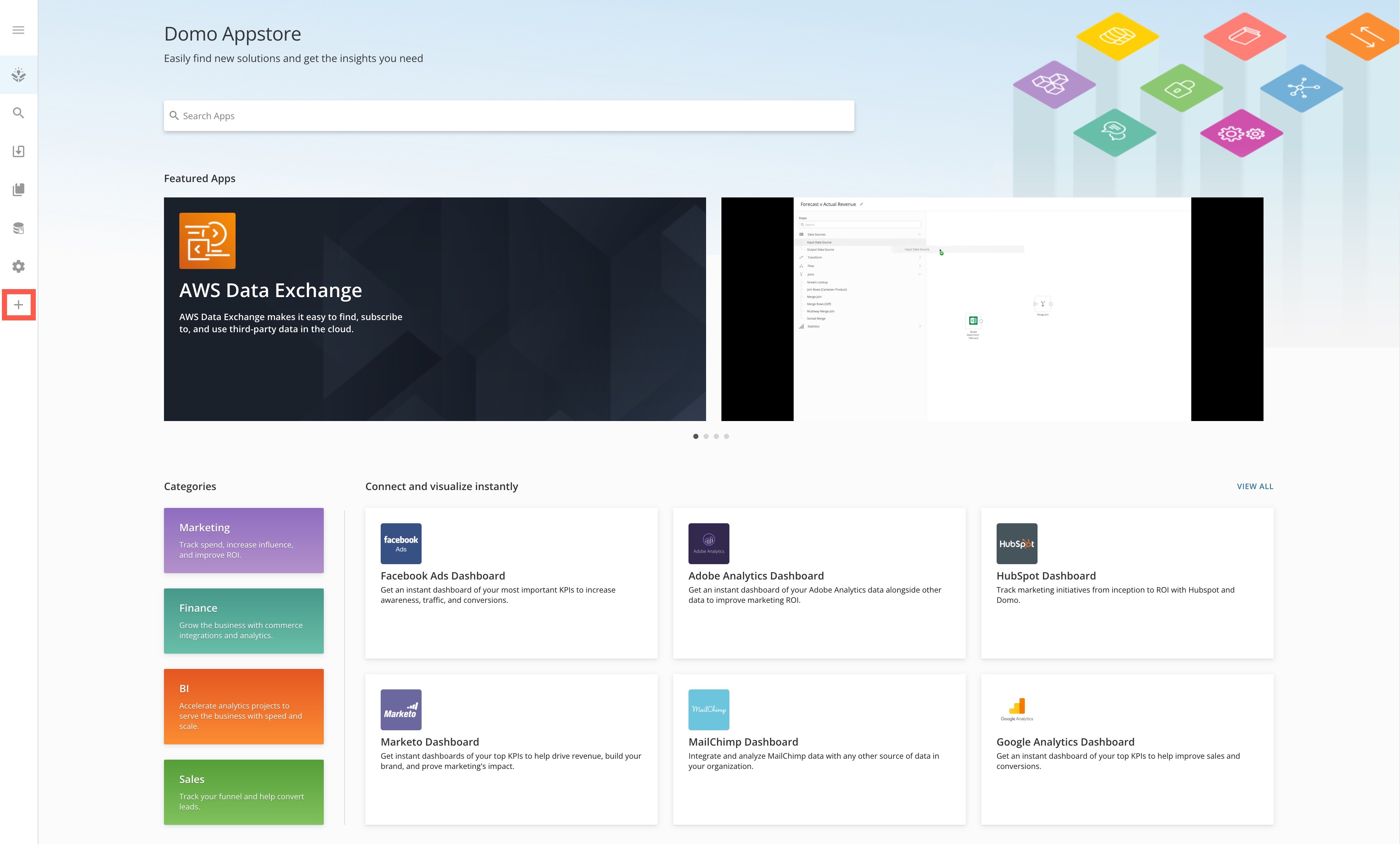
1. In the navigation header, select **Appstore**.
The Appstore opens.
2. In the side panel, select
**Publish**.
;
};
### Intro
You can publish various listing types, such as dashboards, apps, and code blocks, on the Appstore. Listings can be free and available to members of your organization only, free to all Domo Appstore users, or paid to create a revenue stream for your organization. Paid listings can be configured for one-time payment or subscription-based. This article describes the steps for listing on the Appstore.
***
### Submission Checklist
Here is the list of items you need and the list of questions you should have answers to in order to submit a listing to the Appstore:
**Items:**
* (Required) A square icon in JPG or PNG format at a minimum of 100 x 100 pixels.
* (Required) 3–10 screenshots in JPG or PNG format at a minimum of 1920 x 1080 pixels each.
**Questions:**
* Will the listing be a public resource for all Domo customers or shared only with your company?
* What kind of listing is it? (Visualization, service, or code block)
* What is the pricing model? (Free, paid, or request a quote)
* Is it a listing that can be implemented in a few minutes, or are you promoting a service?
### Submit an Appstore Listing
1. In the navigation header, select **Appstore**.
The Appstore opens.
2. In the side panel, select
**Publish**.
 A dialog displays with the [submission checklist](#submission_checklist). Review the list to make sure you have the required items and answers.
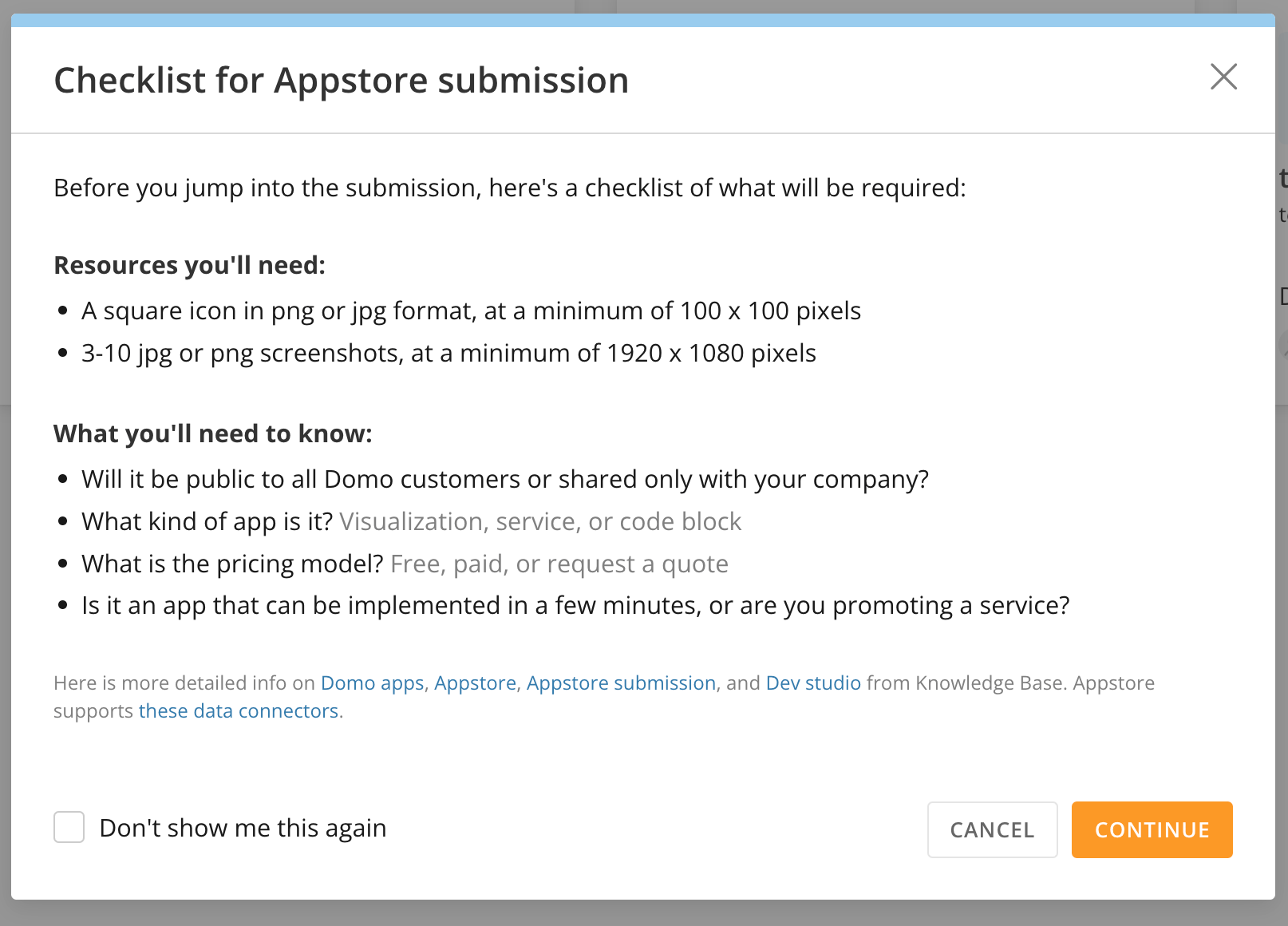 3. (Optional) Check the box labeled **Don't show me this again** to prevent the checklist from displaying each time you publish a listing.
4. Select **Continue** to move forward to the submission modal or select **Cancel** if you are missing something from the checklist.
# Submission Modal
The information you need to provide in the modal depends on your listing type.
3. (Optional) Check the box labeled **Don't show me this again** to prevent the checklist from displaying each time you publish a listing.
4. Select **Continue** to move forward to the submission modal or select **Cancel** if you are missing something from the checklist.
# Submission Modal
The information you need to provide in the modal depends on your listing type.
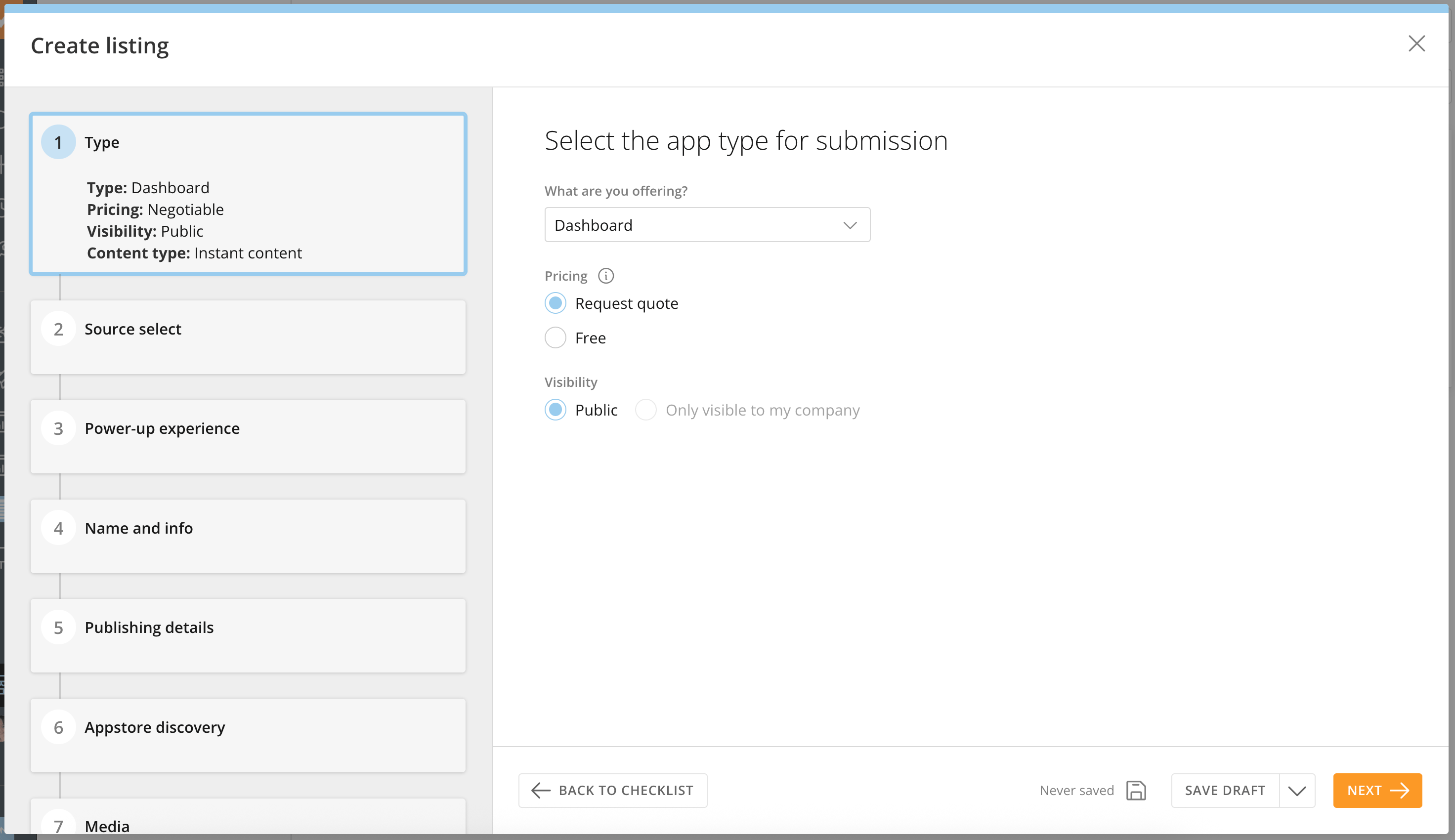 In any section, you can select one of the following save options:
* **Save Draft** to save your current progress before moving forward.
* **Open** > **Save draft and close** to save your current progress and close the modal. If you must close a draft and complete it at a later time, you can do so in the **Drafts** section.
* **Open** > **Save and duplicate** to save your current progress and create a duplicate listing.
The modal also regularly saves your progress as you go.
In any section, you can select one of the following save options:
* **Save Draft** to save your current progress before moving forward.
* **Open** > **Save draft and close** to save your current progress and close the modal. If you must close a draft and complete it at a later time, you can do so in the **Drafts** section.
* **Open** > **Save and duplicate** to save your current progress and create a duplicate listing.
The modal also regularly saves your progress as you go.
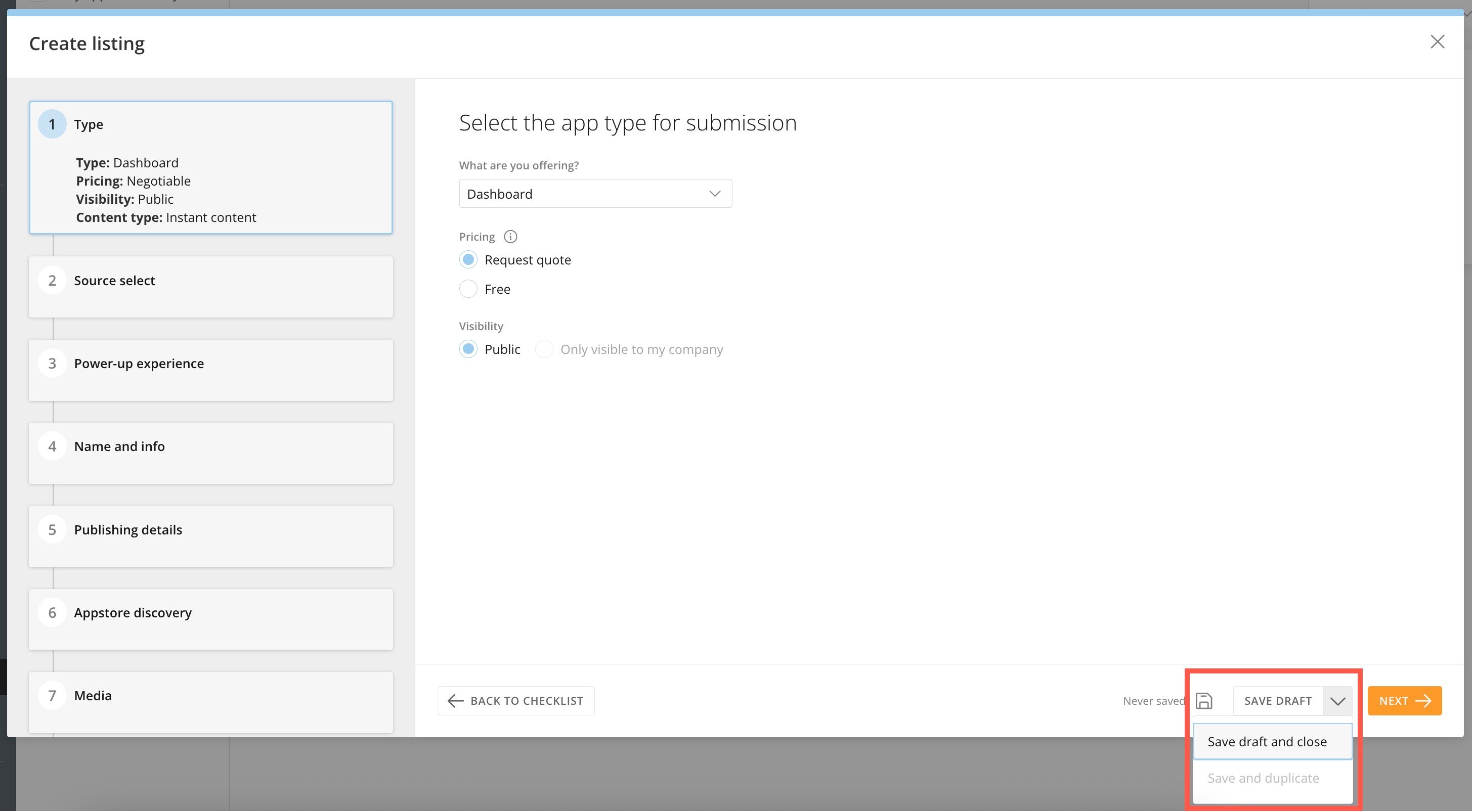 As you complete each section of the modal, select **Next** to move to the next section. If you are missing any information, a **missing** message displays in the sidebar for that section.
 #### Type
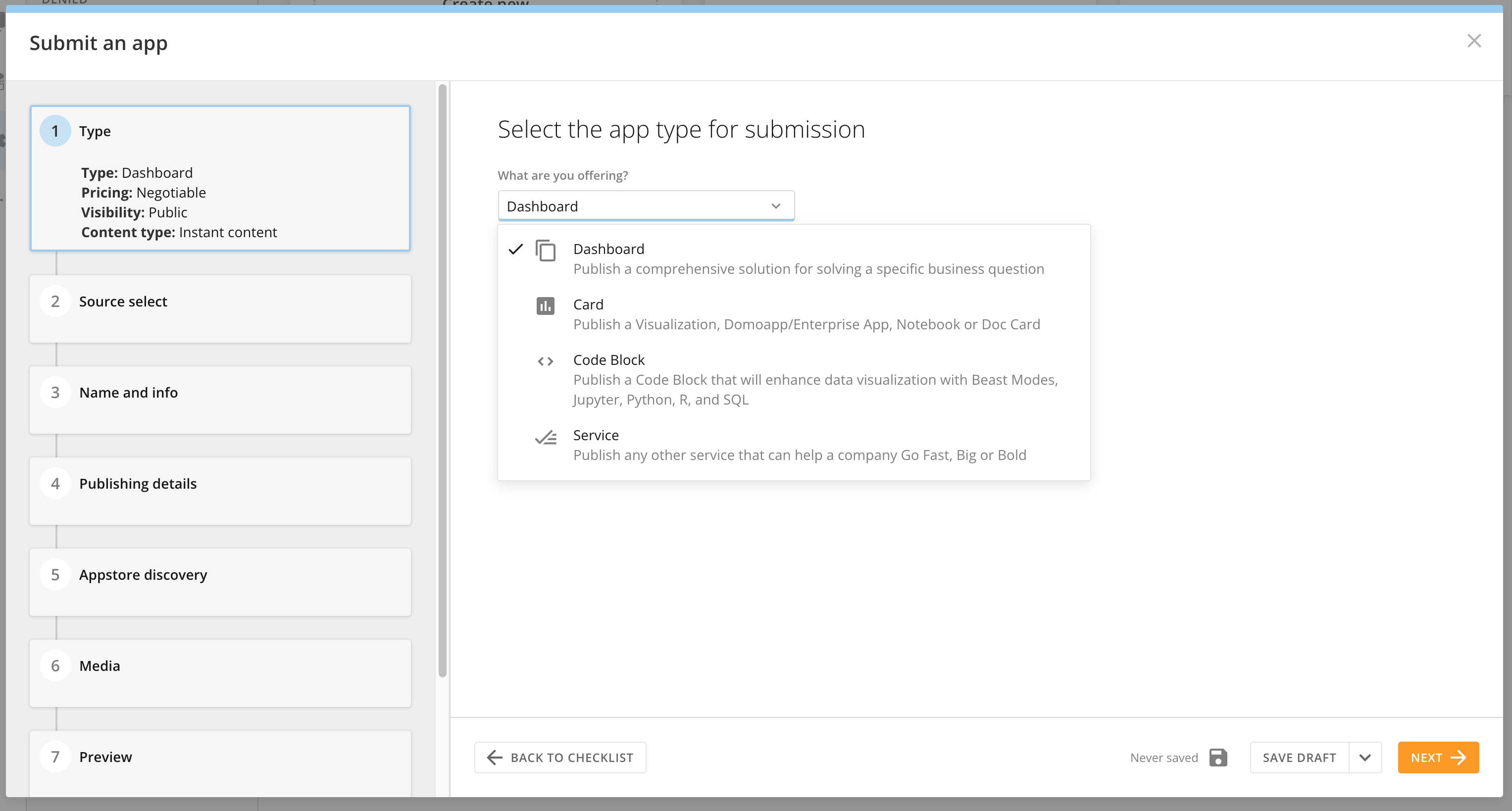
#### Select the listing type. The options are:
* Dashboard
* Card
* Code block
* Service
#### Type
#### Select the listing type. The options are:
* Dashboard
* Card
* Code block
* Service
 Select the pricing model. The options are:
* Request quote
* Free
**Note:** If you select **Service** as the listing type, these pricing options are disabled.
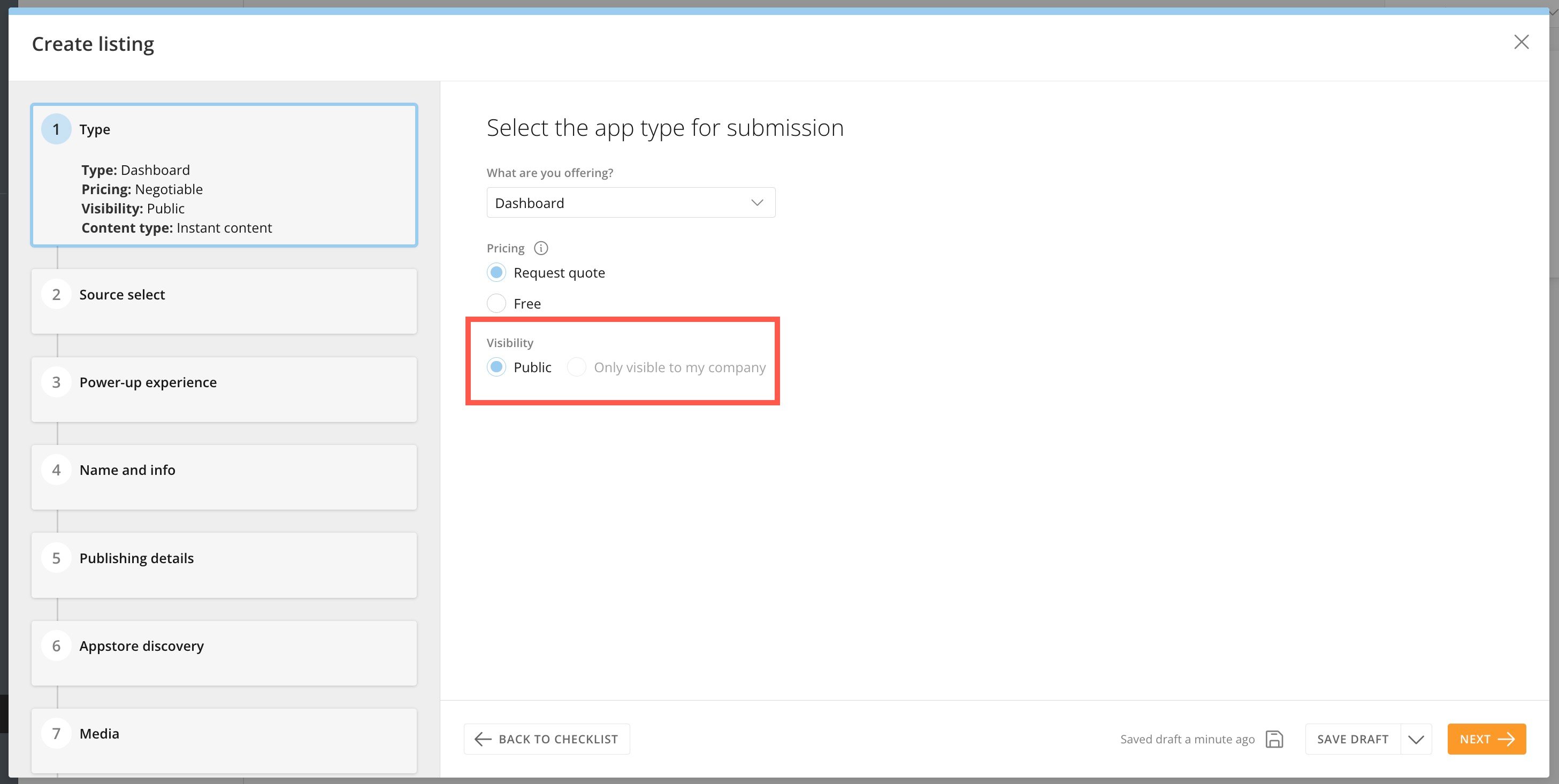
Select the visibility level. The options are:
* Public
* Only visible to my company
Select the pricing model. The options are:
* Request quote
* Free
**Note:** If you select **Service** as the listing type, these pricing options are disabled.
Select the visibility level. The options are:
* Public
* Only visible to my company
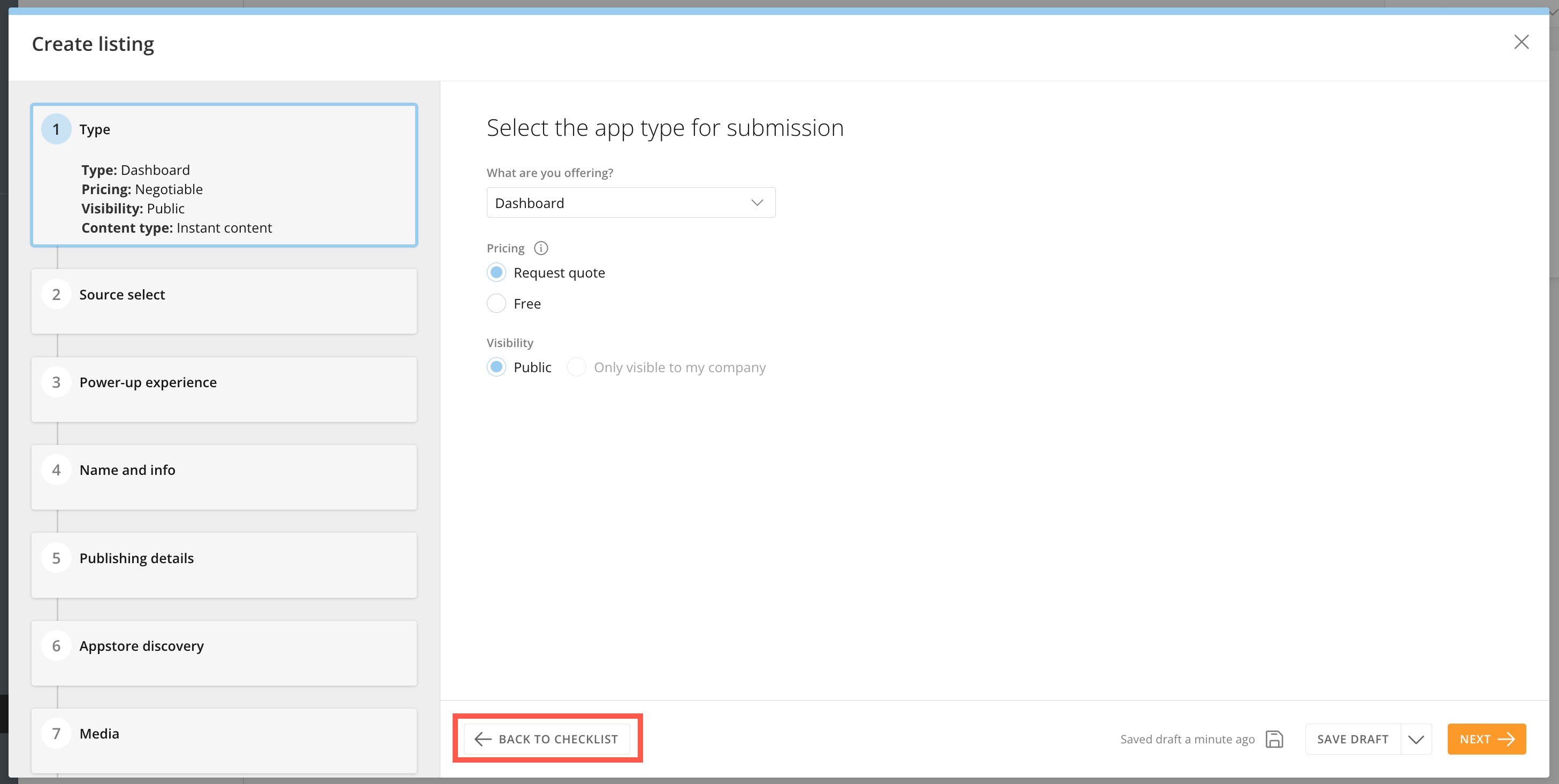
 If you need to review the checklist, select **Back to Checklist**.
 (Conditional) Source Select
If your listing is a dashboard or a card, you have to select it. This section relates to dashboards that are published via connectors.
(Conditional) Source Select
If your listing is a dashboard or a card, you have to select it. This section relates to dashboards that are published via connectors.
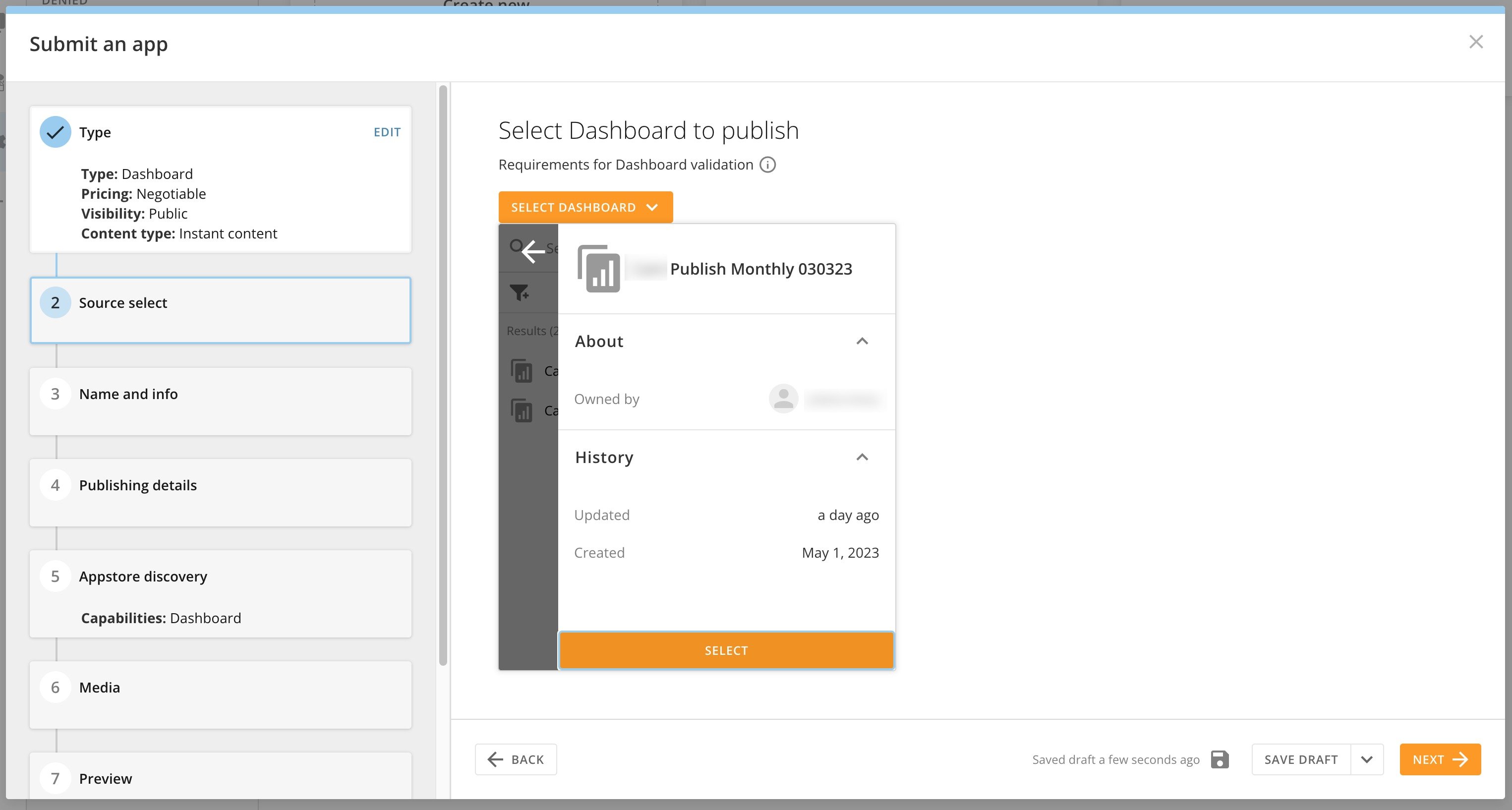 The dashboard or card must be validated according to the requirements listed below.
##### Dashboard Validation Requirements
* Dashboard is not a System Page (**Overview**, **Favorites**, or **Shared**)
* Contains 75 or fewer cards
* Card interactions do not link to other Domo resources
**Note:** If you use Domo links in your dashboard, a warning displays. The links also break and point to a 404 page.
* Uses supported card types (Visualization, Doc, and Notebook Cards and Enterprise Apps)
* Cards do not contain custom charts
* Notebook Cards do not contain images
* Drill Cards have the same DataSource as their parent cards
* Enterprise Apps are marked as "Released" in the Asset Library
* Enterprise Apps are accessible and functional
* DataFlow inputs are valid and supported types
**Note:** Your dashboard cannot contain nested DataFlows, where the output of one DataFlow is the input of another DataFlow. If you need to do this, we suggest that you create one larger DataFlow instead of two smaller ones.
* DataFlows are configured to run when an input updates.
* Uses supported DataFlow types (MySQL and Magic ETL)
* DataSources are accessible and have valid schema
* Uses a connector supported by the Appstore
* DataSource is not a DataSet View or DataFusion
##### Card Validation Requirements
* Card is of a supported type (Visualization, Doc, or Notebook Card or Enterprise App)
* Card does not contain Custom Charts
* Notebook Cards do not contain images
* Drill Cards have the same DataSource as their parent cards
* Enterprise Apps are marked as "Released" in the Asset Library
* Enterprise Apps are accessible and functional
* DataSource has valid schema
* DataSource is not a DataSet View or DataFusion
The dashboard or card must be validated according to the requirements listed below.
##### Dashboard Validation Requirements
* Dashboard is not a System Page (**Overview**, **Favorites**, or **Shared**)
* Contains 75 or fewer cards
* Card interactions do not link to other Domo resources
**Note:** If you use Domo links in your dashboard, a warning displays. The links also break and point to a 404 page.
* Uses supported card types (Visualization, Doc, and Notebook Cards and Enterprise Apps)
* Cards do not contain custom charts
* Notebook Cards do not contain images
* Drill Cards have the same DataSource as their parent cards
* Enterprise Apps are marked as "Released" in the Asset Library
* Enterprise Apps are accessible and functional
* DataFlow inputs are valid and supported types
**Note:** Your dashboard cannot contain nested DataFlows, where the output of one DataFlow is the input of another DataFlow. If you need to do this, we suggest that you create one larger DataFlow instead of two smaller ones.
* DataFlows are configured to run when an input updates.
* Uses supported DataFlow types (MySQL and Magic ETL)
* DataSources are accessible and have valid schema
* Uses a connector supported by the Appstore
* DataSource is not a DataSet View or DataFusion
##### Card Validation Requirements
* Card is of a supported type (Visualization, Doc, or Notebook Card or Enterprise App)
* Card does not contain Custom Charts
* Notebook Cards do not contain images
* Drill Cards have the same DataSource as their parent cards
* Enterprise Apps are marked as "Released" in the Asset Library
* Enterprise Apps are accessible and functional
* DataSource has valid schema
* DataSource is not a DataSet View or DataFusion
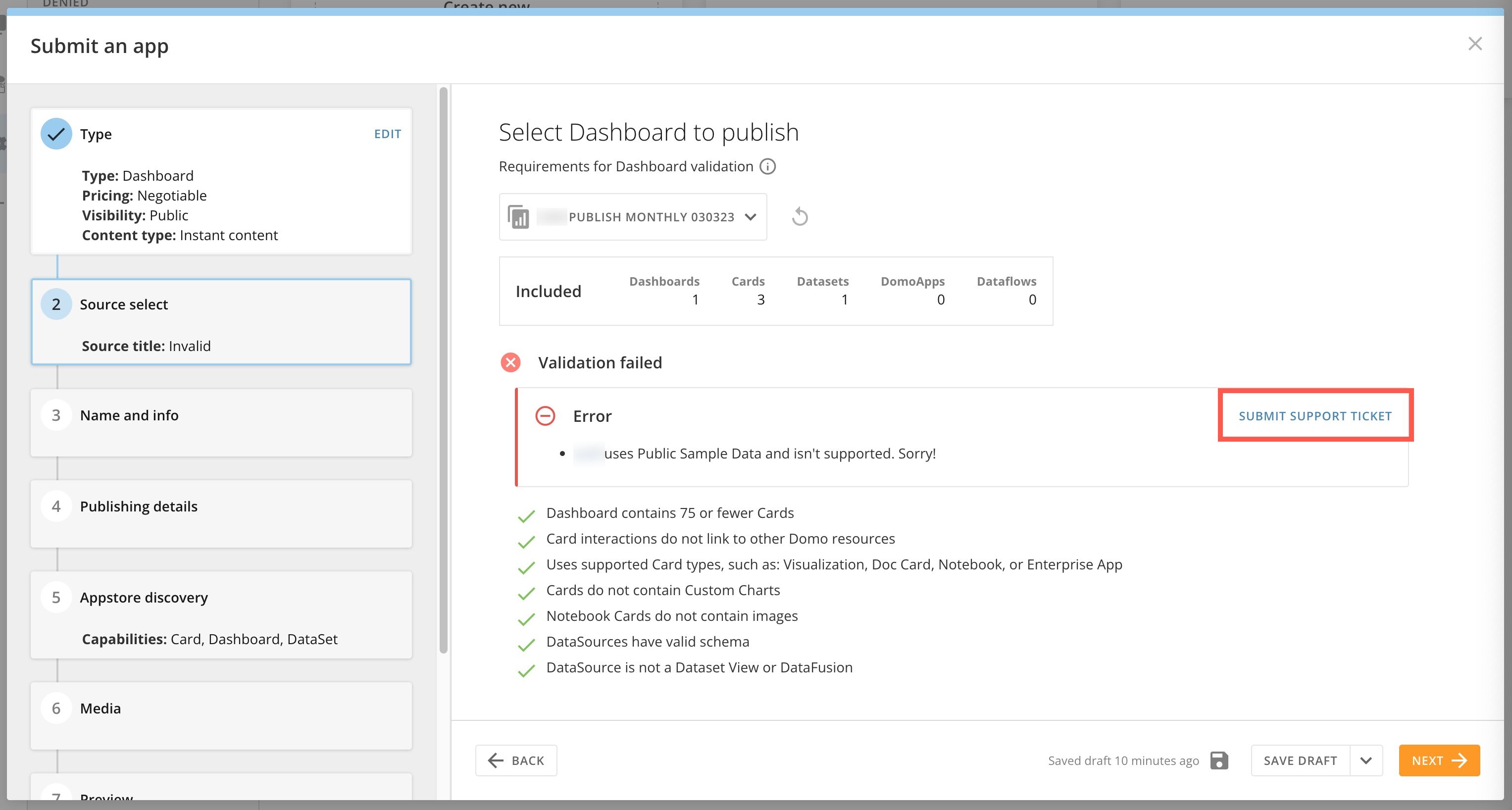
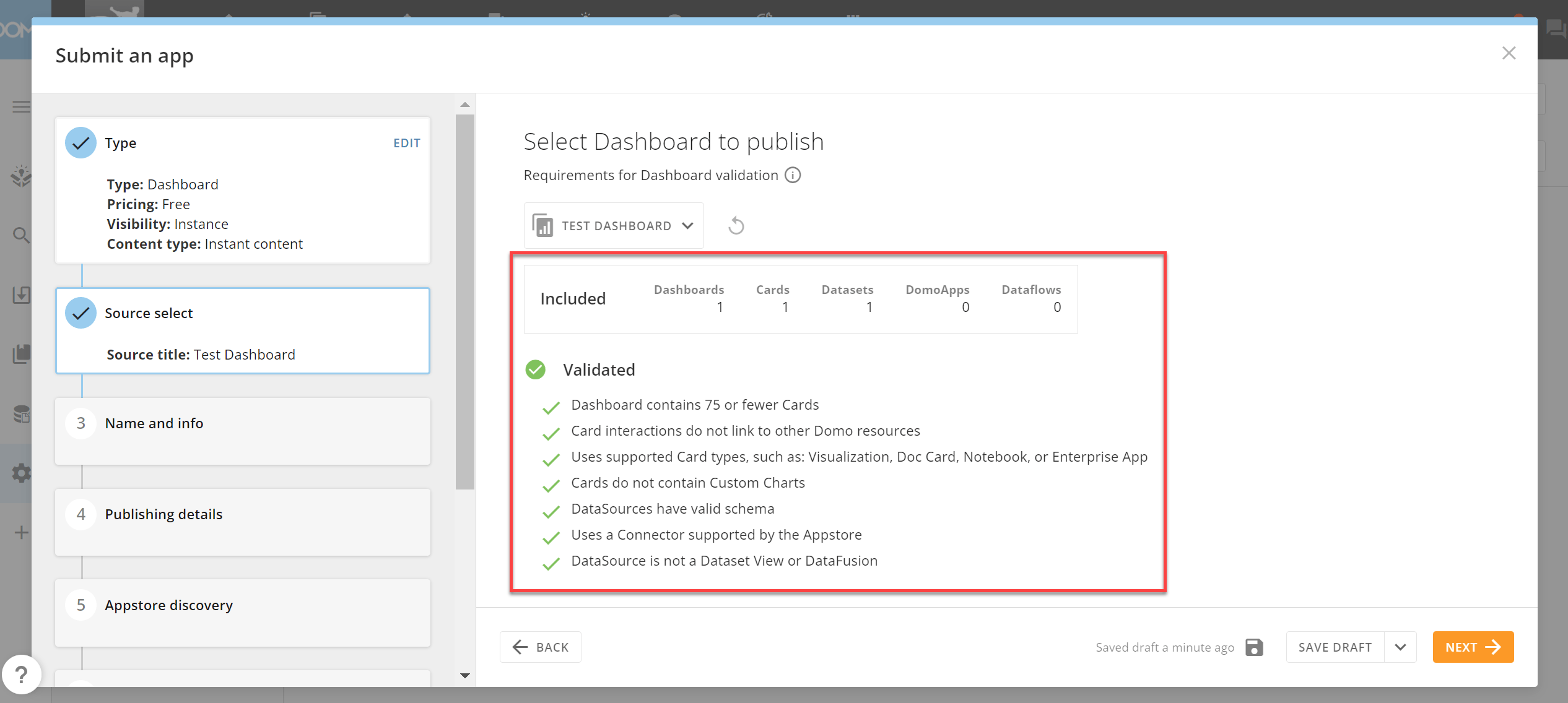 If you receive a validation error, select **Submit Support Ticket** > **Get Help**.
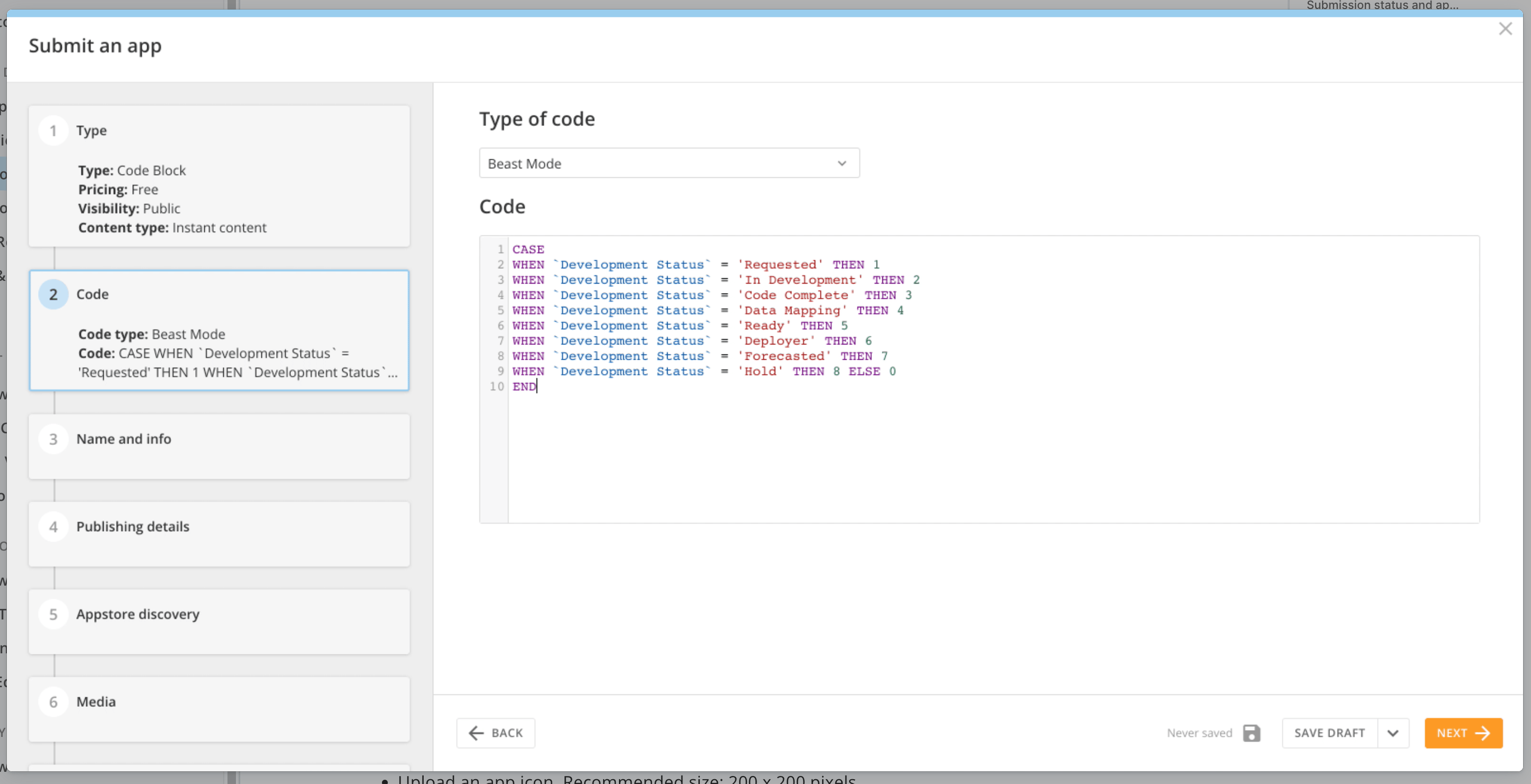
 #### (Conditional) Code
If your listing is a Code Block, you must fill out the **Code** section. Select the type of code in your code block. The options are:
* Beast Mode
* Jupyter
* Python
* R
* SQL
#### (Conditional) Code
If your listing is a Code Block, you must fill out the **Code** section. Select the type of code in your code block. The options are:
* Beast Mode
* Jupyter
* Python
* R
* SQL
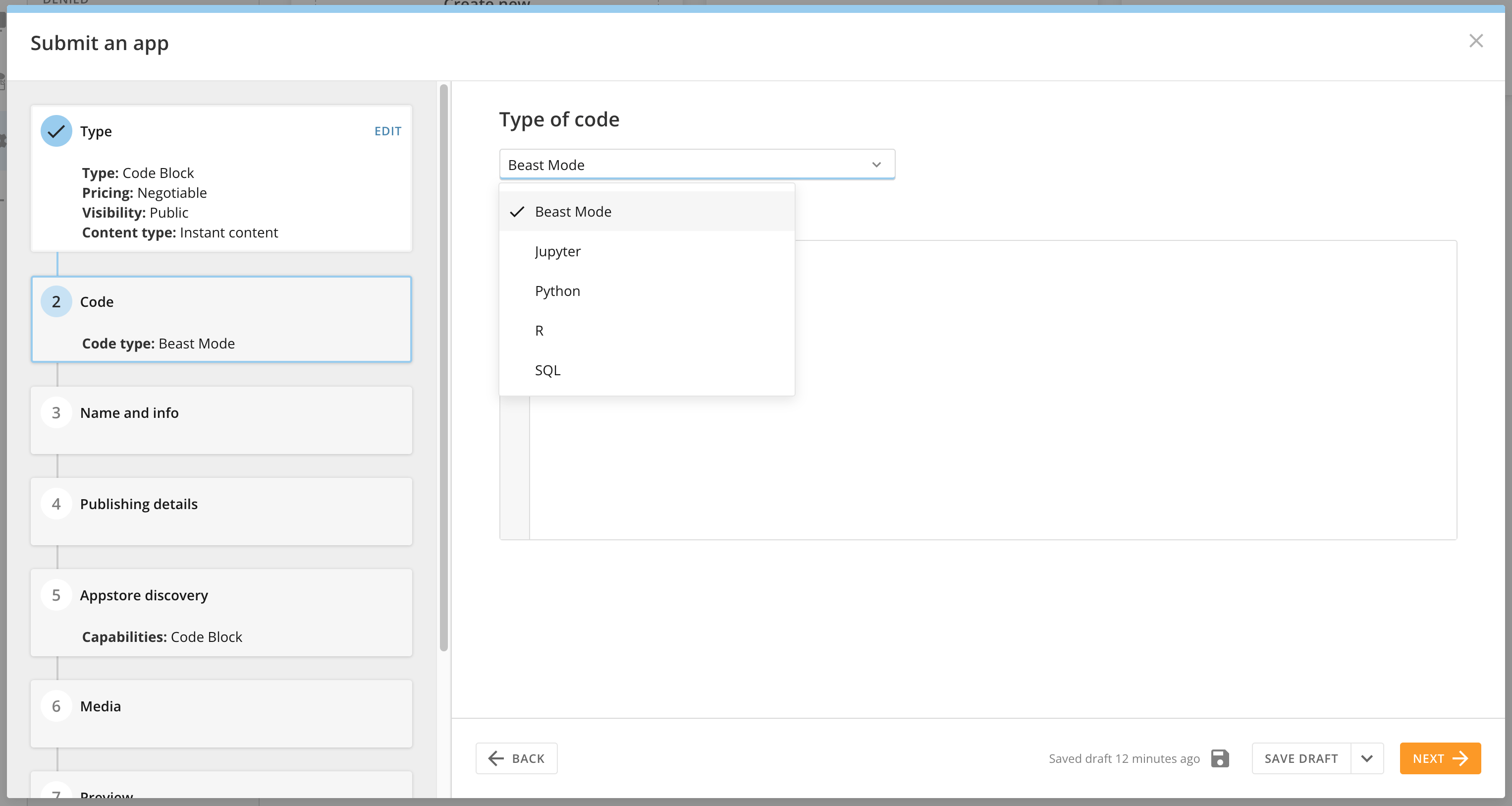 After selecting the code type, paste your code.
 #### Name and Info
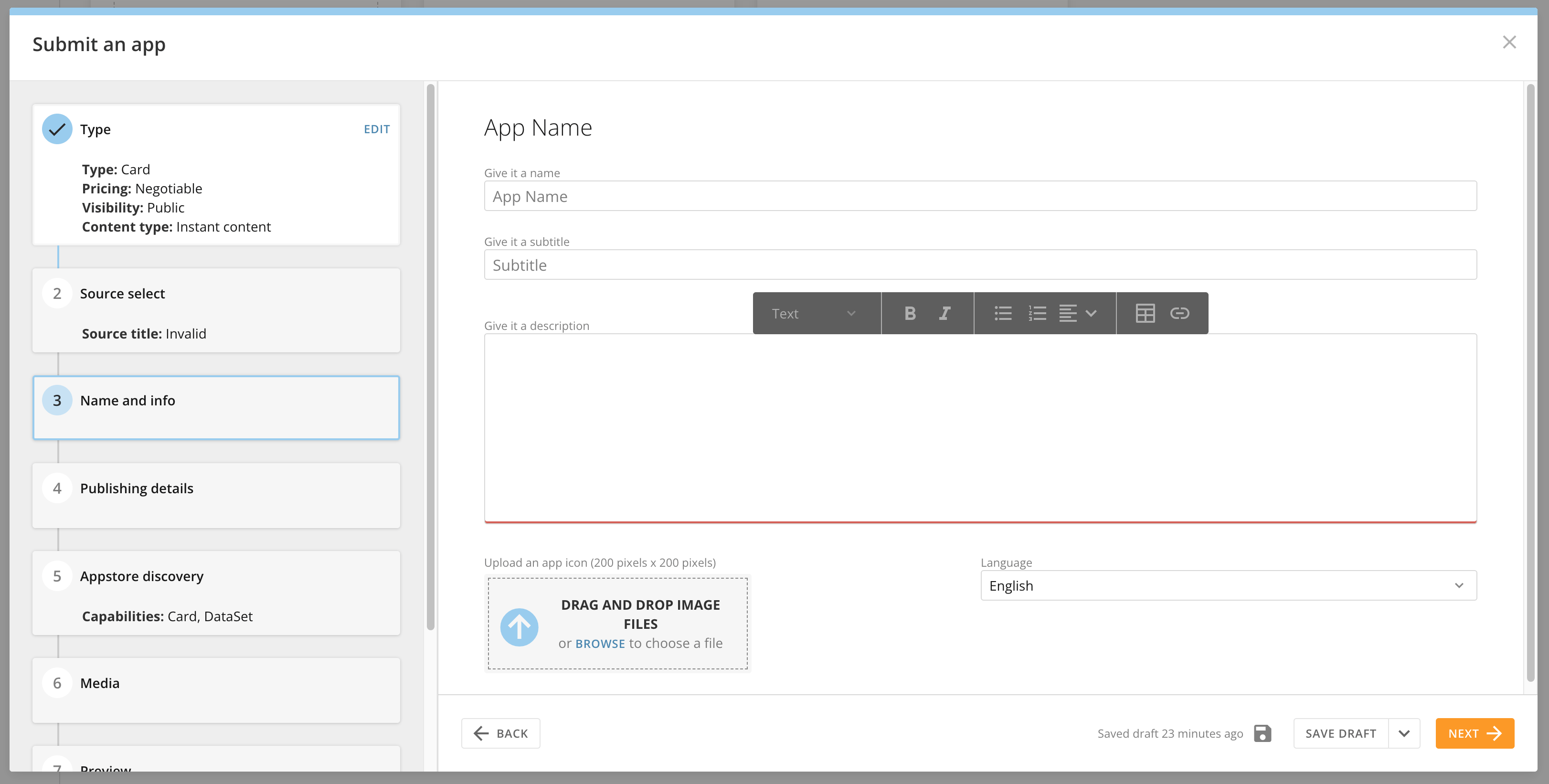
Fill out this section to help customers learn about your listing:
* Enter a name and subtitle that will display in the Appstore.
* Use the rich text editor to describe your listing.
* Upload an icon image at a minimum of 200 x 200 pixels.
* Choose the language of the item you are listing.
#### Name and Info
Fill out this section to help customers learn about your listing:
* Enter a name and subtitle that will display in the Appstore.
* Use the rich text editor to describe your listing.
* Upload an icon image at a minimum of 200 x 200 pixels.
* Choose the language of the item you are listing.
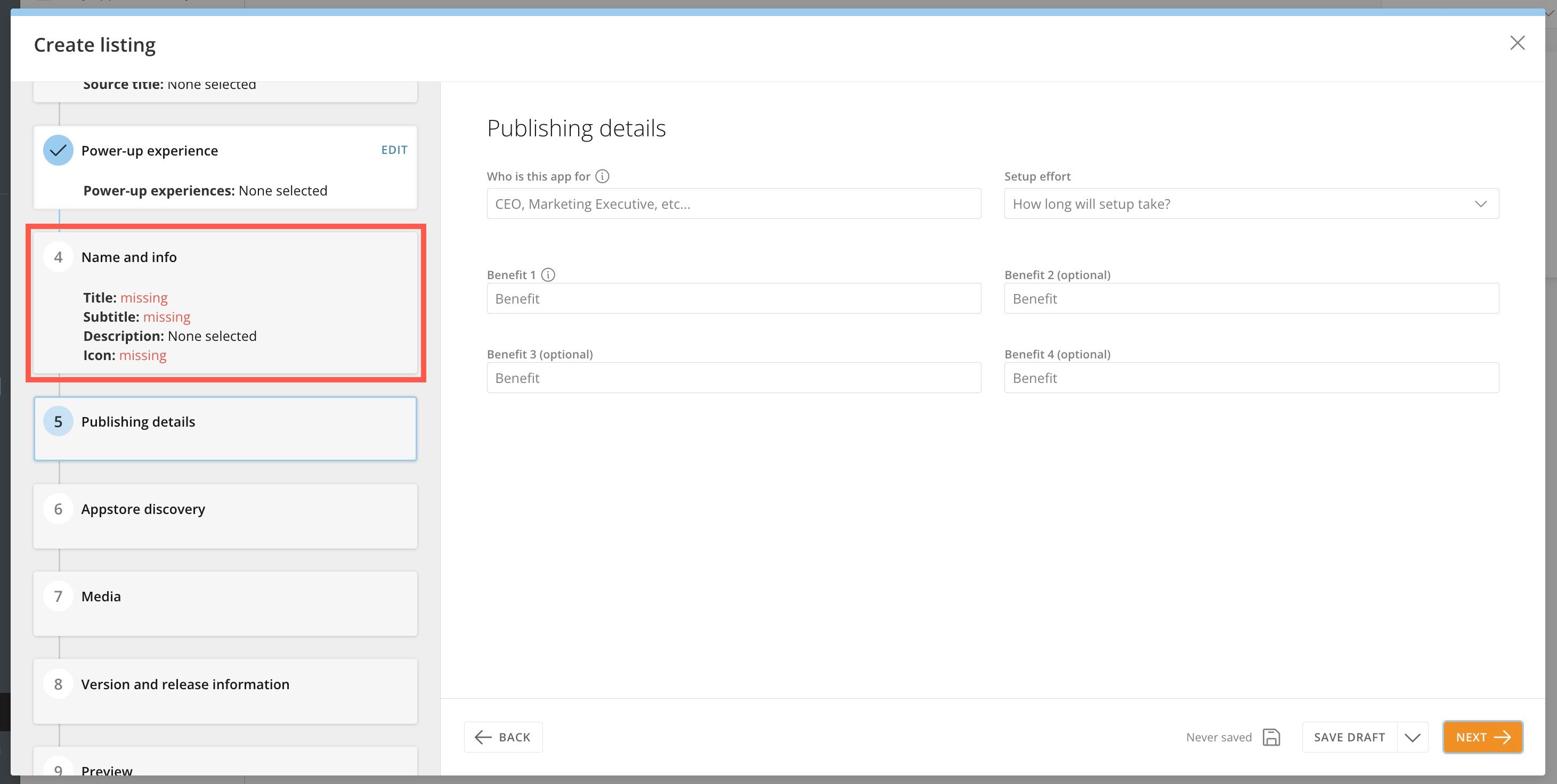
 #### Publishing Details
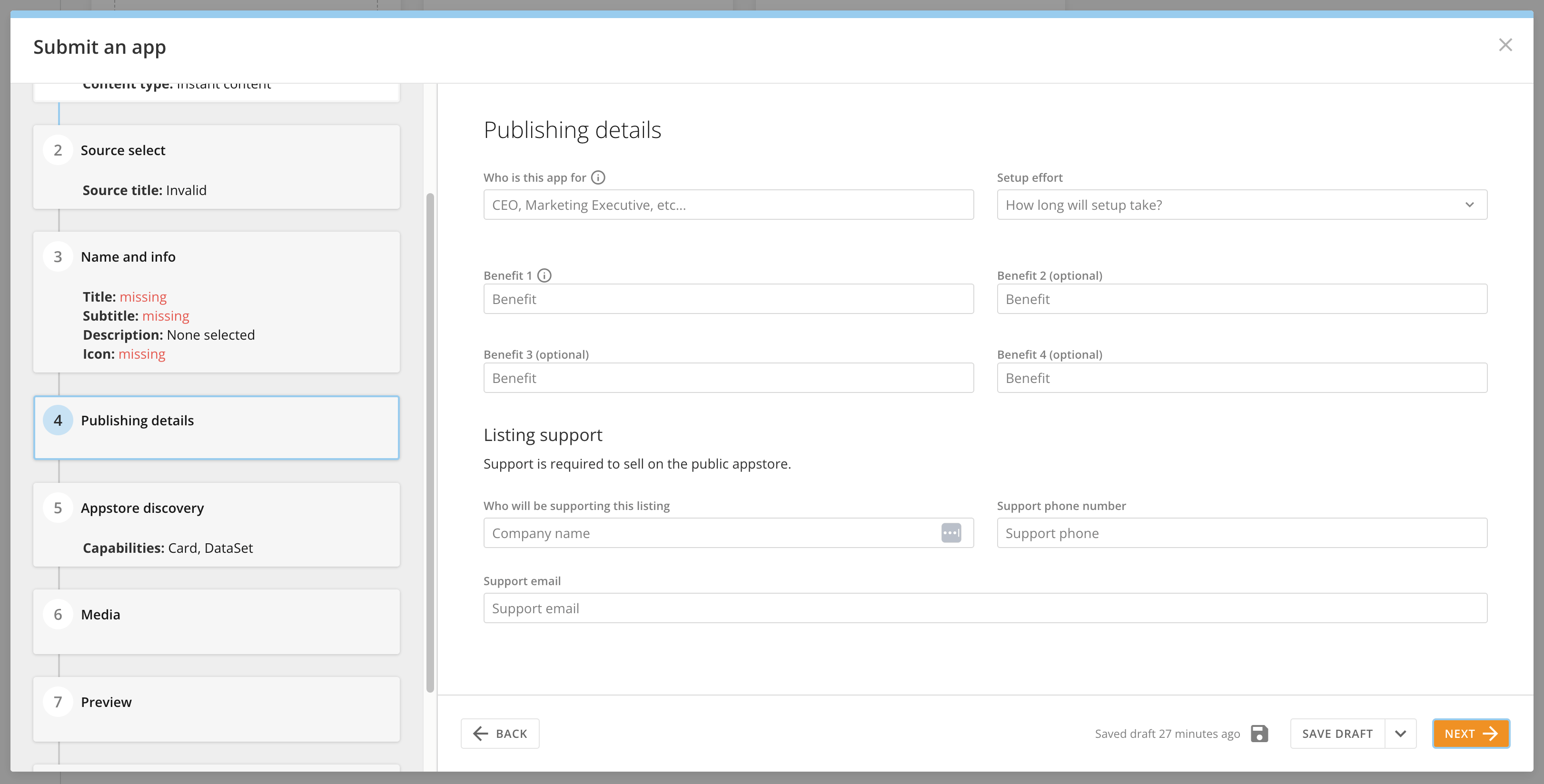
Enter information about the listing's intended audience, the setup effort required, and at least one and up to four benefits. You can also enter support information for the listing.
#### Publishing Details
Enter information about the listing's intended audience, the setup effort required, and at least one and up to four benefits. You can also enter support information for the listing.
 #### Appstore Discovery
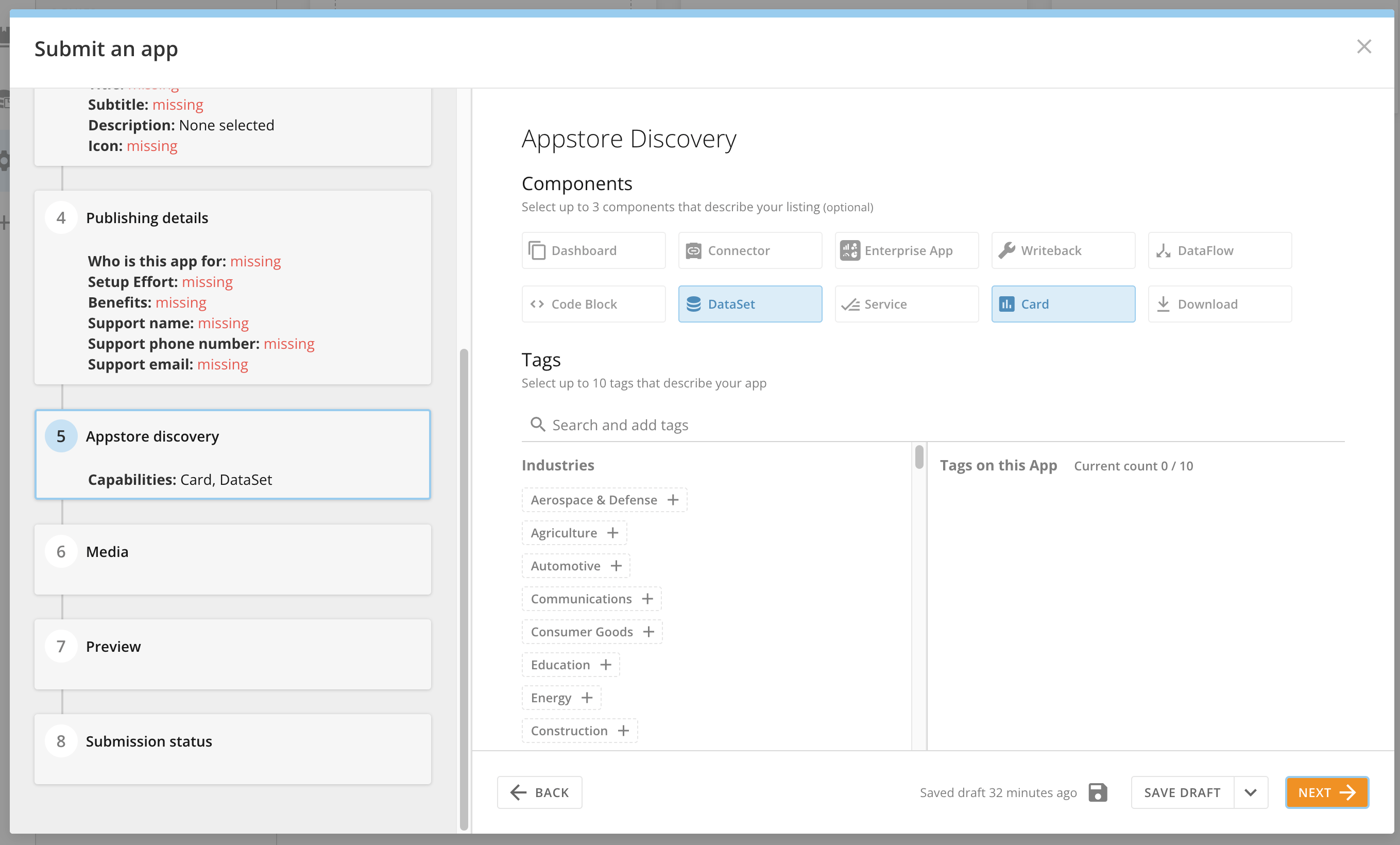
Select up to three capabilities and up to ten tags to help customers search for and find your listing on the Appstore.
#### Appstore Discovery
Select up to three capabilities and up to ten tags to help customers search for and find your listing on the Appstore.
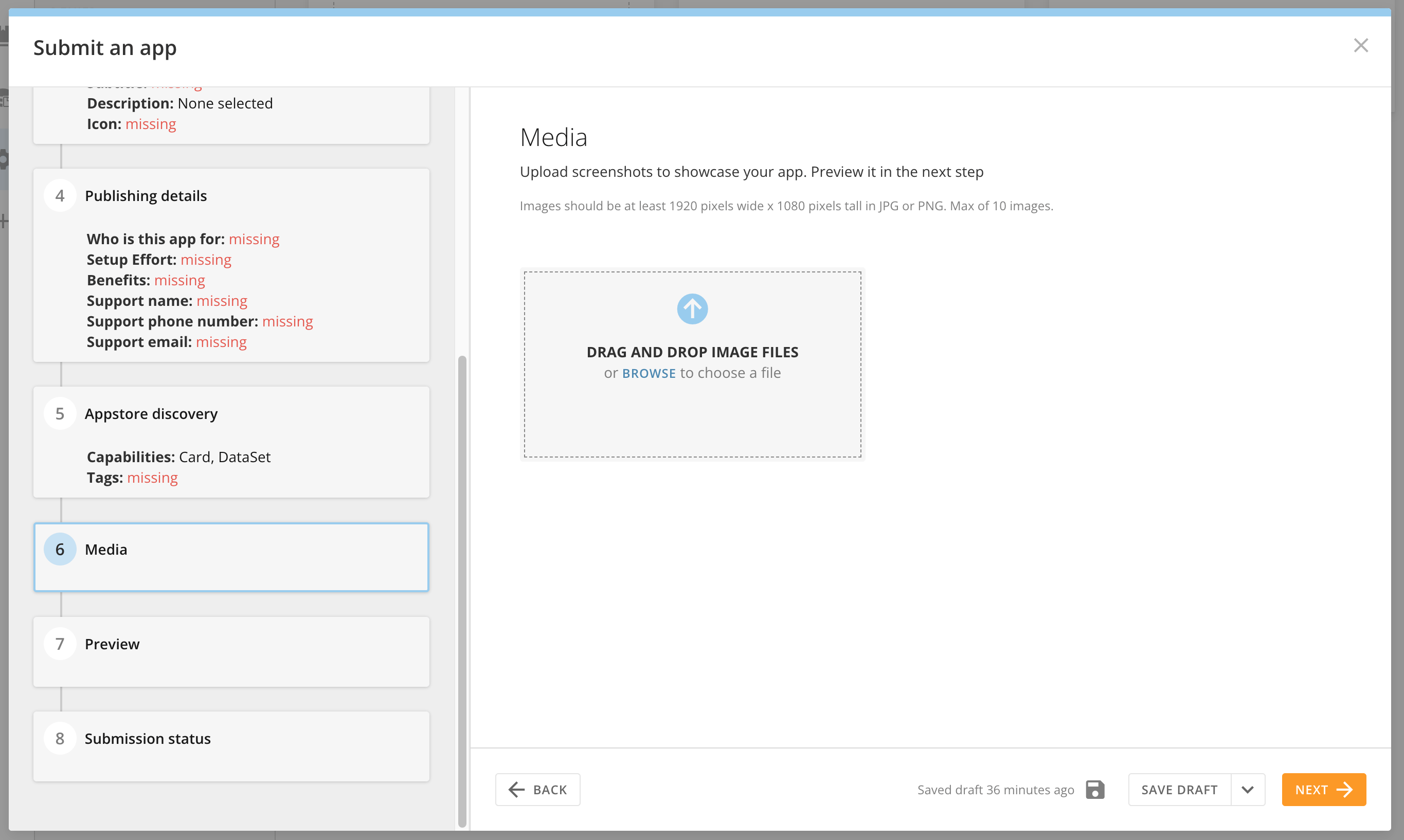
 #### Media
You can upload a maximum of 10 screenshots that are at least 1920 x 1080 pixels to showcase your listing.
We also strongly recommend that you upload a video to display first in the listing. The video must belong to the Domo YouTube channel, and the URL should be formatted this way: [https://www.youtube.com/watch?v=Q\_6qUMAObIU](https://www.youtube.com/watch?v=Q_6qUMAObIU).
#### Media
You can upload a maximum of 10 screenshots that are at least 1920 x 1080 pixels to showcase your listing.
We also strongly recommend that you upload a video to display first in the listing. The video must belong to the Domo YouTube channel, and the URL should be formatted this way: [https://www.youtube.com/watch?v=Q\_6qUMAObIU](https://www.youtube.com/watch?v=Q_6qUMAObIU).
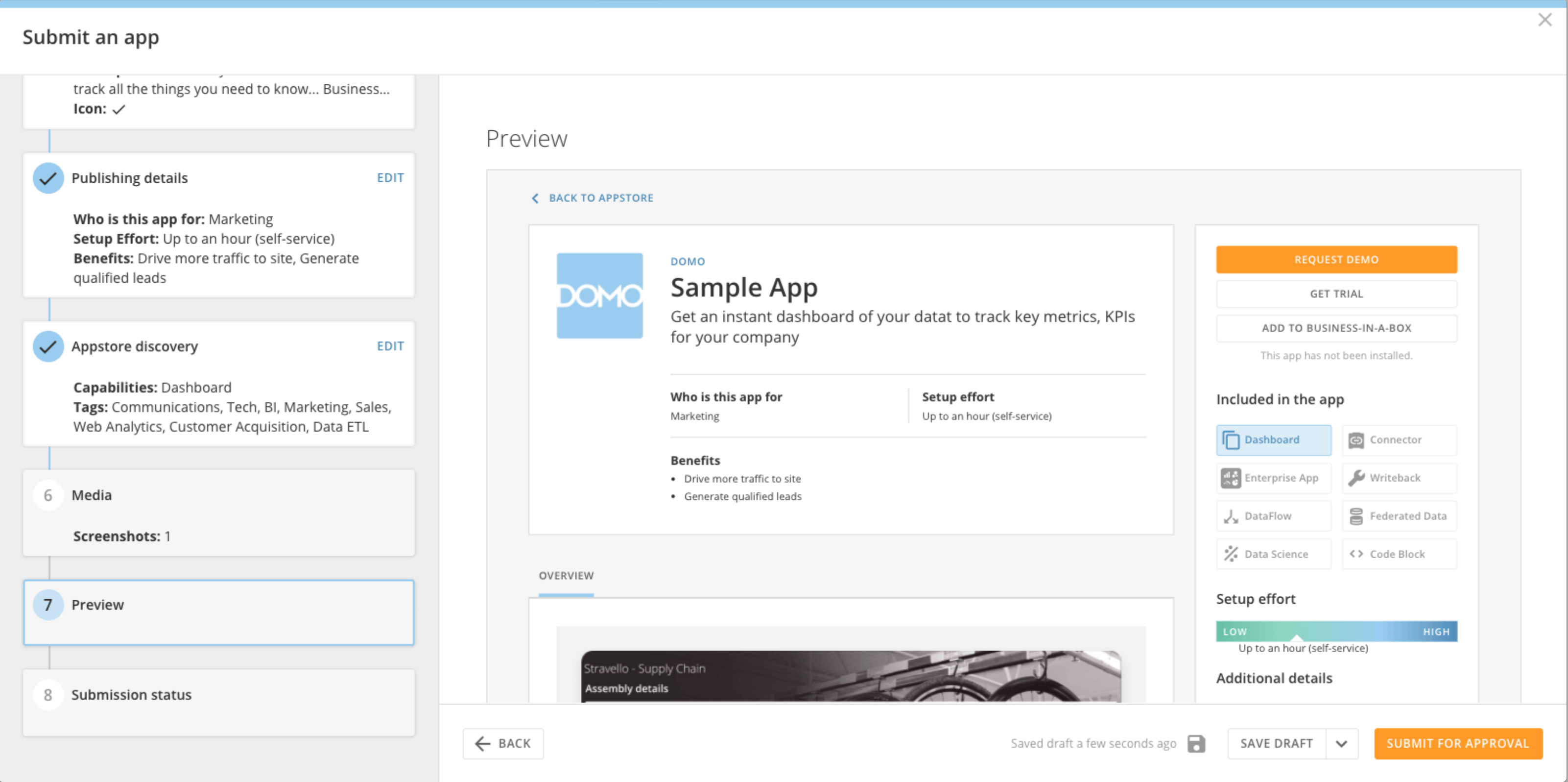
 #### Preview
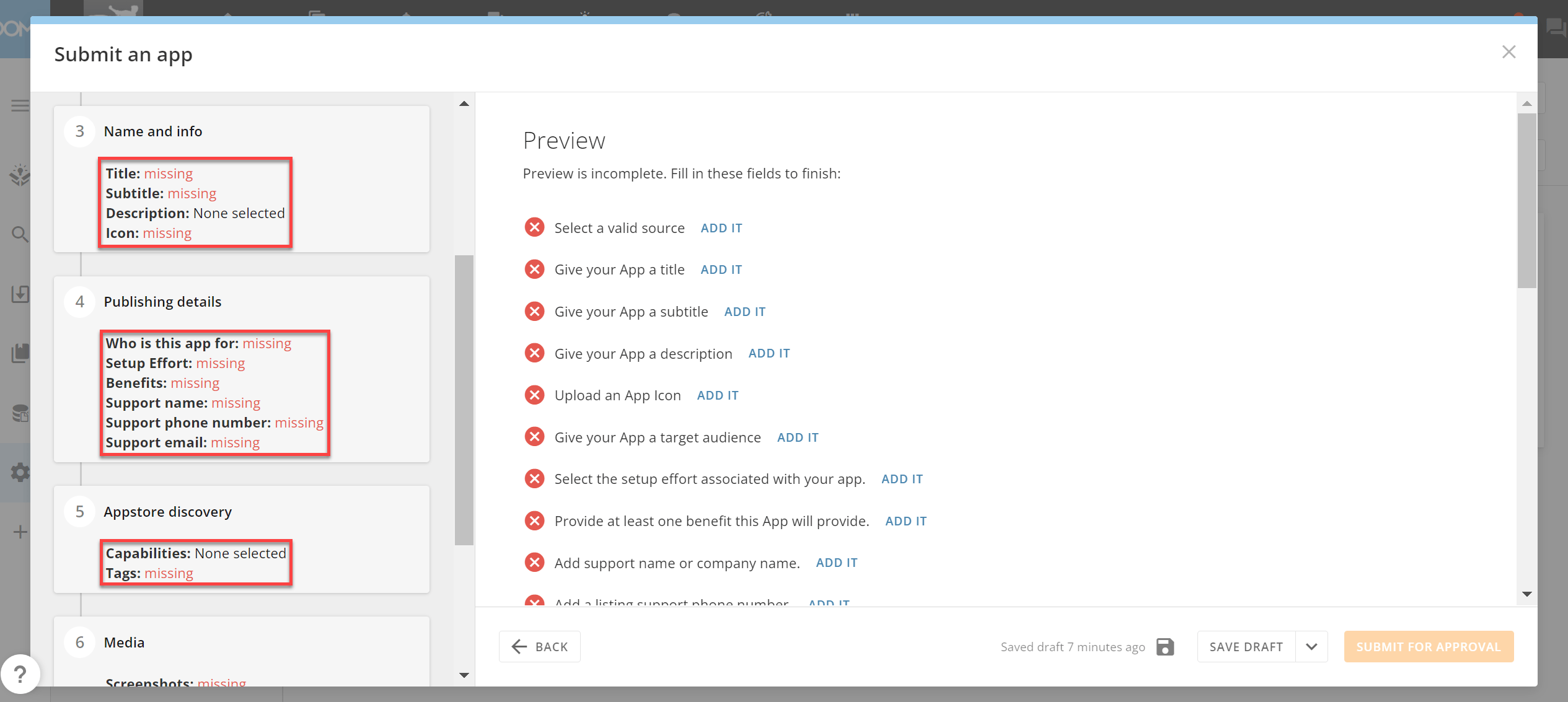
 This section also displays a list of what information is missing or incomplete throughout the modal. Select **Add it** to jump to that section and enter the information. When you have entered all of the required information, select **Submit for Approval**.
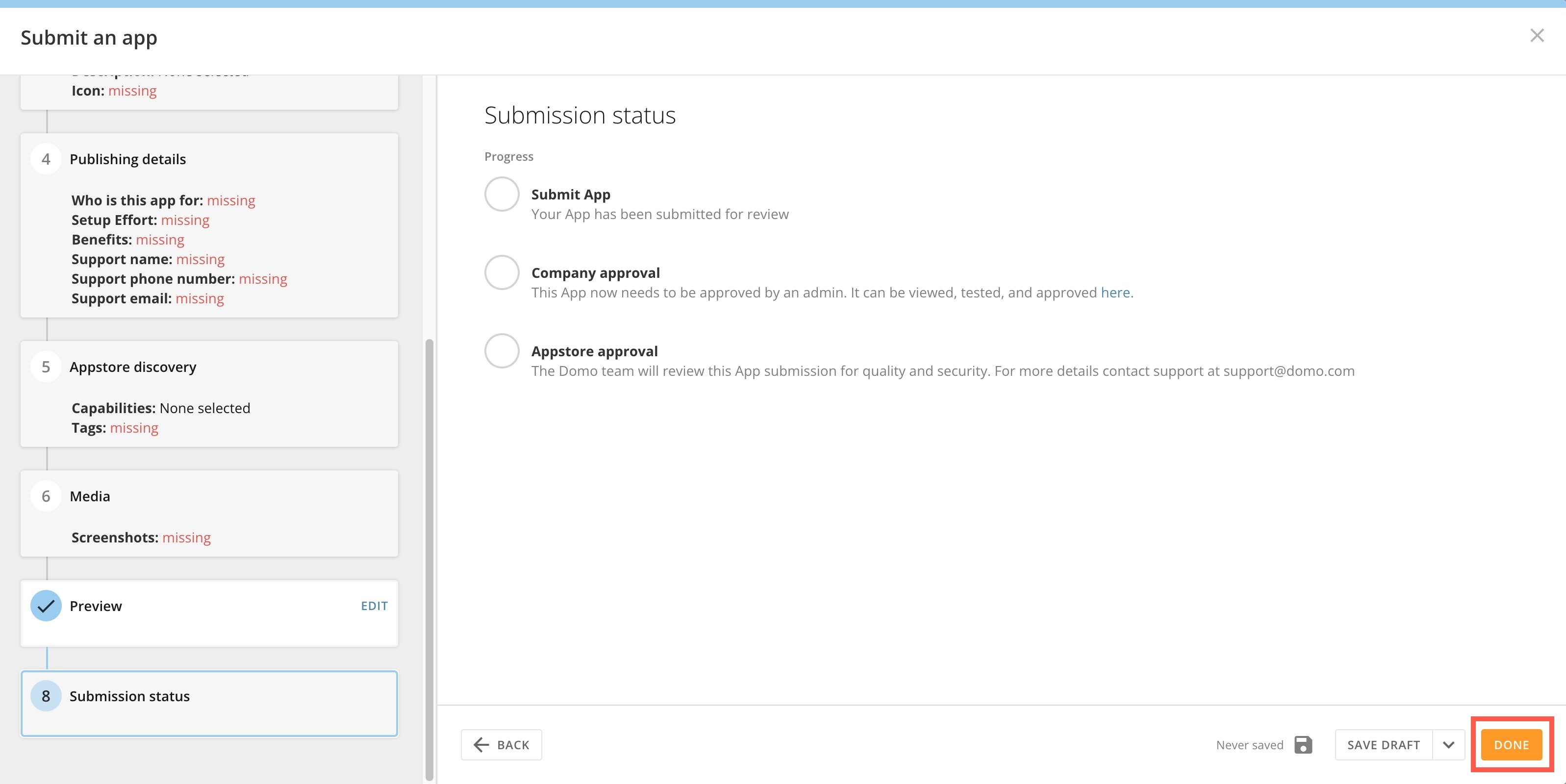
 #### Submission Status
There are three statuses in the submission process:
* **Submit app —** Your listing has been submitted for review to be placed on the Appstore.
* **Company approval —** The listing is being approved by an admin from your organization.
* **Appstore approval —** The Domo team is reviewing the listing submission for quality and security.
Select **Done** to close the modal.
#### Submission Status
There are three statuses in the submission process:
* **Submit app —** Your listing has been submitted for review to be placed on the Appstore.
* **Company approval —** The listing is being approved by an admin from your organization.
* **Appstore approval —** The Domo team is reviewing the listing submission for quality and security.
Select **Done** to close the modal.
 ### Manage Listings
In the **Manage Listings** area of the Appstore (**Appstore** > **Manage Listings**), you can access listings that have been published in your organization's Domo instance, including those you created, and view the status of your submitted listings.
Use the **Only apps created by me** checkbox to filter results in every section (Drafts, Pending, Pending Domo Approval, Live, and Denied).
### Manage Listings
In the **Manage Listings** area of the Appstore (**Appstore** > **Manage Listings**), you can access listings that have been published in your organization's Domo instance, including those you created, and view the status of your submitted listings.
Use the **Only apps created by me** checkbox to filter results in every section (Drafts, Pending, Pending Domo Approval, Live, and Denied).
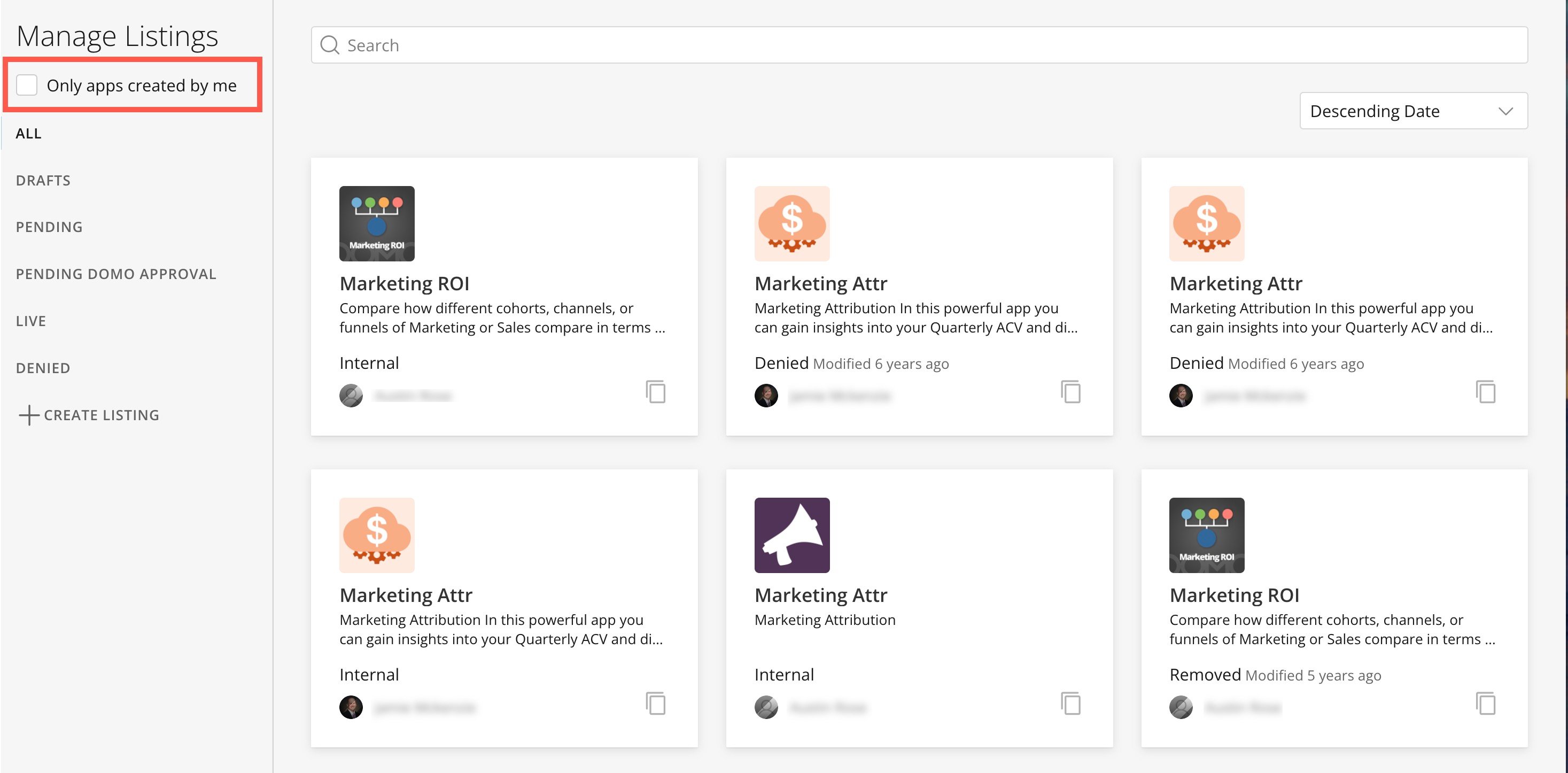 This list describes each of the sections:
* **Drafts** **—** This folder contains drafts of listings you are creating. If you [save a draft](#save_a_draft) of a listing you are submitting to the Appstore, you can find it here when you are ready to continue.
* **Pending —** Contains listings you/your organization have submitted to the Appstore and which are pending approval from your organization.
* **Pending Domo Approval —** Contains listings you/your organization have submitted to the Appstore and which are pending approval from Domo.
* **Live —** Contains listings you/your organization have submitted that are live on the Appstore.
* **Denied —** Contains listings you/your organization have submitted to the Appstore that have been denied.
This list describes each of the sections:
* **Drafts** **—** This folder contains drafts of listings you are creating. If you [save a draft](#save_a_draft) of a listing you are submitting to the Appstore, you can find it here when you are ready to continue.
* **Pending —** Contains listings you/your organization have submitted to the Appstore and which are pending approval from your organization.
* **Pending Domo Approval —** Contains listings you/your organization have submitted to the Appstore and which are pending approval from Domo.
* **Live —** Contains listings you/your organization have submitted that are live on the Appstore.
* **Denied —** Contains listings you/your organization have submitted to the Appstore that have been denied.