> ## Documentation Index
> Fetch the complete documentation index at: https://domoinc-openapi-sync-dataflows.mintlify.site/llms.txt
> Use this file to discover all available pages before exploring further.
# Advanced DataFlow Triggering
export const InlineImage = ({src, alt = '', height = '1.6em'}) => {
return ;
};
## Intro
Advanced DataFlow Triggering allows you to schedule your DataFlow to run using triggers and conditions that must be satisfied for the triggers to activate. These are highly customizable to allow you to give your end users timely access to the most recent data.
***
## Access Your DataFlow
Follow these steps to access your DataFlow and be able to make any changes described in the tasks below:
1. In the navigation header, selecting **Data**.
The Data Center displays.
2. In the left side panel, select
**DataFlows**.
3. Locate and open your DataFlow.
## Common Triggers
1. Navigate to your DataFlow. For assistance, see
[Access Your DataFlow](#access_your_dataflow).
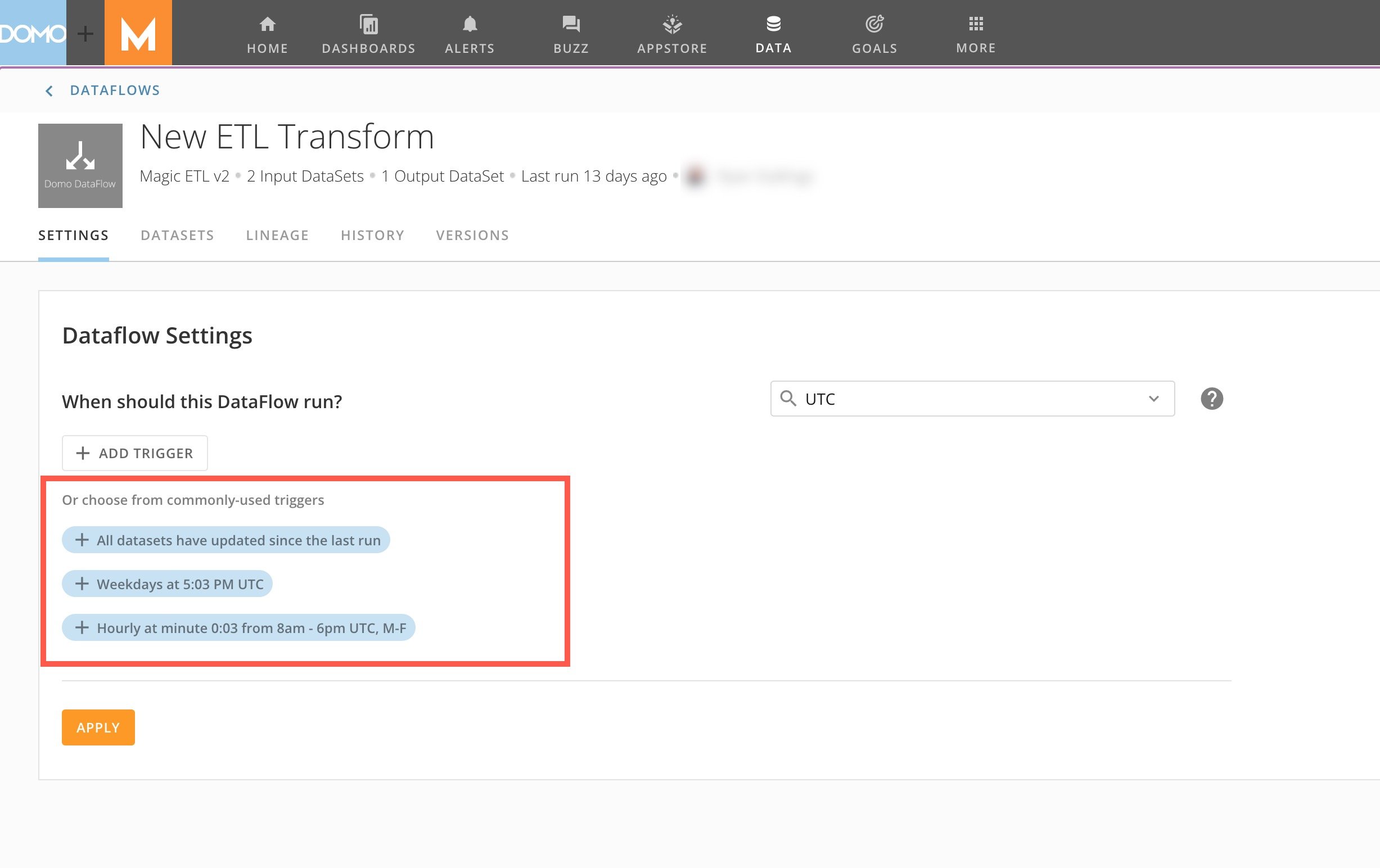
2. In the **Settings** tab of your DataFlow, locate the list of common triggers.
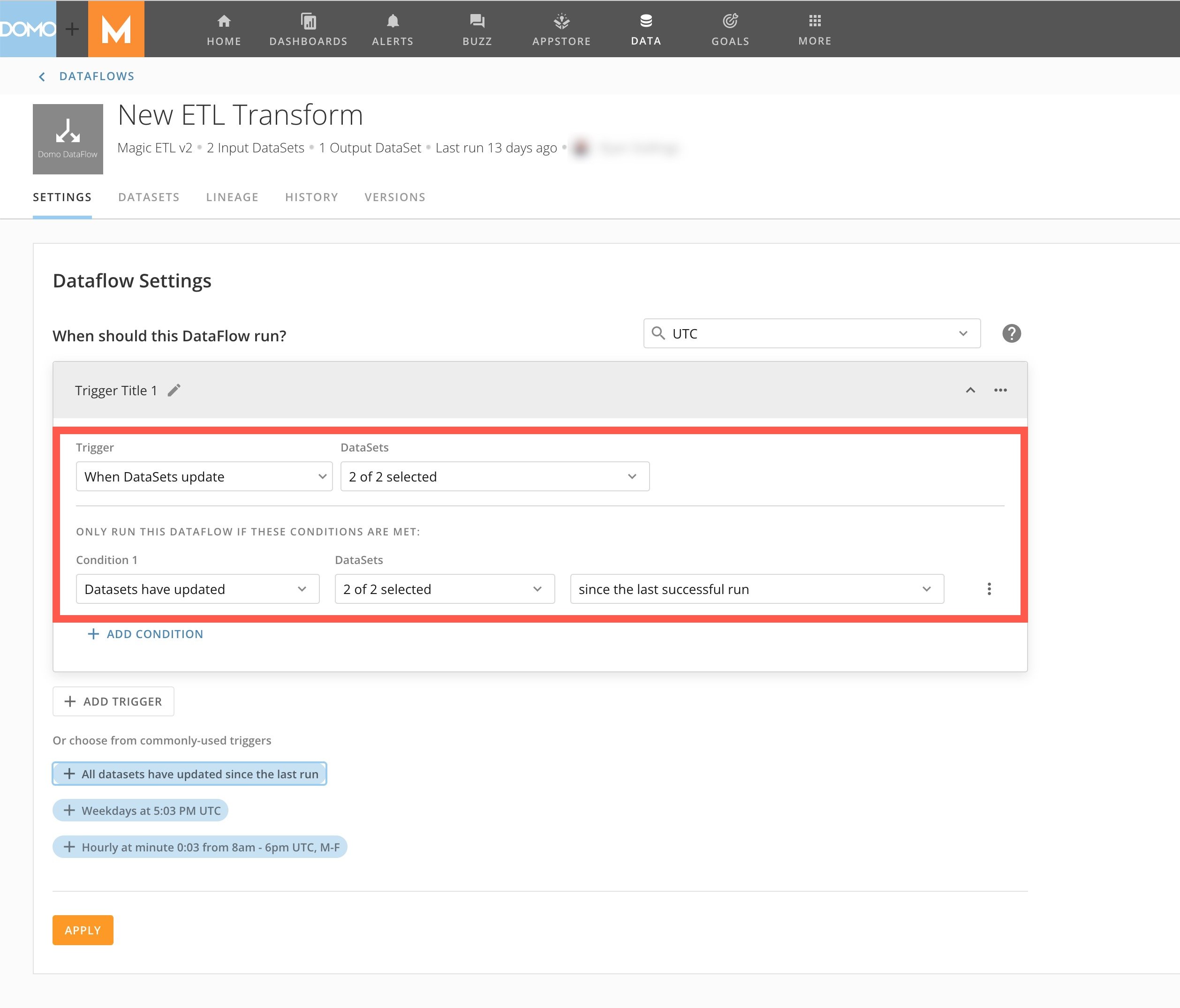
If you select one of these triggers to use, a configuration section displays with the predefined trigger and condition(s) that you can either keep or adjust.
3. (Optional) Make any adjustments to the trigger and conditions.
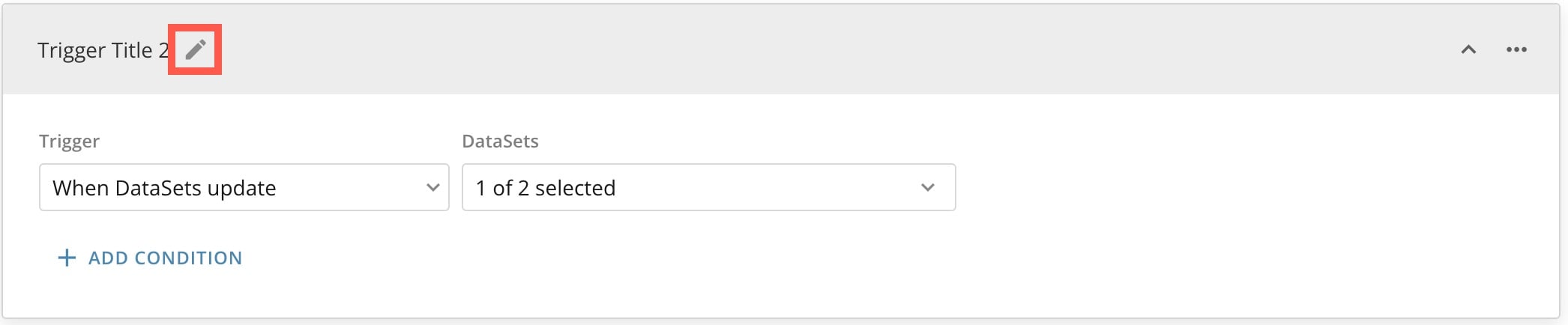
4. Give your trigger a title by selecting
**Edit** and entering the title you want.
5. Select a
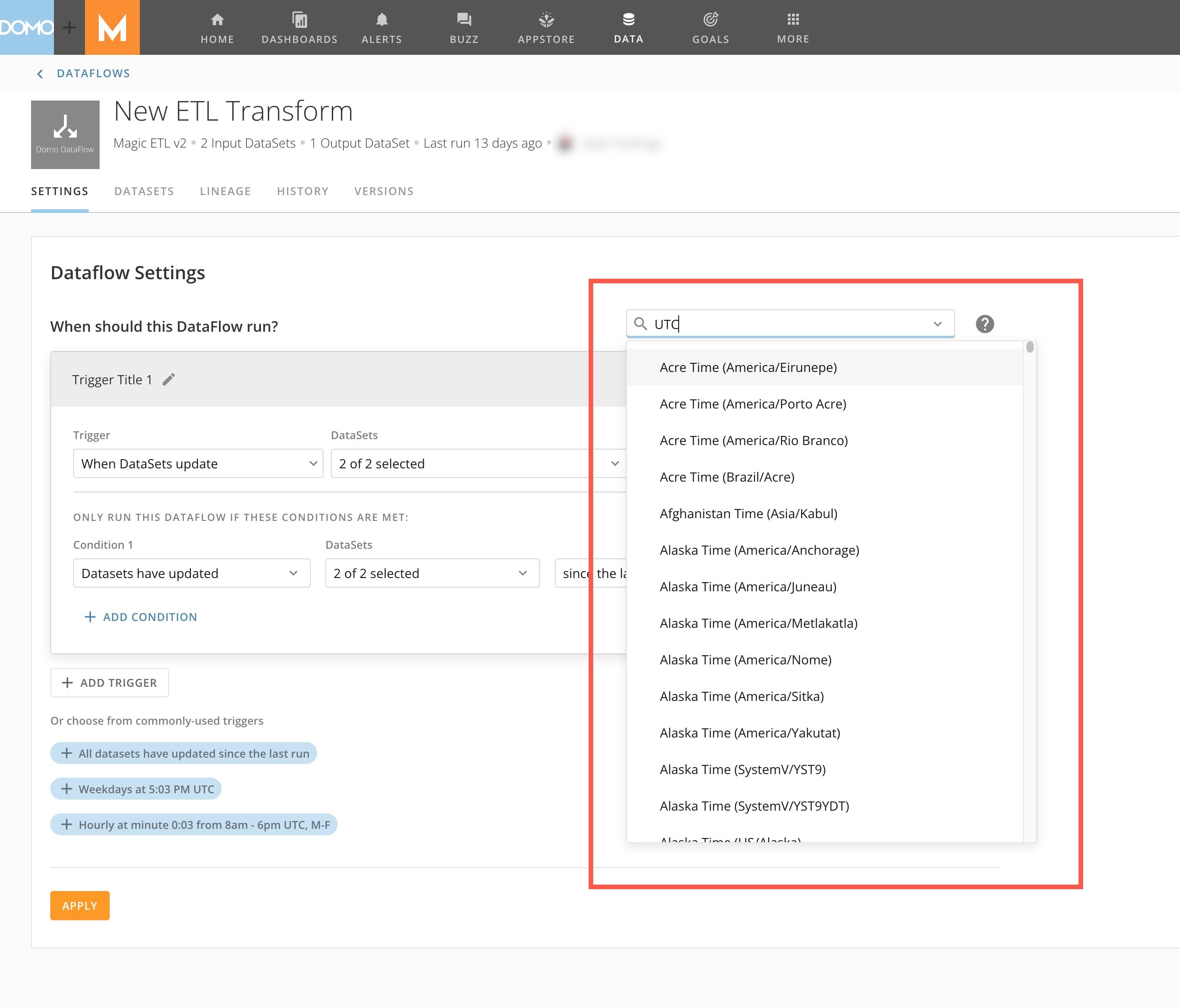
[time zone](#time_zone) for your trigger.
6. Select **Apply** to save your trigger.
## Create a New Trigger
If you would rather configure your new trigger from the beginning, follow the steps below.
1. Navigate to your DataFlow. For assistance, see
[Access Your DataFlow](#access_your_dataflow).
2. In the **Settings** tab of your DataFlow, select **+ Add Trigger**.
A configuration section displays.
3. Give your trigger a title by selecting
**Edit** and entering the title you want.
4. Select your trigger type from the **Trigger** list. The options are described below:
* **When DataSets update —** This trigger activates when any of the selected DataSets (next step) update. If conditions are defined for the trigger, these conditions are assessed before initiating the DataFlow. Without any conditions, the DataFlow initiates immediately after any selected DataSet updates.
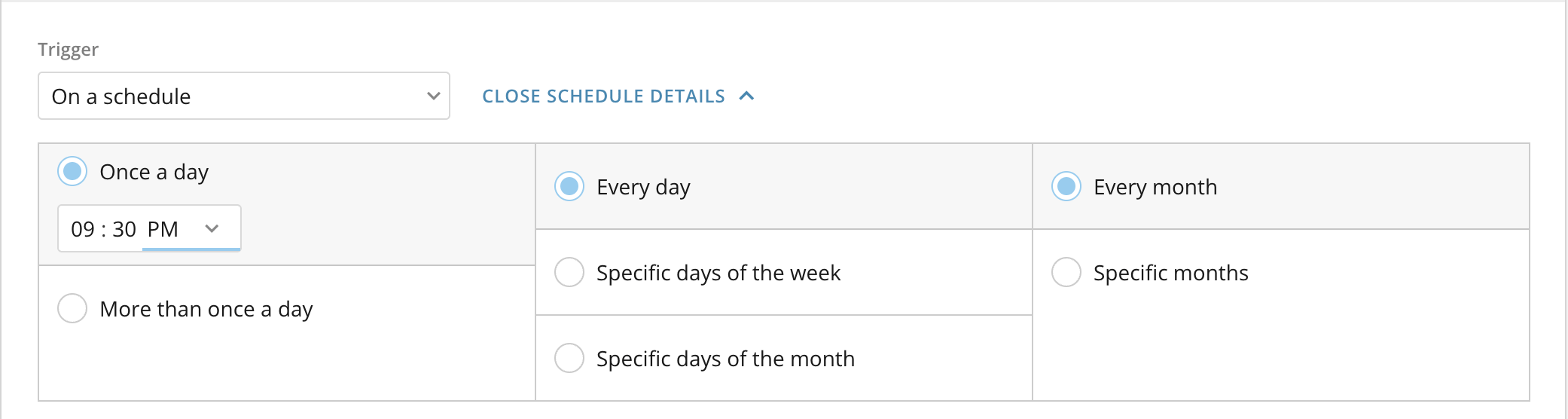
* **On a schedule —** This option allows you to create a schedule for the trigger so you can initiate the DataFlow whenever it is needed. If conditions are defined for the trigger, these conditions are assessed before initiating the DataFlow. Without any conditions, the DataFlow runs on the schedule. If you choose this option, you need to select **Open Schedule Details** and configure the schedule.
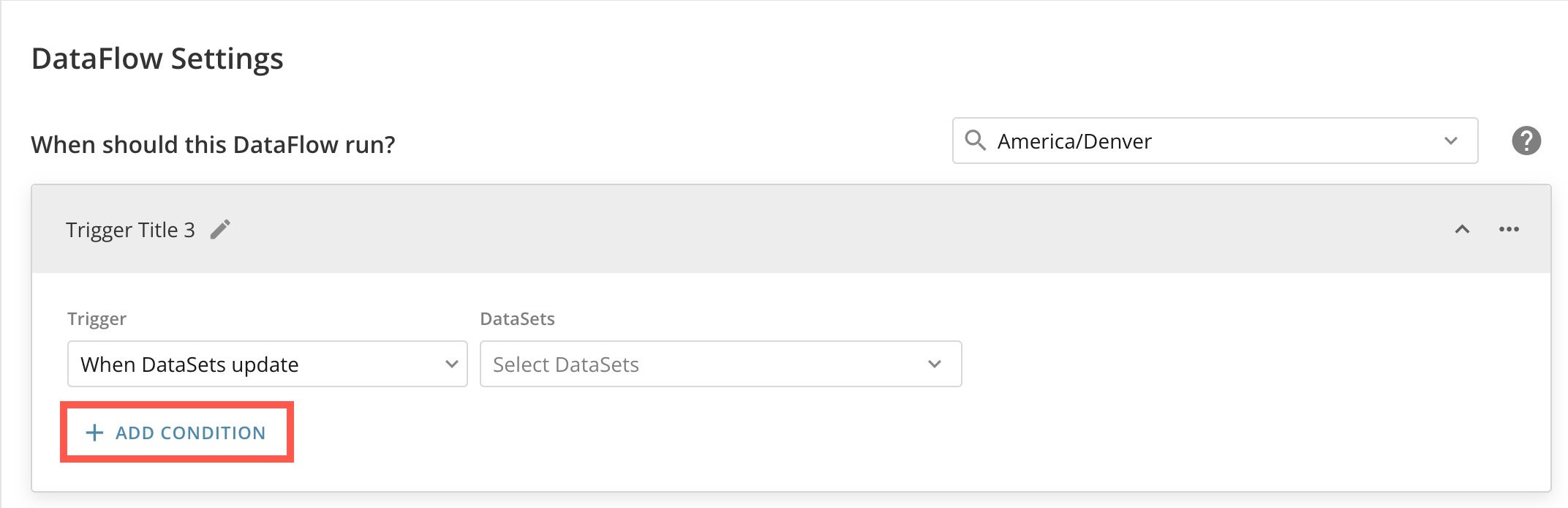
5. Select **+** **Add Condition** to configure any conditions you want satisfied before your trigger activates. You can have multiple conditions. The options for conditions are described below:
* **DataSets have updated —** This condition lets you activate the trigger when one or multiple DataSets have updated. If you choose this option, you must also specify the secondary condition for when the selected DataSets updated. These secondary conditions are described below:
1. **Since the last successful run —** This option activates the trigger if the DataSets you specify in the condition have updated since the last successful run.
2. **In the last —** This option activates the trigger if the DataSets you specify in the condition have updated in the last *insert interval*. You can make the interval a number of minutes, hours, or days.
3. **Within —** This option activates the trigger if the DataSets you specify in the condition have updated within *insert interval* of each other. You can make the interval a number of minutes, hours, or days.
* **Current time is —** This condition lets you activate the trigger when the current time is between a start time and an end time. These times are affected by the [time zone](#time_zone) you select for your trigger.
* **Current day is —** This condition lets you activate the trigger depending on the current day. The day is affected by the [time zone](#time_zone) you select for your trigger.
6. If you have not already done so, select a
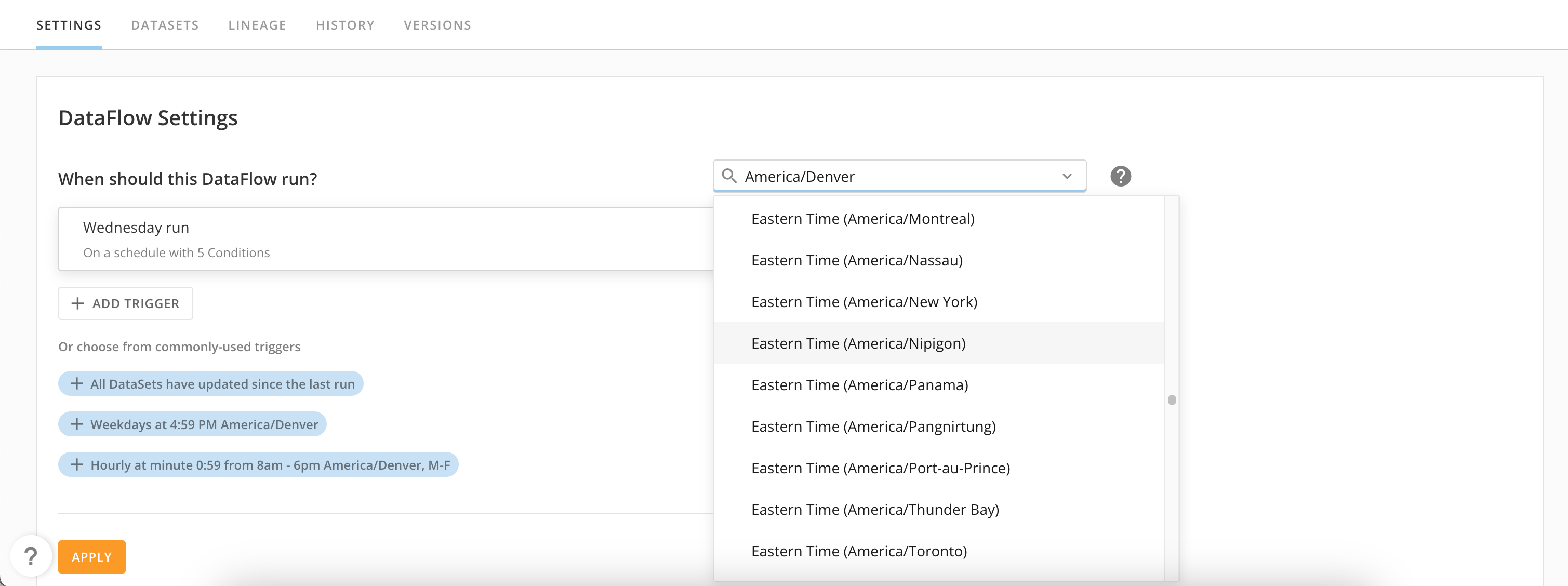
[time zone](#time_zone) for your trigger.
7. Select **Apply** to save your configuration.
### Delete a Trigger or Condition
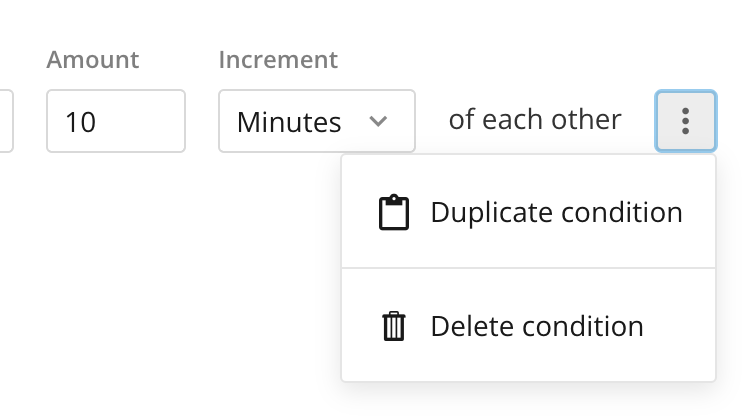
To delete a trigger or condition, select the trigger action menu or condition action menu and select **Delete**.
You can also duplicate a condition by selecting the condition action menu and selecting **Duplicate condition**.
## Configure Multiple Triggers
Domo allows you to create up to three separate triggers (each trigger can have multiple conditions). By using multiple triggers, you can optimize your DataFlow according to varied DataSets, operational hours, or specific project requirements.
To create multiple triggers, follow the process to [create a new trigger](#create_a_new_trigger) up to three times. Each trigger is independent and uses a different set of criteria. Activating one trigger does not influence the other triggers.
## Time Zone
Be sure to specify a time zone for your trigger, as this is crucial when evaluating triggers and conditions. For example, if a trigger is set to activate on Wednesdays at 1:00 PM, the conditions for that trigger are assessed based on the selected time zone.
## FAQ
If you use the **When DataSets update** trigger without specifying any conditions, the DataFlow initiates immediately after any of the DataSets you select in the trigger have been updated.
However, if you only want the DataFlow to run when all of the specified DataSets have been updated, you can use the **DataSets have updated** condition. When using this condition, the DataFlow only initiates after the trigger activates and all the DataSets you select in the condition have been updated. This condition functions similarly to an AND statement, requiring all specified DataSets to be updated before the trigger activates the DataFlow.
 If you select one of these triggers to use, a configuration section displays with the predefined trigger and condition(s) that you can either keep or adjust.
 3. (Optional) Make any adjustments to the trigger and conditions.
4. Give your trigger a title by selecting
3. (Optional) Make any adjustments to the trigger and conditions.
4. Give your trigger a title by selecting
 5. Select a
[time zone](#time_zone) for your trigger.
5. Select a
[time zone](#time_zone) for your trigger. 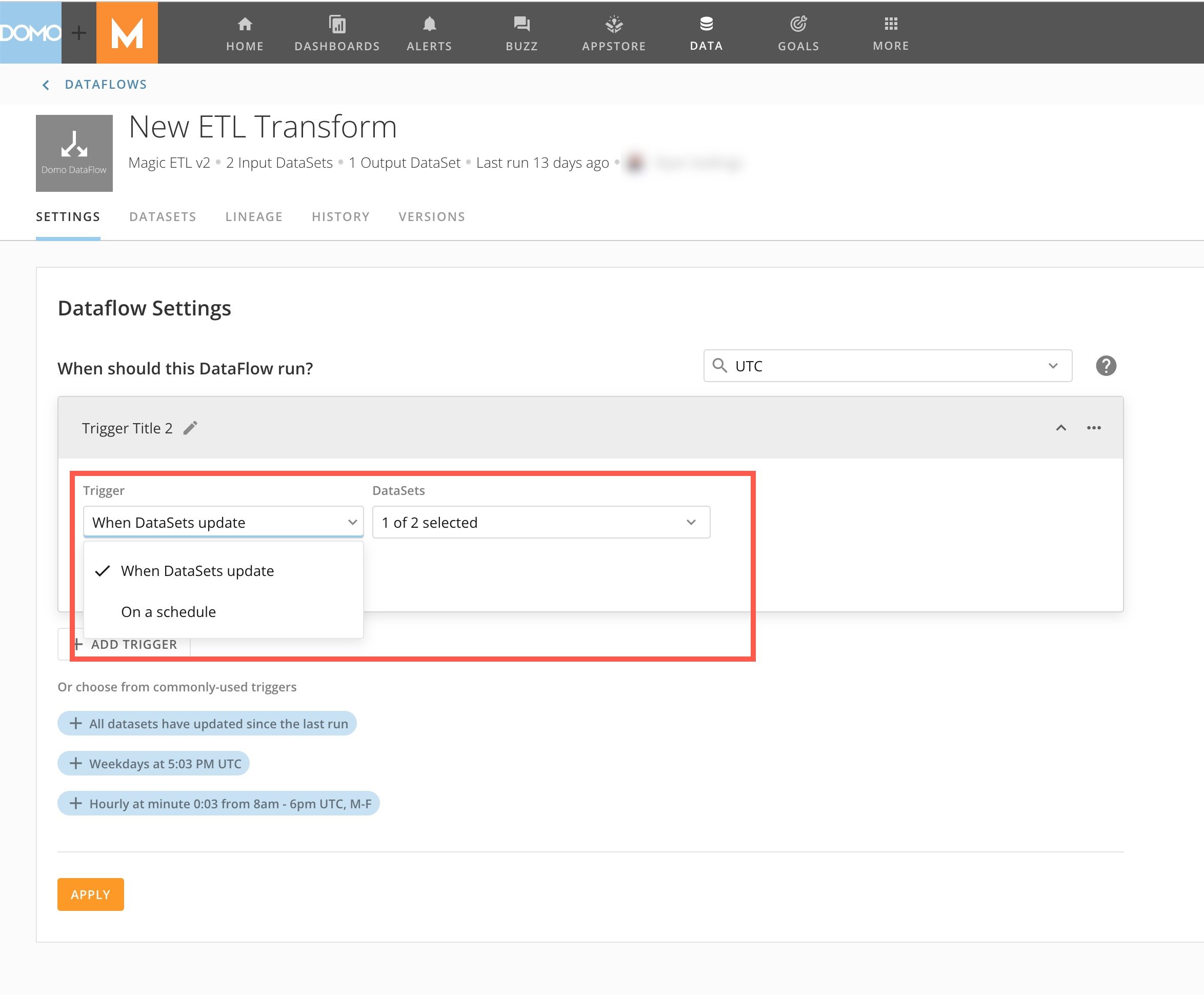 * **On a schedule —** This option allows you to create a schedule for the trigger so you can initiate the DataFlow whenever it is needed. If conditions are defined for the trigger, these conditions are assessed before initiating the DataFlow. Without any conditions, the DataFlow runs on the schedule. If you choose this option, you need to select **Open Schedule Details** and configure the schedule.
 5. Select **+** **Add Condition** to configure any conditions you want satisfied before your trigger activates. You can have multiple conditions. The options for conditions are described below:
* **DataSets have updated —** This condition lets you activate the trigger when one or multiple DataSets have updated. If you choose this option, you must also specify the secondary condition for when the selected DataSets updated. These secondary conditions are described below:
1. **Since the last successful run —** This option activates the trigger if the DataSets you specify in the condition have updated since the last successful run.
2. **In the last —** This option activates the trigger if the DataSets you specify in the condition have updated in the last *insert interval*. You can make the interval a number of minutes, hours, or days.
3. **Within —** This option activates the trigger if the DataSets you specify in the condition have updated within *insert interval* of each other. You can make the interval a number of minutes, hours, or days.
* **Current time is —** This condition lets you activate the trigger when the current time is between a start time and an end time. These times are affected by the [time zone](#time_zone) you select for your trigger.
* **Current day is —** This condition lets you activate the trigger depending on the current day. The day is affected by the [time zone](#time_zone) you select for your trigger.
5. Select **+** **Add Condition** to configure any conditions you want satisfied before your trigger activates. You can have multiple conditions. The options for conditions are described below:
* **DataSets have updated —** This condition lets you activate the trigger when one or multiple DataSets have updated. If you choose this option, you must also specify the secondary condition for when the selected DataSets updated. These secondary conditions are described below:
1. **Since the last successful run —** This option activates the trigger if the DataSets you specify in the condition have updated since the last successful run.
2. **In the last —** This option activates the trigger if the DataSets you specify in the condition have updated in the last *insert interval*. You can make the interval a number of minutes, hours, or days.
3. **Within —** This option activates the trigger if the DataSets you specify in the condition have updated within *insert interval* of each other. You can make the interval a number of minutes, hours, or days.
* **Current time is —** This condition lets you activate the trigger when the current time is between a start time and an end time. These times are affected by the [time zone](#time_zone) you select for your trigger.
* **Current day is —** This condition lets you activate the trigger depending on the current day. The day is affected by the [time zone](#time_zone) you select for your trigger.
 6. If you have not already done so, select a
[time zone](#time_zone) for your trigger.
6. If you have not already done so, select a
[time zone](#time_zone) for your trigger.
 7. Select **Apply** to save your configuration.
### Delete a Trigger or Condition
To delete a trigger or condition, select the trigger action menu
7. Select **Apply** to save your configuration.
### Delete a Trigger or Condition
To delete a trigger or condition, select the trigger action menu 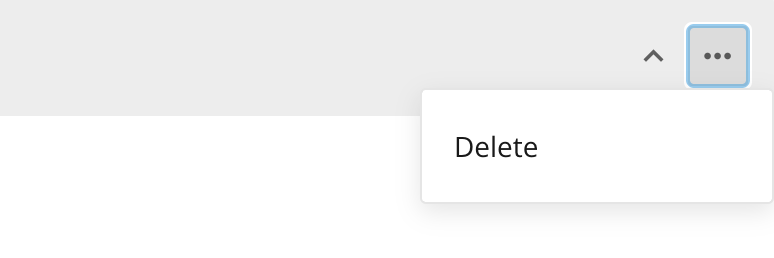 You can also duplicate a condition by selecting the condition action menu and selecting **Duplicate condition**.
 ## Configure Multiple Triggers
Domo allows you to create up to three separate triggers (each trigger can have multiple conditions). By using multiple triggers, you can optimize your DataFlow according to varied DataSets, operational hours, or specific project requirements.
To create multiple triggers, follow the process to [create a new trigger](#create_a_new_trigger) up to three times. Each trigger is independent and uses a different set of criteria. Activating one trigger does not influence the other triggers.
## Time Zone
Be sure to specify a time zone for your trigger, as this is crucial when evaluating triggers and conditions. For example, if a trigger is set to activate on Wednesdays at 1:00 PM, the conditions for that trigger are assessed based on the selected time zone.
## Configure Multiple Triggers
Domo allows you to create up to three separate triggers (each trigger can have multiple conditions). By using multiple triggers, you can optimize your DataFlow according to varied DataSets, operational hours, or specific project requirements.
To create multiple triggers, follow the process to [create a new trigger](#create_a_new_trigger) up to three times. Each trigger is independent and uses a different set of criteria. Activating one trigger does not influence the other triggers.
## Time Zone
Be sure to specify a time zone for your trigger, as this is crucial when evaluating triggers and conditions. For example, if a trigger is set to activate on Wednesdays at 1:00 PM, the conditions for that trigger are assessed based on the selected time zone.
 ## FAQ