> ## Documentation Index
> Fetch the complete documentation index at: https://domoinc-openapi-sync-dataflows.mintlify.site/llms.txt
> Use this file to discover all available pages before exploring further.
# App Studio | Overview
## Intro
App Studio is a low-code app builder that allows anyone to create, distribute, and consume apps.
App Studio levels up the interactive Domo dashboard experience you're used to. The foundation is an intuitive and highly customizable drag-and-drop interface that allows you to create app layouts. The rich themes library lets you personalize everything from cards, tables, and fonts to color palettes and icons to align your app with your brand. Customizable themes make app design approachable for non-designers.
The seamless navigational interface lets you collect all your content together in one place. Use components like tabs, buttons, card pop-ups, and natively integrated forms to create custom experiences and take actions directly from the app—actions like sending an email, triggering a DataSet, or moving to another page in the app. You can even bring in Domo Bricks to have more control over customization. App Studio also has [Forms](/s/article/000005171) natively integrated, as well as as well as customizable [app components](/s/article/000005864).
**App Studio integrations**
* App Studio integrates with Domo Everywhere so you can publish App Studio apps. See
[Publish Content to a Subscriber Instance](/s/article/360045120554) to learn more.
* App Studio also integrates with Sandbox. Learn more about
[Domo Sandbox](/s/article/4403367344023) in the Knowledge Base.
* The Forecasting Universal Model from Domo
. AI allows you to [forecast from a card](/s/article/000005567#forecast-in-a-domo-app) in your App Studio app.
### Writeback Capability
If you need to push data to a third-party application, you can add a writeback connector into your app and push data with the click of a button.
**DomoStats Reports:** Admins can order and schedule two DomoStats reports—App Studio App Pages and App Studio Apps—to learn how App Studio is being used in the instance. See [DomoStats Connector](/s/article/360043433813) for more information.
 ***
## Required Grant
You must have the following grant enabled for your role to create or edit an app in App Studio:
* Edit App (App Studio)
To learn more about grants, see [Manage User Roles and Grants](/s/article/360043438973).
**Important:** Anyone with the Manage All Cards, Pages, and Apps (App Studio) grant can see any App Studio grants in the instance, whether or not the app has been shared with them.
## Access App Studio
Access App Studio from the Domo navigation header by selecting
***
## Required Grant
You must have the following grant enabled for your role to create or edit an app in App Studio:
* Edit App (App Studio)
To learn more about grants, see [Manage User Roles and Grants](/s/article/360043438973).
**Important:** Anyone with the Manage All Cards, Pages, and Apps (App Studio) grant can see any App Studio grants in the instance, whether or not the app has been shared with them.
## Access App Studio
Access App Studio from the Domo navigation header by selecting  **Apps**.
The Apps Home displays.
**Apps**.
The Apps Home displays.
 ## Apps Home
**Note:** You can set Apps Home or a specific app as the Domo default landing page. To learn how, see [Set the Default Landing Page](/s/article/360043439093).
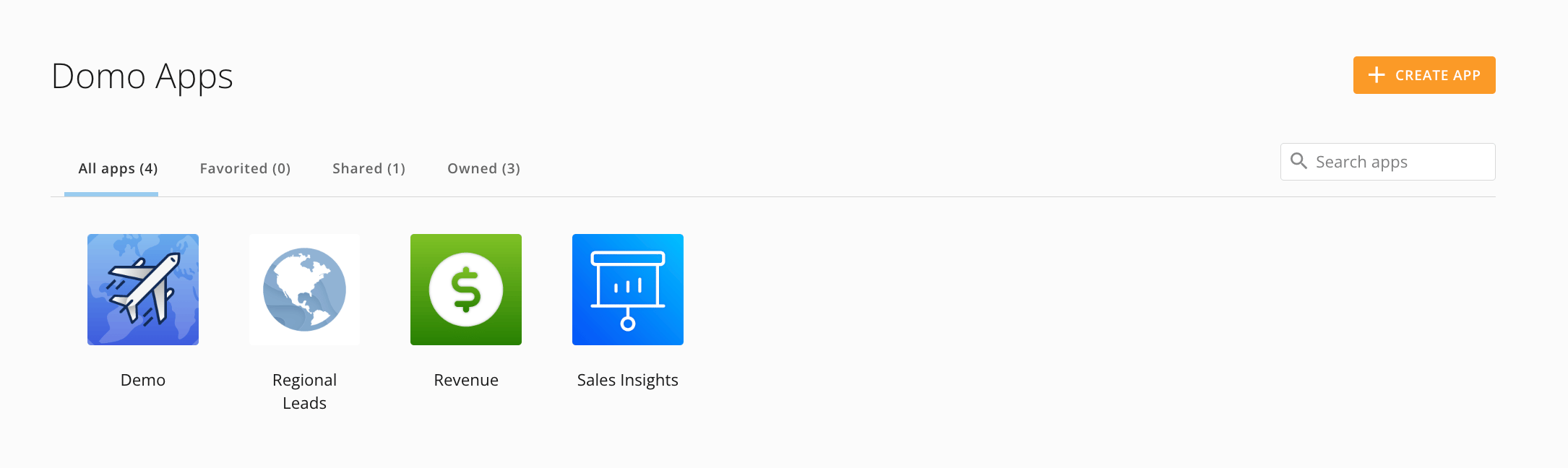
Apps Home contains four tabs/categories: **All apps**, **Favorited**, **Shared**, and **Owned**. Each tab displays a count for the number of apps in the category.
## Apps Home
**Note:** You can set Apps Home or a specific app as the Domo default landing page. To learn how, see [Set the Default Landing Page](/s/article/360043439093).
Apps Home contains four tabs/categories: **All apps**, **Favorited**, **Shared**, and **Owned**. Each tab displays a count for the number of apps in the category.
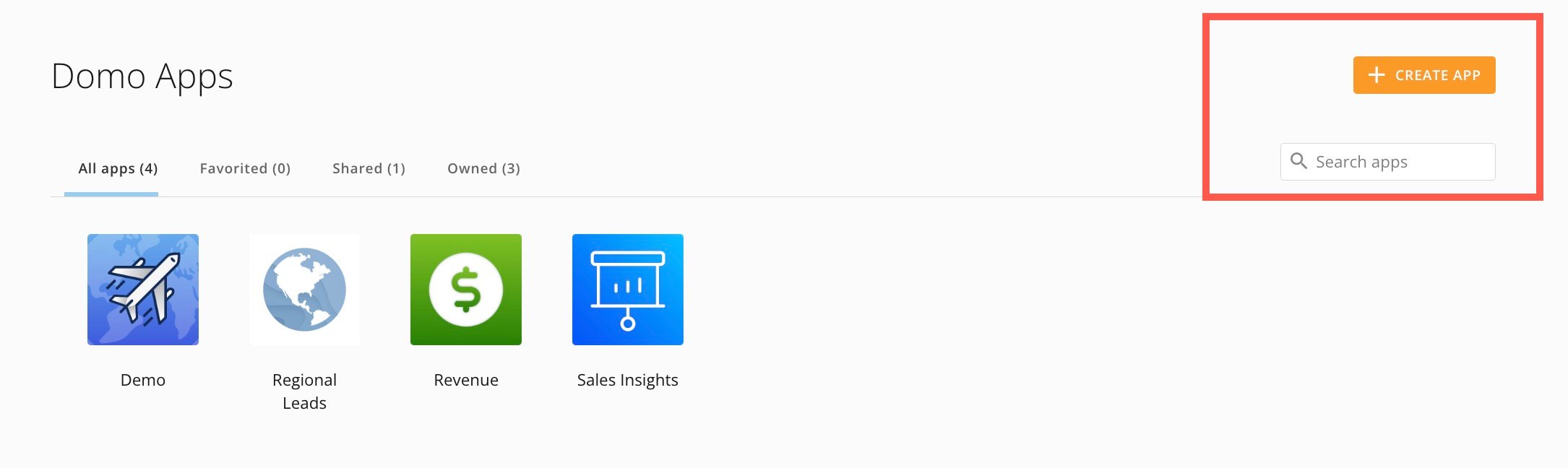
 Apps Home also has a search tool to locate an app and the **+** **Create App** option.
 ## View an App
From Apps Home, you can select an app to open it. Inside the app viewer, the [main navigation](#main-navigation) contains the following items.
## View an App
From Apps Home, you can select an app to open it. Inside the app viewer, the [main navigation](#main-navigation) contains the following items.
 | Icon | Item | Description |
| -------------------------------------------------------------------------------------------------------------------------------------------------------------------------------------------------------------------------------------------------------------------------------------------------------------------------------------------------------------------------------------------------------------------------------------------------------------------------------------------------------------------------------------------------------------------------------------------------------------------------------------------------------------------------------------------------------------------------------------------------------------------------------------------------------------------------------------------------------------------------------------------------------------------------------------------------------------------------------------------------------------------------------------------------------------------------------------------------------------------------------------------------------------------------------------------------------------------------------------------------------------------------------------------------------------------------------------------------------------------------------------------------------------------------------------------------------------------------------------------------------------------------------------------------------------------------------------------------------------------------------------------------------------------------------------------------------------------------------------------------------------------------------------------------------------------------------------------------------------------------------------------- | ----------------------- | ---------------------------------------------------------------------------------------------------------------------------------------------------------------------------------------------------------------------------------------------------------------------------------------------------------------------------------------------------------------------------------------------------------------------------------------------------------------------------------------------------------------------------------------------------------------------------------------------------------------------------------------------------------------------------------------------------------------------------------------------------------------------------------------------------------------------------------------------------------------------------------------------------------------------------------------------------------------------------------------------------------------------------------------------------------------------------------------------------------------------------------------------------------------------------------------------------------------------------------------------------------------------------------------------------------------------------------------------------------------------------------------------------------------------------------------------------------------------------------------------------------------------------------------------------------------------------------------------------------------------------------------------------------------------------------------------------------------------------------------------------------------------------------------------------------------------------------------------------------------------------------------------------------------------------------------------------------------------------------------------------------------------------------------------------------------------------------------------------------------------------------------------------------------------------------------------------------------------------------------------------------------------------------------------------------------------------------------------------------------------------------------------------------------------------------------------------------------------------------------------------------------------------------------------------------------------------------------------------------------------------------------------------------------------------------------------------------------------------------------------------------------------------------------------------------------------------------------------------------------------------------------------------------------------------------------------------------------------------------------------------------------------------------------------------------------------------------------------------------------------------------------------------------------------------------------------------------------------------------------------------------------------------------------------------------------------------------------------------------------------------------------------------------------------------------------------------------------------------------------------------------------------------------------------------------------------------------------------------------------------------------------------------------------------------------------------------------------------------------------------------------------------------------------------------------------------------------------------------------------------------------------------------------------------------------------------------------------------------------------------------------------------------------------------------------------------------------------------------------------------------------------------------------------------------------------------------------------- |
|
| Icon | Item | Description |
| -------------------------------------------------------------------------------------------------------------------------------------------------------------------------------------------------------------------------------------------------------------------------------------------------------------------------------------------------------------------------------------------------------------------------------------------------------------------------------------------------------------------------------------------------------------------------------------------------------------------------------------------------------------------------------------------------------------------------------------------------------------------------------------------------------------------------------------------------------------------------------------------------------------------------------------------------------------------------------------------------------------------------------------------------------------------------------------------------------------------------------------------------------------------------------------------------------------------------------------------------------------------------------------------------------------------------------------------------------------------------------------------------------------------------------------------------------------------------------------------------------------------------------------------------------------------------------------------------------------------------------------------------------------------------------------------------------------------------------------------------------------------------------------------------------------------------------------------------------------------------------------------- | ----------------------- | ---------------------------------------------------------------------------------------------------------------------------------------------------------------------------------------------------------------------------------------------------------------------------------------------------------------------------------------------------------------------------------------------------------------------------------------------------------------------------------------------------------------------------------------------------------------------------------------------------------------------------------------------------------------------------------------------------------------------------------------------------------------------------------------------------------------------------------------------------------------------------------------------------------------------------------------------------------------------------------------------------------------------------------------------------------------------------------------------------------------------------------------------------------------------------------------------------------------------------------------------------------------------------------------------------------------------------------------------------------------------------------------------------------------------------------------------------------------------------------------------------------------------------------------------------------------------------------------------------------------------------------------------------------------------------------------------------------------------------------------------------------------------------------------------------------------------------------------------------------------------------------------------------------------------------------------------------------------------------------------------------------------------------------------------------------------------------------------------------------------------------------------------------------------------------------------------------------------------------------------------------------------------------------------------------------------------------------------------------------------------------------------------------------------------------------------------------------------------------------------------------------------------------------------------------------------------------------------------------------------------------------------------------------------------------------------------------------------------------------------------------------------------------------------------------------------------------------------------------------------------------------------------------------------------------------------------------------------------------------------------------------------------------------------------------------------------------------------------------------------------------------------------------------------------------------------------------------------------------------------------------------------------------------------------------------------------------------------------------------------------------------------------------------------------------------------------------------------------------------------------------------------------------------------------------------------------------------------------------------------------------------------------------------------------------------------------------------------------------------------------------------------------------------------------------------------------------------------------------------------------------------------------------------------------------------------------------------------------------------------------------------------------------------------------------------------------------------------------------------------------------------------------------------------------------------------------------------------- |
|  | All Domo apps | Takes you to the [Apps Home](#apps-home). |
| — | (Conditional) App title | The title of the app—unless it is hidden. |
| — | App page(s) | All visible app pages. |
|
| All Domo apps | Takes you to the [Apps Home](#apps-home). |
| — | (Conditional) App title | The title of the app—unless it is hidden. |
| — | App page(s) | All visible app pages. |
|  | Controls | Allows you to create Filter Views and choose whether to make a Filter View the default for every app viewer. Create a Filter on a selected column and/or add a date range and graph by minute, hour, day, week, month, quarter, or year. Select **Save** to keep your Filter View or select **Clear All** to remove all Filter Views.
 **Note:** The **Clear All** button to remove all Filter Views does not appear in an embedded App Studio app. See [Embed an App](#embed-an-app) below.
|
|  | Distribute | Allows you to share the app with users and groups within Domo; you can also enter an email address to invite a new user. You can compose a message and send an email notification of the shared app. Also allows you to embed the app with Domo Everywhere. See [Embed an App](#embed-an-app) below. |
|
| Distribute | Allows you to share the app with users and groups within Domo; you can also enter an email address to invite a new user. You can compose a message and send an email notification of the shared app. Also allows you to embed the app with Domo Everywhere. See [Embed an App](#embed-an-app) below. |
|  | Details | Opens the **Details** panel. In the panel, you can see the app title and the date when the app was last updated, and view and change the owner and the app's data sources. You can also take the following actions: Select
  **Favorite** to add the app to your list of favorites in Apps Home. Select
  **Edit** to open the [app editor](#app-editor). To have this option, you must have the required grant. |
|
**Edit** to open the [app editor](#app-editor). To have this option, you must have the required grant. |
|  | AI Chat | Opens AI Chat. From here, you can start or continue a conversation with AI Chat and learn more about the data and cards powering your app. You can hide or change the order of the AI Chat feature by opening the [app editor](#app-editor) and going to
  **Pages and navigation** > **Configuration** (tab) > **Navigation Buttons.** Learn more about using [AI Chat](/s/article/000005539). |
## Create an App
1. From
[Apps Home](#apps-home), select **+** **Create App**.
**Pages and navigation** > **Configuration** (tab) > **Navigation Buttons.** Learn more about using [AI Chat](/s/article/000005539). |
## Create an App
1. From
[Apps Home](#apps-home), select **+** **Create App**.
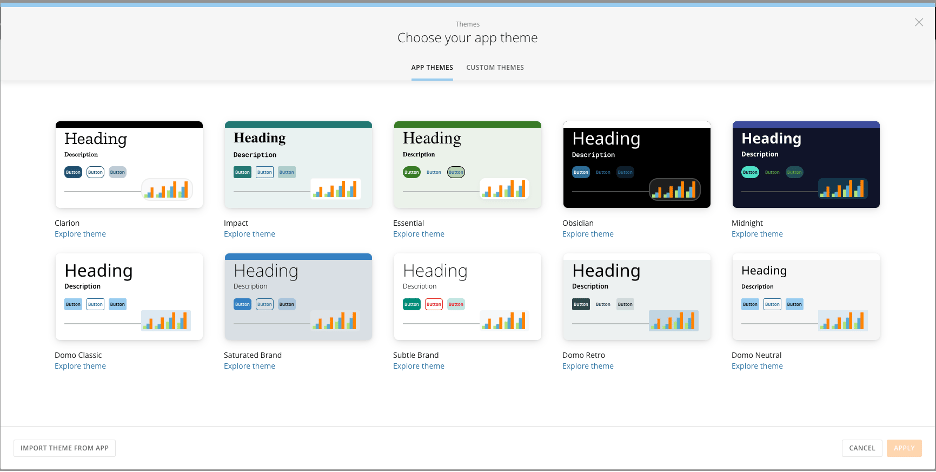
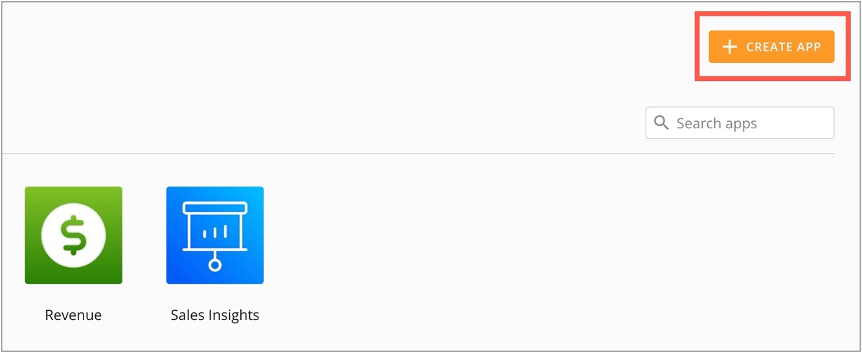 App Studio opens and the **Themes** modal displays.
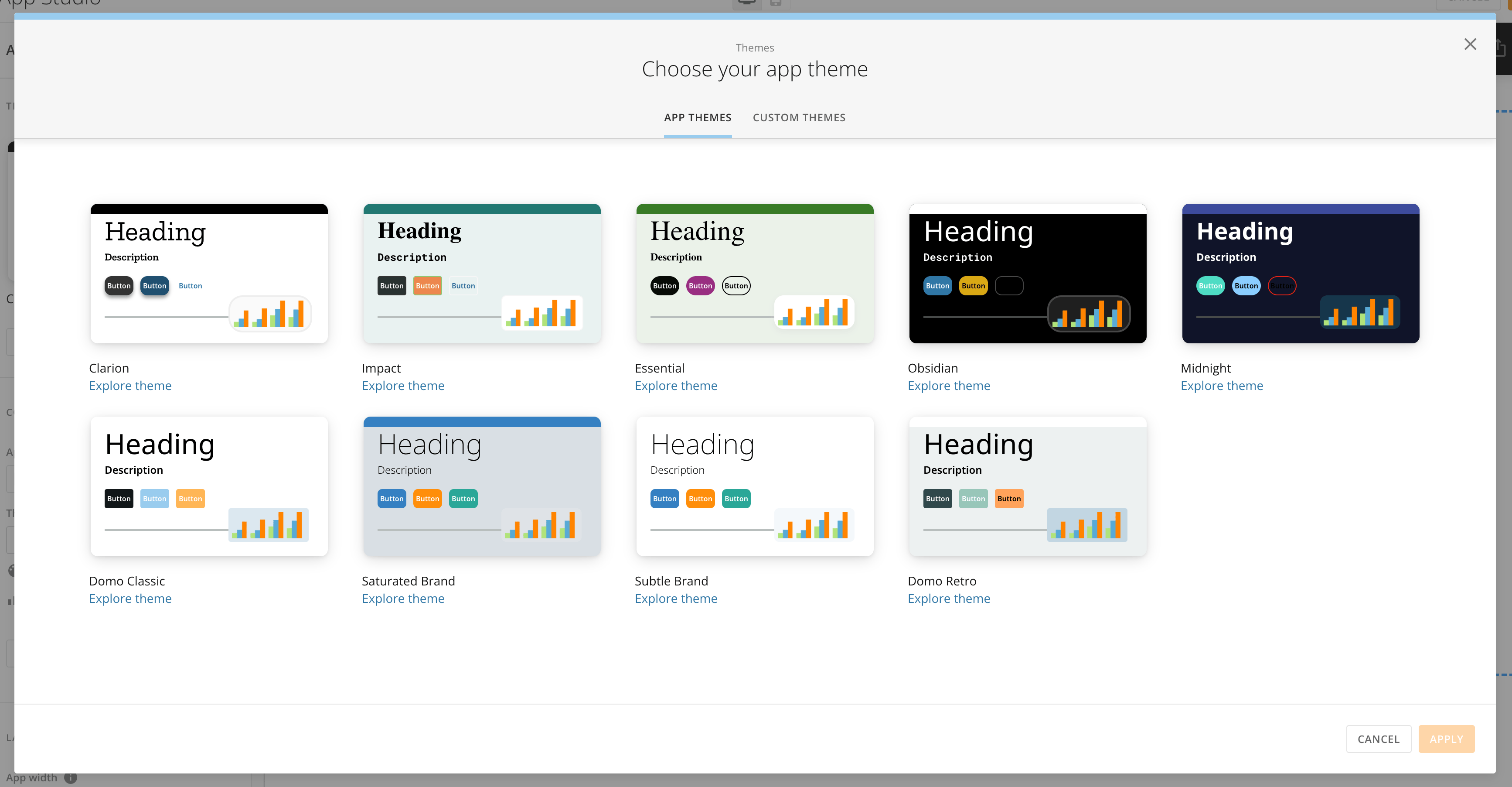 2. Select an app theme or custom theme and select **Apply** to open the app editor.
Learn more about [themes](/s/article/000005543) and the [app editor](#app-editor).
3. In the app editor, edit the
[app theme](/s/article/000005543#app-themes) and [configuration](#app-configuration) and design your app [pages](#pages-and-navigation).
4. Add
[elements](#add-actions-and-elements) like cards, forms, and workflows and [actions](#add-actions-and-elements) like buttons to your app.
5. Select **Save** in the editor's top navigation to keep your changes and display your app in the [Apps Home](#apps-home).
## Duplicate an App
When creating a new app with a similar configuration, you can duplicate an existing app to retain its components, structure, and design. Follow the steps below to duplicate an existing app.
1. From
[Apps Home](#apps-home), hover over the app you want to duplicate to display and select the vertical three-dot menu.
2. Select an app theme or custom theme and select **Apply** to open the app editor.
Learn more about [themes](/s/article/000005543) and the [app editor](#app-editor).
3. In the app editor, edit the
[app theme](/s/article/000005543#app-themes) and [configuration](#app-configuration) and design your app [pages](#pages-and-navigation).
4. Add
[elements](#add-actions-and-elements) like cards, forms, and workflows and [actions](#add-actions-and-elements) like buttons to your app.
5. Select **Save** in the editor's top navigation to keep your changes and display your app in the [Apps Home](#apps-home).
## Duplicate an App
When creating a new app with a similar configuration, you can duplicate an existing app to retain its components, structure, and design. Follow the steps below to duplicate an existing app.
1. From
[Apps Home](#apps-home), hover over the app you want to duplicate to display and select the vertical three-dot menu.
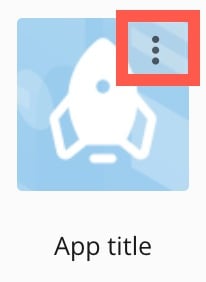 2. In the menu, select
 **Duplicate**.
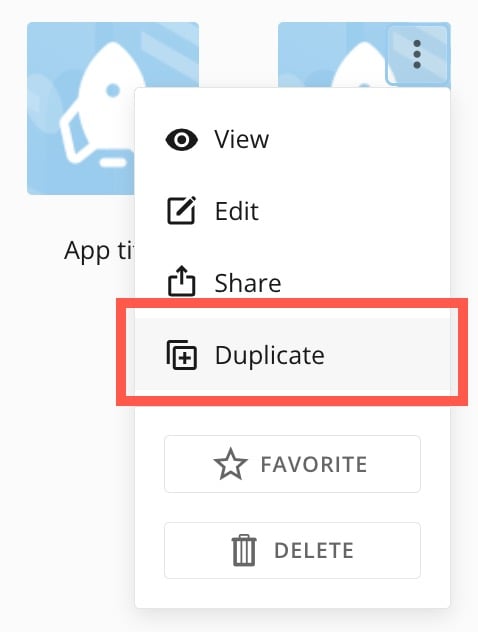 The **Duplicate app** modal displays.
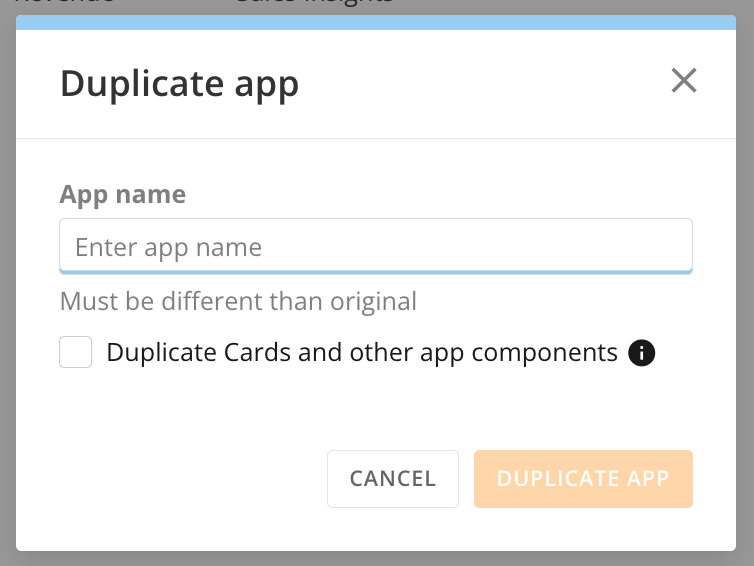 3. Enter a name for your new app. The name must be different from the original.
4. (Optional) Check the box labeled **Duplicate Cards and other app components** to duplicate each item in your new app, or leave the box unchecked to include the original items in your new app.
5. Select **Duplicate App** to create your new app.
A progress bar displays while your app is created.
3. Enter a name for your new app. The name must be different from the original.
4. (Optional) Check the box labeled **Duplicate Cards and other app components** to duplicate each item in your new app, or leave the box unchecked to include the original items in your new app.
5. Select **Duplicate App** to create your new app.
A progress bar displays while your app is created.
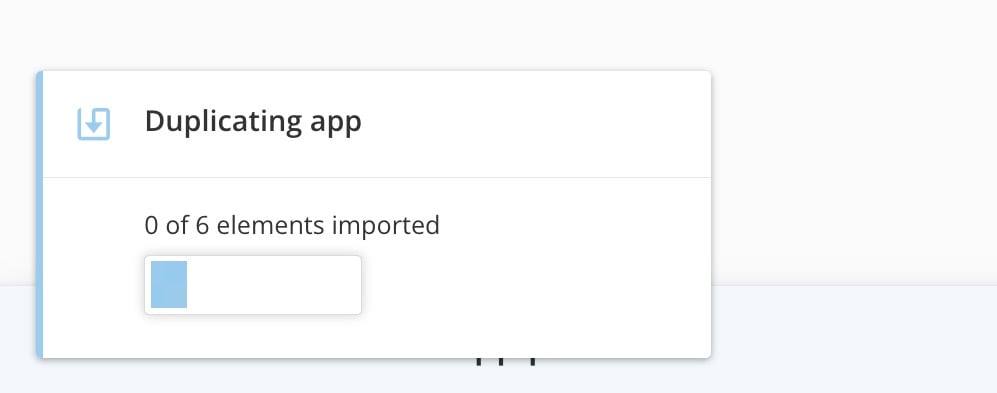 Your new app displays in Apps Home by alphabetical title.
## Embed an App
**Important:** The following items are not currently supported for embedded apps.
* Button pop-ups
* Workflows widget
* Queues widget
The following field data types are not supported for public embed:
* Account
* Person
* Groups
* DataSet
Follow these steps to embed an app you have access to:
1. From the
[app viewer](#view-an-app), select
Your new app displays in Apps Home by alphabetical title.
## Embed an App
**Important:** The following items are not currently supported for embedded apps.
* Button pop-ups
* Workflows widget
* Queues widget
The following field data types are not supported for public embed:
* Account
* Person
* Groups
* DataSet
Follow these steps to embed an app you have access to:
1. From the
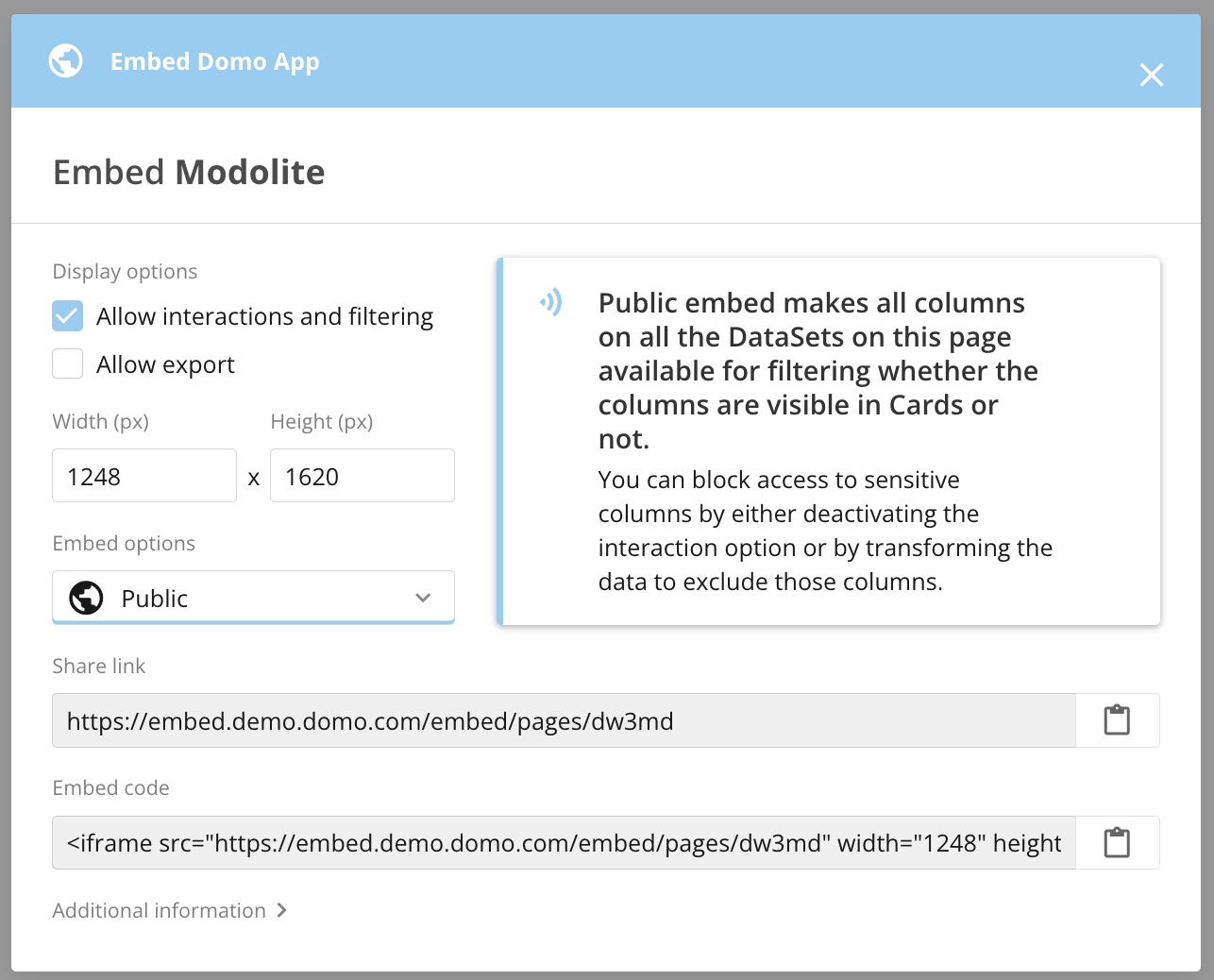
[app viewer](#view-an-app), select  **Distribute** > **Embed app** to display the embed modal.
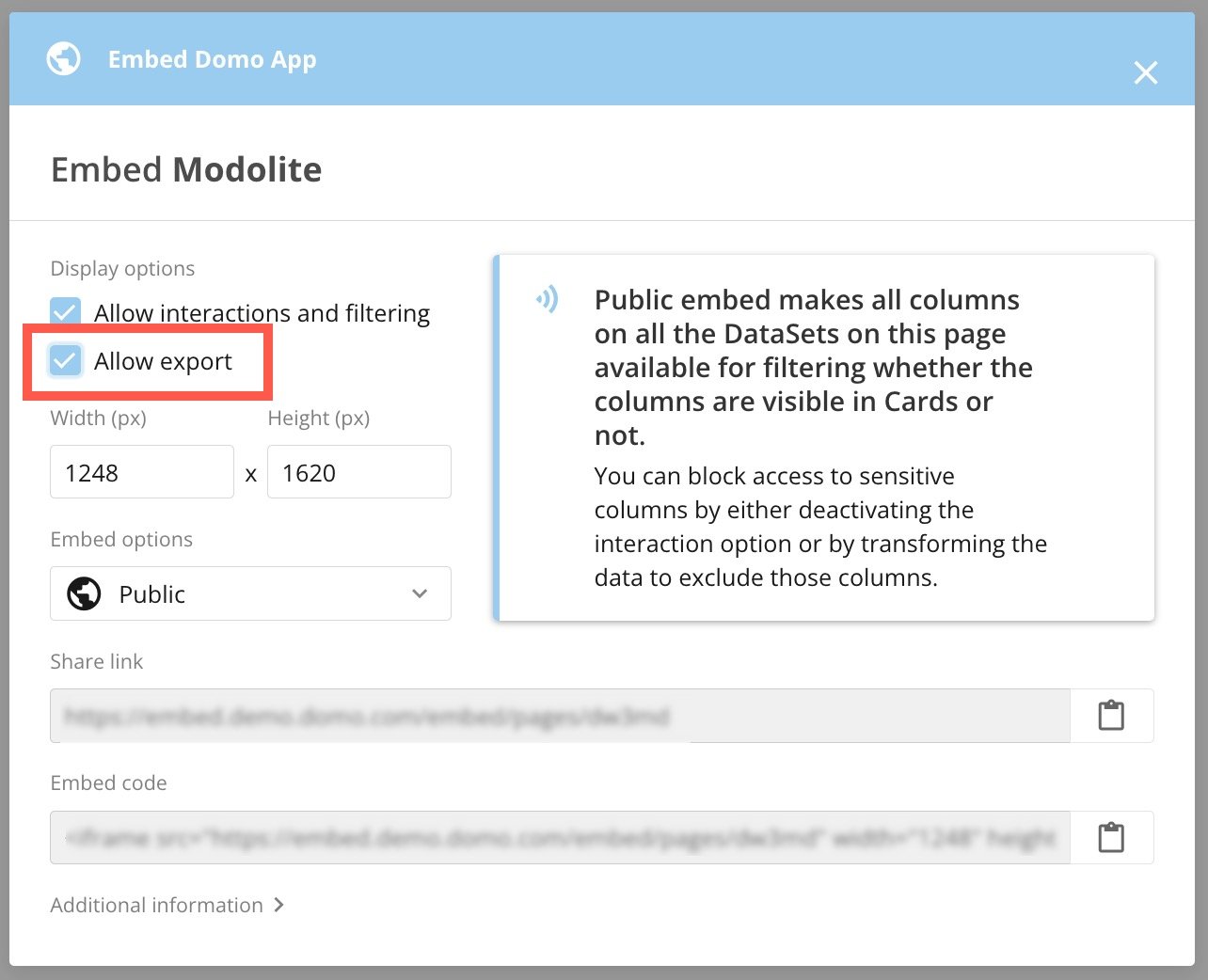
2. (Optional) Check the boxes to allow interactions and filtering and allow export.
3. (Optional) In the **Width (px)** and **Height (px)** fields, adjust the dimensions for the embedded app.
**Distribute** > **Embed app** to display the embed modal.
2. (Optional) Check the boxes to allow interactions and filtering and allow export.
3. (Optional) In the **Width (px)** and **Height (px)** fields, adjust the dimensions for the embedded app.
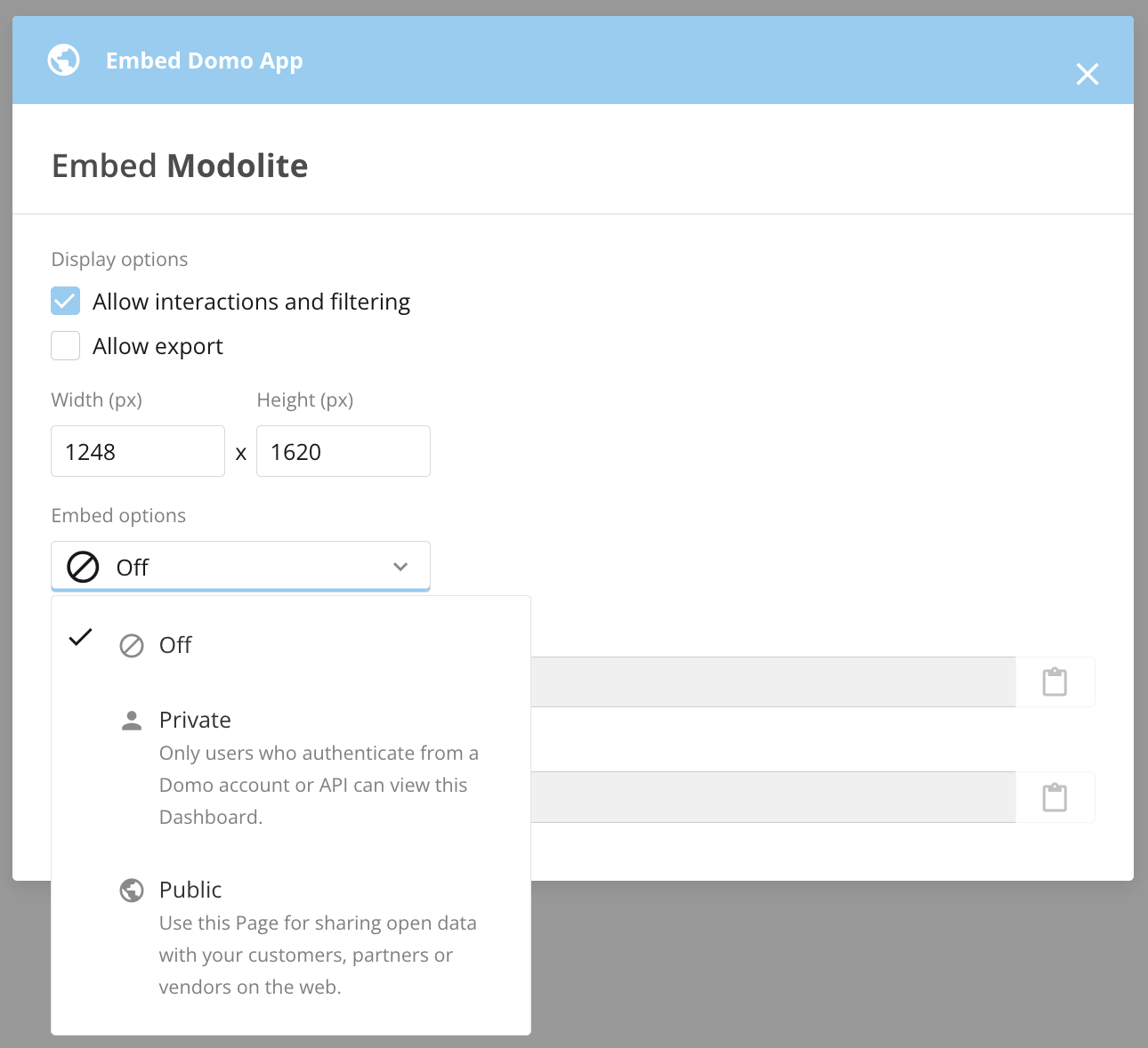 4. In the **Embed options**
dropdown, select one of the following options:
* **Private —** Only people who authenticate from a Domo account or API can view a privately embedded app.
You can follow links to example code for Client-side filters and Server-side filters.
4. In the **Embed options**
dropdown, select one of the following options:
* **Private —** Only people who authenticate from a Domo account or API can view a privately embedded app.
You can follow links to example code for Client-side filters and Server-side filters.
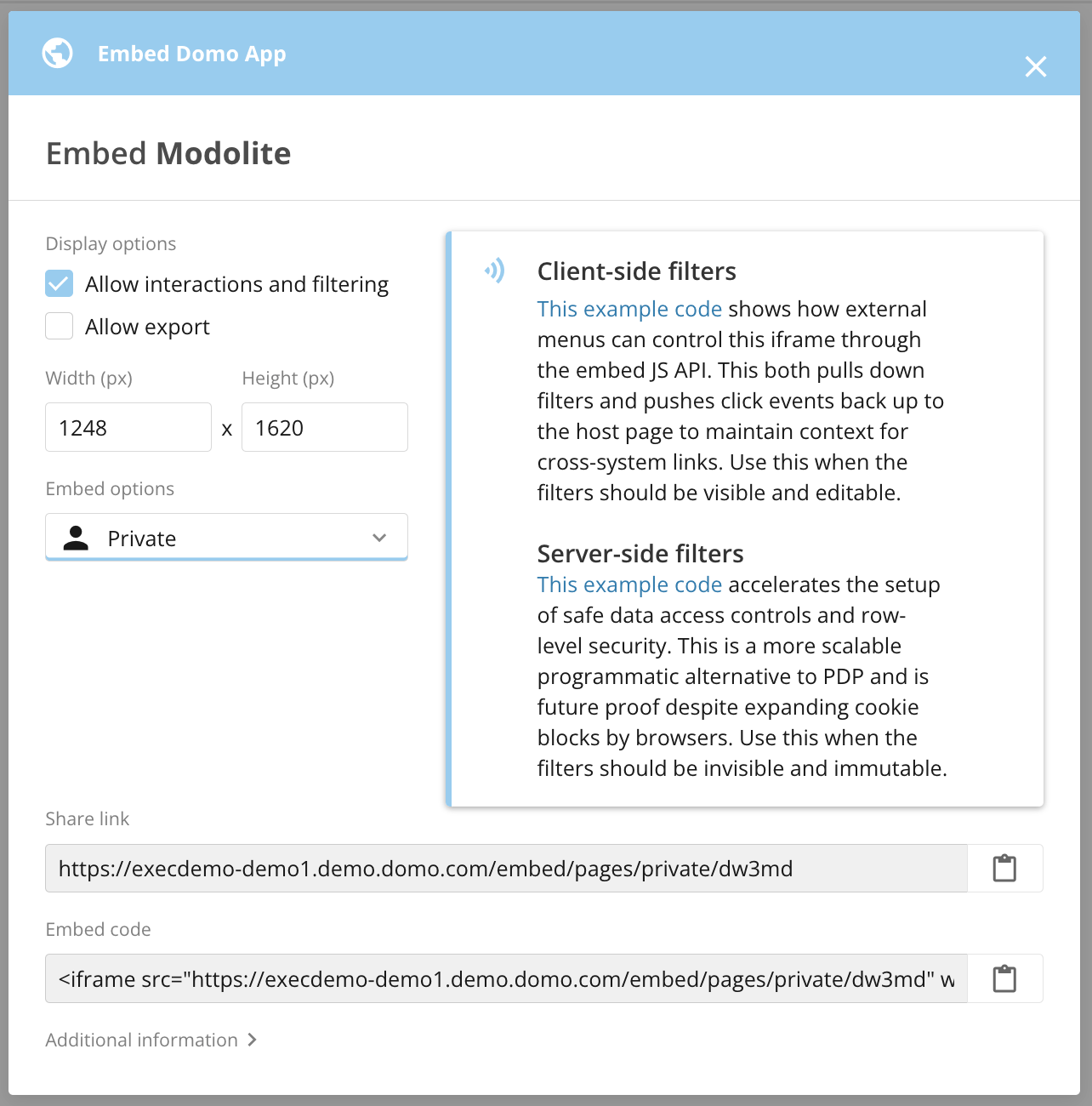 Copy the share link or embed code for this privately embedded app.
* **Public —** Use a publicly embedded app to share open data with your customers, partners, or vendors on the web.
Copy the share link or embed code for this publicly embedded app.
Copy the share link or embed code for this privately embedded app.
* **Public —** Use a publicly embedded app to share open data with your customers, partners, or vendors on the web.
Copy the share link or embed code for this publicly embedded app.
 5. Select
 **Close** to leave the modal.
### Export Embedded App Content
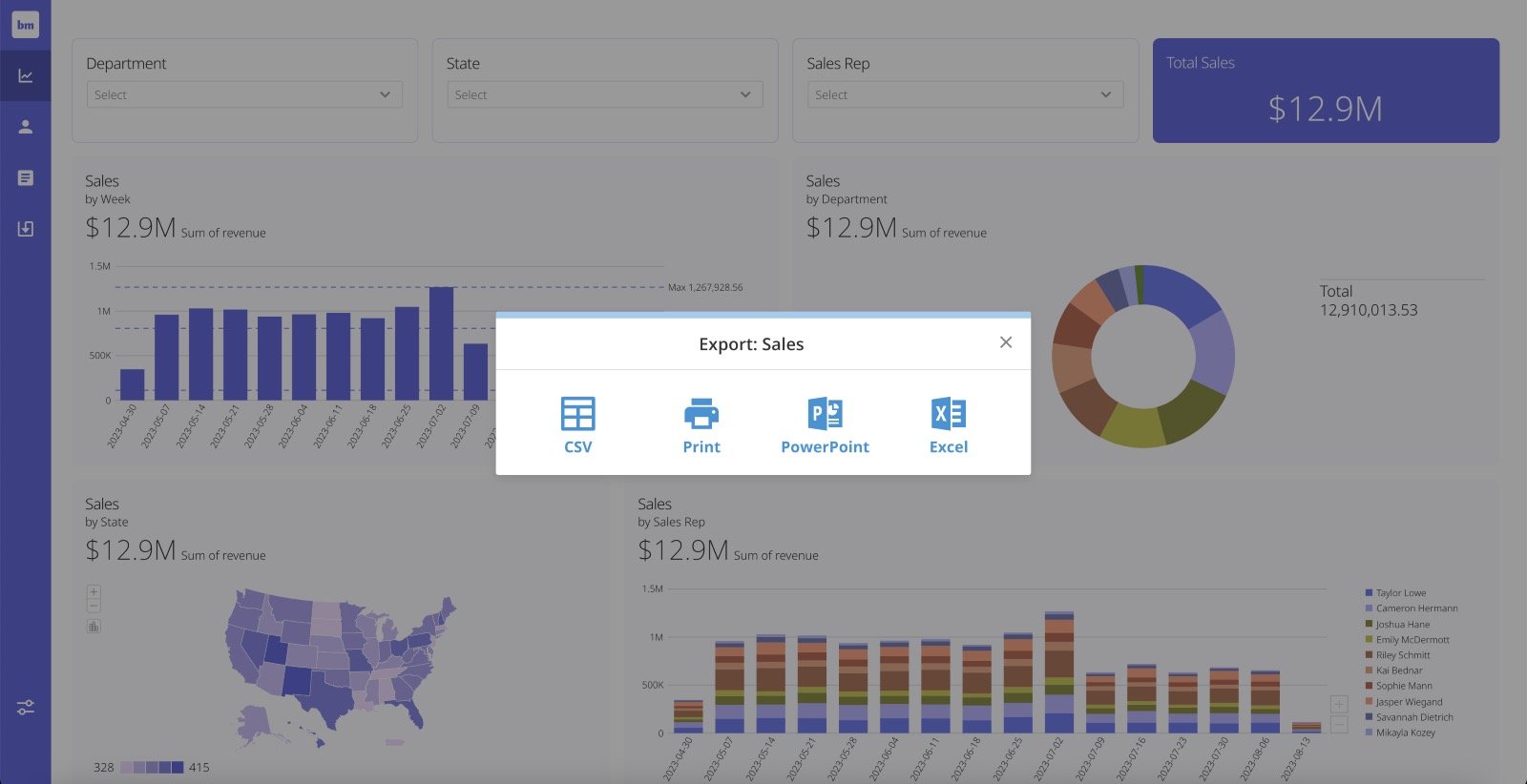
If you want users to be able to export content from an embedded app to a CSV file, PowerPoint presentation, Excel spreadsheet, or to print, check the box labeled **Allow export** while [configuring the embedded app](#embed-an-app).
**Close** to leave the modal.
### Export Embedded App Content
If you want users to be able to export content from an embedded app to a CSV file, PowerPoint presentation, Excel spreadsheet, or to print, check the box labeled **Allow export** while [configuring the embedded app](#embed-an-app).
 Users can choose how to export cards from the app.
 ## Edit an App
Follow these steps to edit an app:
1. From
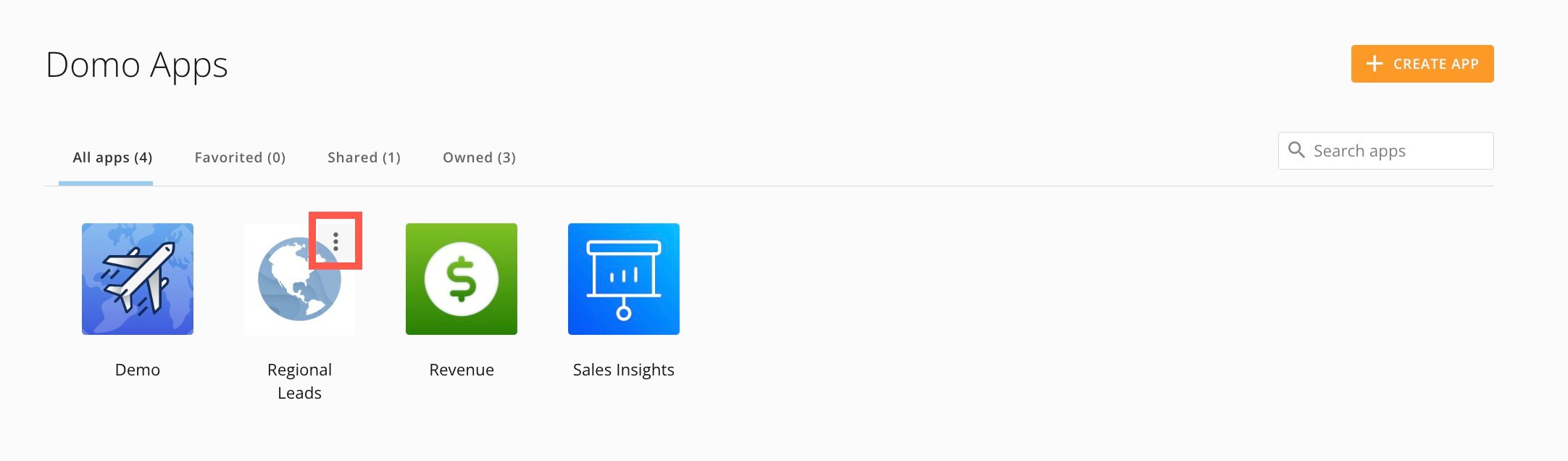
[Apps Home](#apps-home), hover over the app you want to edit. Select **More** (vertical three-dot menu) > **Edit**.
The [app editor](#app-editor) opens.
## Edit an App
Follow these steps to edit an app:
1. From
[Apps Home](#apps-home), hover over the app you want to edit. Select **More** (vertical three-dot menu) > **Edit**.
The [app editor](#app-editor) opens.
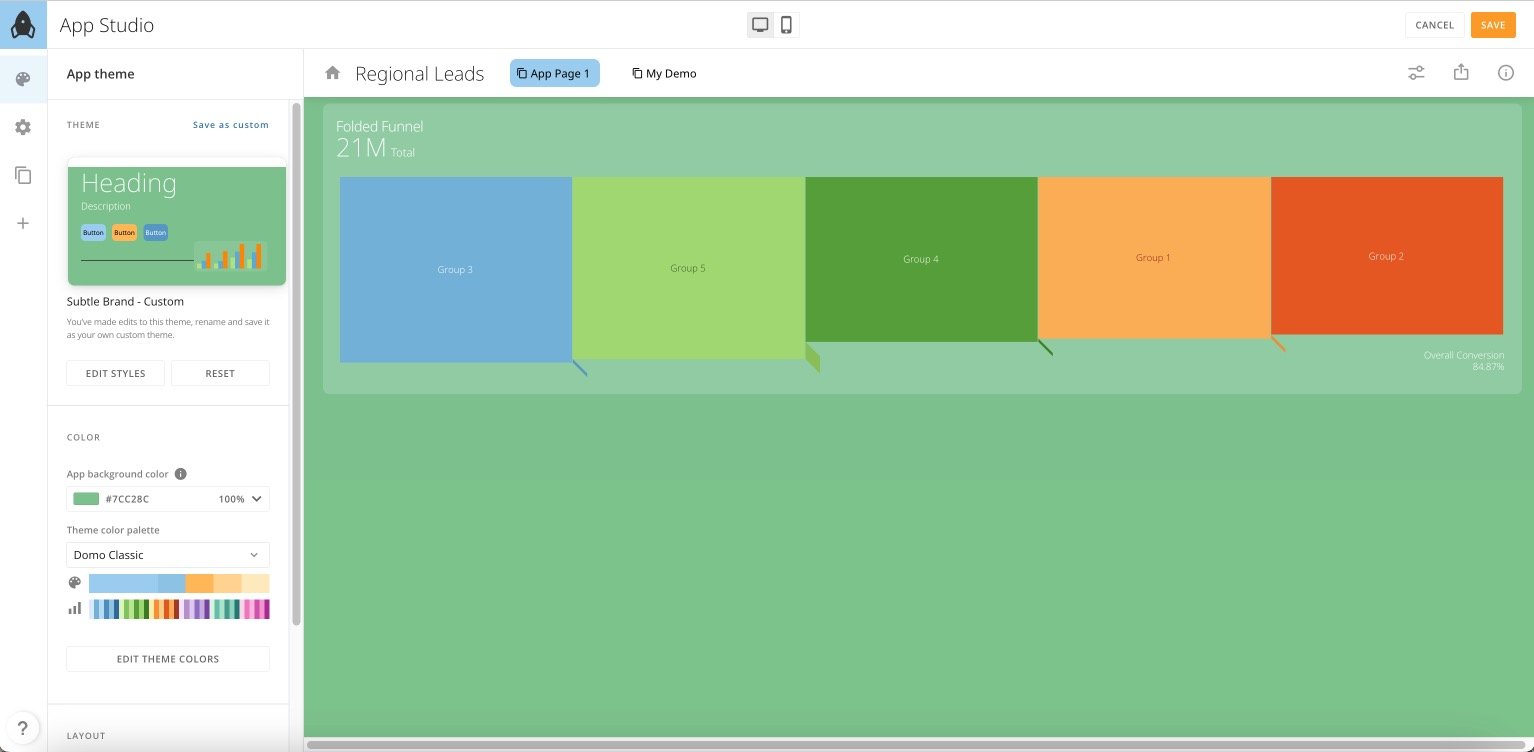 To make changes to the app's main navigation, see [Configuration Tab — Custom Navigation](#configuration-tab-—-custom-navigation), below. To make changes to other areas of the app, see [App Editor](#app-editor).
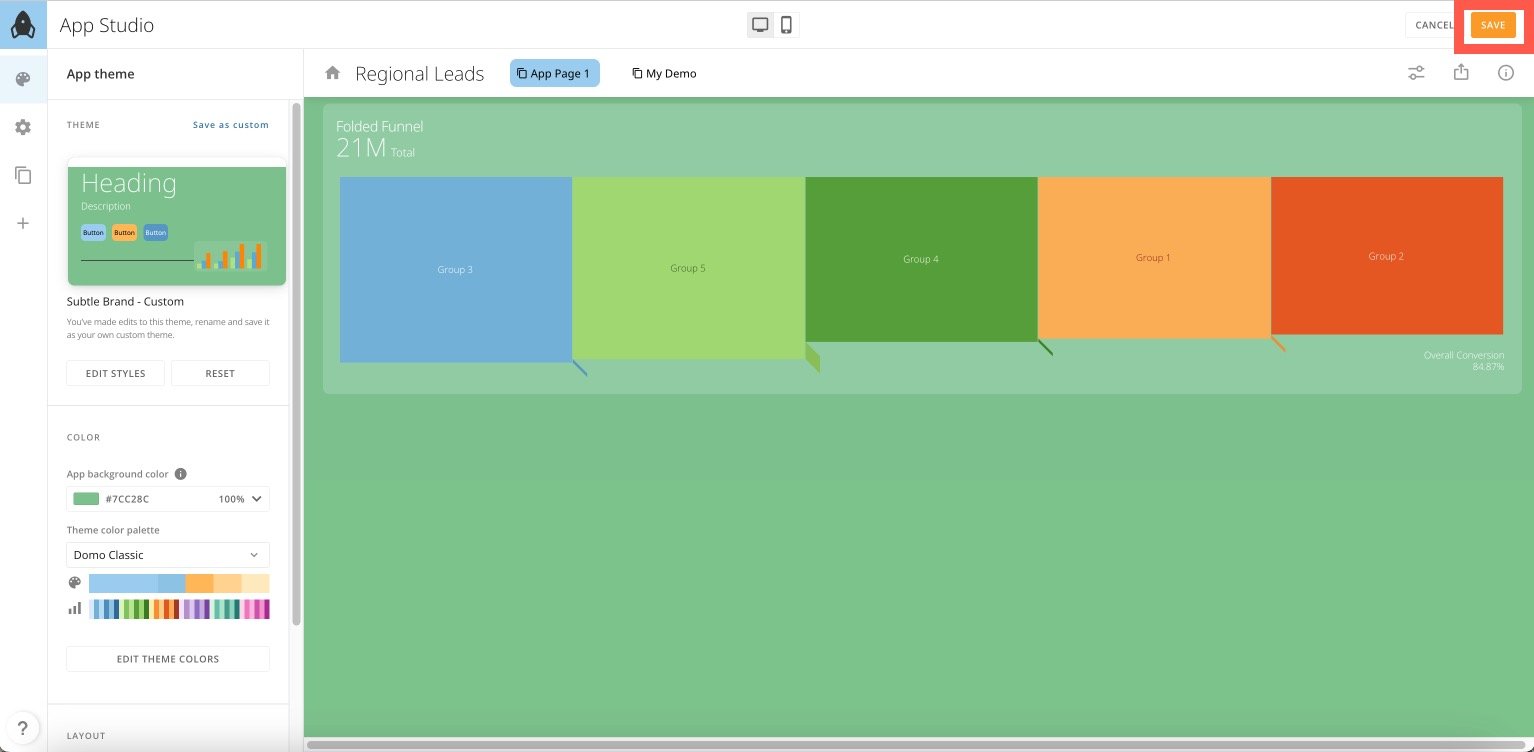
2. After making changes to your app, select **Save** in the editor's top navigation.
The app editor closes, and the app displays fullscreen.
To make changes to the app's main navigation, see [Configuration Tab — Custom Navigation](#configuration-tab-—-custom-navigation), below. To make changes to other areas of the app, see [App Editor](#app-editor).
2. After making changes to your app, select **Save** in the editor's top navigation.
The app editor closes, and the app displays fullscreen.
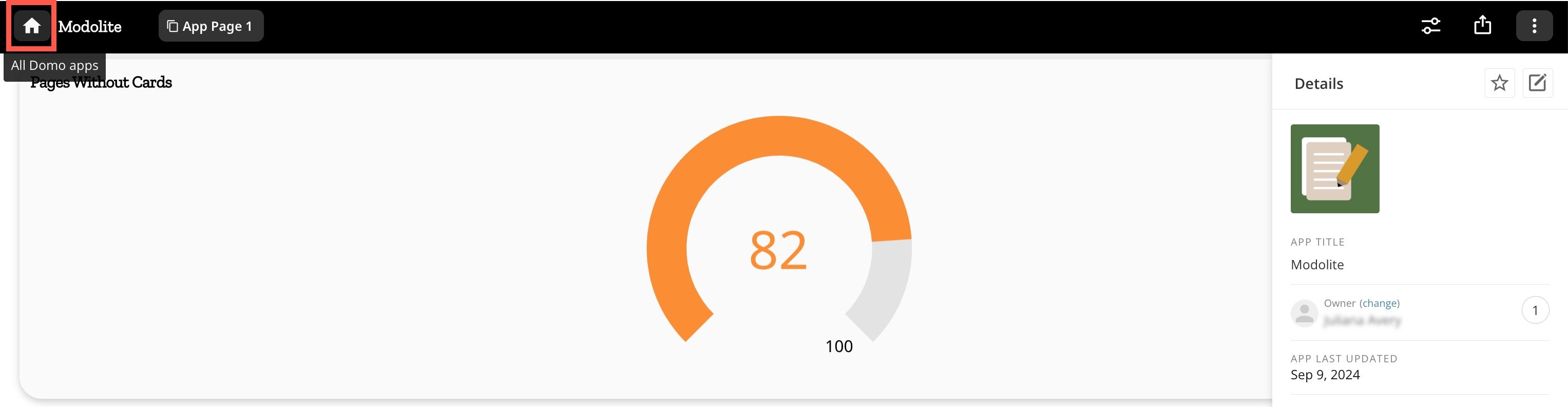
 3. After you close the app editor, you can select
 **All Domo apps** to return to [Apps Home](#apps-home).
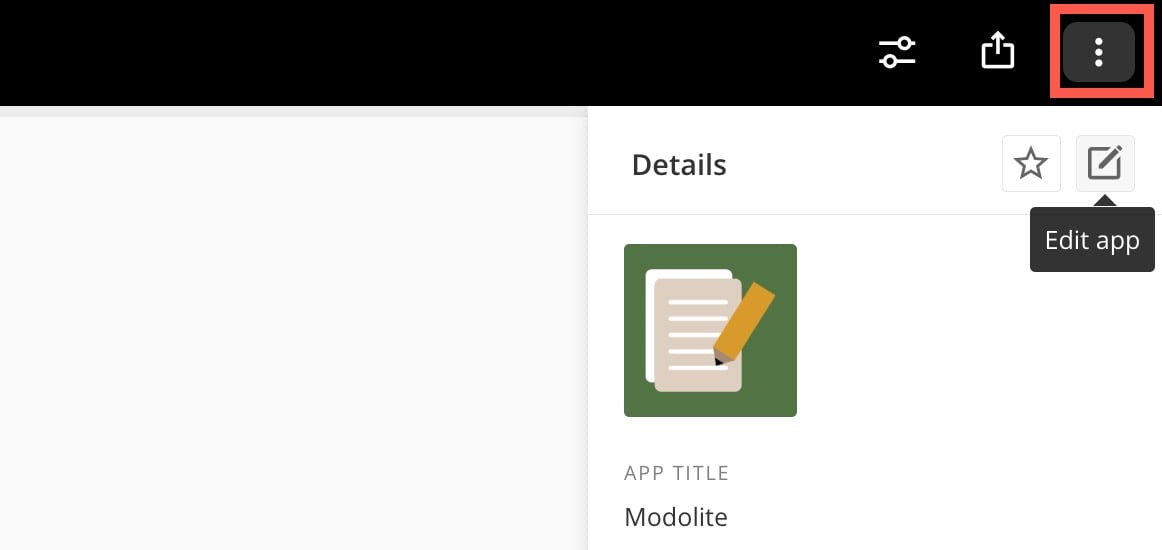
 **Tip:** To open the [app editor](#app-editor), you can select **Details** (vertical three-dot menu) > **
 Edit** in the app's main navigation.
 ## App Editor
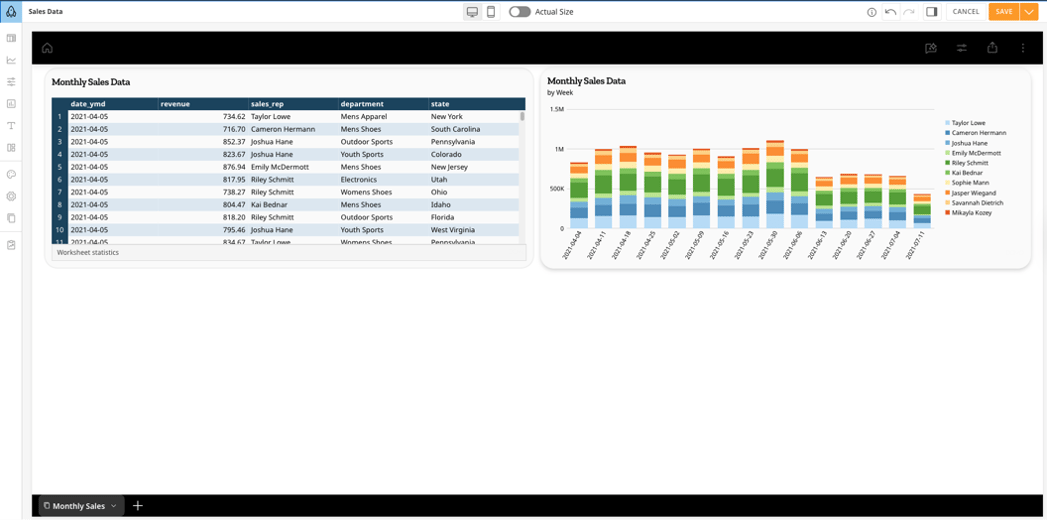
There are four main areas in the app editor, labeled in the image below:
1. The
[main navigation](#main-navigation)
2. The
[left navigation and side panel](#left-navigation-and-side-panel)
3. The
[canvas](#canvas)
4. The
[right configuration panel](#right-configuration-panel)
## App Editor
There are four main areas in the app editor, labeled in the image below:
1. The
[main navigation](#main-navigation)
2. The
[left navigation and side panel](#left-navigation-and-side-panel)
3. The
[canvas](#canvas)
4. The
[right configuration panel](#right-configuration-panel)
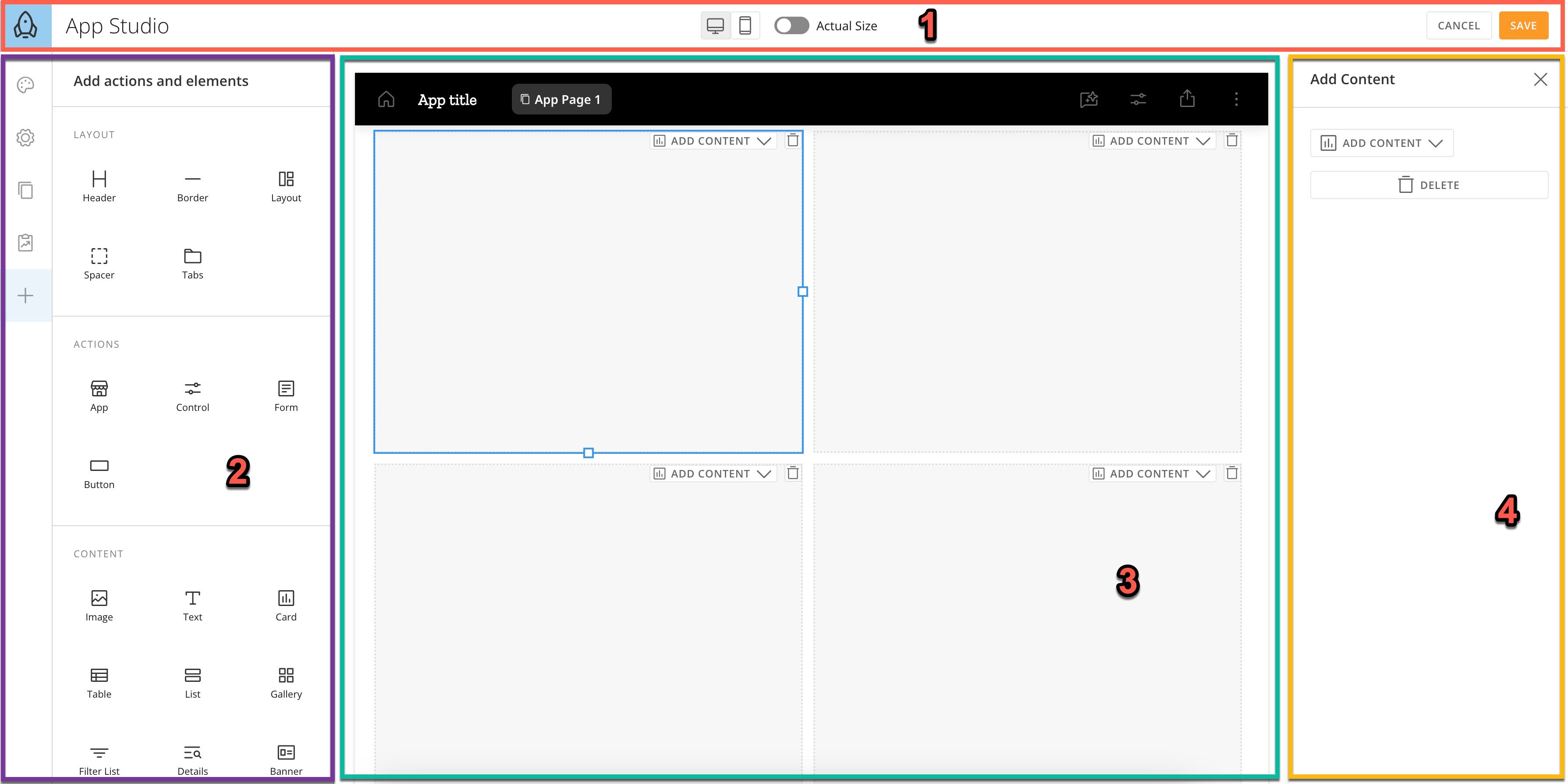 Learn more about each area below.
### Main Navigation
The main navigation can display at the top of the app, as in the image above, or it can be oriented at the left side of the app. To learn how to change the orientation of the main navigation, see [Configuration Tab — Custom Navigation](#configuration-tab-—-custom-navigation).
Wherever it displays, the main navigation contains the following options:
* **Desktop/Mobile toggle —** Toggle between viewing the app in desktop or mobile mode.
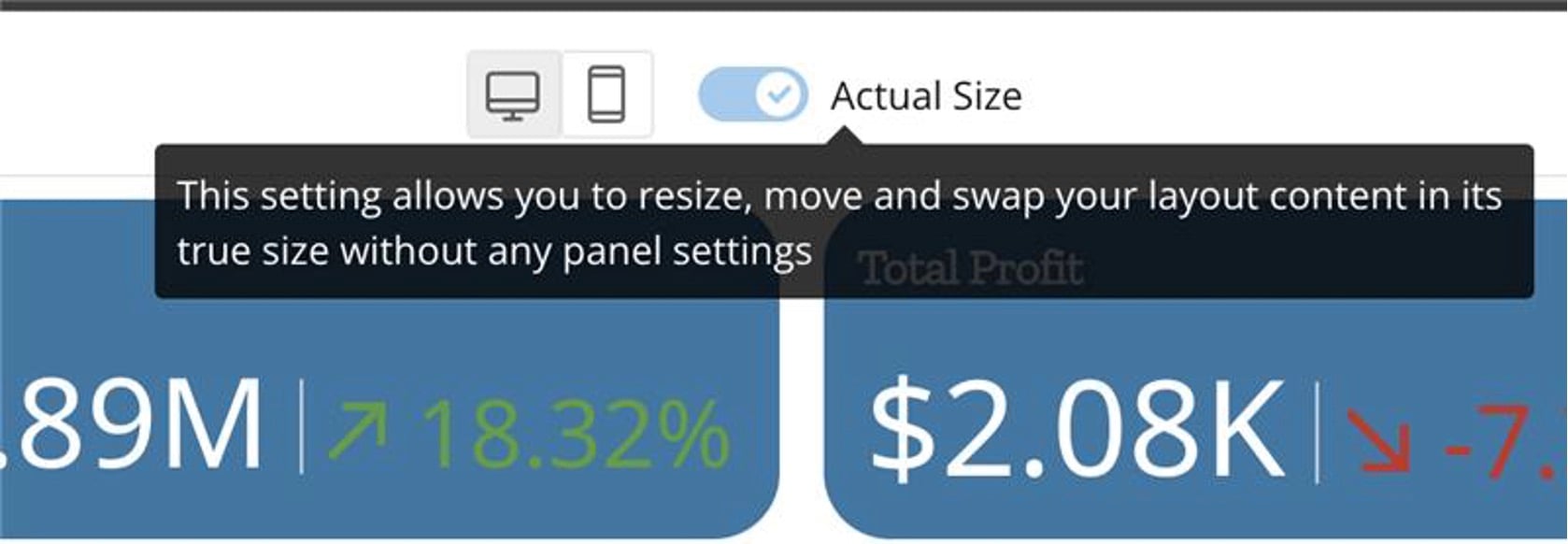
* (Desktop mode only) **Actual Size editor —** In Desktop mode, you can toggle the Actual Size editor. The editor allows you to accurately view the size of app elements as you edit instead of having to save changes to view them. You can toggle the Actual Size editor off to view the settings and configuration panels. The Actual Size editor is off by default, so you must turn it on for each editing session when you want to use it.
Learn more about each area below.
### Main Navigation
The main navigation can display at the top of the app, as in the image above, or it can be oriented at the left side of the app. To learn how to change the orientation of the main navigation, see [Configuration Tab — Custom Navigation](#configuration-tab-—-custom-navigation).
Wherever it displays, the main navigation contains the following options:
* **Desktop/Mobile toggle —** Toggle between viewing the app in desktop or mobile mode.
* (Desktop mode only) **Actual Size editor —** In Desktop mode, you can toggle the Actual Size editor. The editor allows you to accurately view the size of app elements as you edit instead of having to save changes to view them. You can toggle the Actual Size editor off to view the settings and configuration panels. The Actual Size editor is off by default, so you must turn it on for each editing session when you want to use it.
 * **Save —** Saving keeps your changes to the entire app and closes the edit mode.
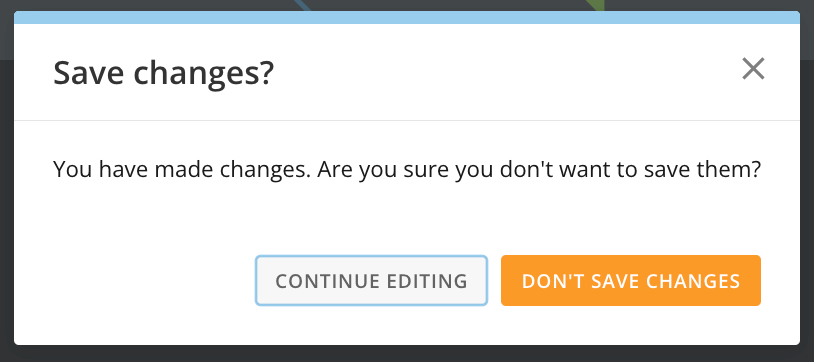
* **Cancel** **—** If you have made changes to the app, selecting this option displays a dialog to confirm that you want to discard them.
To return to the editor and save your changes, select **Continue Editing**.
To discard your changes and close the edit mode, select **Don't Save Changes**.
* **Save —** Saving keeps your changes to the entire app and closes the edit mode.
* **Cancel** **—** If you have made changes to the app, selecting this option displays a dialog to confirm that you want to discard them.
To return to the editor and save your changes, select **Continue Editing**.
To discard your changes and close the edit mode, select **Don't Save Changes**.
 ### Use Bottom and Top/Bottom Navigation
The bottom and top/bottom navigation options make it easier to navigate between pages, provide quick access to page settings, and let you add, rename, and swap pages. The top/bottom navigation configuration also lets you separate pages and navigation options.
To add or modify your app's pages and navigation:
1. Go to **Pages and Navigation** in the left navigation toolbar.
2. In the sub-menu, select the **Configuration** tab.
3. In the **Style** section, choose the desired appearance:
a. **Top Navigation:** Places pages and controls in the top section of the app.
### Use Bottom and Top/Bottom Navigation
The bottom and top/bottom navigation options make it easier to navigate between pages, provide quick access to page settings, and let you add, rename, and swap pages. The top/bottom navigation configuration also lets you separate pages and navigation options.
To add or modify your app's pages and navigation:
1. Go to **Pages and Navigation** in the left navigation toolbar.
2. In the sub-menu, select the **Configuration** tab.
3. In the **Style** section, choose the desired appearance:
a. **Top Navigation:** Places pages and controls in the top section of the app.
 b. **Left Navigation:** Places pages and controls in the left section of the app.
 c. **Bottom Navigation:** Places pages and controls in the bottom section of the app.
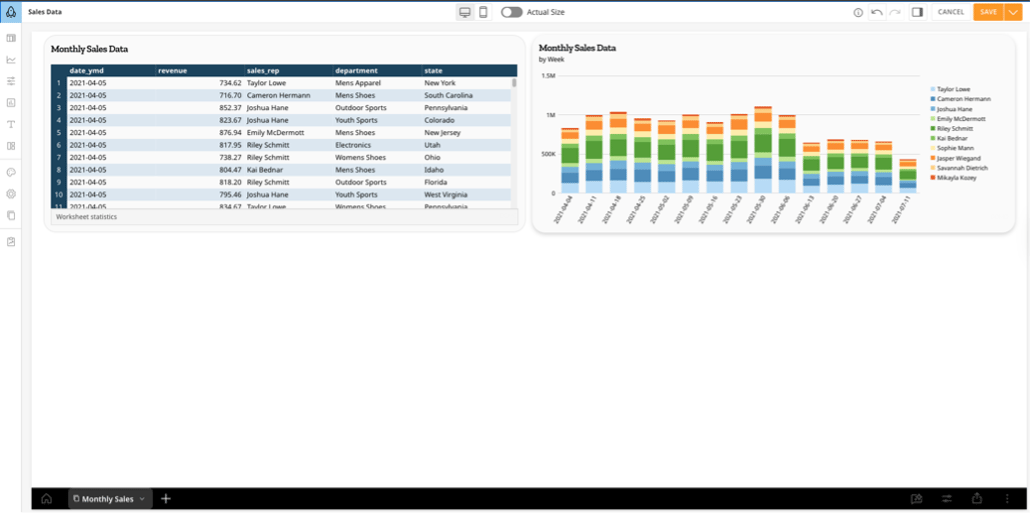 d. **Bottom and Top Navigation Bar:** Places pages in the lower section and controls in the upper section.
 ### Left Navigation and Side Panel
From the left navigation, you can go to the following sections:
* App theme
* App configuration
* Pages and navigation
* Add actions and elements
When you navigate to a section, the left side panel expands to display its sub-sections.
#### Use the Left Navigation Toolbar
The **Left Navigation Toolbar** serves as the primary interface for organizing and adding structural elements to an app. This layout categorizes components by functional type and provides direct access to the full library of available visualizations.
##### Toolbar Organization
### Left Navigation and Side Panel
From the left navigation, you can go to the following sections:
* App theme
* App configuration
* Pages and navigation
* Add actions and elements
When you navigate to a section, the left side panel expands to display its sub-sections.
#### Use the Left Navigation Toolbar
The **Left Navigation Toolbar** serves as the primary interface for organizing and adding structural elements to an app. This layout categorizes components by functional type and provides direct access to the full library of available visualizations.
##### Toolbar Organization
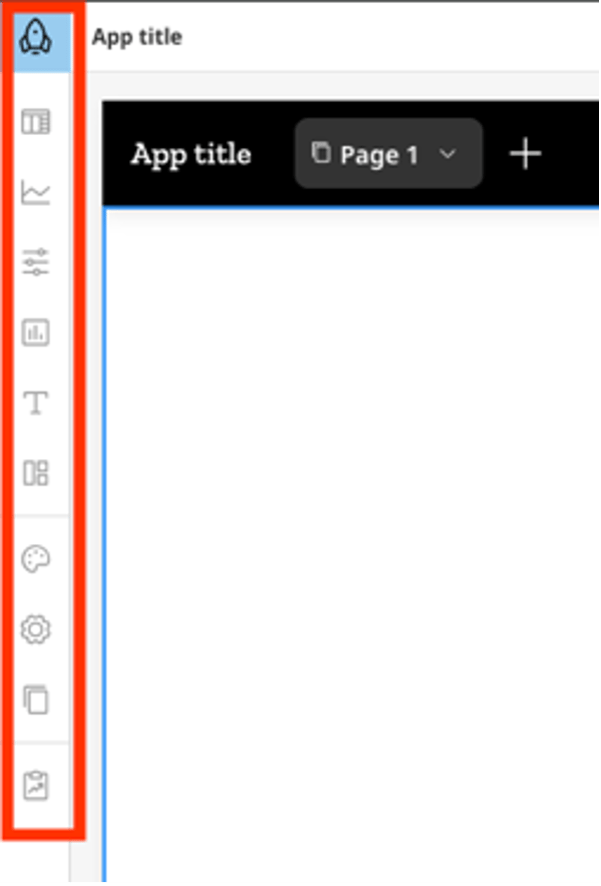 Elements are grouped into the following categories:
| Icon | Menu Category | Sub-Options and Features |
| ------------------------------------------------------------------------------------------------------------------------------------------------------------------------------------------------------------------------------------------------------------------------------------------------------------------------------------------------------------------------------------------------------------------------------------------------------------------------------------------------------------------------------------------------------------------------------------------------------------------------------------------------------------------------------------------------------------------------------------------------------------------------------------------------------------------------------------------------------------------------------------------------------------------------------------------------------------------------------------------------------------------------------------------------------------------------------------------------------------------------------------------------------------------------------------------------------------------------------------------------------------------------------------------------------------------------------------------------------------------------------------------------------------------------------------------------------------------------------------------------------------------------------------------------------------------------------------------------------------------------------------------------------------------------------------------------------------------------------------------------------------ | ------------------------ | -------------------------------------------------------------------------------------------------------------------------------------------------------------------------------------------------------------------------------------- |
|
Elements are grouped into the following categories:
| Icon | Menu Category | Sub-Options and Features |
| ------------------------------------------------------------------------------------------------------------------------------------------------------------------------------------------------------------------------------------------------------------------------------------------------------------------------------------------------------------------------------------------------------------------------------------------------------------------------------------------------------------------------------------------------------------------------------------------------------------------------------------------------------------------------------------------------------------------------------------------------------------------------------------------------------------------------------------------------------------------------------------------------------------------------------------------------------------------------------------------------------------------------------------------------------------------------------------------------------------------------------------------------------------------------------------------------------------------------------------------------------------------------------------------------------------------------------------------------------------------------------------------------------------------------------------------------------------------------------------------------------------------------------------------------------------------------------------------------------------------------------------------------------------------------------------------------------------------------------------------------------------ | ------------------------ | -------------------------------------------------------------------------------------------------------------------------------------------------------------------------------------------------------------------------------------- |
|  | **Tables** | Data Grid, Editable Table, Linked Tables, Pivot Tables |
|
| **Tables** | Data Grid, Editable Table, Linked Tables, Pivot Tables |
|  | **Charts** | Bar, Line, Pie, Funnel, Map, Gauge, Area, Data Science, Lollipop, Horizontal, Vertical, Period-over-Period |
|
| **Charts** | Bar, Line, Pie, Funnel, Map, Gauge, Area, Data Science, Lollipop, Horizontal, Vertical, Period-over-Period |
|  | **Controls** | Buttons, Dropdowns, Range Selectors, Checkbox Selector, Radio Button Selector, Date Selector, Slicer |
|
| **Controls** | Buttons, Dropdowns, Range Selectors, Checkbox Selector, Radio Button Selector, Date Selector, Slicer |
|  | **Components** | Cards, List, Gallery, Filter List, Banner, Details, Queue, Workflow, Image, Custom, Form |
|
| **Components** | Cards, List, Gallery, Filter List, Banner, Details, Queue, Workflow, Image, Custom, Form |
|  | **Text** | Header, Text |
|
| **Text** | Header, Text |
|  | **Layout** | Layout Containers, Tabs, Border, Spacer |
|
| **Layout** | Layout Containers, Tabs, Border, Spacer |
|  | **App Theme** | **Styling:** Edit Styles, Color, App Background Color, Theme Color Palette, Edit Theme Colors
**Dimensions:** App Width, Margin Spacing, App Density |
|  | **Configuration** | **Metadata:** Name, Description, Icon
**Security and Logic:** Owner Permissions, Lock Content, AI Chat Sources, Filter Options |
|  | **Pages and Navigation** | **Structure:** App Page Order, Import Pages, Page/App Configuration
**Visibility:** Show Navigation, Show System Navigation, App Appearance
**UI/Branding:** Top/Left/Bottom Bar Styles, App Title, Logo, Navigation Buttons |
|  | **Reports** | Create Reports, Search Reports |
### Canvas
The canvas is where your app displays as you build it. You can test colors, fonts, and other theme elements, drag a layout and other elements onto the canvas, and add content to your app.
### Right Configuration Panel
When you add an action or element to the canvas, you can configure it in the right panel. Close the panel by selecting
| **Reports** | Create Reports, Search Reports |
### Canvas
The canvas is where your app displays as you build it. You can test colors, fonts, and other theme elements, drag a layout and other elements onto the canvas, and add content to your app.
### Right Configuration Panel
When you add an action or element to the canvas, you can configure it in the right panel. Close the panel by selecting  **Close**.
 ### Page Settings
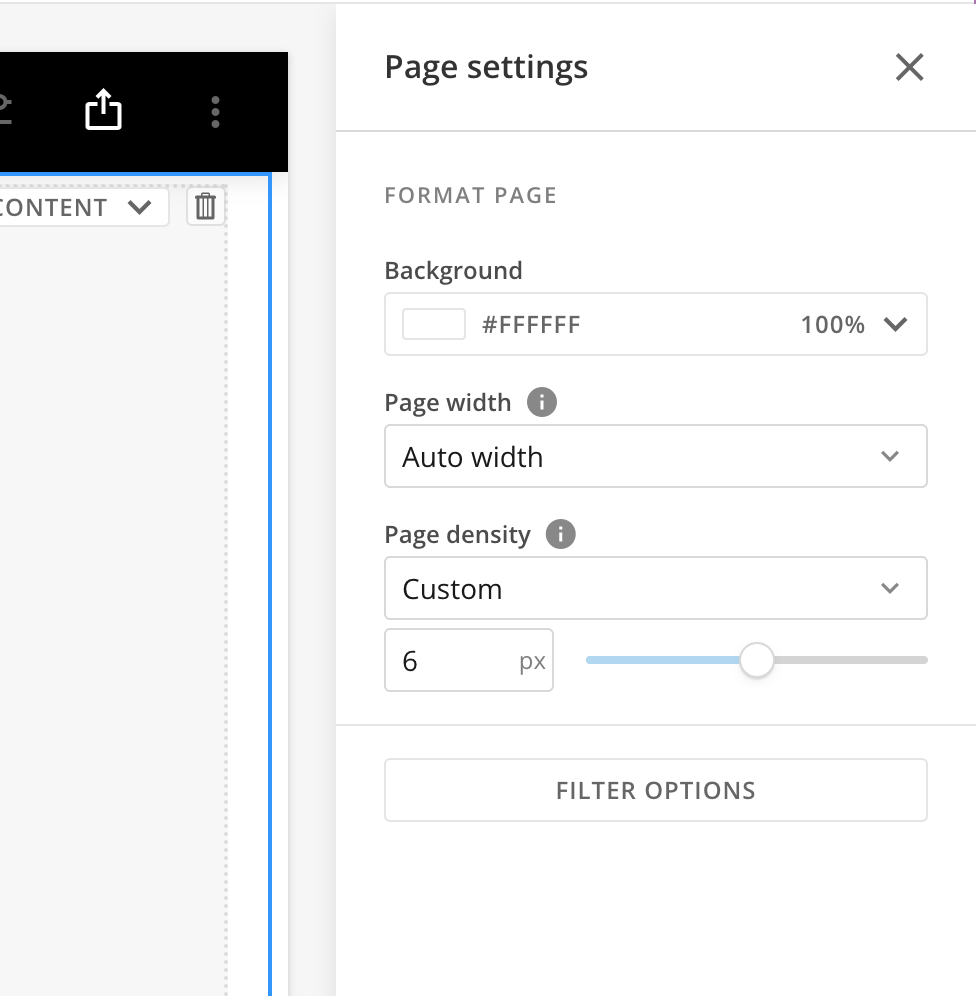
When the right configuration panel is closed, you can select anywhere on the canvas to open the Page Settings in the right configuration panel.
### Page Settings
When the right configuration panel is closed, you can select anywhere on the canvas to open the Page Settings in the right configuration panel.
 #### Format Page
Under **Format Page**, you can use the dropdowns and other controls to configure the following:
* **Background —** Choose the background color and intensity using the [color picker](/s/article/000005543#choose-colors).
* **Page width —** Choose from the following page width options:
* **Fixed width —** The page width is fixed and the margins adjust with the size of the screen.
* **Auto width —** The margins are fixed and the page adjusts with the size of the screen.
* **Page density —** Page density determines the space around objects on the page. The options are Default (4 px), Comfortable (8 px), Compact (2 px), Nil (0 px), and custom.
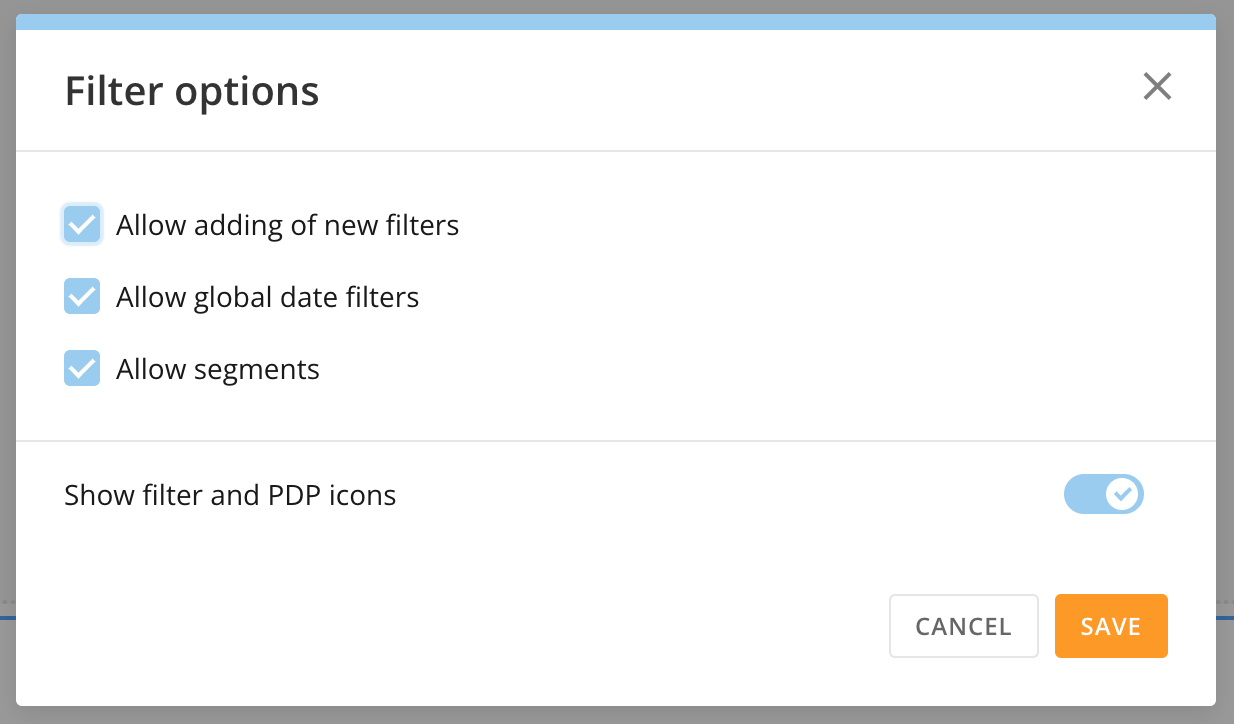
#### Filter Options
Selecting **Filter Options** opens the **Filter options** modal.
In the modal, the following settings are enabled by default. You can choose to disable them.
* **Allow adding of new filters**
* **Allow global date filters —** Allows the global date to filter the page.
* **Allow segments —** Allows all segments to be displayed.
* **Show filter and PDP icons —** Toggle this switch to hide filter and PDP icons. They can obscure your view of your content.
#### Format Page
Under **Format Page**, you can use the dropdowns and other controls to configure the following:
* **Background —** Choose the background color and intensity using the [color picker](/s/article/000005543#choose-colors).
* **Page width —** Choose from the following page width options:
* **Fixed width —** The page width is fixed and the margins adjust with the size of the screen.
* **Auto width —** The margins are fixed and the page adjusts with the size of the screen.
* **Page density —** Page density determines the space around objects on the page. The options are Default (4 px), Comfortable (8 px), Compact (2 px), Nil (0 px), and custom.
#### Filter Options
Selecting **Filter Options** opens the **Filter options** modal.
In the modal, the following settings are enabled by default. You can choose to disable them.
* **Allow adding of new filters**
* **Allow global date filters —** Allows the global date to filter the page.
* **Allow segments —** Allows all segments to be displayed.
* **Show filter and PDP icons —** Toggle this switch to hide filter and PDP icons. They can obscure your view of your content.
 ##
##  App Configuration
In **App configuration**, there are two tabs: **Info & Permissions** and **Filter Options**.
In the **Info & Permissions** tab, you can change the name and description for your app and choose an icon to represent it in the Apps Home. You can also add other people/groups as app owners and choose whether to identify them of the change. Locking the app prevents anyone besides owners and admins in your Domo instance from editing it.
To save your changes to any of these settings, select **Save** in the editor's [main navigation](/s/article/000005295#app-editor).
### Delete an App
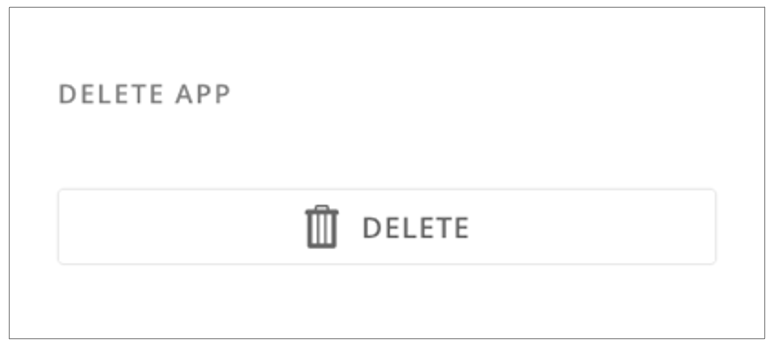
To delete your app, select
App Configuration
In **App configuration**, there are two tabs: **Info & Permissions** and **Filter Options**.
In the **Info & Permissions** tab, you can change the name and description for your app and choose an icon to represent it in the Apps Home. You can also add other people/groups as app owners and choose whether to identify them of the change. Locking the app prevents anyone besides owners and admins in your Domo instance from editing it.
To save your changes to any of these settings, select **Save** in the editor's [main navigation](/s/article/000005295#app-editor).
### Delete an App
To delete your app, select  **Delete**.
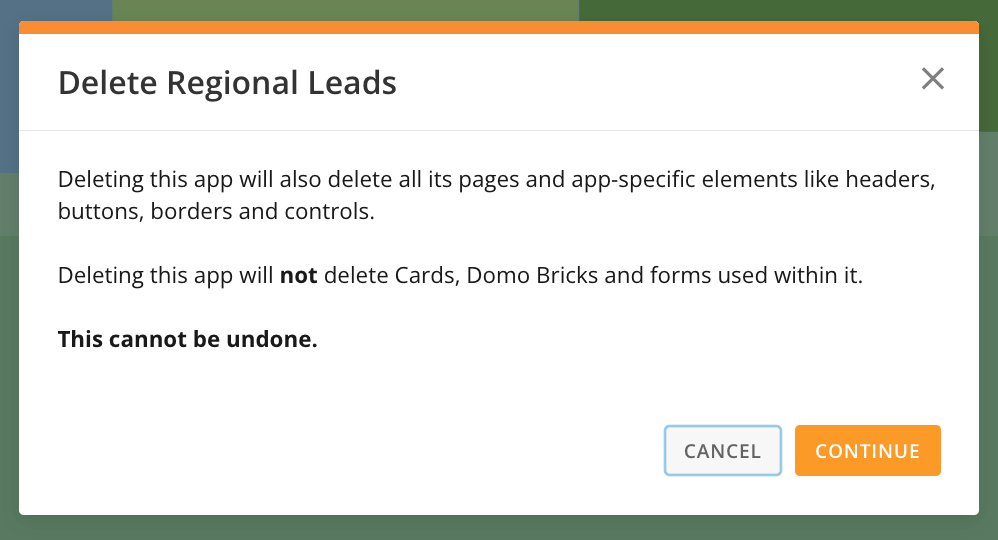
A dialog displays, confirming that deleting the app also deletes its pages and app-specific elements.
To complete app deletion, select **Continue**. Select **Cancel** to return to the **App configuration** panel.
**Delete**.
A dialog displays, confirming that deleting the app also deletes its pages and app-specific elements.
To complete app deletion, select **Continue**. Select **Cancel** to return to the **App configuration** panel.
 Deleting an app does **not** delete cards, Domo Bricks, and forms used within it.
Deleting an app cannot be undone.
Deleting an app does **not** delete cards, Domo Bricks, and forms used within it.
Deleting an app cannot be undone.
 ### Use Advanced Saving Options in App Studio
The saving workflow in App Studio supports continuous development across multiple pages without structural interruptions. By unifying the save experience, the system allows bulk updates to layouts and configurations without requiring a save action each time the view changes.
#### Save Your Progress
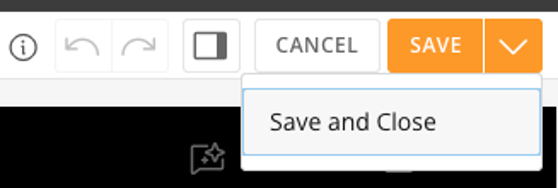
The save interface is located in the top-right corner of the editor and provides two primary methods for managing your work:
* **Save:** Select this option to commit all recent changes to the Domo environment while remaining in the editor. This lets you persist your progress and continue making further adjustments immediately.
* **Save and Close:** Select this option to commit your changes and exit edit mode simultaneously. This transitions the interface back to **View Mode**, where you can interact with the application as an end user.
### Use Advanced Saving Options in App Studio
The saving workflow in App Studio supports continuous development across multiple pages without structural interruptions. By unifying the save experience, the system allows bulk updates to layouts and configurations without requiring a save action each time the view changes.
#### Save Your Progress
The save interface is located in the top-right corner of the editor and provides two primary methods for managing your work:
* **Save:** Select this option to commit all recent changes to the Domo environment while remaining in the editor. This lets you persist your progress and continue making further adjustments immediately.
* **Save and Close:** Select this option to commit your changes and exit edit mode simultaneously. This transitions the interface back to **View Mode**, where you can interact with the application as an end user.
 #### Undo/Redo Changes
1. Use the **Left Arrow (Undo)** and **Right Arrow (Redo)** icons in the top header to undo or redo any changes made to the page.
#### Undo/Redo Changes
1. Use the **Left Arrow (Undo)** and **Right Arrow (Redo)** icons in the top header to undo or redo any changes made to the page.
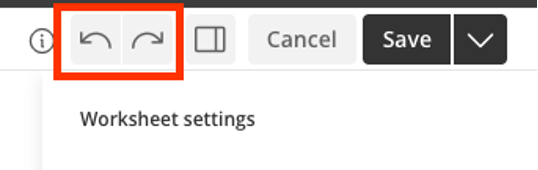 **Note:** The Undo and Redo features work only on the page you are currently on and restart when you move to a new page within the app. Any changes you make to other pages take effect once you save your progress.
### Configure Persistent Filters
You can configure persistent filters in the **Filter** **Options** tab of the **App Configuration** section. Making a filter persistent means that when app users turn on the filter, it takes effect across all app pages using some or all columns in a DataSet. You can also configure other elements, like Variables and date filters, to persist throughout the app.
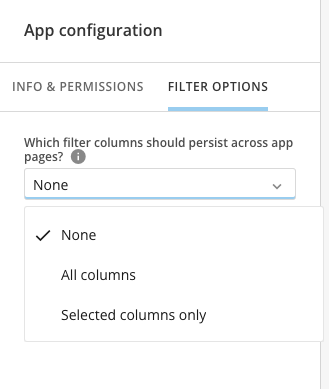
1. Use the dropdown to choose whether all columns or only selected columns persist as filters across all app pages. The default is none.
**Note:** The Undo and Redo features work only on the page you are currently on and restart when you move to a new page within the app. Any changes you make to other pages take effect once you save your progress.
### Configure Persistent Filters
You can configure persistent filters in the **Filter** **Options** tab of the **App Configuration** section. Making a filter persistent means that when app users turn on the filter, it takes effect across all app pages using some or all columns in a DataSet. You can also configure other elements, like Variables and date filters, to persist throughout the app.
1. Use the dropdown to choose whether all columns or only selected columns persist as filters across all app pages. The default is none.
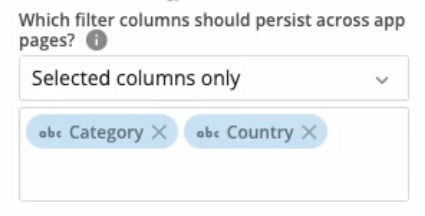
 2. If you choose to use only selected columns, choose the filter columns that should persist.
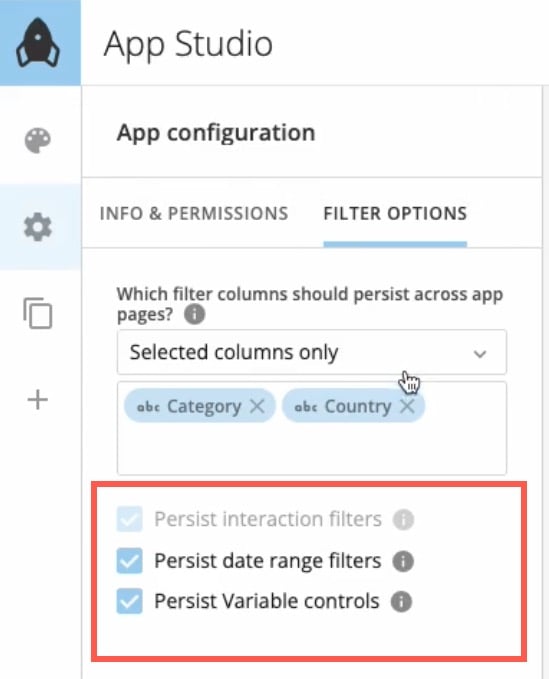
 3. After choosing your filter columns, check the box(es) to enable these other options:
* **Persist interaction filters —** When enabled, if an app user applies a card-specific filter, like a chart element, it persists across the app.
* **Persist date range filters —** When enabled, any date range filter that an app user applies persists across the app.
* **Persist Variable controls —** When enabled, variable control values persist across the app.
**Note:** Variable control values are only applied to pages that contain that control. If you want to persist Variables across the app, you must add the control to each page where you want the value to persist. Learn more about [Variables and controls](/s/article/7903767835031).
3. After choosing your filter columns, check the box(es) to enable these other options:
* **Persist interaction filters —** When enabled, if an app user applies a card-specific filter, like a chart element, it persists across the app.
* **Persist date range filters —** When enabled, any date range filter that an app user applies persists across the app.
* **Persist Variable controls —** When enabled, variable control values persist across the app.
**Note:** Variable control values are only applied to pages that contain that control. If you want to persist Variables across the app, you must add the control to each page where you want the value to persist. Learn more about [Variables and controls](/s/article/7903767835031).
 4. Save your changes.
Now, when app users interact with or apply any of the filters you selected to the app, the filters take effect across all app pages.
### Configure Persistent Filters for a Set of Cards
Persistent filters can be set at an individual card or app level. To apply persistent global filters to a specific set of cards, follow these instructions:
1. Set your filters to affect all cards on your app globally. For any cards you do not want to be filtered, you can edit their individual setting by navigating to the card and then selecting **Filter Exceptions** from the card details edit menu.
OR
2. Place all of the cards you want to be filtered on one app page. After setting up the cards on the same page, set up the interaction filters to affect these specific cards, then move the cards to your desired locations on different pages.
### Test Persistent Filters
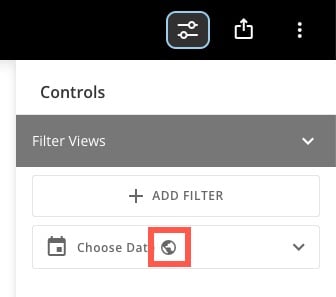
You can confirm whether a filter persists by going to the [Controls](#view-an-app) menu. Persistent filters have a globe icon.
4. Save your changes.
Now, when app users interact with or apply any of the filters you selected to the app, the filters take effect across all app pages.
### Configure Persistent Filters for a Set of Cards
Persistent filters can be set at an individual card or app level. To apply persistent global filters to a specific set of cards, follow these instructions:
1. Set your filters to affect all cards on your app globally. For any cards you do not want to be filtered, you can edit their individual setting by navigating to the card and then selecting **Filter Exceptions** from the card details edit menu.
OR
2. Place all of the cards you want to be filtered on one app page. After setting up the cards on the same page, set up the interaction filters to affect these specific cards, then move the cards to your desired locations on different pages.
### Test Persistent Filters
You can confirm whether a filter persists by going to the [Controls](#view-an-app) menu. Persistent filters have a globe icon.
 #
#  Pages and Navigation
**Pages and navigation** contain two tabs: **Order** and **Confirmation**, described below. See [Page Drill](#page-drill) to learn how to use that feature.
### Order Tab
In the **Order** tab, you can view and reorder the pages in your app. You can also import dashboard content from your Domo instance.
Pages and Navigation
**Pages and navigation** contain two tabs: **Order** and **Confirmation**, described below. See [Page Drill](#page-drill) to learn how to use that feature.
### Order Tab
In the **Order** tab, you can view and reorder the pages in your app. You can also import dashboard content from your Domo instance.
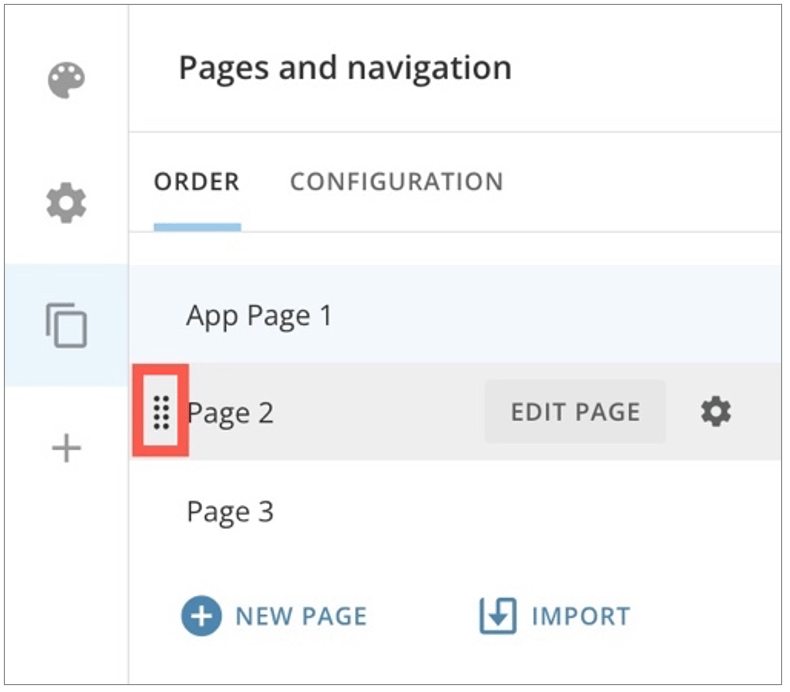
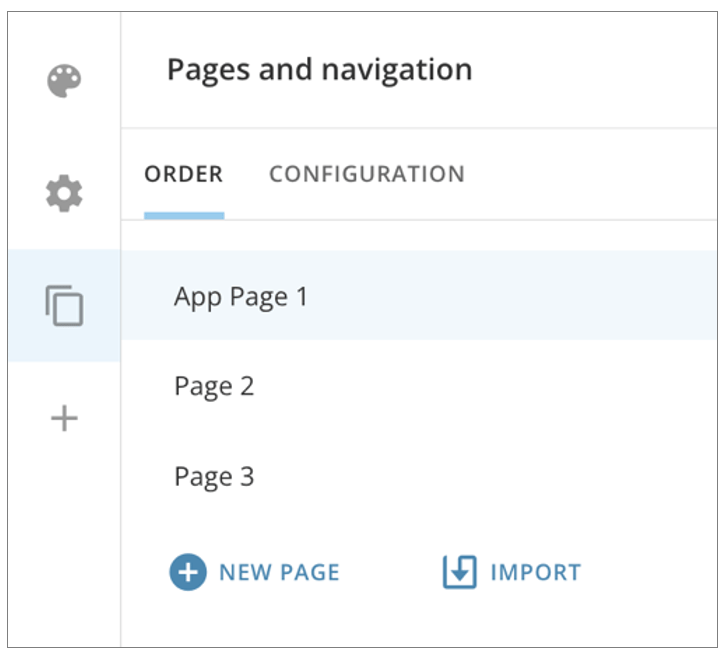 To reorder pages in the **Order** tab, hover over the page to display the handle, then drag the page to the desired position.
 #### Import Dashboard Content to an App
When you import a dashboard, the card(s) you select from the dashboard can be duplicated in the app, or you can bring the original card(s) into the app. If you bring original content into the app, any changes you make to the content within the app are reflected for the content where it resides in Domo.
You can choose to import all content from the dashboard or select specific elements for import.
Importing content to the app applies all configured themes to the content inside the app, independent of how the content displays outside the app. This standardizes the look and feel of content throughout your app.
1. To import a dashboard from the **Order** tab, select **Import** > **Dashboard**.
A modal displays where you can search for and select a dashboard from your Domo instance.
2. Select **Next**. The **Import options** display on the right side of the modal.
#### Import Dashboard Content to an App
When you import a dashboard, the card(s) you select from the dashboard can be duplicated in the app, or you can bring the original card(s) into the app. If you bring original content into the app, any changes you make to the content within the app are reflected for the content where it resides in Domo.
You can choose to import all content from the dashboard or select specific elements for import.
Importing content to the app applies all configured themes to the content inside the app, independent of how the content displays outside the app. This standardizes the look and feel of content throughout your app.
1. To import a dashboard from the **Order** tab, select **Import** > **Dashboard**.
A modal displays where you can search for and select a dashboard from your Domo instance.
2. Select **Next**. The **Import options** display on the right side of the modal.
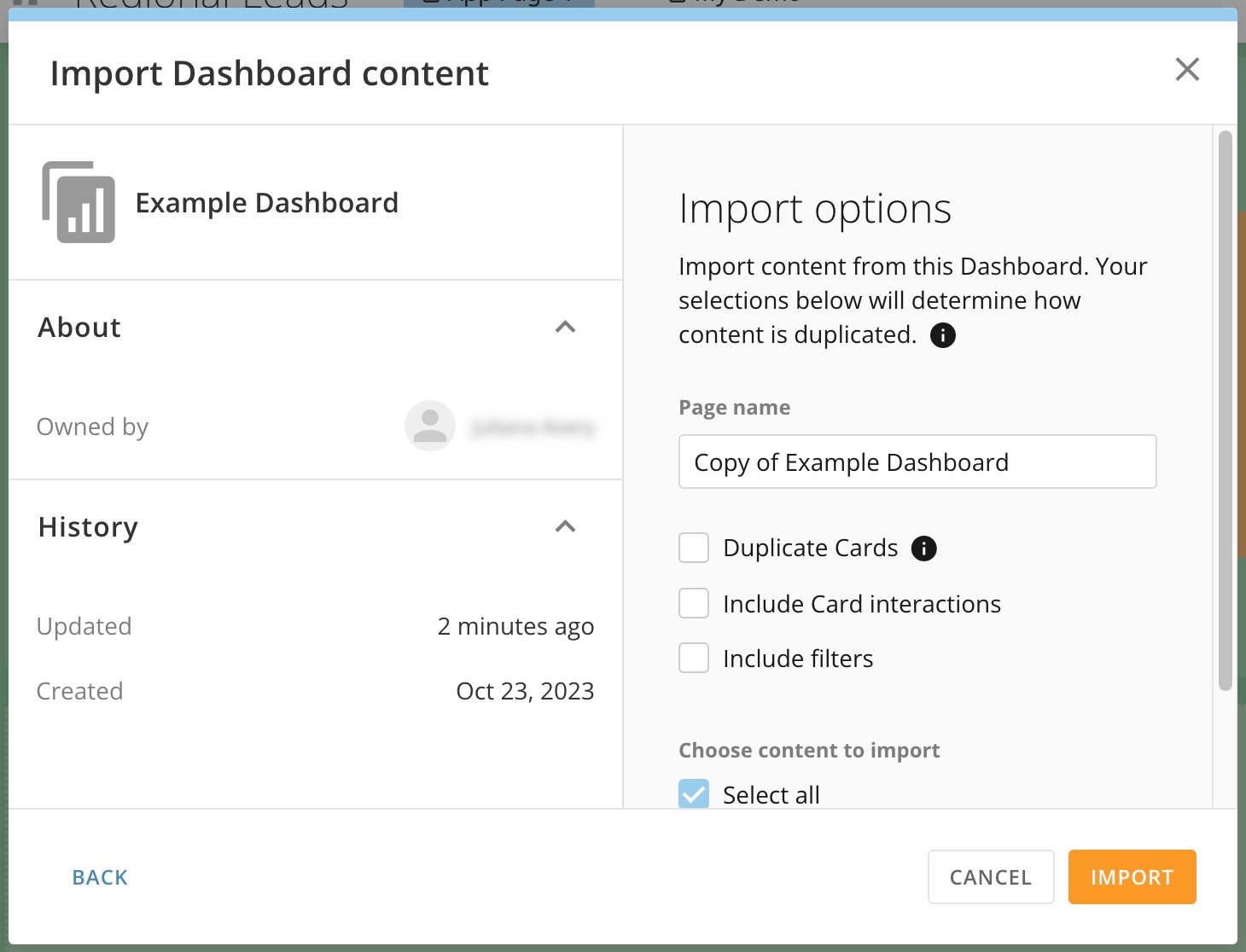 3. In the **Import options**, enter a name in the **Page name** field as you want it to display in the app.
4. Check the boxes if you would like to duplicate cards, include card interactions, and include Filters.
5. Choose the content from the dashboard that you want to import—you can choose all content or select specific elements for import.
#### Import an App Page to Another App
You can import pre-existing pages from another App Studio app into your app.
**To begin:** Go to the App Studio app to which you want to import a page from another app. Open the app in edit mode.
1. Go to
3. In the **Import options**, enter a name in the **Page name** field as you want it to display in the app.
4. Check the boxes if you would like to duplicate cards, include card interactions, and include Filters.
5. Choose the content from the dashboard that you want to import—you can choose all content or select specific elements for import.
#### Import an App Page to Another App
You can import pre-existing pages from another App Studio app into your app.
**To begin:** Go to the App Studio app to which you want to import a page from another app. Open the app in edit mode.
1. Go to
 **Pages and navigation** > **Order** tab.
2. Select **Import** > **App page(s)**.
The **Import app content** modal displays.
**Pages and navigation** > **Order** tab.
2. Select **Import** > **App page(s)**.
The **Import app content** modal displays.
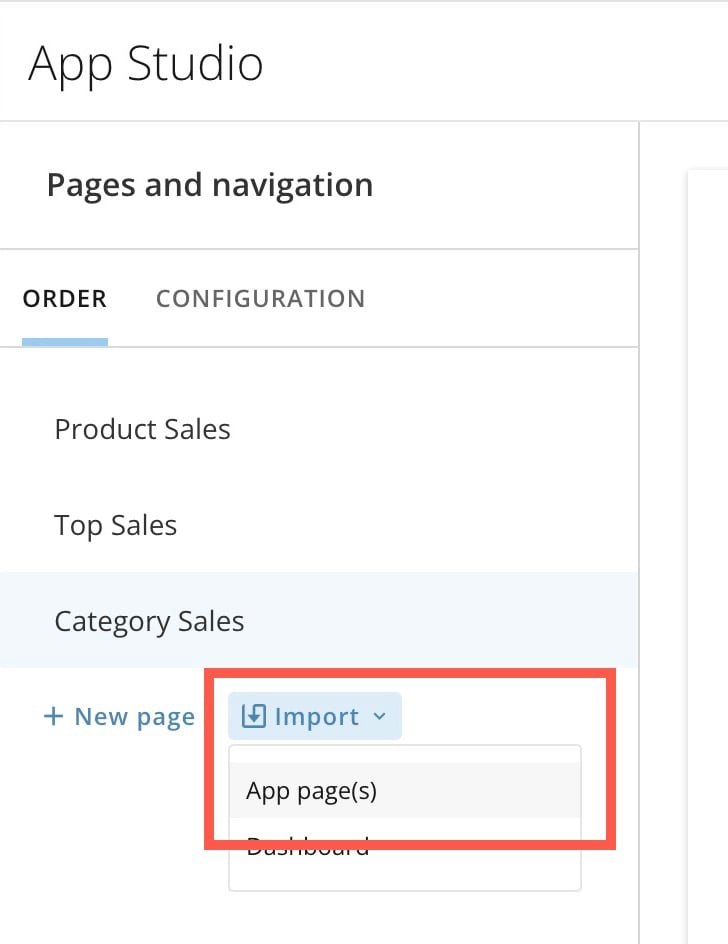 3. In the modal, search for and select the app from which you want to import a page. Select **Next** to choose the import content.
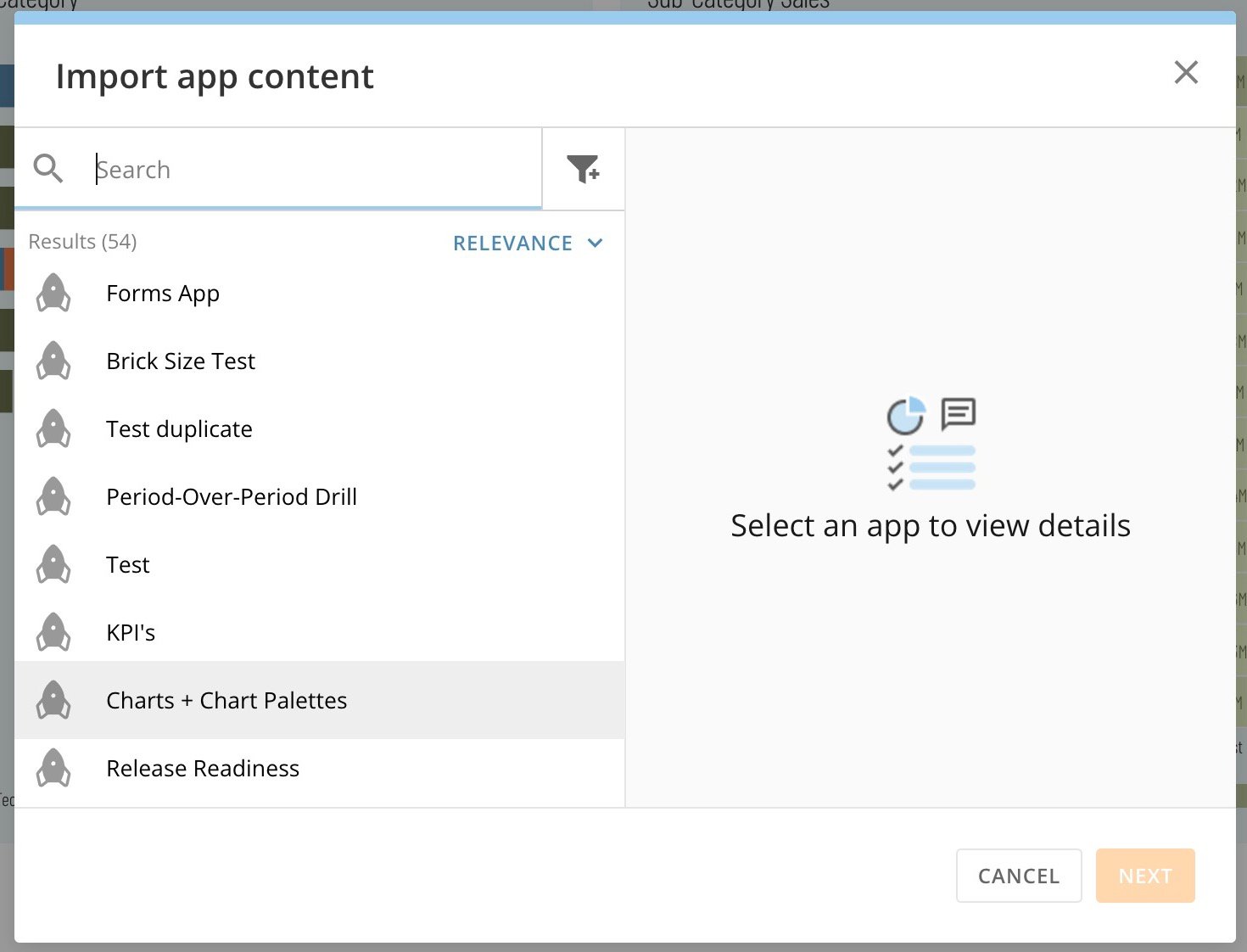 4. Under **Import options**, choose whether you want to a) duplicate cards, b) include card interactions, and/or c) include filters by checking the appropriate boxes.
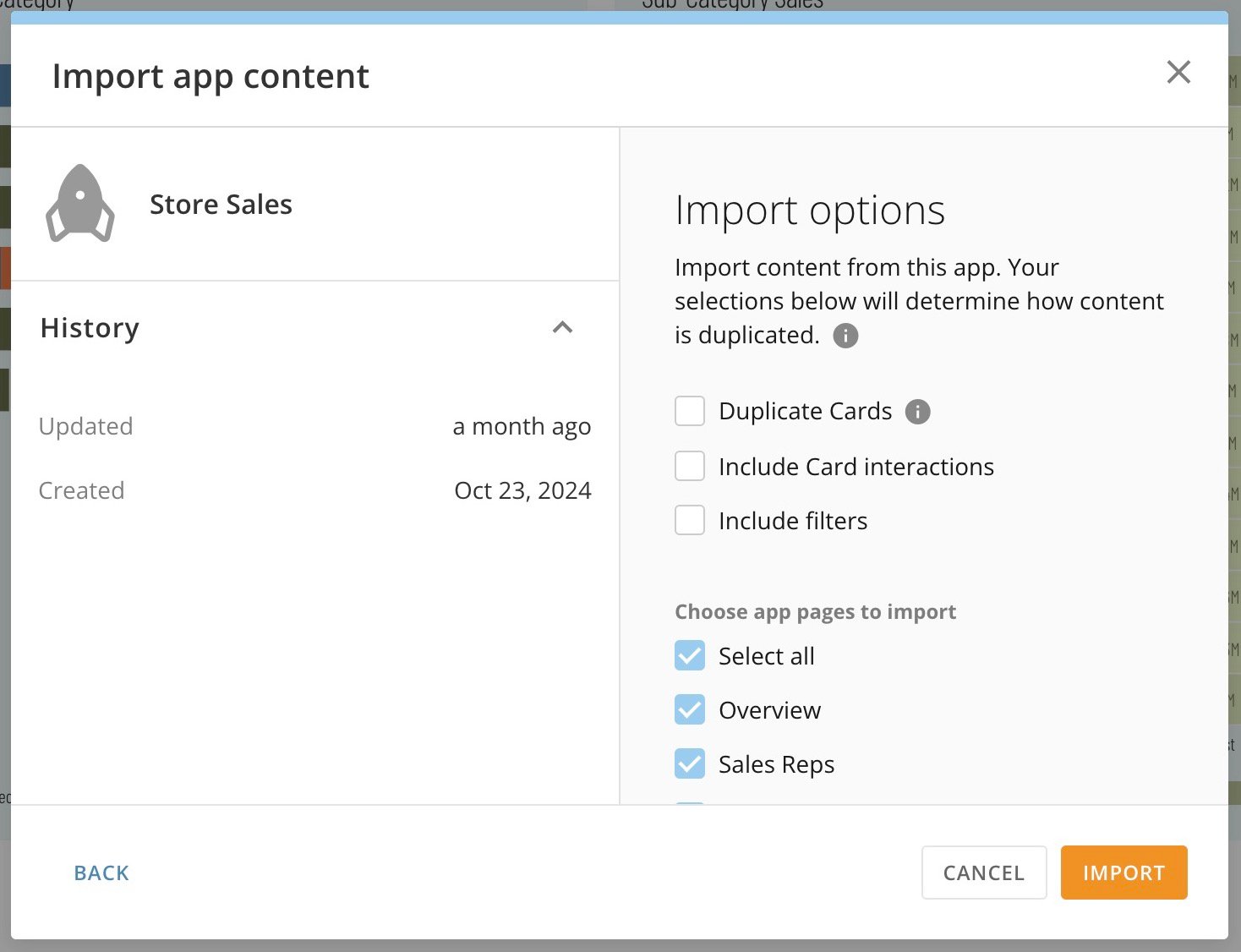 5. Now choose which pages from the app to import or choose **Select all**.
6. When finished, select **Import**.
A bar displays the import progress. When the import is complete, save the changes to your new app before closing.
#### Add an App Page
Follow these steps to add a page to your app:
1. In the **Order** tab, select **+ New Page**.
A modal displays where you can name the page.
5. Now choose which pages from the app to import or choose **Select all**.
6. When finished, select **Import**.
A bar displays the import progress. When the import is complete, save the changes to your new app before closing.
#### Add an App Page
Follow these steps to add a page to your app:
1. In the **Order** tab, select **+ New Page**.
A modal displays where you can name the page.
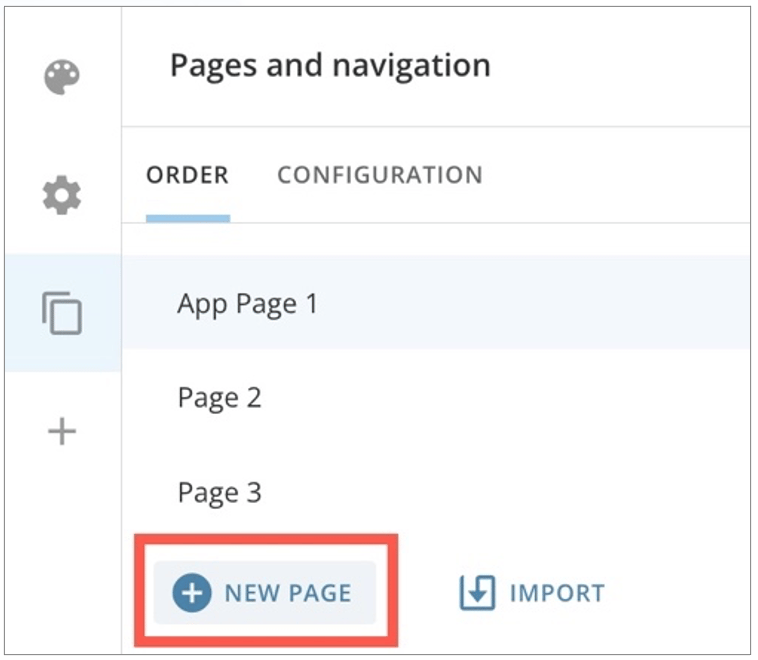 2. In the modal, select **Create and Continue** to add the page to your **Order** tab or **Cancel** to discard the page. When you add the page, it displays at the bottom of the list of pages. You can [reorder](#pages-and-navigation) the pages to change their position.
##### **Add a New Page**
App Studio supports multi-tabbed pages.
To add a new page to your app, select the **+ (Plus)** icon at the bottom of the canvas.
2. In the modal, select **Create and Continue** to add the page to your **Order** tab or **Cancel** to discard the page. When you add the page, it displays at the bottom of the list of pages. You can [reorder](#pages-and-navigation) the pages to change their position.
##### **Add a New Page**
App Studio supports multi-tabbed pages.
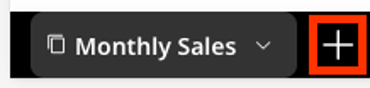
To add a new page to your app, select the **+ (Plus)** icon at the bottom of the canvas.
 1. A pop-up appears. Type the name of the new page.
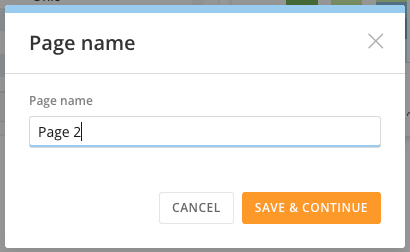 2. Select **Save and continue** to add the new page to the app, or select **Cancel** to discard the changes.
3. A new page is added to the app, and a new tab appears at the bottom.
2. Select **Save and continue** to add the new page to the app, or select **Cancel** to discard the changes.
3. A new page is added to the app, and a new tab appears at the bottom.
 ##### **Use Page Quick Menu**
Selecting the arrow next to your page's name opens a menu with the following options:
##### **Use Page Quick Menu**
Selecting the arrow next to your page's name opens a menu with the following options:
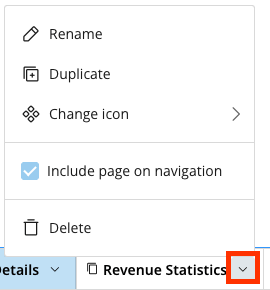 1. **Rename** your page.
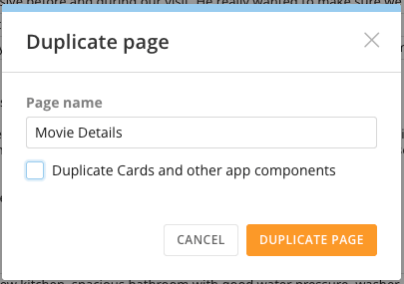
2. **Duplicate** your page.
* Add a name to your duplicate page.
* Select the **Duplicate Cards and other app components** option to copy content to your new page.
* Select **Duplicate Page** to save your changes, or select **Cancel** to discard them.
1. **Rename** your page.
2. **Duplicate** your page.
* Add a name to your duplicate page.
* Select the **Duplicate Cards and other app components** option to copy content to your new page.
* Select **Duplicate Page** to save your changes, or select **Cancel** to discard them.
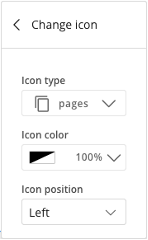
 3. **Change Icon** — Modify the icon, icon color, and icon position of your page by selecting from the options in each sub-menu.
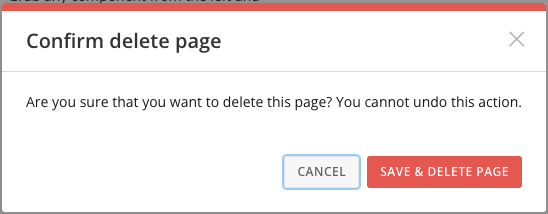
 4. **Delete** — Use this option to remove a page from the app. Note that this action is permanent and cannot be reversed.
 #### Edit an App Page
1. After you create a page in the **Order** tab, hover over it and select
#### Edit an App Page
1. After you create a page in the **Order** tab, hover over it and select  **Edit page information**.
The **Page settings** modal displays.
**Edit page information**.
The **Page settings** modal displays.
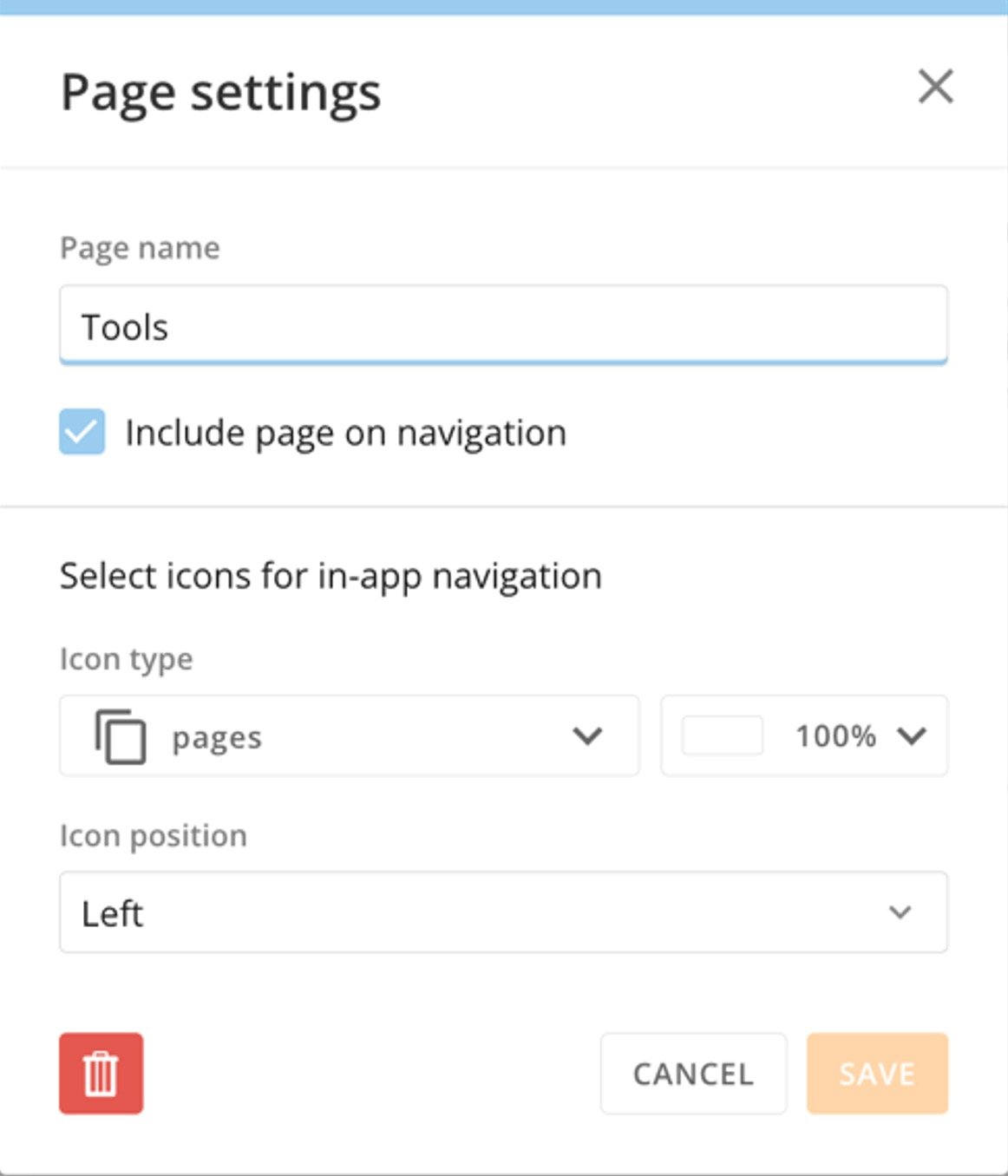 2. (Optional) Edit the page name.
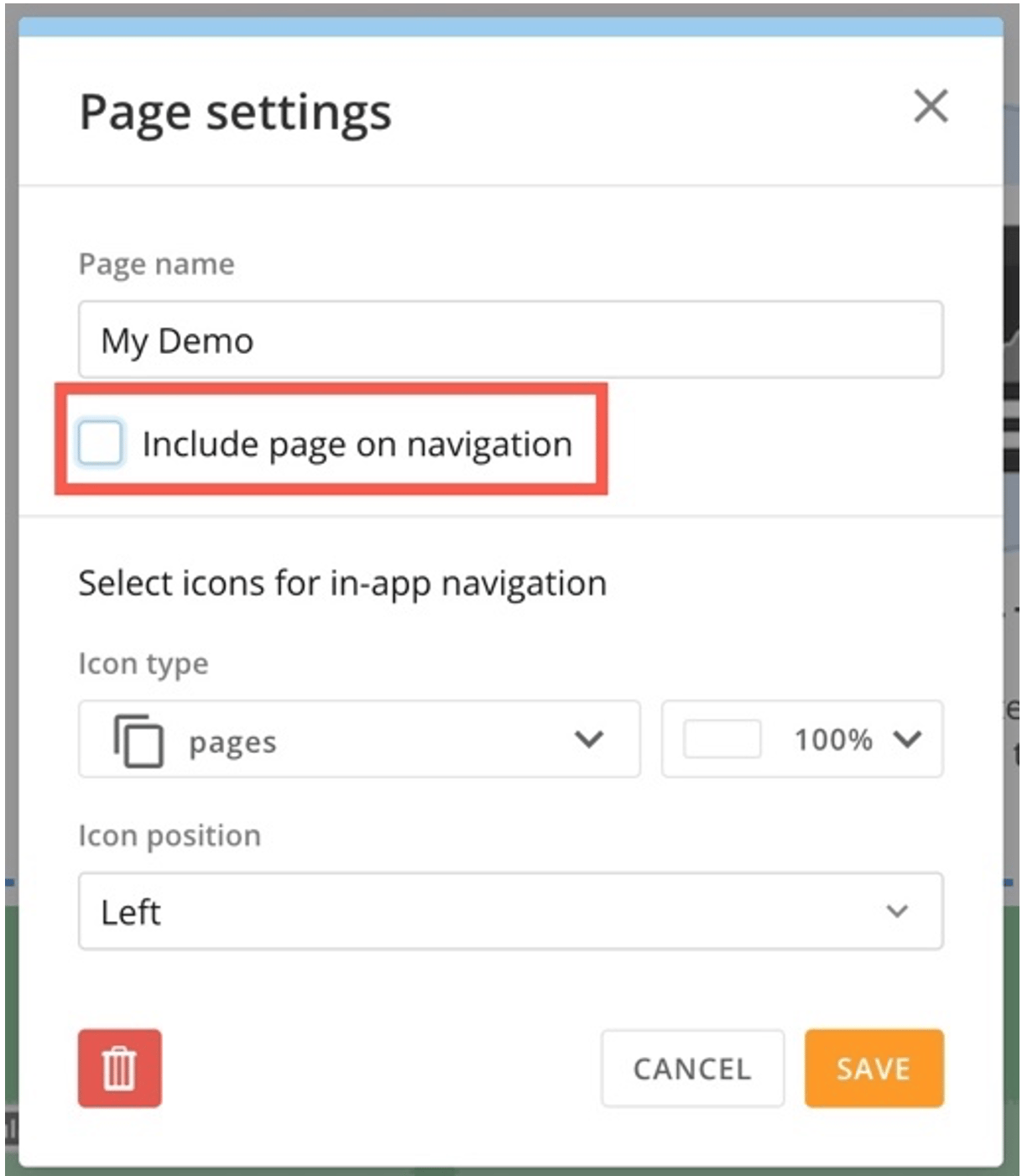
3. (Optional) Uncheck the box labeled **Include page on navigation** to remove the page from the app's main navigation. This is most often done when the page is being used as a drill view. See [Page Drill](#page-drill) to learn more. You can also hide a page if you don't want users to be able access it, but don't want to delete it.
4. Choose the icon to display for the page in the app's top navigation. The default icon is pages
2. (Optional) Edit the page name.
3. (Optional) Uncheck the box labeled **Include page on navigation** to remove the page from the app's main navigation. This is most often done when the page is being used as a drill view. See [Page Drill](#page-drill) to learn more. You can also hide a page if you don't want users to be able access it, but don't want to delete it.
4. Choose the icon to display for the page in the app's top navigation. The default icon is pages
 . You can also adjust the color, opacity, and position/alignment of the icon.
5. After making your changes, select **Save** to keep your changes and close the modal or **Cancel** to discard your changes.
#### Delete an App Page
To delete a page from **Order** tab, hover over the page and select **Edit page information**.
The **Page settings** modal displays.
In the modal, select
. You can also adjust the color, opacity, and position/alignment of the icon.
5. After making your changes, select **Save** to keep your changes and close the modal or **Cancel** to discard your changes.
#### Delete an App Page
To delete a page from **Order** tab, hover over the page and select **Edit page information**.
The **Page settings** modal displays.
In the modal, select  **Delete**.
A warning dialog displays to confirm deletion. Deleting a page cannot be undone.
Select **Delete Page** to remove the page or **Cancel** to keep the page.
### Configuration Tab — Custom Navigation
In the **Configuration** tab, you can choose to show or hide the app's main navigation.
**Delete**.
A warning dialog displays to confirm deletion. Deleting a page cannot be undone.
Select **Delete Page** to remove the page or **Cancel** to keep the page.
### Configuration Tab — Custom Navigation
In the **Configuration** tab, you can choose to show or hide the app's main navigation.
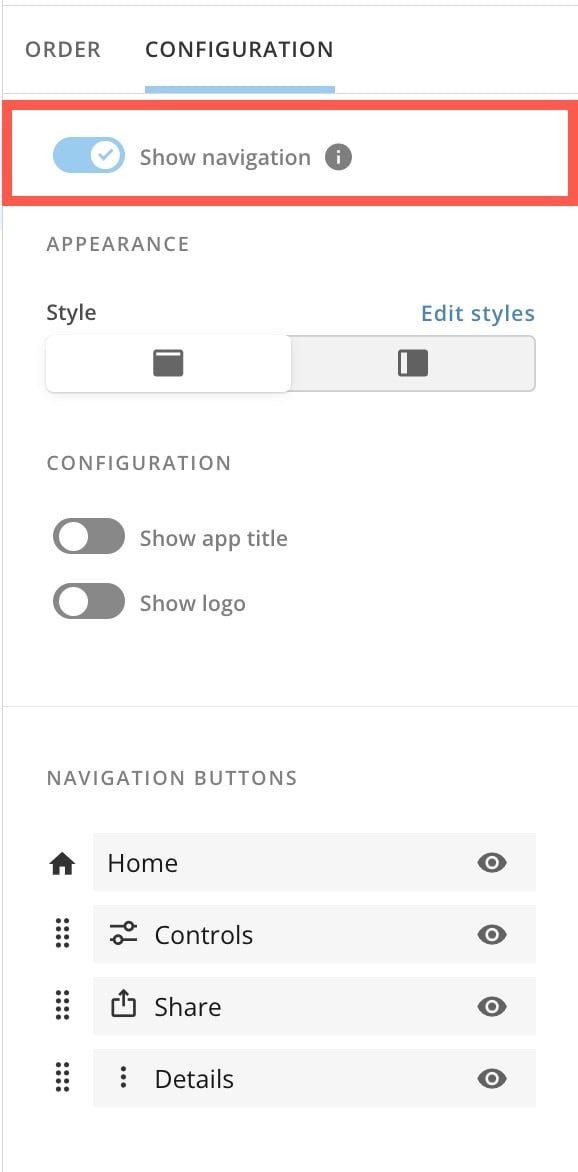 **Warning:** If the main navigation is hidden, certain interactions with the app may become difficult for app viewers.
Under **Appearance**, you can choose the orientation of the app's main navigation—along the top of the app or to the left side.
**Warning:** If the main navigation is hidden, certain interactions with the app may become difficult for app viewers.
Under **Appearance**, you can choose the orientation of the app's main navigation—along the top of the app or to the left side.
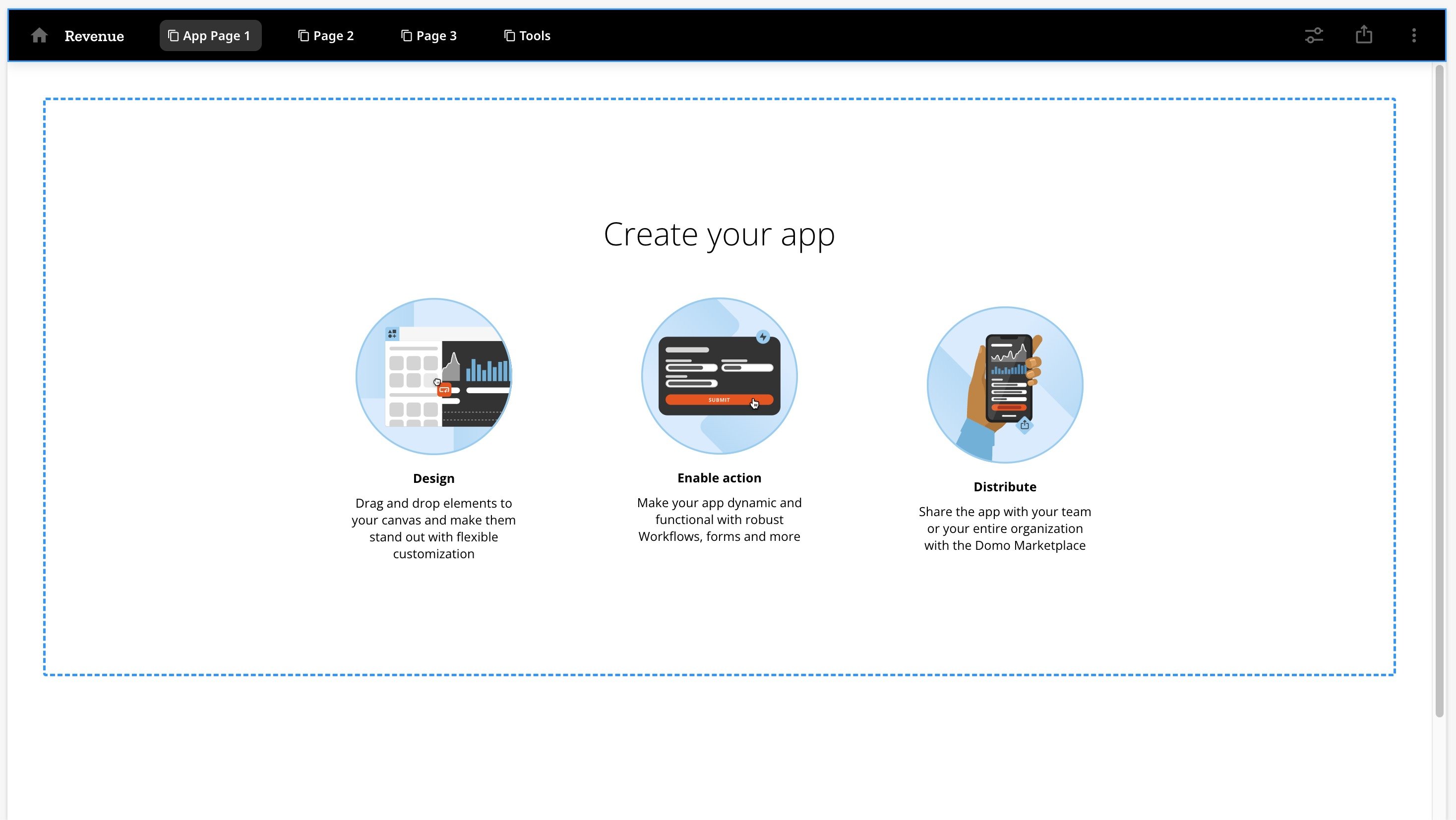
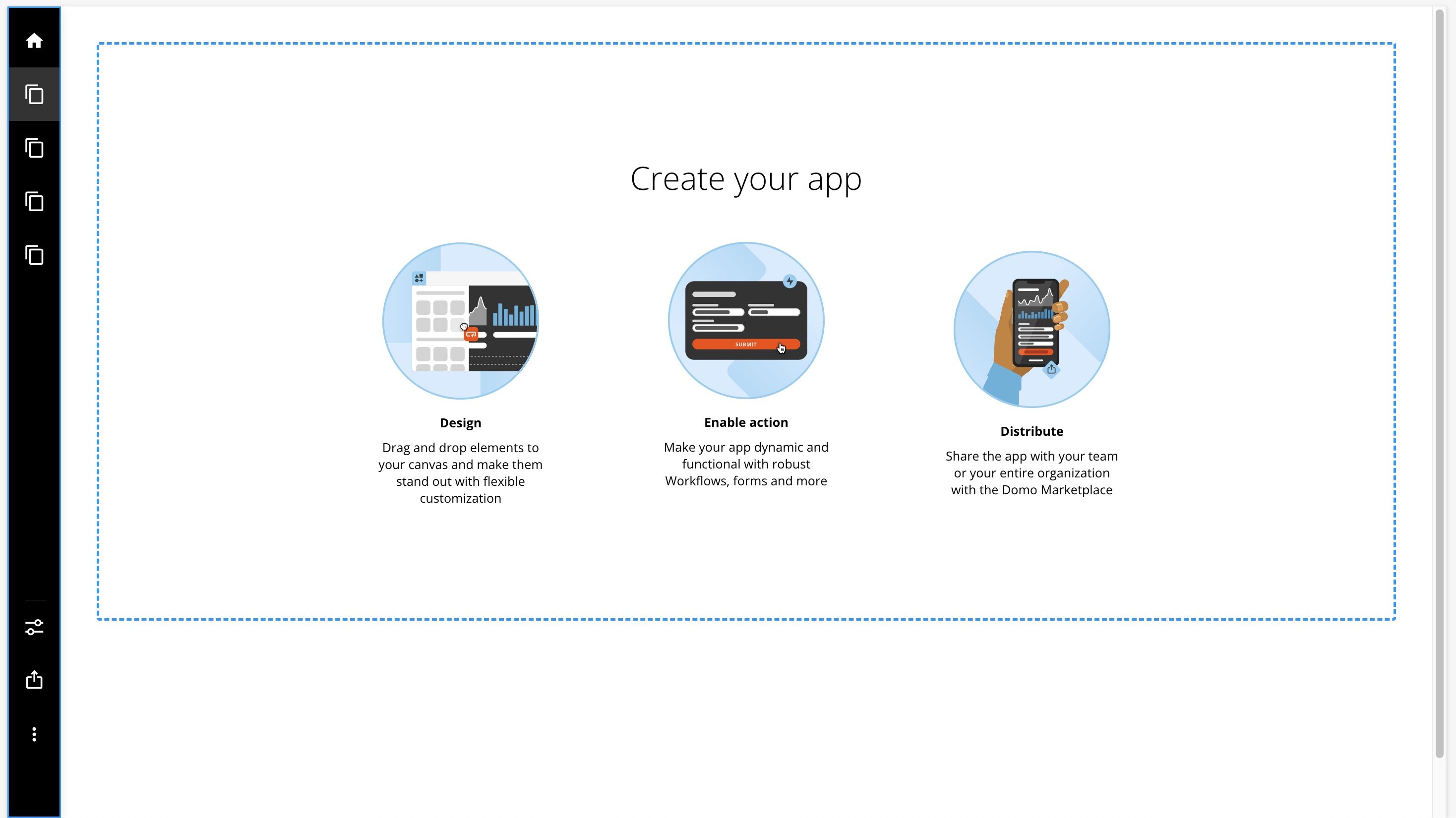
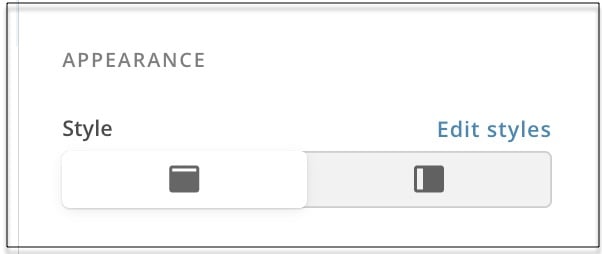 The default main navigation is along the top. Selecting **Edit styles** opens the [Layout components](#choose-a-layout) for navigation in the **App themes** section. The following images show a top navigation and a left navigation for comparison.
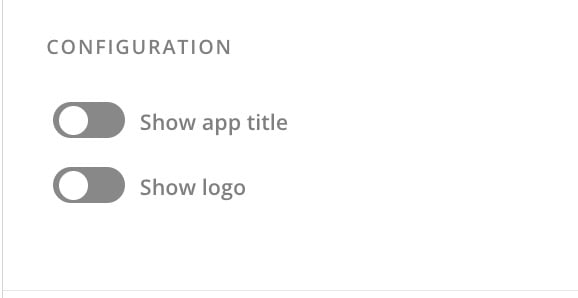
 Under **Configuration**, you can choose to show or hide the app's title and logo. When the switches are gray, both the app title and logo are hidden.
 Under **Navigation**, you can choose to show or hide the Domo navigation buttons (**Home**, **Controls**, **Share**, and **Details**) by selecting
  **Show/Hide**.
**Important:** If you hide the **Home** button in the navigation, app users will always have to use the back button in their browser to navigate to previous pages in the app.
**Show/Hide**.
**Important:** If you hide the **Home** button in the navigation, app users will always have to use the back button in their browser to navigate to previous pages in the app.
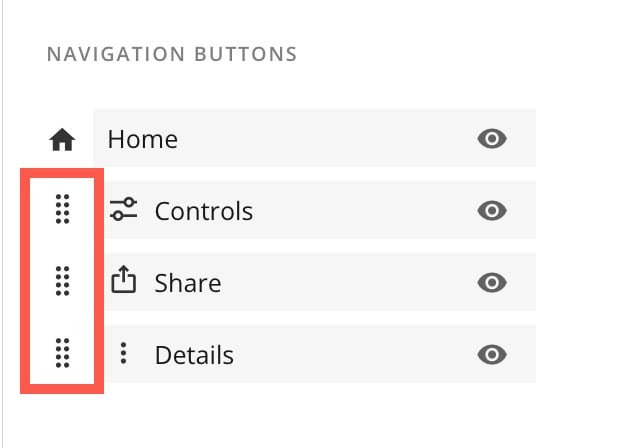
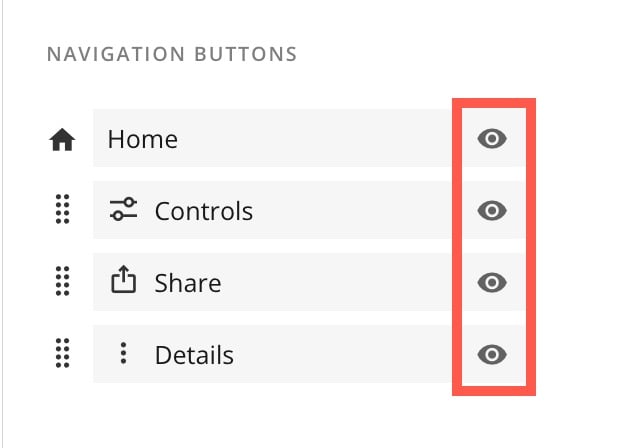 When showing, the **Home** button always displays at the far left (top orientation) or at the top (left orientation), but you can reorder the other Domo navigation buttons by using the handles to drag them.
 ### Page Drill
Page Drill allows app users to move to a different page of the app by selecting a card. Filters from the card persist through to the new page, which contains more detailed information and additional insights unavailable with the card alone. The new page is called a drill view because you can choose to hide it from the app's main navigation and make it accessible only through a drill.
**Important:** Make sure to hide the drill view under page settings. This prevents your page from displaying in the app's main navigation and displays it only as a drill view. Learn how in the tasks below. In the first task, you will configure your Page Drill to open another page in the app. In the second task, you will hide your new drill view from the app's main navigation.
#### Configure Page Drill
To configure a Page Drill, follow these steps:
1. Select your card on the canvas to open the right configuration panel.
2. In the configuration panel, go to the **Actions** tab.
3. Under **Desktop**, use the dropdown to select **Open content** > **Open page in app**.
### Page Drill
Page Drill allows app users to move to a different page of the app by selecting a card. Filters from the card persist through to the new page, which contains more detailed information and additional insights unavailable with the card alone. The new page is called a drill view because you can choose to hide it from the app's main navigation and make it accessible only through a drill.
**Important:** Make sure to hide the drill view under page settings. This prevents your page from displaying in the app's main navigation and displays it only as a drill view. Learn how in the tasks below. In the first task, you will configure your Page Drill to open another page in the app. In the second task, you will hide your new drill view from the app's main navigation.
#### Configure Page Drill
To configure a Page Drill, follow these steps:
1. Select your card on the canvas to open the right configuration panel.
2. In the configuration panel, go to the **Actions** tab.
3. Under **Desktop**, use the dropdown to select **Open content** > **Open page in app**.
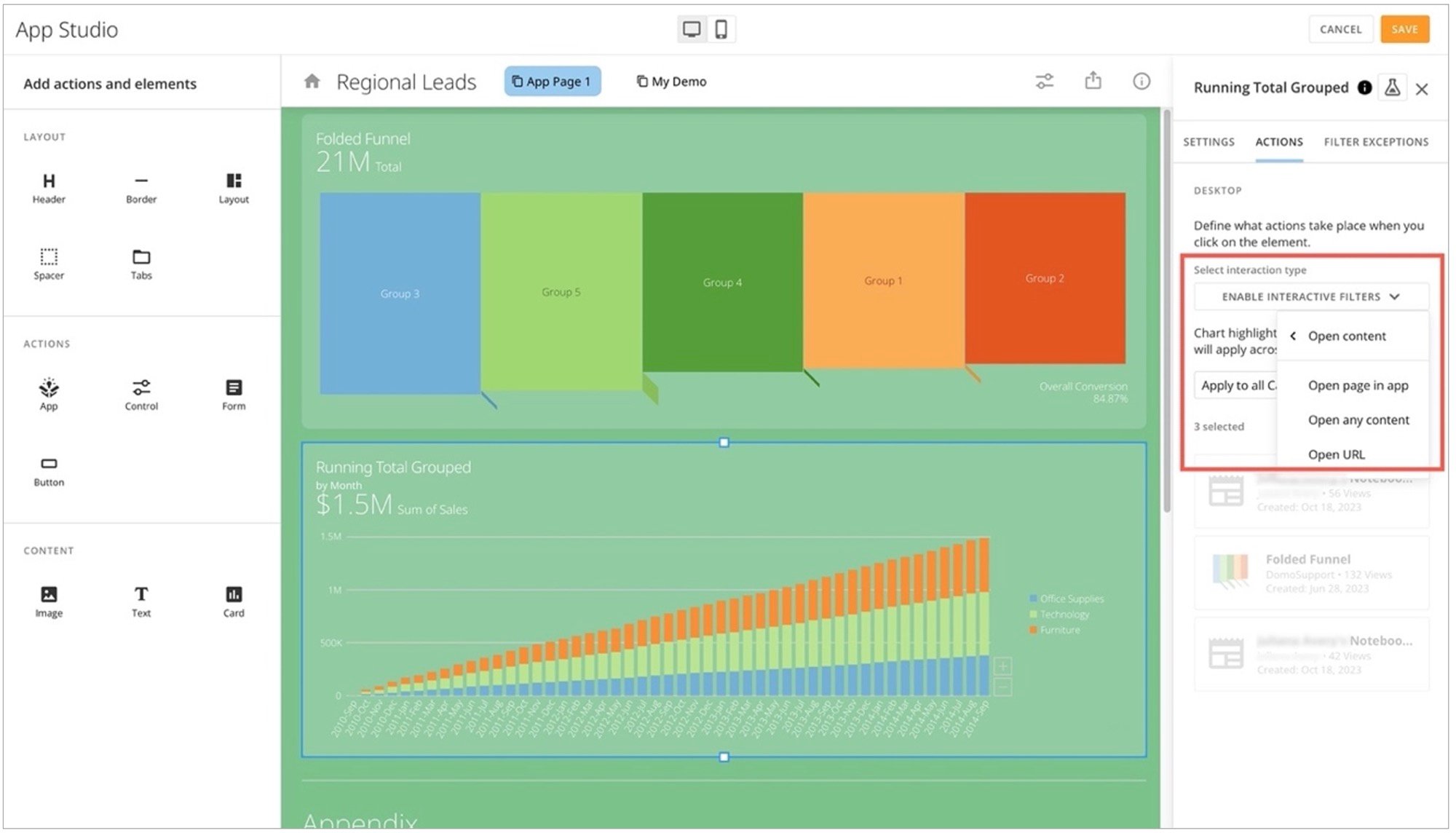 4. In the second dropdown, select the page to open as the destination or drill view.
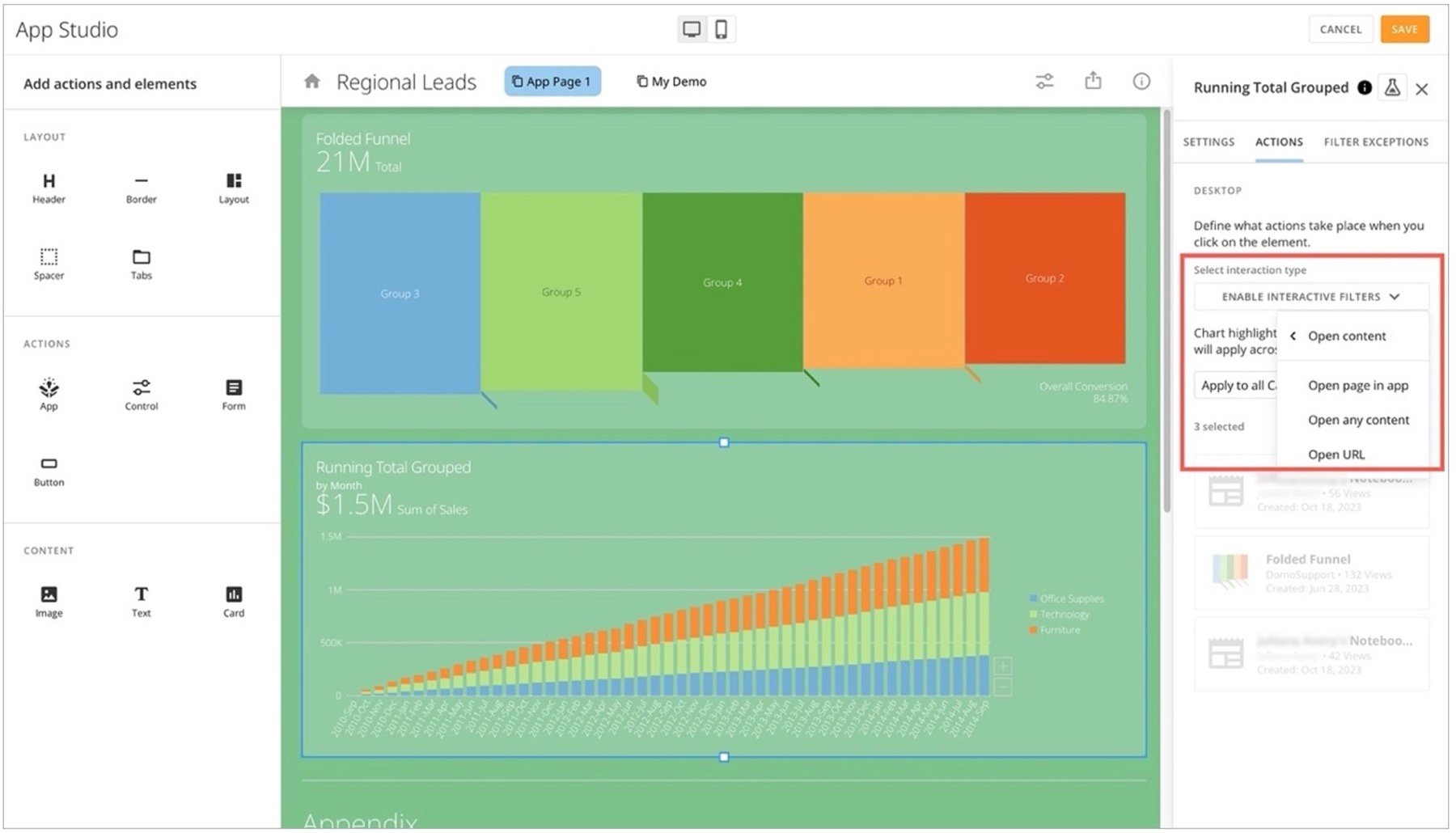 5. If you want to use any of these options, check the applicable boxes:
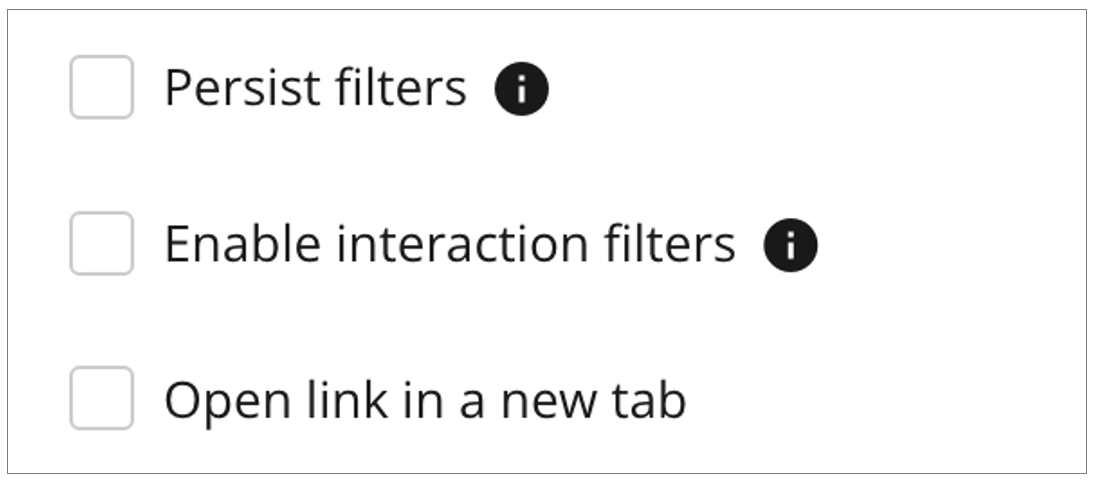
* **Persist filters —** Filters applied to the app page carry forward to the destination page or drill view.
* **Enable interaction filters —** When this option is selected, interactive charts on cards are enabled. However, tooltips and screen readers will not detect navigation to the drill view.
* **Open link in a new tab —** Opens the drill view in a new browser tab.
5. If you want to use any of these options, check the applicable boxes:
* **Persist filters —** Filters applied to the app page carry forward to the destination page or drill view.
* **Enable interaction filters —** When this option is selected, interactive charts on cards are enabled. However, tooltips and screen readers will not detect navigation to the drill view.
* **Open link in a new tab —** Opens the drill view in a new browser tab.
 6. Save your changes.
#### Hide Drill View
1. Navigate to **Pages and navigation** > **Order** tab.
2. Locate the page you are using as the destination of your Page Drill and hover over it to select
6. Save your changes.
#### Hide Drill View
1. Navigate to **Pages and navigation** > **Order** tab.
2. Locate the page you are using as the destination of your Page Drill and hover over it to select
 **Edit page information**.
The **Page settings** modal displays.
3. In the modal, uncheck the box labeled **Include page on navigation**. This removes the page from the app's main navigation and makes it accessible to app users only as a drill view.
**Note:** The app landing page cannot be removed from the navigation.
**Edit page information**.
The **Page settings** modal displays.
3. In the modal, uncheck the box labeled **Include page on navigation**. This removes the page from the app's main navigation and makes it accessible to app users only as a drill view.
**Note:** The app landing page cannot be removed from the navigation.
 4. Select **Save** to close the modal.
## Add Actions and Elements
In the
4. Select **Save** to close the modal.
## Add Actions and Elements
In the  **Add actions and elements** section, you can customize app [layout](#choose-a-layout) and [actions](#add-actions-and-elements) available to app users, and add Domo [content](#import-dashboard-content-to-an-app) like cards and workflows.
You can drag an action or element to your canvas to add it to your app. The configuration panel opens so you can configure the item.
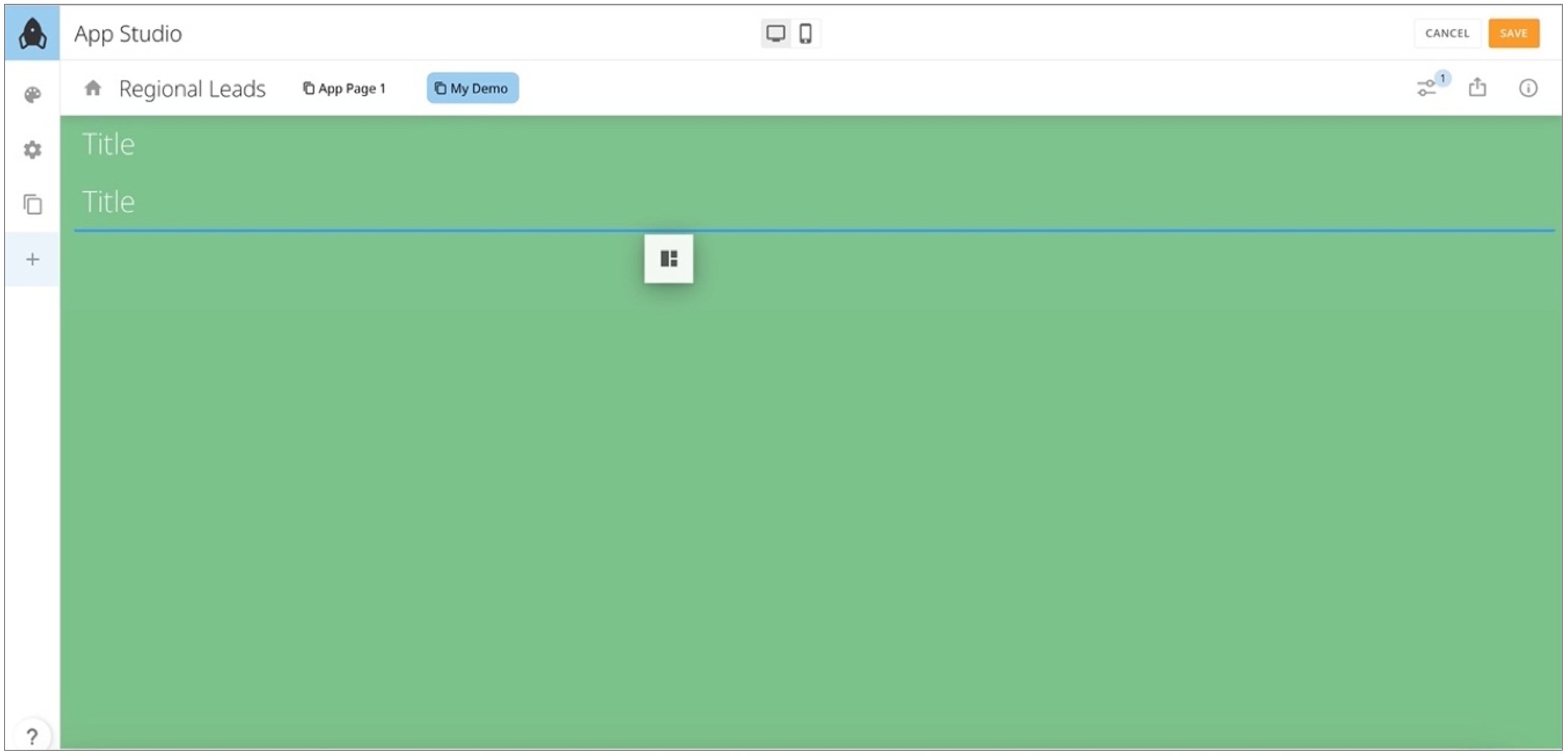
**Note:** When dragging an action or element onto the canvas, you must drag it to the blue line that appears for it to stick to the canvas.
**Add actions and elements** section, you can customize app [layout](#choose-a-layout) and [actions](#add-actions-and-elements) available to app users, and add Domo [content](#import-dashboard-content-to-an-app) like cards and workflows.
You can drag an action or element to your canvas to add it to your app. The configuration panel opens so you can configure the item.
**Note:** When dragging an action or element onto the canvas, you must drag it to the blue line that appears for it to stick to the canvas.
 ### Add Components to an App
Follow these steps to locate and place components using the drag-and-drop interface:
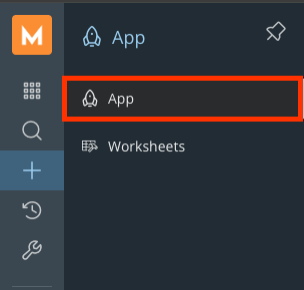
1. In the left navigation bar, select **+ Create**.
### Add Components to an App
Follow these steps to locate and place components using the drag-and-drop interface:
1. In the left navigation bar, select **+ Create**.
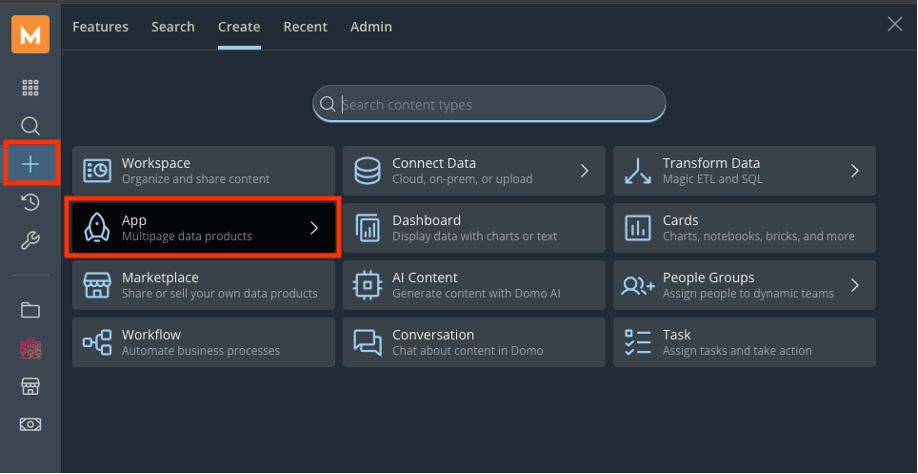 2. Select **App**.
A sub-menu opens.
3. In the sub-menu, select **App**.
2. Select **App**.
A sub-menu opens.
3. In the sub-menu, select **App**.
 4. Select a theme for your app by choosing from the predefined options, creating a custom theme, or importing one from another app. Select **Apply** to set the chosen theme, or select **Cancel** to continue without applying a theme.
 5. Locate the vertical menu on the left.
6. Select the icon for the required element type.
7. Hover over the desired element within the expanded menu, then right-click and hold to select it.
5. Locate the vertical menu on the left.
6. Select the icon for the required element type.
7. Hover over the desired element within the expanded menu, then right-click and hold to select it.
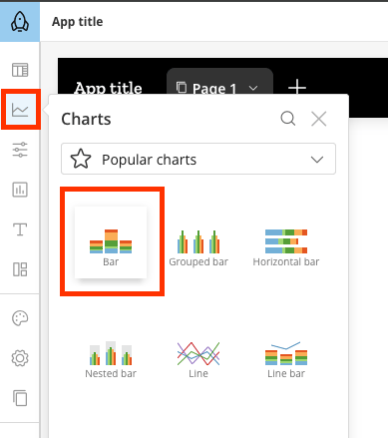 8. Drag and drop your desired element into your app layout.
9. Select a DataSet for your app.
8. Drag and drop your desired element into your app layout.
9. Select a DataSet for your app.
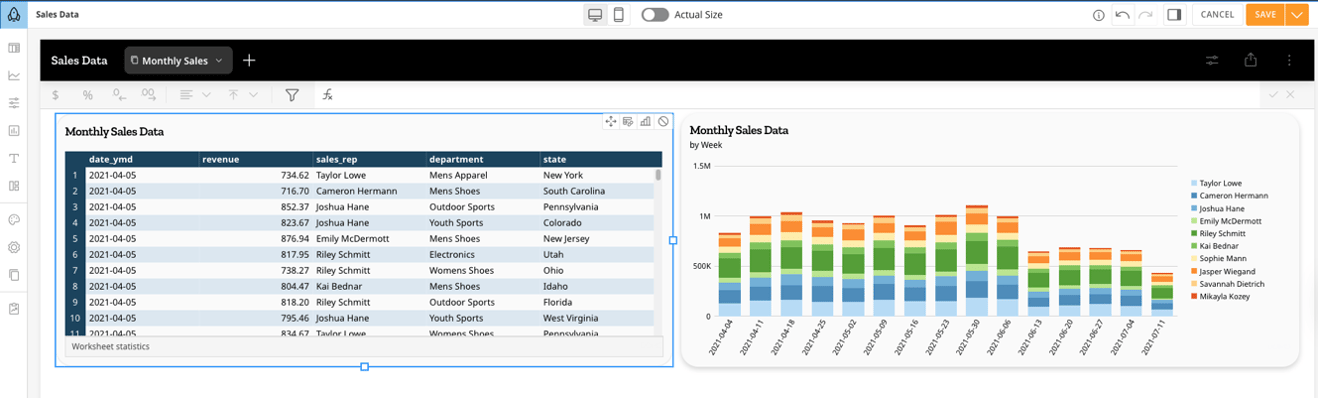
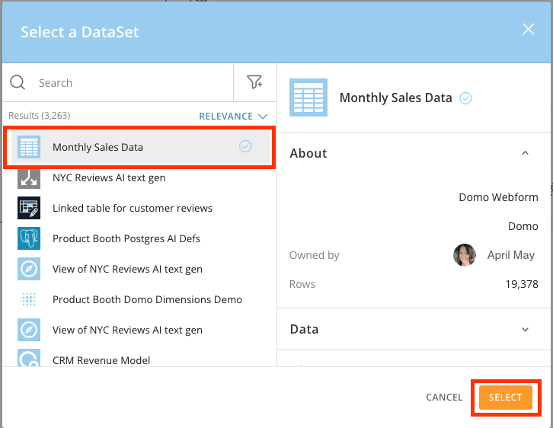 After the component appears on the canvas, you can configure and format its data via the properties panel.
 ### Add a Header
Dragging a **Header** element to the canvas gives you the option to
### Add a Header
Dragging a **Header** element to the canvas gives you the option to  **Edit** or
  **Delete**.
* Selecting **Edit** displays the **Header** configuration panel. In the panel, you can enter a label or title for your header and choose a header style from the **App theme** styles. If you select **Edit styles** for the style you choose, the left panel displays the header style editor. Any changes you make are reflected on the canvas for a real-time preview.
* Selecting **Delete** displays a dialog to confirm that you want to remove the header. Select **Remove Header** to delete.
### Add a Border
Dragging a **Border** element to the canvas displays a horizontal line. Select the line to open the configuration panel.
In the panel, selecting **Delete** displays a dialog to confirm that you want to remove the border. Select **Remove Border** to delete.
### Choose a Layout
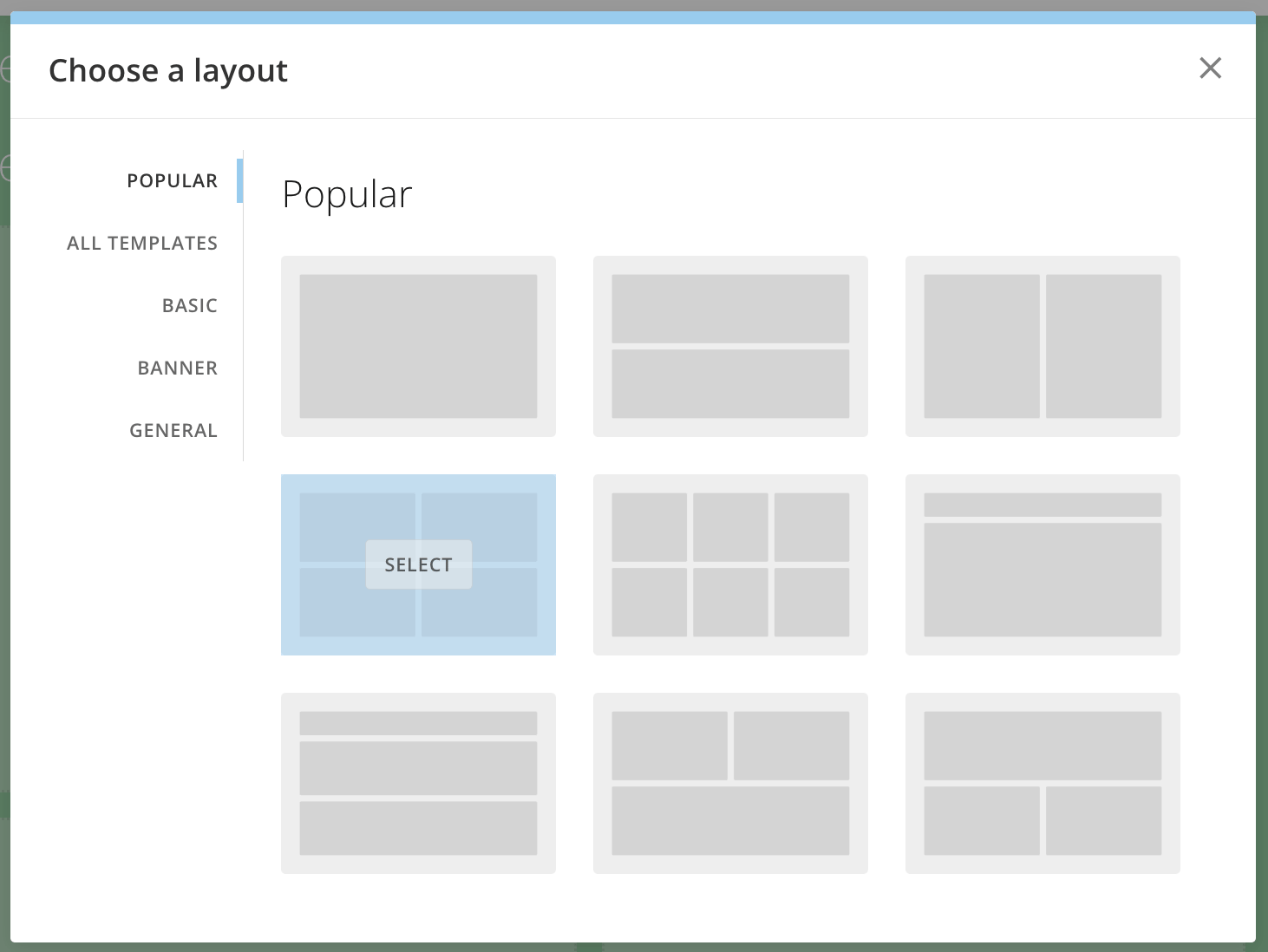
Dragging a layout onto the canvas displays the **Choose a layout** modal. Look through the potential layout options and hover over the one you want to use and choose **Select** to import the layout to the canvas.
**Delete**.
* Selecting **Edit** displays the **Header** configuration panel. In the panel, you can enter a label or title for your header and choose a header style from the **App theme** styles. If you select **Edit styles** for the style you choose, the left panel displays the header style editor. Any changes you make are reflected on the canvas for a real-time preview.
* Selecting **Delete** displays a dialog to confirm that you want to remove the header. Select **Remove Header** to delete.
### Add a Border
Dragging a **Border** element to the canvas displays a horizontal line. Select the line to open the configuration panel.
In the panel, selecting **Delete** displays a dialog to confirm that you want to remove the border. Select **Remove Border** to delete.
### Choose a Layout
Dragging a layout onto the canvas displays the **Choose a layout** modal. Look through the potential layout options and hover over the one you want to use and choose **Select** to import the layout to the canvas.
 #### Add a Spacer
Dragging a spacer to the canvas creates an area of blank space between other elements. Select the spacer to open the **Spacer** configuration panel on the right.
In the panel, selecting **Delete** displays a dialog to confirm that you want to remove the spacer. Select **Remove Spacer** to delete.
### Add Tabs
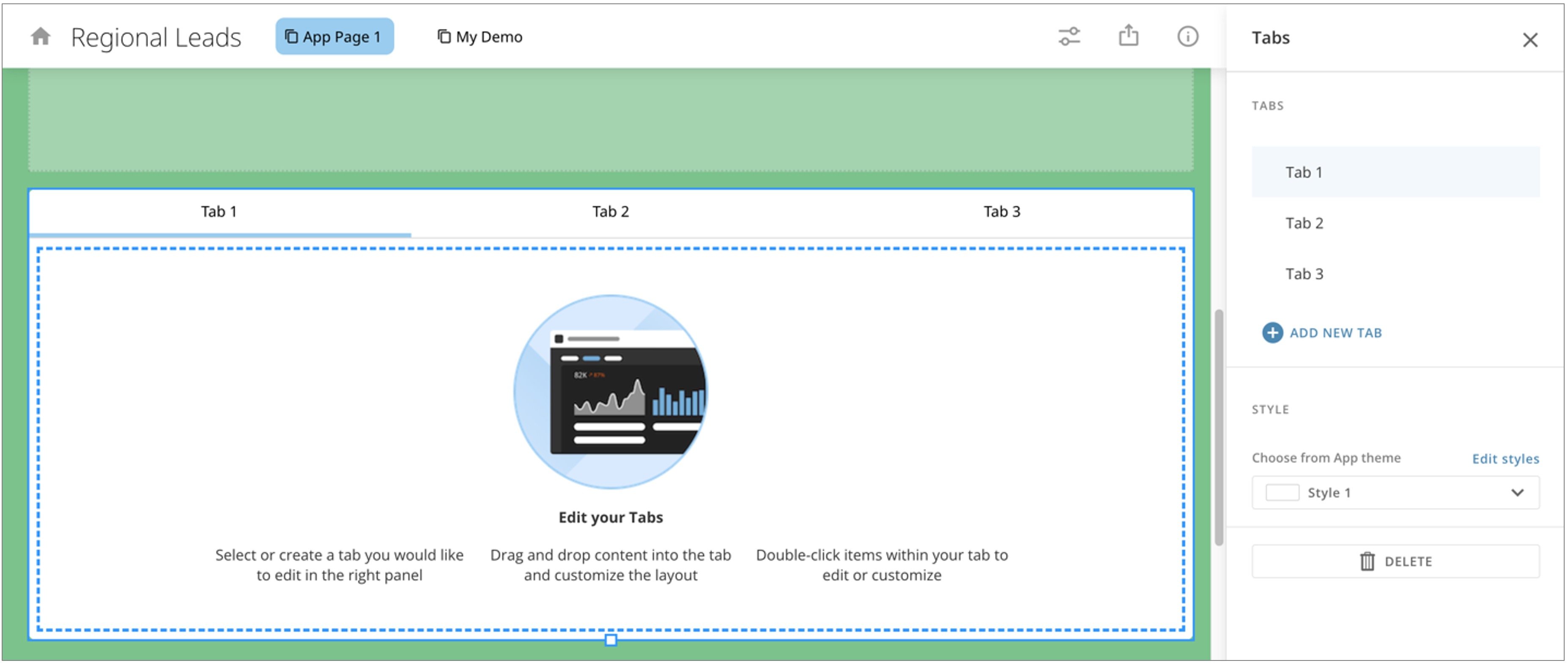
Dragging a **Tabs** element to the canvas displays an interface with three tabs and opens the configuration panel.
#### Add a Spacer
Dragging a spacer to the canvas creates an area of blank space between other elements. Select the spacer to open the **Spacer** configuration panel on the right.
In the panel, selecting **Delete** displays a dialog to confirm that you want to remove the spacer. Select **Remove Spacer** to delete.
### Add Tabs
Dragging a **Tabs** element to the canvas displays an interface with three tabs and opens the configuration panel.
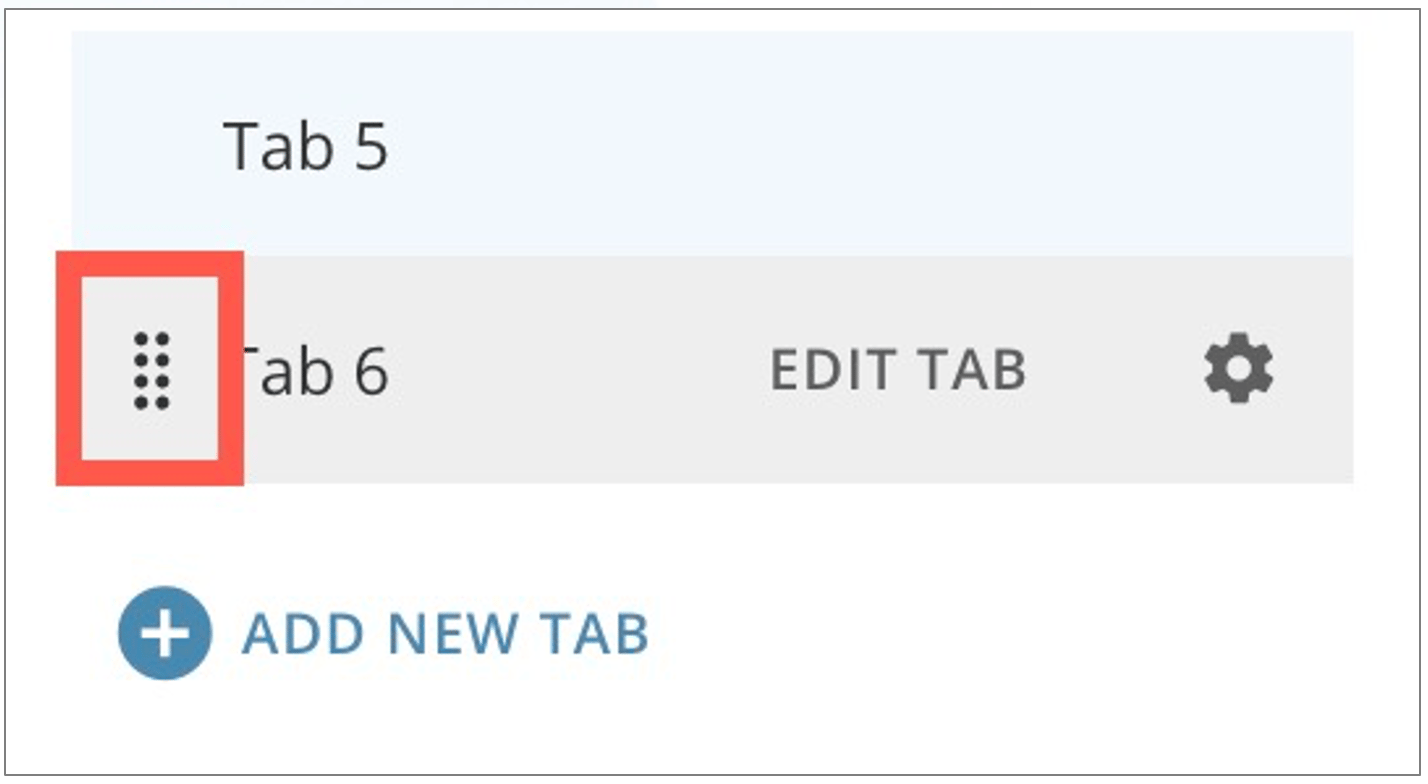
 To reorder tabs in the configuration panel, hover over them and drag them by their handles into the correct order.
 To close the panel, select
  **Close**.
#### Tabs Styles
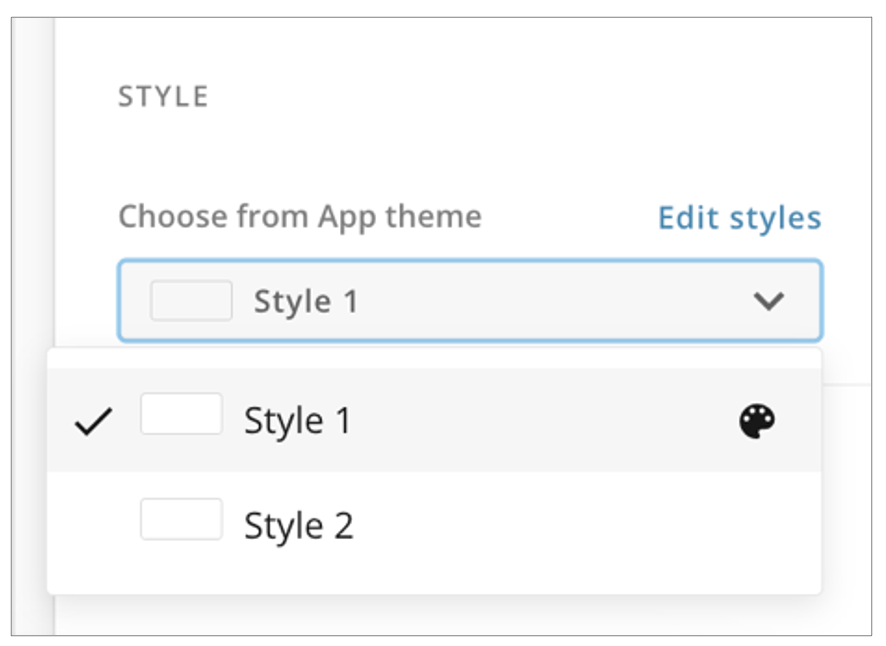
In the panel, you can select from one of two styles for your tabs. Select **Edit styles** to make changes to either style.
**Close**.
#### Tabs Styles
In the panel, you can select from one of two styles for your tabs. Select **Edit styles** to make changes to either style.
 #### Add a New Tab
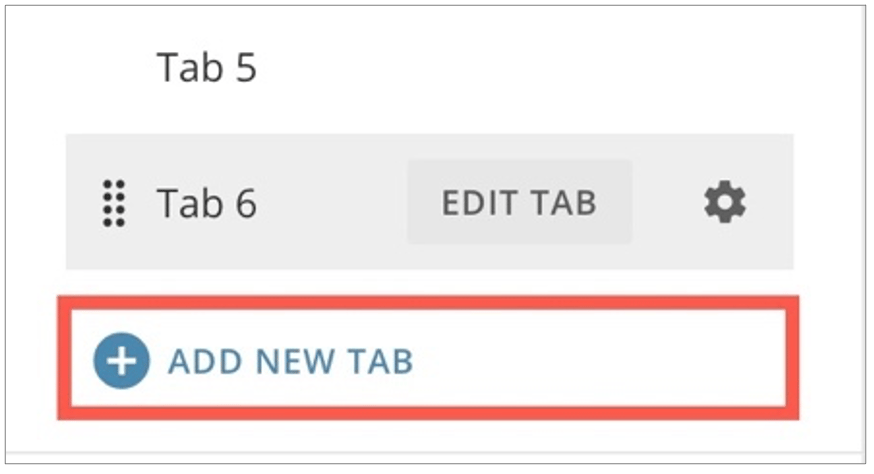
You can add tabs from the panel by selecting **+ Add New Tab**. This adds a tab to the end of the tab list with the next default number.
#### Add a New Tab
You can add tabs from the panel by selecting **+ Add New Tab**. This adds a tab to the end of the tab list with the next default number.
 #### Edit Tabs
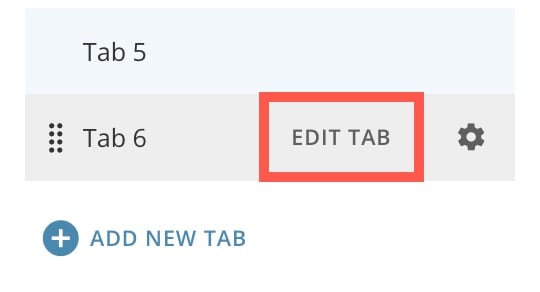
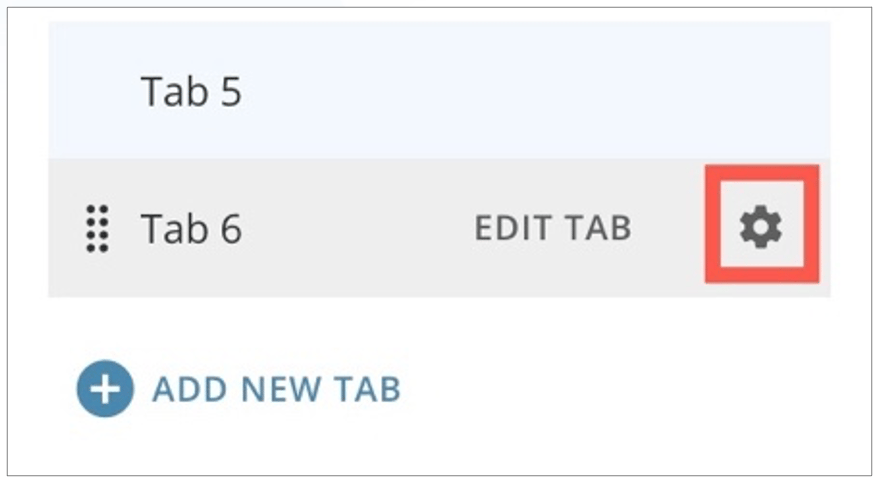
In the panel, you can edit a tab by hovering over a tab and selecting **Edit Tab**. This selects the tab on the canvas.
#### Edit Tabs
In the panel, you can edit a tab by hovering over a tab and selecting **Edit Tab**. This selects the tab on the canvas.
 When a tab is selected on the canvas, you can drag actions and elements from the left panel into the tab and customize the layout.
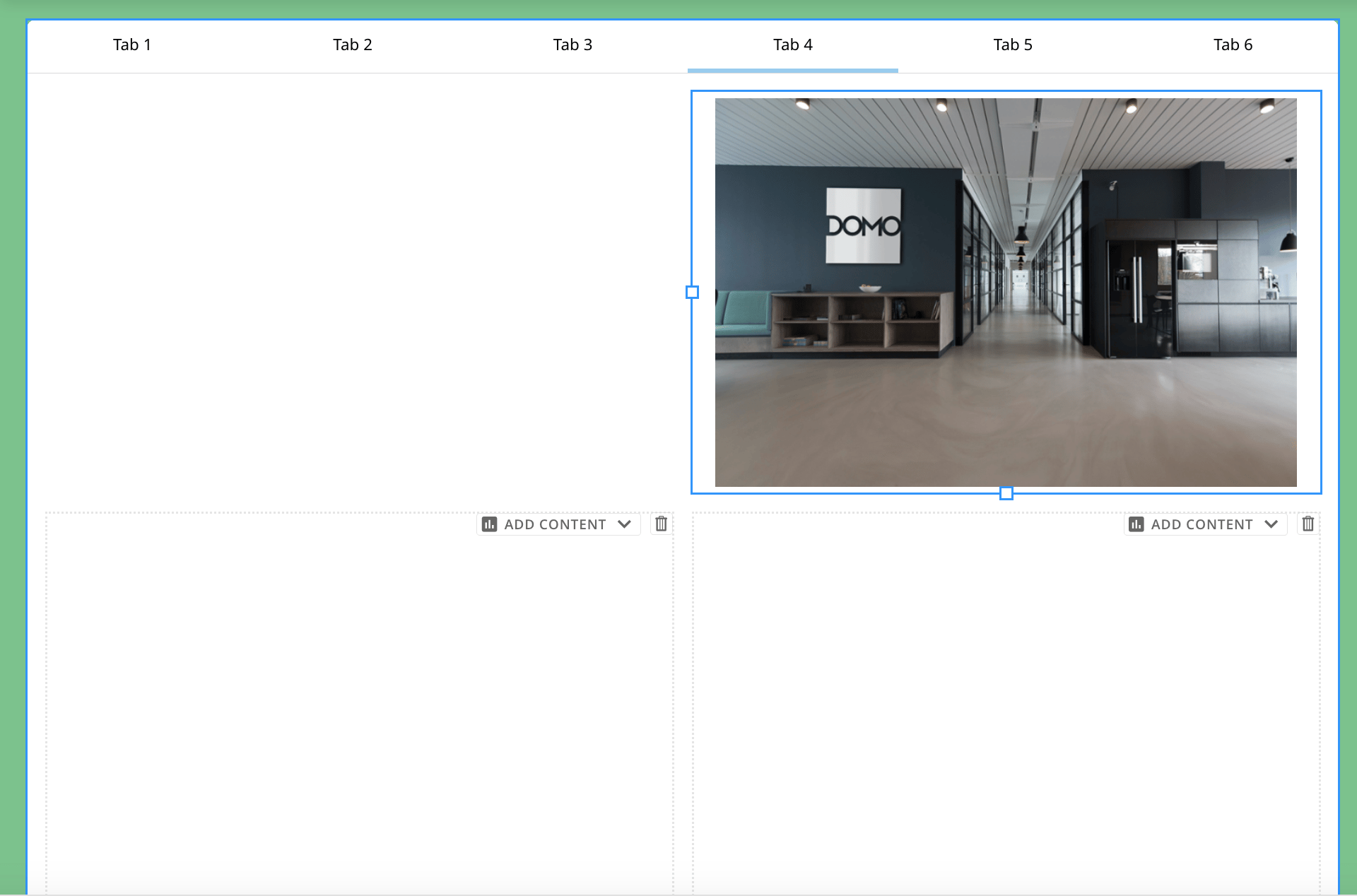 **Note:** When resizing the tabs layout, please note that since all last items must have space to shrink in order for the layout to resize to a smaller aspect ratio, the tabs layout will not resize smaller if the last item in *any* of its tabs is at a minimum height.
When you are finished editing your tab, click somewhere in the tab ribbon on the canvas to open the **Tabs** right panel.
#### Delete Tabs
You can delete tabs individually or delete the whole tabs element.
Whether you delete tabs individually or as an element group, deleting tabs moves all cards or Domo Bricks in those tabs to the appendix. Forms in deleted tabs are removed from the app. Content like buttons and controls created within tabs are permanently deleted.
You cannot undo a deletion.
* To delete an individual tab, hover over the tab in the right panel.
Select
**Note:** When resizing the tabs layout, please note that since all last items must have space to shrink in order for the layout to resize to a smaller aspect ratio, the tabs layout will not resize smaller if the last item in *any* of its tabs is at a minimum height.
When you are finished editing your tab, click somewhere in the tab ribbon on the canvas to open the **Tabs** right panel.
#### Delete Tabs
You can delete tabs individually or delete the whole tabs element.
Whether you delete tabs individually or as an element group, deleting tabs moves all cards or Domo Bricks in those tabs to the appendix. Forms in deleted tabs are removed from the app. Content like buttons and controls created within tabs are permanently deleted.
You cannot undo a deletion.
* To delete an individual tab, hover over the tab in the right panel.
Select  **Edit tab information** to display the **Tab label** modal.
 Select
  **Delete**.
A dialog displays to confirm deletion.
Select **Delete** or **Cancel**.
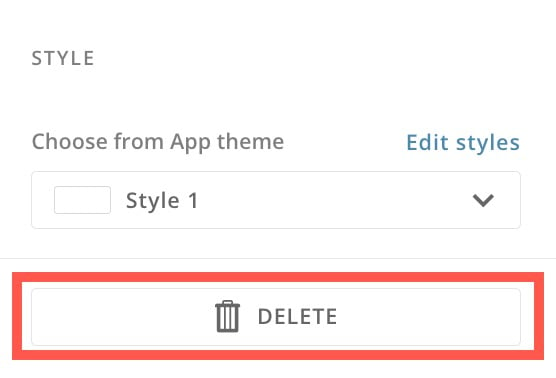
* To delete a tab element, select **Delete** in the right panel.
A dialog displays to confirm deletion.
Select **Delete** or **Cancel**.
**Delete**.
A dialog displays to confirm deletion.
Select **Delete** or **Cancel**.
* To delete a tab element, select **Delete** in the right panel.
A dialog displays to confirm deletion.
Select **Delete** or **Cancel**.
 ### Add a Domo App
Dragging an **App** action onto the canvas opens the **Select an App** modal. Search for and select the app you want to import and select **Get** or **Cancel**.
### Add a Variable Control
Dragging a **Control** action onto the canvas allows you to add a Variable control to the app page. To learn about Variables and controls, see the [Variables | Overview](/s/article/7903767835031).
### Add a Form
Dragging a form action onto the canvas opens the form editor. See our [Forms](/s/article/000005171) documentation to learn more.
### Add a Button
Dragging a button action onto the canvas opens the right panel with two tabs: **Settings** and **Actions**.
#### Settings Tab
In the **Settings** tab, you can configure the following:
* Enter text for the button label
* Select an icon from the available options or choose **No icon**
* Select the button color and opacity
* Choose the icon placement on the button: top, left, or right
* Choose the icon size: default, small, medium, large, or extra large
### Add a Domo App
Dragging an **App** action onto the canvas opens the **Select an App** modal. Search for and select the app you want to import and select **Get** or **Cancel**.
### Add a Variable Control
Dragging a **Control** action onto the canvas allows you to add a Variable control to the app page. To learn about Variables and controls, see the [Variables | Overview](/s/article/7903767835031).
### Add a Form
Dragging a form action onto the canvas opens the form editor. See our [Forms](/s/article/000005171) documentation to learn more.
### Add a Button
Dragging a button action onto the canvas opens the right panel with two tabs: **Settings** and **Actions**.
#### Settings Tab
In the **Settings** tab, you can configure the following:
* Enter text for the button label
* Select an icon from the available options or choose **No icon**
* Select the button color and opacity
* Choose the icon placement on the button: top, left, or right
* Choose the icon size: default, small, medium, large, or extra large
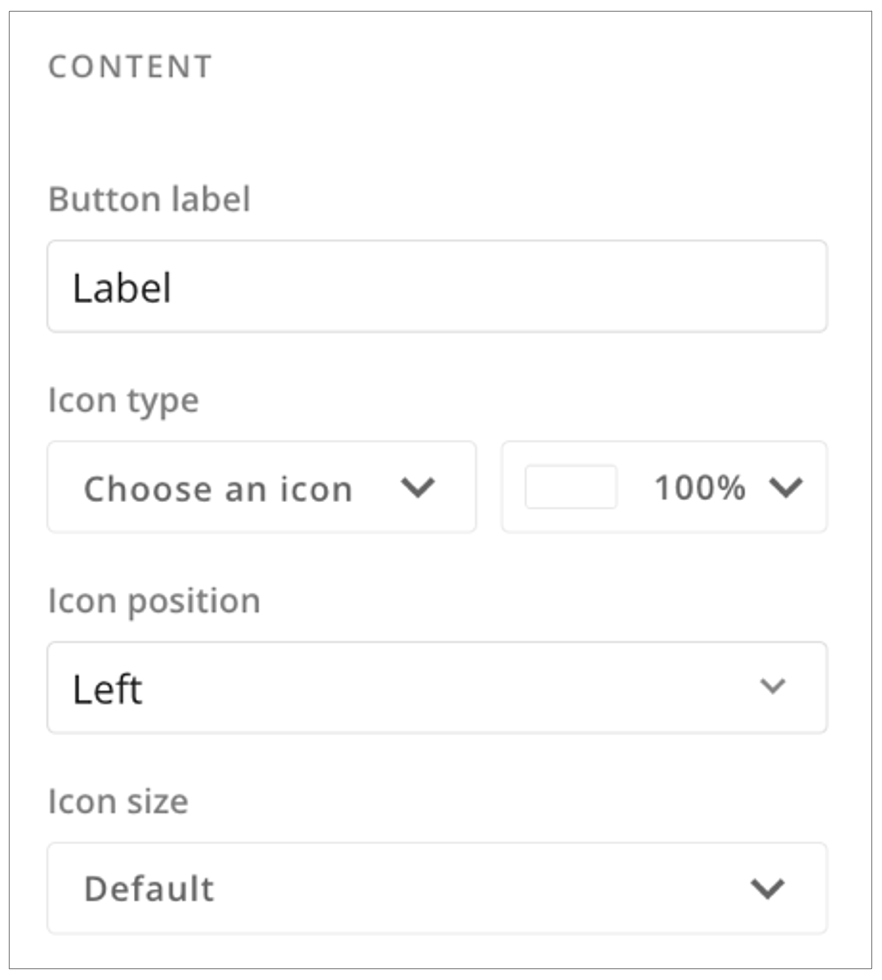 Under **Settings** > **Style**, choose from one of five app themes. Select **Edit styles** to edit the theme in the left side panel.
Select **Delete** to remove the button.
Under **Settings** > **Style**, choose from one of five app themes. Select **Edit styles** to edit the theme in the left side panel.
Select **Delete** to remove the button.
 #### Actions Tab
In the **Actions** tab, use the **Select interaction type** dropdown to define what action takes place when you press the button.
**Note:** If you choose **Clear filters** as the interaction type, app users can use the button to clear all the filters (**except persistent filters**) on the page without navigating to the [app controls](#add-a-variable-control). Learn how to [configure persistent filters](#configure-persistent-filters).
The option to **Clear filters** with a button is not available in an embedded App Studio app. See [Embed an App](#embed-an-app) to learn more.
#### Actions Tab
In the **Actions** tab, use the **Select interaction type** dropdown to define what action takes place when you press the button.
**Note:** If you choose **Clear filters** as the interaction type, app users can use the button to clear all the filters (**except persistent filters**) on the page without navigating to the [app controls](#add-a-variable-control). Learn how to [configure persistent filters](#configure-persistent-filters).
The option to **Clear filters** with a button is not available in an embedded App Studio app. See [Embed an App](#embed-an-app) to learn more.
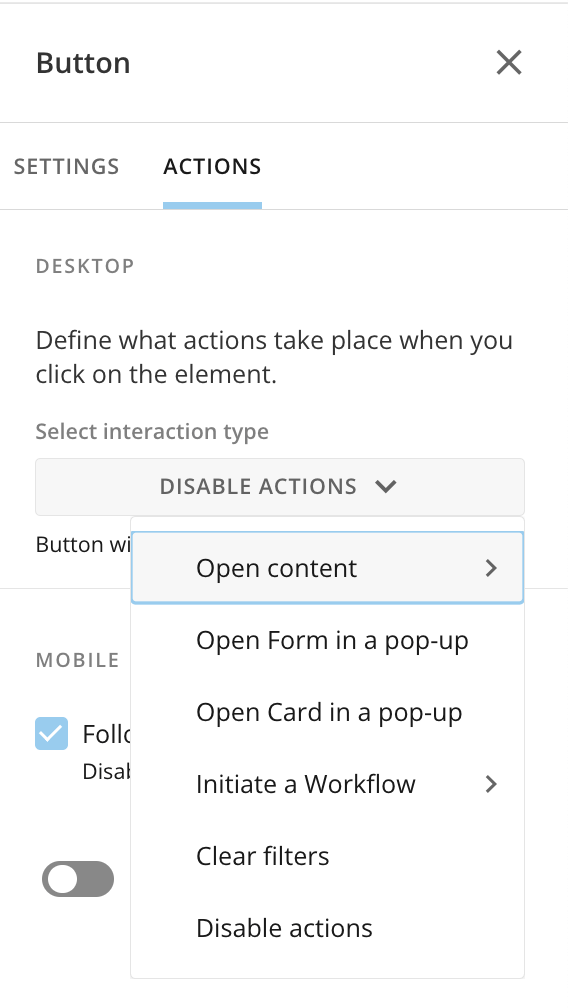 #### Open a Card in a Pop-Up
When you configure a button to open a card in a pop-up, you must search for and select the card you want to open when the button is selected.
Save the card and the changes to your app.
#### Open a Card in a Pop-Up
When you configure a button to open a card in a pop-up, you must search for and select the card you want to open when the button is selected.
Save the card and the changes to your app.
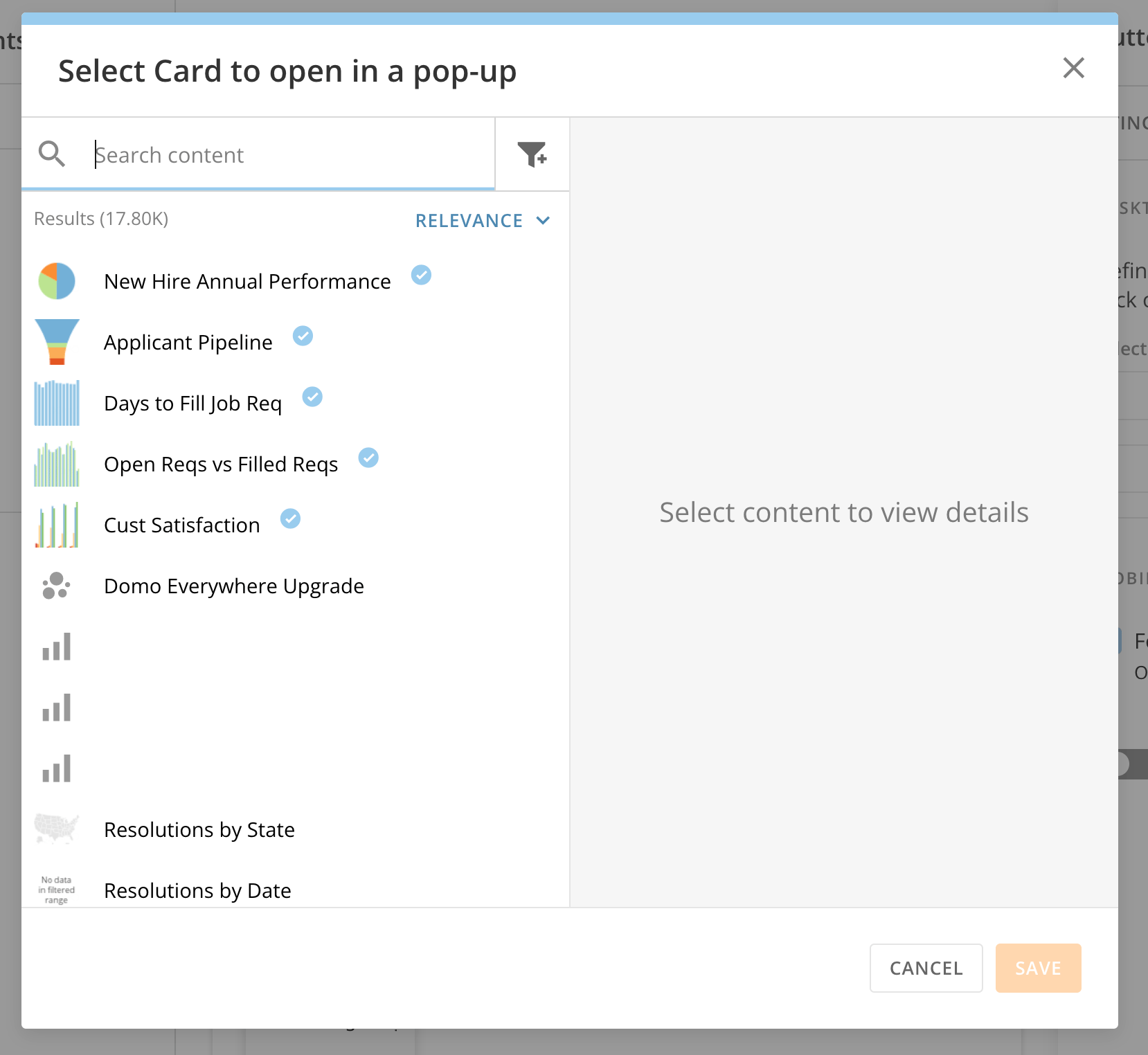 Now when the button is clicked in the app, the selected card displays in a pop-up window.
#### Choose a Different Card
You may need to update the card that displays when a button is clicked.
1. From the **Actions** tab of the button configuration panel, select **Change**.
Now when the button is clicked in the app, the selected card displays in a pop-up window.
#### Choose a Different Card
You may need to update the card that displays when a button is clicked.
1. From the **Actions** tab of the button configuration panel, select **Change**.
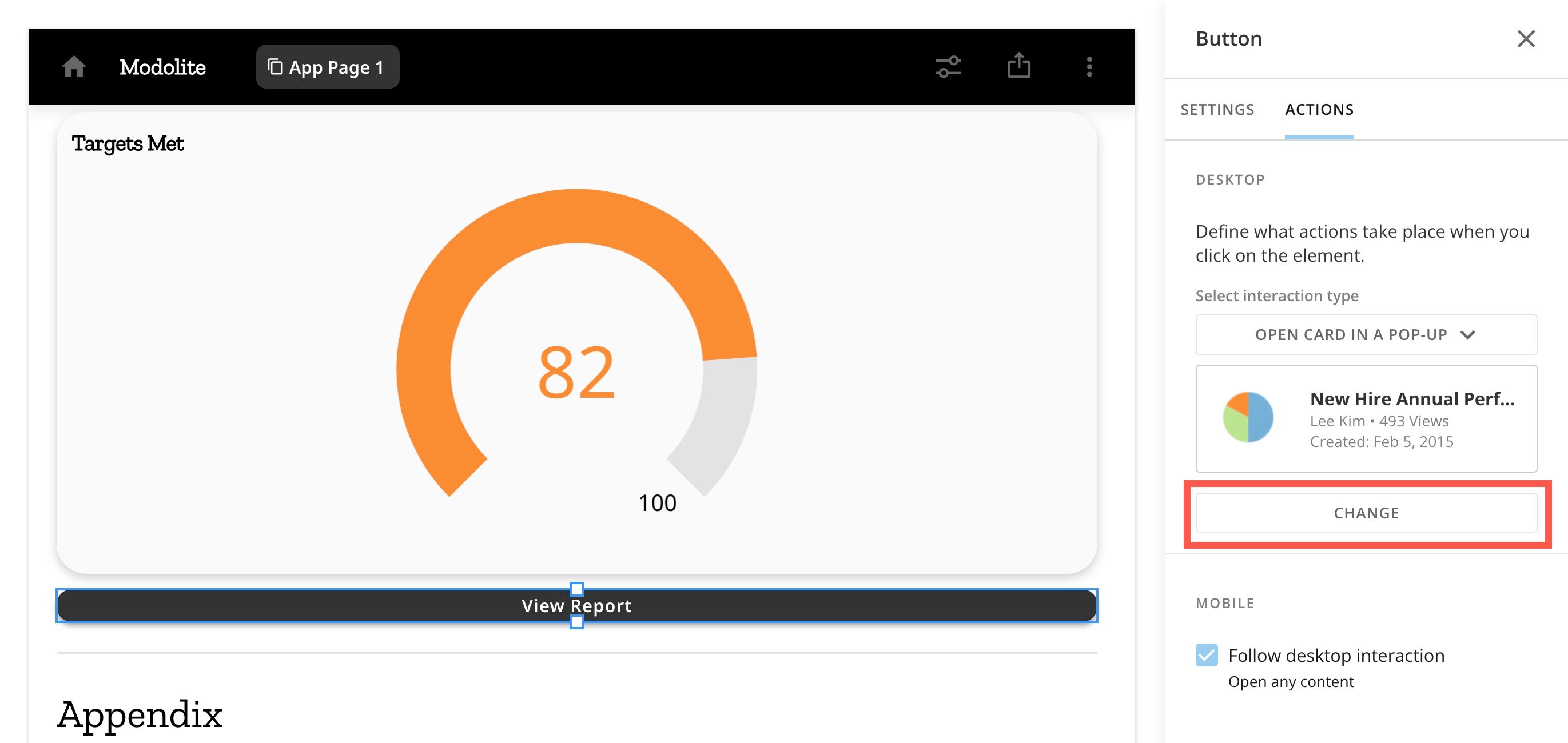 2. Search for and select a different card. Save the card and save your app changes.
### Add an Image
Dragging an **Image** element onto the canvas allows you to select an image from your machine to add to your app.
### Add Text with a Notebook Card
Dragging a **Text** element onto the canvas displays the Notebook Card toolbar on the canvas and opens the configuration panel as a notebook. Learn more about [Notebook Cards](/s/article/360043430233).
In the configuration panel, select
2. Search for and select a different card. Save the card and save your app changes.
### Add an Image
Dragging an **Image** element onto the canvas allows you to select an image from your machine to add to your app.
### Add Text with a Notebook Card
Dragging a **Text** element onto the canvas displays the Notebook Card toolbar on the canvas and opens the configuration panel as a notebook. Learn more about [Notebook Cards](/s/article/360043430233).
In the configuration panel, select  **Edit** to edit the card content or
  **Close** to close the notebook.
The panel has three tabs: [Settings](#settings-tab), [Actions](#actions-tab), and [Filter Exceptions](#filter-exceptions-tab).
#### Settings Tab
In the **Settings** tab under **Content**, you can choose **Edit Card Title & Description** or **Content Display Options**.
**Close** to close the notebook.
The panel has three tabs: [Settings](#settings-tab), [Actions](#actions-tab), and [Filter Exceptions](#filter-exceptions-tab).
#### Settings Tab
In the **Settings** tab under **Content**, you can choose **Edit Card Title & Description** or **Content Display Options**.
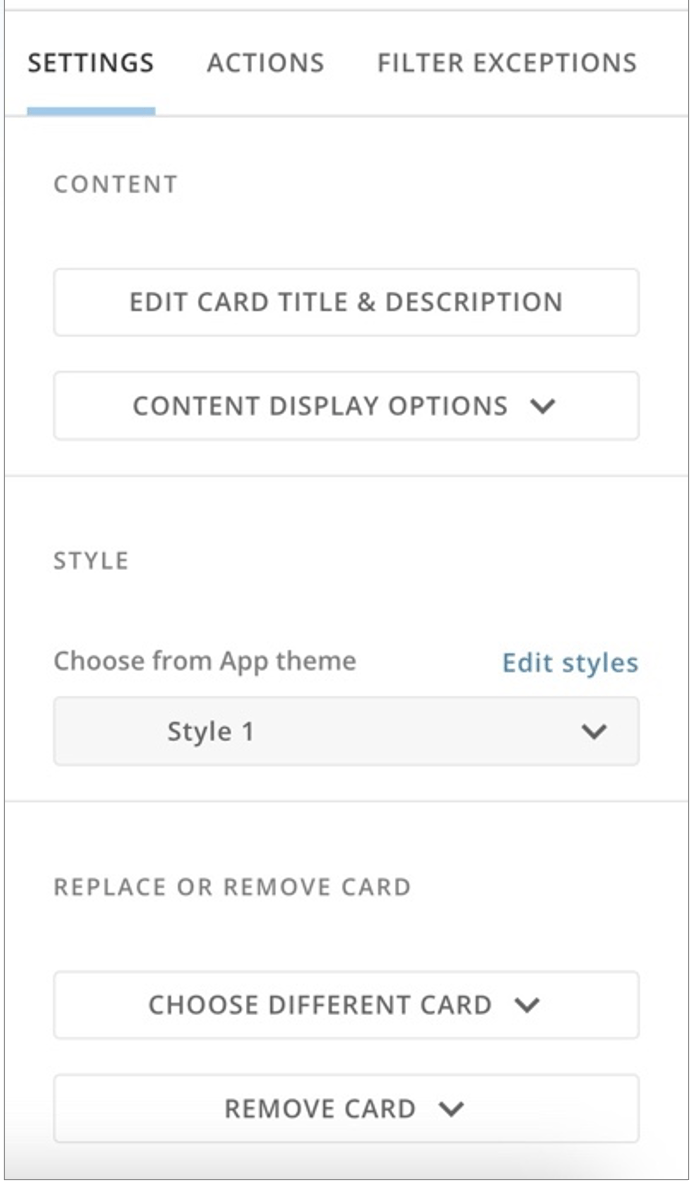 Selecting **Edit Card Title & Description** displays a modal where you can enter a card title and description with optional smart text. Learn more about [Smart Text](/s/article/4529227357975). The modal includes a preview, which you can hide. Select **Save** to keep your changes or **Cancel** to discard them.
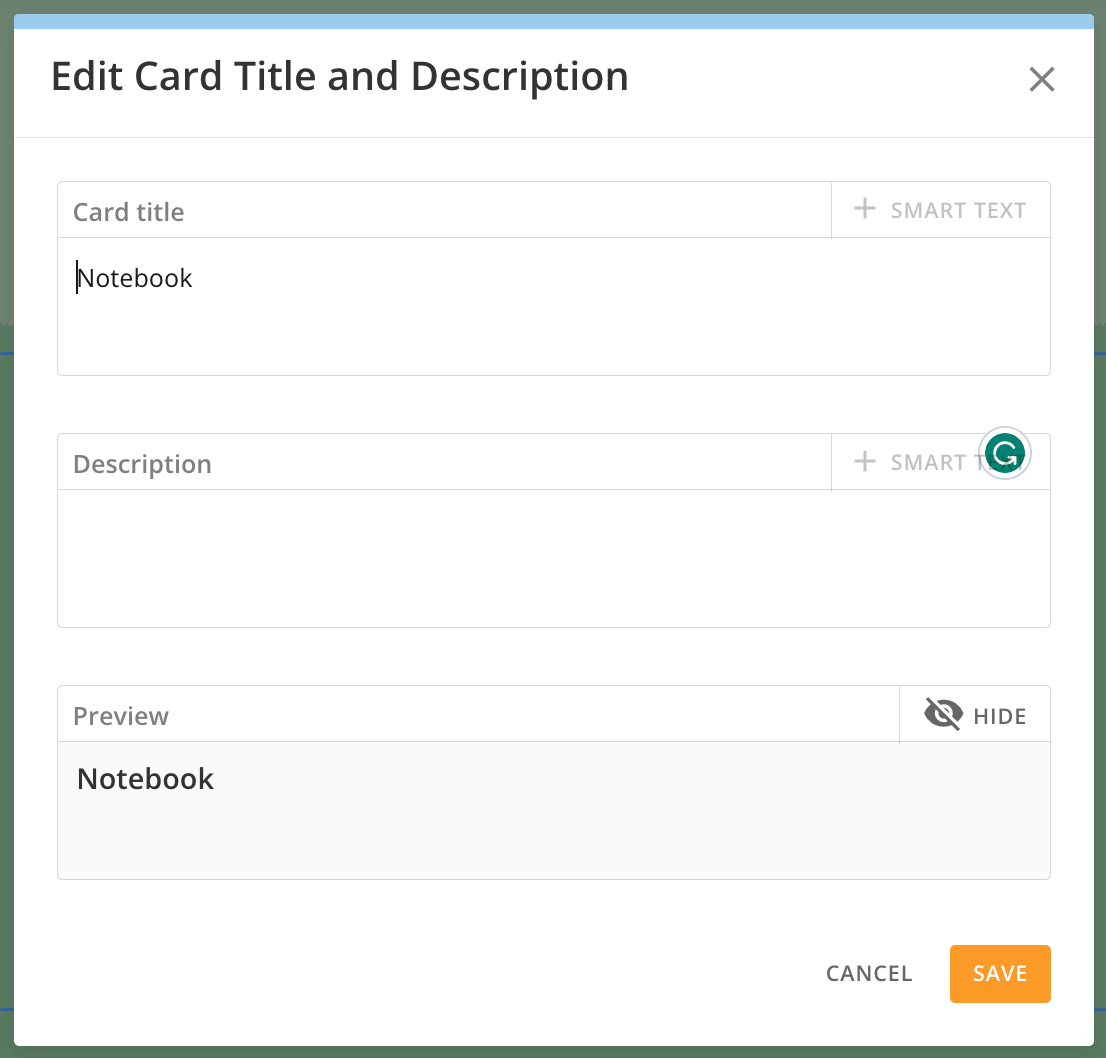 The **Content Display Options** allow you to display the card title, description, both, or neither. To display/hide an option, select it from the dropdown.
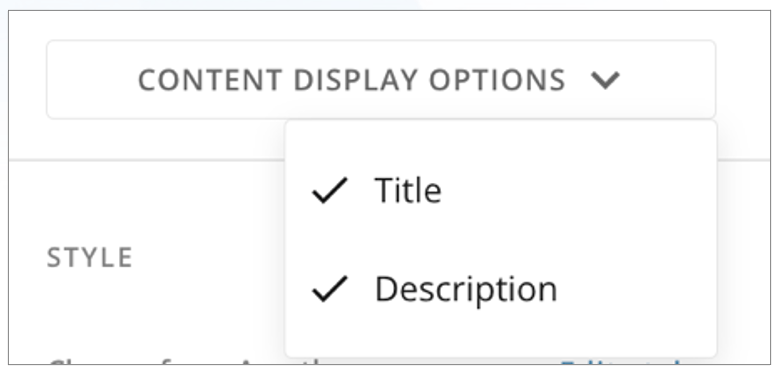 In the **Settings** tab under **Style**, you can choose one of three styles to use for the Text Card.
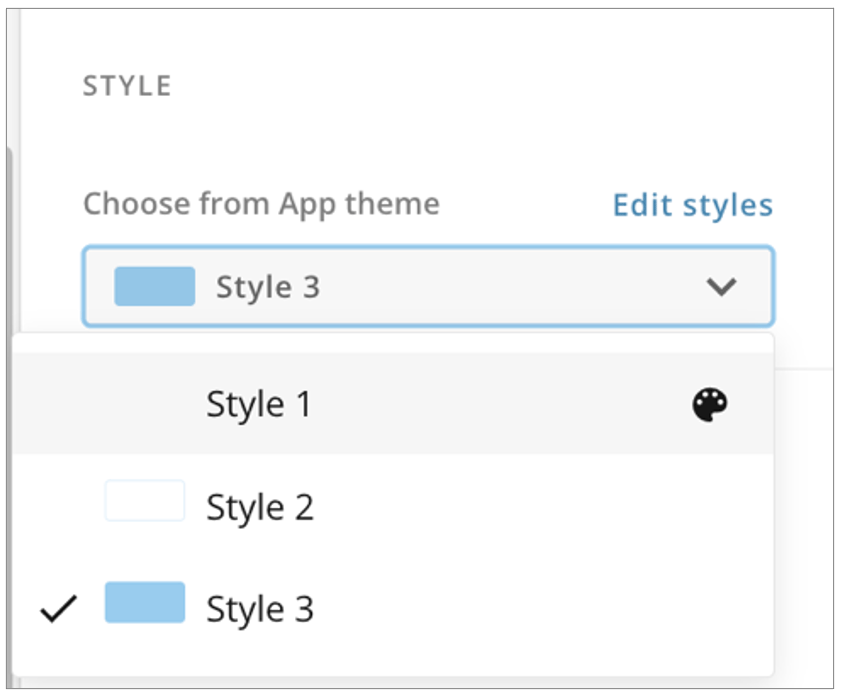 Select **Edit styles** to make changes to the styles for Text Cards in the left panel.
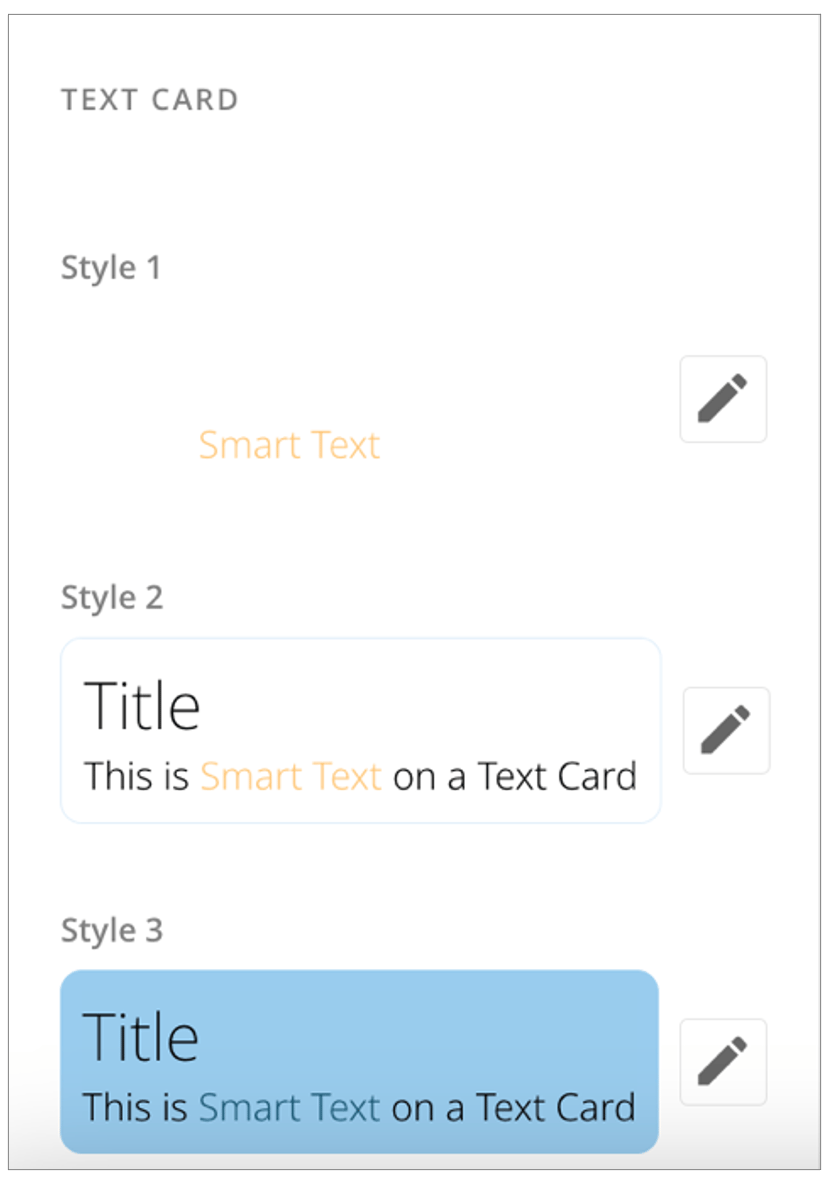 In the **Settings** tab under **Replace or Remove Card**, you can select **Choose Different Card** or **Remove Card**:
* Selecting **Choose Different Card** allows you to select another card from your Domo instance.
* Selecting **Remove Card**
displays three options:
* **Remove Card —** Displays a message that you are about to remove the card from the app page. If you remove it here, it does not remove the card from other apps or dashboards. Select **Remove Card** or **Cancel**.
* **Move to appendix —** Moves the card to the end of the appendix.
* **Delete Card** **—** This option displays a message warning that deleting the card removes it from all other dashboards and apps and cannot be undone. Select **Delete Card** or **Cancel**.
In the **Settings** tab under **Replace or Remove Card**, you can select **Choose Different Card** or **Remove Card**:
* Selecting **Choose Different Card** allows you to select another card from your Domo instance.
* Selecting **Remove Card**
displays three options:
* **Remove Card —** Displays a message that you are about to remove the card from the app page. If you remove it here, it does not remove the card from other apps or dashboards. Select **Remove Card** or **Cancel**.
* **Move to appendix —** Moves the card to the end of the appendix.
* **Delete Card** **—** This option displays a message warning that deleting the card removes it from all other dashboards and apps and cannot be undone. Select **Delete Card** or **Cancel**.
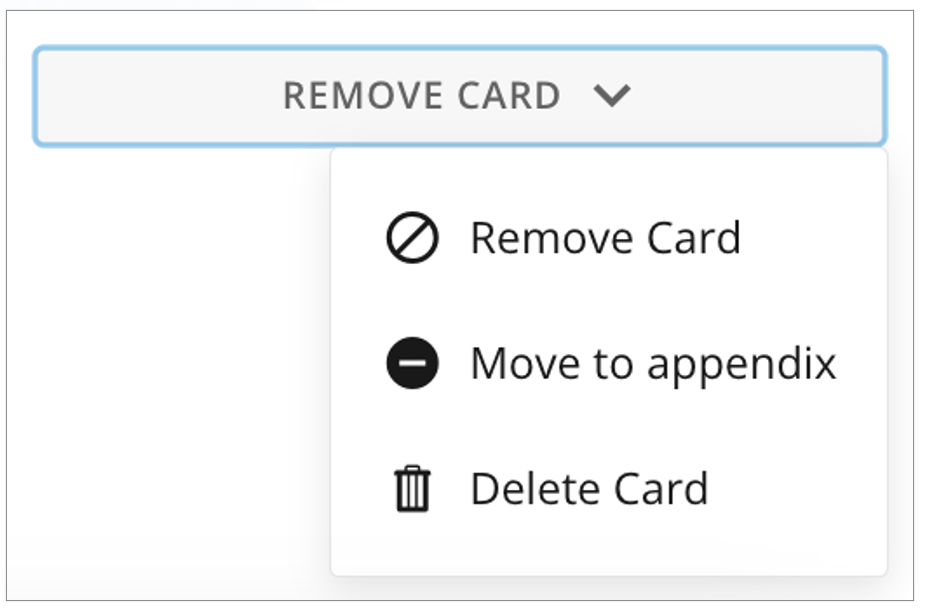 #### Actions Tab
In the **Actions** tab, you can define what actions take place when you select the card.
#### Actions Tab
In the **Actions** tab, you can define what actions take place when you select the card.
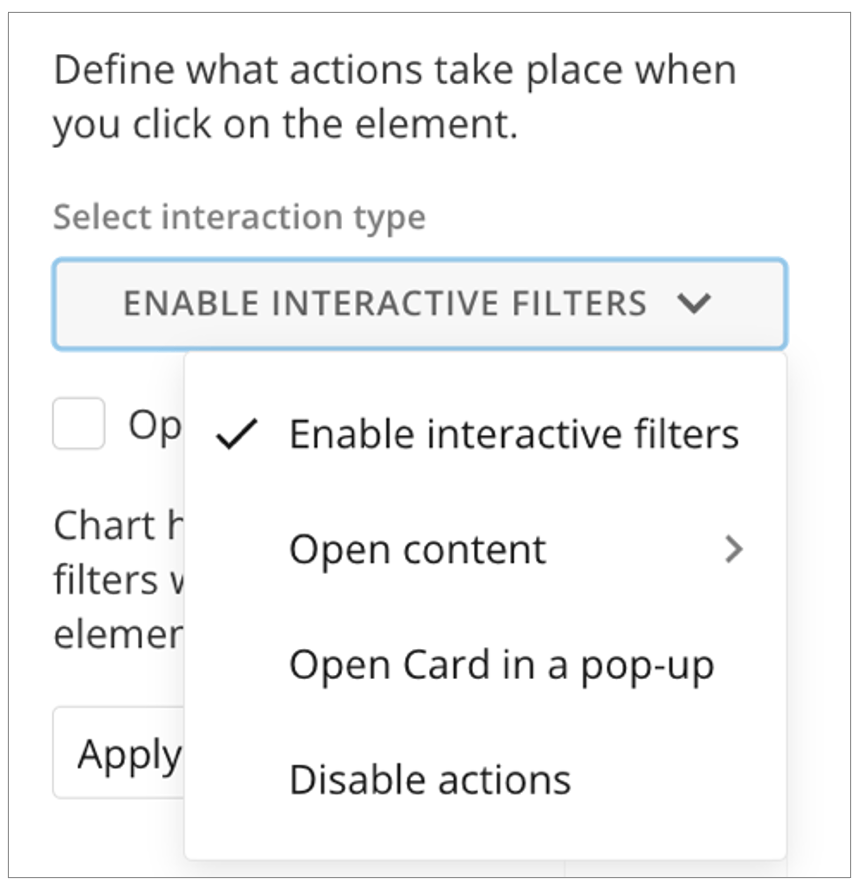 The options are described below:
* **Enable interactive filters —** You can check the box to open card details in a new tab.
You can also select to which of the following elements to apply chart highlighting and Interaction Filters:
* Apply to all cards
* Apply to selected cardsYou can also choose to disable the Interaction Filters.
The options are described below:
* **Enable interactive filters —** You can check the box to open card details in a new tab.
You can also select to which of the following elements to apply chart highlighting and Interaction Filters:
* Apply to all cards
* Apply to selected cardsYou can also choose to disable the Interaction Filters.
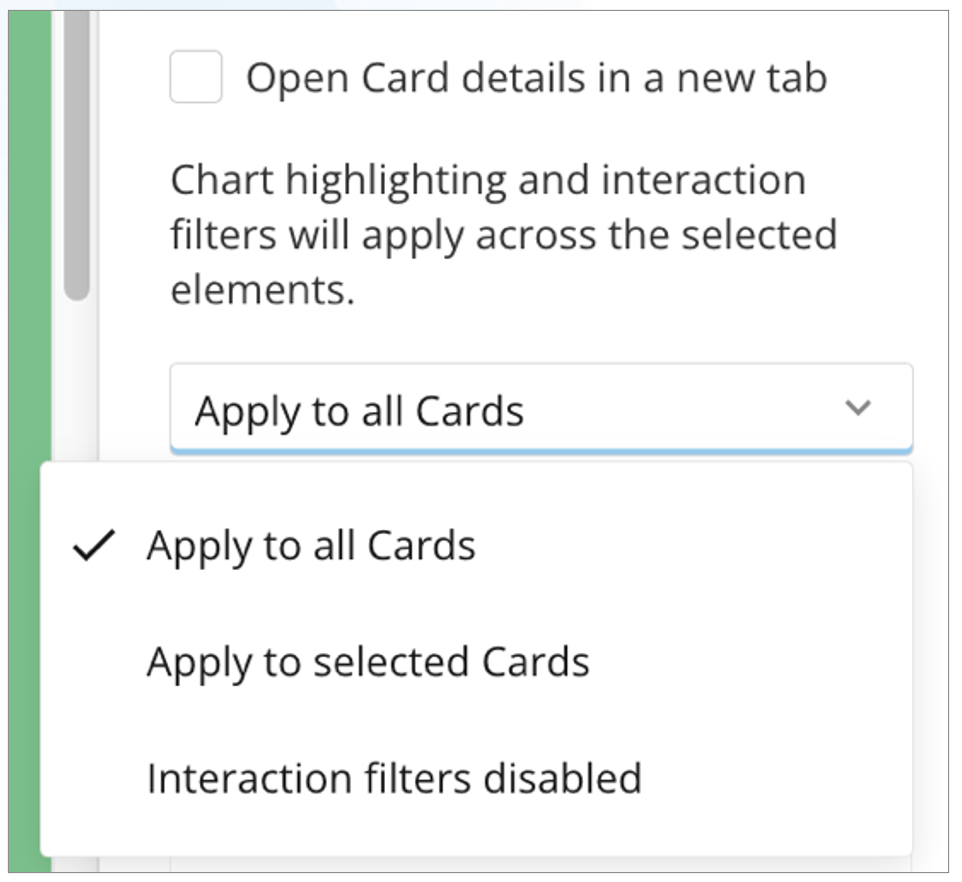 * **Open content —** Allows you to select whether the action opens a page in the app, opens any content, or opens a URL. For any of the options, you can configure the mobile to follow the desktop interaction or toggle the switch to hide that particular element on mobile.
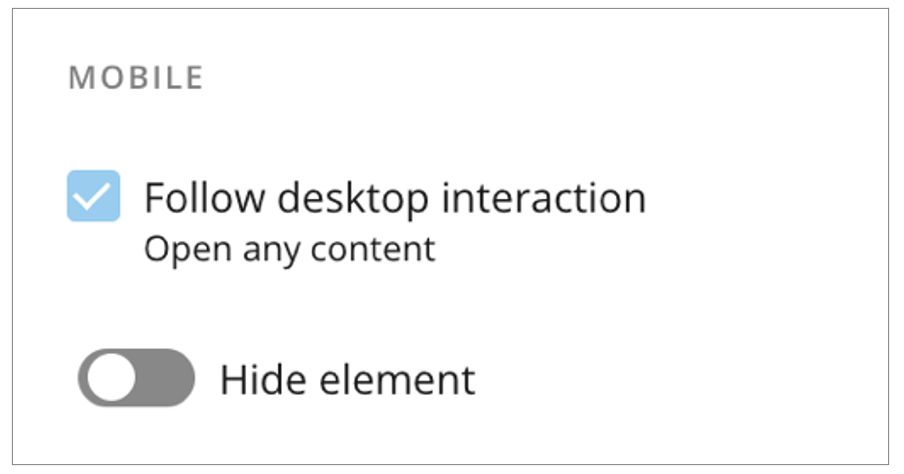 * If you choose to **Open Page in App**, choose which page in the app to open. You can check the box to **Persist filters**, meaning that any filter selections applied to the current page of the app are also applied to the destination page. You can also check the box to open the app page in a new browser tab.
* If you choose to **Open Any Content**, a modal displays where you can select which content from your Domo instance to open. After you have chosen the content and selected **Save**, you can change the content. You can also check the box to open the content in a new browser tab.
* If you choose to **Open URL**, you can enter the URL you want to open. The URL must include " https\://"". You can enter alternative display text for the URL. The box that opens the link in a new browser tab is checked by default, but you can clear it.
* **Open Card in a pop-up —** When this option is selected, clicking on the card title opens the card in Story Presentation Mode. The card displays current data and any filters that affect the card. Learn more about [Story Presentation Mode](/s/article/9355841270167).
* **Disable actions —** When this option is selected, the card does not allow interactions. It displays current data and filters.
#### Filter Exceptions Tab
In the **Filter Exceptions** tab, define how the card is affected by filters, global date, and segments. Select one of the available options:
* **Allow filtering —** Allows all Filters to affect this card, including interaction Filters.
* **Allow global date —** Allows the global date to filter this card.
* **Allow segments —** Allows all segments to be displayed on this card.
### Add a Card
Dragging a card element onto the canvas displays two options:
* If you choose to **Open Page in App**, choose which page in the app to open. You can check the box to **Persist filters**, meaning that any filter selections applied to the current page of the app are also applied to the destination page. You can also check the box to open the app page in a new browser tab.
* If you choose to **Open Any Content**, a modal displays where you can select which content from your Domo instance to open. After you have chosen the content and selected **Save**, you can change the content. You can also check the box to open the content in a new browser tab.
* If you choose to **Open URL**, you can enter the URL you want to open. The URL must include " https\://"". You can enter alternative display text for the URL. The box that opens the link in a new browser tab is checked by default, but you can clear it.
* **Open Card in a pop-up —** When this option is selected, clicking on the card title opens the card in Story Presentation Mode. The card displays current data and any filters that affect the card. Learn more about [Story Presentation Mode](/s/article/9355841270167).
* **Disable actions —** When this option is selected, the card does not allow interactions. It displays current data and filters.
#### Filter Exceptions Tab
In the **Filter Exceptions** tab, define how the card is affected by filters, global date, and segments. Select one of the available options:
* **Allow filtering —** Allows all Filters to affect this card, including interaction Filters.
* **Allow global date —** Allows the global date to filter this card.
* **Allow segments —** Allows all segments to be displayed on this card.
### Add a Card
Dragging a card element onto the canvas displays two options:  **Add Content** and
  **Delete**.
 You can use Command + click (Mac) or Windows + click (Windows) to select multiple cards simultaneously. Selecting **Delete** removes the card(s) from the canvas.
Selecting **Add Content** expands the following options, described below:
* **Add existing card —** Allows you to choose from existing cards in your Domo instance to add to your layout.
* **Create new card —** Prompts you to save changes to your app before allowing you to create a new card. The **Add a Card** modal then displays, allowing you to choose to create one of several card types.
* **Assign card creation —** Allows you to assign card creation to a user in your instance. You must include the assignee's name and the name of the card (25 characters or fewer). You can also include an optional message to the assignee. After entering the details, select **Assign** to notify the assignee or **Cancel** to discard your assignment.
You can use Command + click (Mac) or Windows + click (Windows) to select multiple cards simultaneously. Selecting **Delete** removes the card(s) from the canvas.
Selecting **Add Content** expands the following options, described below:
* **Add existing card —** Allows you to choose from existing cards in your Domo instance to add to your layout.
* **Create new card —** Prompts you to save changes to your app before allowing you to create a new card. The **Add a Card** modal then displays, allowing you to choose to create one of several card types.
* **Assign card creation —** Allows you to assign card creation to a user in your instance. You must include the assignee's name and the name of the card (25 characters or fewer). You can also include an optional message to the assignee. After entering the details, select **Assign** to notify the assignee or **Cancel** to discard your assignment.
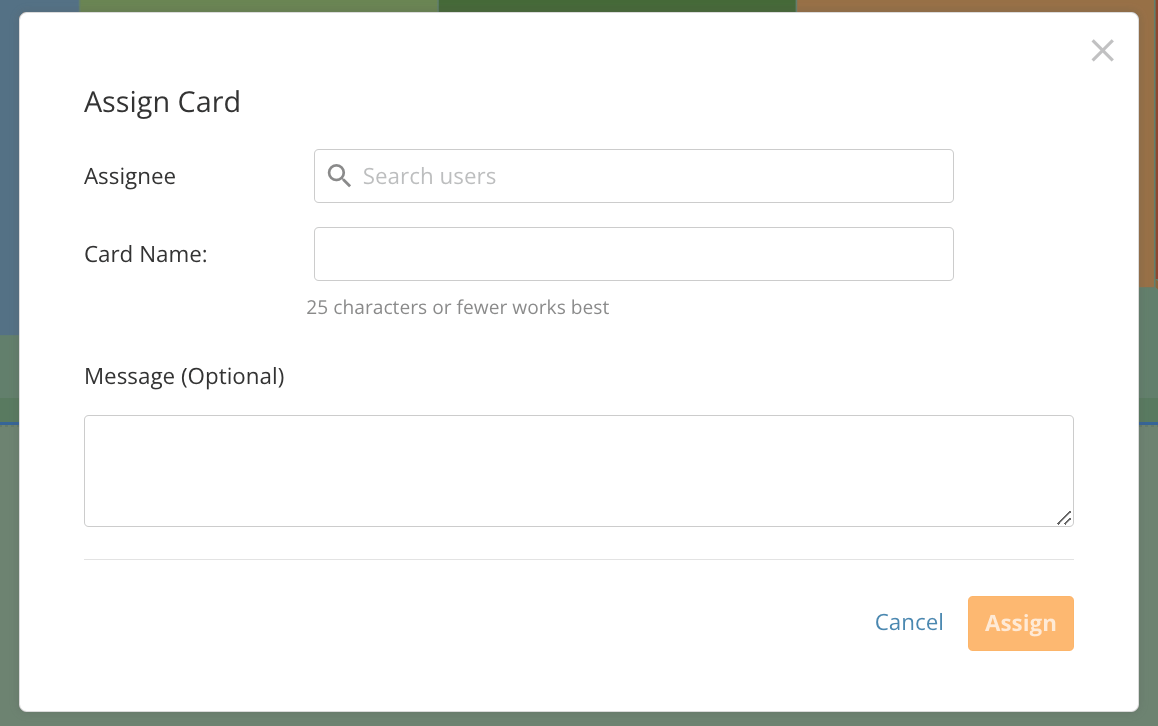 * **Insert form —** Displays the **Select Form** modal, which allows you to choose a form to include in your app, or select **Create New Form**. To learn about creating forms, see our [Forms documentation](/s/article/000005171).
* **Insert text —** Displays the Notebook Card toolbar on the canvas and opens the right side panel as a notebook. Learn more about [Notebook Cards](/s/article/360043430233).
* **Insert image —**
Allows you to select an image from your machine to add to your canvas.
* **Insert variable —** Allows you to add a variable to the canvas, similar to adding a variable to a dashboard. To learn more, see the [Variables | Overview](/s/article/7903767835031).
* **Insert from Appstore —** Allows you to select an app from the Appstore to insert into your app.
* **Insert form —** Displays the **Select Form** modal, which allows you to choose a form to include in your app, or select **Create New Form**. To learn about creating forms, see our [Forms documentation](/s/article/000005171).
* **Insert text —** Displays the Notebook Card toolbar on the canvas and opens the right side panel as a notebook. Learn more about [Notebook Cards](/s/article/360043430233).
* **Insert image —**
Allows you to select an image from your machine to add to your canvas.
* **Insert variable —** Allows you to add a variable to the canvas, similar to adding a variable to a dashboard. To learn more, see the [Variables | Overview](/s/article/7903767835031).
* **Insert from Appstore —** Allows you to select an app from the Appstore to insert into your app.
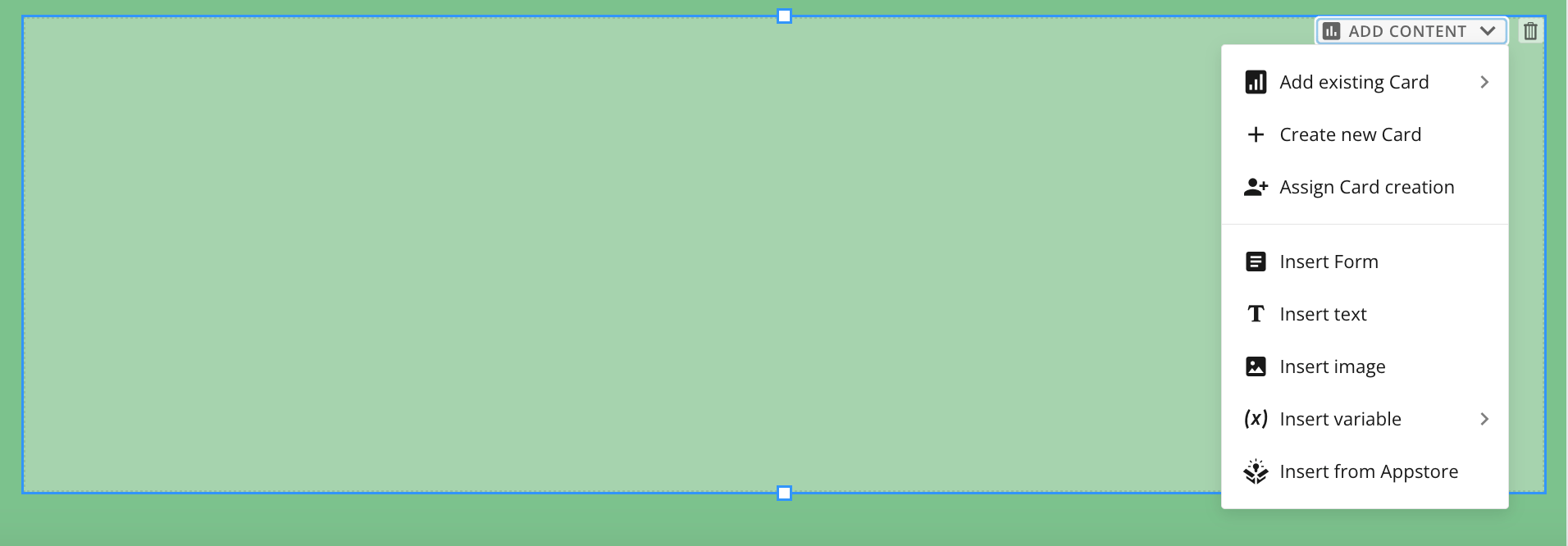 ### Add a Chart
App Studio lets you add charts to your app and configure chart properties and styles without leaving the canvas.
To add a chart, follow these steps:
1. Select the **Charts** icon from the left toolbar. A pop-up menu appears.
2. Search for your desired chart using the search field, or select the drop-down menu to browse the list of available chart types.
### Add a Chart
App Studio lets you add charts to your app and configure chart properties and styles without leaving the canvas.
To add a chart, follow these steps:
1. Select the **Charts** icon from the left toolbar. A pop-up menu appears.
2. Search for your desired chart using the search field, or select the drop-down menu to browse the list of available chart types.
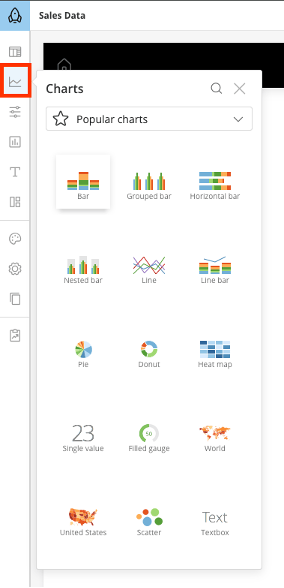
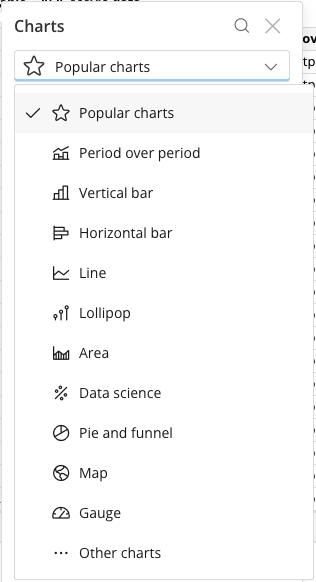 3. Select your desired chart, then drag it onto the canvas.
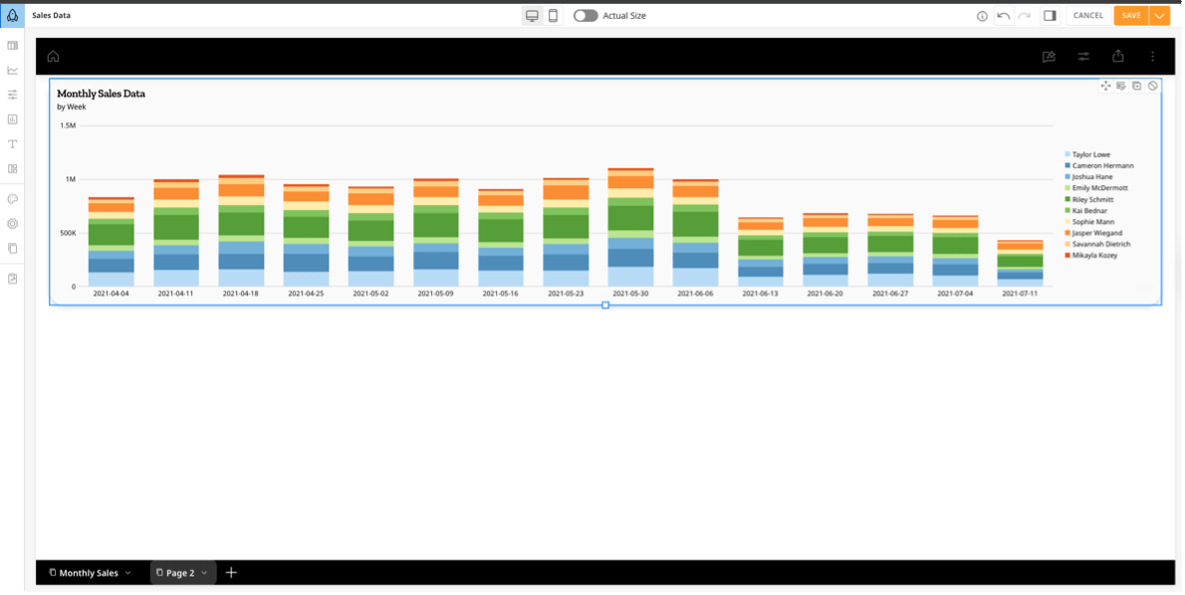 4. Configure your chart settings and styles by selecting the chart. A right panel appears where you can edit, configure, sort, filter, and add styles to your charts.
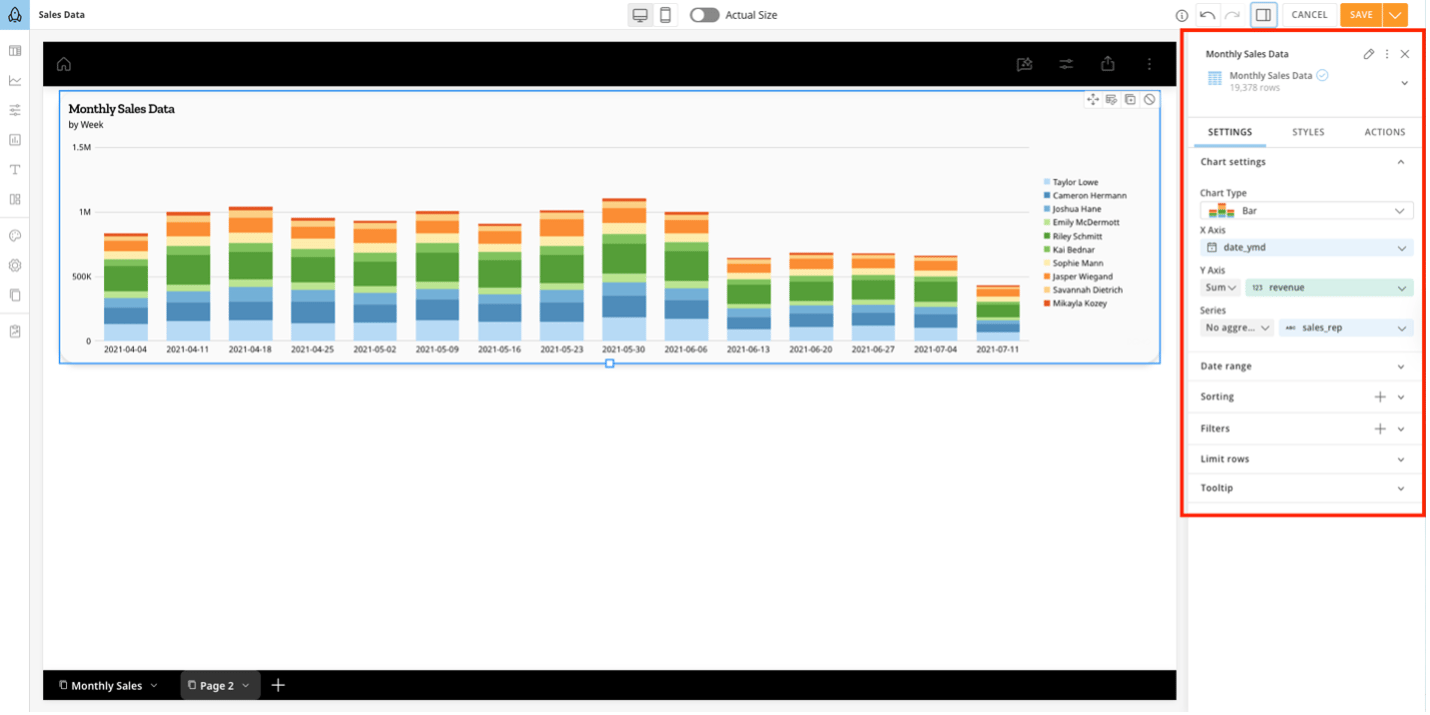 #### Right-Panel Configurations for Charts and Tables
The right panel is your command center for any selected object on the canvas.
1. Select a table or chart to activate the panel.
2. Use the **Settings** tab to change chart settings, set date ranges, set filters, set sorting criteria, limit rows, and apply other chart-specific configuration.
#### Right-Panel Configurations for Charts and Tables
The right panel is your command center for any selected object on the canvas.
1. Select a table or chart to activate the panel.
2. Use the **Settings** tab to change chart settings, set date ranges, set filters, set sorting criteria, limit rows, and apply other chart-specific configuration.
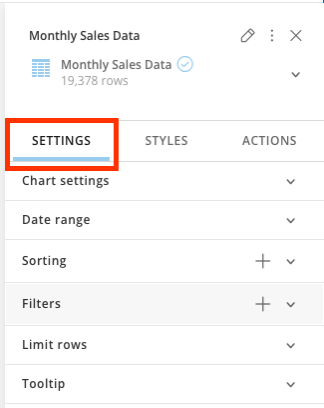 3. Use the **Styles** tab to change or set colors, font types, font family, conditional formatting, general table or chart formatting, sorting settings, and additional chart-specific configuration.
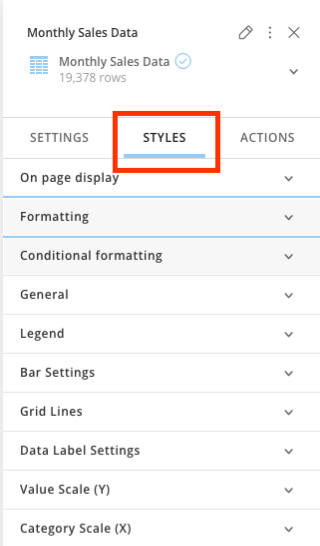 4. Use the **Actions** tab to configure interactive filters, edit Drill Paths, and select filter exceptions.
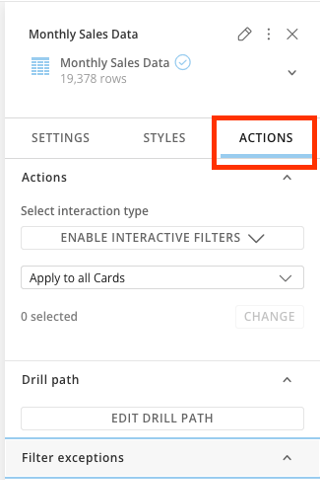 #### Format Table Columns
Apply specific formatting to table columns to ensure your data is readable.
Select a table on the canvas to begin, then follow one of the options below to format.
**Right Panel — Column Formatting**
1. In the right panel, select a column under the **Select Columns** list.
2. Select the more options menu and select **Formatting**.
3. Set the **Data Label** and choose a display type in the **Set display type** option.
**Reorder Columns**
* Drag and drop columns by hovering over the icon and moving columns up or down to arrange them in the desired order.
#### Format Table Columns
Apply specific formatting to table columns to ensure your data is readable.
Select a table on the canvas to begin, then follow one of the options below to format.
**Right Panel — Column Formatting**
1. In the right panel, select a column under the **Select Columns** list.
2. Select the more options menu and select **Formatting**.
3. Set the **Data Label** and choose a display type in the **Set display type** option.
**Reorder Columns**
* Drag and drop columns by hovering over the icon and moving columns up or down to arrange them in the desired order.
 **Show/Hide Columns**
* Select the **show/hide**
**Show/Hide Columns**
* Select the **show/hide**  icon on the column name to hide or unhide a column.
 * Select **Show/Hide All** to show or hide all columns.
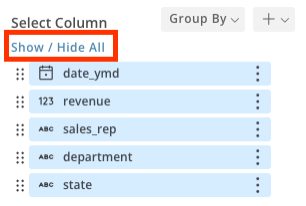 #### Group By Function
The **Group By** function reorganizes table data by grouping rows with the same column values, making it easier to analyze related information.
* Select the **Group By** drop-down and select one or more columns.
#### Group By Function
The **Group By** function reorganizes table data by grouping rows with the same column values, making it easier to analyze related information.
* Select the **Group By** drop-down and select one or more columns.
 * The table automatically groups and aggregates data. You can add, change, edit, or remove aggregations and Group By columns directly in the right panel.
 #### Rename a Column
To rename a column, select the column name and type the new name. Select away from the field or press Enter to save.
#### Rename a Column
To rename a column, select the column name and type the new name. Select away from the field or press Enter to save.
 #### Use the Column Menu
To edit and configure columns, select the more options menu and choose one of the following options:
#### Use the Column Menu
To edit and configure columns, select the more options menu and choose one of the following options:
 a. Rename column
b. Hide column
c. Group by
d. Formatting
e. Vertical alignment: Bottom, Center, Top
f. Make a copy
### Sort Tables
To sort a table:
1. In the **Sorting** section, select the **+** icon.
a. Rename column
b. Hide column
c. Group by
d. Formatting
e. Vertical alignment: Bottom, Center, Top
f. Make a copy
### Sort Tables
To sort a table:
1. In the **Sorting** section, select the **+** icon.
 2. Choose the column by which you want to sort.
 3. Choose ascending or descending order. Select **Apply**.
 ### Filter Tables
To filter a table:
1. In the **Filters** section, select the **+** icon.
### Filter Tables
To filter a table:
1. In the **Filters** section, select the **+** icon.
 2. Choose the column by which you want to filter.
 3. Select the values you want to use as filters. Select **Apply**.
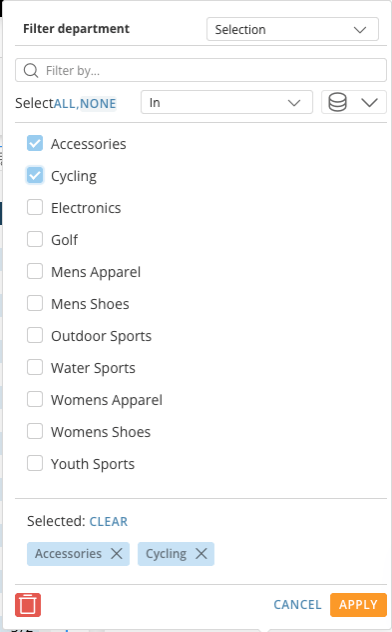 ### Add Date Ranges
The **Date Range** feature lets you define time-based data sets precisely within a component. This configuration is useful for performing historical comparisons, aligning data with specific fiscal periods, and controlling the visual display of time metadata.
The following settings are available within the Date Range panel:
* **Range:** Defines the primary time interval for the data set (such as Current Month, Last 7 Days, or Year to Date).
* **Graph By:** Sets the granularity of the time axis on the visualization. Options include **Daily**, **Weekly**, **Monthly**, **Quarterly**, and **Yearly** intervals.
* **Compare To:** Enables comparative analysis by overlaying the current range against a previous period, such as **Previous Period** (sequential) or **Previous Year** (same period, one year prior).
* **Date Range Field:** Specifies the exact column from the underlying DataSet that contains the timestamps used to drive the range logic.
* **Date Filter:** Provides an additional layer of refinement to include or exclude specific dates within the broader selected range.
* **Use Fiscal Calendar:** When enabled, the range logic aligns with your organization's defined fiscal year start and end dates rather than the standard Gregorian calendar.
* **Hide Date on Card Details:** When selected, removes the date range text from the header or footer of the visualization, creating a cleaner interface for dashboards where the time context is already established.
### Add Date Ranges
The **Date Range** feature lets you define time-based data sets precisely within a component. This configuration is useful for performing historical comparisons, aligning data with specific fiscal periods, and controlling the visual display of time metadata.
The following settings are available within the Date Range panel:
* **Range:** Defines the primary time interval for the data set (such as Current Month, Last 7 Days, or Year to Date).
* **Graph By:** Sets the granularity of the time axis on the visualization. Options include **Daily**, **Weekly**, **Monthly**, **Quarterly**, and **Yearly** intervals.
* **Compare To:** Enables comparative analysis by overlaying the current range against a previous period, such as **Previous Period** (sequential) or **Previous Year** (same period, one year prior).
* **Date Range Field:** Specifies the exact column from the underlying DataSet that contains the timestamps used to drive the range logic.
* **Date Filter:** Provides an additional layer of refinement to include or exclude specific dates within the broader selected range.
* **Use Fiscal Calendar:** When enabled, the range logic aligns with your organization's defined fiscal year start and end dates rather than the standard Gregorian calendar.
* **Hide Date on Card Details:** When selected, removes the date range text from the header or footer of the visualization, creating a cleaner interface for dashboards where the time context is already established.
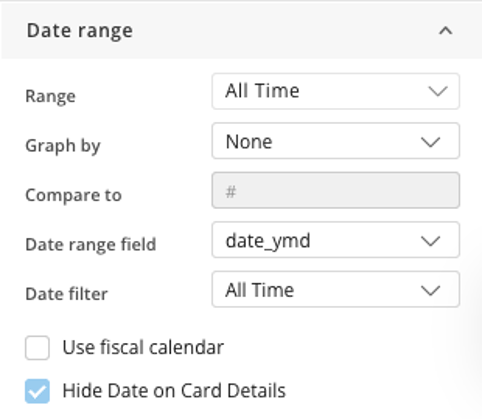 ### Limit Rows
When you apply a row limit, the system truncates the DataSet to the specified count using the current sorting logic. This ensures that only the most relevant records render on the canvas.
### Limit Rows
When you apply a row limit, the system truncates the DataSet to the specified count using the current sorting logic. This ensures that only the most relevant records render on the canvas.
 ### Table Header Toolbar
Use the table header toolbar to edit and format columns.
### Table Header Toolbar
Use the table header toolbar to edit and format columns.
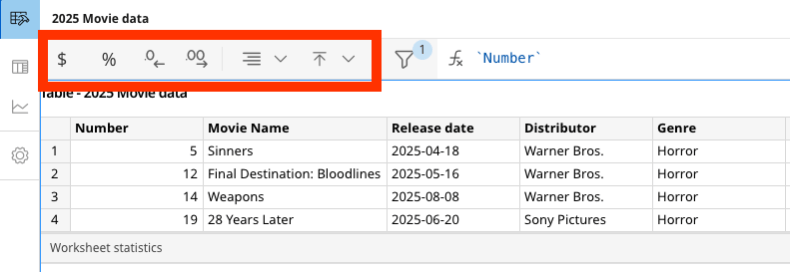 * Use the
  option to format values as currency.
* Use the
option to format values as currency.
* Use the  option to format column values as percentages.
* Use the
option to format column values as percentages.
* Use the  options to adjust the number of decimal points to increase or decrease precision.
* Use
options to adjust the number of decimal points to increase or decrease precision.
* Use  to align values to the left, center, or right.
* Use the
to align values to the left, center, or right.
* Use the  option to align values to the top, center, or bottom.
### Filter Your Data
Apply filters to your data to narrow your focus.
option to align values to the top, center, or bottom.
### Filter Your Data
Apply filters to your data to narrow your focus.
 1. Select the **Filter**
  icon.
2. Select **+ Add Filter** to add a new filter.
3. Search for and select the column by which you want to filter.
4. Select the values you want to include in your filter.
5. Select **Apply** to save the filter, or select **Cancel** to discard your changes. Select the **Delete** icon to remove the filter.
icon.
2. Select **+ Add Filter** to add a new filter.
3. Search for and select the column by which you want to filter.
4. Select the values you want to include in your filter.
5. Select **Apply** to save the filter, or select **Cancel** to discard your changes. Select the **Delete** icon to remove the filter.
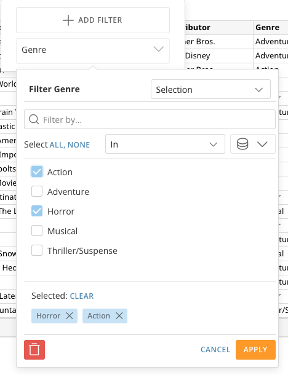 ### Use Functions and Beast Mode
Apply logic to your data without leaving the canvas.
### Use Functions and Beast Mode
Apply logic to your data without leaving the canvas.
 1. In the toolbar, select the **Function**
  icon.
A text field is enabled.
2. Write your logic using standard Beast Mode (SQL-based) syntax. Use familiar functions for quick aggregations, such as `SUM`, `AVG`, or `COUNT`.
3. Press **Enter** to validate your function. Use the
icon.
A text field is enabled.
2. Write your logic using standard Beast Mode (SQL-based) syntax. Use familiar functions for quick aggregations, such as `SUM`, `AVG`, or `COUNT`.
3. Press **Enter** to validate your function. Use the  options to save or cancel your function.
A new column containing the function's results is added to the table.
options to save or cancel your function.
A new column containing the function's results is added to the table.
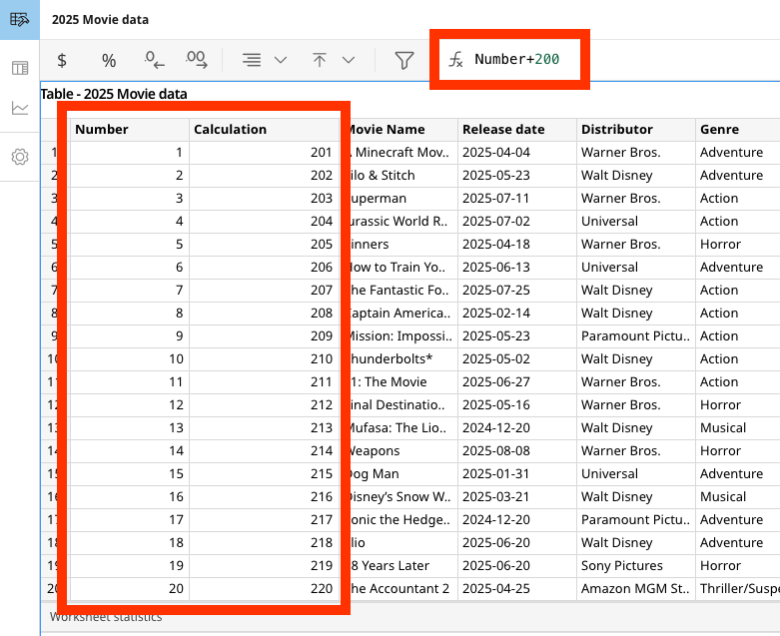 ### Add a Queue
Dragging a **Queue** element to the canvas opens the **Select queue** modal.
In the modal, locate the queue you want to add and select **Choose**.
### Add a Queue
Dragging a **Queue** element to the canvas opens the **Select queue** modal.
In the modal, locate the queue you want to add and select **Choose**.
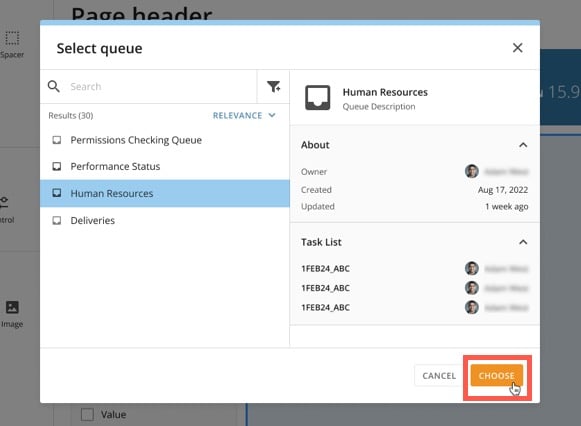 The queue displays in your app and matches its branding. You can access the tasks in the queue.
### Add a Workflow
Dragging a **Workflow** element to the canvas allows you to choose an existing workflow. When a user views the app, the workflow's start form displays. When the app user fills out the form and submits it, the workflow executes.
The queue displays in your app and matches its branding. You can access the tasks in the queue.
### Add a Workflow
Dragging a **Workflow** element to the canvas allows you to choose an existing workflow. When a user views the app, the workflow's start form displays. When the app user fills out the form and submits it, the workflow executes.
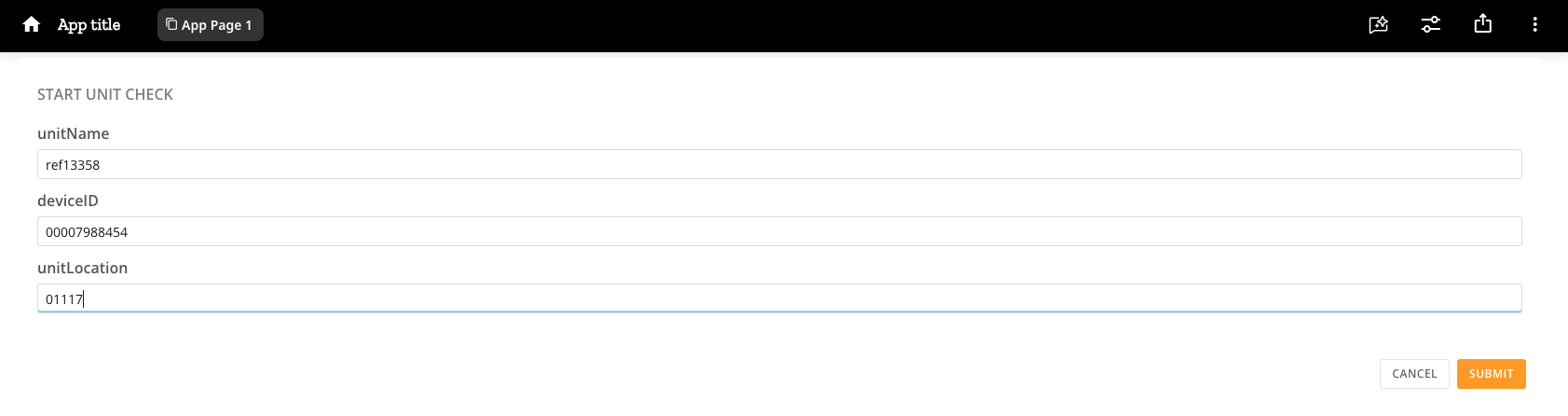 ## Download Content from a Doc Card
App users can *only* download the file (document, presentation, photo, video, or other) embedded in an App Studio Doc Card if presentation mode is enabled when the card is added to the app.
This process is described in two parts: first, the app creator enables presentation mode for a Doc Card; second, an app user downloads the applicable file.
### Enable Presentation Mode for Doc Card
Presentation mode is off by default. Enable it by following the steps below.
Open your App Studio app in edit mode and select the Doc Card where the file you want users to download is located.
1. In the **Settings** tab of the right configuration panel, select **Content Display Options** > **Presentation mode**.
A checkmark displays by **Presentation mode**, meaning it is enabled for the card.
## Download Content from a Doc Card
App users can *only* download the file (document, presentation, photo, video, or other) embedded in an App Studio Doc Card if presentation mode is enabled when the card is added to the app.
This process is described in two parts: first, the app creator enables presentation mode for a Doc Card; second, an app user downloads the applicable file.
### Enable Presentation Mode for Doc Card
Presentation mode is off by default. Enable it by following the steps below.
Open your App Studio app in edit mode and select the Doc Card where the file you want users to download is located.
1. In the **Settings** tab of the right configuration panel, select **Content Display Options** > **Presentation mode**.
A checkmark displays by **Presentation mode**, meaning it is enabled for the card.
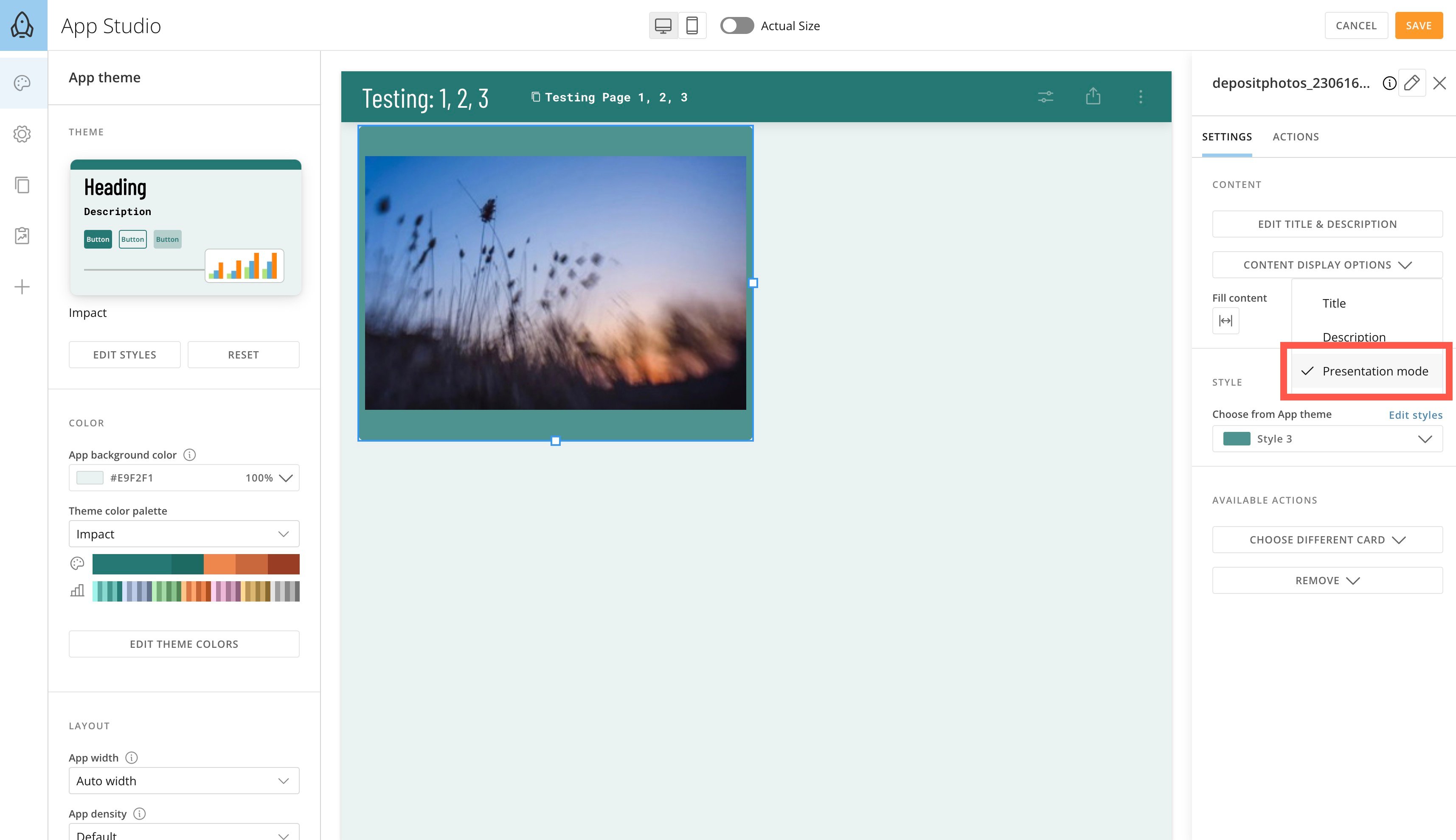 2. Save the changes to your app and close edit mode.
### Download a Doc Card File
While viewing an app, if presentation mode is enabled for a Doc Card, an app user can download the file locally by following the steps below.
Open an app in view mode and locate the Doc Card containing the file you want to download.
1. Hover over the card and select
2. Save the changes to your app and close edit mode.
### Download a Doc Card File
While viewing an app, if presentation mode is enabled for a Doc Card, an app user can download the file locally by following the steps below.
Open an app in view mode and locate the Doc Card containing the file you want to download.
1. Hover over the card and select  **Expand** to open presentation mode.
 2. Select **Download** at the top of the screen.
The file is downloaded locally.
2. Select **Download** at the top of the screen.
The file is downloaded locally.