> ## Documentation Index
> Fetch the complete documentation index at: https://domoinc-openapi-sync-dataflows.mintlify.site/llms.txt
> Use this file to discover all available pages before exploring further.
# 2024 Release 1 | January
export const InlineImage = ({src, alt = '', height = '1.6em'}) => {
return  ;
};
**eLearning —** Learn more about features in this release in [Domo University](https://learndomo.domo.com/learn/course/1413/january-2024-release-update?generated_by=13027\&hash=b66042c075d37b57bc57c14837b9b3922d5016ec) .
***
### Domo. AI
**A note about security considerations —** Domo recognizes that AI needs to be well-governed per our customers' internal guidelines. AI Assistants send only Domo metadata about Domo data sources to OpenAI.
As such, to use AI Assistants in Domo, Admins must enable OpenAI models for use under Admin Settings for the AI Service Layer. Furthermore, non-admin users in Domo require a role with the Use AI Services grant enabled to leverage AI Assistants.
In the coming months, Domo will introduce an internal LLM option for running AI Assistants that can be leveraged without sending information to OpenAI.
# Beast Mode AI Assistant
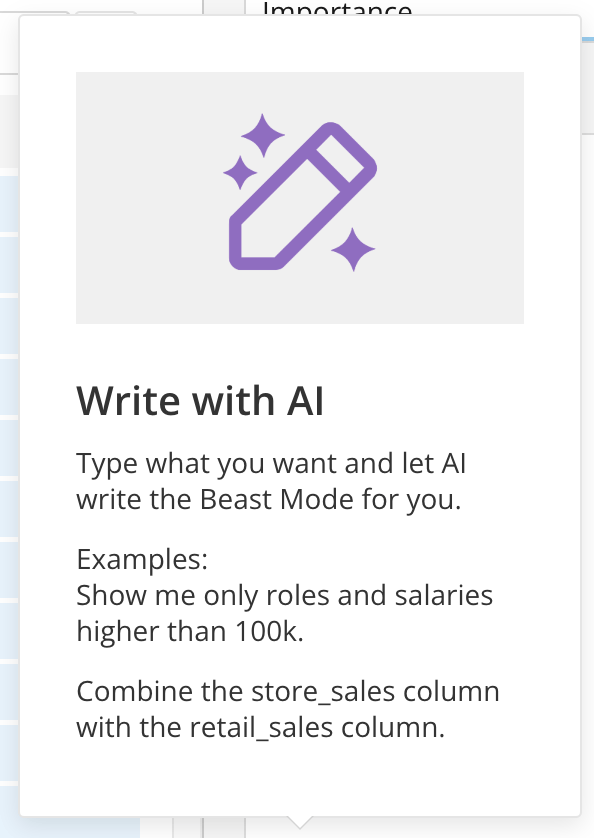
The Beast Mode AI Assistant from Domo. AI can help generate Beast Mode calculations inside the Beast Mode editor. To use the Beast Mode AI Assistant, you must have the AI Services grant enabled for your role.
Here are some example prompts to try:
* "Return the difference between the Order Date and the Shipped Date in months"
* "Create a calculated field where if the order priority is Critical or High it becomes Important, otherwise it's Not Important"
* "Add one week to the Order Data column"
* "Calculate the running sum of total sales by order date"
See [Beast Mode AI Assistant](/s/article/000005304) to learn more.
To learn more about grants, see [Managing Custom Roles](/s/article/360043438973).
Learn more about [Domo. AI](https://ai.domo.com/) or explore [Domo. AI documentation](https://domo-support.domo.com/s/topic/0TO5w000000ZmGPGA0/domoai?language=en_US) in the Knowledge Base.
;
};
**eLearning —** Learn more about features in this release in [Domo University](https://learndomo.domo.com/learn/course/1413/january-2024-release-update?generated_by=13027\&hash=b66042c075d37b57bc57c14837b9b3922d5016ec) .
***
### Domo. AI
**A note about security considerations —** Domo recognizes that AI needs to be well-governed per our customers' internal guidelines. AI Assistants send only Domo metadata about Domo data sources to OpenAI.
As such, to use AI Assistants in Domo, Admins must enable OpenAI models for use under Admin Settings for the AI Service Layer. Furthermore, non-admin users in Domo require a role with the Use AI Services grant enabled to leverage AI Assistants.
In the coming months, Domo will introduce an internal LLM option for running AI Assistants that can be leveraged without sending information to OpenAI.
# Beast Mode AI Assistant
The Beast Mode AI Assistant from Domo. AI can help generate Beast Mode calculations inside the Beast Mode editor. To use the Beast Mode AI Assistant, you must have the AI Services grant enabled for your role.
Here are some example prompts to try:
* "Return the difference between the Order Date and the Shipped Date in months"
* "Create a calculated field where if the order priority is Critical or High it becomes Important, otherwise it's Not Important"
* "Add one week to the Order Data column"
* "Calculate the running sum of total sales by order date"
See [Beast Mode AI Assistant](/s/article/000005304) to learn more.
To learn more about grants, see [Managing Custom Roles](/s/article/360043438973).
Learn more about [Domo. AI](https://ai.domo.com/) or explore [Domo. AI documentation](https://domo-support.domo.com/s/topic/0TO5w000000ZmGPGA0/domoai?language=en_US) in the Knowledge Base.
 # DataSet Views Advanced SQL Editor with AI Assistant
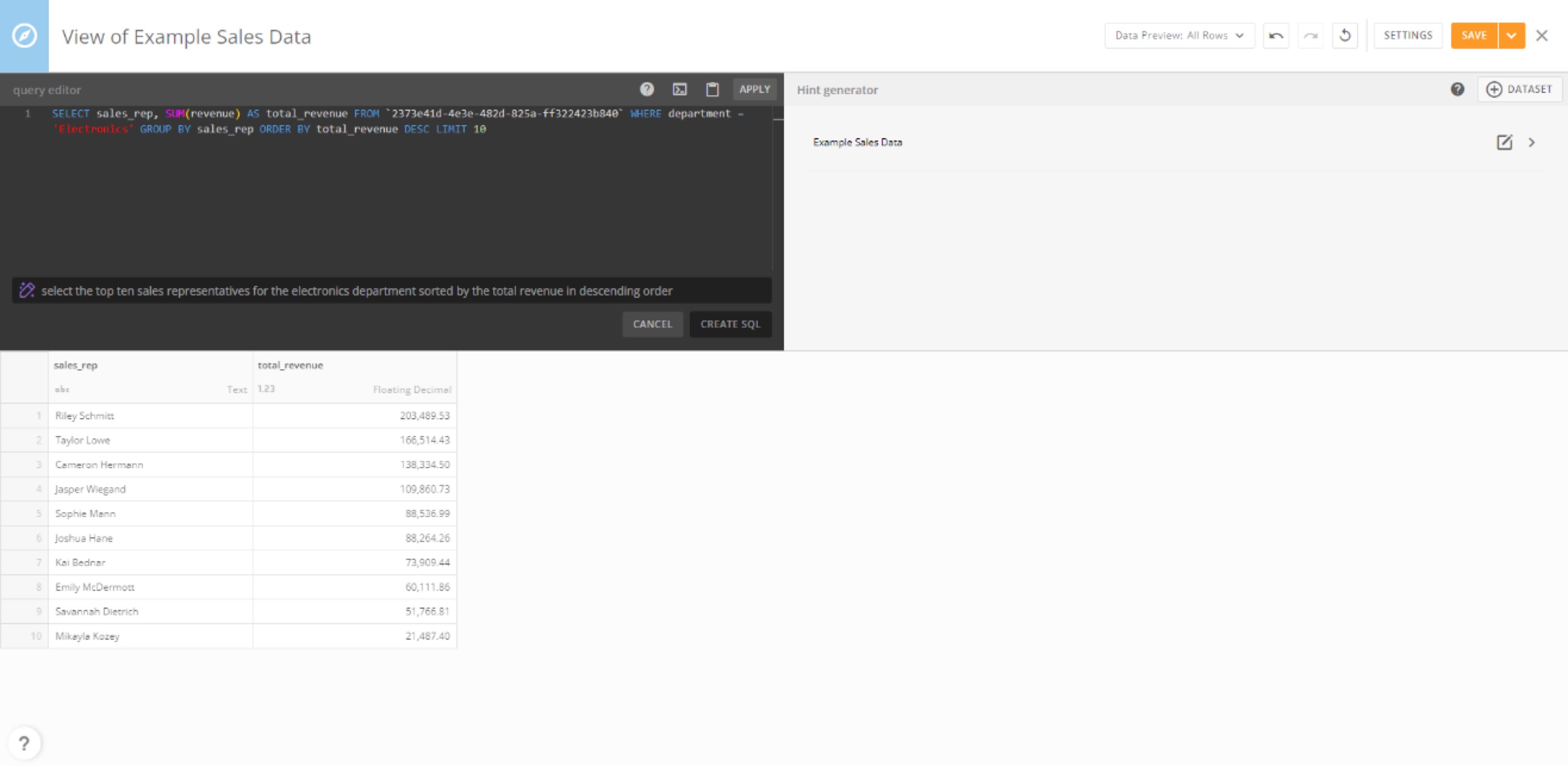
The Advanced SQL Editor in the Views Explorer allows you to see the SQL that is powering any DataSet View. You can edit the SQL, apply it, and watch your query update.
In addition, you can use the AI Assistant to create a SQL query for the data you want to include in your DataSet View. Write a prompt in natural language and the AI Assistant returns a SQL query.
Here are some example prompts to try:
* "Show me all rows where Order Priority is High or Critical and TCV is greater than 10000"
* "Clean up my Updated Date column so that it is in this format YYYY-MM-DD"
* "Create a new calculated column called Profit that takes Total Sales minus Total Cost"
* "Join with the Customer Details DataSet on Customer Domain and include all columns from both DataSets"
Learn more about the [Advanced SQL Editor with AI Assistant](https://domo-support.domo.com/s/article/360046074774?language=en_US#advanced_sql_editor).
Learn more about [Domo. AI](https://ai.domo.com/) or explore [Domo. AI documentation](https://domo-support.domo.com/s/topic/0TO5w000000ZmGPGA0/domoai?language=en_US) in the Knowledge Base.
# DataSet Views Advanced SQL Editor with AI Assistant
The Advanced SQL Editor in the Views Explorer allows you to see the SQL that is powering any DataSet View. You can edit the SQL, apply it, and watch your query update.
In addition, you can use the AI Assistant to create a SQL query for the data you want to include in your DataSet View. Write a prompt in natural language and the AI Assistant returns a SQL query.
Here are some example prompts to try:
* "Show me all rows where Order Priority is High or Critical and TCV is greater than 10000"
* "Clean up my Updated Date column so that it is in this format YYYY-MM-DD"
* "Create a new calculated column called Profit that takes Total Sales minus Total Cost"
* "Join with the Customer Details DataSet on Customer Domain and include all columns from both DataSets"
Learn more about the [Advanced SQL Editor with AI Assistant](https://domo-support.domo.com/s/article/360046074774?language=en_US#advanced_sql_editor).
Learn more about [Domo. AI](https://ai.domo.com/) or explore [Domo. AI documentation](https://domo-support.domo.com/s/topic/0TO5w000000ZmGPGA0/domoai?language=en_US) in the Knowledge Base.
 ### Workflows
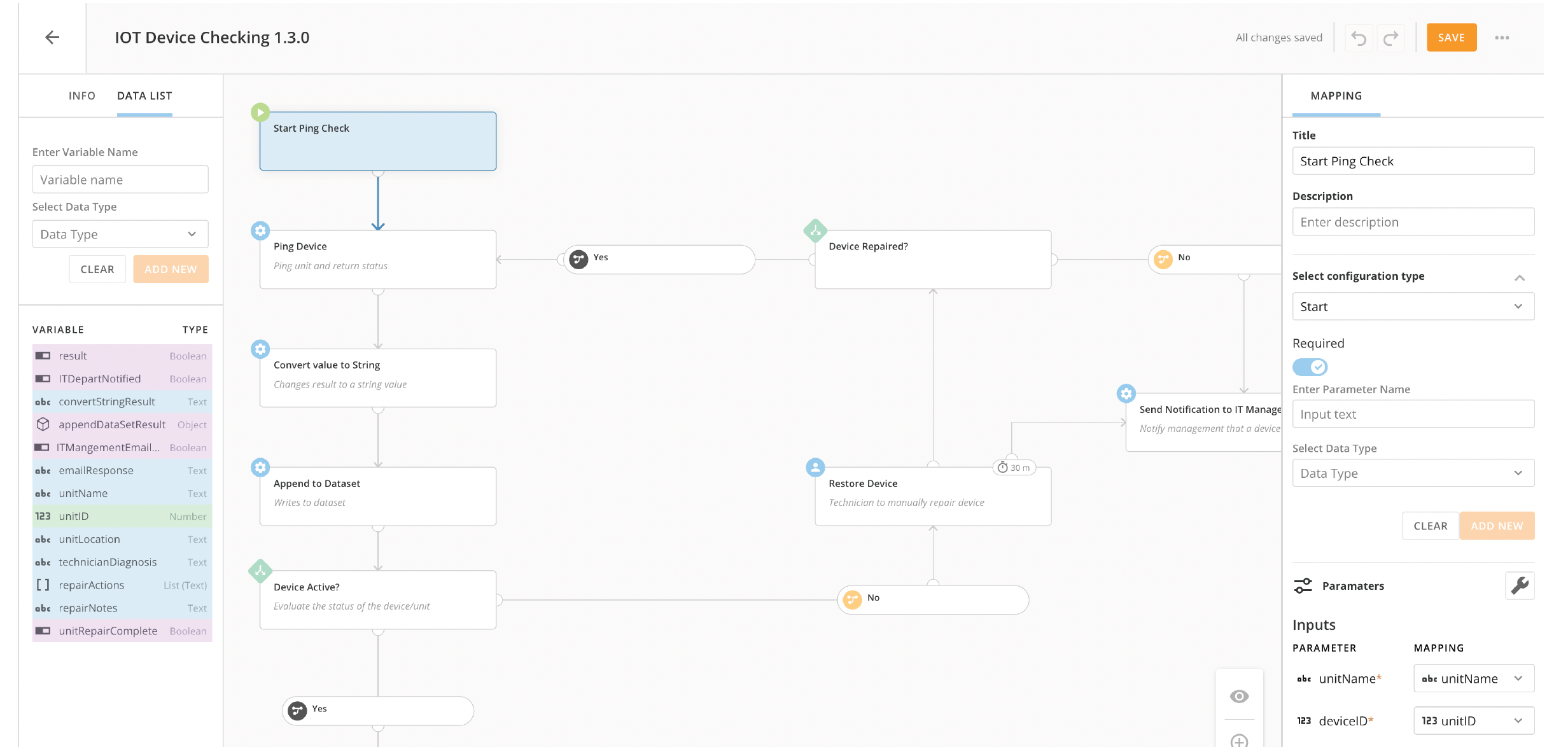
Workflows powerfully leverages other features, including [Code Engine](#code_engine), [Queues](#queues), and [Forms](#domo_forms), to allow you to design and implement executable workflow processes with low code capabilities. You can start a workflow manually, through an Alert, through an approval flow, or on a timer. Use our workflow template library to get started quickly.
To learn more, see our [Workflows Overview](https://domo-support.domo.com/s/article/000005108?language=en_US) in the Knowledge Base.
### Workflows
Workflows powerfully leverages other features, including [Code Engine](#code_engine), [Queues](#queues), and [Forms](#domo_forms), to allow you to design and implement executable workflow processes with low code capabilities. You can start a workflow manually, through an Alert, through an approval flow, or on a timer. Use our workflow template library to get started quickly.
To learn more, see our [Workflows Overview](https://domo-support.domo.com/s/article/000005108?language=en_US) in the Knowledge Base.
 ### Code Engine
Code Engine is a Domo-native runtime environment that can execute JavaScript or Python code and interact with any feature inside or outside of Domo. You can use the Domo library of packages and functions for common integrations and services or create your own functions for use in your Domo instance. Code Engine functions integrate with Workflows without coding.
To learn more, see [Code Engine](https://domo-support.domo.com/s/article/000005173).
### Code Engine
Code Engine is a Domo-native runtime environment that can execute JavaScript or Python code and interact with any feature inside or outside of Domo. You can use the Domo library of packages and functions for common integrations and services or create your own functions for use in your Domo instance. Code Engine functions integrate with Workflows without coding.
To learn more, see [Code Engine](https://domo-support.domo.com/s/article/000005173).
![CodeEngineScreenShot[99].png](https://mintcdn.com/domoinc-openapi-sync-dataflows/RlWZB5sA8DQ5iXJ7/images/kb/ka0Vq0000000rAn-00N5w00000Ri7BU-0EM5w000006uK0g.jpg?fit=max&auto=format&n=RlWZB5sA8DQ5iXJ7&q=85&s=e7b890c6ee37dde6d1412c4c8ad1d998) ### Forms
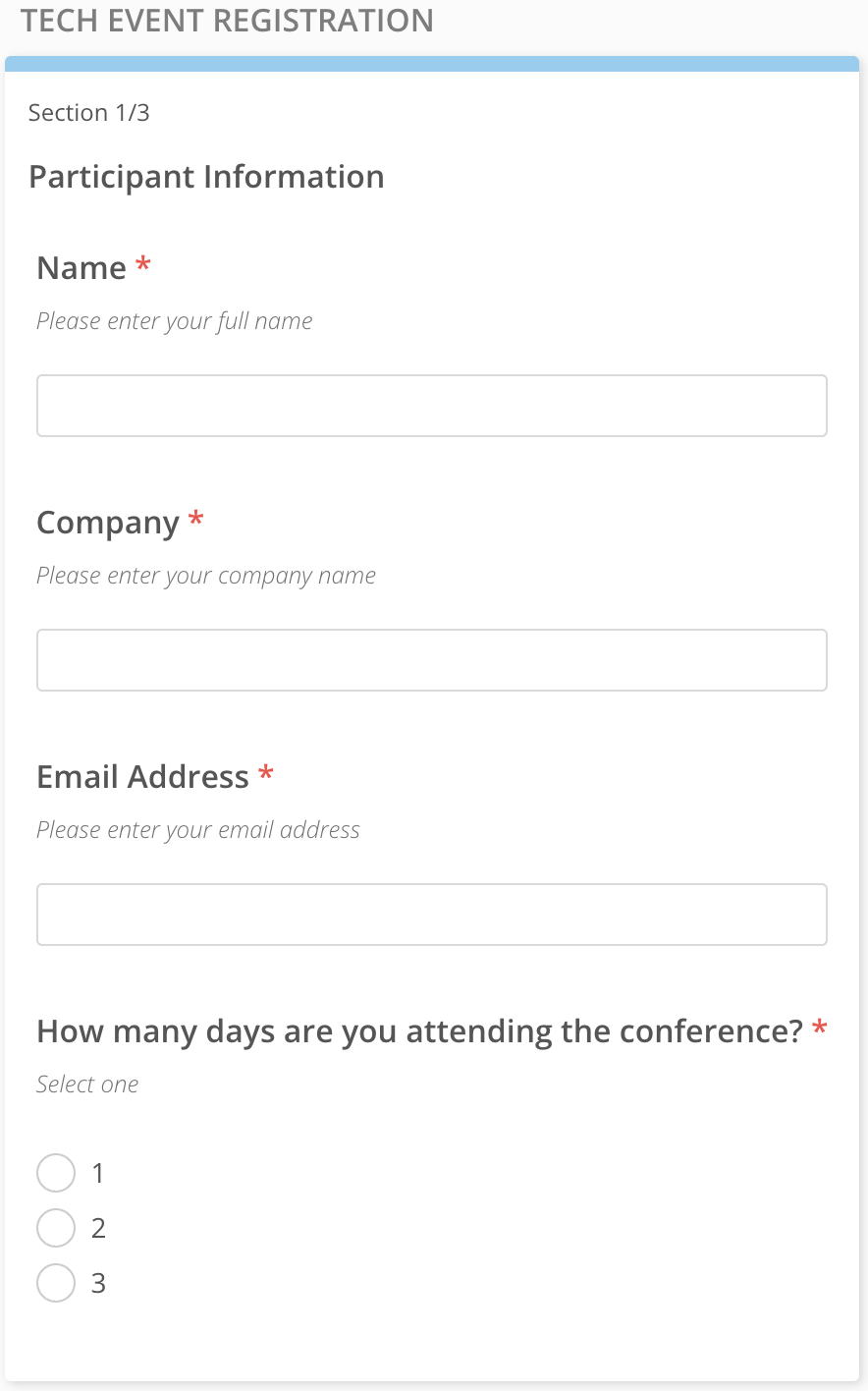
The new Forms editor allows you to create and publish forms for customized manual interactions. Forms integrates smoothly with Workflows so that you can create and manage reusable forms as part of User Tasks in a workflow or use a form submission to initiate a workflow.
To learn more, see [Forms](https://domo-support.domo.com/s/article/000005171).
### Forms
The new Forms editor allows you to create and publish forms for customized manual interactions. Forms integrates smoothly with Workflows so that you can create and manage reusable forms as part of User Tasks in a workflow or use a form submission to initiate a workflow.
To learn more, see [Forms](https://domo-support.domo.com/s/article/000005171).
 ### Queues
Queues allows you to organize manual tasks into different queues and control who can access them. You can configure a queue to display tasks for an individual or a group. Each task is associated with a form generated by a workflow, and you can filter queues to view tasks by assignee or status, monitor queue volume, and customize layouts.
To learn more, see [Queues](https://domo-support.domo.com/s/article/000005172).
### Queues
Queues allows you to organize manual tasks into different queues and control who can access them. You can configure a queue to display tasks for an individual or a group. Each task is associated with a form generated by a workflow, and you can filter queues to view tasks by assignee or status, monitor queue volume, and customize layouts.
To learn more, see [Queues](https://domo-support.domo.com/s/article/000005172).
![QueueScreenShot2[49].png](https://mintcdn.com/domoinc-openapi-sync-dataflows/RlWZB5sA8DQ5iXJ7/images/kb/ka0Vq0000000rAn-00N5w00000Ri7BU-0EM5w000006uK0W.jpg?fit=max&auto=format&n=RlWZB5sA8DQ5iXJ7&q=85&s=a9d373d83fe6d31a5cb2b379375347f9) ### JSON No Code & JSON No Code OAuth Connectors
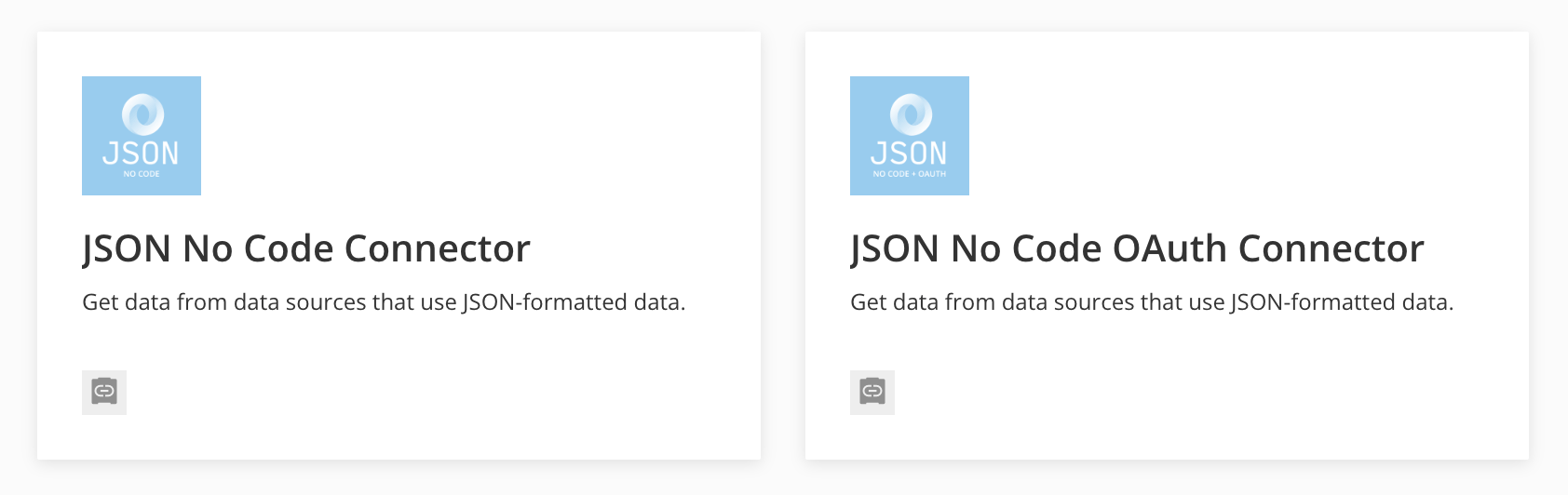
The JSON No Code and JSON No Code OAuth connectors allow you to connect Domo to REST APIs that return data in a standard JSON format. Both connectors support standard authorization methods such as Basic Authentication, API Key, Bearer Token, and OAuth 2.0. Each connector includes three main areas of configuration: Connection Type, Request Type, and optional Advanced Settings.
Both connectors are available for download in the [Domo Appstore](https://www.domo.com/appstore/) [.](https://www.domo.com/appstore/)
To learn more, see [JSON No Code Connector](/s/article/360043433473) and [JSON No Code OAuth Connector](/s/article/360052105454).
### JSON No Code & JSON No Code OAuth Connectors
The JSON No Code and JSON No Code OAuth connectors allow you to connect Domo to REST APIs that return data in a standard JSON format. Both connectors support standard authorization methods such as Basic Authentication, API Key, Bearer Token, and OAuth 2.0. Each connector includes three main areas of configuration: Connection Type, Request Type, and optional Advanced Settings.
Both connectors are available for download in the [Domo Appstore](https://www.domo.com/appstore/) [.](https://www.domo.com/appstore/)
To learn more, see [JSON No Code Connector](/s/article/360043433473) and [JSON No Code OAuth Connector](/s/article/360052105454).
 ***
### Graph View in Magic ETL Details Page
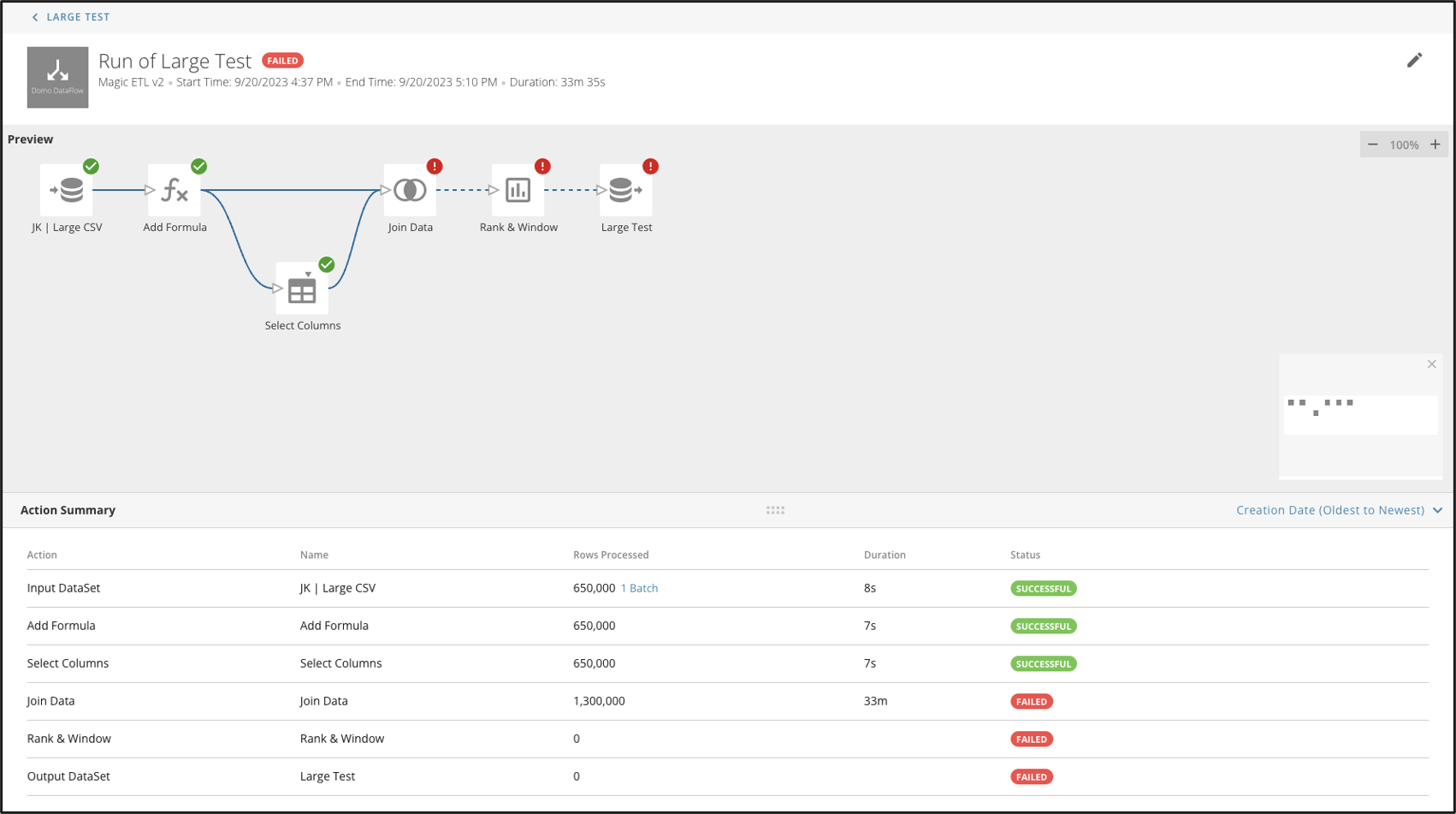
The new graph view in Magic ETL and enhanced Action Summary allow you to see exactly where a DataFlow failed and review error information efficiently. Selecting a tile in the Preview canvas highlights the corresponding row in the Action Summary so you can solve problems more effectively.
This feature is only available for Magic ETL DataFlows.
Learn more about [Magic ETL](https://domo-support.domo.com/s/topic/0TO5w000000ZanvGAC/magic-etl?language=en_US) in the Knowledge Base.
***
### Graph View in Magic ETL Details Page
The new graph view in Magic ETL and enhanced Action Summary allow you to see exactly where a DataFlow failed and review error information efficiently. Selecting a tile in the Preview canvas highlights the corresponding row in the Action Summary so you can solve problems more effectively.
This feature is only available for Magic ETL DataFlows.
Learn more about [Magic ETL](https://domo-support.domo.com/s/topic/0TO5w000000ZanvGAC/magic-etl?language=en_US) in the Knowledge Base.
 ### Charts
The following new chart and chart enhancements are now available in Analyzer.
# Between or In Range Gauge
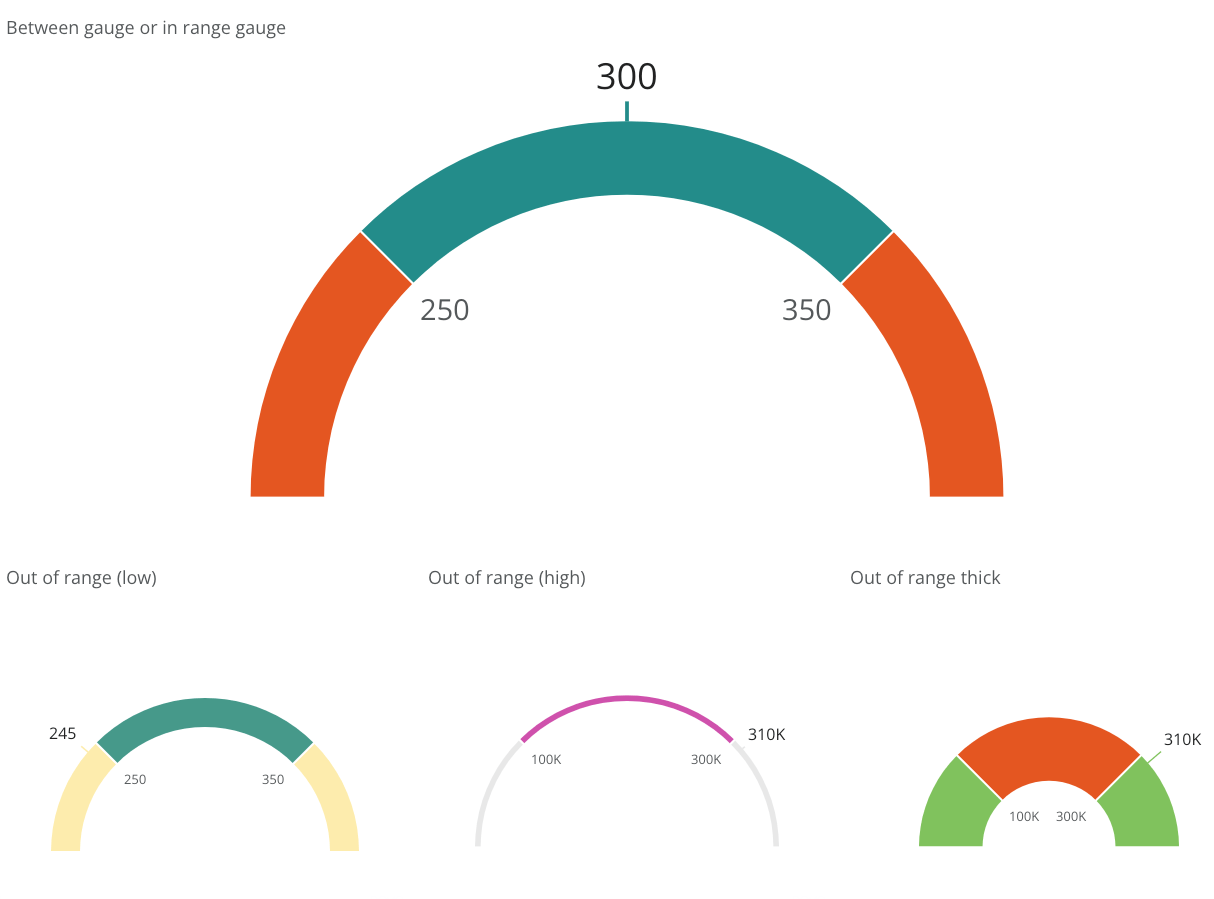
The Between or In Range gauge helps you visualize results that are between lower and upper limits—showing whether the output is within the target range so you can quickly identify exceptions to the expected values. This chart is available in the Gauges section of Analyzer.
Font sizes, bar width, and colors are all customizable. See [Between or In Range Gauge](/s/article/000005373).
### Charts
The following new chart and chart enhancements are now available in Analyzer.
# Between or In Range Gauge
The Between or In Range gauge helps you visualize results that are between lower and upper limits—showing whether the output is within the target range so you can quickly identify exceptions to the expected values. This chart is available in the Gauges section of Analyzer.
Font sizes, bar width, and colors are all customizable. See [Between or In Range Gauge](/s/article/000005373).
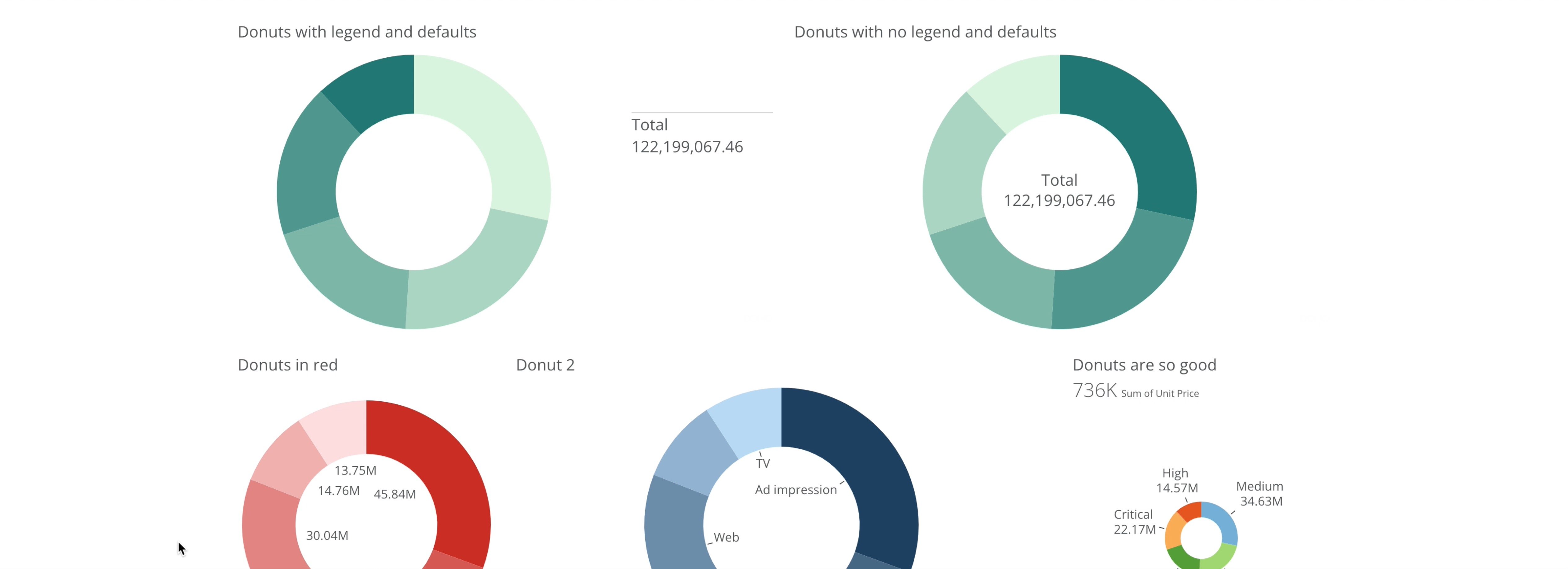
 # Donut Chart Labels
To make our popular Donut Chart more presentation-friendly, we've added data labels and hover text options for interactive analysis. Data labels ensure your Donut Charts can provide powerful insights, even in a static format.
To add data labels to your Donut Charts, look for the Data Label Settings under Chart Properties in Analyzer.
# Donut Chart Labels
To make our popular Donut Chart more presentation-friendly, we've added data labels and hover text options for interactive analysis. Data labels ensure your Donut Charts can provide powerful insights, even in a static format.
To add data labels to your Donut Charts, look for the Data Label Settings under Chart Properties in Analyzer.
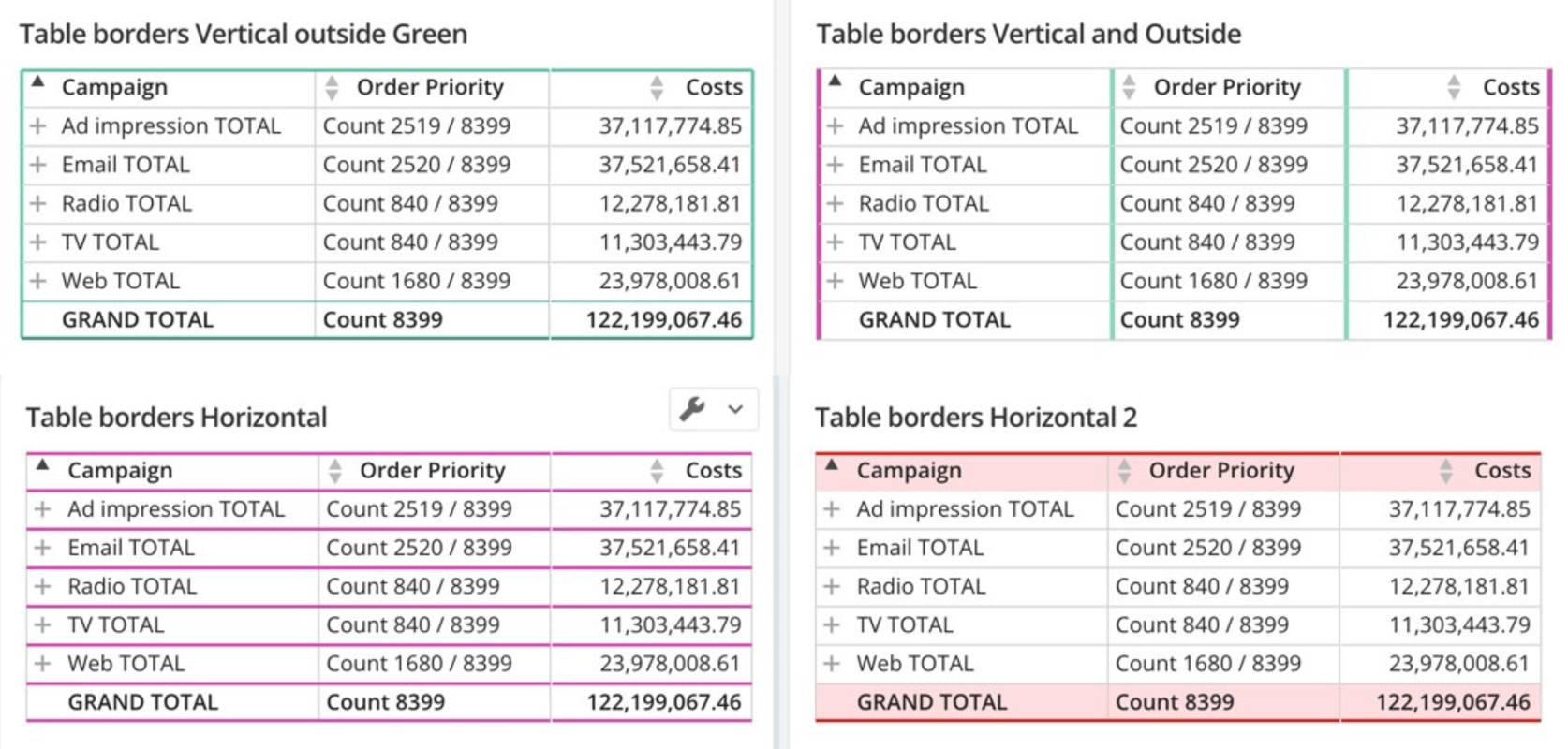
 # Rich Table Borders
Mega Tables and Pivot Tables now allow for more border customization, including:
* Vertical border thickness and color
* Horizontal border thickness and color
* Outside borders
* Header borders
These changes do not affect existing tables. The new options are supported in Excel export.
# Rich Table Borders
Mega Tables and Pivot Tables now allow for more border customization, including:
* Vertical border thickness and color
* Horizontal border thickness and color
* Outside borders
* Header borders
These changes do not affect existing tables. The new options are supported in Excel export.
 ### Domo Bricks
To learn more about Domo Bricks, see the [Domo Bricks](/s/article/4423762260375) topic in the Knowledge Base.
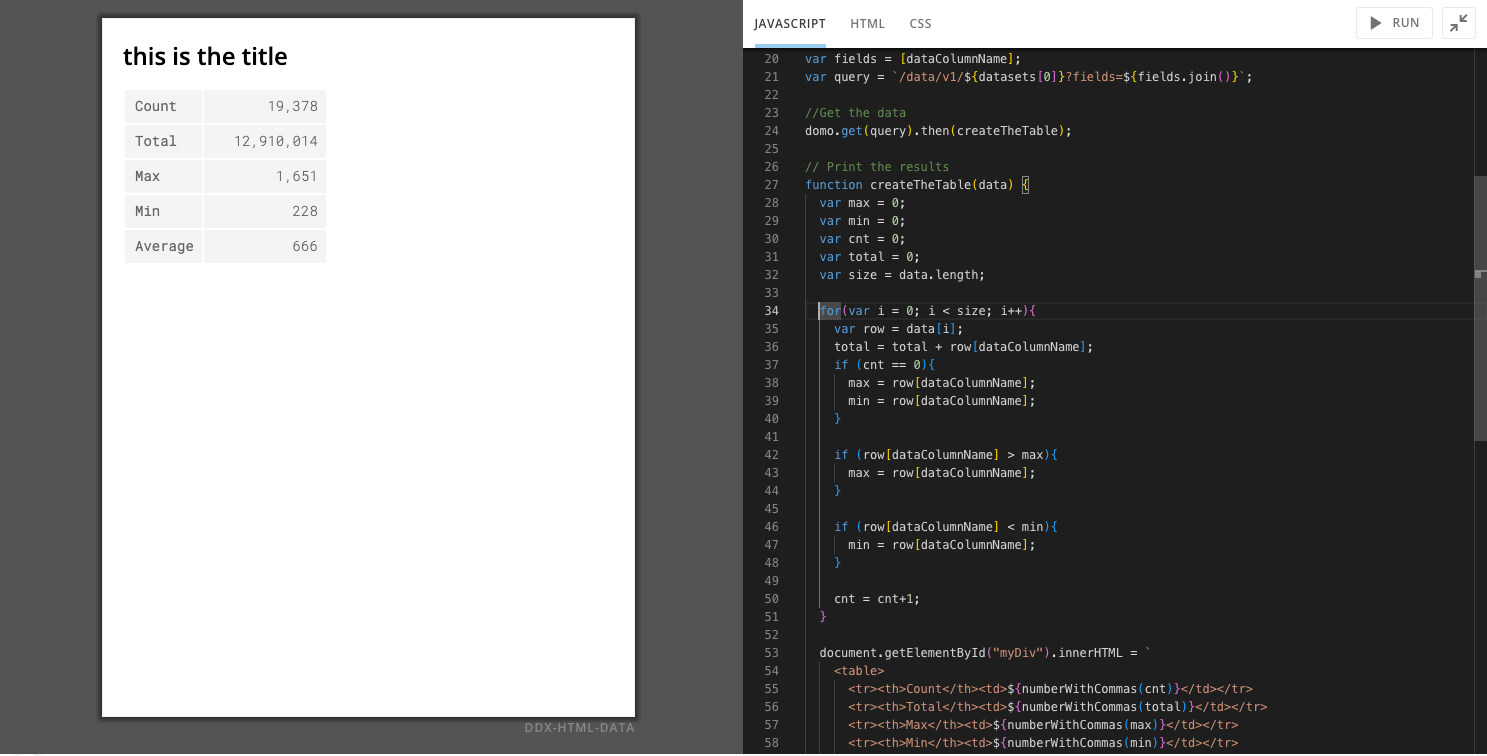
# Domo Bricks on Monaco
For more seamless development of Domo Bricks and to boost your team's brick-building productivity, we've upgraded to the Monaco Editor, which powers VSCode. Enjoy the familiar Monaco interface as the default editor for all Domo Bricks.
### Domo Bricks
To learn more about Domo Bricks, see the [Domo Bricks](/s/article/4423762260375) topic in the Knowledge Base.
# Domo Bricks on Monaco
For more seamless development of Domo Bricks and to boost your team's brick-building productivity, we've upgraded to the Monaco Editor, which powers VSCode. Enjoy the familiar Monaco interface as the default editor for all Domo Bricks.
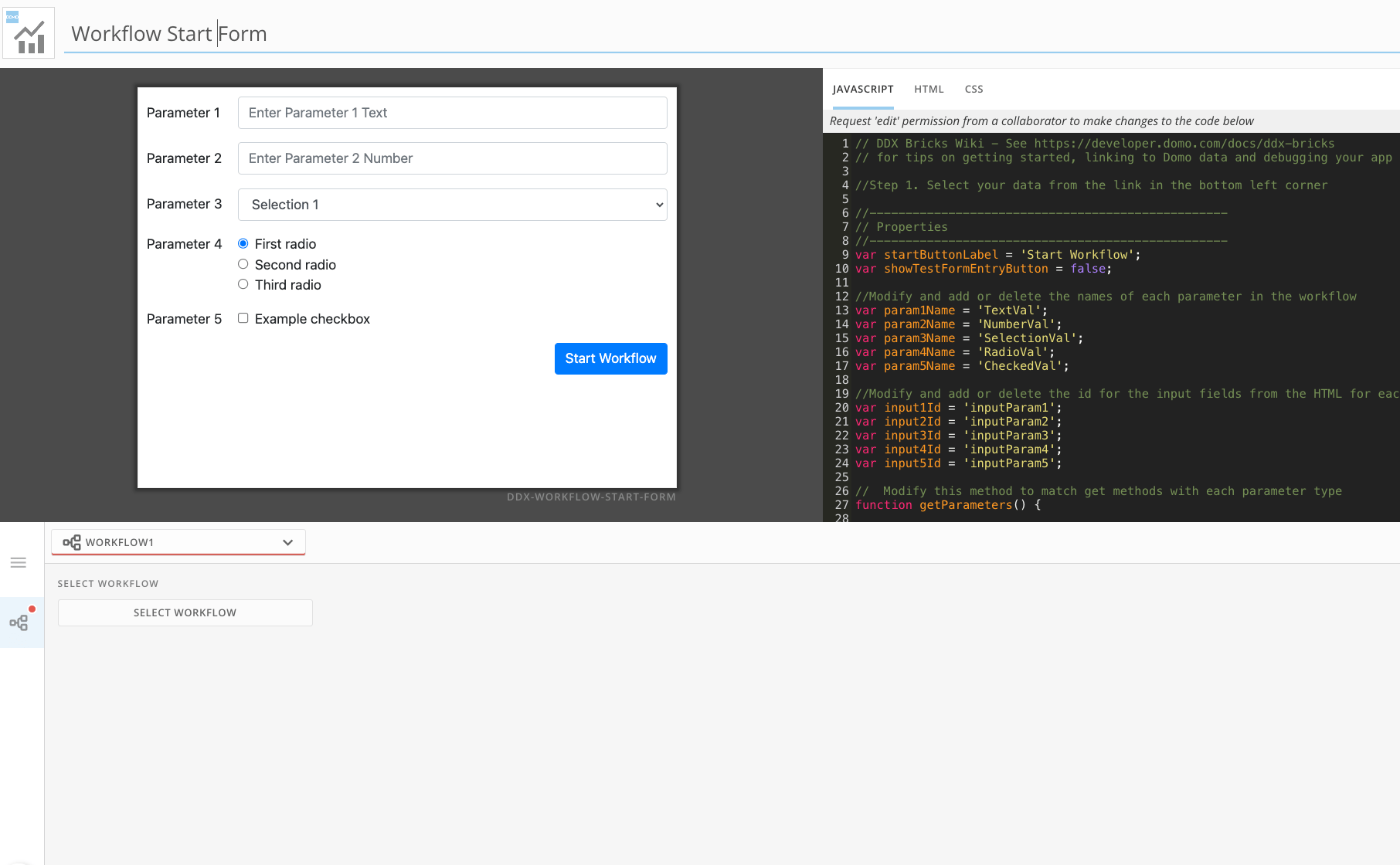
 # Workflow Start Form Brick
Start a workflow from your Domo card, dashboard, or app with the Workflow Start Form Brick. Gather input with customizable parameters and pass them to initiate the workflow.
The Workflow Start Form Brick is available in the [Domo Appstore](https://www.domo.com/appstore/) .
Learn how to configure the [Workflow Start Form Brick](/s/article/000005372).
# Workflow Start Form Brick
Start a workflow from your Domo card, dashboard, or app with the Workflow Start Form Brick. Gather input with customizable parameters and pass them to initiate the workflow.
The Workflow Start Form Brick is available in the [Domo Appstore](https://www.domo.com/appstore/) .
Learn how to configure the [Workflow Start Form Brick](/s/article/000005372).
 # AI LLM Model Compare Brick
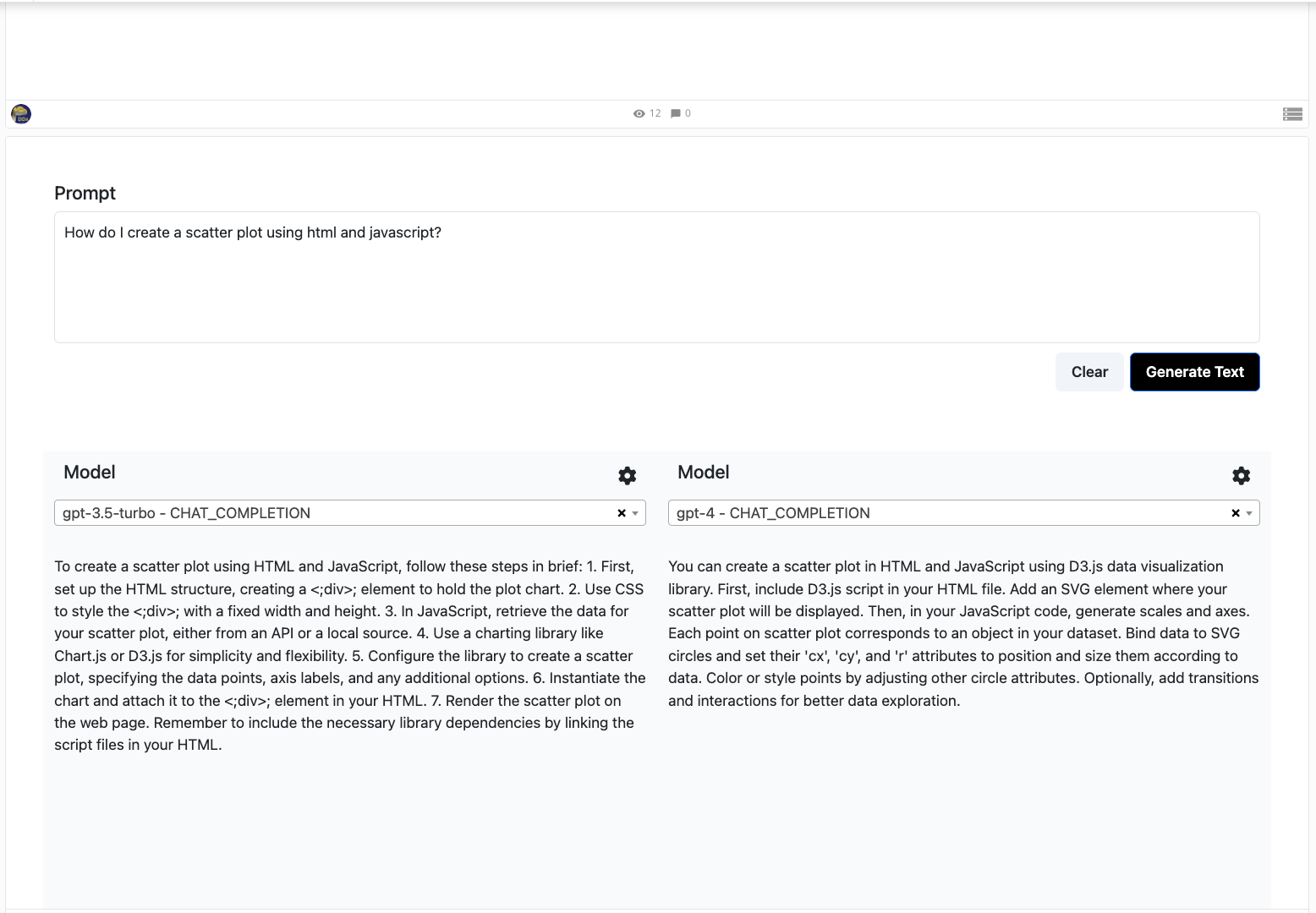
The AI LLM Model Compare Brick allows you to compare Large Language Models (LLMs) to find the best one for your business needs. With a single prompt, you can see a side-by-side comparison of results from different LLMs to make the best choice for your use case.
The AI LLM Model Compare Brick is available in the [Domo Appstore](https://www.domo.com/appstore/) .
# AI LLM Model Compare Brick
The AI LLM Model Compare Brick allows you to compare Large Language Models (LLMs) to find the best one for your business needs. With a single prompt, you can see a side-by-side comparison of results from different LLMs to make the best choice for your use case.
The AI LLM Model Compare Brick is available in the [Domo Appstore](https://www.domo.com/appstore/) .
 # Bricks Collaboration
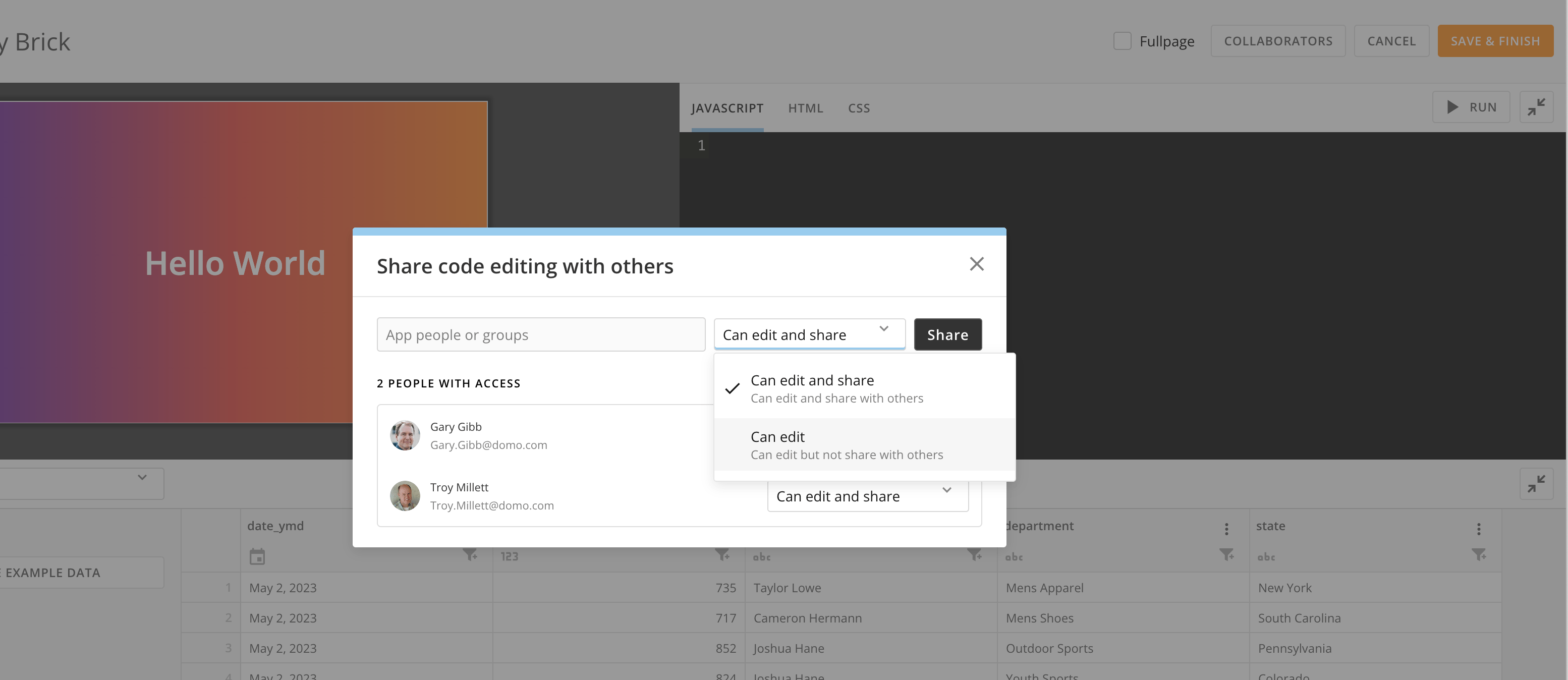
You can now collaborate with others on Domo Bricks while retaining sharing and editing control. Learn more in the [Domo Bricks | Overview](https://domo-support.domo.com/s/article/4423762260375?language=en_US#collaboration).
# Bricks Collaboration
You can now collaborate with others on Domo Bricks while retaining sharing and editing control. Learn more in the [Domo Bricks | Overview](https://domo-support.domo.com/s/article/4423762260375?language=en_US#collaboration).
 # Campaigns — Increased DPI Resolution
 To give you more control over campaign image quality, we have added a new tag to increase DPI resolution.
To learn more, see [*Increase DPI Resolution for Rendered Content*](https://domo-support.domo.com/s/article/360042933514?language=en_US#increase_dpi_resolution).
# Certified Content DomoStats Report
To give you more control over campaign image quality, we have added a new tag to increase DPI resolution.
To learn more, see [*Increase DPI Resolution for Rendered Content*](https://domo-support.domo.com/s/article/360042933514?language=en_US#increase_dpi_resolution).
# Certified Content DomoStats Report
 The new Certified Content DomoStats report provides details about which cards and DataSets in your instance have been certified or denied certification, and which user ID requested the certification.
To learn more about certifying content, see [Certify Cards and DataSets](/s/article/360043430613) in the Knowledge Base.
# Domo Everywhere — Customer Creation & Routing
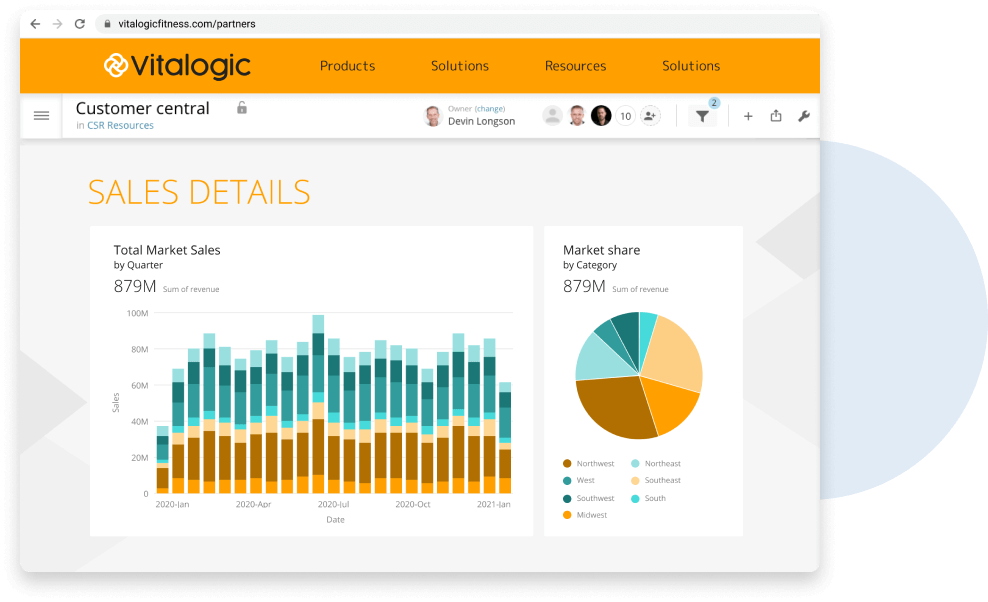
Publishers can now integrate their authentication with the Domo Identity Broker to ensure external users are always sent to the correct instance. This keeps access to the embedded edit experience safe, secure, and seamless.
Additionally, creating end-customer accounts from the Domo Everywhere Admin Settings is now self-serve, meaning that you can configure Domo Everywhere in minutes and start taking advantage of publication at scale.
To learn more, see the [Domo Everywhere](https://domo-support.domo.com/s/topic/0TO5w000000ZanbGAC/domo-everywhere?language=en_US) topic in our Knowledge Base.
The new Certified Content DomoStats report provides details about which cards and DataSets in your instance have been certified or denied certification, and which user ID requested the certification.
To learn more about certifying content, see [Certify Cards and DataSets](/s/article/360043430613) in the Knowledge Base.
# Domo Everywhere — Customer Creation & Routing
Publishers can now integrate their authentication with the Domo Identity Broker to ensure external users are always sent to the correct instance. This keeps access to the embedded edit experience safe, secure, and seamless.
Additionally, creating end-customer accounts from the Domo Everywhere Admin Settings is now self-serve, meaning that you can configure Domo Everywhere in minutes and start taking advantage of publication at scale.
To learn more, see the [Domo Everywhere](https://domo-support.domo.com/s/topic/0TO5w000000ZanbGAC/domo-everywhere?language=en_US) topic in our Knowledge Base.
 ***
### Beta Announcements
*To join a beta, reach out to your Domo account team. If you do not have contact information for your account team, you can reach out to Domo Support at [support@domo.com](mailto:support@domo.com). You may be required to complete training before you can use the feature.*
# Domo. AI Enhancements
The Amazon Bedrock ML and Databricks ML connectors allow you to use your third-party data models with the Domo. AI solution. The connectors require different keys from the original provider to set up your account in Domo, which can be done in your Domo Admin Settings. Combine your existing models with the power of Domo to visualize your data, create AI Projects, and more.
To join the beta for these connectors, contact [ai@domo.com](mailto:ai@domo.com).
# App Studio
The open beta for App Studio is available now.
App Studio is a low-code app builder that makes creating, distributing, and consuming Domo apps accessible to everyone. With pre-built themes and countless ways to customize the look and feel of your apps, App Studio is the next level of dashboard building experience, bringing the level of precision and navigation that previously required the App Dev Framework to your fingertips. App Studio is poised to become the ultimate destination for data presentation and compelling data narratives, all within a single app.
To learn more about App Studio, see the [Overview](https://domo-support.domo.com/s/article/000005295?language=en_US) in the Knowledge Base.
***
### Beta Announcements
*To join a beta, reach out to your Domo account team. If you do not have contact information for your account team, you can reach out to Domo Support at [support@domo.com](mailto:support@domo.com). You may be required to complete training before you can use the feature.*
# Domo. AI Enhancements
The Amazon Bedrock ML and Databricks ML connectors allow you to use your third-party data models with the Domo. AI solution. The connectors require different keys from the original provider to set up your account in Domo, which can be done in your Domo Admin Settings. Combine your existing models with the power of Domo to visualize your data, create AI Projects, and more.
To join the beta for these connectors, contact [ai@domo.com](mailto:ai@domo.com).
# App Studio
The open beta for App Studio is available now.
App Studio is a low-code app builder that makes creating, distributing, and consuming Domo apps accessible to everyone. With pre-built themes and countless ways to customize the look and feel of your apps, App Studio is the next level of dashboard building experience, bringing the level of precision and navigation that previously required the App Dev Framework to your fingertips. App Studio is poised to become the ultimate destination for data presentation and compelling data narratives, all within a single app.
To learn more about App Studio, see the [Overview](https://domo-support.domo.com/s/article/000005295?language=en_US) in the Knowledge Base.
 ### Need Support?
Domo provides education, community answers, and technical support.
* Search for a topic in the
[Help Center](https://www.domo.com/help-center) .
* Learn from
[Domo University](https://www.domo.com/university) .
* Search for training apps in the
[Appstore](https://www.domo.com/appstore/) .
* Get answers in the
[Community Forums](https://community-forums.domo.com/main) .
* Contact Technical Support by entering a help ticket in the
[Domo Support Portal](https://domo-support.domo.com/) .
* Reach out to your Domo account team.
### Have Feedback?
If you have feedback, please send it from within Domo:
In the navigation header, select **More** > **Feedback**.
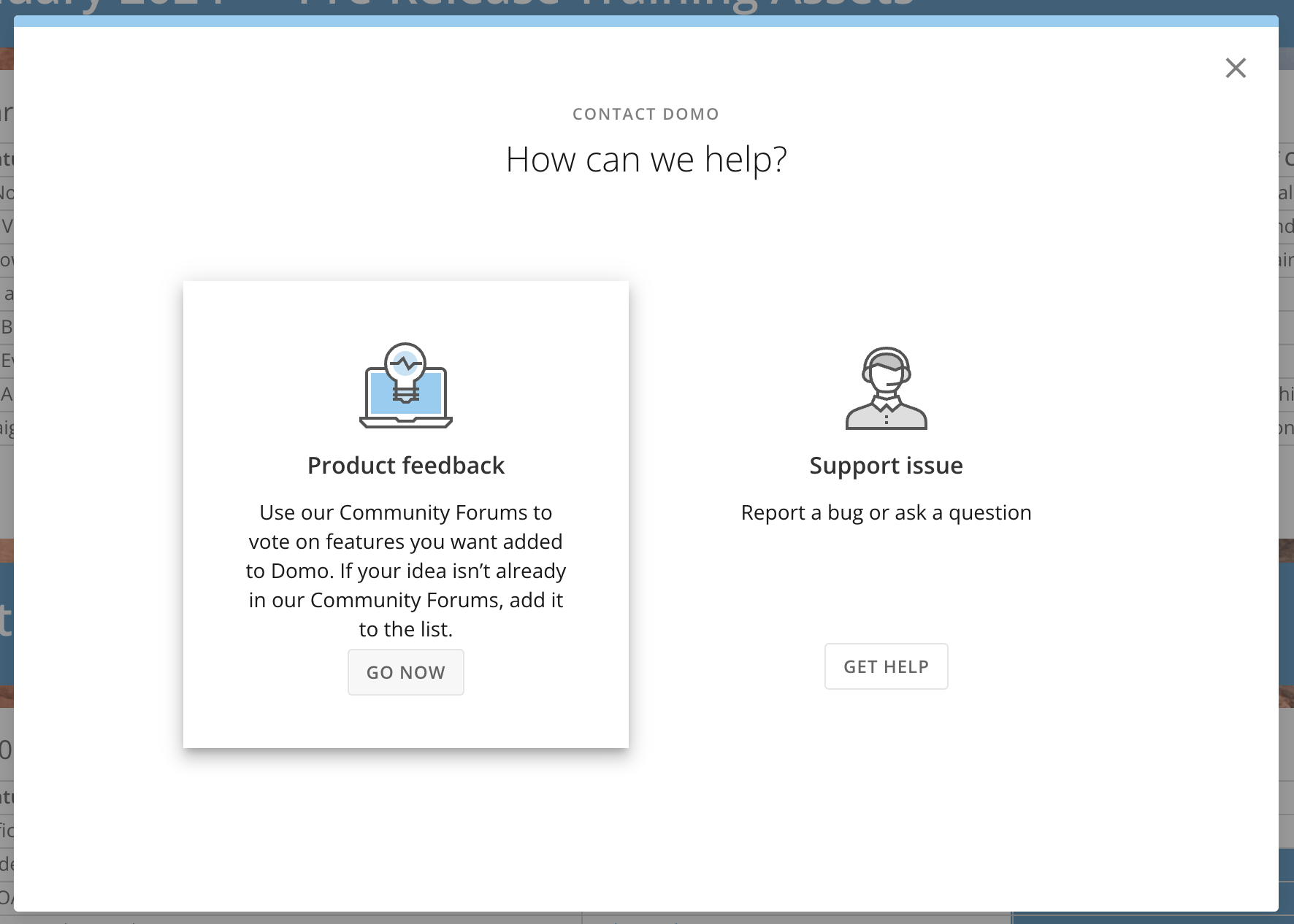
In the **Contact Domo** modal, choose **Product feedback** > **Go Now**.
### Need Support?
Domo provides education, community answers, and technical support.
* Search for a topic in the
[Help Center](https://www.domo.com/help-center) .
* Learn from
[Domo University](https://www.domo.com/university) .
* Search for training apps in the
[Appstore](https://www.domo.com/appstore/) .
* Get answers in the
[Community Forums](https://community-forums.domo.com/main) .
* Contact Technical Support by entering a help ticket in the
[Domo Support Portal](https://domo-support.domo.com/) .
* Reach out to your Domo account team.
### Have Feedback?
If you have feedback, please send it from within Domo:
In the navigation header, select **More** > **Feedback**.
In the **Contact Domo** modal, choose **Product feedback** > **Go Now**.