> ## Documentation Index
> Fetch the complete documentation index at: https://domoinc-openapi-sync-dataflows.mintlify.site/llms.txt
> Use this file to discover all available pages before exploring further.

# Session Management

export const InlineImage = ({src, alt = '', height = '1.6em'}) => {
  return <img noZoom src={src} alt={alt} style={{
    display: 'inline',
    verticalAlign: 'start',
    height: height,
    margin: '0'
  }} />;
};

### Intro

The Session Management interface allows users with the right permissions to end browser and mobile app sessions in your Domo instance. To learn more, see [Required Grant](#required_grant) below.

***

### Required Grant

To access and use Session Management, you must have the **Edit User Sessions** grant added to your custom role.

To learn more about grants, see [Managing Custom Roles](/s/article/360043438973).

### Access Session Management

1. In the Domo navigation, select **More** > **Admin Settings**.
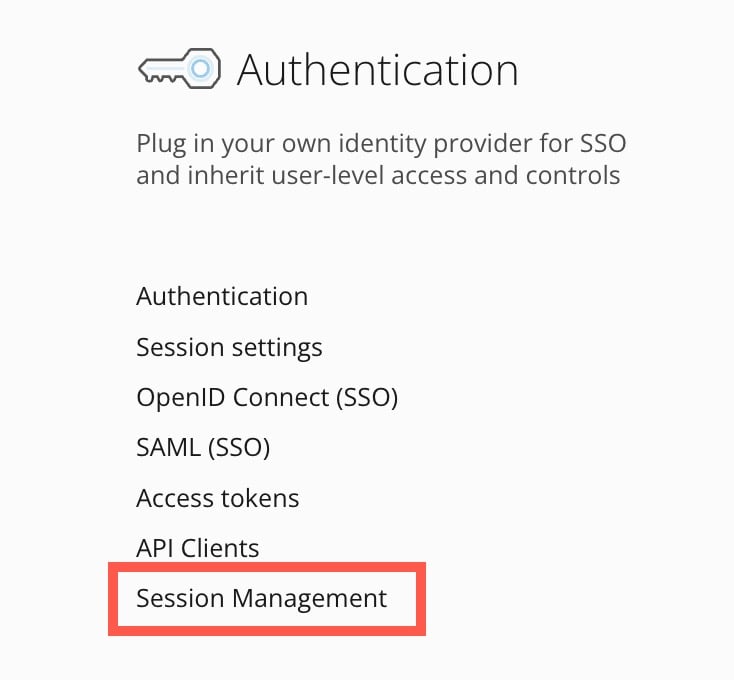
2. In the Admin Settings under **Authentication**, select **Session Management**.

   <Frame>
     <img alt="session management.jpg" src="https://mintcdn.com/domoinc-openapi-sync-dataflows/RlWZB5sA8DQ5iXJ7/images/kb/ka0Vq0000000oMb-00N5w00000Ri7BU-0EMVq000000i1lB.jpg?fit=max&auto=format&n=RlWZB5sA8DQ5iXJ7&q=85&s=288d5213e0a653c9c511b34f303d682b" style={{width: 299, height: 277}} width="734" height="680" data-path="images/kb/ka0Vq0000000oMb-00N5w00000Ri7BU-0EMVq000000i1lB.jpg" />
   </Frame>

### Active User Sessions List

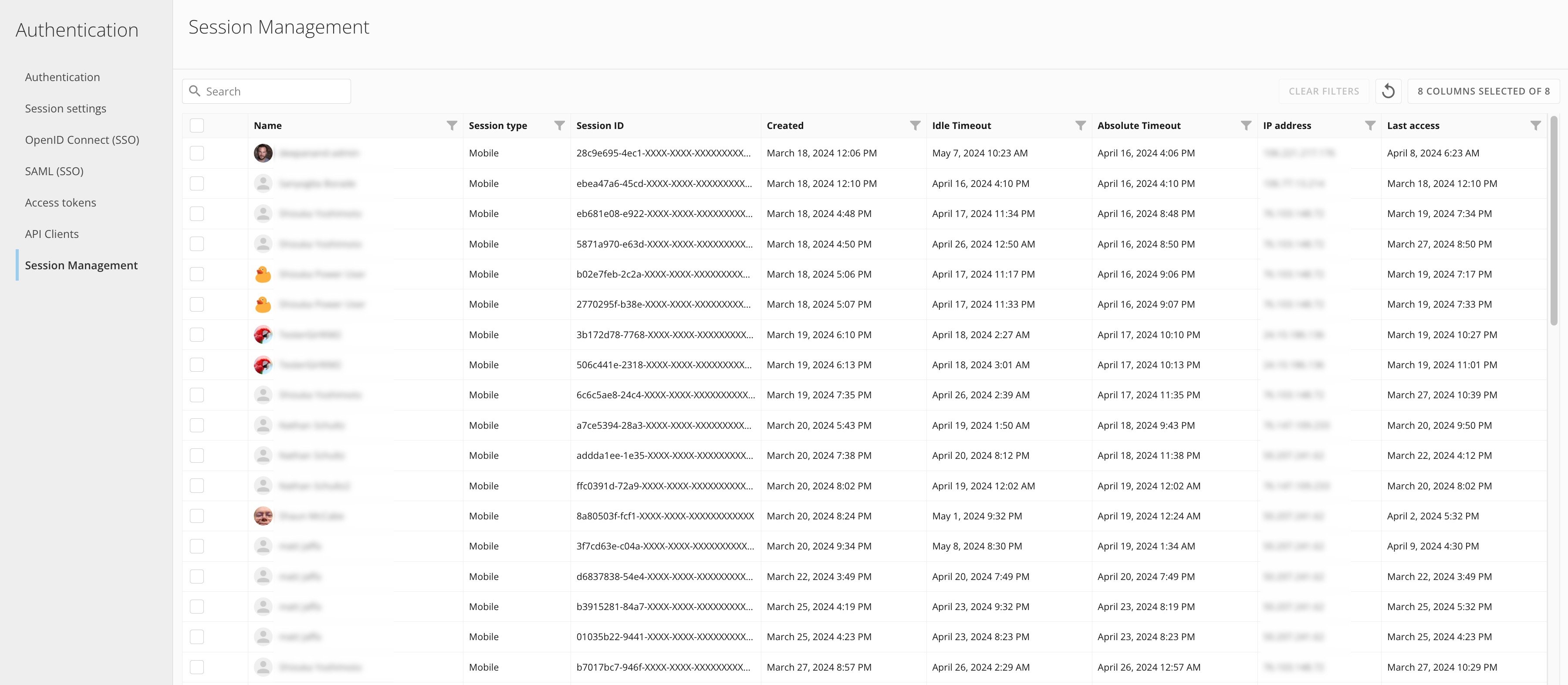
On the **Session Management** page, the Active User Sessions list shows all active browser and mobile app user sessions. The list provides information about each session—like the user name and the user's IP address when the session was created—in eight columns. You can show/hide six of the eight columns—the name and session type are always visible. You can also search, filter, and sort through the active user sessions; and manually refresh the list.
<Note>
  **Note:** The Active User Sessions list includes active browser sessions and mobile app sessions only. Other sessions, including but not limited to sessions used by Workbench, Jupyter, Domo Microsoft Office plugins, the Domo Apple TV app, Buzz Desktop, Domo developer clients (such as client ID/secret), and Domo access tokens, do NOT appear in the list.
</Note>

<Frame>
  <img alt="active user sessions.jpg" src="https://mintcdn.com/domoinc-openapi-sync-dataflows/RlWZB5sA8DQ5iXJ7/images/kb/ka0Vq0000000oMb-00N5w00000Ri7BU-0EMVq000000hvav.jpg?fit=max&auto=format&n=RlWZB5sA8DQ5iXJ7&q=85&s=54cacd8c0d5135654d76fee93c81cedf" style={{width: 850, height: 371}} width="3600" height="1572" data-path="images/kb/ka0Vq0000000oMb-00N5w00000Ri7BU-0EMVq000000hvav.jpg" />
</Frame>

##### Search, Filter, and Sort

Use the search tool to search by user name, session type, and session ID.

Select <InlineImage src="/images/kb/ka0Vq0000000dar-00N5w00000Ri7BU-0EMVq000000bRSg.jpg" /> **Filter** for a column to narrow the list with a custom filter.
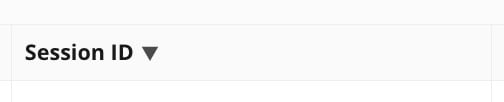
Select the column name to sort that column in ascending or descending order (<InlineImage src="/images/kb/ka0Vq0000000oMb-00N5w00000Ri7BU-0EMVq000000i2Kf.jpg" /> <InlineImage src="/images/kb/ka0Vq0000000oMb-00N5w00000Ri7BU-0EMVq000000i1oQ.jpg" /> ).

<Frame>
  <img alt="session id zoom.jpg" src="https://mintcdn.com/domoinc-openapi-sync-dataflows/RlWZB5sA8DQ5iXJ7/images/kb/ka0Vq0000000oMb-00N5w00000Ri7BU-0EMVq000000i26A.jpg?fit=max&auto=format&n=RlWZB5sA8DQ5iXJ7&q=85&s=61458280f9d6511948e44e27112c2db0" style={{width: 301, height: 61}} width="504" height="102" data-path="images/kb/ka0Vq0000000oMb-00N5w00000Ri7BU-0EMVq000000i26A.jpg" />
</Frame>

##### Refresh

Select <InlineImage src="/images/kb/ka0Vq0000000oMb-00N5w00000Ri7BU-0EMVq000000i27l.jpg" /> **Refresh** to manually refresh the Active User Sessions list.

# Columns

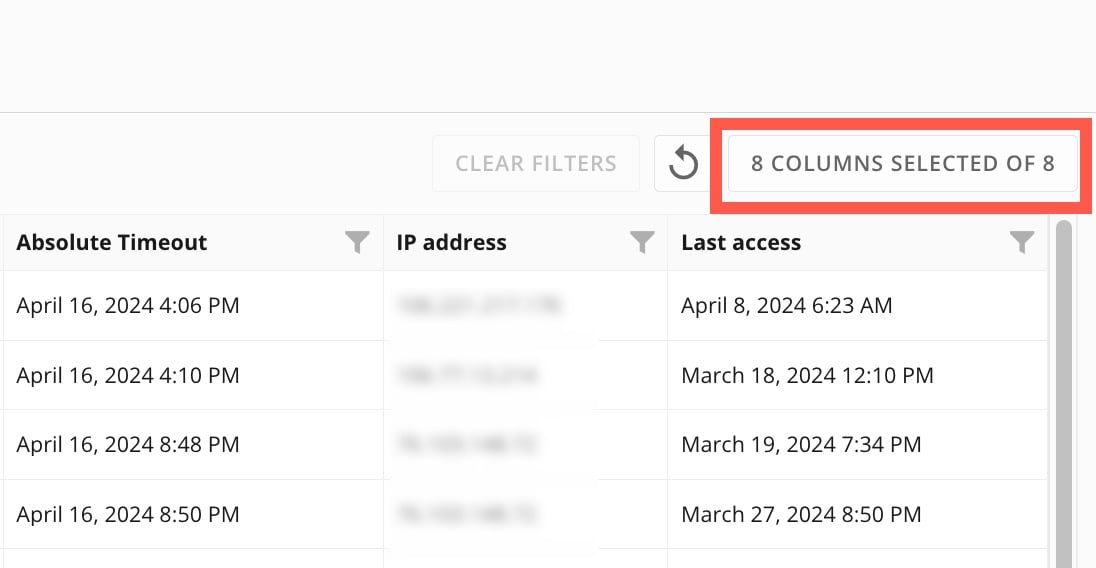
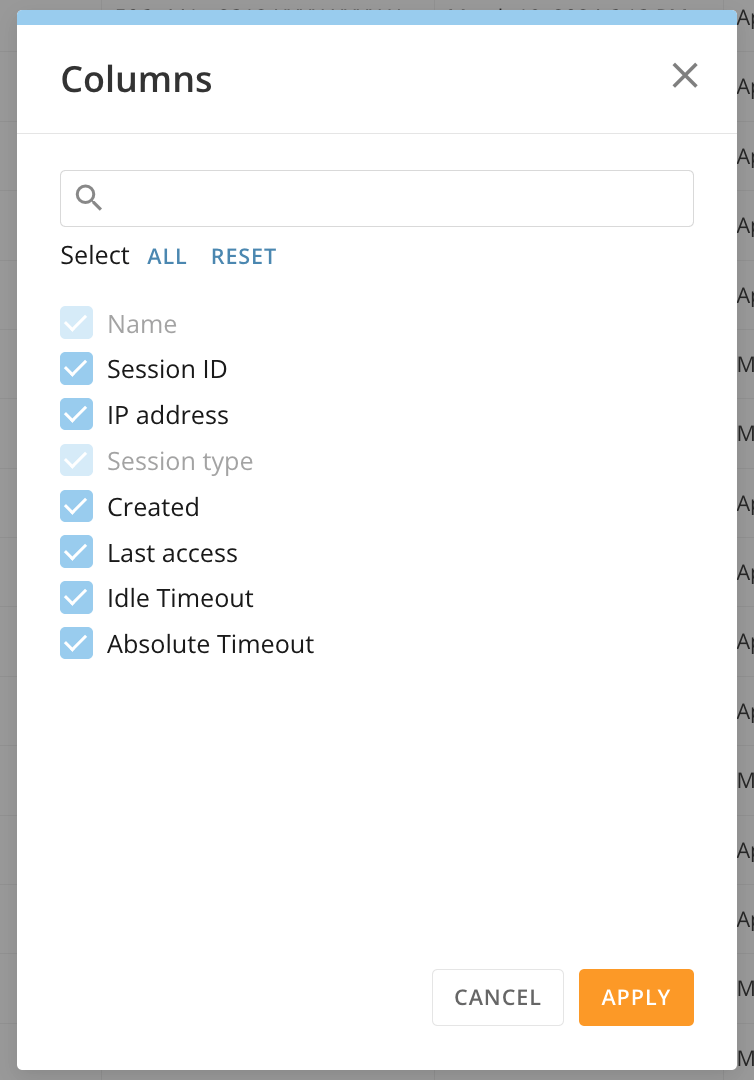
To show/hide columns in the list, select **x Columns Selected of 8** to display the **Columns** modal.

<Frame>
  <img alt="8 columns zoom.jpg" src="https://mintcdn.com/domoinc-openapi-sync-dataflows/RlWZB5sA8DQ5iXJ7/images/kb/ka0Vq0000000oMb-00N5w00000Ri7BU-0EMVq000000hv4g.jpg?fit=max&auto=format&n=RlWZB5sA8DQ5iXJ7&q=85&s=df09ccc5bd78ecc0ed0bb52b3d186acc" style={{width: 450, height: 233}} width="1096" height="568" data-path="images/kb/ka0Vq0000000oMb-00N5w00000Ri7BU-0EMVq000000hv4g.jpg" />
</Frame>

In the modal, check/clear the boxes to show or hide the available columns.

Select **Apply** to keep your changes.
<Frame>
  <img alt="Screenshot 2024-04-09 at 1.35.48 PM.png" src="https://mintcdn.com/domoinc-openapi-sync-dataflows/RlWZB5sA8DQ5iXJ7/images/kb/ka0Vq0000000oMb-00N5w00000Ri7BU-0EMVq000000hvsf.jpg?fit=max&auto=format&n=RlWZB5sA8DQ5iXJ7&q=85&s=e4056714a2f11822e38513283d788d87" style={{width: 243, height: 348}} width="754" height="1080" data-path="images/kb/ka0Vq0000000oMb-00N5w00000Ri7BU-0EMVq000000hvsf.jpg" />
</Frame>

The available columns are described below:

<table border="1" cellpadding="1" cellspacing="1" data-aura-rendered-by="33:198;a"><thead><tr><th colspan="1" rowspan="1"><p> Column </p></th><th colspan="1" rowspan="1"><p> Description </p></th></tr></thead><tbody><tr><td colspan="1" rowspan="1"><p> Name </p></td><td colspan="1" rowspan="1"><p> The user name. </p></td></tr><tr><td colspan="1" rowspan="1"><p> Session type </p></td><td colspan="1" rowspan="1"><p> The type of user session. </p></td></tr><tr><td colspan="1" rowspan="1"><p> Session ID </p></td><td colspan="1" rowspan="1"><p> The alphanumeric identifier Domo issues for the session. </p></td></tr><tr><td colspan="1" rowspan="1"><p> IP address </p></td><td colspan="1" rowspan="1"><p> The user's IP address at session creation. </p></td></tr><tr><td colspan="1" rowspan="1"><p> Created </p></td><td colspan="1" rowspan="1"><p> The date and time when the session was created in Coordinated Universal Time (UTC). <a id="terminate_active_session" target="_blank" /></p></td></tr><tr><td colspan="1" rowspan="1"><p> Last access </p></td><td colspan="1" rowspan="1"><p> The date and time (in UTC) of the last server activity for the session. </p></td></tr><tr><td colspan="1" rowspan="1"><p> Idle Timeout </p></td><td colspan="1" rowspan="1"><p> T he date and time (in UTC) when the session will be terminated if no further server activity occurs during the session. </p></td></tr><tr><td colspan="1" rowspan="1"><p> Absolute Timeout </p></td><td colspan="1" rowspan="1"><p> The date and time (in UTC) when the session will be terminated, regardless of server activity during the session. </p></td></tr></tbody></table>

### Terminate an Active Session

Follow the steps below to terminate an active session. You can terminate multiple sessions at a time.

After a user's session is terminated, they must log in again to continue using Domo. A terminated session does NOT automatically log the user out of Domo. However, the next time the user takes an action that requires a response from the Domo server, the action will fail and the user is redirected to the sign-in screen.

For example, if someone has a browser window open on a Domo dashboard when their session ends, they can still scroll through the dashboard; but when they try to access another dashboard, they are redirected to the sign-in screen.

<Note>
  **Note:** Mobile app users can continue to use the app for up to one hour after their session expires or is terminated. This is expected behavior.
</Note>

1. In the Active User Sessions list, select the checkbox for each session you want to terminate.

   A blue ribbon displays at the top of the page, indicating the number of selected sessions and displaying an option to terminate the sessions.

   <Frame>
     <img alt="blue bar.jpg" src="https://mintcdn.com/domoinc-openapi-sync-dataflows/RlWZB5sA8DQ5iXJ7/images/kb/ka0Vq0000000oMb-00N5w00000Ri7BU-0EMVq000000hxmP.jpg?fit=max&auto=format&n=RlWZB5sA8DQ5iXJ7&q=85&s=69cc68d5b94876075ecb33d6c0357eb2" style={{width: 751, height: 135}} width="2460" height="442" data-path="images/kb/ka0Vq0000000oMb-00N5w00000Ri7BU-0EMVq000000hxmP.jpg" />
   </Frame>
2. In the blue ribbon, select
   <InlineImage src="/images/kb/ka0Vq0000000oMb-00N5w00000Ri7BU-0EMVq000000hxZV.jpg" /> **Terminate** to display the confirmation dialog.
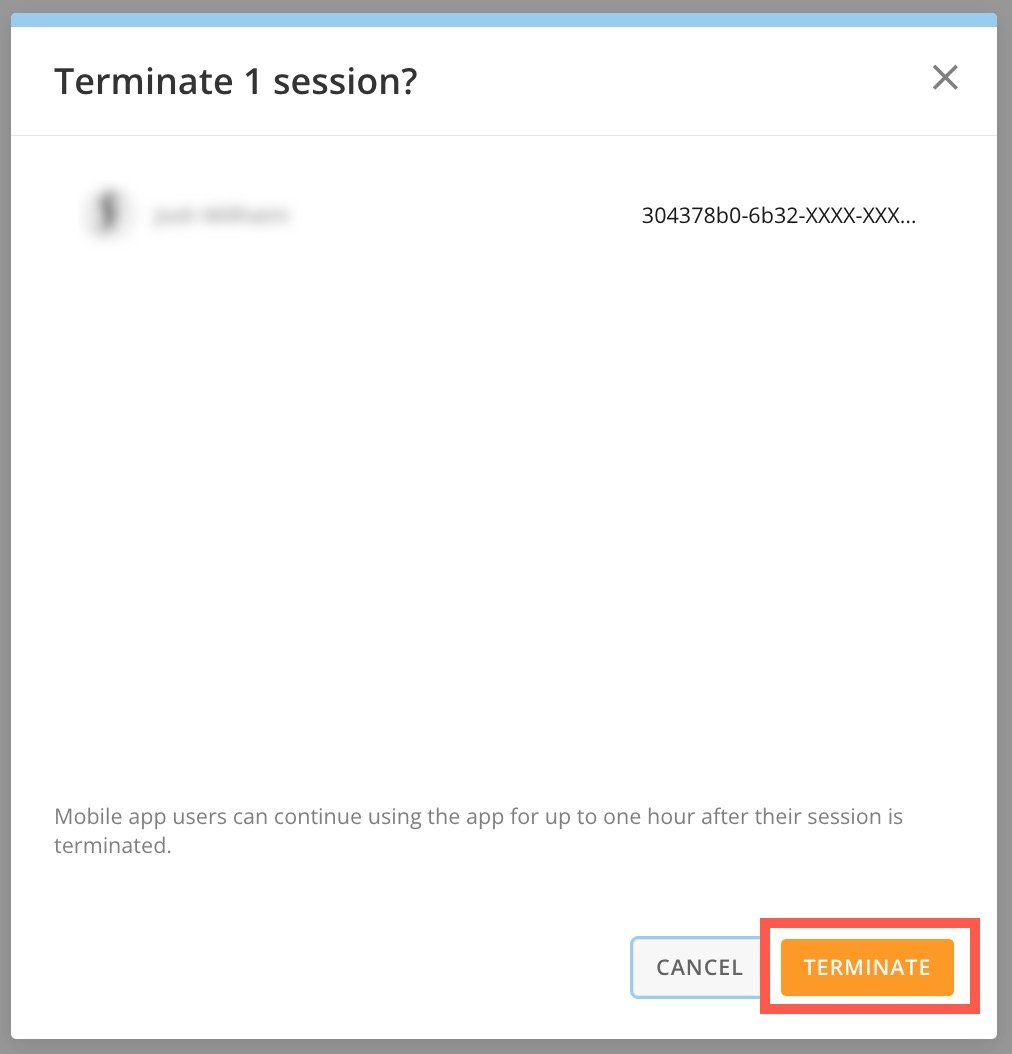
3. Verify the sessions you are terminating and select **Terminate** to immediately end the user session(s). This action is not reversible. You can also select **Cancel** to close the dialog without terminating any sessions.

   <Frame>
     <img alt="terminate session.jpg" src="https://mintcdn.com/domoinc-openapi-sync-dataflows/RlWZB5sA8DQ5iXJ7/images/kb/ka0Vq0000000oMb-00N5w00000Ri7BU-0EMVq000000jFVx.jpg?fit=max&auto=format&n=RlWZB5sA8DQ5iXJ7&q=85&s=11a85e89995215207b6f3e0357309196" style={{width: 350, height: 365}} width="1012" height="1054" data-path="images/kb/ka0Vq0000000oMb-00N5w00000Ri7BU-0EMVq000000jFVx.jpg" />
   </Frame>

### FAQ

<AccordionGroup>
  <Accordion title="Why do I have a user with a longer session than my current settings indicate?">
    When session settings are changed, existing sessions are NOT automatically expired. A session already in progress continues to use the Max Session Length and Idle Timeout Length settings that were in place when the session was first created. To move all users to the new settings, you must terminate all existing sessions.
  </Accordion>

  <Accordion title="What happens when I terminate a session?">
    The person's next action that generates server activity will fail, requiring them to sign in again. Not all actions generate activity against the server.

    Note that mobile app users can continue using the app for up to one hour after their session expires or is terminated. This is expected behavior.
  </Accordion>
</AccordionGroup>