> ## Documentation Index
> Fetch the complete documentation index at: https://domoinc-openapi-sync-dataflows.mintlify.site/llms.txt
> Use this file to discover all available pages before exploring further.
# Domo on Azure SQL (Beta)
export const InlineImage = ({src, alt = '', height = '1.6em'}) => {
return  ;
};
### Intro
Azure SQL users can connect their data to Domo through Cloud Amplifier native integrations. Get started by providing connection parameters, then select the tables you want to see as Domo DataSets.
### Create an Azure SQL Integration
Follow the steps in this article to configure a read-only Azure SQL–Domo integration:
1. In the Domo Data Center, navigate to the **Data Warehouse**.
2. Select **Add New Cloud Account**.
;
};
### Intro
Azure SQL users can connect their data to Domo through Cloud Amplifier native integrations. Get started by providing connection parameters, then select the tables you want to see as Domo DataSets.
### Create an Azure SQL Integration
Follow the steps in this article to configure a read-only Azure SQL–Domo integration:
1. In the Domo Data Center, navigate to the **Data Warehouse**.
2. Select **Add New Cloud Account**.
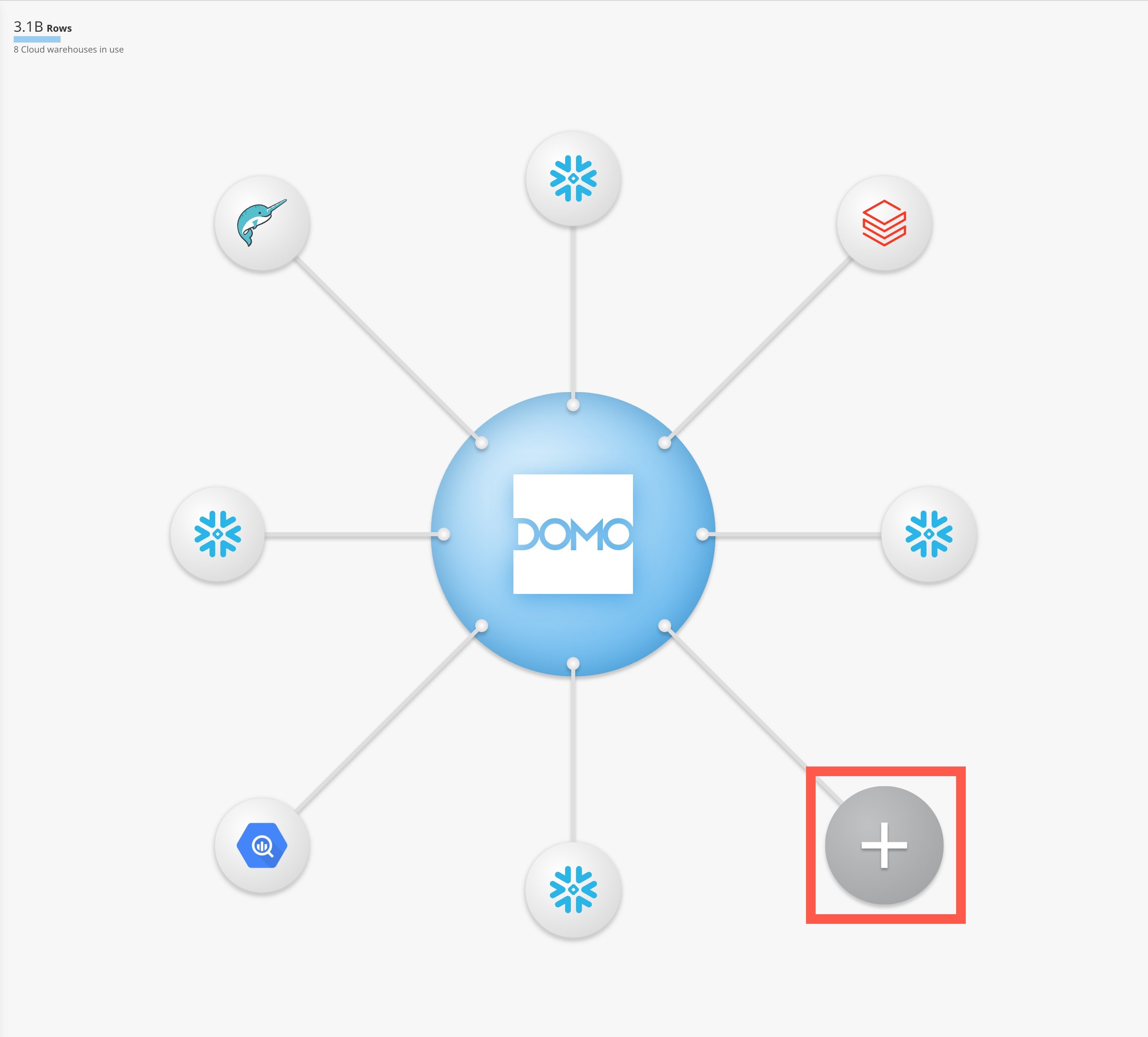 The **Amplify existing cloud warehouses** modal displays.
3. In the **Native integration** section, choose **See More** to see additional options.
The **Amplify existing cloud warehouses** modal displays.
3. In the **Native integration** section, choose **See More** to see additional options.
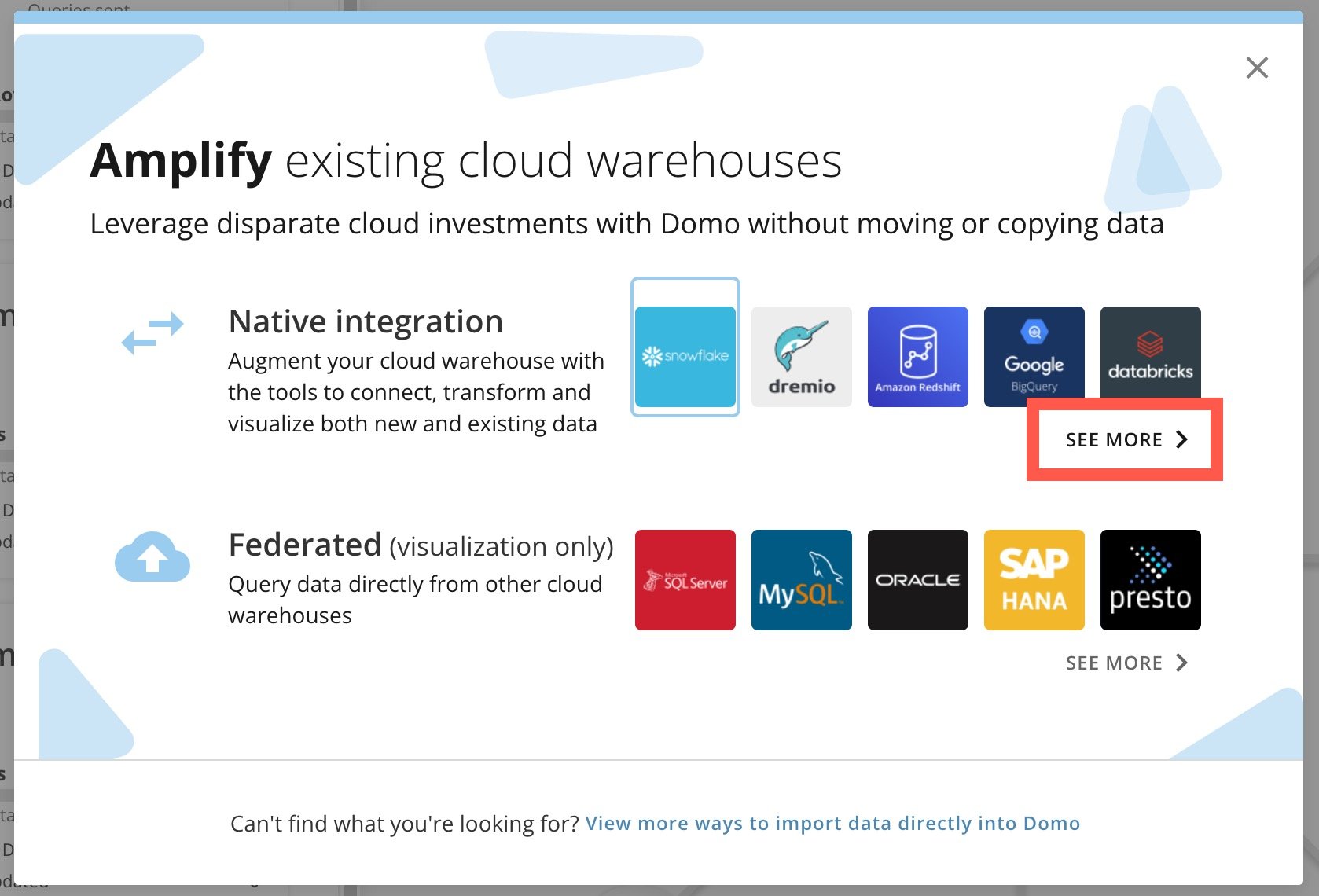 4. Select **Azure SQL**.
 5. Select **+ Add New Integration**.
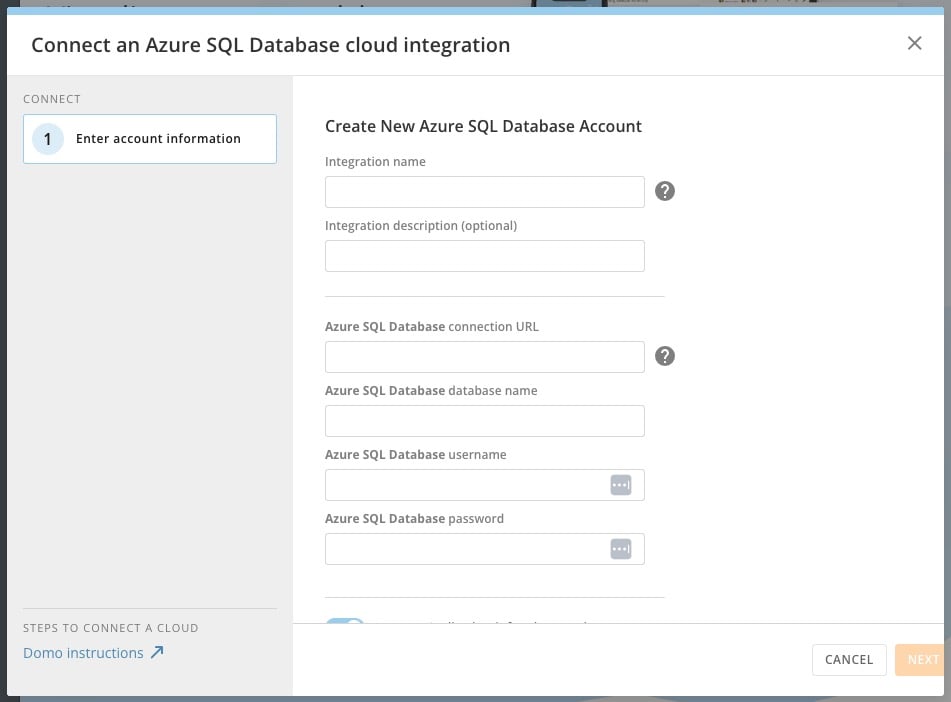
6. Enter the following connection parameters in the provided fields to connect to your Azure SQL database:
* **Integration name —**
If you need to update your integration in the future, this is the name to search for in the list of integrations.
* **Integration description (optional) —**
Any additional information about the integration.
* **Azure SQL Database connection URL —**
The host and port for the Azure SQL instance you are connecting to. Ex. *\< [myhost.com](http://myhost.com):3306>*.
* **Azure SQL Database database name —**
The name of the database containing the tables you want to connect to.
* **Azure SQL Database username —**
The Azure SQL instance username with access to the data you are connecting to.
* **Azure SQL Database password —**
The password for the Azure SQL user.
5. Select **+ Add New Integration**.
6. Enter the following connection parameters in the provided fields to connect to your Azure SQL database:
* **Integration name —**
If you need to update your integration in the future, this is the name to search for in the list of integrations.
* **Integration description (optional) —**
Any additional information about the integration.
* **Azure SQL Database connection URL —**
The host and port for the Azure SQL instance you are connecting to. Ex. *\< [myhost.com](http://myhost.com):3306>*.
* **Azure SQL Database database name —**
The name of the database containing the tables you want to connect to.
* **Azure SQL Database username —**
The Azure SQL instance username with access to the data you are connecting to.
* **Azure SQL Database password —**
The password for the Azure SQL user.
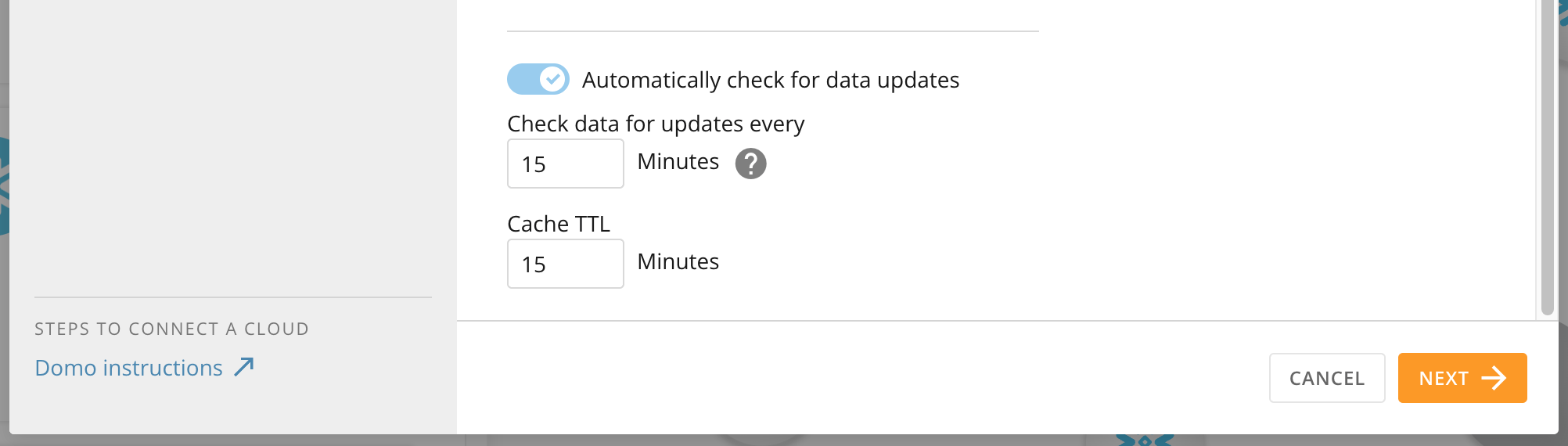
 7. Configure caching options at the bottom of the form and select **Next**. Learn about Cloud Amplifier [caching rules](https://domo-support.domo.com/s/article/4412849158167?language=en_US#caching_rules).
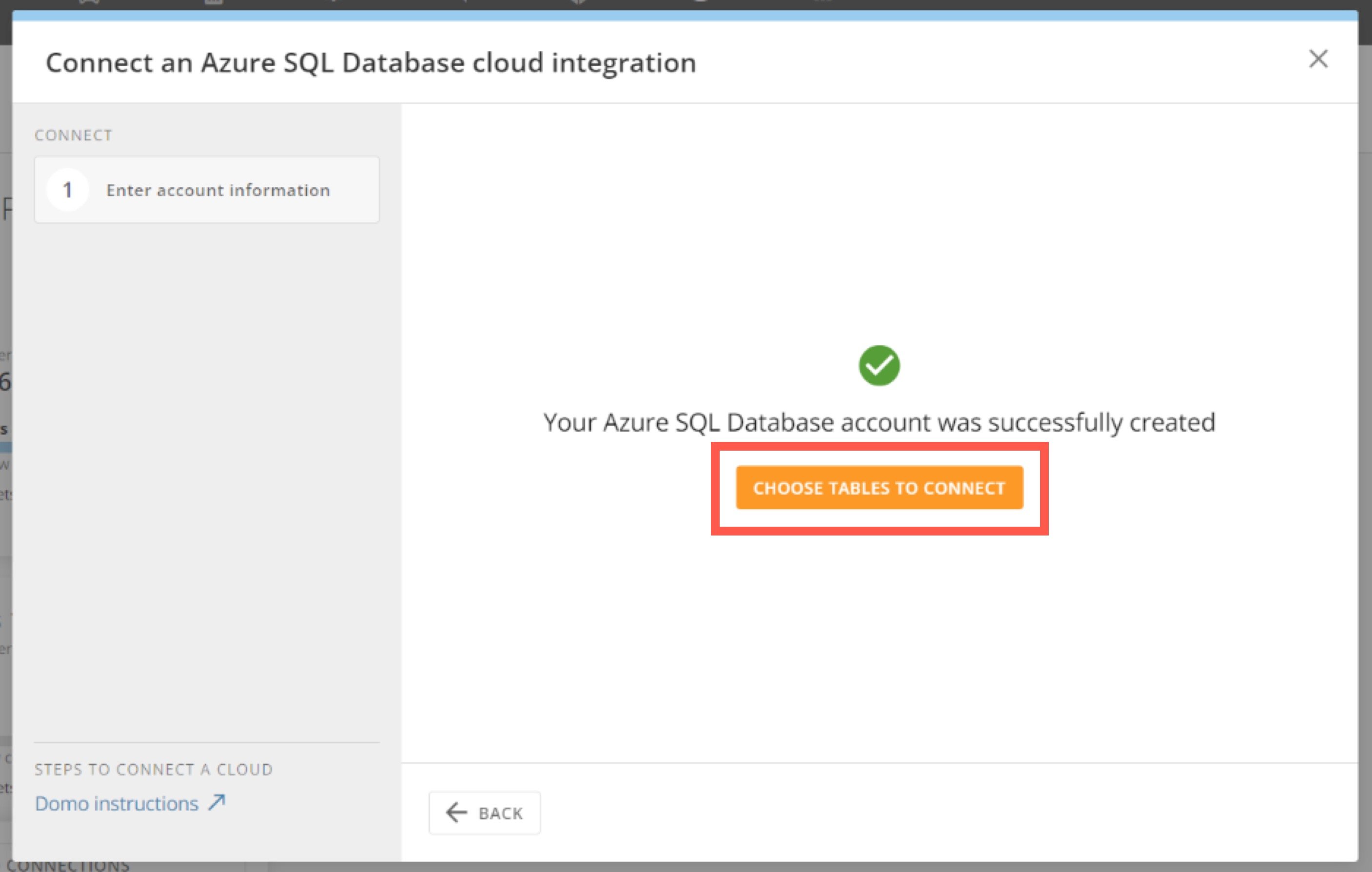
 A success message displays.
8. Select **Choose Tables to Connect** to open the table picker.
A success message displays.
8. Select **Choose Tables to Connect** to open the table picker.
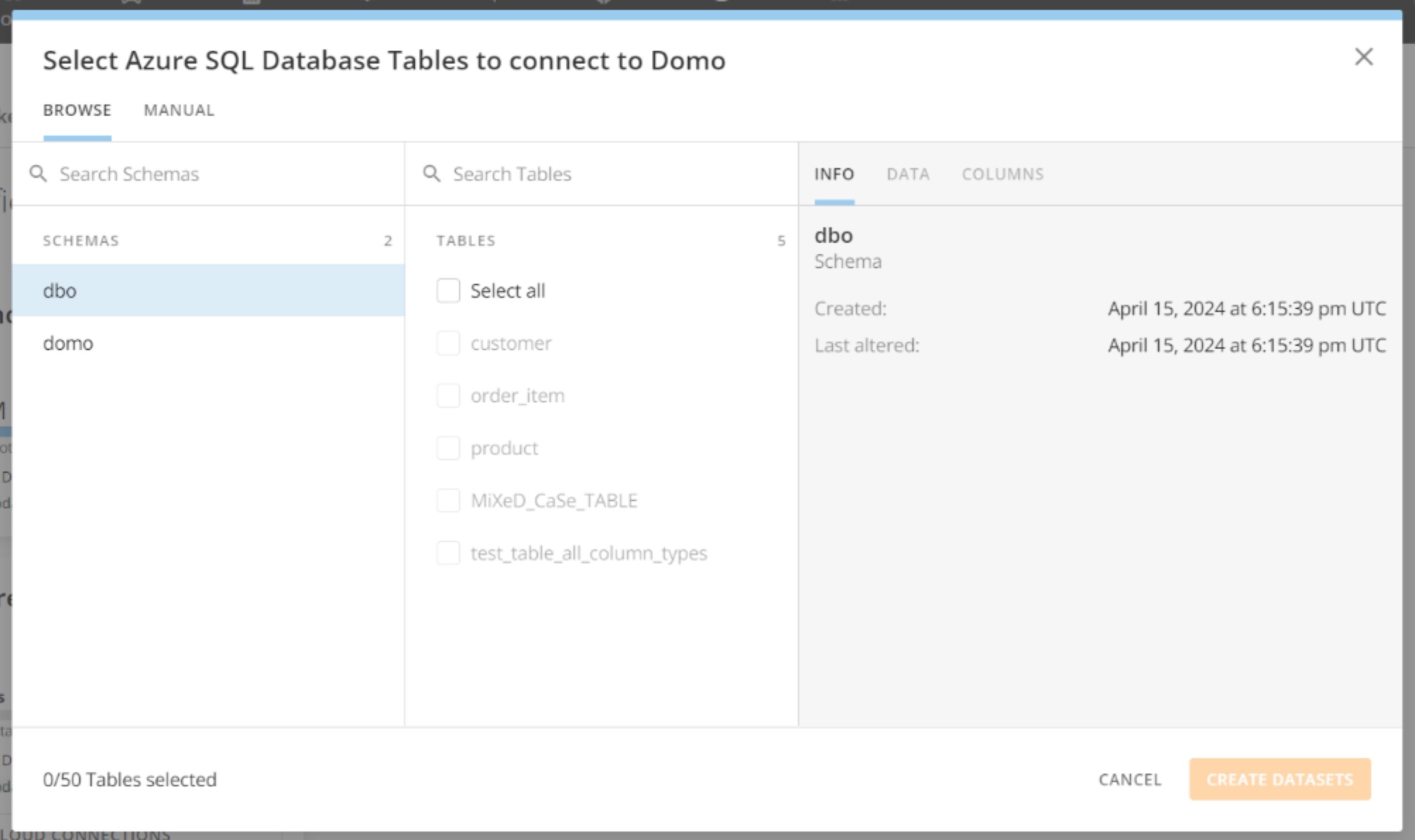
 9. Use the table picker to select from schemas and tables. When you're ready, select
**Create DataSets**.
9. Use the table picker to select from schemas and tables. When you're ready, select
**Create DataSets**.
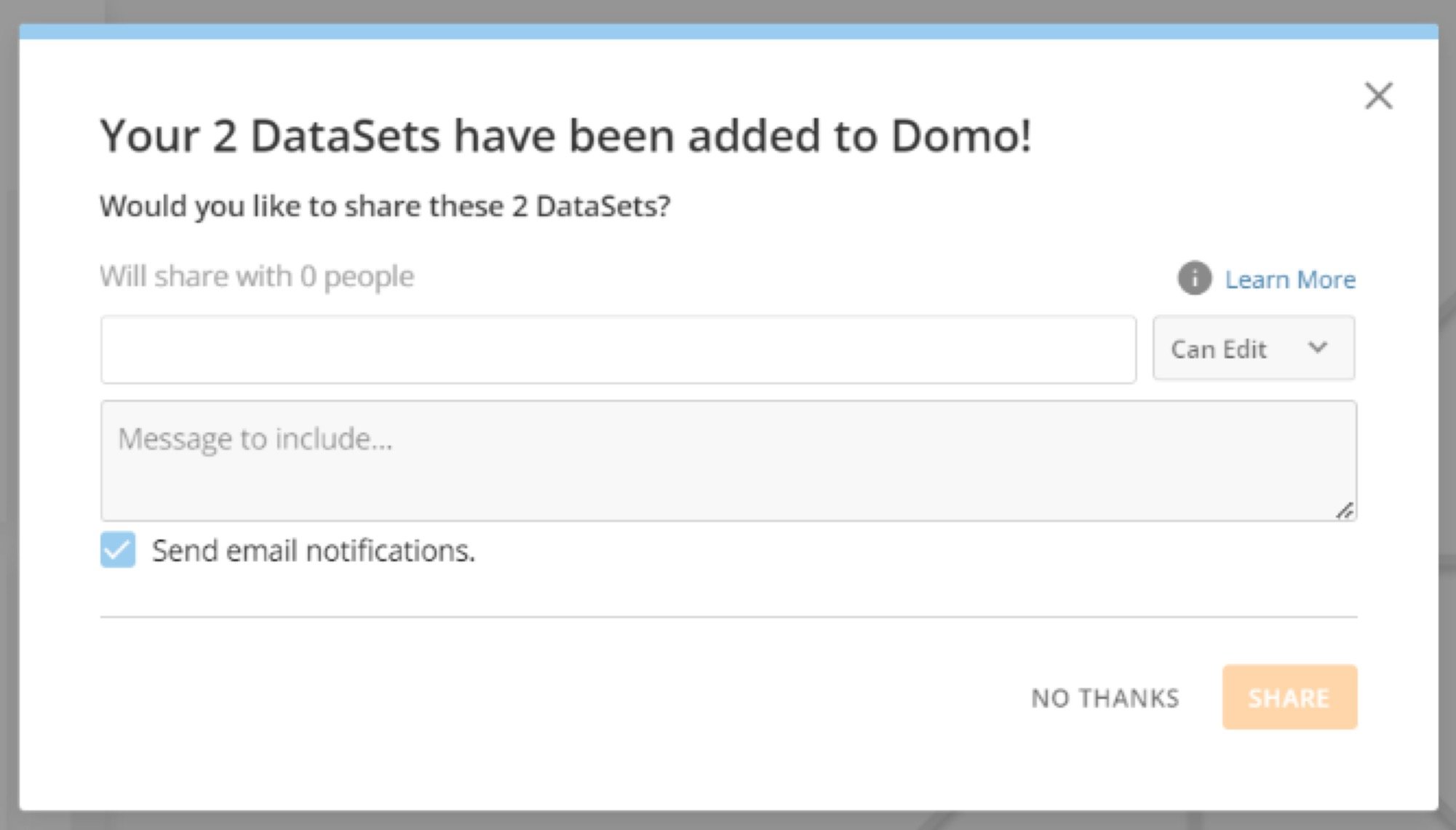
 10. (Optional)The confirmation modal allows you to share your DataSets with other Domo users. After choosing people to add and choosing their level of access in the dropdown, select
**Share**.
Or, select **No Thanks** to close the modal without sharing access.
10. (Optional)The confirmation modal allows you to share your DataSets with other Domo users. After choosing people to add and choosing their level of access in the dropdown, select
**Share**.
Or, select **No Thanks** to close the modal without sharing access.
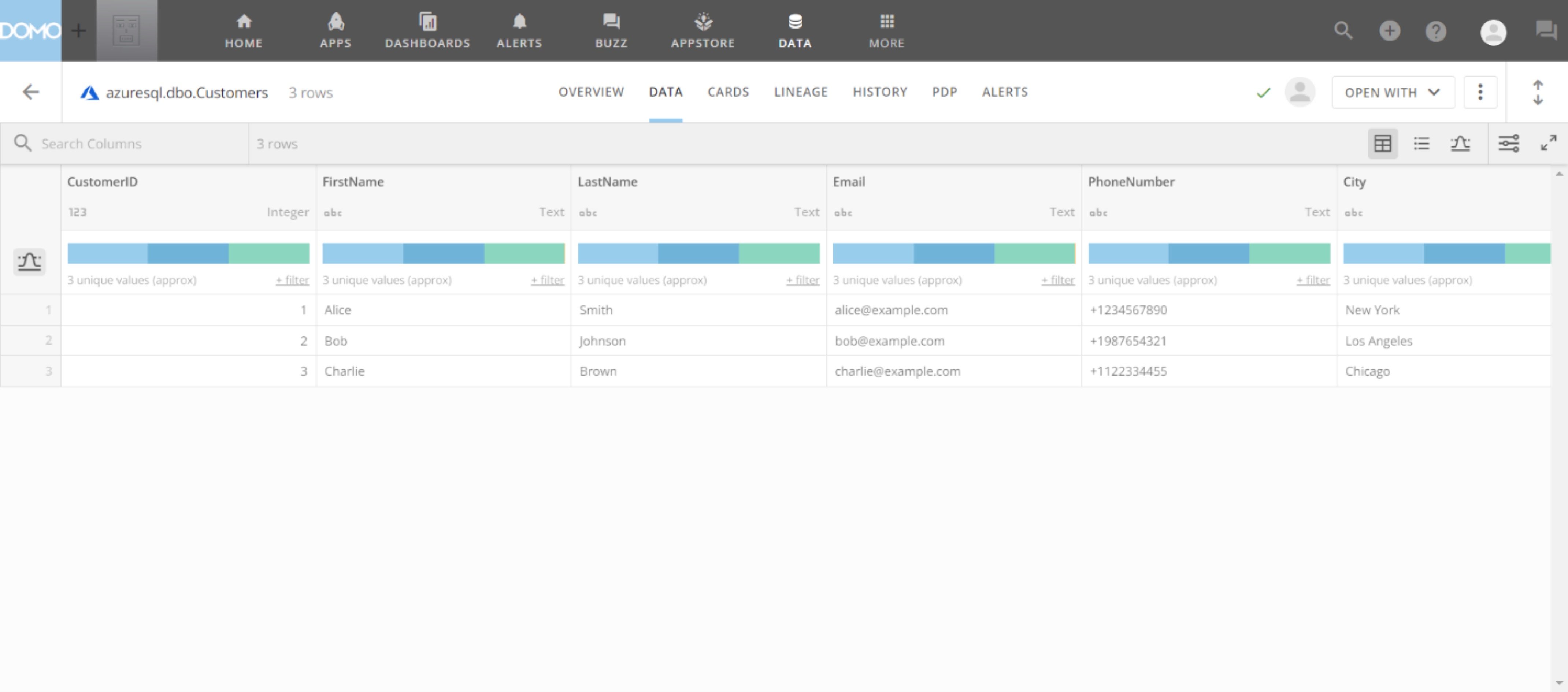
 You can now interact with your Azure SQL DataSets in Domo.