> ## Documentation Index
> Fetch the complete documentation index at: https://domoinc-openapi-sync-dataflows.mintlify.site/llms.txt
> Use this file to discover all available pages before exploring further.
# Data Refresh Permissions
export const InlineImage = ({src, alt = '', height = '1.6em'}) => {
return  ;
};
### Intro
The Data Refresh Permissions feature gives admins on a consumption contract more control over how often individuals and groups can refresh the data coming from connectors and powering DataFlows. Using Data Refresh Permissions helps manage your credit usage.
After configuring a permissions policy, you can apply it to multiple people and groups.
***
### Required Grants
To create, edit, or delete Data Refresh Permissions, your role must include the **Manage Consumption Governance Policies** grant. Learn more about [grants](https://domo-support.domo.com/s/article/360043438973?language=en_US).
### Access Data Refresh Permissions
Follow these steps to access Data Refresh Permissions:
1. Navigate to the Admin Settings.
2. Under **Governance**, select **Data Refresh Permissions** to go to the feature page.
;
};
### Intro
The Data Refresh Permissions feature gives admins on a consumption contract more control over how often individuals and groups can refresh the data coming from connectors and powering DataFlows. Using Data Refresh Permissions helps manage your credit usage.
After configuring a permissions policy, you can apply it to multiple people and groups.
***
### Required Grants
To create, edit, or delete Data Refresh Permissions, your role must include the **Manage Consumption Governance Policies** grant. Learn more about [grants](https://domo-support.domo.com/s/article/360043438973?language=en_US).
### Access Data Refresh Permissions
Follow these steps to access Data Refresh Permissions:
1. Navigate to the Admin Settings.
2. Under **Governance**, select **Data Refresh Permissions** to go to the feature page.
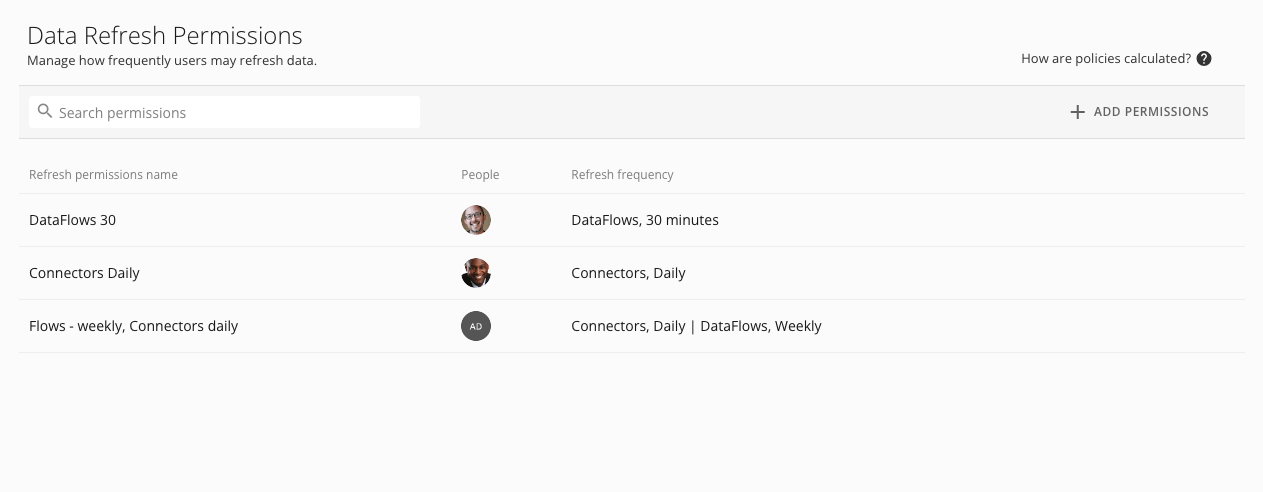 The feature page displays a list of existing permissions. Each list entry displays information in the following columns:
* **Refresh permissions name —** The policy name.
* **People —** Displays up to five avatars for people/groups assigned to the policy. The fifth avatar displays the total number of assignees. See [Edit a Policy](#edit_a_policy) to learn how to see the full list of assignees.
* **Refresh frequency —** Displays the policy limits for connectors followed by DataFlows, separated by pipe characters '|'. If there is a missing entry for one of these items, there is no configured limit for that item in the policy.
### Configure a Permissions Policy
Follow these steps to configure a new policy:
1. From the **Data Refresh Permissions** page, select **+ Add Permissions**.
The feature page displays a list of existing permissions. Each list entry displays information in the following columns:
* **Refresh permissions name —** The policy name.
* **People —** Displays up to five avatars for people/groups assigned to the policy. The fifth avatar displays the total number of assignees. See [Edit a Policy](#edit_a_policy) to learn how to see the full list of assignees.
* **Refresh frequency —** Displays the policy limits for connectors followed by DataFlows, separated by pipe characters '|'. If there is a missing entry for one of these items, there is no configured limit for that item in the policy.
### Configure a Permissions Policy
Follow these steps to configure a new policy:
1. From the **Data Refresh Permissions** page, select **+ Add Permissions**.
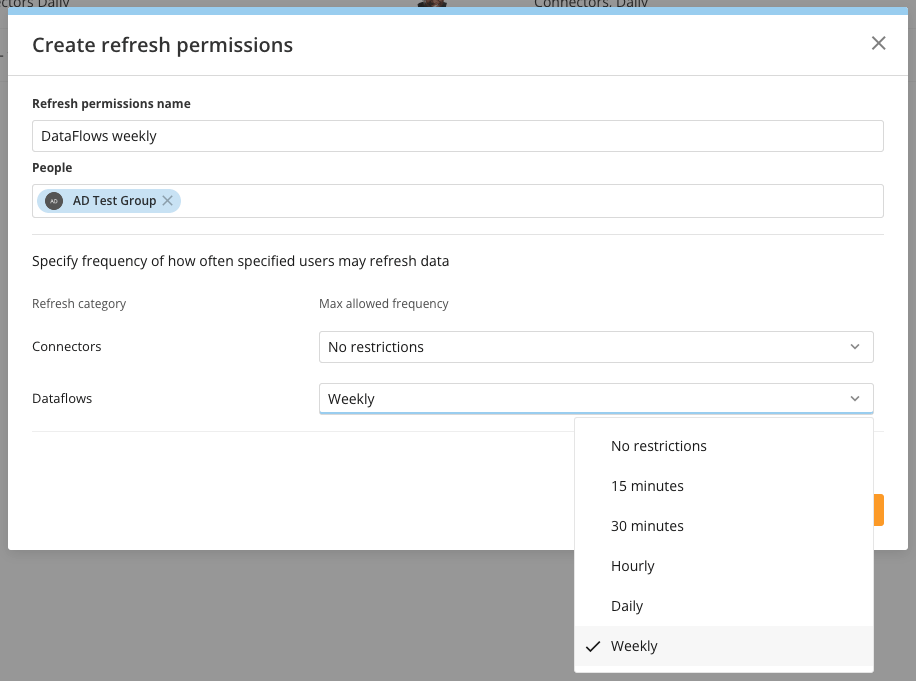
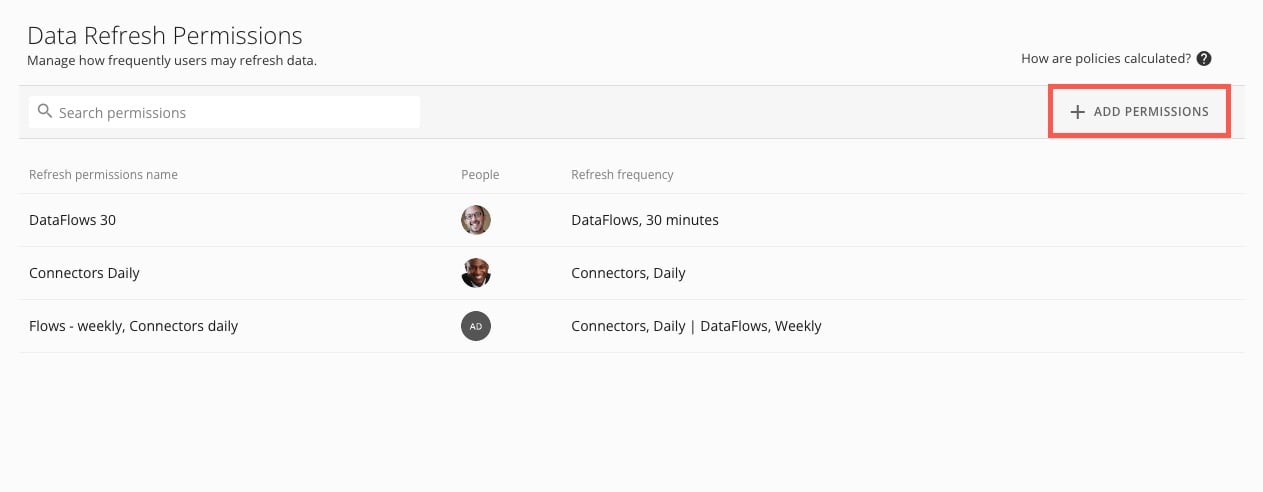 The **Create refresh permissions** modal displays.
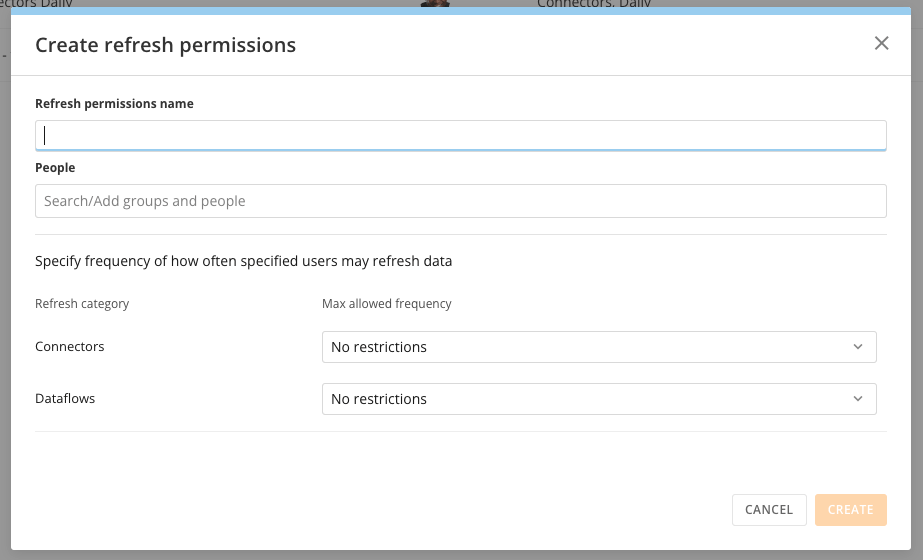 2. In the **Refresh permissions name** field, enter a name that helps you identify the policy in the list.
3. In the **People** field, search for and select people and groups this policy should apply to.
**Note:** If a person or group is assigned to multiple policies, they are granted the rights of the most permissive policy.
4. Use the dropdowns to configure the maximum allowed frequency for each refresh category. The options for each category include: No restrictions, 15 minutes, 30 minutes, Hourly, and Daily.
For example, if you choose a daily frequency for DataFlows, then the people and groups assigned to this policy cannot refresh the data for any DataFlow more often than once per week.
2. In the **Refresh permissions name** field, enter a name that helps you identify the policy in the list.
3. In the **People** field, search for and select people and groups this policy should apply to.
**Note:** If a person or group is assigned to multiple policies, they are granted the rights of the most permissive policy.
4. Use the dropdowns to configure the maximum allowed frequency for each refresh category. The options for each category include: No restrictions, 15 minutes, 30 minutes, Hourly, and Daily.
For example, if you choose a daily frequency for DataFlows, then the people and groups assigned to this policy cannot refresh the data for any DataFlow more often than once per week.
 5. Select **Create** to save the permission or **Cancel** to close the modal and discard your changes.
Your policy displays in the list.
### Edit a Policy
After configuring a policy, you can edit it by hovering over the list entry to display the **Edit** option.
Select **Edit** to open the refresh permissions modal.
5. Select **Create** to save the permission or **Cancel** to close the modal and discard your changes.
Your policy displays in the list.
### Edit a Policy
After configuring a policy, you can edit it by hovering over the list entry to display the **Edit** option.
Select **Edit** to open the refresh permissions modal.
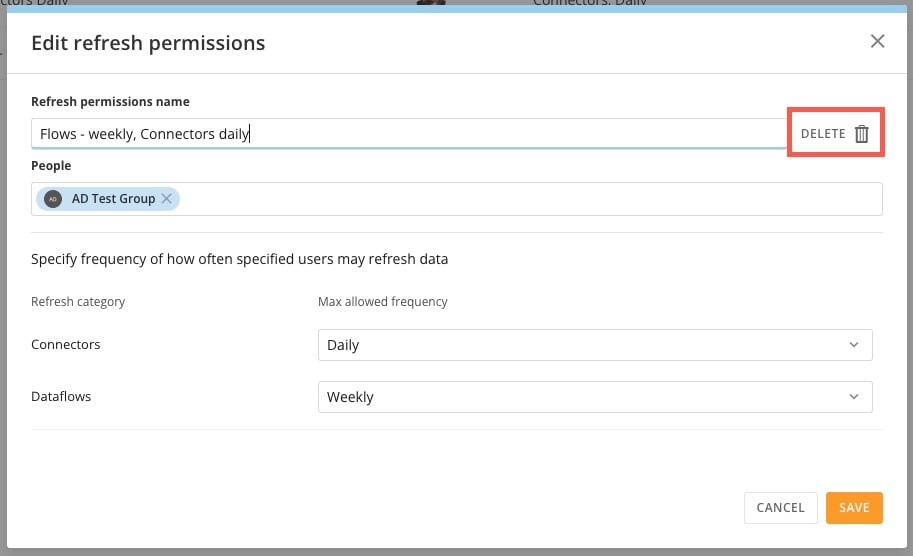
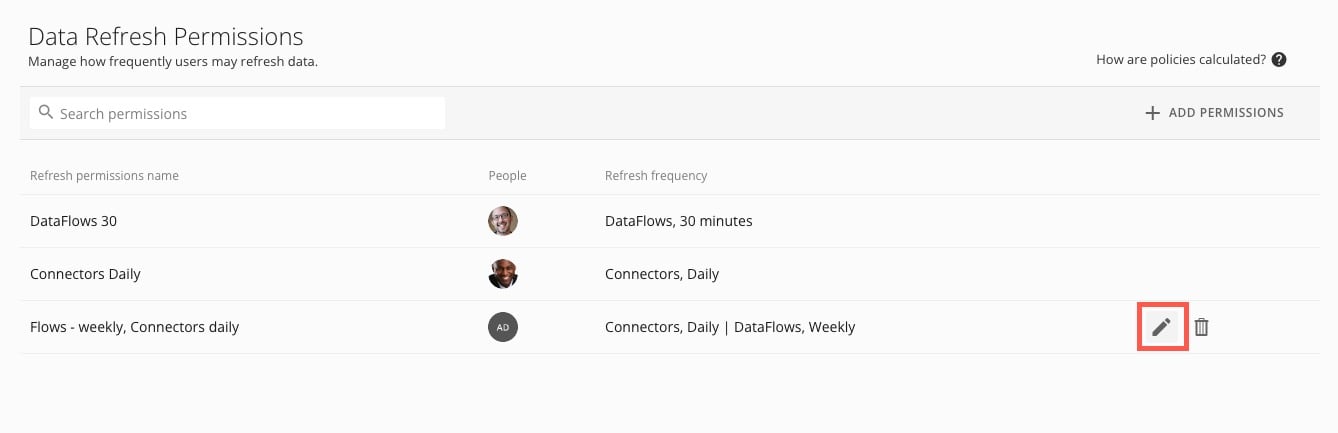 In the modal, make any changes to the policy and select **Save** to keep them.
**Note:** You can delete the configuration inside the modal by selecting **Delete**. See [Delete a Policy](#remove_data_refresh_permissions) to learn more.
In the modal, make any changes to the policy and select **Save** to keep them.
**Note:** You can delete the configuration inside the modal by selecting **Delete**. See [Delete a Policy](#remove_data_refresh_permissions) to learn more.
 ### Delete a Policy
You can remove a permissions set either from the list by hovering over the entry and selecting **Delete** or from the [edit modal](#edit_a_policy) by selecting **Delete** **.**
### Delete a Policy
You can remove a permissions set either from the list by hovering over the entry and selecting **Delete** or from the [edit modal](#edit_a_policy) by selecting **Delete** **.**
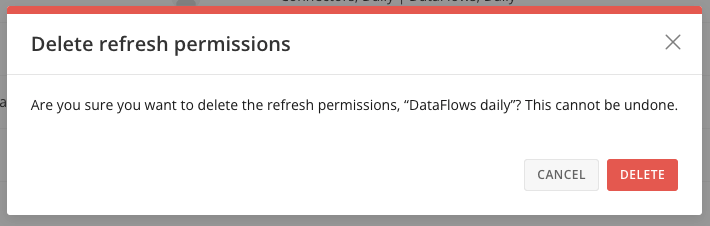
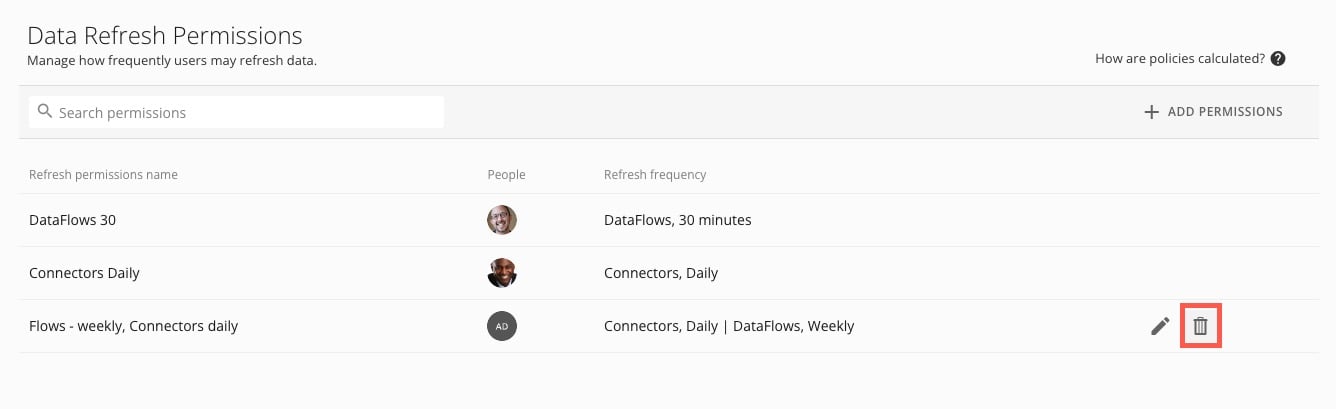 A confirmation dialog displays. Select **Delete** to remove the policy or **Cancel** to close the dialog and keep the policy.