> ## Documentation Index
> Fetch the complete documentation index at: https://domoinc-openapi-sync-dataflows.mintlify.site/llms.txt
> Use this file to discover all available pages before exploring further.
# AI Readiness
export const InlineImage = ({src, alt = '', height = '1.6em'}) => {
return  ;
};
### Intro
To get the most value from Domo AI, we recommend preparing your data using AI Readiness. AI Readiness is available in the Details view of every DataSet in the Data Center.
**Note:** The AI Readiness feature is available only to those on a consumption agreement. Those not on a consumption agreement can request a trial by reaching out to their Customer Success Manager (CSM).
;
};
### Intro
To get the most value from Domo AI, we recommend preparing your data using AI Readiness. AI Readiness is available in the Details view of every DataSet in the Data Center.
**Note:** The AI Readiness feature is available only to those on a consumption agreement. Those not on a consumption agreement can request a trial by reaching out to their Customer Success Manager (CSM).
 ***
### Required Grant
To access and use AI Readiness in your data, the following grant must be enabled for your role:
* **Use AI Chat —** Allows you to access and use the Domo AI Chat feature throughout Domo. Admins and those with Privileged- and Participant-level roles have this grant enabled by default.
Learn more about [grants](https://domo-support.domo.com/s/article/360043438973).
### — | —
### Access AI Readiness
AI Readiness is available in any of your Domo DataSets. Navigate to **DataSets** inside the Data Center and select a DataSet to view its Details.
In the **Overview** tab, you can see the percentages for how AI-ready your DataSet is depending on how you have set it up.
Go to the **AI Readiness** tab to view and further prepare your data.
***
### Required Grant
To access and use AI Readiness in your data, the following grant must be enabled for your role:
* **Use AI Chat —** Allows you to access and use the Domo AI Chat feature throughout Domo. Admins and those with Privileged- and Participant-level roles have this grant enabled by default.
Learn more about [grants](https://domo-support.domo.com/s/article/360043438973).
### — | —
### Access AI Readiness
AI Readiness is available in any of your Domo DataSets. Navigate to **DataSets** inside the Data Center and select a DataSet to view its Details.
In the **Overview** tab, you can see the percentages for how AI-ready your DataSet is depending on how you have set it up.
Go to the **AI Readiness** tab to view and further prepare your data.
 ### Configure AI Readiness
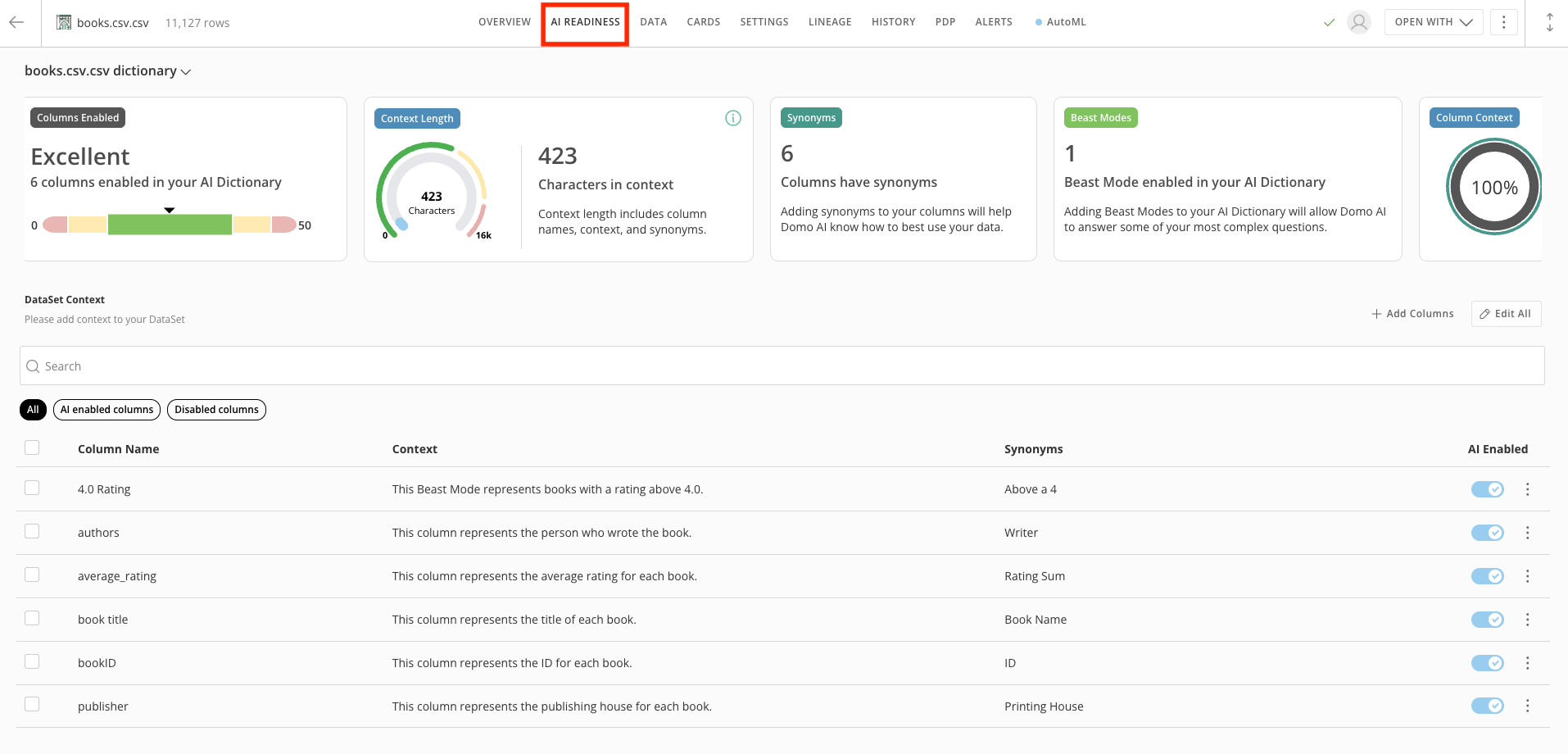
In the **AI Readiness** tab, you can see various [metrics](#understand_readiness_metrics) that visualize your DataSet's AI readiness. You can also add DataSet Context, add synonyms and context, and enable AI for each column.
**Note:** If you don't enable a column for AI using the **AI Enabled** toggle, the AI does not use that column.
* **Context Length —** The number of characters in your readiness configuration. This count includes column names, DataSet context, and synonyms. Adding context to your DataSet helps improve its reliability, but adding too much context can decrease overall reliability. The radial gauge chart displays your context length.
* **DataSet Context —** DataSet Context includes a description and a list of objects for Domo AI to identify and use when looking at your DataSet. [Learn more](#dataset_context).
* **Synonyms —** This is where you can add like-terms about your data columns. For example, a column with the `average\_rating` label could also be identified as 'rank' or 'classification.' [Learn more](#column_context).
* **Context —** This is where you can add more in-depth information about your data columns. For example, a column with the `ratings\_count` label could include the context "number of total ratings, with or without a comment." [Learn more](#column_context).
* **AI Enabled —** The **AI Enabled** toggle enables individual columns to be used by the various Domo AI tools, including AI Chat and AI Models. If you don't enable a column for AI using the **AI Enabled** toggle, the AI does not use that column.
### Configure AI Readiness
In the **AI Readiness** tab, you can see various [metrics](#understand_readiness_metrics) that visualize your DataSet's AI readiness. You can also add DataSet Context, add synonyms and context, and enable AI for each column.
**Note:** If you don't enable a column for AI using the **AI Enabled** toggle, the AI does not use that column.
* **Context Length —** The number of characters in your readiness configuration. This count includes column names, DataSet context, and synonyms. Adding context to your DataSet helps improve its reliability, but adding too much context can decrease overall reliability. The radial gauge chart displays your context length.
* **DataSet Context —** DataSet Context includes a description and a list of objects for Domo AI to identify and use when looking at your DataSet. [Learn more](#dataset_context).
* **Synonyms —** This is where you can add like-terms about your data columns. For example, a column with the `average\_rating` label could also be identified as 'rank' or 'classification.' [Learn more](#column_context).
* **Context —** This is where you can add more in-depth information about your data columns. For example, a column with the `ratings\_count` label could include the context "number of total ratings, with or without a comment." [Learn more](#column_context).
* **AI Enabled —** The **AI Enabled** toggle enables individual columns to be used by the various Domo AI tools, including AI Chat and AI Models. If you don't enable a column for AI using the **AI Enabled** toggle, the AI does not use that column.
 # Understand Readiness Metrics
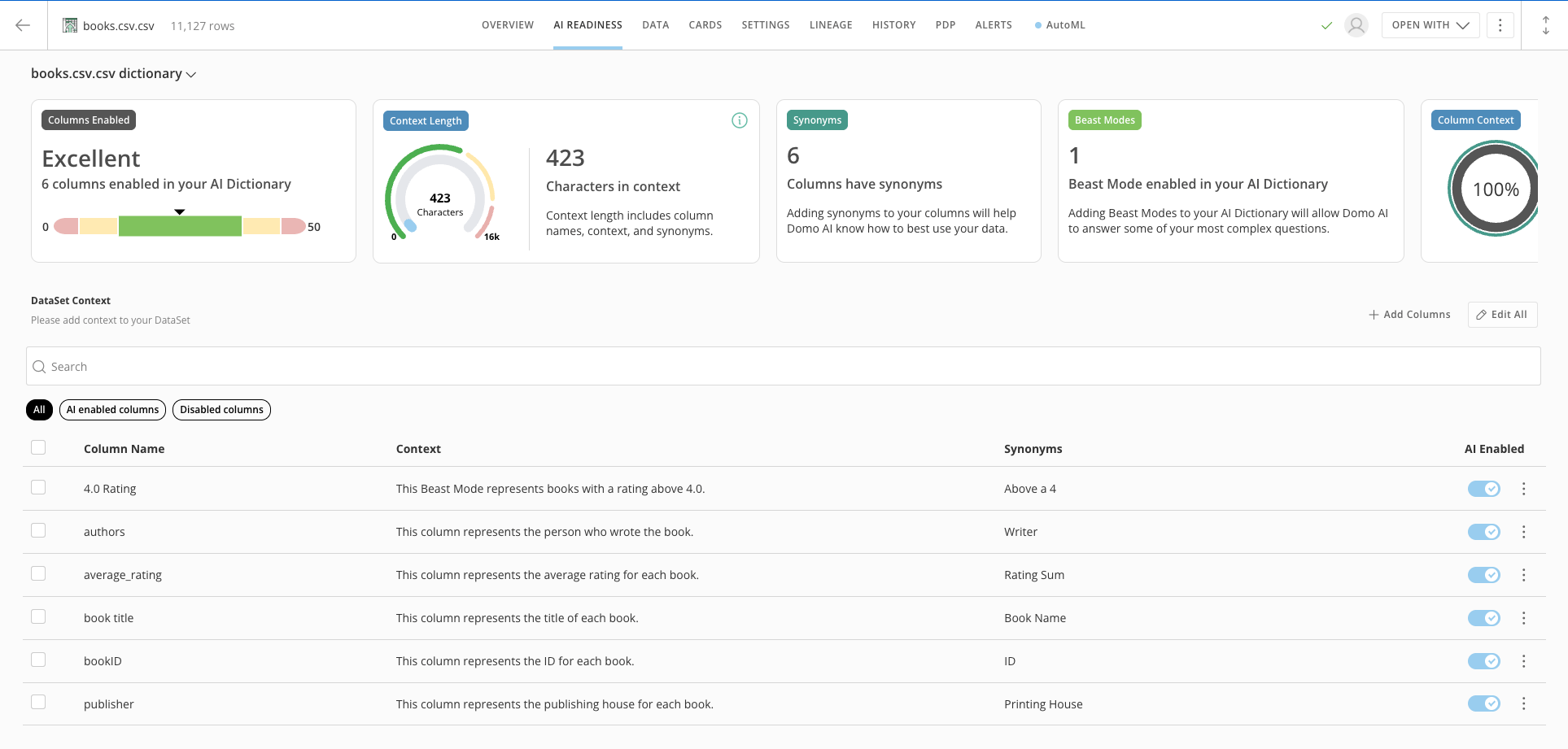
The five meters at the top of the **AI Readiness** tab give you insight into how prepared your DataSet is for AI.
The first meter displays how many columns in your DataSet are enabled for AI. The meter displays the written number of enabled columns and a bar indicator with red, yellow, and green areas that show your progress. The ideal number of enabled columns displays in the green area of the bar—green indicates that you have enabled enough columns to have data that AI can work with while leaving out nonessential columns that may overload AI and lead to inconsistent results.
If you have too few columns enabled, the indicator displays in the red or yellow area to the left of the green.
If you have too many columns enabled, the indicator displays in the red or yellow area to the right of the green.
# Understand Readiness Metrics
The five meters at the top of the **AI Readiness** tab give you insight into how prepared your DataSet is for AI.
The first meter displays how many columns in your DataSet are enabled for AI. The meter displays the written number of enabled columns and a bar indicator with red, yellow, and green areas that show your progress. The ideal number of enabled columns displays in the green area of the bar—green indicates that you have enabled enough columns to have data that AI can work with while leaving out nonessential columns that may overload AI and lead to inconsistent results.
If you have too few columns enabled, the indicator displays in the red or yellow area to the left of the green.
If you have too many columns enabled, the indicator displays in the red or yellow area to the right of the green.
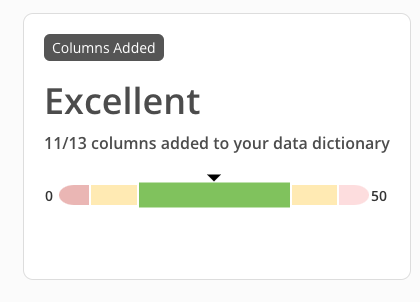 The Characters in context radial gauge displays the number of characters included throughout your readiness setup. Context length includes your configured column names, DataSet context, and synonyms. The radial gauge shows the context length in relation to how accurate and how long the response time takes based on the total number of characters. If your gauge is in the yellow or red areas, you have too many characters in your context.
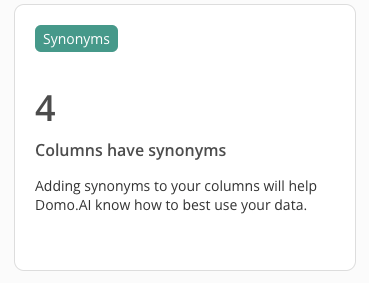
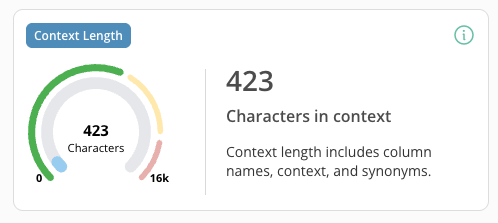 The Synonyms meter displays the number of columns to which you have [added synonyms](#column_context). Like context, every column that is AI enabled should include at least one synonym entry for the best AI results.
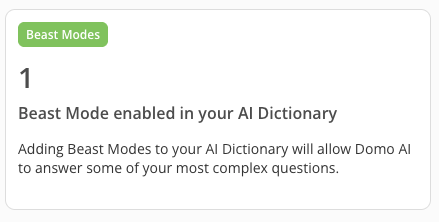
 The Beast Modes meter displays the number of [Beast Modes](https://domo-support.domo.com/s/article/360043429913?language=en_US) in your DataSet. You cannot add Beast Modes from the AI Readiness tab, but you can [add them to your DataSet from Analyzer](https://domo-support.domo.com/s/article/360043429913?language=en_US#edit_a_beast_mode_calculation). Including Beast Modes in your DataSet helps Domo AI to answer especially complex data questions.
**Note:** Beast Modes must be shared with you or be available on a card in order for them to be added to your AI Dictionary as a column.
The Beast Modes meter displays the number of [Beast Modes](https://domo-support.domo.com/s/article/360043429913?language=en_US) in your DataSet. You cannot add Beast Modes from the AI Readiness tab, but you can [add them to your DataSet from Analyzer](https://domo-support.domo.com/s/article/360043429913?language=en_US#edit_a_beast_mode_calculation). Including Beast Modes in your DataSet helps Domo AI to answer especially complex data questions.
**Note:** Beast Modes must be shared with you or be available on a card in order for them to be added to your AI Dictionary as a column.
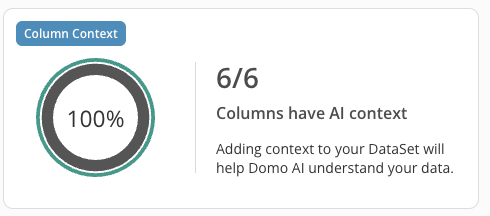
 The Context meter displays the number of columns for which you have [added context](#column_context). Every column that is AI-enabled should have a context entry for the best AI results.
 # Add Columns
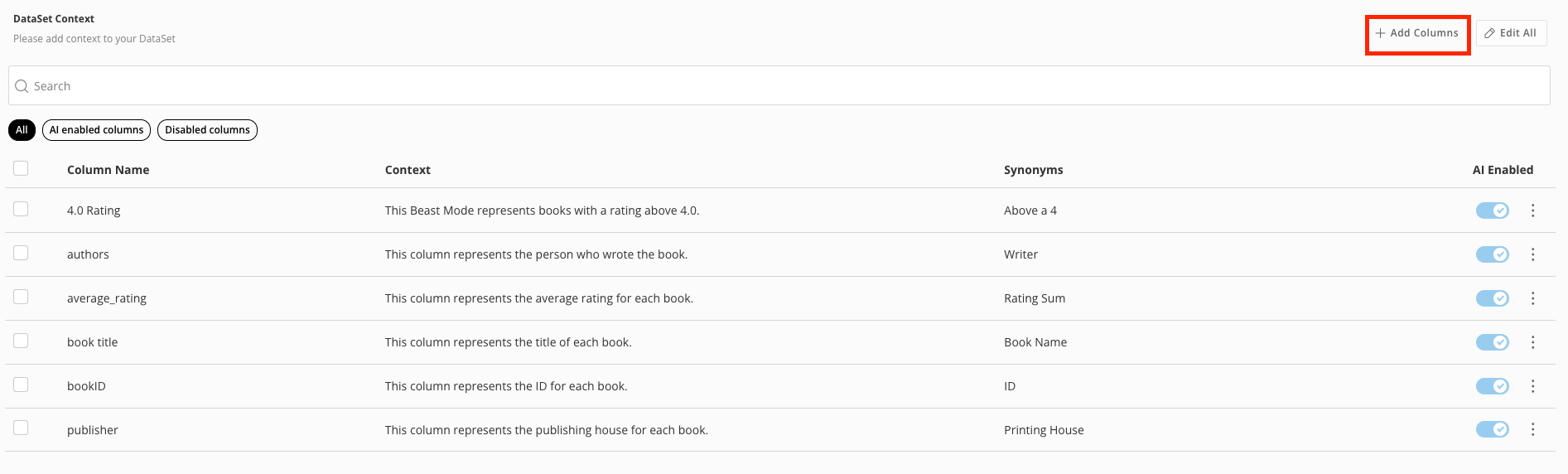
You can add additional columns from your DataSet in the AI Readiness tab.
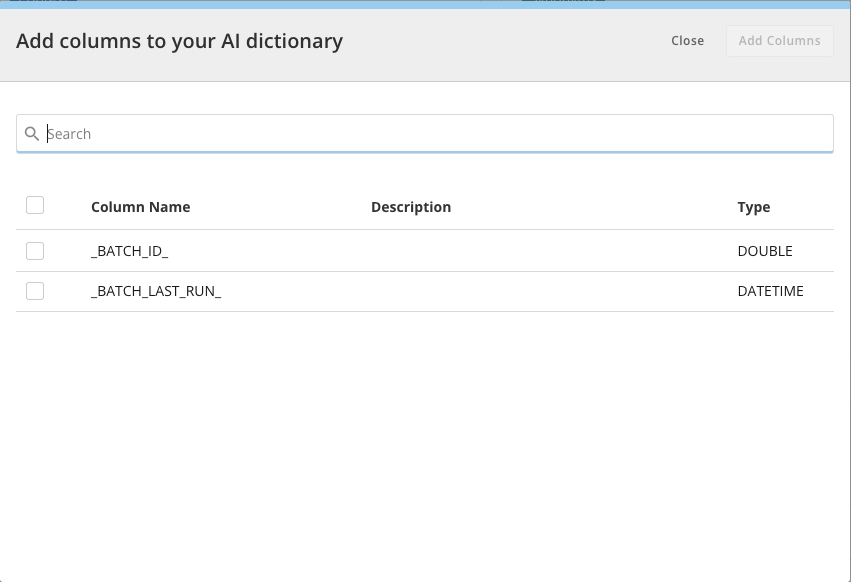
Select **Add Columns** to add columns to your DataSet context.
# Add Columns
You can add additional columns from your DataSet in the AI Readiness tab.
Select **Add Columns** to add columns to your DataSet context.
 In the modal, you can check the boxes for the individual columns you'd like to add or add all using the first checkbox. Then select **Add Columns**.
**Important:** If you haven't defined your AI Dictionary, AI Chat uses the first 50 columns in your DataSet. If you have defined your AI Dictionary, AI Chat uses the columns you have defined as relevant for answering questions.
In the modal, you can check the boxes for the individual columns you'd like to add or add all using the first checkbox. Then select **Add Columns**.
**Important:** If you haven't defined your AI Dictionary, AI Chat uses the first 50 columns in your DataSet. If you have defined your AI Dictionary, AI Chat uses the columns you have defined as relevant for answering questions.
 # Edit/Remove Columns
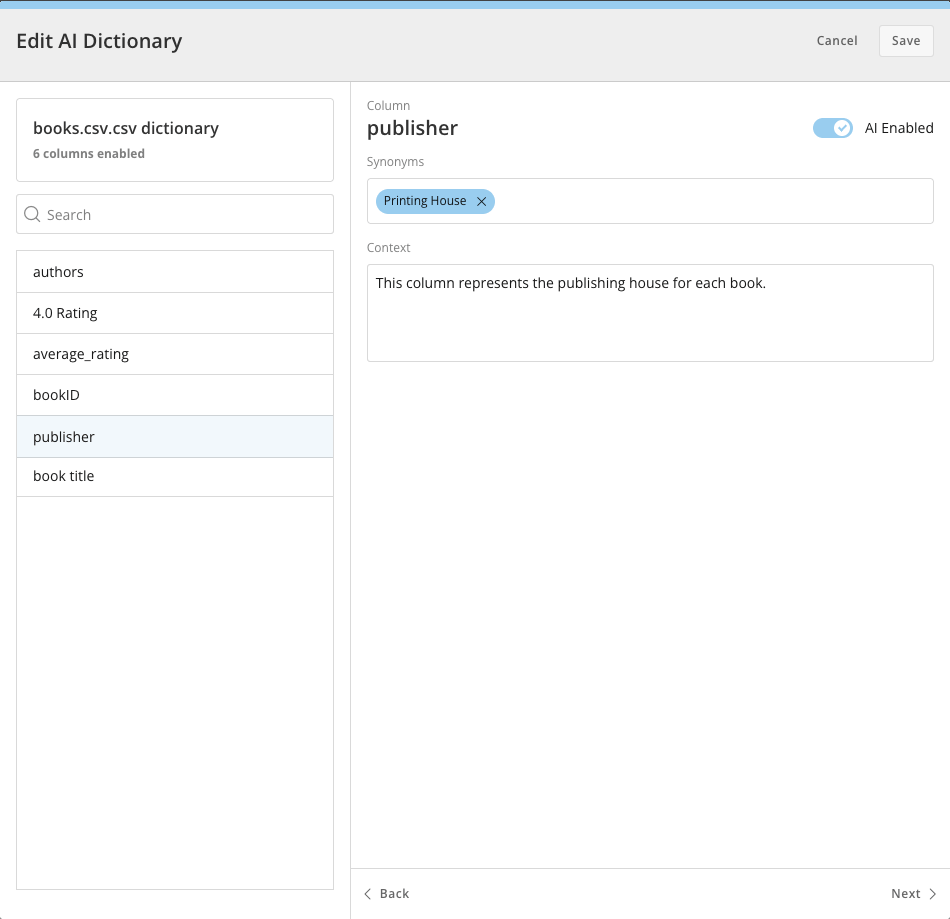
You can edit or remove columns added to your dictionary by selecting **Edit All** or **More** (three vertical dots icon) in the column row and choosing the option you want.
# Edit/Remove Columns
You can edit or remove columns added to your dictionary by selecting **Edit All** or **More** (three vertical dots icon) in the column row and choosing the option you want.
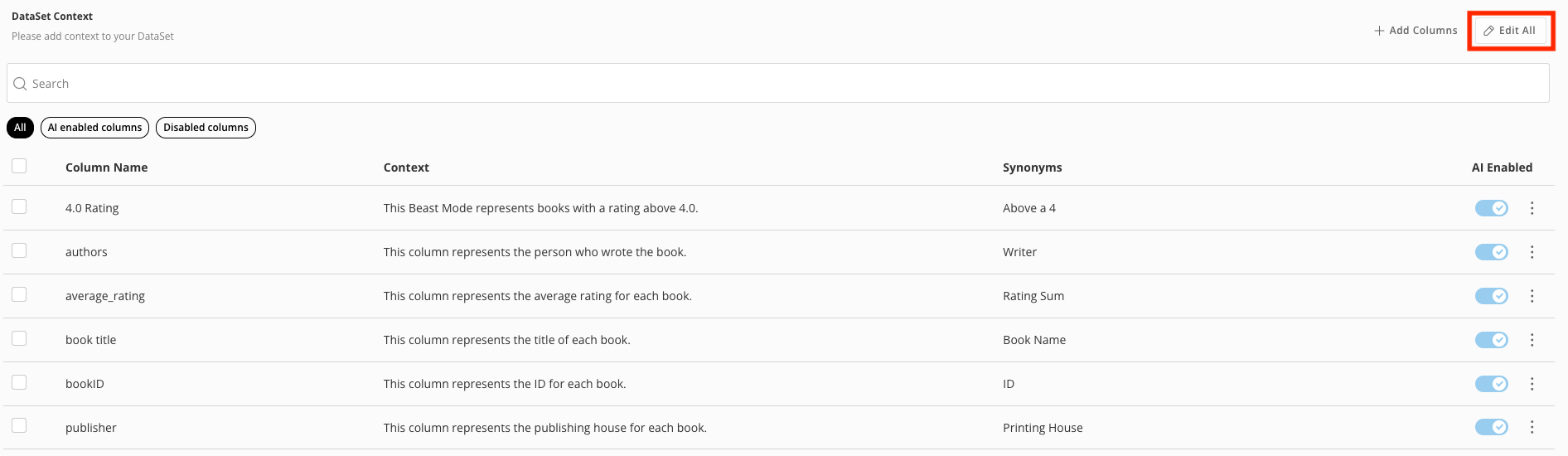 Editing a column lets you update the [synonyms](#column_context) and [add context](#column_context).
 # Add DataSet Context
DataSet context gives AI basic information about the DataSet. This can be a general statement about what data is included. You can also list the included categories. These details help narrow down our objects.
The DataSet context is especially important when using Domo AI in a setting where multiple DataSets are used on a dashboard or app. Including general information and background details about your DataSet enables the AI to easily distinguish the DataSets to provide you with more accurate answers.
Update the DataSet Context by selecting **Edit** **All**.
Make changes in the **DataSet Content** textbox or rename your dictionary in the **Dictionary Name** field. Be sure to save your changes.
# Add DataSet Context
DataSet context gives AI basic information about the DataSet. This can be a general statement about what data is included. You can also list the included categories. These details help narrow down our objects.
The DataSet context is especially important when using Domo AI in a setting where multiple DataSets are used on a dashboard or app. Including general information and background details about your DataSet enables the AI to easily distinguish the DataSets to provide you with more accurate answers.
Update the DataSet Context by selecting **Edit** **All**.
Make changes in the **DataSet Content** textbox or rename your dictionary in the **Dictionary Name** field. Be sure to save your changes.
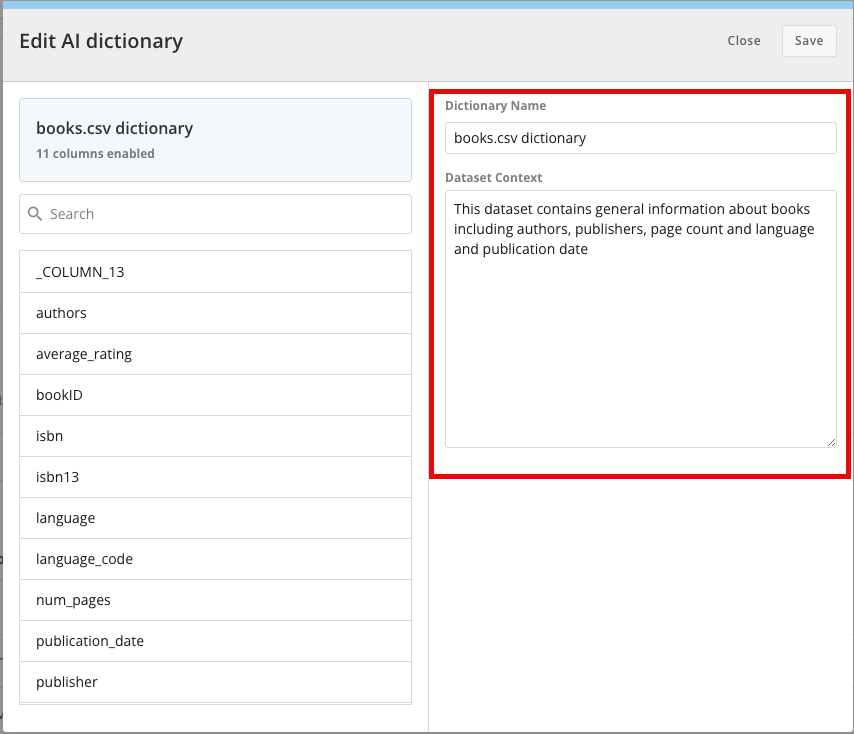
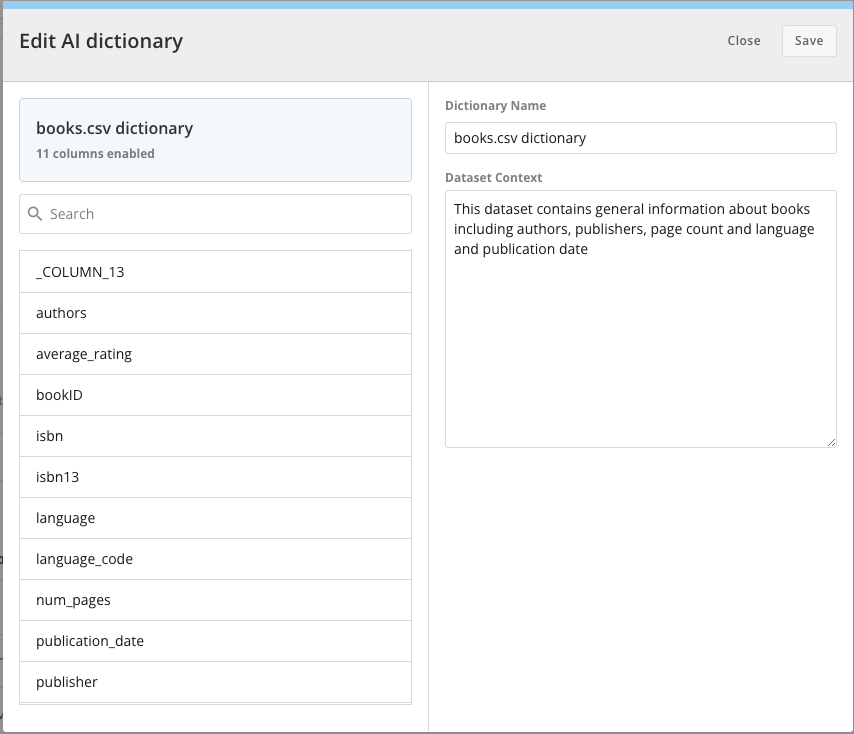 In the image below, the DataSet Context field includes a statement and lists categories for our DataSet `books.csv.`
After providing the context shown in the image, you could then ask [AI Chat](https://domo-support.domo.com/s/article/000005539?language=en_US) a question about how many books listed in your DataSet were written by a specific author and receive an accurate answer.
In the image below, the DataSet Context field includes a statement and lists categories for our DataSet `books.csv.`
After providing the context shown in the image, you could then ask [AI Chat](https://domo-support.domo.com/s/article/000005539?language=en_US) a question about how many books listed in your DataSet were written by a specific author and receive an accurate answer.
 # Add Synonyms and Column Context
You can add synonyms and context for individual columns in your DataSet to help Domo AI understand your data.
Synonyms are words that might appear in natural language queries that this column can answer.
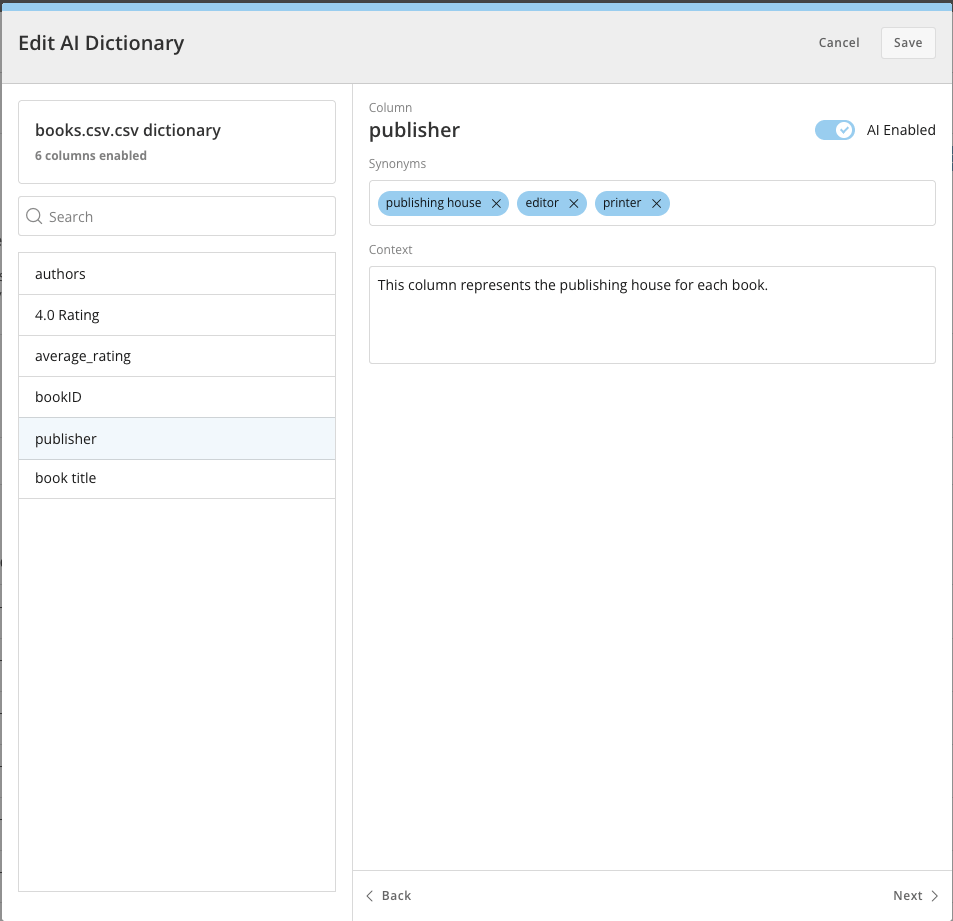
In this example, we added the synonyms `publishing house,` `editor,` and `printer/ for the `publisher\` column.
If you were to ask AI Chat about the publishing house a specific book was published through, the synonyms would help it know to look at the `publisher` column in your DataSet.
# Add Synonyms and Column Context
You can add synonyms and context for individual columns in your DataSet to help Domo AI understand your data.
Synonyms are words that might appear in natural language queries that this column can answer.
In this example, we added the synonyms `publishing house,` `editor,` and `printer/ for the `publisher\` column.
If you were to ask AI Chat about the publishing house a specific book was published through, the synonyms would help it know to look at the `publisher` column in your DataSet.
 Column context gives Domo AI more information about an individual column to use when answering queries using the DataSet.
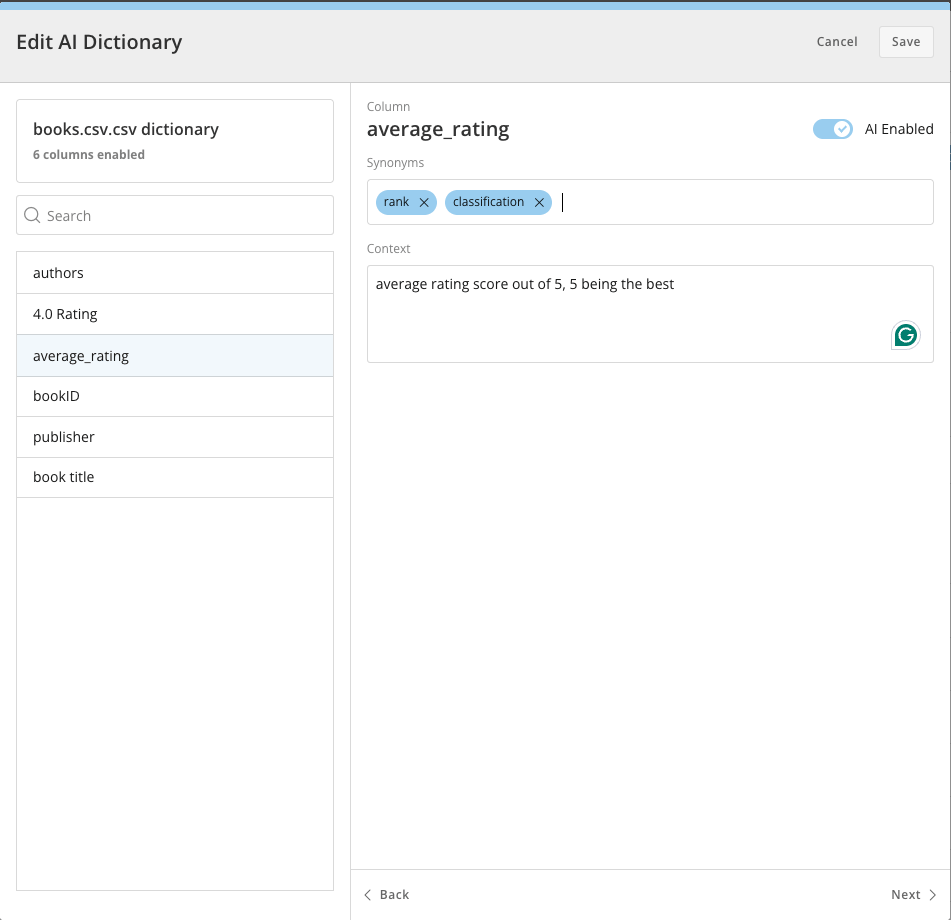
In this example, we provided the column context "average rating score out of 5, 5 being the best" about the `average\_rating` column.
This information helps AI answer questions about the average rating by knowing the scale.
Column context gives Domo AI more information about an individual column to use when answering queries using the DataSet.
In this example, we provided the column context "average rating score out of 5, 5 being the best" about the `average\_rating` column.
This information helps AI answer questions about the average rating by knowing the scale.
 You can add synonyms and column context by selecting **Edit All** or **More** (three vertical dots icon) in the column row and choosing the option you want.
**Note:** You can add Beast Modes to your DataSet to allow Domo AI to answer more complex questions that your base DataSet may be unable to answer.
* Beast Modes can be created and added to DataSets in Analyzer.
* Beast Modes in your Dataset have the 'Beast Mode' column type displayed when you select that column in the AI Dictionary.
* Beast Modes must be shared with you or be available on a card in order for them to be added to your AI Dictionary as a column.
* Learn more about
[Beast Modes](https://domo-support.domo.com/s/article/360043429913?language=en_US).
### Enable a Column for AI
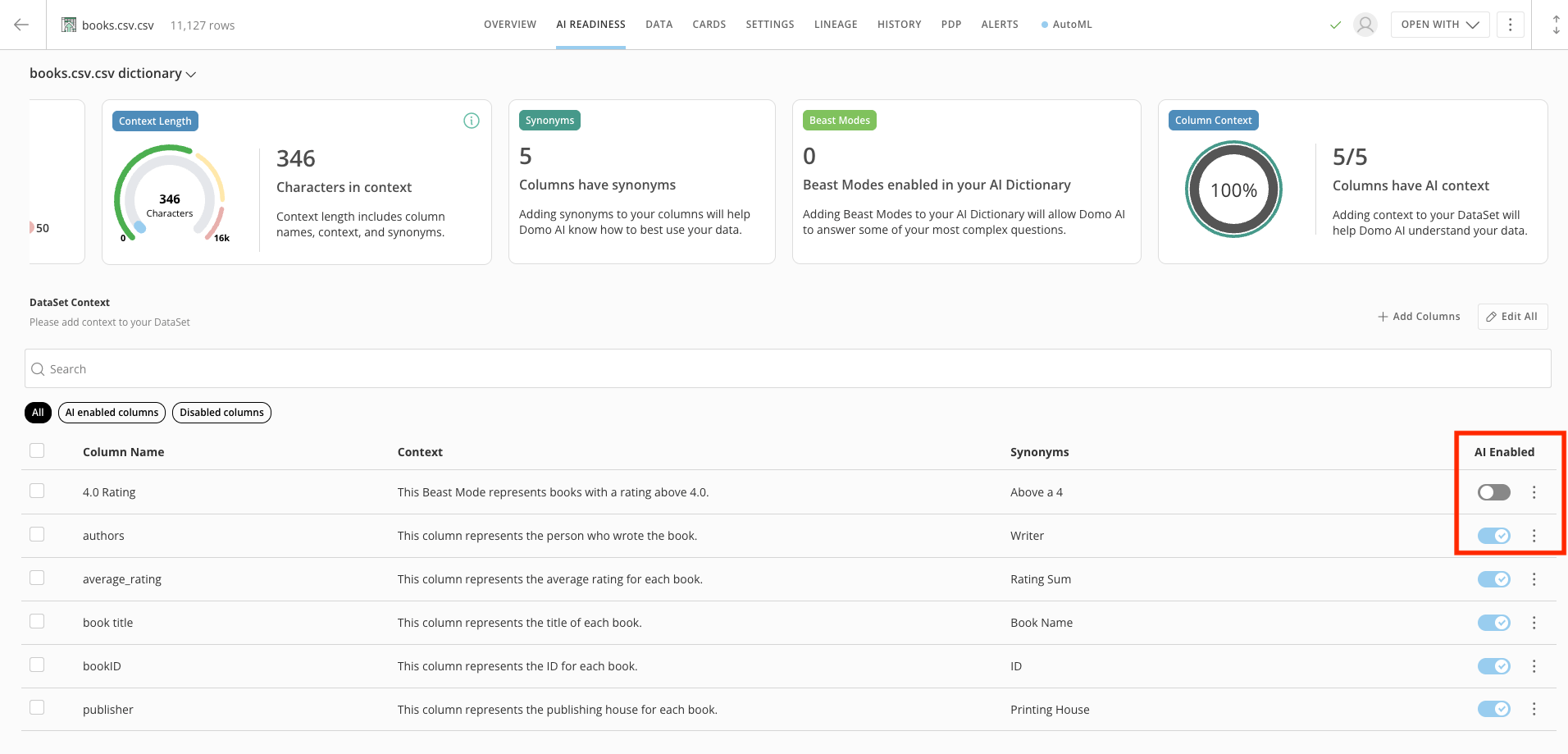
After adding context, synonyms, and Beast Modes, you can enable a column for AI from the **AI Readiness** tab by toggling the **AI Enabled** switch on a column basis. By default, columns are disabled.
Enabling a column for AI adds it to the AI Readiness [metrics](#understand_readiness_metrics).
**You must enable a column for AI if you want AI to use the column when interacting with your DataSet.**
You can add synonyms and column context by selecting **Edit All** or **More** (three vertical dots icon) in the column row and choosing the option you want.
**Note:** You can add Beast Modes to your DataSet to allow Domo AI to answer more complex questions that your base DataSet may be unable to answer.
* Beast Modes can be created and added to DataSets in Analyzer.
* Beast Modes in your Dataset have the 'Beast Mode' column type displayed when you select that column in the AI Dictionary.
* Beast Modes must be shared with you or be available on a card in order for them to be added to your AI Dictionary as a column.
* Learn more about
[Beast Modes](https://domo-support.domo.com/s/article/360043429913?language=en_US).
### Enable a Column for AI
After adding context, synonyms, and Beast Modes, you can enable a column for AI from the **AI Readiness** tab by toggling the **AI Enabled** switch on a column basis. By default, columns are disabled.
Enabling a column for AI adds it to the AI Readiness [metrics](#understand_readiness_metrics).
**You must enable a column for AI if you want AI to use the column when interacting with your DataSet.**
 ### FAQ
Make sure to use tailored descriptions; this aids in exploring business concepts and relationships.
* Start with basic information about the data.
* Describe each component of the DataSet.
* Any units of measure and precision (if applicable).
* Remember that this should be an iterative process; iteration is a good thing!
* AI Readiness is not intended to replace Magic ETL. It does not know how to transform your data.
* This is not intended to answer predictive/prescriptive questions unless that data is readily available.
Like any AI-powered technology, the AI features in Domo do not get everything right. However, you can improve the responses by providing [DataSet context](#dataset_context), [synonyms](#column_context), [column context](#column_context), and [Beast Modes](https://domo-support.domo.com/s/article/360043429913?language=en_US).
Functionality is permissions-based; users need the Use AI Chat grant and have editing rights to the DataSet.
If you do not [enable a column for AI](#enable_a_column), the AI ignores that column.
You can email [ai@domo.com](mailto:ai@domo.com) with questions or feedback.
### FAQ
Make sure to use tailored descriptions; this aids in exploring business concepts and relationships.
* Start with basic information about the data.
* Describe each component of the DataSet.
* Any units of measure and precision (if applicable).
* Remember that this should be an iterative process; iteration is a good thing!
* AI Readiness is not intended to replace Magic ETL. It does not know how to transform your data.
* This is not intended to answer predictive/prescriptive questions unless that data is readily available.
Like any AI-powered technology, the AI features in Domo do not get everything right. However, you can improve the responses by providing [DataSet context](#dataset_context), [synonyms](#column_context), [column context](#column_context), and [Beast Modes](https://domo-support.domo.com/s/article/360043429913?language=en_US).
Functionality is permissions-based; users need the Use AI Chat grant and have editing rights to the DataSet.
If you do not [enable a column for AI](#enable_a_column), the AI ignores that column.
You can email [ai@domo.com](mailto:ai@domo.com) with questions or feedback.