> ## Documentation Index
> Fetch the complete documentation index at: https://domoinc-openapi-sync-dataflows.mintlify.site/llms.txt
> Use this file to discover all available pages before exploring further.

# Image Chart

### Intro

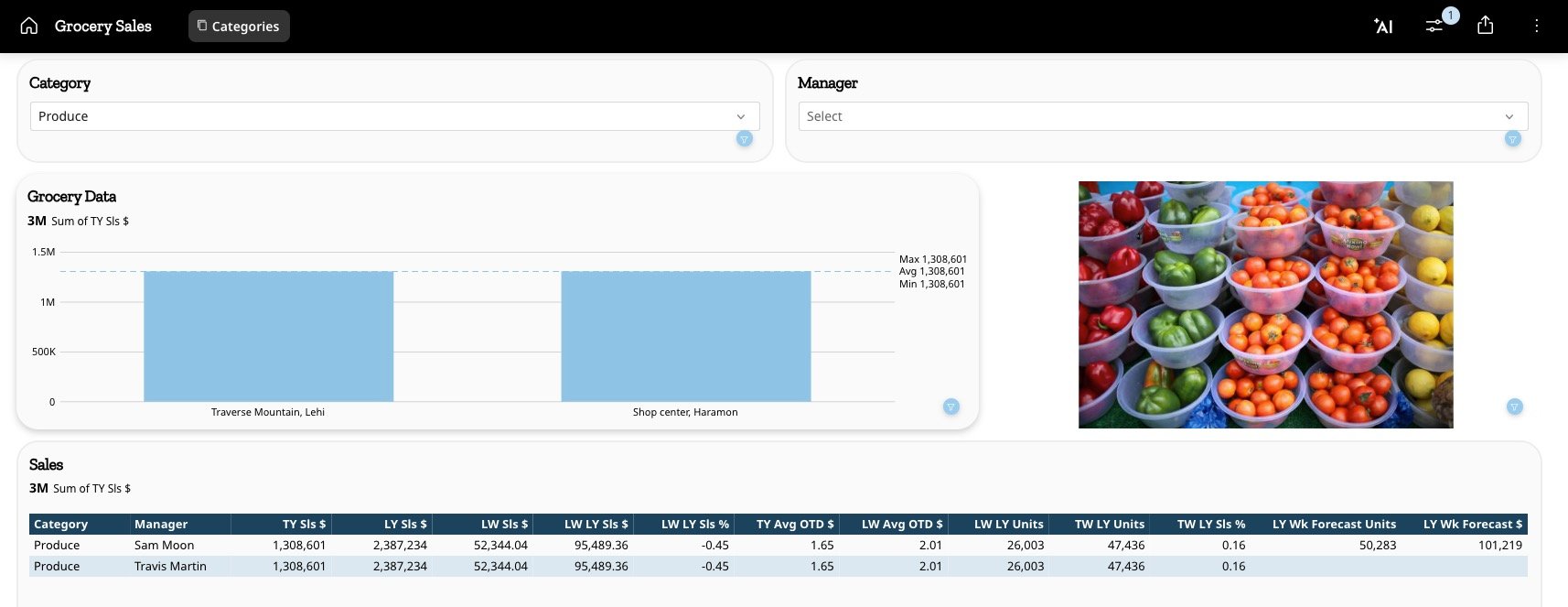
Image Charts allow you to use an image URL column in your data to dynamically display images based on the data being filtered on a dashboard or app page without having to concatenate an HTML element. Before the data is filtered to a particular image, or if more than one row is selected, you can include a URL to display a default image.​

For example, if you filter to a specific brand, the Image Chart dynamically updates to display the brand logo. Or, if you filter to a specific person, you can use an Image Chart to display that individual's avatar.

<Frame>
  <img alt="image chart.jpg" src="https://mintcdn.com/domoinc-openapi-sync-dataflows/EtHMjR0Dwu423b1z/images/kb/ka0Vq0000004eBl-00N5w00000Ri7BU-0EMVq000003fadh.jpg?fit=max&auto=format&n=EtHMjR0Dwu423b1z&q=85&s=bf5753036d081cc1f27e54a397c26676" style={{width: 900, height: 348}} width="1714" height="663" data-path="images/kb/ka0Vq0000004eBl-00N5w00000Ri7BU-0EMVq000003fadh.jpg" />
</Frame>

***

### Power Image Charts

The Image Chart requires an image URL.

Use the chart properties to construct an image URL. For example, if your data only contains a column for the ID, you must provide the URL prefix/suffix. See [Customize Image Charts](#customize_image_charts) for more information about the prefix/suffix.

<Note>
  **Note:** You can also add a default URL in case multiple rows of data are returned.

  For example, if you're using your Image Chart to show brand logos, you might want to show a generic icon when no brand is chosen or when multiple brands are chosen.
</Note>

### Customize Image Charts

You can customize the appearance of an Image Chart by editing its General chart properties. To learn about all chart properties, see [Chart Properties](https://domo-support.domo.com/s/topic/0TO5w000000ZaodGAC "Chart Properties") in the Knowledge Base.

The unique properties of an Image Chart include the following:

<table border="1" cellpadding="1" cellspacing="1" data-aura-rendered-by="33:209;a"><thead><tr><th colspan="1" rowspan="1"><p> Property </p></th><th colspan="1" rowspan="1"><p> Description </p></th><th colspan="1" rowspan="1"><p> Example </p></th></tr></thead><tbody><tr><td colspan="1" rowspan="1"><p> Image fit </p></td><td colspan="1" rowspan="1"><p> This determines whether the image will be scaled to fit within the card's space or to fill the card's space. </p><p> The default is `Fit Content.` </p></td><td colspan="1" rowspan="1"><p> — </p></td></tr><tr><td colspan="1" rowspan="1"><p> Default image URL </p></td><td colspan="1" rowspan="1"><p> If a URL is provided, the default image is displayed when more than one row of data is selected. </p></td><td colspan="1" rowspan="1"><p> — </p></td></tr><tr><td colspan="1" rowspan="1"><p> Url prefix </p></td><td colspan="1" rowspan="1"><p><span dir="ltr"> The prefix to be added to the beginning of the URL passed in from the data. This may be \<\< <a href="https://images/>>" rel="noopener" target="_blank"> [https://images/](https://images/)>> </a>;, for example. </span></p></td><td colspan="1" rowspan="1"><p> — </p></td></tr><tr><td colspan="1" rowspan="1"><p> Url suffix </p></td><td colspan="1" rowspan="1"><p><span dir="ltr"> The suffix to be added to the end of the URL passed in from the data. This may be \<\<.png>>, for example. </span></p></td><td colspan="1" rowspan="1"><p /><p> — </p><p /></td></tr></tbody></table>
