> ## Documentation Index
> Fetch the complete documentation index at: https://domoinc-openapi-sync-dataflows.mintlify.site/llms.txt
> Use this file to discover all available pages before exploring further.
# Elevation for Sensitive Changes
export const InlineImage = ({src, alt = '', height = '1.6em'}) => {
return  ;
};
### Intro
To enhance security, certain features now require *elevation* —a limited time window during which sensitive actions can be performed. You can begin an elevation by step-up authentication using a one-time passcode (OTP) generated by an authenticator app.
This article describes how to register Domo in your chosen authenticator app, how to start and end an elevation, and how admins can remove the requirement for elevation.
* Changing another user's password.
* Modifying authentication settings for the Domo instance.
*In the future, other sensitive actions may also require elevation.*
***
### Register Domo in Your Authenticator App
Starting an elevation requires entering a time-based one-time passcode (TOTP) generated by an authenticator app. Setting up your authenticator app is a one-time process. After setup, you can quickly generate a passcode whenever you need to begin an elevation.
Any authenticator app that supports time-based one-time passwords (TOTP) should be compatible with Domo. Examples include:
* Microsoft Authenticator
* Okta Verify
You can register your authenticator app from your Domo user settings. Follow the steps below:
1. After downloading an authenticator app, open your Domo user settings by selecting your
**avatar** > **Settings**.
2. In the **General** tab, select **Authenticator App**.
;
};
### Intro
To enhance security, certain features now require *elevation* —a limited time window during which sensitive actions can be performed. You can begin an elevation by step-up authentication using a one-time passcode (OTP) generated by an authenticator app.
This article describes how to register Domo in your chosen authenticator app, how to start and end an elevation, and how admins can remove the requirement for elevation.
* Changing another user's password.
* Modifying authentication settings for the Domo instance.
*In the future, other sensitive actions may also require elevation.*
***
### Register Domo in Your Authenticator App
Starting an elevation requires entering a time-based one-time passcode (TOTP) generated by an authenticator app. Setting up your authenticator app is a one-time process. After setup, you can quickly generate a passcode whenever you need to begin an elevation.
Any authenticator app that supports time-based one-time passwords (TOTP) should be compatible with Domo. Examples include:
* Microsoft Authenticator
* Okta Verify
You can register your authenticator app from your Domo user settings. Follow the steps below:
1. After downloading an authenticator app, open your Domo user settings by selecting your
**avatar** > **Settings**.
2. In the **General** tab, select **Authenticator App**.
 **Note:** If you haven't registered Domo with your authenticator app, you'll be prompted to do so when an elevation is required.
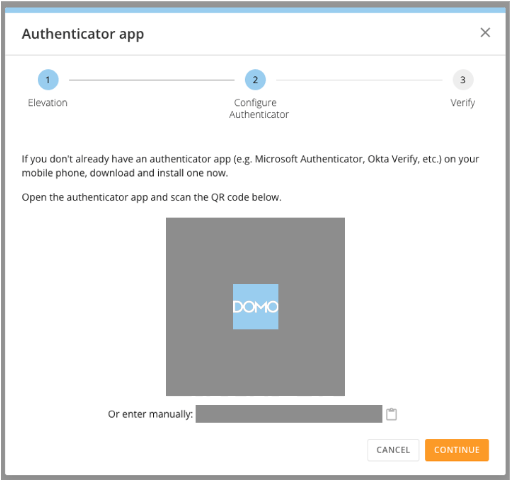
3. A short wizard guides you through registering Domo with your app by scanning a QR code. To confirm success, you'll be prompted to enter the one-time passcode generated by the authenticator app.
**Important:** The QR code and secret key are sensitive and should be treated according to your organization’s policies for managing passwords and similar sensitive items.
**Note:** If you haven't registered Domo with your authenticator app, you'll be prompted to do so when an elevation is required.
3. A short wizard guides you through registering Domo with your app by scanning a QR code. To confirm success, you'll be prompted to enter the one-time passcode generated by the authenticator app.
**Important:** The QR code and secret key are sensitive and should be treated according to your organization’s policies for managing passwords and similar sensitive items.
 ### Remove Authenticator App from Domo
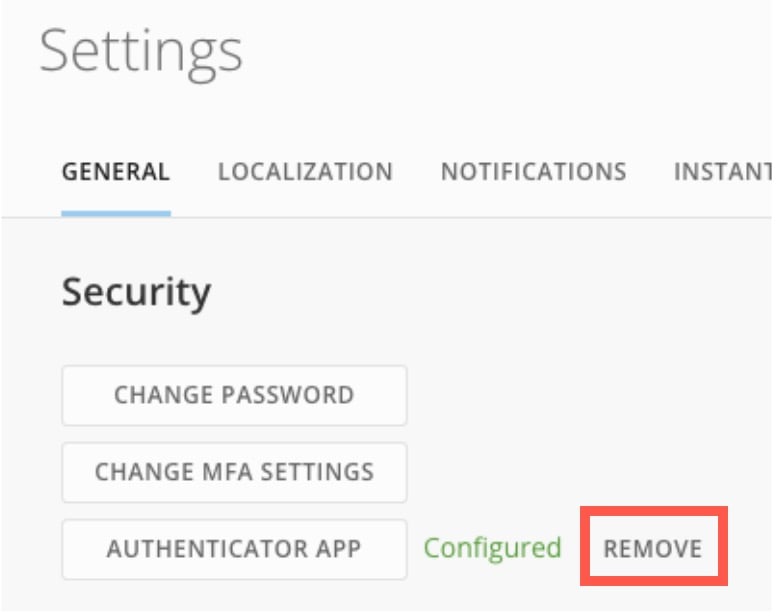
If you lose access to your authenticator app or want to remove the authenticator app configuration from Domo, you can do so by navigating to your user settings ( **avatar** > **Settings**).
In the **General** tab, select **Remove** for the authenticator app.
### Remove Authenticator App from Domo
If you lose access to your authenticator app or want to remove the authenticator app configuration from Domo, you can do so by navigating to your user settings ( **avatar** > **Settings**).
In the **General** tab, select **Remove** for the authenticator app.
 ### Start and End an Elevation
If you attempt to take an action that [requires an elevation](#require_elevation), you're prompted to start one. An elevation lasts for 15 minutes but can be ended early.
**Note:** If you haven’t yet done so, you’ll be prompted to [register Domo in your authenticator app](#register_domo) before you can start an elevation.
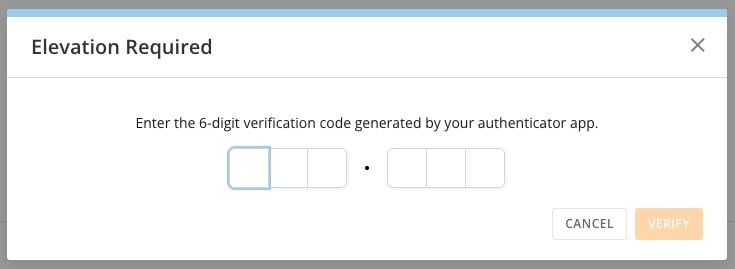
When prompted to start an elevation, enter the passcode generated from your configured authenticator app.
### Start and End an Elevation
If you attempt to take an action that [requires an elevation](#require_elevation), you're prompted to start one. An elevation lasts for 15 minutes but can be ended early.
**Note:** If you haven’t yet done so, you’ll be prompted to [register Domo in your authenticator app](#register_domo) before you can start an elevation.
When prompted to start an elevation, enter the passcode generated from your configured authenticator app.
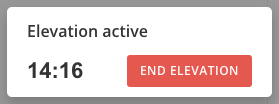
 During an active elevation, a banner with a countdown timer displays. You can manually end the elevation by selecting **End Elevation** in the banner.
 ### Remove Elevation Requirement
By default, elevation is required for the sensitive actions listed [above](#require_elevation). Required elevation is intended to increase security around these sensitive actions, so Domo recommends against removing it. However, admins can remove this requirement.
**Important:** Admins must have the Admin system role or a custom role with the Manage All Company Settings grant enabled to change authentication settings. Learn more about [system roles](/s/article/360043438953) and [grants](/s/article/360043438973).
**Note:** By default, elevation is required to make changes to authentication settings, including the change to remove the requirement for elevation.
Follow these steps to remove the requirement for elevation when making sensitive changes:
1. Navigate to **Admin** > **Authentication** > **Authentication**.
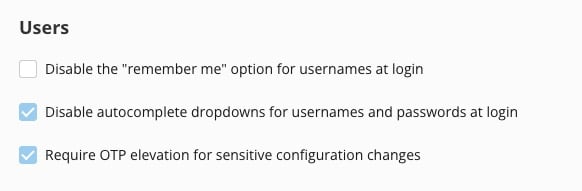
2. Under **Users**, uncheck the option labeled **Require OTP elevation for sensitive configuration changes**.
### Remove Elevation Requirement
By default, elevation is required for the sensitive actions listed [above](#require_elevation). Required elevation is intended to increase security around these sensitive actions, so Domo recommends against removing it. However, admins can remove this requirement.
**Important:** Admins must have the Admin system role or a custom role with the Manage All Company Settings grant enabled to change authentication settings. Learn more about [system roles](/s/article/360043438953) and [grants](/s/article/360043438973).
**Note:** By default, elevation is required to make changes to authentication settings, including the change to remove the requirement for elevation.
Follow these steps to remove the requirement for elevation when making sensitive changes:
1. Navigate to **Admin** > **Authentication** > **Authentication**.
2. Under **Users**, uncheck the option labeled **Require OTP elevation for sensitive configuration changes**.
 3. Save your changes.