> ## Documentation Index
> Fetch the complete documentation index at: https://domoinc-openapi-sync-dataflows.mintlify.site/llms.txt
> Use this file to discover all available pages before exploring further.
# Moving or Copying Cards to Other Dashboards
export const InlineImage = ({src, alt = '', height = '1.6em'}) => {
return  ;
};
### Intro
You can move or copy a Card to one or more Pages in Domo from a Card Page or the Details view. When you copy a Card in this way, the copies are linked; any changes made to a copy of a Card are also made to all other copies. This is different from the **Save As** functionality in that duplicating a Card creates an entirely separate instance of that Card; making a change to a duplicated Card does *not* affect the original Card. For more information about **Save As**, see [Duplicating Cards](/s/article/360042923274 "Duplicating Cards").
**Notes:**
* When copied, a Card is accessible by users with access to the Page or Card.
* If a Page has been locked, you can only move or copy Cards if you are the Page owner or you have an "Admin" default security role or a custom role with the Manage All Cards, Pages and Apps (App Studio) grant enabled. For more information about locking and unlocking content on Pages, see
[Managing Custom Roles](/s/article/360043438973 "Locking or Unlocking Page Content").
You can also move or copy multiple Cards at once in the Admin Settings. You must have an "Admin" default security role or a custom role with the Manage All Cards, Pages and Apps (App Studio) enabled to use this option. For more information about default security roles, see [Managing Custom Roles](/s/article/360043438973 "Security Role Reference").
**Video - Move, Copy, and Duplicate Cards**
### Moving or Copying a Single Card
Follow these steps to move or copy one card to any number of selected dashboards:
1. Hover over the card you want to move or copy. (If you are in a Details view, skip this step.)
2. Select
**Card options**, then select **Move / Copy** from the menu.
A dialog appears. The names of dashboards or sub-dashboards in which this card is located appear in the box.
3. Do one of the following:
* If you plan to *move* the card from its location(s), clear the default dashboard names from the box.
* If you plan to *copy* the card, leave the default dashboard names as they are.
4. Select the empty portion of the box to display a list of dashboards.
5. Select the sub-dashboard to which you want to move the card.
6. (Optional) Select multiple destinations for the card by repeating steps 4 and 5.
7. Select **Save**.
The following screenshot shows a scenario where a user wants to copy a card to another dashboard (without removing it from the dashboards where it's located). Thus, the user selects another new dashboard. If the user wanted to move this card (removing it from the current dashboards), the user would click the "X" next to the listed dashboards from which the card would be removed.
;
};
### Intro
You can move or copy a Card to one or more Pages in Domo from a Card Page or the Details view. When you copy a Card in this way, the copies are linked; any changes made to a copy of a Card are also made to all other copies. This is different from the **Save As** functionality in that duplicating a Card creates an entirely separate instance of that Card; making a change to a duplicated Card does *not* affect the original Card. For more information about **Save As**, see [Duplicating Cards](/s/article/360042923274 "Duplicating Cards").
**Notes:**
* When copied, a Card is accessible by users with access to the Page or Card.
* If a Page has been locked, you can only move or copy Cards if you are the Page owner or you have an "Admin" default security role or a custom role with the Manage All Cards, Pages and Apps (App Studio) grant enabled. For more information about locking and unlocking content on Pages, see
[Managing Custom Roles](/s/article/360043438973 "Locking or Unlocking Page Content").
You can also move or copy multiple Cards at once in the Admin Settings. You must have an "Admin" default security role or a custom role with the Manage All Cards, Pages and Apps (App Studio) enabled to use this option. For more information about default security roles, see [Managing Custom Roles](/s/article/360043438973 "Security Role Reference").
**Video - Move, Copy, and Duplicate Cards**
### Moving or Copying a Single Card
Follow these steps to move or copy one card to any number of selected dashboards:
1. Hover over the card you want to move or copy. (If you are in a Details view, skip this step.)
2. Select
**Card options**, then select **Move / Copy** from the menu.
A dialog appears. The names of dashboards or sub-dashboards in which this card is located appear in the box.
3. Do one of the following:
* If you plan to *move* the card from its location(s), clear the default dashboard names from the box.
* If you plan to *copy* the card, leave the default dashboard names as they are.
4. Select the empty portion of the box to display a list of dashboards.
5. Select the sub-dashboard to which you want to move the card.
6. (Optional) Select multiple destinations for the card by repeating steps 4 and 5.
7. Select **Save**.
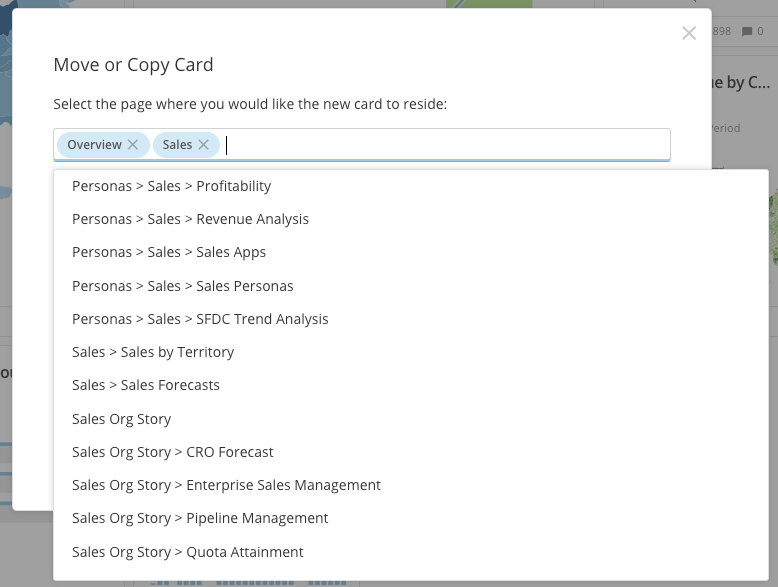
The following screenshot shows a scenario where a user wants to copy a card to another dashboard (without removing it from the dashboards where it's located). Thus, the user selects another new dashboard. If the user wanted to move this card (removing it from the current dashboards), the user would click the "X" next to the listed dashboards from which the card would be removed.
 ### Copying Multiple Cards
In **More>** **Admin > Cards**, you can copy multiple cards to any number of selected dashboards with a single action. You must have an Admin default security role or a custom role with the Manage All Cards, Pages and Apps (App Studio)grant enabled to use this option. For more information about default security roles, see [Managing Custom Roles](/s/article/360043438973 "Security Role Reference").
Follow these steps to bulk copy cards:
1. Select **More** in the toolbar at the top of the screen, then select **Admin**.
2. Click **Cards** in the left-hand pane.
A list of all cards in your Domo instance appears.
3. Check the boxes for all cards you want to copy.
You can use the column filters to filter the cards in the list. You can also select or deselect all cards passed through your selected filters.
4. Select **Edit > Add to dashboards**.
A dialog opens in which you can specify the dashboards where the copied cards will be added.
5. In the **Search Pages** field, enter the name of a dashboard where you want the copied cards to live.
The names of dashboards matching the characters you've entered pop up in a list.
6. Select the name of the desired dashboard to add it to the field.
7. (Optional) To add more dashboards to the field, repeat steps 5 and 6 as often as necessary.
8. Select **Add to Dashboards.**
The cards are copied to the dashboards you specified.
### Copying Multiple Cards
In **More>** **Admin > Cards**, you can copy multiple cards to any number of selected dashboards with a single action. You must have an Admin default security role or a custom role with the Manage All Cards, Pages and Apps (App Studio)grant enabled to use this option. For more information about default security roles, see [Managing Custom Roles](/s/article/360043438973 "Security Role Reference").
Follow these steps to bulk copy cards:
1. Select **More** in the toolbar at the top of the screen, then select **Admin**.
2. Click **Cards** in the left-hand pane.
A list of all cards in your Domo instance appears.
3. Check the boxes for all cards you want to copy.
You can use the column filters to filter the cards in the list. You can also select or deselect all cards passed through your selected filters.
4. Select **Edit > Add to dashboards**.
A dialog opens in which you can specify the dashboards where the copied cards will be added.
5. In the **Search Pages** field, enter the name of a dashboard where you want the copied cards to live.
The names of dashboards matching the characters you've entered pop up in a list.
6. Select the name of the desired dashboard to add it to the field.
7. (Optional) To add more dashboards to the field, repeat steps 5 and 6 as often as necessary.
8. Select **Add to Dashboards.**
The cards are copied to the dashboards you specified.