> ## Documentation Index
> Fetch the complete documentation index at: https://domoinc-openapi-sync-dataflows.mintlify.site/llms.txt
> Use this file to discover all available pages before exploring further.

# Resize Cards on a Standard Page

export const InlineImage = ({src, alt = '', height = '1.6em'}) => {
  return <img noZoom src={src} alt={alt} style={{
    display: 'inline',
    verticalAlign: 'start',
    height: height,
    margin: '0'
  }} />;
};

### Intro

<Warning>
  **Important:** These instructions only apply to Standard Pages, an older version of dashboards. If you are using a Domo dashboard and need to resize cards, choose **Settings menu** (wrench icon) > **Edit Dashboard** and interact with the drag and drop interface.
</Warning>

You can resize cards on a Standard Page. By default, cards are medium-sized, except for Domo App Cards, which are full-sized. The reference table below shows the size options. Enlarging a card makes it easier to view all of the information in the card. Shrinking a card makes it easier to view more cards at time, but less information is visible.

<Note>
  **Note:** If a Standard Page has been locked, you can only resize cards if you are the owner, have an Admin default security role, or a custom role with the Manage All Cards, Pages and Apps (App Studio) grant enabled.
</Note>

***

### Resize All Cards on a Standard Page

Follow the steps below to change the size of all cards on a Standard Page:

1. On your Standard Page, select the
   <InlineImage src="/images/kb/ka0Vq000000BQGv-00N5w00000Ri7BU-0EMVq000006qXHN.jpg" /> **Settings menu** (wrench icon).
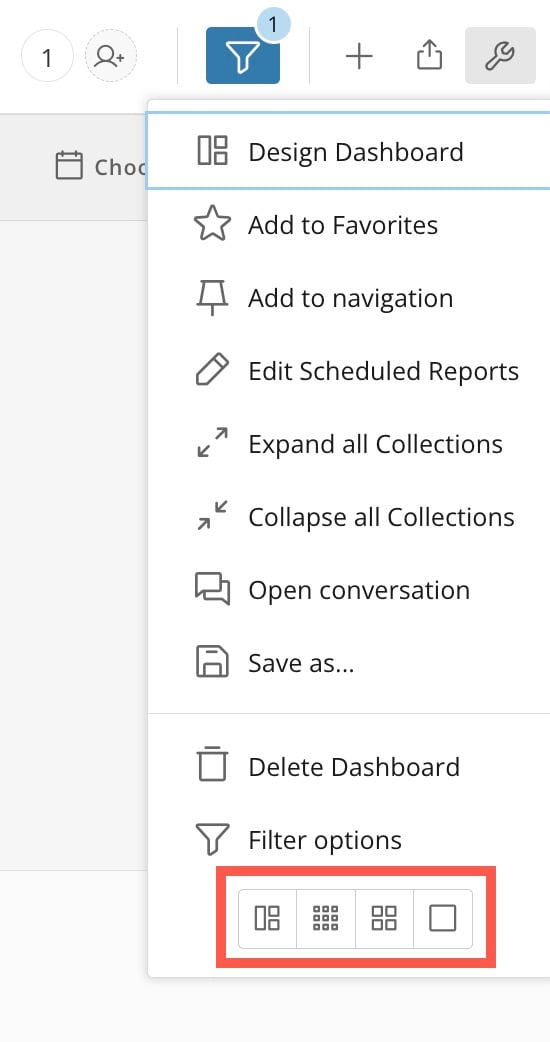
2. At the bottom of the settings menu, choose a size option, described below.

   <Frame>
     <img alt="" src="https://mintcdn.com/domoinc-openapi-sync-dataflows/j23mDb6xH5JxEw9-/images/kb/ka0Vq000000BQGv-00N5w00000Ri7BU-0EMVq000006qXNp.jpg?fit=max&auto=format&n=j23mDb6xH5JxEw9-&q=85&s=833bc24f1a2fa401700ee4469cc43d99" style={{width: 200, height: 379}} width="550" height="1042" data-path="images/kb/ka0Vq000000BQGv-00N5w00000Ri7BU-0EMVq000006qXNp.jpg" />
   </Frame>

<table border="1" cellpadding="1" cellspacing="1" data-aura-rendered-by="33:208;a"><thead><tr><th colspan="1" rowspan="1"><p> Icon </p></th><th colspan="1" rowspan="1"><p> Size </p></th><th colspan="1" rowspan="1"><p> Description </p></th></tr></thead><tbody><tr><td colspan="1" rowspan="1"><p><InlineImage src="/images/kb/ka0Vq000000BQGv-00N5w00000Ri7BU-0EMVq000006qXXV.jpg" /></p></td><td colspan="1" rowspan="1"><p> Return to defaults </p></td><td colspan="1" rowspan="1"><p> Reverts to default settings, showing cards in default and custom size. </p></td></tr><tr><td colspan="1" rowspan="1"><p><InlineImage src="/images/kb/ka0Vq000000BQGv-00N5w00000Ri7BU-0EMVq000006qXdx.jpg" /></p></td><td colspan="1" rowspan="1"><p> Small </p></td><td colspan="1" rowspan="1"><p> Only the name and icons appear (the content itself does not appear) in a small card. You can see the content for a small-sized card by opening the details view for that card. For more information about card details, see <a href="/s/article/360042923934" target="_blank"> Card Details View Layout. </a></p></td></tr><tr><td colspan="1" rowspan="1"><p><InlineImage src="/images/kb/ka0Vq000000BQGv-00N5w00000Ri7BU-0EMVq000006qXin.jpg" /></p></td><td colspan="1" rowspan="1"><p> Medium </p></td><td colspan="1" rowspan="1"><p> Card content appears in a medium card. This is the default card size in Domo. <a id="resize_single_card" target="_blank" /></p></td></tr><tr><td colspan="1" rowspan="1"><p><InlineImage src="/images/kb/ka0Vq000000BQGv-00N5w00000Ri7BU-0EMVq000006qXnd.jpg" /></p></td><td colspan="1" rowspan="1"><p> Large </p></td><td colspan="1" rowspan="1"><p> Card content appears in a large card. </p></td></tr></tbody></table>

### Resize a Single Card on a Standard Page

Follow these steps to change the size of a single card on a Standard Page:

1. Hover over the card you'd like to resize.
2. Select
   <InlineImage src="/images/kb/ka0Vq000000BQGv-00N5w00000Ri7BU-0EMVq000006qYVB.jpg" /> **Card options**.
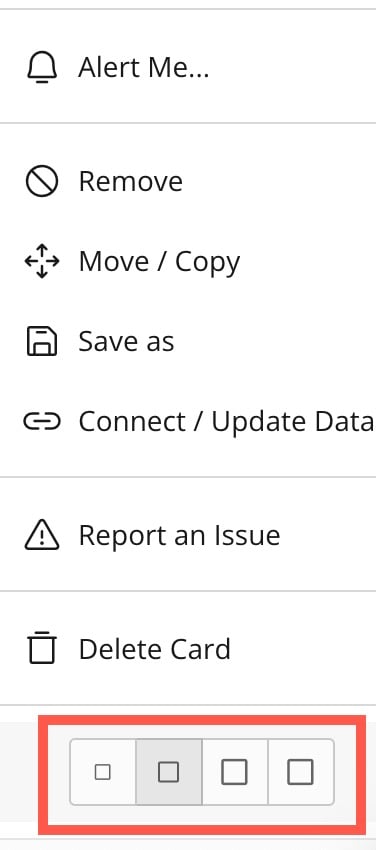
3. At the bottom of the options menu, select a size option, described below.

   <Frame>
     <img alt="" src="https://mintcdn.com/domoinc-openapi-sync-dataflows/j23mDb6xH5JxEw9-/images/kb/ka0Vq000000BQGv-00N5w00000Ri7BU-0EMVq000006qZ9V.jpg?fit=max&auto=format&n=j23mDb6xH5JxEw9-&q=85&s=4f181b77b0ee38de12e2081f68e37fa9" style={{width: 200, height: 452}} width="376" height="850" data-path="images/kb/ka0Vq000000BQGv-00N5w00000Ri7BU-0EMVq000006qZ9V.jpg" />
   </Frame>

<table border="1" cellpadding="1" cellspacing="1" data-aura-rendered-by="33:208;a"><thead><tr><th colspan="1" rowspan="1"><p> Icon </p></th><th colspan="1" rowspan="1"><p> Size </p></th><th colspan="1" rowspan="1"><p> Description </p></th></tr></thead><tbody><tr><td colspan="1" rowspan="1"><p><InlineImage src="/images/kb/ka0Vq000000BQGv-00N5w00000Ri7BU-0EMVq000006qZHZ.jpg" /></p></td><td colspan="1" rowspan="1"><p> Small </p></td><td colspan="1" rowspan="1"><p> Only the name and icons appear (the content itself does not appear) in a small card. You can see the content for a small-sized card by opening the details view for that card. For more information about card details, see <a href="/s/article/360042923934" target="_blank"> Card Details View Layout. </a></p></td></tr><tr><td colspan="1" rowspan="1"><InlineImage src="/images/kb/ka0Vq000000BQGv-00N5w00000Ri7BU-0EMVq000006qaC1.jpg" /></td><td colspan="1" rowspan="1"><p> Medium </p></td><td colspan="1" rowspan="1"><p> Card content appears in a medium card. This is the default card size in Domo. </p></td></tr><tr><td colspan="1" rowspan="1"><p><InlineImage src="/images/kb/ka0Vq000000BQGv-00N5w00000Ri7BU-0EMVq000006qZnp.jpg" /></p></td><td colspan="1" rowspan="1"><p> Large </p></td><td colspan="1" rowspan="1"><p> Card content appears in a large card. </p></td></tr><tr><td colspan="1" rowspan="1"><p><InlineImage src="/images/kb/ka0Vq000000BQGv-00N5w00000Ri7BU-0EMVq000006qa2L.jpg" /></p></td><td colspan="1" rowspan="1"><p> Full </p></td><td colspan="1" rowspan="1"><p> Card content appears in a full-size card. Available for Domo App Cards, Sumo Cards, and Table Cards. You can set the specific size dimensions for a Table Card in the chart properties for that table, as shown in the next section. <a id="full_size_card" target="_blank" /></p></td></tr></tbody></table>

<Note>
  **Note:** If you resize individual cards and then resize all cards on the dashboard, the dashboard selection overrides selections for individual cards size, including the ones you changed. However, you can revert to your custom-sized cards by using the **Return to defaults** [option](#defaults) for all cards.
</Note>

### Configure Dimensions for a Full-Size Card

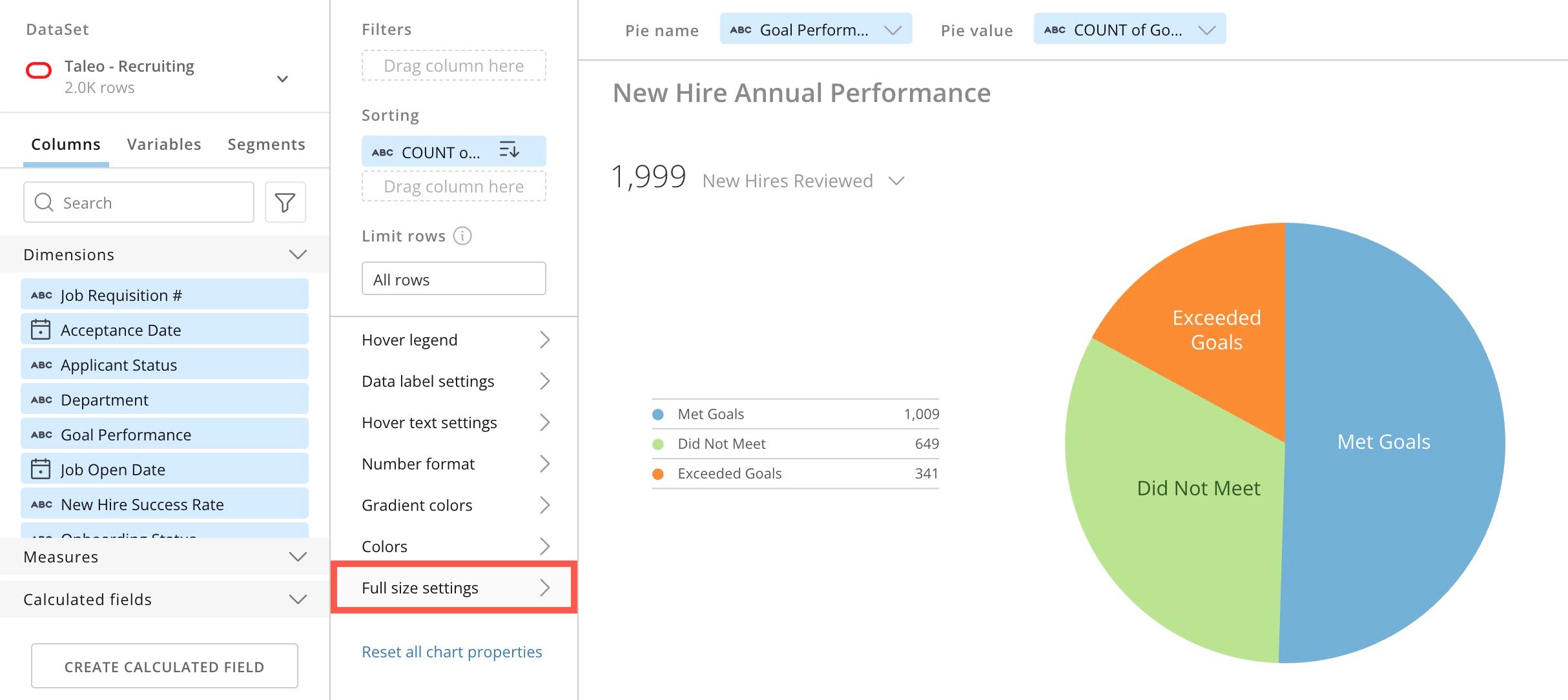
The <InlineImage src="/images/kb/ka0Vq000000BQGv-00N5w00000Ri7BU-0EMVq000006qa2L.jpg" /> **Full** size o ption for a single card is 4 cards medium width x 3 medium cards height. A full-size card may leave large amounts of white space in the card or cut off data you want your viewers to see. If this happens, consider changing the default height and width for a Full card.

Follow the steps below to change the default height and width for a table when **Full** is selected:

1. Open the card in **Analyzer** by selecting <InlineImage src="/images/kb/ka0Vq000000BQGv-00N5w00000Ri7BU-0EMVq000006qZZK.jpg" /> **Card options** > **Edit in Analyzer**.
2. Under **Chart properties**, select **Full size settings**.

   <Frame>
     <img alt="" src="https://mintcdn.com/domoinc-openapi-sync-dataflows/j23mDb6xH5JxEw9-/images/kb/ka0Vq000000BQGv-00N5w00000Ri7BU-0EMVq000006qa2M.jpg?fit=max&auto=format&n=j23mDb6xH5JxEw9-&q=85&s=b873d645f64794ffbd23733688e7c3d1" style={{width: 801, height: 358}} width="2428" height="1084" data-path="images/kb/ka0Vq000000BQGv-00N5w00000Ri7BU-0EMVq000006qa2M.jpg" />
   </Frame>
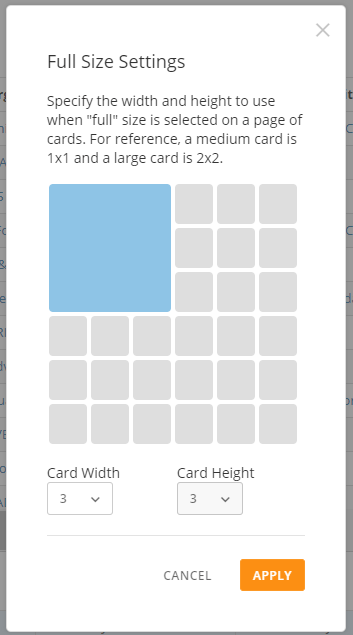
3. In the **Full Size Settings** modal, set the width and height for your card by dragging the desired number of squares across the grid. Or, you can select your desired width and height from the menus under the grid.
   <Frame>
     <img alt="" src="https://mintcdn.com/domoinc-openapi-sync-dataflows/wtd4JXYHIy_vlcIx/images/kb/ka05w00000129v8-00N5w00000Ri7BU-0EM5w000005vOm4.png?fit=max&auto=format&n=wtd4JXYHIy_vlcIx&q=85&s=ed176f1d962303d61b8661fbc0b6c267" style={{width: 265, height: 477}} width="353" height="635" data-path="images/kb/ka05w00000129v8-00N5w00000Ri7BU-0EM5w000005vOm4.png" />
   </Frame>
4. After choosing your desired dimensions, select **Apply** to save changes.

The default Full size for this specific card is now updated.

#### Custom Table Sizing (video)

This video describes the process of changing the full size settings in Analyzer.

<iframe allowfullscreen="allowfullscreen" frameborder="0" height="315" src="//www.youtube-nocookie.com/embed/sXTWrJGzCbQ" width="560" />

### Resize & Rearrange Cards (video)

<iframe allowfullscreen="allowfullscreen" frameborder="0" height="315" src="//www.youtube-nocookie.com/embed/BGvAffUO1Vc" width="560" />