> ## Documentation Index
> Fetch the complete documentation index at: https://domoinc-openapi-sync-dataflows.mintlify.site/llms.txt
> Use this file to discover all available pages before exploring further.
# Configuring Notifications for a Buzz Conversation
export const InlineImage = ({src, alt = '', height = '1.6em'}) => {
return  ;
};
### Intro
You can configure notifications for a Buzz conversation in the Details pane for that conversation. You can configure notification settings for email, Domo Mobile, SMS, and/or pop-up notifications on your computer. For each of these you indicate whether notifications are sent when you are @ mentioned in the conversation, when any activity occurs in the conversation, or not at all.
In the following example, the user has set computer pop-up notifications to "All activity" (meaning he will be notified via pop-up notifications when ANY activity occurs in the conversation); Domo Mobile and email to "Mentions" (meaning he will be notified via Domo Mobile and email when he is @ mentioned in the conversation); and SMS to "None" (meaning he will not receive ANY notifications for this conversation via SMS).
;
};
### Intro
You can configure notifications for a Buzz conversation in the Details pane for that conversation. You can configure notification settings for email, Domo Mobile, SMS, and/or pop-up notifications on your computer. For each of these you indicate whether notifications are sent when you are @ mentioned in the conversation, when any activity occurs in the conversation, or not at all.
In the following example, the user has set computer pop-up notifications to "All activity" (meaning he will be notified via pop-up notifications when ANY activity occurs in the conversation); Domo Mobile and email to "Mentions" (meaning he will be notified via Domo Mobile and email when he is @ mentioned in the conversation); and SMS to "None" (meaning he will not receive ANY notifications for this conversation via SMS).
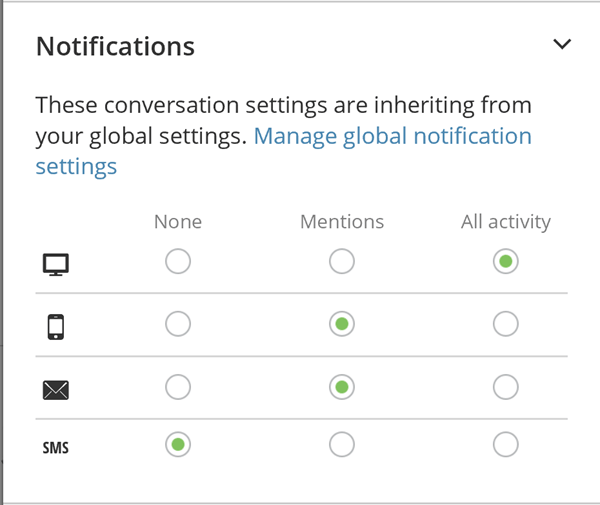 Conversation notification settings are inherited from your global notification settings you set in the [Configuring Notifications and Alert Settings](/s/article/360042925814) screen. So, for example, if you indicated in that screen you did not want to receive any notifications via SMS, by default that setting would persist for this and all other Buzz conversations. But you could make an exception for a given conversation by changing the SMS setting just for that conversation.
**To configure notifications for a Buzz conversation**,
1. Locate and open the Buzz conversation you want to configure notifications for.
For information about finding conversations, see [Chatting in Buzz](/s/article/360042925574 "Chatting in Buzz").
2. Click the ellipsis icon (...) in the conversation pane to open the Details pane.
3. Click **Notifications** to expand that tab.
4. Click the radio buttons for the desired notification settings.
**Video - Notifications and Settings in Buzz**
Conversation notification settings are inherited from your global notification settings you set in the [Configuring Notifications and Alert Settings](/s/article/360042925814) screen. So, for example, if you indicated in that screen you did not want to receive any notifications via SMS, by default that setting would persist for this and all other Buzz conversations. But you could make an exception for a given conversation by changing the SMS setting just for that conversation.
**To configure notifications for a Buzz conversation**,
1. Locate and open the Buzz conversation you want to configure notifications for.
For information about finding conversations, see [Chatting in Buzz](/s/article/360042925574 "Chatting in Buzz").
2. Click the ellipsis icon (...) in the conversation pane to open the Details pane.
3. Click **Notifications** to expand that tab.
4. Click the radio buttons for the desired notification settings.
**Video - Notifications and Settings in Buzz**