> ## Documentation Index
> Fetch the complete documentation index at: https://domoinc-openapi-sync-dataflows.mintlify.site/llms.txt
> Use this file to discover all available pages before exploring further.
# Creating Columns in Workbench 5 Using Calculations
export const InlineImage = ({src, alt = '', height = '1.6em'}) => {
return ;
};
You can create new columns in DataSets in Workbench 5 by building calculations based on the data in other columns. For example, you might have a column containing values with one or more decimal places. You could create a new column in which all of the values in the original column are rounded up or down to the nearest whole number, using the CEILING or FLOOR functions, respectively. Workbench 5 contains over 80 such functions you can use in constructing calculations. Categories of functions include logical (such as AND, NOT, IF, etc.), mathematical (such as ACOS, RND, and SUMLIST ), statistical (such as AVERAGE, MAX, and STDEV ), text (such as CONCATENATE, MID, and SUBSTITUTE ), and date and time (such as DAY, EOMONTH, and TODAY ). You can find descriptions of all of the functions in the Workbench 4 user interface.
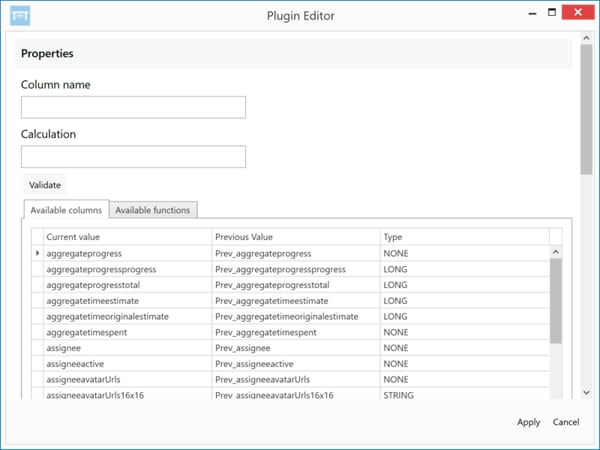
You build calculated fields for a selected DataSet job in the **Calculated Field Transform Editor.** You access the **Calculated Field Transform Editor** for a DataSet by adding a **Calculation** transform.
**Video - Calculated Field Transform in Workbench 5**
**To add a calculated field in Workbench 5,**
1. In Workbench, Click in the left-hand icon bar.
2. In the Jobs listing, double-click the job for which you want to create a calculated column.
3. Click
**Transforms** to expand that section of the pane.
4. In the
**Add a transform** menu, select **Calculated Field Transform**.
5. Click the
button.
The **Calculated Field Transform Editor** appears.
6. Enter a name for the new column in the
**Column Name** field.
7. Build your calculation in the
**Calculation** field using the column names in the **Available columns** listing and the functions in the **Available** **functions** listing.
You can add column names and functions to a calculation by double-clicking them in the list.
You can filter the functions by category by selecting the desired category in the **Category** menu. All functions are accompanied by descriptions; you can see the description for a function by clicking that function. In addition, each function shows its proper usage. For example, the SUM function is represented as SUM (p1, \[p2],...). This means that you are summing the values in all referenced columns, which are indicated by p1, p2, and so on.
8. Click
**Validate** to ensure that your calculation is valid.
**Note:** In calculations, column names *cannot* contain non-ASCII characters. You can reference a column in a calculation using Column# where is the 1-based column order. For example: CONCATENATE(Column2,Column3)
9. Click
**Apply** when finished.
10. Click at the top of the pane to save your transform.
The next time you run the job, the newly calculated column will be added to your DataSet.
 **Video - Calculated Field Transform in Workbench 5**
**To add a calculated field in Workbench 5,**
1. In Workbench, Click
**Video - Calculated Field Transform in Workbench 5**
**To add a calculated field in Workbench 5,**
1. In Workbench, Click