> ## Documentation Index
> Fetch the complete documentation index at: https://domoinc-openapi-sync-dataflows.mintlify.site/llms.txt
> Use this file to discover all available pages before exploring further.
# Filtering Columns in Workbench 5
export const InlineImage = ({src, alt = '', height = '1.6em'}) => {
return  ;
};
You can use the **Filter** transform to apply filters to a selected column. You can choose to have Workbench return matches or non-matches for the specified filter query. You can also include or exclude blank cells in your filtered data.
;
};
You can use the **Filter** transform to apply filters to a selected column. You can choose to have Workbench return matches or non-matches for the specified filter query. You can also include or exclude blank cells in your filtered data.
 You can use regular expressions in building filter queries, just as you can when using the **Search & Replace** filter. Currently no Regular Expression Builder is available for helping you build filters as it is with **Search & Replace**; however, you can use all of the same constructions when building filter queries. For more information about the **Search & Replace** Regular Expression Builder, see [Replacing a Column Value in Workbench 5.](/s/article/360043437433)
**To filter data in Workbench 5,**
1. In Workbench, Click in the left-hand icon bar.
2. In the Jobs listing, double-click the DataSet job with columns you want to filter.
3. Click
**Transforms** to expand that section of the pane.
4. In the
**Add a transform** menu, select **Filter Transform**.
5. Click the
button.
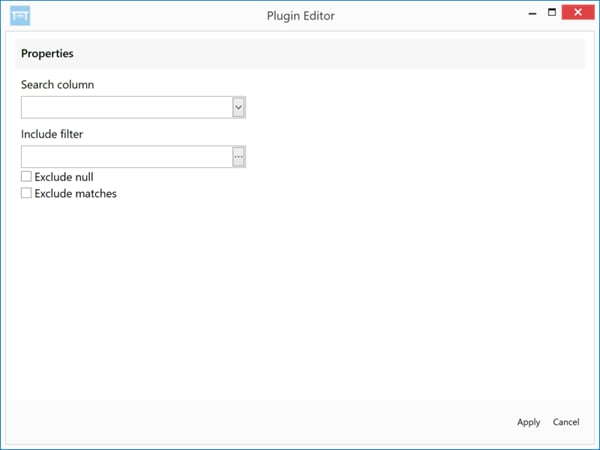
The **Filter Transform Editor** appears.
6. In the
**Search Column** menu, select the column you want to filter.
7. In the
**Include Filter** field, enter your filter query.
8. (Conditional) If you want to prevent blank cells from appearing in your filtered column, set
**Exclude Null** to **On**. Otherwise leave this off.
9. (Conditional) If you want your filter to return non-matches for your query, set
**Exclude Matches** to **On**. Otherwise leave this off.
10. Click
**Apply**.
11. Click at the top of the pane to save your transform.
You can use regular expressions in building filter queries, just as you can when using the **Search & Replace** filter. Currently no Regular Expression Builder is available for helping you build filters as it is with **Search & Replace**; however, you can use all of the same constructions when building filter queries. For more information about the **Search & Replace** Regular Expression Builder, see [Replacing a Column Value in Workbench 5.](/s/article/360043437433)
**To filter data in Workbench 5,**
1. In Workbench, Click in the left-hand icon bar.
2. In the Jobs listing, double-click the DataSet job with columns you want to filter.
3. Click
**Transforms** to expand that section of the pane.
4. In the
**Add a transform** menu, select **Filter Transform**.
5. Click the
button.
The **Filter Transform Editor** appears.
6. In the
**Search Column** menu, select the column you want to filter.
7. In the
**Include Filter** field, enter your filter query.
8. (Conditional) If you want to prevent blank cells from appearing in your filtered column, set
**Exclude Null** to **On**. Otherwise leave this off.
9. (Conditional) If you want your filter to return non-matches for your query, set
**Exclude Matches** to **On**. Otherwise leave this off.
10. Click
**Apply**.
11. Click at the top of the pane to save your transform.