> ## Documentation Index
> Fetch the complete documentation index at: https://domoinc-openapi-sync-dataflows.mintlify.site/llms.txt
> Use this file to discover all available pages before exploring further.
# Sharing and Removing Access to Cards and Dashboards
export const InlineImage = ({src, alt = '', height = '1.6em'}) => {
return  ;
};
### Intro
You can share access rights for cards and dashboards with groups and users. In the **Share** dialog, you can share and remove access for any resource to which you have access. This dialog is available for all cards and dashboards. If you have an Admin default security role or a custom role with the Manage All Cards, Pages and Apps (App Studio) grant enabled, you can share any card or dashboard. For more information about default security roles, see [Managing Custom Roles](/s/article/360043438973 "Default Security Role Reference").
When you share cards and dashboards, Domo sends an email to those with whom you shared the cards and dashboards. You can enter a message to be added to the email.
;
};
### Intro
You can share access rights for cards and dashboards with groups and users. In the **Share** dialog, you can share and remove access for any resource to which you have access. This dialog is available for all cards and dashboards. If you have an Admin default security role or a custom role with the Manage All Cards, Pages and Apps (App Studio) grant enabled, you can share any card or dashboard. For more information about default security roles, see [Managing Custom Roles](/s/article/360043438973 "Default Security Role Reference").
When you share cards and dashboards, Domo sends an email to those with whom you shared the cards and dashboards. You can enter a message to be added to the email.
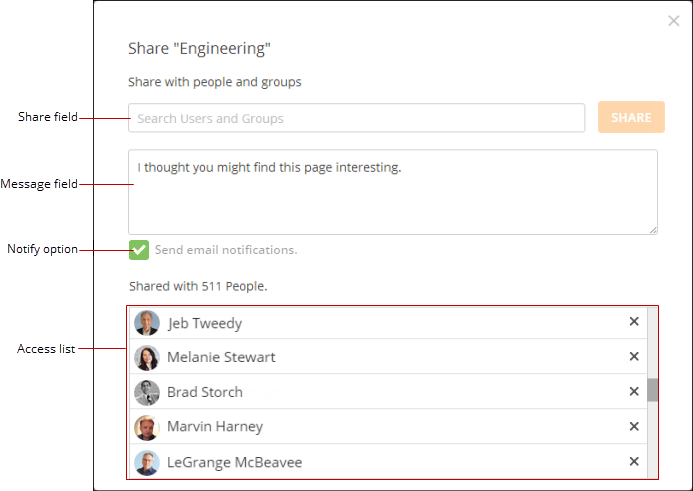 You can choose whether to send notifications when you share content with others. You do this by toggling the **Send email notifications** option in the **Share** dialog.
You can also choose to receive notifications when content is shared with you. You do this in the Manage Notifications & Alerts screen. For more information about this screen, see [Managing Your Alerts](/s/article/360043430533 "Notifications and Alerts").
When you share a card with a user or group, access to the DataSet(s) powering the card is granted to that user or group.
For administrative information about granting and restricting access to content to users and groups, see [Controlling Access to Cards and Pages](/s/article/360042934254 "Controlling Access to Cards and Pages").
For information about specifying group content in the Overview Page for group members, see [Specifying Default Overview Content for Users](/s/article/360043439153 "Specifying Default Overview Content for Users").
For information about sharing Pages and Subpages, see [Managing Pages](/s/article/360043428253 "Managing Pages").
**Notes:**
* If you share a card with someone, that person will be able to view the card AND the DataSet it is powered from.
* If you share a card powered by a DataFlow-generated DataSet...
- If the user already has access to cards that grant them access to all of the input DataSets in the DataFlow, they can view the DataFlow.
- If the user does not have access to Cards that grant them access to all of the input DataSets in the DataFlow, they cannot see the DataFlow.
Learn how to create a Magic ETL DataFlow .
**Video - Sharing a Card**
**Video - Sharing a Page**
**Video - Sharing a Filtered Card**
### Share Access to Resources
When you share access to a card with a user, a copy of that card is sent to the user's **Shared** page; when you share access with a group, a copy of the card is sent to the **Shared** page of every member of the group. When you share access to a dashboard with a user, the dashboard is added to the user's **Dashboards** pane, displayed on the left side of the screen; when you share access with a group, the dashboard is added to the **Dashboards** pane for every member of the group.
If you share a PDP-affected KPI or Sumo Card with a user who does not have access to the PDP policy applied to the DataSet, the user sees the following message on the card:
You can choose whether to send notifications when you share content with others. You do this by toggling the **Send email notifications** option in the **Share** dialog.
You can also choose to receive notifications when content is shared with you. You do this in the Manage Notifications & Alerts screen. For more information about this screen, see [Managing Your Alerts](/s/article/360043430533 "Notifications and Alerts").
When you share a card with a user or group, access to the DataSet(s) powering the card is granted to that user or group.
For administrative information about granting and restricting access to content to users and groups, see [Controlling Access to Cards and Pages](/s/article/360042934254 "Controlling Access to Cards and Pages").
For information about specifying group content in the Overview Page for group members, see [Specifying Default Overview Content for Users](/s/article/360043439153 "Specifying Default Overview Content for Users").
For information about sharing Pages and Subpages, see [Managing Pages](/s/article/360043428253 "Managing Pages").
**Notes:**
* If you share a card with someone, that person will be able to view the card AND the DataSet it is powered from.
* If you share a card powered by a DataFlow-generated DataSet...
- If the user already has access to cards that grant them access to all of the input DataSets in the DataFlow, they can view the DataFlow.
- If the user does not have access to Cards that grant them access to all of the input DataSets in the DataFlow, they cannot see the DataFlow.
Learn how to create a Magic ETL DataFlow .
**Video - Sharing a Card**
**Video - Sharing a Page**
**Video - Sharing a Filtered Card**
### Share Access to Resources
When you share access to a card with a user, a copy of that card is sent to the user's **Shared** page; when you share access with a group, a copy of the card is sent to the **Shared** page of every member of the group. When you share access to a dashboard with a user, the dashboard is added to the user's **Dashboards** pane, displayed on the left side of the screen; when you share access with a group, the dashboard is added to the **Dashboards** pane for every member of the group.
If you share a PDP-affected KPI or Sumo Card with a user who does not have access to the PDP policy applied to the DataSet, the user sees the following message on the card:
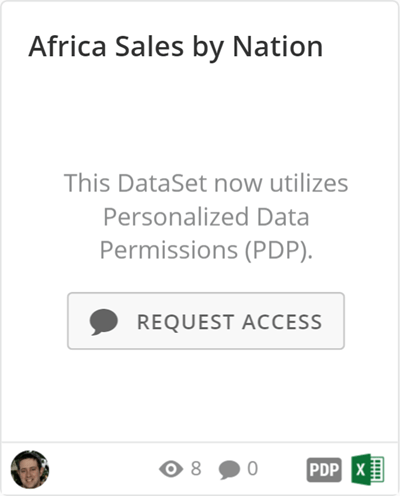 The user must be added as a member of the policy before he or she can view the card content. The user can click **Request Access** to send a Buzz message to the DataSet owner asking for access.
**To share access rights for a resource,**
1. Do one of the following:
* To share access rights for a Page, click the
icon in the upper right portion of the Page.
The user must be added as a member of the policy before he or she can view the card content. The user can click **Request Access** to send a Buzz message to the DataSet owner asking for access.
**To share access rights for a resource,**
1. Do one of the following:
* To share access rights for a Page, click the
icon in the upper right portion of the Page.
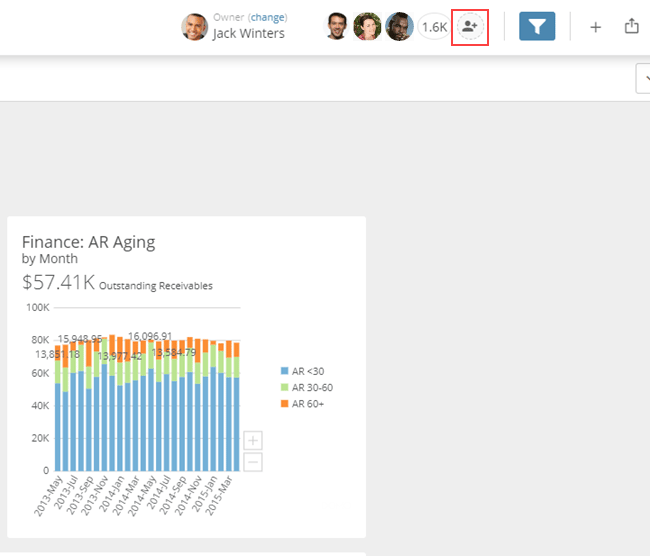 * To share access rights for a card, hover over the card, select
**Card options**, then select **Share**.
2. Type the name of the desired recipients in the share field.
As you share a card or dashboard, any email addresses you enter for people without an account in Domo are sent an invitation to join Domo. Additionally, Domo creates accounts and Profile Pages for them, and the card or dashboard is shared with them. For more information about inviting users to Domo, see [Specifying Authorized Domains for Invited Users](/s/article/360042934534 "Inviting Others to Join Domo").
A list of users and/or groups matching your query pops up.
3. Select the desired user or group from the list.
4. (Optional) Remove a user or group you've added by clicking the "X" to the right of the user or group name.
5. Add more users and/or groups by entering their names in the box and clicking **Add**.
6. (Optional) In the message field, enter a message to be added to the email sent to those with whom you shared the content.
7. (Optional) If you do not want share recipients to receive email notifications that you are sharing content with them, uncheck the **Send email notifications** box.
8. Click **Share**.
The names of the users and groups that can access this card or dashboard appear in the list.
Shared dashboards appear in the **Dashboards** pane. Shared cards appear on the **Shared** page.
### Remove Access to Resources
You can also remove access to resources for certain users or groups in the **Share** dialog.
**To remove access from users or groups,**
1. Locate the user or group name in the **Access List**.
2. Click the "X" to the right of the corresponding user or group name in the **Access List**.
**Note:** When a member of a shared group is removed from the group, sharing of the card is removed, unless access is granted via another group or as a user. For more information, see [Controlling Access to Cards and Pages](/s/article/360042934254 "Controlling Access in Domo").
***
**Tip:** It is possible for you to remove access to content for yourself. If you accidentally remove access to yourself, follow the instructions above to grant access. If your user level does not allow you to share something with yourself, such as a Participant, then reach out to an Admin or the owner of the content to gain access.
* To share access rights for a card, hover over the card, select
**Card options**, then select **Share**.
2. Type the name of the desired recipients in the share field.
As you share a card or dashboard, any email addresses you enter for people without an account in Domo are sent an invitation to join Domo. Additionally, Domo creates accounts and Profile Pages for them, and the card or dashboard is shared with them. For more information about inviting users to Domo, see [Specifying Authorized Domains for Invited Users](/s/article/360042934534 "Inviting Others to Join Domo").
A list of users and/or groups matching your query pops up.
3. Select the desired user or group from the list.
4. (Optional) Remove a user or group you've added by clicking the "X" to the right of the user or group name.
5. Add more users and/or groups by entering their names in the box and clicking **Add**.
6. (Optional) In the message field, enter a message to be added to the email sent to those with whom you shared the content.
7. (Optional) If you do not want share recipients to receive email notifications that you are sharing content with them, uncheck the **Send email notifications** box.
8. Click **Share**.
The names of the users and groups that can access this card or dashboard appear in the list.
Shared dashboards appear in the **Dashboards** pane. Shared cards appear on the **Shared** page.
### Remove Access to Resources
You can also remove access to resources for certain users or groups in the **Share** dialog.
**To remove access from users or groups,**
1. Locate the user or group name in the **Access List**.
2. Click the "X" to the right of the corresponding user or group name in the **Access List**.
**Note:** When a member of a shared group is removed from the group, sharing of the card is removed, unless access is granted via another group or as a user. For more information, see [Controlling Access to Cards and Pages](/s/article/360042934254 "Controlling Access in Domo").
***
**Tip:** It is possible for you to remove access to content for yourself. If you accidentally remove access to yourself, follow the instructions above to grant access. If your user level does not allow you to share something with yourself, such as a Participant, then reach out to an Admin or the owner of the content to gain access.