> ## Documentation Index
> Fetch the complete documentation index at: https://domoinc-openapi-sync-dataflows.mintlify.site/llms.txt
> Use this file to discover all available pages before exploring further.
# Control Access to Cards and Dashboards
### Intro
If you have the proper permissions, you can grant and remove access to cards and dashboards in the Admin Settings. Users with an Admin system role or a custom role with the Manage All Cards, Pages and Apps (App Studio) grant enabled can grant/remove access to all cards and dashboards in Domo. Learn about [managing roles and grants](/s/article/360043438973 "Security Role Reference").
You can share cards and dashboards separately, giving you more granular control over who sees what.
**Buzz access:** When a user is given access to a card, they gain access to all past Buzz conversations for that card. Conversely, if access to a card is removed, access to all past Buzz Conversations for that card is also removed. Learn how to [use Buzz](/s/article/360042925574).
***
* [Share cards and dashboards with users or groups](#share_cards_and_dashboards)
* [Remove access to content](#remove_access)
***
### Share Cards and Dashboards with Users or Groups
As an admin, you can follow the steps below to share individual or multiple cards or dashboards with one or more users or groups at one time. We recommend sharing content with groups rather than individuals when possible, as this makes personnel transitions easier. Learn how to [add users to a group](/s/article/360042934294).
**Dashboard sharing:**
* When you share a dashboard with a user, it is added to their personal
**Dashboards** panel.
* When you share a dashboard with a group, it is added to the bottom of every member's
**Dashboards** panel.
**Card sharing:**
* When you share a card with a user, it is added to their
**Shared** System Page.
* When you share a card with a group, the card is added to every member's
**Shared** System Page.
**To begin:** Navigate to the Admin Settings (**More** > **Admin**).
1. Under **Content**, select **Cards** or **Dashboards.**
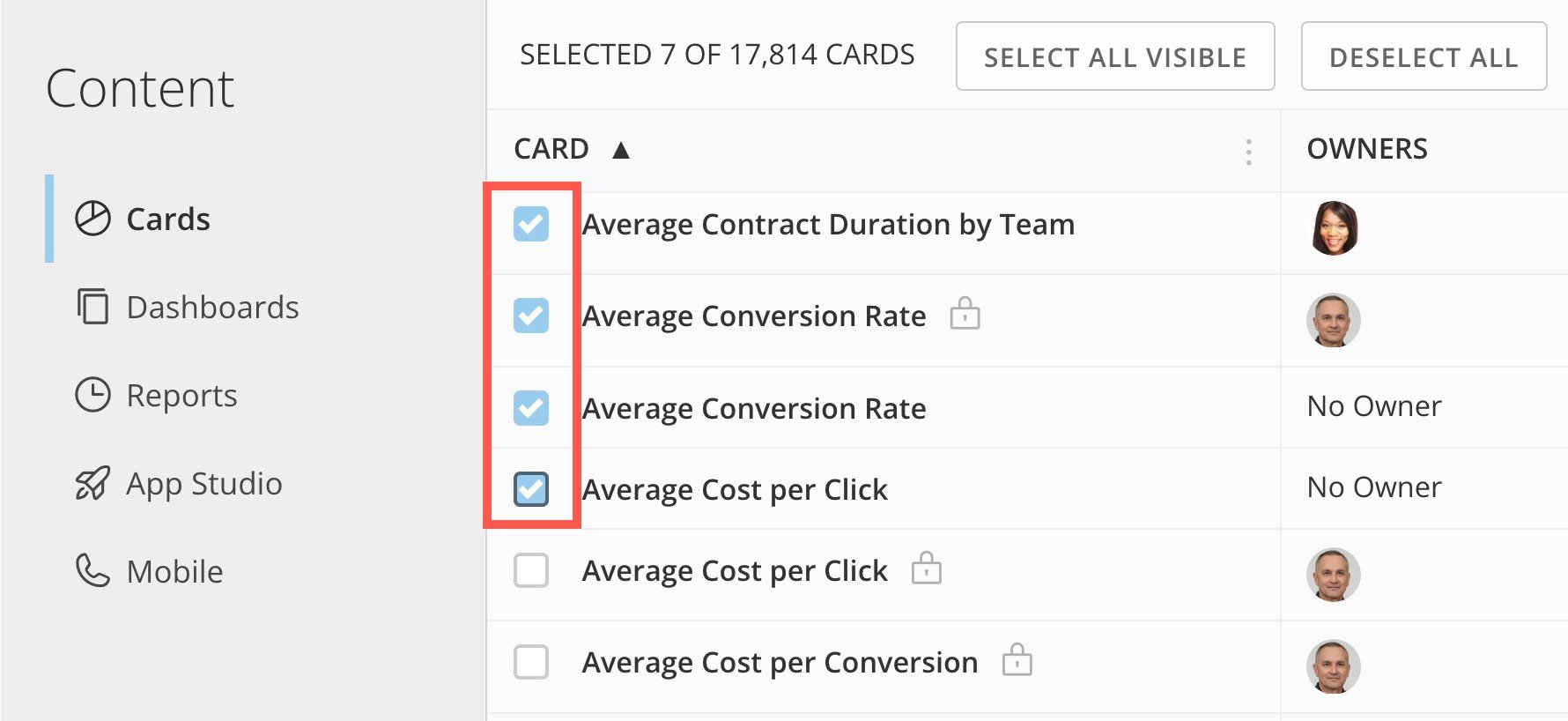
2. From either page, you can check the box for any card(s) or dashboard(s) you want to share.
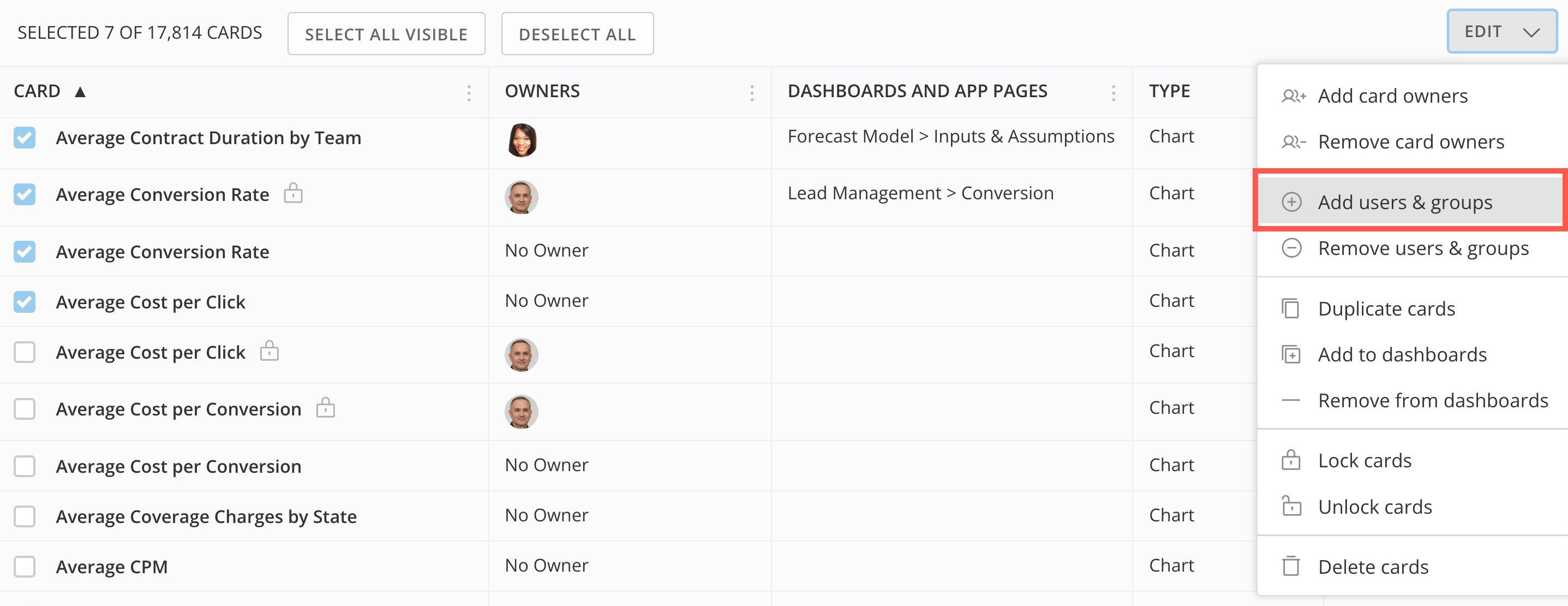
 3. Select **Edit** > **Add users & groups**.
 4. In the modal that displays, use the search tool to find and select any user(s) or group(s) with whom you want to share the content. You will share all selected content from step 2 with these users or groups.
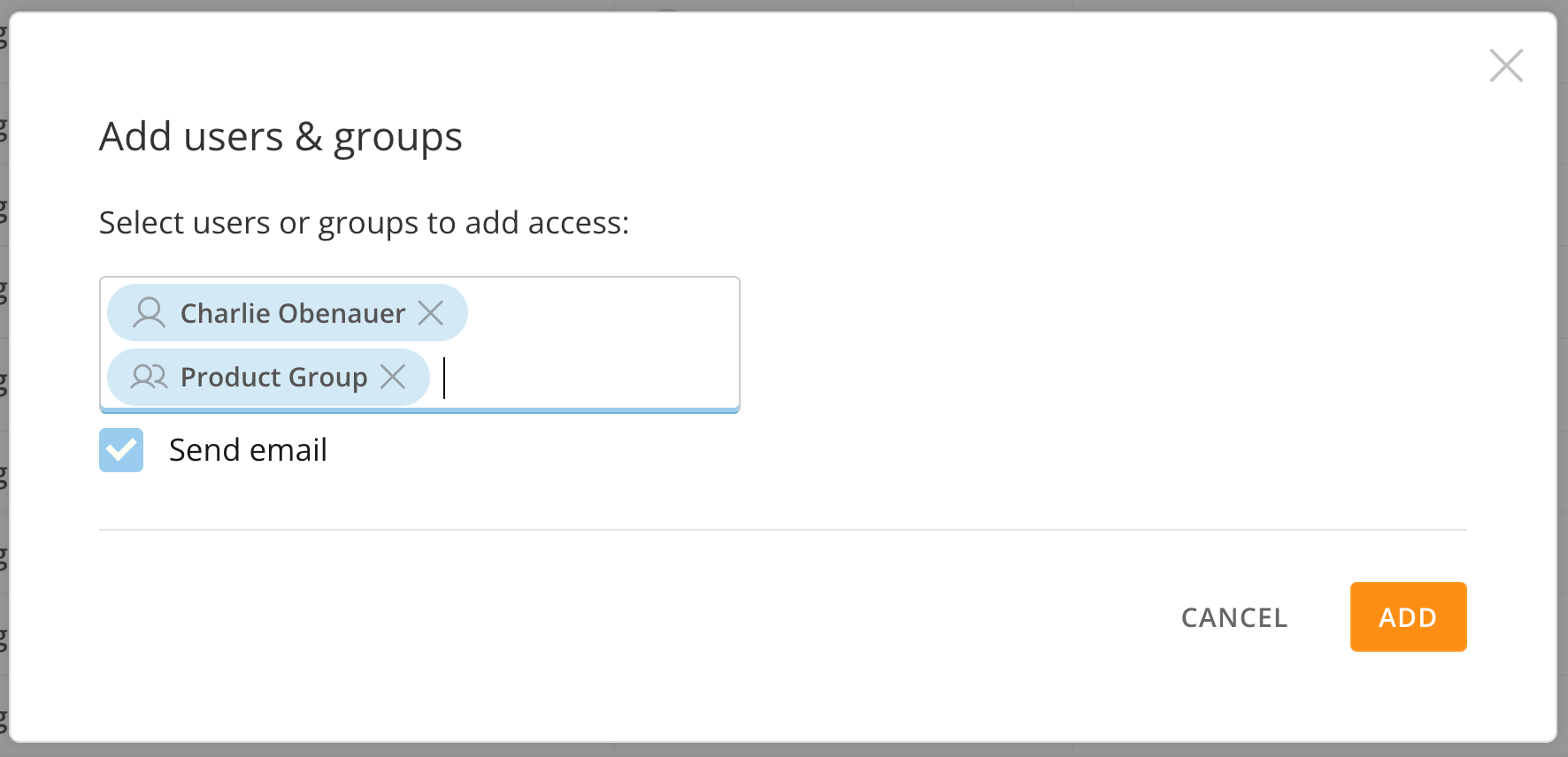 5. (Optional) Check the box labeled **Send email** if you want to notify the recipients by email of the new content.
6. Select **Add**.
When all content has been shared, a success message displays.
### Remove Access to Content
You can remove access to content for users and groups. This includes all copied or shared instances of the content; for example, if you shared a Visualization Card with one person, who then shared it with someone else, removing access to the card for the first user would cause it to be removed for both people.
**Important:** You *cannot* remove access to content available to an individual through group membership. If you want to remove one individual's access to this content, you must either remove access for the content from the group or remove the individual from the group.
Follow these steps to remove access to previously shared content for a user or group.
**To begin:** Navigate to the Admin Settings (**More** > **Admin**).
1. Under **Governance**, select **People** or **Groups**.
2. Use the search tool to find the person or group for whom you want to remove access.
3. Select the person or group to open its details view.
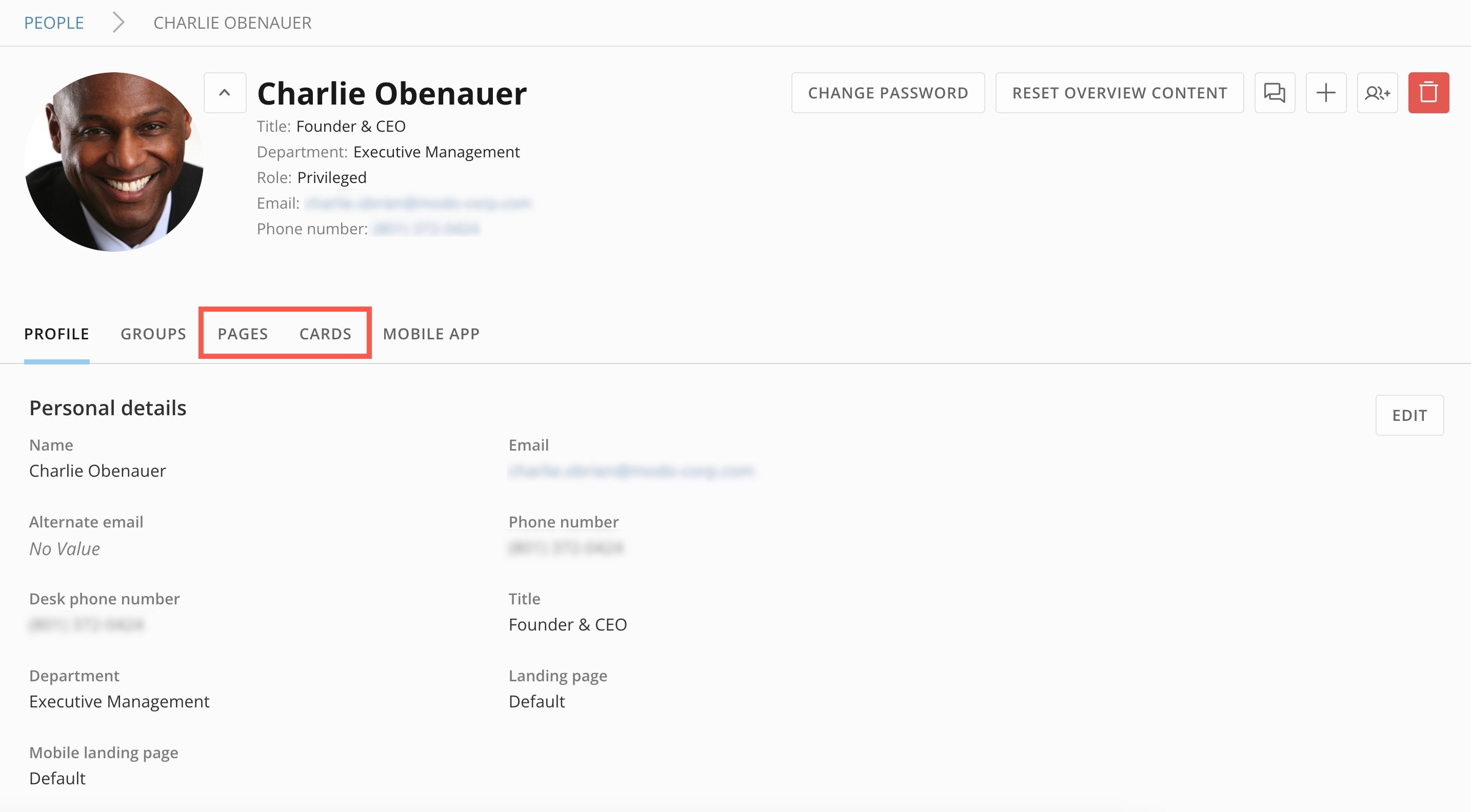
4. Go to the **Pages/Dashboards** or **Cards** tab to view the content the individual/group can access.
5. (Optional) Check the box labeled **Send email** if you want to notify the recipients by email of the new content.
6. Select **Add**.
When all content has been shared, a success message displays.
### Remove Access to Content
You can remove access to content for users and groups. This includes all copied or shared instances of the content; for example, if you shared a Visualization Card with one person, who then shared it with someone else, removing access to the card for the first user would cause it to be removed for both people.
**Important:** You *cannot* remove access to content available to an individual through group membership. If you want to remove one individual's access to this content, you must either remove access for the content from the group or remove the individual from the group.
Follow these steps to remove access to previously shared content for a user or group.
**To begin:** Navigate to the Admin Settings (**More** > **Admin**).
1. Under **Governance**, select **People** or **Groups**.
2. Use the search tool to find the person or group for whom you want to remove access.
3. Select the person or group to open its details view.
4. Go to the **Pages/Dashboards** or **Cards** tab to view the content the individual/group can access.
 5. In the tab, check the boxes for the content for which you want to remove access. Then select **Unshare** (trash icon).
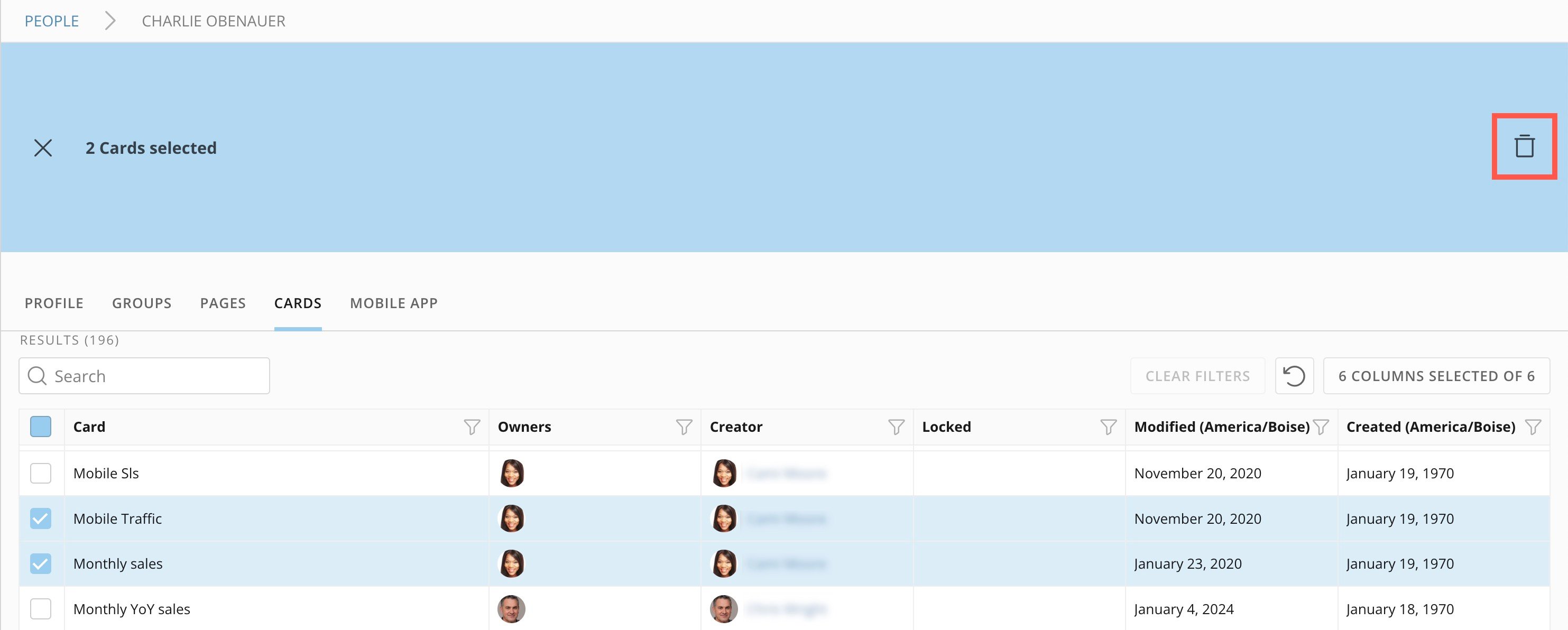 The person/group no longer has access to the selected content.