> ## Documentation Index
> Fetch the complete documentation index at: https://domoinc-openapi-sync-dataflows.mintlify.site/llms.txt
> Use this file to discover all available pages before exploring further.

# Old Magic ETL Tiles: Edit Data

export const InlineImage = ({src, alt = '', height = '1.6em'}) => {
  return <img noZoom src={src} alt={alt} style={{
    display: 'inline',
    verticalAlign: 'start',
    height: height,
    margin: '0'
  }} />;
};

## Intro

<Note>
  **Note:** This article is for the old Magic ETL. For information on the new Magic ETL, see [Magic ETL](/s/topic/0TO5w000000ZanvGAC).
</Note>

This article describes in detail all of the **Edit Data** tiles in Magic ETL, including the following:

* Filter Rows
* Remove Duplicates
* Replace Text
* Set Column Value
* String Operations
* Text Formatting
* Value Mapper

For information about creating a Magic ETL DataFlow, see Creating a Magic ETL DataFlow.

For information about the Data Center, see [Data Center Layout](https://domo-support.domo.com/s/article/360047553253?language=en_US).

## Filter Rows

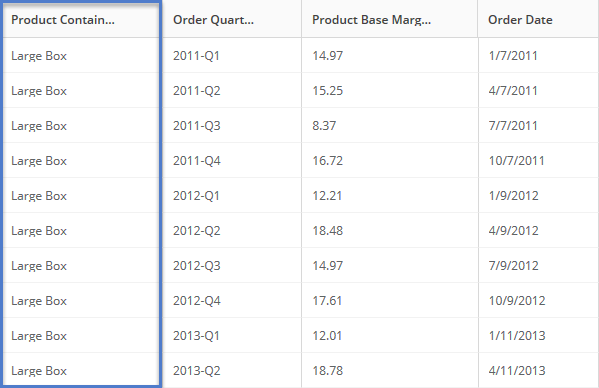
The Filter Rows tile lets you include or exclude rows based on specified rules.

**Example**

For example, the Filter Rows tile transforms this data...

<Frame>
  <img alt="etl_filterrows_datain.png" src="https://mintcdn.com/domoinc-openapi-sync-dataflows/YY6W1U347GpqLSJS/images/kb/ka05w00000124TD-00N5w00000Ri7BU-0EM5w000005vNfw.png?fit=max&auto=format&n=YY6W1U347GpqLSJS&q=85&s=b164d9574e13c8e10ea27ed130b28a2e" width="599" height="388" data-path="images/kb/ka05w00000124TD-00N5w00000Ri7BU-0EM5w000005vNfw.png" />
</Frame>

... to this...

<Frame>
  <img alt="etl_filterrows_dataout.png" src="https://mintcdn.com/domoinc-openapi-sync-dataflows/YY6W1U347GpqLSJS/images/kb/ka05w00000124TD-00N5w00000Ri7BU-0EM5w000005vNfq.png?fit=max&auto=format&n=YY6W1U347GpqLSJS&q=85&s=352bdaebc5d562189ba6376b23e167fb" width="599" height="388" data-path="images/kb/ka05w00000124TD-00N5w00000Ri7BU-0EM5w000005vNfq.png" />
</Frame>

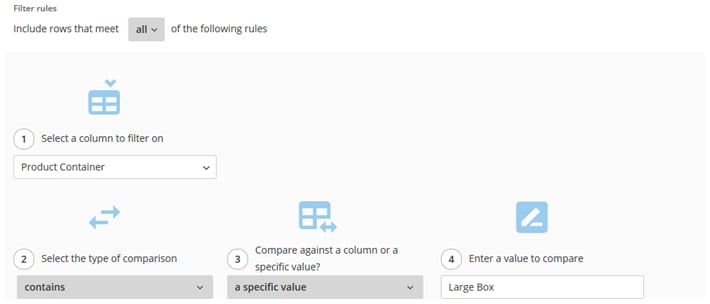
... using this configuration:

<Frame>
  <img alt="etl_filterrows_sampleui.png" src="https://mintcdn.com/domoinc-openapi-sync-dataflows/YY6W1U347GpqLSJS/images/kb/ka05w00000124TD-00N5w00000Ri7BU-0EM5w000005vNgP.png?fit=max&auto=format&n=YY6W1U347GpqLSJS&q=85&s=70558179fc81862e108962f969f1f8d1" width="710" height="304" data-path="images/kb/ka05w00000124TD-00N5w00000Ri7BU-0EM5w000005vNgP.png" />
</Frame>

**To configure the Filter Rows tile,**

1. Click the **Filter Rows** tile in the canvas.
2. (Optional) Rename the tile by clicking
   <InlineImage src="/images/kb/ka05w00000122yV-00N5w00000Ri7BU-0EM5w000005vNgL.png" />, then entering the name you want.
3. Select whether to include rows that meet *all* or *any* of the rules you define.
4. For each filter rule, do the following:

   1. Select a column to filter on.
   2. Select the operation to use.

      Operation items appear in the list, depending on the type of data in the column to filter on.
   3. Select whether to compare against values in a specific column or a specific value, then do one of the following:

      * (Conditional) If comparing against a column, select the column to use.
      * (Conditional) If comparing against a specific value, enter the value to use.
   4. (Conditional) If you want to add another rule, click **Add Filter Rule**.

      <Tip>
        **Tip:** You can preview the data transformed by a tile by running a preview, clicking the tile in the canvas, then clicking the **Preview** tab.
      </Tip>

## Remove Duplicates

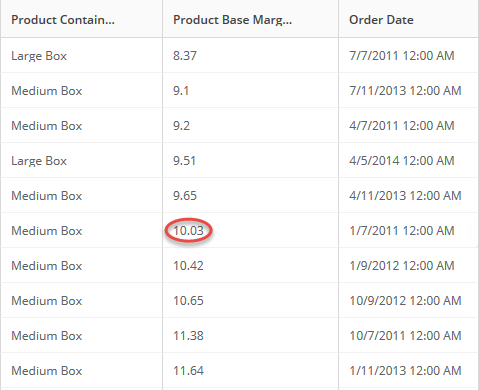
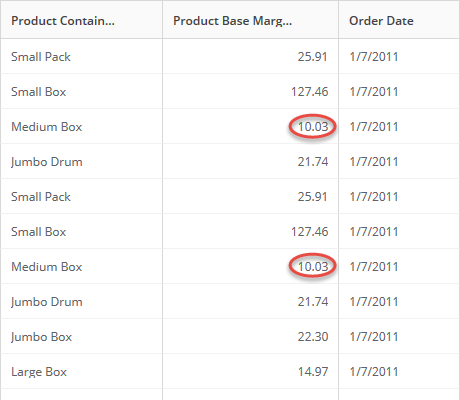
The Remove Duplicates tile lets you remove duplicate rows, based on specific columns.

**Video - Removing Duplicates in Magic ETL**

<iframe allowfullscreen="" frameborder="1" height="315" src="//www.youtube-nocookie.com/embed/wT9gqPYnca8" width="560" />

**Example**

For example, the Remove Duplicates tile transforms this data...

<Frame>
  <img alt="etl_removeduplicates_datain.png" src="https://mintcdn.com/domoinc-openapi-sync-dataflows/YY6W1U347GpqLSJS/images/kb/ka05w00000124TD-00N5w00000Ri7BU-0EM5w000005vNfz.png?fit=max&auto=format&n=YY6W1U347GpqLSJS&q=85&s=9f49c8c778efcfc559f3834d8bb970d8" width="460" height="400" data-path="images/kb/ka05w00000124TD-00N5w00000Ri7BU-0EM5w000005vNfz.png" />
</Frame>

... to this...

<Frame>
  <img alt="etl_removeduplicates_dataout.png" src="https://mintcdn.com/domoinc-openapi-sync-dataflows/YY6W1U347GpqLSJS/images/kb/ka05w00000124TD-00N5w00000Ri7BU-0EM5w000005vNfp.png?fit=max&auto=format&n=YY6W1U347GpqLSJS&q=85&s=7227ed177835cf9b7833336ae2c1b409" width="479" height="390" data-path="images/kb/ka05w00000124TD-00N5w00000Ri7BU-0EM5w000005vNfp.png" />
</Frame>

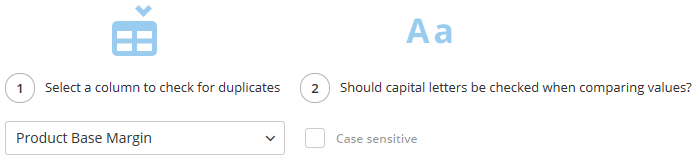
... using this configuration:

<Frame>
  <img alt="etl_removeduplicates_sampleui.png" src="https://mintcdn.com/domoinc-openapi-sync-dataflows/YY6W1U347GpqLSJS/images/kb/ka05w00000124TD-00N5w00000Ri7BU-0EM5w000005vNfi.png?fit=max&auto=format&n=YY6W1U347GpqLSJS&q=85&s=e5e1a2cd979678fb504852bc5cc0c7b6" width="697" height="160" data-path="images/kb/ka05w00000124TD-00N5w00000Ri7BU-0EM5w000005vNfi.png" />
</Frame>

<Note>
  **Note:** Duplicate rows with the same base margin were removed.
</Note>

**To configure the Remove Duplicates tile,**

1. Ensure that the column with values you want exists in the DataSet.
2. Click the **Remove Duplicates** tile in the canvas.
3. (Optional) Rename the tile by clicking
   <InlineImage src="/images/kb/ka05w00000122yV-00N5w00000Ri7BU-0EM5w000005vNgL.png" />, then entering the name you want.
4. For each column with duplicate values you want to remove, do the following:

   1. Select the column you want.

      For example, "Product Base Margin".
   2. Mark whether the comparison is case sensitive.
   3. (Conditional) If you want to add another column, then click **Add Column Comparison**.

      <Note>
        **Note:** For a row to be removed, all of the columns selected in the Remove Duplicates tile *must* be duplicates.
      </Note>

<Tip>
  **Tip:** You can preview the data transformed by a tile by running a preview, clicking the tile in the canvas, then click the **Preview** tab.
</Tip>

## Replace Text

The Replace Text tile lets you replace all occurrences of a text value with another text value (aka *search and replace* ). You can use Java regular expressions. For more information about Java regular expressions, see [https://docs.oracle.com/javase/tutorial/essential/regex/](https://docs.oracle.com/javase/tutorial/essential/regex/).

<Tip>
  **Tip:** You could use the Set Column Type tile to set a date or number column as text before (and after) using the Replace Text tile to replace values.
</Tip>

For information about replacing text values using other tiles, see [Set Column Value](#h_01F0ME08N84C5DTEDMNQ069S7S "ETL Actions: Edit Data") and [Value Mapper](#h_01F0ME0E39JFGZDNMR7ES81D15 "ETL Actions: Edit Data").

**Example**

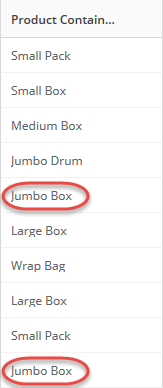
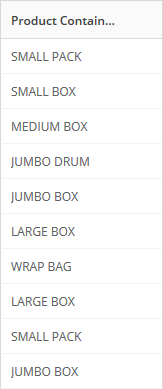
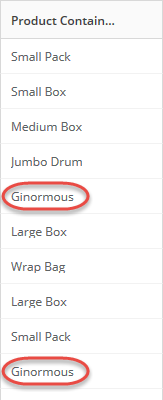
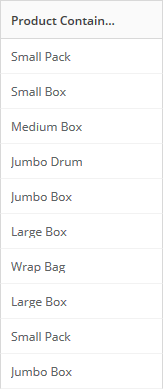
For example, the Replace Text tile replaces occurrences of the text value "Jumbo Box" in the "Product Container" column...

<Frame>
  <img alt="etl_replacetext_datain.png" src="https://mintcdn.com/domoinc-openapi-sync-dataflows/YY6W1U347GpqLSJS/images/kb/ka05w00000124TD-00N5w00000Ri7BU-0EM5w000005vNg0.png?fit=max&auto=format&n=YY6W1U347GpqLSJS&q=85&s=b872f3513e2624076d2467bde394a6c9" width="163" height="388" data-path="images/kb/ka05w00000124TD-00N5w00000Ri7BU-0EM5w000005vNg0.png" />
</Frame>

... with the text value "Ginormous"...
<Frame>
  <img alt="etl_replacetext_dataout.png" src="https://mintcdn.com/domoinc-openapi-sync-dataflows/YY6W1U347GpqLSJS/images/kb/ka05w00000124TD-00N5w00000Ri7BU-0EM5w000005vNg3.png?fit=max&auto=format&n=YY6W1U347GpqLSJS&q=85&s=9887bcec9163409ddc6278df37272cf5" width="163" height="400" data-path="images/kb/ka05w00000124TD-00N5w00000Ri7BU-0EM5w000005vNg3.png" />
</Frame>

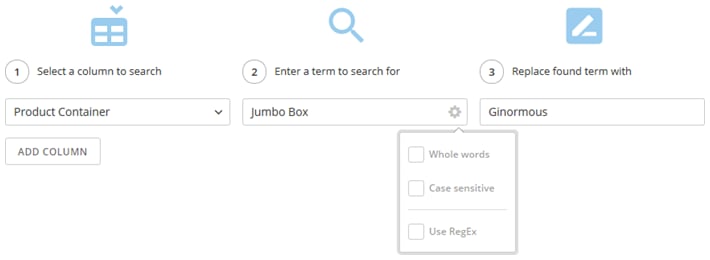
... using this configuration:

<Frame>
  <img alt="etl_replacetext_sampleui.png" src="https://mintcdn.com/domoinc-openapi-sync-dataflows/YY6W1U347GpqLSJS/images/kb/ka05w00000124TD-00N5w00000Ri7BU-0EM5w000005vNft.png?fit=max&auto=format&n=YY6W1U347GpqLSJS&q=85&s=0e3722507448d14f1c07fe5a07d1d7ec" width="710" height="260" data-path="images/kb/ka05w00000124TD-00N5w00000Ri7BU-0EM5w000005vNft.png" />
</Frame>

**To configure the Replace Text tile,**

1. Click the **Replace Text** tile in the canvas.

2. (Optional) Rename the tile by clicking
   <InlineImage src="/images/kb/ka05w00000122yV-00N5w00000Ri7BU-0EM5w000005vNgL.png" />, then entering the name you want.

3. Select the column to search in.

4. Enter the text value you want to find.

   For example, "Jumbo Box".

5. (Option) Specify the find settings to use by clicking
   <InlineImage src="/images/kb/ka05w00000124TD-00N5w00000Ri7BU-0EM5w000005vNg2.png" /> in the field.

   <table border="1" cellpadding="1" cellspacing="1"><thead><tr><th colspan="1" rowspan="1"><p> Option </p></th><th colspan="1" rowspan="1"><p> Description </p></th></tr></thead><tbody><tr><td colspan="1" rowspan="1"><p> Whole words </p></td><td colspan="1" rowspan="1"><p> Searches for whole words. </p></td></tr><tr><td colspan="1" rowspan="1"><p> Case sensitive </p></td><td colspan="1" rowspan="1"><p> Searches with case-sensitive values. </p></td></tr><tr><td colspan="1" rowspan="1"><p> Use RegEx </p></td><td colspan="1" rowspan="1"><p> Searches and replaces using Java regular expressions. </p></td></tr></tbody></table>

6. Enter the text value you want to replace with.

   For example, "Ginormous".

   <Tip>
     **Tip:** You can preview the data transformed by a tile by running a preview, clicking the tile in the canvas, then clicking the **Preview** tab.
   </Tip>

## Set Column Value

The Set Column Value tile lets you replace the value of a column with the values in another column.

<Note>
  **Notes:**

  * You can only replace values in one column with values from another column that have the same data type. For example, you can copy from a column with string values to another column with string values.
  * Both columns
    *must* already exist in the DataSet.
</Note>

For information about replacing text values using other tiles, see [Replace Text](#h_01F0ME2A6CJD8B9GQEMRGY4AXG "ETL Actions: Edit Data") and [Value Mapper](#h_01F0ME0E39JFGZDNMR7ES81D15 "ETL Actions: Edit Data").

**Example**

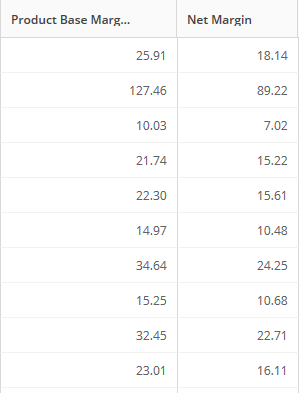
For example, the Set Column Value tile transforms this data...

<Frame>
  <img alt="etl_setcolumnvalue_datain.png" src="https://mintcdn.com/domoinc-openapi-sync-dataflows/YY6W1U347GpqLSJS/images/kb/ka05w00000124TD-00N5w00000Ri7BU-0EM5w000005vNfh.png?fit=max&auto=format&n=YY6W1U347GpqLSJS&q=85&s=fe75fa1c3833f2b02511b96b80791761" width="299" height="393" data-path="images/kb/ka05w00000124TD-00N5w00000Ri7BU-0EM5w000005vNfh.png" />
</Frame>

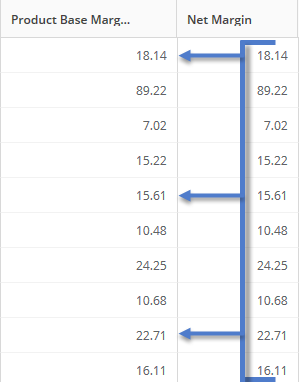
... to this...

<Frame>
  <img alt="etl_setcolumnvalue_dataout.png" src="https://mintcdn.com/domoinc-openapi-sync-dataflows/YY6W1U347GpqLSJS/images/kb/ka05w00000124TD-00N5w00000Ri7BU-0EM5w000005vNfy.png?fit=max&auto=format&n=YY6W1U347GpqLSJS&q=85&s=dd40a55f767af19f17aef0cbbfc1eabc" width="299" height="382" data-path="images/kb/ka05w00000124TD-00N5w00000Ri7BU-0EM5w000005vNfy.png" />
</Frame>

... using this configuration:

<Frame>
  <img alt="etl_setcolumntype_sampleui.png" src="https://mintcdn.com/domoinc-openapi-sync-dataflows/YY6W1U347GpqLSJS/images/kb/ka05w00000124TD-00N5w00000Ri7BU-0EM5w000005vNfs.png?fit=max&auto=format&n=YY6W1U347GpqLSJS&q=85&s=e8e2253d940883a15176646b4fa6bfa2" width="710" height="126" data-path="images/kb/ka05w00000124TD-00N5w00000Ri7BU-0EM5w000005vNfs.png" />
</Frame>

**To configure the Set Column Value tile,**

1. Ensure that the column with values you want exists in the DataSet.
2. Click the **Set Column Value** tile in the canvas.
3. (Optional) Rename the tile by clicking
   <InlineImage src="/images/kb/ka05w00000122yV-00N5w00000Ri7BU-0EM5w000005vNgL.png" />, then entering the name you want.
4. For each column with values you want to replace, do the following:

   1. Select the column with values you want to replace.

      For example, "Product Base Margin".
   2. Select the column with the values you want.

      For example, "Net Margin".
   3. (Conditional) If you want to add a column, then click **Add Column**.

      <Tip>
        **Tip:** You can preview the data transformed by a tile by running a preview, clicking the tile in the canvas, then clicking the **Preview** tab.
      </Tip>

## String Operations

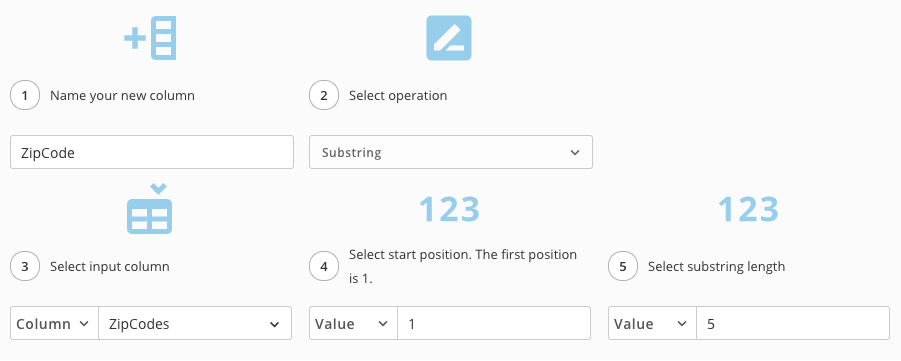
The String Operations tile lets you substring, trim, or pad a string with spaces.

**Example**

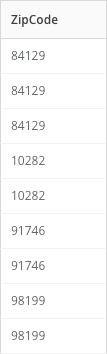
For example, the String Operations tile can transform this data...

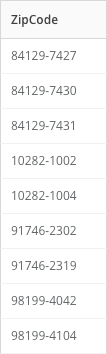
<Frame>
  <img alt="String_Operations_-_Example_Data.png" src="https://mintcdn.com/domoinc-openapi-sync-dataflows/YY6W1U347GpqLSJS/images/kb/ka05w00000124TD-00N5w00000Ri7BU-0EM5w000005vNg4.png?fit=max&auto=format&n=YY6W1U347GpqLSJS&q=85&s=36c974d3b7152b06eb9edf795afd8b76" width="107" height="354" data-path="images/kb/ka05w00000124TD-00N5w00000Ri7BU-0EM5w000005vNg4.png" />
</Frame>

... to this...

<Frame>
  <img alt="String_Operations_-_Example_Data_2.png" src="https://mintcdn.com/domoinc-openapi-sync-dataflows/YY6W1U347GpqLSJS/images/kb/ka05w00000124TD-00N5w00000Ri7BU-0EM5w000005vNfj.png?fit=max&auto=format&n=YY6W1U347GpqLSJS&q=85&s=bf225956f18848f8925db80aaa8ec6e6" width="107" height="354" data-path="images/kb/ka05w00000124TD-00N5w00000Ri7BU-0EM5w000005vNfj.png" />
</Frame>

... using this configuration:

<Frame>
  <img alt="String_Operations_-_Configuration.png" src="https://mintcdn.com/domoinc-openapi-sync-dataflows/YY6W1U347GpqLSJS/images/kb/ka05w00000124TD-00N5w00000Ri7BU-0EM5w000005vNg5.png?fit=max&auto=format&n=YY6W1U347GpqLSJS&q=85&s=da7dfc4c26be5fe163a786effc1e6f9d" width="901" height="361" data-path="images/kb/ka05w00000124TD-00N5w00000Ri7BU-0EM5w000005vNg5.png" />
</Frame>

**To configure the String Operations tile,**

1. Click the **String Operations** tile in the canvas.
2. (Optional) Rename the tile by clicking
   <InlineImage src="/images/kb/ka05w00000122yV-00N5w00000Ri7BU-0EM5w000005vNgL.png" />, then entering the name you want.
3. Type the name of your new column.
4. Then, choose the type of operation you want to perform.
5. Select the column you want to perform this tile on.
6. Lastly, specify the beginning and ending character position you want from your string.
7. (Optional) If you want to add another column, click **Add String Operation**.

   <Tip>
     **Tip:** You can preview the data transformed by a tile by running a preview, clicking the tile in the canvas, then clicking the **Preview** tab.
   </Tip>

## Text Formatting

The Text Formatting tile lets you format text (lower case, upper case, capitalization), remove numbers, or remove everything except numbers.

**Example**

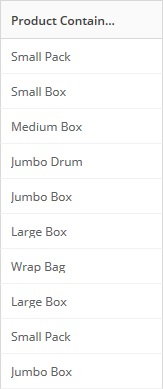
For example, the Text Formatting tile transforms this data...

<Frame>
  <img alt="etl_textformatting_datain.png" src="https://mintcdn.com/domoinc-openapi-sync-dataflows/YY6W1U347GpqLSJS/images/kb/ka05w00000124TD-00N5w00000Ri7BU-0EM5w000005vNg1.png?fit=max&auto=format&n=YY6W1U347GpqLSJS&q=85&s=75ccf69cea33c76236db5d603bd0442e" width="163" height="389" data-path="images/kb/ka05w00000124TD-00N5w00000Ri7BU-0EM5w000005vNg1.png" />
</Frame>

... to this...

<Frame>
  <img alt="etl_textformatting_dataout.png" src="https://mintcdn.com/domoinc-openapi-sync-dataflows/YY6W1U347GpqLSJS/images/kb/ka05w00000124TD-00N5w00000Ri7BU-0EM5w000005vNfx.png?fit=max&auto=format&n=YY6W1U347GpqLSJS&q=85&s=c98a74deb750a799c7dca3af09722973" width="163" height="389" data-path="images/kb/ka05w00000124TD-00N5w00000Ri7BU-0EM5w000005vNfx.png" />
</Frame>

... using this configuration:

<Frame>
  <img alt="etl_textformatting_sampleui.png" src="https://mintcdn.com/domoinc-openapi-sync-dataflows/YY6W1U347GpqLSJS/images/kb/ka05w00000124TD-00N5w00000Ri7BU-0EM5w000005vNfr.png?fit=max&auto=format&n=YY6W1U347GpqLSJS&q=85&s=3cf1a77d8be6e870613a4083dcb8e79d" width="710" height="130" data-path="images/kb/ka05w00000124TD-00N5w00000Ri7BU-0EM5w000005vNfr.png" />
</Frame>

**To configure the Text Formatting tile,**

1. Click the **Text Formatting** tile in the canvas.
2. (Optional) Rename the tile by clicking
   <InlineImage src="/images/kb/ka05w00000122yV-00N5w00000Ri7BU-0EM5w000005vNgL.png" />, then entering the name you want.
3. For each column you want to format, do the following:

   1. Select the text column you want.
   2. Select the type of letter-case format you want.
   3. Select whether to remove numbers or remove everything except numbers.
4. (Conditional) If you want to add another column, click **Add Column**.

   <Tip>
     **Tip:** You can preview the data transformed by a tile by running a preview, clicking the tile in the canvas, then clicking the **Preview** tab.
   </Tip>

## Value Mapper

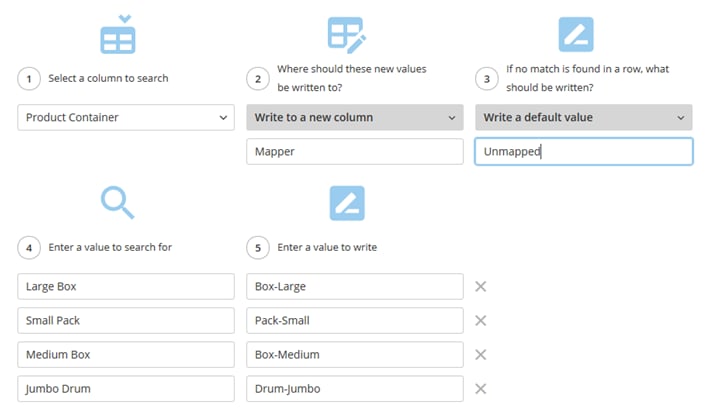
The Value Mapper tile lets you search and replace string values in a specific column, according to pairs of string values you enter. (You might use the Value Mapper tile for replacing abbreviations or converting language codes.) You can either have replacement values overwrite an existing column or be in a new column.

For information about replacing text values using other tiles, see [Replace Text](#h_01F0ME2A6CJD8B9GQEMRGY4AXG "ETL Actions: Edit Data") and [Set Column Value](#h_01F0ME08N84C5DTEDMNQ069S7S "ETL Actions: Edit Data").

**Example**

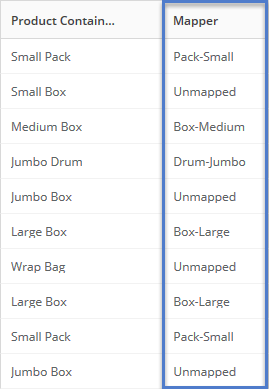
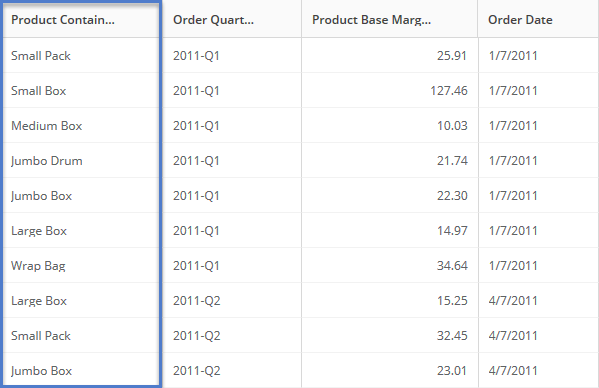
For example, the Value Mapper tile transforms this data...

<Frame>
  <img alt="etl_valuemapper_datain.png" src="https://mintcdn.com/domoinc-openapi-sync-dataflows/YY6W1U347GpqLSJS/images/kb/ka05w00000124TD-00N5w00000Ri7BU-0EM5w000005vNfv.png?fit=max&auto=format&n=YY6W1U347GpqLSJS&q=85&s=e1b9ec30079704d99050d2032cc259cc" width="163" height="389" data-path="images/kb/ka05w00000124TD-00N5w00000Ri7BU-0EM5w000005vNfv.png" />
</Frame>

... to this...

<Frame>
  <img alt="etl_valuemapper_dataout.png" src="https://mintcdn.com/domoinc-openapi-sync-dataflows/YY6W1U347GpqLSJS/images/kb/ka05w00000124TD-00N5w00000Ri7BU-0EM5w000005vNgO.png?fit=max&auto=format&n=YY6W1U347GpqLSJS&q=85&s=9b8167775e6d0aee13c77f05f4827011" width="269" height="389" data-path="images/kb/ka05w00000124TD-00N5w00000Ri7BU-0EM5w000005vNgO.png" />
</Frame>

... using this configuration:

<Frame>
  <img alt="etl_valuemapper_sampleui.png" src="https://mintcdn.com/domoinc-openapi-sync-dataflows/YY6W1U347GpqLSJS/images/kb/ka05w00000124TD-00N5w00000Ri7BU-0EM5w000005vNfu.png?fit=max&auto=format&n=YY6W1U347GpqLSJS&q=85&s=85adf05150b07b7fec78ad83f6c6d941" width="710" height="417" data-path="images/kb/ka05w00000124TD-00N5w00000Ri7BU-0EM5w000005vNfu.png" />
</Frame>

<Note>
  **Note:** This example shows values written to a new column. If configured, the values could overwrite values in the original column instead.
</Note>

**To configure the Value Mapper tile,**

1. Click the **Value Mapper** tile in the canvas.
2. (Optional) Rename the tile by clicking
   <InlineImage src="/images/kb/ka05w00000122yV-00N5w00000Ri7BU-0EM5w000005vNgL.png" />, then entering the name you want.
3. Select the column you want to search.
4. Select whether the values overwrite the values in the specified column or appear in a new column.

   1. (Conditional) If writing values to a new column, enter the name of the column.
5. Select whether to write the original value or a default value when a match is not found in a row.

   1. (Conditional) If writing a default value, enter the value.
6. For each value mapping you want, enter the value to search for and the value to replace with.
7. (Conditional) If you want to add a mapping, then click **Add Mapping**.

   <Tip>
     **Tip:** You can preview the data transformed by a tile by running a preview, clicking the tile in the canvas, then clicking the **Preview** tab.
   </Tip>