> ## Documentation Index
> Fetch the complete documentation index at: https://domoinc-openapi-sync-dataflows.mintlify.site/llms.txt
> Use this file to discover all available pages before exploring further.

# Calendar

## Intro

In Domo, a calendar is a basic chart type that shows a number of items or a summation of values for specific days over a specified time period. You can choose to display calendar data for an entire year, for a month, or for a single day.

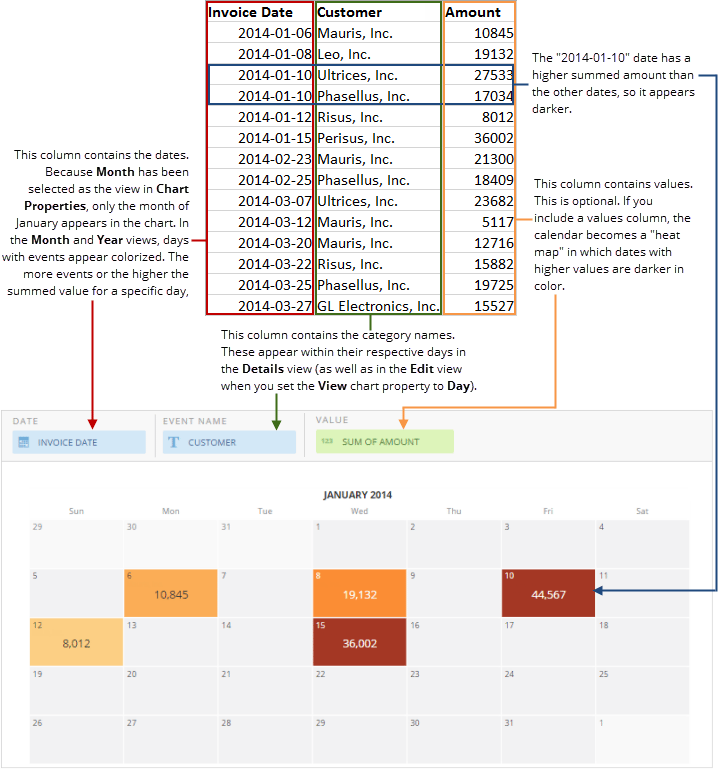
A calendar requires two columns or rows of data from your DataSet—one contains the dates and the other contains the number of category items corresponding to each date. You can also include an optional values column. The background color for a date determines how many items are associated with the date, or, if a values column is present, the amount for each date. If there are multiple instances of a certain date, the amounts for the date are summed. For information about value, category, and series data, see [Understanding Chart Data](/s/article/360043428693 "Understanding Chart Data").

By default, Domo uses the **Auto** view to display your calendar, which depends on the breadth of data in the DataSet. If the data in your DataSet spans multiple months, the calendar automatically shows data in the **Year** view. If the data in the DataSet spans a few days or weeks within the same month, the calendar automatically shows data in the **Month** view. You can change this default auto view behavior in **Chart Properties**. For example, if your DataSet contained data for a year, you could tell Domo to show data for a single month by selecting **View > Month** in **Chart Properties**. Or, if your DataSet contained data for multiple years, you could indicate the desired year in **Chart Properties**. You can also show the data in a **Week** view and can indicate the day that starts the week (such as Monday). For more information about the options available in **Chart Properties**, see [Customizing calendars](#h_01F01WTCVMVWX728G4SB8266GH "Calendar").

<Warning>
  **Important:** For your calendar to work properly, you *must* set the date grain to **Day**. Otherwise the chart does not display the correct data. For more information about setting date grains, see [Adding Filters to Your Chart](/s/article/360042924074 "Adding Filters to Your Chart").
</Warning>

**Video - Building a Calendar Card**

<iframe allowfullscreen="" frameborder="0" height="315" src="//www.youtube-nocookie.com/embed/nWbWjVw7ctA" width="560" />

## Powering a calendar

In the Analyzer, you choose the columns containing the data for your calendar. For more information about choosing data columns, see [Applying DataSet Columns to Your Chart](/s/article/360043428713 "Applying DataSet Columns to Your Chart").

For more information about formatting charts in the Analyzer, see [Visualization Card Building Part 2: The Analyzer](/s/topic/0TO5w000000ZaoUGAS "KPI Card Building Part 2: The Card Builder").

The following graphic shows you how the data from a typical column-based spreadsheet is converted into a calendar.

<Frame>
  <img alt="calendar_spreadsheet_example_new.png" src="https://mintcdn.com/domoinc-openapi-sync-dataflows/7Nd5Hb-h9pITriJg/images/kb/ka05w00000123pw-00N5w00000Ri7BU-0EM5w000005vPJG.png?fit=max&auto=format&n=7Nd5Hb-h9pITriJg&q=85&s=b8a5a842f10220175ff277366faf9330" width="718" height="769" data-path="images/kb/ka05w00000123pw-00N5w00000Ri7BU-0EM5w000005vPJG.png" />
</Frame>

## Customizing calendars

You can customize the appearance of a calendar by editing its **Chart Properties**. For information about all chart properties, see [Chart Properties](/s/topic/0TO5w000000ZaodGAC "Chart Properties"). Unique properties of calendars include the following. You can click a thumbnail image to see a larger image.

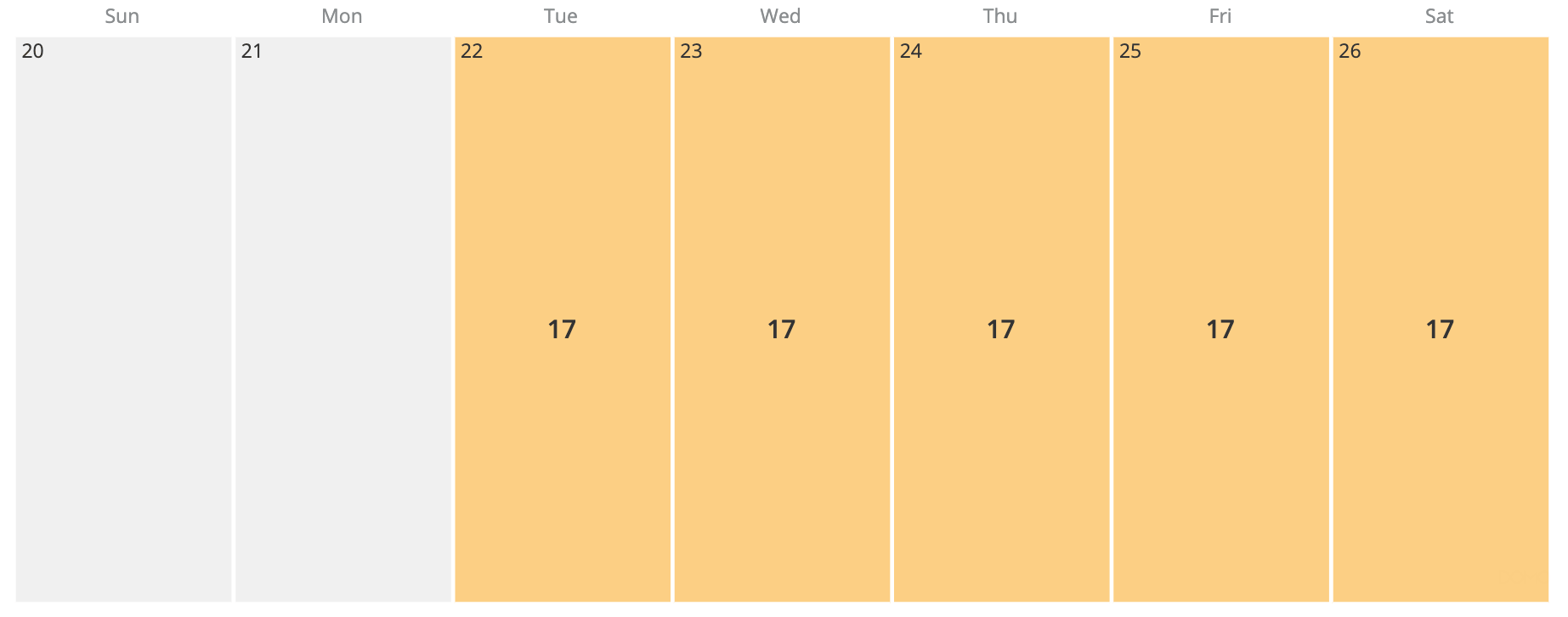
<table border="1" cellpadding="1" cellspacing="1" data-aura-rendered-by="33:209;a"><thead><tr><th colspan="1" rowspan="1"><p> Property </p></th><th colspan="1" rowspan="1"><p> Description </p></th><th colspan="1" rowspan="1"><p> Example </p></th></tr></thead><tbody><tr><td colspan="1" rowspan="1"><p> Theme > Theme </p></td><td colspan="1" rowspan="1"><p> Determines the color theme for the calendar. </p></td><td colspan="1" rowspan="1"><p /></td></tr><tr><td colspan="1" rowspan="1"><p> General > View </p></td><td colspan="1" rowspan="1"><p> Determines whether the calendar displays data for an entire <b> Year </b>, for a <b> Month </b>, for a <b> Week </b>, for a single <b> Day </b>, <b> Last Year Rolling </b>, or <b> Next Year Rolling </b>. If you select <b> Auto </b> (which is the default), the calendar determines the view based on the breadth of data in the DataSet. For example, if your DataSet contains data for more than one month, the year view displays automatically so all represented months can be shown. </p></td><td colspan="1" rowspan="1"><p> — </p></td></tr><tr><td colspan="1" rowspan="1"><p> General > Dates From </p></td><td colspan="1" rowspan="1"><p> Determines whether the dates that appear in the calendar are to be determined automatically based on your DataSet (which is the default) or you plan to specify them manually using the <b> Year </b>, <b> Selected Year </b>, <b> Month </b>, and <b> Day </b> properties. For example, if the series of dates in your DataSet started with "01-06-2014" and you chose the "Day" view, then by default Domo would show the data for "01-06-2014" because it was the first value in the DataSet. If you wanted to show a different date, you could do so by selecting <b> User Specified </b> here and then specifying the date using the <b> Year </b>, <b> Selected Year </b>, <b> Month </b>, and <b> Day </b> properties. </p></td><td colspan="1" rowspan="1"><p><span class="mt-font-size-18"><b> Year View </b></span></p><p><a href="https://domohelp.domo.com/@api/deki/files/152/calendar_year_view.png" target="_blank" title="/@api/deki/files/152/calendar_year_view.png"><img alt="calendar_year_view.png" src="https://mintcdn.com/domoinc-openapi-sync-dataflows/7Nd5Hb-h9pITriJg/images/kb/ka05w00000123pw-00N5w00000Ri7BU-0EM5w000005vPJ8.png?fit=max&auto=format&n=7Nd5Hb-h9pITriJg&q=85&s=e339d1715c57f8ace89f3f1f3c700de0" width="756" height="308" data-path="images/kb/ka05w00000123pw-00N5w00000Ri7BU-0EM5w000005vPJ8.png" /></a></p><p><span class="mt-font-size-18"><a href="https://domohelp.domo.com/@api/deki/files/145/calendar_month_view.png" target="_blank" title="/@api/deki/files/145/calendar_month_view.png"><img alt="calendar_month_view.png" src="https://mintcdn.com/domoinc-openapi-sync-dataflows/7Nd5Hb-h9pITriJg/images/kb/ka05w00000123pw-00N5w00000Ri7BU-0EM5w000005vPJA.png?fit=max&auto=format&n=7Nd5Hb-h9pITriJg&q=85&s=f507fda6c5ac4ac17ae94e3295c881f5" width="755" height="311" data-path="images/kb/ka05w00000123pw-00N5w00000Ri7BU-0EM5w000005vPJA.png" /></a></span></p><p><img alt="Week_View.png" src="https://mintcdn.com/domoinc-openapi-sync-dataflows/7Nd5Hb-h9pITriJg/images/kb/ka05w00000123pw-00N5w00000Ri7BU-0EM5w000005vPJI.png?fit=max&auto=format&n=7Nd5Hb-h9pITriJg&q=85&s=7c80ed9a8f8c13f01052f68084602dfa" width="1845" height="726" data-path="images/kb/ka05w00000123pw-00N5w00000Ri7BU-0EM5w000005vPJI.png" /></p><p><a href="https://domohelp.domo.com/@api/deki/files/1649/calendar_day_view.png" target="_blank" title="/@api/deki/files/1649/calendar_day_view.png"><img alt="calendar_day_view.png" src="https://mintcdn.com/domoinc-openapi-sync-dataflows/7Nd5Hb-h9pITriJg/images/kb/ka05w00000123pw-00N5w00000Ri7BU-0EM5w000005vPJC.png?fit=max&auto=format&n=7Nd5Hb-h9pITriJg&q=85&s=2a5906b6699f1adc9101e84f2ea37692" width="313" height="192" data-path="images/kb/ka05w00000123pw-00N5w00000Ri7BU-0EM5w000005vPJC.png" /></a></p></td></tr><tr><td colspan="1" rowspan="1"><p> General > Year </p></td><td colspan="1" rowspan="1"><p> Determines the year to be used when <b> User Specified </b> is selected for the <b> Dates From </b> property. Options include <b> Current </b> (which is the default), <b> Previous </b>, <b> Next </b>, and <b> Specified </b>. If you select <b> Specified </b>, you enter the specified year in the <b> Selected Year </b> field. This option is useful if your DataSet contains data for more than one year. </p></td><td colspan="1" rowspan="1"><p> — </p></td></tr><tr><td colspan="1" rowspan="1"><p> General > Selected Year </p></td><td colspan="1" rowspan="1"><p> Lets you specify the year for your data when you have selected <b> Dates From > User Specified </b> and <b> Year > Specified </b>. This option is useful if your DataSet contains data for more than one year. </p></td><td colspan="1" rowspan="1"><p> — </p></td></tr><tr><td colspan="1" rowspan="1"><p> General > Month </p></td><td colspan="1" rowspan="1"><p> Lets you specify the month for your data when you have selected <b> Dates From > User Specified </b>. The default is <b> Current </b>. </p></td><td colspan="1" rowspan="1"><p> — </p></td></tr><tr><td colspan="1" rowspan="1"><p> General > Day </p></td><td colspan="1" rowspan="1"><p> Lets you specify the day of the month for your data when you have selected <b> Dates From > User Specified </b>. The default is <b> Current </b>. </p></td><td colspan="1" rowspan="1"><p> — </p></td></tr><tr><td colspan="1" rowspan="1"> General > First Day of Week </td><td colspan="1" rowspan="1"> Lets you specify the first day of the week in your calendar. The default is <b> Sunday </b>. </td><td colspan="1" rowspan="1"><p> — </p></td></tr></tbody></table>

## Exporting an MS Outlook calendar for use in Domo

You can export a calendar from Microsoft Outlook as an Excel spreadsheet file for use in creating a calendar in Domo. This is a useful way of getting your scheduled meetings and appointments into Domo.

**To export a Microsoft Outlook calendar into Domo,**

1. Open Microsoft Outlook 2010.
2. Select **File > Options**.
3. Click **Advanced** to display the **Advanced** tab.
4. Click **Export**.
5. Select **Export** to a file, then click **Next**.
6. Select **Comma Separated Values**, then click **Next**.
7. Select **Calendar**, then click **Next**.
8. Click **Finish** to export the calendar to a Microsoft Excel spreadsheet.
9. If you are prompted to set the date range, enter the desired date range, then click **OK**.
10. In Domo, power a calendar chart using the Microsoft Excel spreadsheet file.