> ## Documentation Index
> Fetch the complete documentation index at: https://domoinc-openapi-sync-dataflows.mintlify.site/llms.txt
> Use this file to discover all available pages before exploring further.
# Adding an Existing Card to a Dashboard
export const InlineImage = ({src, alt = '', height = '1.6em'}) => {
return  ;
};
## Intro
If a card already exists in your Domo instance, you can add it to a dashboard without having to recreate it. You can add any kind of card, such as a KPI, Sumo, and Doc Card. You must have access to the card you want to add as well as editing capability in the dashboard.
## Adding an Existing Card to a Dashboard
1. Go to
**Dashboards** in the navigation header.
;
};
## Intro
If a card already exists in your Domo instance, you can add it to a dashboard without having to recreate it. You can add any kind of card, such as a KPI, Sumo, and Doc Card. You must have access to the card you want to add as well as editing capability in the dashboard.
## Adding an Existing Card to a Dashboard
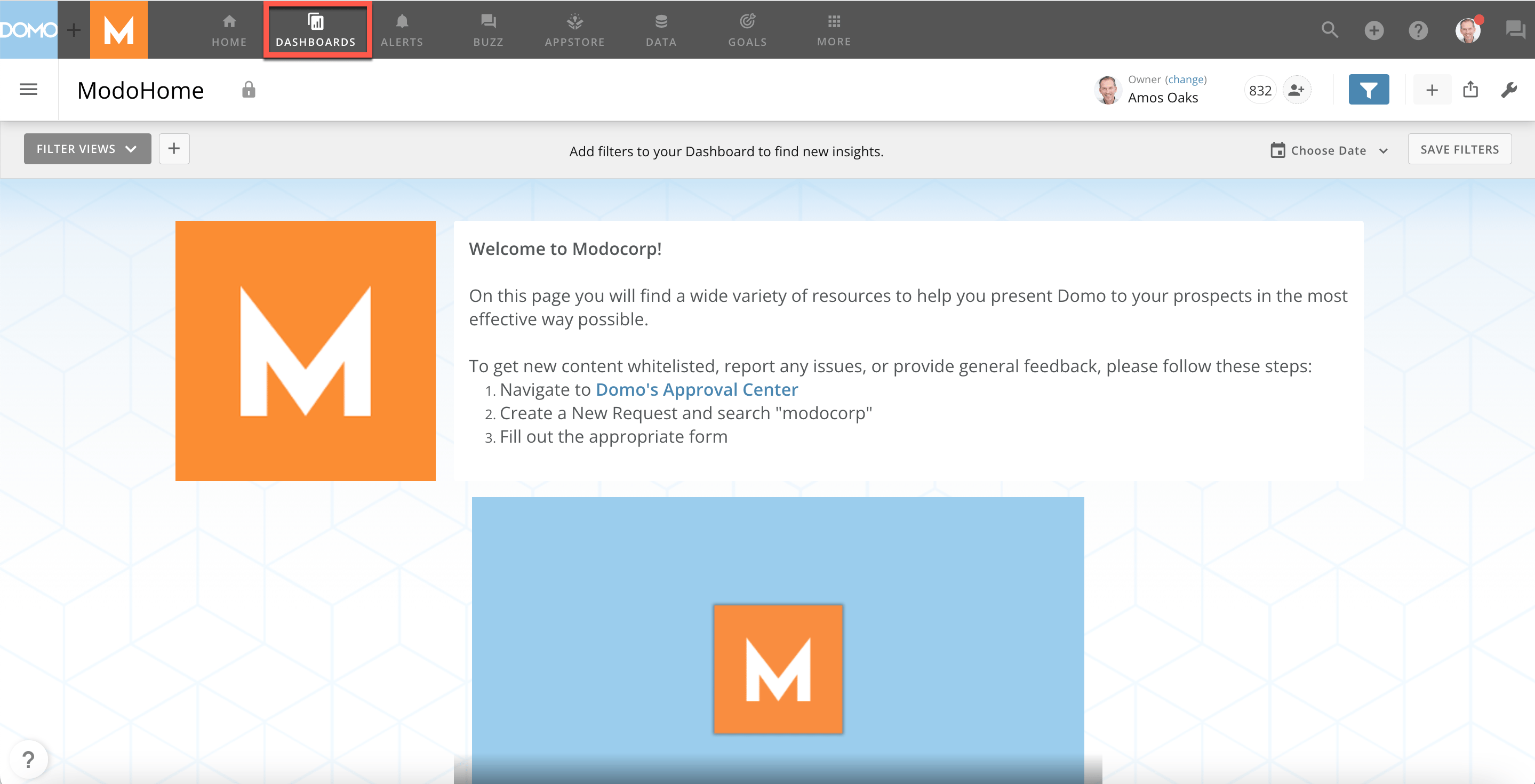
1. Go to
**Dashboards** in the navigation header.
 2. Hover over the
**Menu** to open the **Dashboards** drawer.
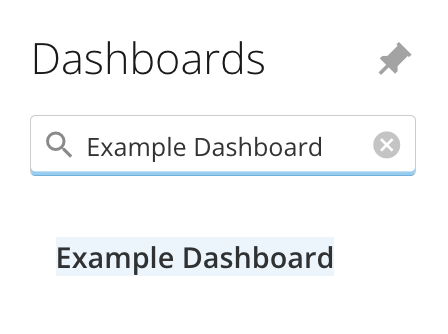
3. Open a dashboard. You can search for one in the
**Filter by name** bar or select one from the list.
2. Hover over the
**Menu** to open the **Dashboards** drawer.
3. Open a dashboard. You can search for one in the
**Filter by name** bar or select one from the list.
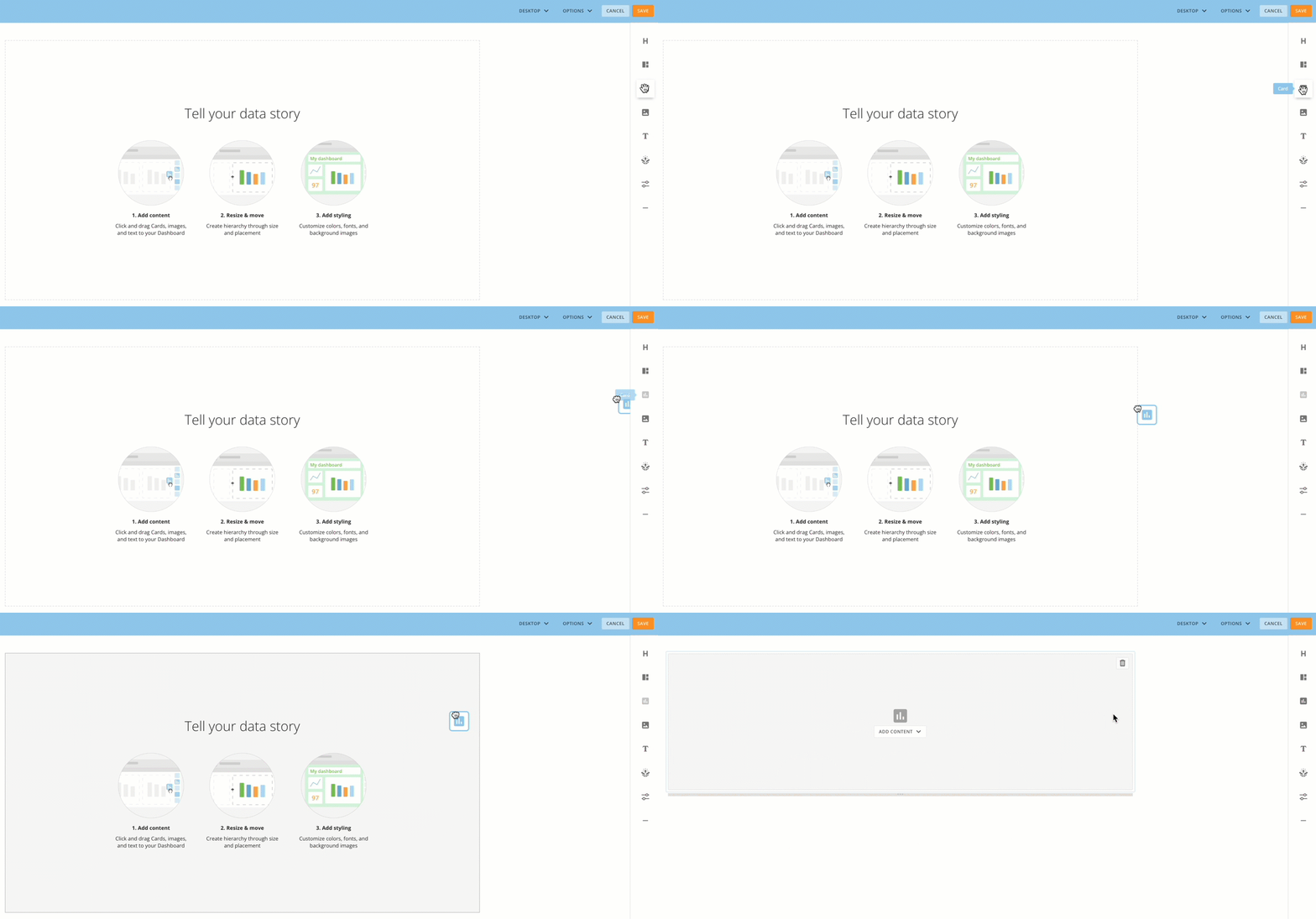
 4. Select
**Dashboard options** and choose **Edit Dashboard**.
The editing view displays.
5. Click and drag the
**Card**
option to the dashboard template.
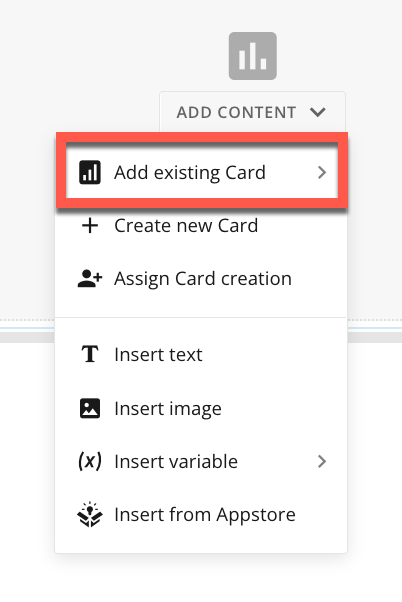
The **Add Content** menu displays.
4. Select
**Dashboard options** and choose **Edit Dashboard**.
The editing view displays.
5. Click and drag the
**Card**
option to the dashboard template.
The **Add Content** menu displays.
 6. From the
**Add Content** menu, select **Add existing Card**.
6. From the
**Add Content** menu, select **Add existing Card**.
 7. Select a card from the list, or locate the card using the search bar.
8. Select the card.
9. Select
**Save.**
The existing card has been added to the dashboard.
7. Select a card from the list, or locate the card using the search bar.
8. Select the card.
9. Select
**Save.**
The existing card has been added to the dashboard.