> ## Documentation Index
> Fetch the complete documentation index at: https://domoinc-openapi-sync-dataflows.mintlify.site/llms.txt
> Use this file to discover all available pages before exploring further.

# Share a DataSet

export const InlineImage = ({src, alt = '', height = '1.6em'}) => {
  return <img noZoom src={src} alt={alt} style={{
    display: 'inline',
    verticalAlign: 'start',
    height: height,
    margin: '0'
  }} />;
};

### Intro

When you create a DataSet, you are its default owner and the only person with access to it. You can share DataSets with people/groups so those people can view and edit the data. When you share a DataSet, you can choose to notify the recipient via email.

There are two ways to share a DataSet—either from inside the Data Center from the DataSet's Details view, or by sharing a card powered by that DataSet. Follow the links to learn more about [sharing cards](/s/article/360042932994 "Sharing and Removing Access to Content") and the [Data Center](https://domo-support.domo.com/s/article/360047553253).

***

### Access Rights

When you share a DataSet with a person/group, you can give them one of three levels of access. The three levels—Co-Owner, Can Edit, and Can Share—are compared in the table below.

<Note>
  **Note:** DataSet owners receive every level of access. Both Owners and Co-Owners are automatically added to the DataSet's All Rows Personalized Data Permissions (PDP) policy. Learn more about [PDP](/s/article/360042934614).
</Note>

<Note>
  **Note:** People with an Admin security role OR a custom role with the (admin-only) Manage DataSet grant enabled can view and edit all DataSets in the instance and build cards from them.

  For example, if an Admin-level user is given Can Edit access to a DataSet, they still have all the same access privileges as an Owner or Co-Owner.

  See [Managing Custom Roles](/s/article/360043438973 "Security Role Reference") to learn more about access rights.
</Note>

<table border="1" cellpadding="1" cellspacing="1" data-aura-rendered-by="33:205;a"><thead><tr><th colspan="1" rowspan="1"><p> Permissions </p></th><th colspan="1" rowspan="1"><p> Co-Owner </p></th><th colspan="1" rowspan="1"><p> Can Edit </p></th><th colspan="1" rowspan="1"><p> Can Share </p></th></tr></thead><tbody><tr><td colspan="1" rowspan="1"> View the DataSet </td><td colspan="1" rowspan="1"><p><InlineImage src="/images/kb/ka0Vq0000001Fg9-00N5w00000Ri7BU-0EM5w000005wybS.jpg" /></p></td><td colspan="1" rowspan="1"><p><InlineImage src="/images/kb/ka0Vq0000001Fg9-00N5w00000Ri7BU-0EM5w000005wybS.jpg" /></p></td><td colspan="1" rowspan="1"><p><InlineImage src="/images/kb/ka0Vq0000001Fg9-00N5w00000Ri7BU-0EM5w000005wybS.jpg" /></p></td></tr><tr><td colspan="1" rowspan="1"> View all data in the DataSet </td><td colspan="1" rowspan="1"><p><InlineImage src="/images/kb/ka0Vq0000001Fg9-00N5w00000Ri7BU-0EM5w000005wybS.jpg" /></p></td><td colspan="1" rowspan="1"><p><InlineImage src="/images/kb/ka0Vq0000001Fg9-00N5w00000Ri7BU-0EM5w000005wybS.jpg" /></p><p> (Unless restricted by PDP) </p></td><td colspan="1" rowspan="1"><p><InlineImage src="/images/kb/ka0Vq0000001Fg9-00N5w00000Ri7BU-0EM5w000005wybX.jpg" /></p></td></tr><tr><td colspan="1" rowspan="1"><p> Build cards powered by the DataSet </p></td><td colspan="1" rowspan="1"><p><InlineImage src="/images/kb/ka0Vq0000001Fg9-00N5w00000Ri7BU-0EM5w000005wybS.jpg" /></p></td><td colspan="1" rowspan="1"><p><InlineImage src="/images/kb/ka0Vq0000001Fg9-00N5w00000Ri7BU-0EM5w000005wybS.jpg" /></p></td><td colspan="1" rowspan="1"><p><InlineImage src="/images/kb/ka0Vq0000001Fg9-00N5w00000Ri7BU-0EM5w000005wybS.jpg" /></p></td></tr><tr><td colspan="1" rowspan="1"><p> Change the DataSet configuration </p></td><td colspan="1" rowspan="1"><p><InlineImage src="/images/kb/ka0Vq0000001Fg9-00N5w00000Ri7BU-0EM5w000005wybS.jpg" /></p></td><td colspan="1" rowspan="1"><p><InlineImage src="/images/kb/ka0Vq0000001Fg9-00N5w00000Ri7BU-0EM5w000005wybX.jpg" /></p></td><td colspan="1" rowspan="1"><p /><p><InlineImage src="/images/kb/ka0Vq0000001Fg9-00N5w00000Ri7BU-0EM5w000005wybX.jpg" /></p><p /></td></tr><tr><td colspan="1" rowspan="1"><p> Share the DataSet </p></td><td colspan="1" rowspan="1"><p><InlineImage src="/images/kb/ka0Vq0000001Fg9-00N5w00000Ri7BU-0EM5w000005wybS.jpg" /></p></td><td colspan="1" rowspan="1"><p><InlineImage src="/images/kb/ka0Vq0000001Fg9-00N5w00000Ri7BU-0EM5w000005wybS.jpg" /></p></td><td colspan="1" rowspan="1"><p><InlineImage src="/images/kb/ka0Vq0000001Fg9-00N5w00000Ri7BU-0EM5w000005wybS.jpg" /></p></td></tr><tr><td colspan="1" rowspan="1"><p> Assign people/group members as Co-Owners or Editors when sharing </p></td><td colspan="1" rowspan="1"><p><InlineImage src="/images/kb/ka0Vq0000001Fg9-00N5w00000Ri7BU-0EM5w000005wybS.jpg" /></p></td><td colspan="1" rowspan="1"><p><InlineImage src="/images/kb/ka0Vq0000001Fg9-00N5w00000Ri7BU-0EM5w000005wybS.jpg" /></p><p> (Owners & Co-Owners only) </p></td><td colspan="1" rowspan="1"><p><InlineImage src="/images/kb/ka0Vq0000001Fg9-00N5w00000Ri7BU-0EM5w000005wybX.jpg" /><a id="pdp_impact" target="_blank" /></p></td></tr></tbody></table>

<Tip>
  Learn how to [change the owner of a DataSet](/s/article/360042926074 "Changing the Owner of a DataSet").
</Tip>

### PDP Impact

When you share Can Share or Can Edit access to a DataSet, there is no effect on PDP.

If you share Co-Owner or Owner access to a DataSet, the recipients are automatically added to the All Rows PDP policy for the DataSet.

To preserve PDP restrictions, the highest level of access you can share is Can Edit. Learn more about [PDP](/s/article/360042934614).

### Share a DataSet

You can share access to a DataSet with people/groups from the DataSet's Details view.

Follow these steps to share a DataSet:

1. Navigate to the Data Center.

2. In the left navigation, go to
   <InlineImage src="/images/kb/ka05w00000123vE-00N5w00000Ri7BU-0EM5w000005vPVh.png" /> **DataSets**.

3. Locate the DataSet and select it to open the Details view.

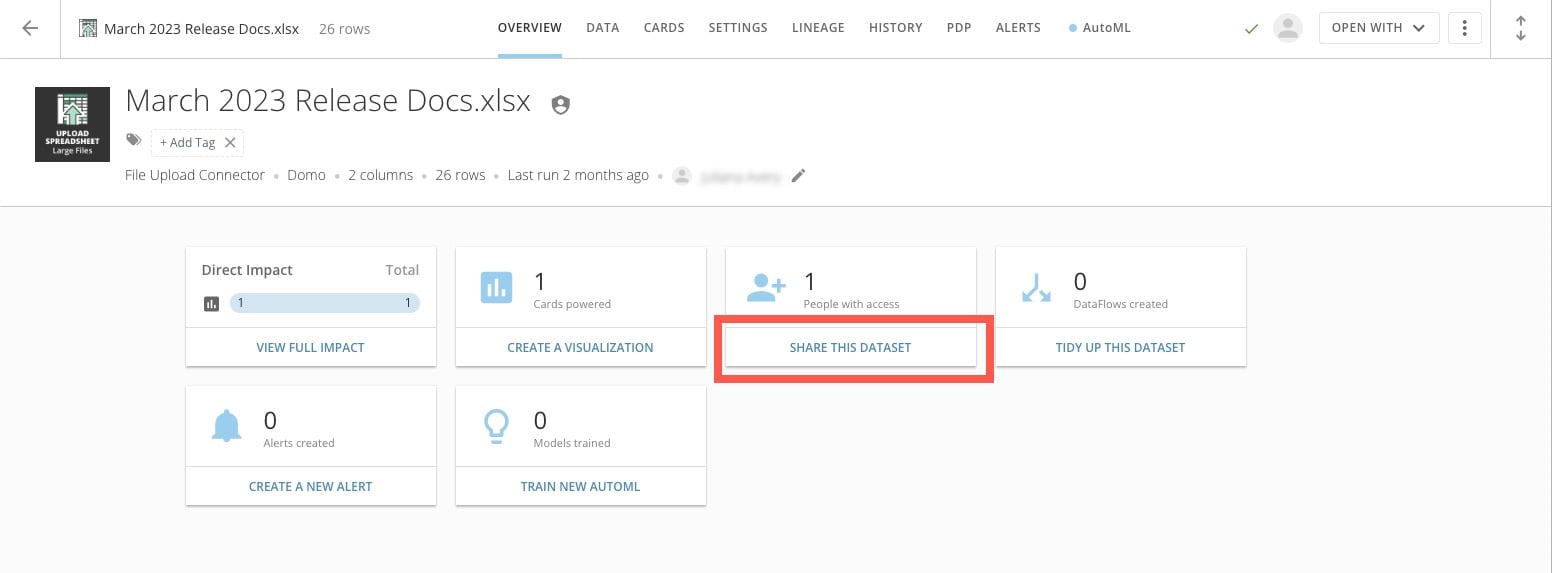
4. In the **Overview** tab, select the text at the bottom of the **Share This DataSet** tile to open the sharing modal. (If you select the top portion of the tile, select **Add People** to open the sharing interface.)

   <Frame>
     <img alt="share this dataset bottom.jpg" src="https://mintcdn.com/domoinc-openapi-sync-dataflows/DkLG580DK4bdXUC1/images/kb/ka0Vq0000001Fg9-00N5w00000Ri7BU-0EMVq000001bCo1.jpg?fit=max&auto=format&n=DkLG580DK4bdXUC1&q=85&s=8291e4b8ff8fb0f0bf519b58a64b7ad7" style={{width: 899, height: 332}} width="1552" height="573" data-path="images/kb/ka0Vq0000001Fg9-00N5w00000Ri7BU-0EMVq000001bCo1.jpg" />
   </Frame>

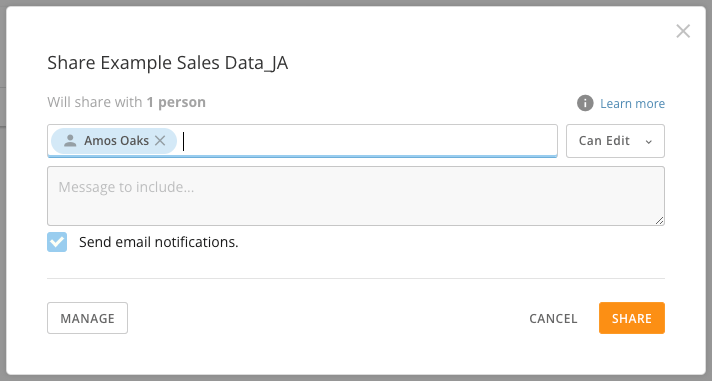
5. Enter the name of a person/group in the search field.

6. Select the person/group to share the DataSet with.
   <Frame>
     <img alt="Screenshot 2024-07-01 at 5.15.23 PM.png" src="https://mintcdn.com/domoinc-openapi-sync-dataflows/DkLG580DK4bdXUC1/images/kb/ka0Vq0000001Fg9-00N5w00000Ri7BU-0EMVq000001bDH3.jpg?fit=max&auto=format&n=DkLG580DK4bdXUC1&q=85&s=4ec0b473a1c6446d35c0ec9522ad4670" style={{width: 499, height: 267}} width="712" height="381" data-path="images/kb/ka0Vq0000001Fg9-00N5w00000Ri7BU-0EMVq000001bDH3.jpg" />
   </Frame>

7. Use the dropdown to select the desired
   [access level](#access_rights) for the person/group.

   <Frame>
     <img alt="Screenshot 2024-07-15 at 4.15.43 PM.png" src="https://mintcdn.com/domoinc-openapi-sync-dataflows/DkLG580DK4bdXUC1/images/kb/ka0Vq0000001Fg9-00N5w00000Ri7BU-0EMVq000001lrDC.jpg?fit=max&auto=format&n=DkLG580DK4bdXUC1&q=85&s=730493ed7dfcbfe0df8c85a496601180" style={{width: 499, height: 268}} width="650" height="349" data-path="images/kb/ka0Vq0000001Fg9-00N5w00000Ri7BU-0EMVq000001lrDC.jpg" />
   </Frame>

   <Note>
     **Note:** The options available here depend on your access rights to the DataSet (unless you have an Admin security role or a custom role with the Manage All DataSets grant enabled, which allows you to see all options).
   </Note>

8. (Optional) Repeat steps 5–7 to add additional people/groups and configure their access. Learn how to
   [update and remove access](#update_dataset_access_level).

9. (Optional) Write a message in the **Message to include** field to let the recipient(s) know you're sharing a DataSet with them and check the box labeled **Send email notifications**.

10. Select **Share** or **Cancel** to discard your changes.

The people/groups you selected can now access the DataSet. If you wrote a message and checked the box, all people/group members also receive an email notification of the share event.

### Update DataSet Access Level

If someone already has access to a DataSet, you can change their access level or remove access entirely from the DataSet's Details view. Note that if you want to switch someone's access to Co-Owner, you must be a Co-Owner yourself OR have an Admin security role OR a custom role with the Manage All DataSets grant enabled.

Follow these steps to change the DataSet access level for a person/group:

1. Navigate to the Data Center.
2. In the left navigation, go to
   <InlineImage src="/images/kb/ka05w00000123vE-00N5w00000Ri7BU-0EM5w000005vPVh.png" /> **DataSets**.
3. Locate the DataSet and select it to open the Details view.
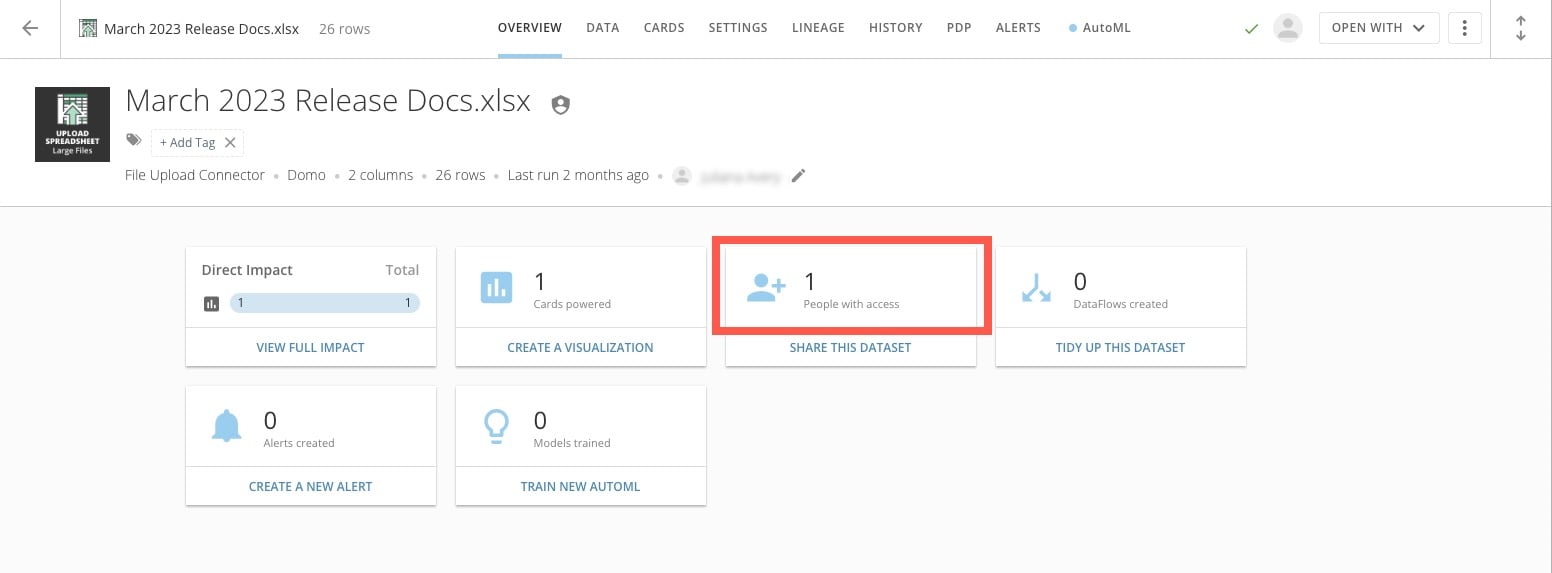
4. In the **Overview** tab, select the top portion of the **Share This DataSet** tile to open the sharing modal. (If you select the text that reads **Share This DataSet**, a different version of the modal displays. From this view, select **Manage** to open the access interface.)

   <Frame>
     <img alt="share this dataset.jpg" src="https://mintcdn.com/domoinc-openapi-sync-dataflows/DkLG580DK4bdXUC1/images/kb/ka0Vq0000001Fg9-00N5w00000Ri7BU-0EMVq000001bCWH.jpg?fit=max&auto=format&n=DkLG580DK4bdXUC1&q=85&s=e9e72c0e6c0c8732e3d420bfeb44ca02" style={{width: 899, height: 332}} width="1552" height="573" data-path="images/kb/ka0Vq0000001Fg9-00N5w00000Ri7BU-0EMVq000001bCWH.jpg" />
   </Frame>
5. In the modal, use the search tool to find the person/group you want to update.
6. Do one of the following:

   * To change the access level for the person/group, select the desired access level in the dropdown menu.
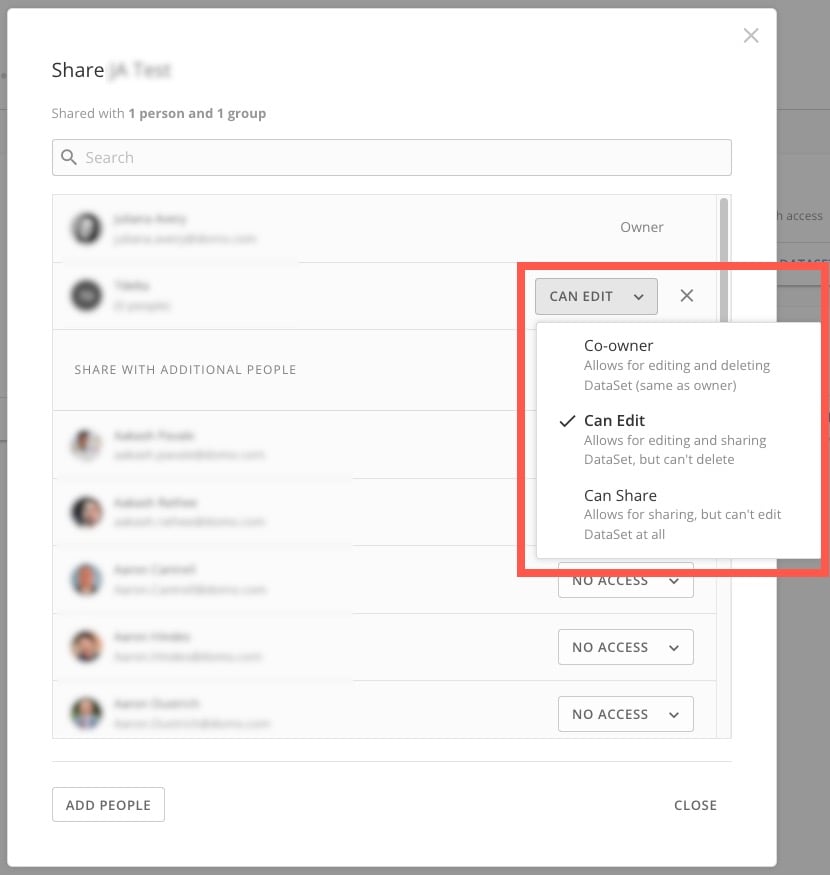
     <Frame>
       <img alt="access options.jpg" src="https://mintcdn.com/domoinc-openapi-sync-dataflows/DkLG580DK4bdXUC1/images/kb/ka0Vq0000001Fg9-00N5w00000Ri7BU-0EMVq000001b9uz.jpg?fit=max&auto=format&n=DkLG580DK4bdXUC1&q=85&s=158139b252fffc212b3bdca1841477d3" style={{width: 500, height: 527}} width="830" height="875" data-path="images/kb/ka0Vq0000001Fg9-00N5w00000Ri7BU-0EMVq000001b9uz.jpg" />
     </Frame>
   * To remove DataSet access entirely for the person/group, select
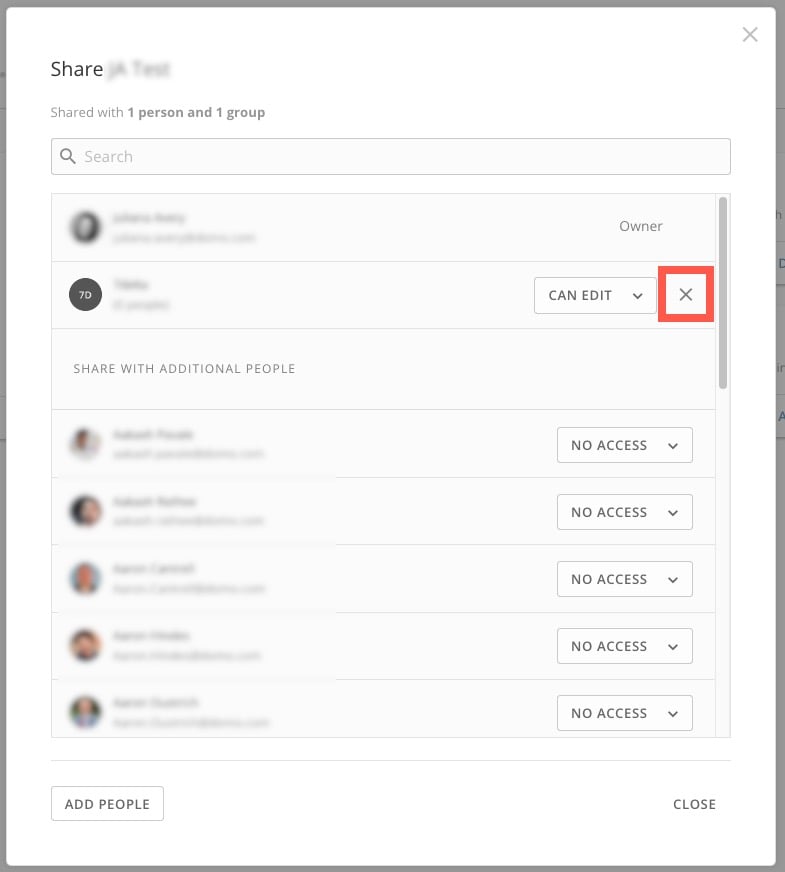
     <InlineImage src="/images/kb/ka0Vq0000001Fg9-00N5w00000Ri7BU-0EMVq000001b4Lq.jpg" /> **Remove** to the right of the dropdown menu.

     <Frame>
       <img alt="remove access.jpg" src="https://mintcdn.com/domoinc-openapi-sync-dataflows/DkLG580DK4bdXUC1/images/kb/ka0Vq0000001Fg9-00N5w00000Ri7BU-0EMVq000001b9i5.jpg?fit=max&auto=format&n=DkLG580DK4bdXUC1&q=85&s=932c06e5a31573ac8428edad2209bc1a" style={{width: 500, height: 555}} width="785" height="872" data-path="images/kb/ka0Vq0000001Fg9-00N5w00000Ri7BU-0EMVq000001b9i5.jpg" />
     </Frame>

### Grant DataFlow Edit Access

To grant edit access to a DataFlow, you must share all the input *and* output DataSets for the DataFlow with a person/group.

For example, DataFlow C has DataSets A and B as input and DataSet F as output. To give a group edit access to DataFlow C, you must share DataSets A, B, and F with the group.
<Warning>
  **Important:** Sharing only the *output* DataSet from a DataFlow does *not* grant edit access to the DataFlow.
</Warning>

# DataFlow Sharing Modal

The DataFlow sharing modal allows you to easily share all input and output DataSets for a given DataFlow.

Follow these steps to use the DataFlow sharing modal:

1. Inside the Data Center, use the left navigation to go to the
   <InlineImage src="/images/kb/ka0Vq0000001Fg9-00N5w00000Ri7BU-0EMVq000001bE6f.jpg" /> **DataFlows** page.

2. In the list, locate the DataFlow you want to share and select it to open the Details view.

3. At the top of the DataFlow Details view, select
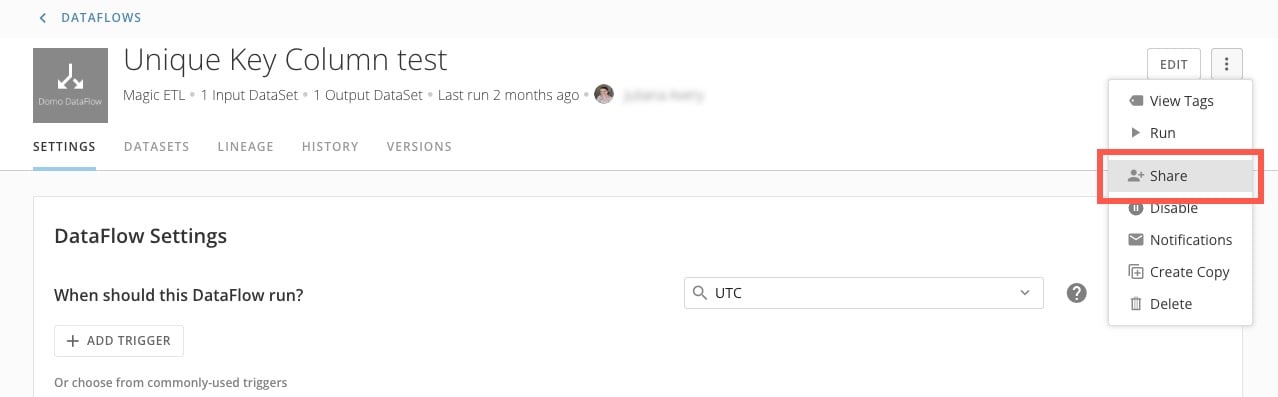
   <InlineImage src="/images/kb/ka0Vq00000013Ld-00N5w00000Ri7BU-0EMVq000001Q2f7.jpg" /> **Action menu** > <InlineImage src="/images/kb/ka0Vq0000001Fg9-00N5w00000Ri7BU-0EMVq000001bDli.jpg" /> **Share** to open the sharing modal.

   <Frame>
     <img alt="share dataflow.jpg" src="https://mintcdn.com/domoinc-openapi-sync-dataflows/DkLG580DK4bdXUC1/images/kb/ka0Vq0000001Fg9-00N5w00000Ri7BU-0EMVq000001bEJZ.jpg?fit=max&auto=format&n=DkLG580DK4bdXUC1&q=85&s=e79eea61652f2c4002526fe1d5d4498b" style={{width: 898, height: 279}} width="1278" height="397" data-path="images/kb/ka0Vq0000001Fg9-00N5w00000Ri7BU-0EMVq000001bEJZ.jpg" />
   </Frame>

   The sharing modal displays the number of input and output DataSets to be shared.

   <Frame>
     <img alt="inputs and outputs.jpg" src="https://mintcdn.com/domoinc-openapi-sync-dataflows/DkLG580DK4bdXUC1/images/kb/ka0Vq0000001Fg9-00N5w00000Ri7BU-0EMVq000001bEMn.jpg?fit=max&auto=format&n=DkLG580DK4bdXUC1&q=85&s=088e45d594d778034fc5de06d2d0b39a" style={{width: 502, height: 227}} width="913" height="413" data-path="images/kb/ka0Vq0000001Fg9-00N5w00000Ri7BU-0EMVq000001bEMn.jpg" />
   </Frame>

   <Note>
     **Note:** There is no way to edit the number of DataSets to be shared. You can share either all or none of the input/output DataSets.
   </Note>

4. Use the **Search users and groups** field to find and choose people/groups to share with.

   <Note>
     **Note:** You cannot grant a higher level of access than you have. For example, someone with Can Share access to a DataSet cannot grant Can Edit access to that DataSet (unless they are also an admin-level user).
   </Note>

5. (Optional) Check the box labeled **Send email notifications** if you want to notify the recipients of the sharing event.

   <Note>
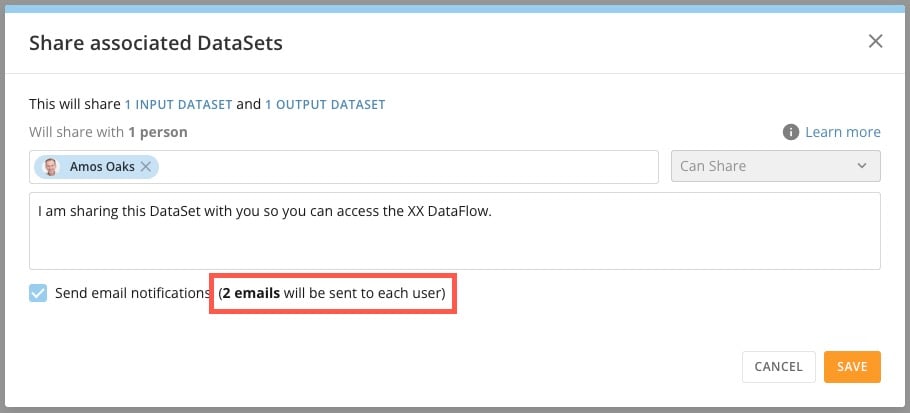
     **Note:** Each input and output DataSet that you share triggers a separate email to each recipient. To avoid sending excessive emails, the option to send email notifications is unchecked by default. To send separate emails for each shared DataSet, check the box. Checking the box displays a dynamic count of emails to be sent to each recipient.

     <Frame>
       <img alt="dynamic email count.jpg" src="https://mintcdn.com/domoinc-openapi-sync-dataflows/DkLG580DK4bdXUC1/images/kb/ka0Vq0000001Fg9-00N5w00000Ri7BU-0EMVq000001bEmb.jpg?fit=max&auto=format&n=DkLG580DK4bdXUC1&q=85&s=8d687e9dac670b2ad12b51a46e74a56f" style={{width: 500, height: 227}} width="910" height="413" data-path="images/kb/ka0Vq0000001Fg9-00N5w00000Ri7BU-0EMVq000001bEmb.jpg" />
     </Frame>
   </Note>

<Tip>
  Learn more about [DataFlow Management](https://domo-support.domo.com/s/topic/0TO5w000000ZanUGAS/dataflow-management).
</Tip>

### DataSet Sharing (video)

<iframe allowfullscreen="allowfullscreen" frameborder="1" height="315" src="//www.youtube-nocookie.com/embed/FpAG6xw_JP8" width="560" />