> ## Documentation Index
> Fetch the complete documentation index at: https://domoinc-openapi-sync-dataflows.mintlify.site/llms.txt
> Use this file to discover all available pages before exploring further.
# Encrypting, Decrypting, and Hashing Workbench 5 Data
export const InlineImage = ({src, alt = '', height = '1.6em'}) => {
return  ;
};
## Intro
You can encrypt columns of data in your DataSet in Workbench 5. After the DataSet has been pulled into Domo, it can only be decrypted in a Sumo table, by users who have been given special access in the **Data Access Management** settings for the DataSet. For more information about Sumo, see Understanding Sumo cards.
For a white paper discussing Workbench's encryption capability, click here: [Whitepaper\_Domo+Data+Security+and+Encryption+Draft.pdf](https://domosoftware.sharepoint.com/:b:/s/CS-Edu-PublicFiles/Ec5lAMNCHyxIrujDa7ZAXFIBo5jv7_53HWgO7lQJdSsbbA?e=5SIxyA "Whitepaper_Domo+Data+Security+and+Encryption+Draft.pdf")
Workbench also provides a hashing transform, which condenses information into fixed-length combinations of letters, numbers, and special characters. Unlike encryption, which allows specific users to decrypt encrypted values, hashing is irreversible. Use this transform when your data source contains columns with information you do not intend users to see.
This article discusses encryption and hashing in turn.
## Using the Encryption Transform
**To encrypt a column of data for a DataSet in Workbench 5,**
1. In Workbench, Click in the left-hand icon bar.
2. In the Jobs listing, double-click the job with columns you want to encrypt.
3. Click
**Transforms** to expand that section of the pane.
4. In the
**Add a transform** menu, select **Encrypt Data Transform**.
5. Click the
button.
The **Encrypt Data Transform Editor** appears.
6. In the
**Encrypted Columns** menu, check the boxes for all columns you want to encrypt.
7. (Optional) Turn on
**Obfuscate Values** if you want the data in the selected columns to be obfuscated.
Data that is obfuscated cannot be reconstituted into a readable state.
8. For each user who should have decryption capabilities, do the following:
1. Locate the user in the
**User Access** list.
2. Click the ellipsis (...) in the
**Disabled** field.
A **Data Password** dialog opens.
3. Set
**Access Enabled** to "On."
4. Enter a password in the
**Password** field and reenter it in the **Confirm** field.
5. Click
**Save**.
9. Click
**Apply** when you are finished managing users.
10. Click
at the top of the pane to save your transform.
The next time you run the job, the data columns you selected will be encrypted in the DataSet in Domo.
**To decrypt a data column you encrypted in Workbench 5,**
1. Open the DataSet with the encrypted information in the Sumo card editor.
For more information, see Understanding Sumo cards.
2. Click the
icon on the left side of the screen.
;
};
## Intro
You can encrypt columns of data in your DataSet in Workbench 5. After the DataSet has been pulled into Domo, it can only be decrypted in a Sumo table, by users who have been given special access in the **Data Access Management** settings for the DataSet. For more information about Sumo, see Understanding Sumo cards.
For a white paper discussing Workbench's encryption capability, click here: [Whitepaper\_Domo+Data+Security+and+Encryption+Draft.pdf](https://domosoftware.sharepoint.com/:b:/s/CS-Edu-PublicFiles/Ec5lAMNCHyxIrujDa7ZAXFIBo5jv7_53HWgO7lQJdSsbbA?e=5SIxyA "Whitepaper_Domo+Data+Security+and+Encryption+Draft.pdf")
Workbench also provides a hashing transform, which condenses information into fixed-length combinations of letters, numbers, and special characters. Unlike encryption, which allows specific users to decrypt encrypted values, hashing is irreversible. Use this transform when your data source contains columns with information you do not intend users to see.
This article discusses encryption and hashing in turn.
## Using the Encryption Transform
**To encrypt a column of data for a DataSet in Workbench 5,**
1. In Workbench, Click in the left-hand icon bar.
2. In the Jobs listing, double-click the job with columns you want to encrypt.
3. Click
**Transforms** to expand that section of the pane.
4. In the
**Add a transform** menu, select **Encrypt Data Transform**.
5. Click the
button.
The **Encrypt Data Transform Editor** appears.
6. In the
**Encrypted Columns** menu, check the boxes for all columns you want to encrypt.
7. (Optional) Turn on
**Obfuscate Values** if you want the data in the selected columns to be obfuscated.
Data that is obfuscated cannot be reconstituted into a readable state.
8. For each user who should have decryption capabilities, do the following:
1. Locate the user in the
**User Access** list.
2. Click the ellipsis (...) in the
**Disabled** field.
A **Data Password** dialog opens.
3. Set
**Access Enabled** to "On."
4. Enter a password in the
**Password** field and reenter it in the **Confirm** field.
5. Click
**Save**.
9. Click
**Apply** when you are finished managing users.
10. Click
at the top of the pane to save your transform.
The next time you run the job, the data columns you selected will be encrypted in the DataSet in Domo.
**To decrypt a data column you encrypted in Workbench 5,**
1. Open the DataSet with the encrypted information in the Sumo card editor.
For more information, see Understanding Sumo cards.
2. Click the
icon on the left side of the screen.
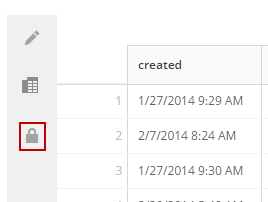 This icon *only* appears if you have enabled decryption for this DataSet for your user following the instructions in the previous section.
A dialog appears requesting your password.
3. Enter the password you entered in step 5-e in the previous section.
4. Click
**Unlock**.
You must go through this decryption process every time you access the card, even if you save the decrypted card while in the **Edit** view.
## Using the Hash Transform
**To hash a column of data for a DataSet in Workbench 5,**
1. In Workbench, Click in the left-hand icon bar.
2. In the Jobs listing, double-click the job with columns you want to hash.
3. Click
**Transforms** to expand that section of the pane.
4. In the
**Add a transform** menu, select **Hash Value Transform**.
5. Click the
button.
The **Hash Value Transform Editor** appears.
6. In the
**Hashed Columns** menu, check the boxes for all columns you want to hash.
7. Choose the desired hash algorithm.
8. Click
**Apply** when you are finished here.
9. Click at the top of the pane to save your transform.
The next time you run the job, the data columns you selected will be converted to hash values in the DataSet in Domo.
This icon *only* appears if you have enabled decryption for this DataSet for your user following the instructions in the previous section.
A dialog appears requesting your password.
3. Enter the password you entered in step 5-e in the previous section.
4. Click
**Unlock**.
You must go through this decryption process every time you access the card, even if you save the decrypted card while in the **Edit** view.
## Using the Hash Transform
**To hash a column of data for a DataSet in Workbench 5,**
1. In Workbench, Click in the left-hand icon bar.
2. In the Jobs listing, double-click the job with columns you want to hash.
3. Click
**Transforms** to expand that section of the pane.
4. In the
**Add a transform** menu, select **Hash Value Transform**.
5. Click the
button.
The **Hash Value Transform Editor** appears.
6. In the
**Hashed Columns** menu, check the boxes for all columns you want to hash.
7. Choose the desired hash algorithm.
8. Click
**Apply** when you are finished here.
9. Click at the top of the pane to save your transform.
The next time you run the job, the data columns you selected will be converted to hash values in the DataSet in Domo.