> ## Documentation Index
> Fetch the complete documentation index at: https://domoinc-openapi-sync-dataflows.mintlify.site/llms.txt
> Use this file to discover all available pages before exploring further.

# DomoStats - Projects and Tasks

## Intro

DomoStats gives you the freedom to explore how your team is using Domo. Because DomoStats is powered by a live Domo DataSet with no configuration, you can easily build cards, alerts, and workflows around the metrics you want to see as well as use the pre-built dashboard.

This DomoStats app provides key insights into your organization's Domo Projects and Tasks. Ensure projects will be delivered on time by monitoring all your open projects and tasks in a single dashboard. Identify at-risk projects, address overdue tasks, and manage team workloads by tracking assignee productivity and efficiency.

## Video - Domostats - Projects and Tasks App

<iframe allowfullscreen="" frameborder="0" height="315" src="//www.youtube-nocookie.com/embed/6borUSi5B54" width="560" />

## Requirements

You must have Admin level access to download from the Appstore.

## Using the DomoStats App

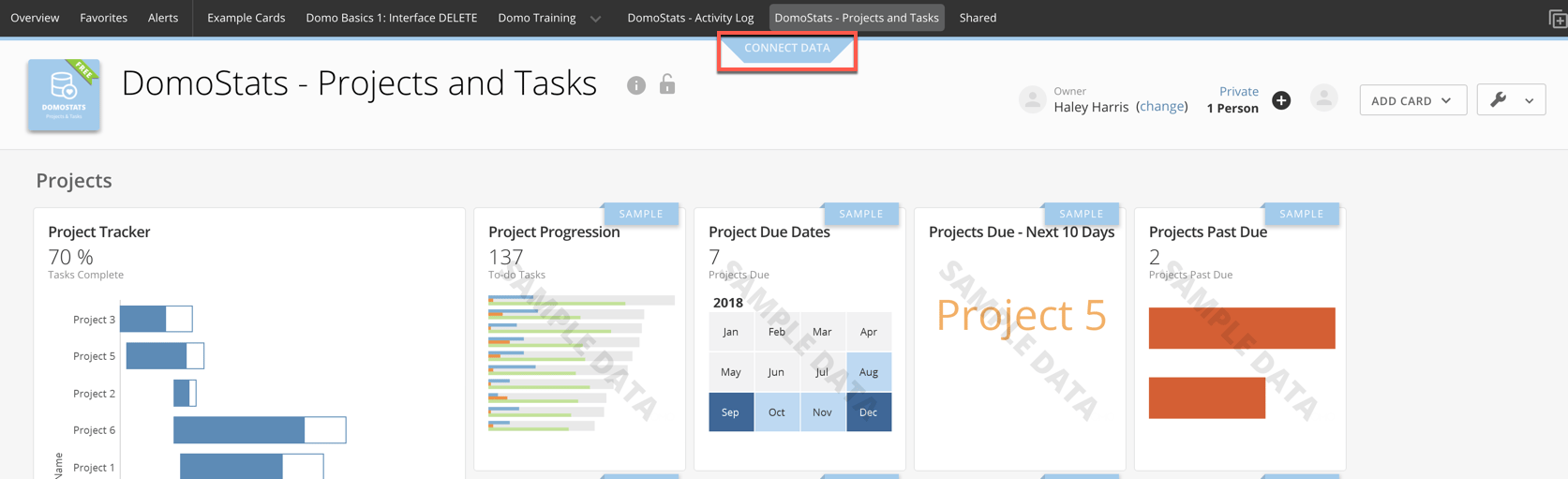
You can use the pre-built dashboard or build any of your own content using the DomoStats DataSets in the Data Center. When you first download the app, a new page is created titled DomoStats - Projects and Tasks. You'll need to power up the dashboard with the following steps:

1. Navigate to the **DomoStats - Projects and Tasks** page.
2. Select **Connect Data**.
3.

<Frame>
  <img alt="DomoStats_-_Project_and_Tasks_-_Connect_Data.png" src="https://mintcdn.com/domoinc-openapi-sync-dataflows/h3wt9z20TJE_4Mbl/images/kb/ka05w000001230Q-00N5w00000Ri7BU-0EM5w000005vNq6.png?fit=max&auto=format&n=h3wt9z20TJE_4Mbl&q=85&s=7a9902a7f583a1a683838104158523a7" width="1673" height="511" data-path="images/kb/ka05w000001230Q-00N5w00000Ri7BU-0EM5w000005vNq6.png" />
</Frame>

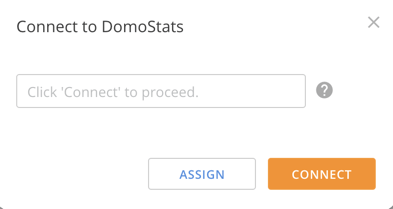
4. In the drop-down, select **Connect** to connect the page to the DomoStats DataSets or select **Assign** if you want to assign another Domo user to set up the data.
5. In the last window, select **Connect**.
   <Frame>
     <img alt="DomoStats_-_Connect_Data_Last_Step.png" src="https://mintcdn.com/domoinc-openapi-sync-dataflows/h3wt9z20TJE_4Mbl/images/kb/ka05w000001230Q-00N5w00000Ri7BU-0EM5w000005vNq7.png?fit=max&auto=format&n=h3wt9z20TJE_4Mbl&q=85&s=e390f725f5d0431df1b9412f9383ae2a" width="393" height="209" data-path="images/kb/ka05w000001230Q-00N5w00000Ri7BU-0EM5w000005vNq7.png" />
   </Frame>

## The dashboard

### Data

The following data is included in the download of the DomoStats - Projects and Tasks app and can be found in the Data Center as a 'DomoStats' type DataSet.

DataSets include:

* Projects
* Tasks
* Task Owners

DataFlows include:

* Projects and Tasks
* Tasks + Task Owners

<Note>
  **Note:** All DataSets powering the app run once a day. Runtime is every 24 hours from when the app is first deployed. While the run frequency cannot be changed, you can edit the runtime in the DataSet settings. For more information on how to schedule DataSets, see [DataSet Scheduling](/s/article/360042926274 "Adding a DataSet Using a Data Connector").
</Note>

### Cards

The following cards are included in the pre-built dashboard.

<table class="mt-responsive-table" data-aura-rendered-by="33:200;a"><tbody><tr><td class="mt-noheading mt-column-width-20" colspan="1" rowspan="1"><b> Collection </b></td><td class="mt-noheading mt-column-width-30" colspan="1" rowspan="1"><b> Card </b></td><td class="mt-noheading mt-column-width-50" colspan="1" rowspan="1"><b> Description </b></td></tr><tr><td class="mt-noheading mt-column-width-20" colspan="1" rowspan="9"> Projects </td><td class="mt-noheading mt-column-width-30" colspan="1" rowspan="1"> Project Tracker </td><td class="mt-noheading mt-column-width-50" colspan="1" rowspan="1"> Displays the start date and due date for each project and measures the number of completed tasks against the number of total tasks to give an estimated completion percentage for each project.<div class="mdx-embed"><Note><p><b> Note: </b> For best results, be sure to include a project due date for each of your projects within your Domo Projects and Tasks. When a project due date is not defined, the current date will be displayed as the due date on this card. </p></Note></div></td></tr><tr><td class="mt-noheading mt-column-width-30" colspan="1" rowspan="1"> Project Progression </td><td class="mt-noheading mt-column-width-50" colspan="1" rowspan="1"> Shows the number of to-do, working on, and completed tasks per project. </td></tr><tr><td class="mt-noheading mt-column-width-30" colspan="1" rowspan="1"> Project Due Dates </td><td class="mt-noheading mt-column-width-50" colspan="1" rowspan="1"> Shows the projects due on each day of the calendar. </td></tr><tr><td class="mt-noheading mt-column-width-30" colspan="1" rowspan="1"> Projects Due - Next 10 Days </td><td class="mt-noheading mt-column-width-50" colspan="1" rowspan="1"> The projects that will come due in the next 10 days. </td></tr><tr><td class="mt-noheading mt-column-width-30" colspan="1" rowspan="1"> Projects Past Due </td><td class="mt-noheading mt-column-width-50" colspan="1" rowspan="1"> The projects that are past due and the number of days since they were due. </td></tr><tr><td class="mt-noheading mt-column-width-30" colspan="1" rowspan="1"> Newest Projects </td><td class="mt-noheading mt-column-width-50" colspan="1" rowspan="1"> The project name, created date, creator name, and project description of the 15 most recently created projects. </td></tr><tr><td class="mt-noheading mt-column-width-30" colspan="1" rowspan="1"> Project Creation Trend </td><td class="mt-noheading mt-column-width-50" colspan="1" rowspan="1"> The number of projects created over time. </td></tr><tr><td class="mt-noheading mt-column-width-30" colspan="1" rowspan="1"> Top Project Creators </td><td class="mt-noheading mt-column-width-50" colspan="1" rowspan="1"> The number of projects created by users. </td></tr><tr><td class="mt-noheading mt-column-width-30" colspan="1" rowspan="1"> Largest Projects </td><td class="mt-noheading mt-column-width-50" colspan="1" rowspan="1"> The number of tasks created across all active projects. </td></tr><tr><td class="mt-noheading mt-column-width-20" colspan="1" rowspan="6"> Tasks </td><td class="mt-noheading mt-column-width-30" colspan="1" rowspan="1"> Project Task Completion </td><td class="mt-noheading mt-column-width-50" colspan="1" rowspan="1"> Measures the number of completed tasks against the number of total tasks within each active project. </td></tr><tr><td class="mt-noheading mt-column-width-30" colspan="1" rowspan="1"> Task Completion by Project </td><td class="mt-noheading mt-column-width-50" colspan="1" rowspan="1"> The number of tasks completed on each project over time. </td></tr><tr><td class="mt-noheading mt-column-width-30" colspan="1" rowspan="1"> Tasks Completed (30 Days) </td><td class="mt-noheading mt-column-width-50" colspan="1" rowspan="1"> The trend of tasks completed over the last 30 days. </td></tr><tr><td class="mt-noheading mt-column-width-30" colspan="1" rowspan="1"> Tasks Due Calendar </td><td class="mt-noheading mt-column-width-50" colspan="1" rowspan="1"> The tasks that are due each day. </td></tr><tr><td class="mt-noheading mt-column-width-30" colspan="1" rowspan="1"> Overdue Tasks </td><td class="mt-noheading mt-column-width-50" colspan="1" rowspan="1"> Shows the tasks that are past due, the projects those tasks belong to, and the number of days since the tasks were due. </td></tr><tr><td class="mt-noheading mt-column-width-30" colspan="1" rowspan="1"> Task Breakdown </td><td class="mt-noheading mt-column-width-50" colspan="1" rowspan="1"> Displays the number of tasks listed as to-do, working on, and completed across all active projects. </td></tr><tr><td class="mt-noheading mt-column-width-20" colspan="1" rowspan="9"> Assignees </td><td class="mt-noheading mt-column-width-30" colspan="1" rowspan="1"> Assignee Productivity </td><td class="mt-noheading mt-column-width-50" colspan="1" rowspan="1"> The number of tasks each member has been assigned and the number of tasks each member has completed. Bubble sizes represent the percentage of assigned tasks that have been completed. </td></tr><tr><td class="mt-noheading mt-column-width-30" colspan="1" rowspan="1"> Assignee Workloads </td><td class="mt-noheading mt-column-width-50" colspan="1" rowspan="1"> Shows the number of tasks each member has been assigned in each project. </td></tr><tr><td class="mt-noheading mt-column-width-30" colspan="1" rowspan="1"> Top 10 Assignee Workloads </td><td class="mt-noheading mt-column-width-50" colspan="1" rowspan="1"> The number of tasks each member has been assigned and the number of tasks each member has completed. Displays the top 10 assignees by the number of tasks. </td></tr><tr><td class="mt-noheading mt-column-width-30" colspan="1" rowspan="1"> Top 25 Assignees </td><td class="mt-noheading mt-column-width-50" colspan="1" rowspan="1"> The number of tasks each member has been assigned. </td></tr><tr><td class="mt-noheading mt-column-width-30" colspan="1" rowspan="1"> Lightest Workloads </td><td class="mt-noheading mt-column-width-50" colspan="1" rowspan="1"> The 5 assignees with the fewest number of "to-do" or "working-on" tasks assigned them. </td></tr><tr><td class="mt-noheading mt-column-width-30" colspan="1" rowspan="1"> Assignee Efficiency </td><td class="mt-noheading mt-column-width-50" colspan="1" rowspan="1"> Shows the average number of days each assignee's tasks have had a "to-do" or "working-on" status. Also displays the average number of days each assignee spent on tasks that have been completed. </td></tr><tr><td class="mt-noheading mt-column-width-30" colspan="1" rowspan="1"> Assignee Tasks To-do </td><td class="mt-noheading mt-column-width-50" colspan="1" rowspan="1"> Shows the number of to-do tasks assigned to each member and the average number of days these tasks have had a to-do status. </td></tr><tr><td class="mt-noheading mt-column-width-30" colspan="1" rowspan="1"> Assignee Tasks Working-on </td><td class="mt-noheading mt-column-width-50" colspan="1" rowspan="1"> The number of tasks each member is working on and the average number of days these tasks have had a "working-on" status. </td></tr><tr><td class="mt-noheading mt-column-width-30" colspan="1" rowspan="1"> Assignee Tasks Completed </td><td class="mt-noheading mt-column-width-50" colspan="1" rowspan="1"> The number of tasks each member has completed and the average number of days spent completing these tasks. </td></tr></tbody></table>