> ## Documentation Index
> Fetch the complete documentation index at: https://domoinc-openapi-sync-dataflows.mintlify.site/llms.txt
> Use this file to discover all available pages before exploring further.
# 2019 Release 4 | July
export const InlineImage = ({src, alt = '', height = '1.6em'}) => {
return  ;
};
## New features and enhancements
Features and enhancements in this release include the following:
### DataSet Alerts
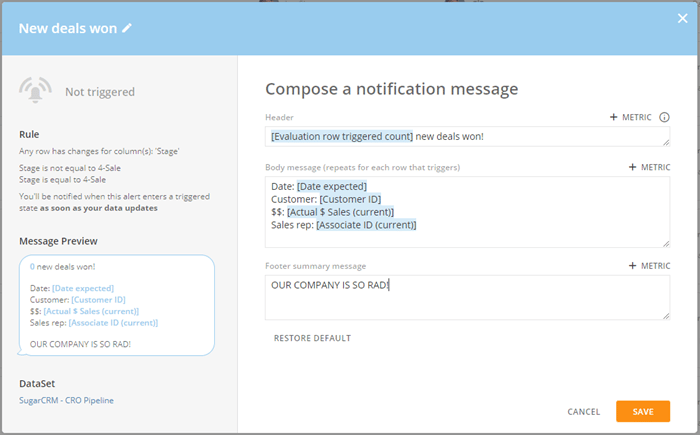
With DataSet Alerts, you can build more flexible and powerful Alerts right on a DataSet. Alerts can be triggered based on new rows being added, deleted, or updated. Unlike traditional Alerts, DataSet Alerts can be built on multiple trigger rules. And the Alert message can include complex calculations and even data from other DataSets—making the custom message more customizable and more useful. For example, instead of simply having an Alert message announcing that you gained a new customer account, you can create a much more specific message that tells you the name of the new customer, the amount of the deal, and any other information found in the DataSet.
Be aware that this functionality is currently only supported in "Replace" DataSets, *not* "Append" or "Upsert" DataSets.
With DataSet Alerts, your data is more meaningful and more informative.
;
};
## New features and enhancements
Features and enhancements in this release include the following:
### DataSet Alerts
With DataSet Alerts, you can build more flexible and powerful Alerts right on a DataSet. Alerts can be triggered based on new rows being added, deleted, or updated. Unlike traditional Alerts, DataSet Alerts can be built on multiple trigger rules. And the Alert message can include complex calculations and even data from other DataSets—making the custom message more customizable and more useful. For example, instead of simply having an Alert message announcing that you gained a new customer account, you can create a much more specific message that tells you the name of the new customer, the amount of the deal, and any other information found in the DataSet.
Be aware that this functionality is currently only supported in "Replace" DataSets, *not* "Append" or "Upsert" DataSets.
With DataSet Alerts, your data is more meaningful and more informative.
 For more information, see [Creating an Alert for a DataSet](/s/article/360042925994 "Creating an Alert for a DataSet").
### Mobile 3.0
With this release, a number of significant interface changes are now available for both our iOS and Android applications.
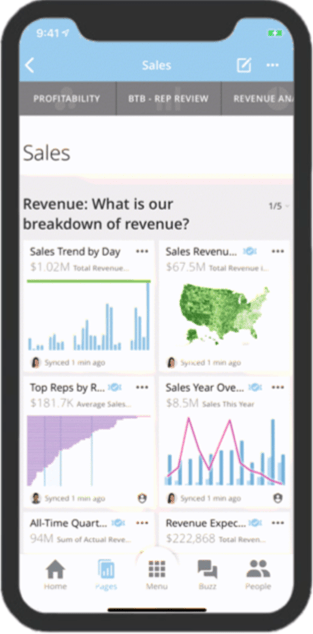
* **New navigation for iOS**. We're excited to announce an all-new navigation experience for the iOS Domo mobile application. Our new persistent navigation bar allows you to more quickly navigate through the application to find what you're looking for.
For more information, see [Creating an Alert for a DataSet](/s/article/360042925994 "Creating an Alert for a DataSet").
### Mobile 3.0
With this release, a number of significant interface changes are now available for both our iOS and Android applications.
* **New navigation for iOS**. We're excited to announce an all-new navigation experience for the iOS Domo mobile application. Our new persistent navigation bar allows you to more quickly navigate through the application to find what you're looking for.
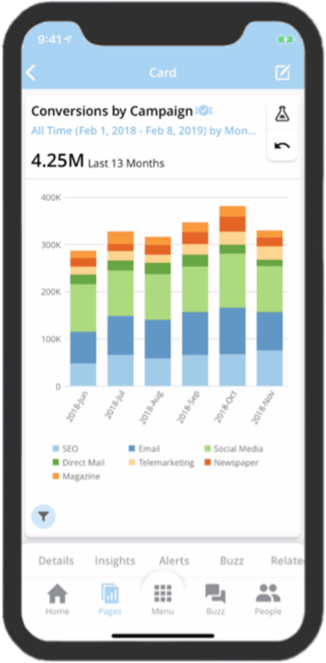
 * **New Card details for Android and IOS**. An all new Card Details view is now available for Android and IOS versions of the Domo app. Now, as soon as you arrive on a Card you can begin interacting with it without having to make any extra taps. The view has also had a facelift, making it the best experience yet. In addition to an improved experience, you will also benefit from our new drill views where you can maintain context of the full drillpath and skip between steps if desired.
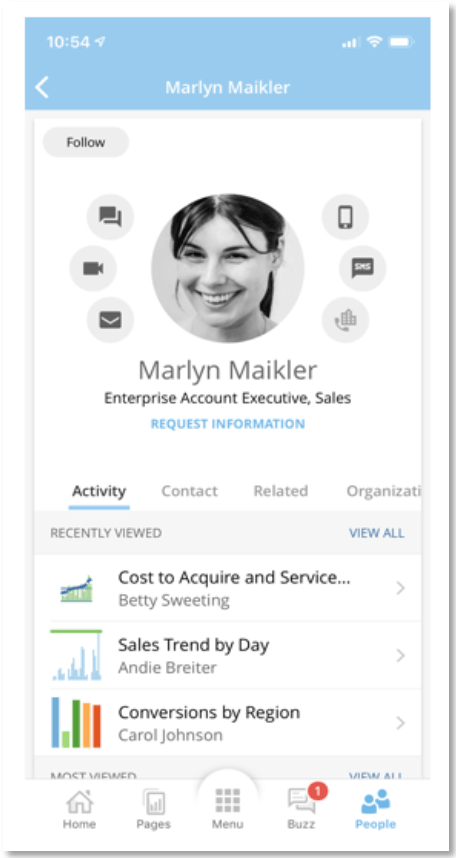
 * **Updated Profile for Android and iOS.** We are excited to present a new profile view that makes it easier than ever to get insights about people in your organization. Now you can visit individual profiles to see which cards are top-of-mind for your teams; initiate conversations via Buzz, email, phone call, text message, or video chat; and quickly view employees' departments and positions in the org chart. With more prominent **Activity**, **Contact**, **Related**, **Organization**, and **Stats** tabs, you can also get business signal, insights, and answers in one quick glance on your phone.
 ### Dynamic Notebook Card
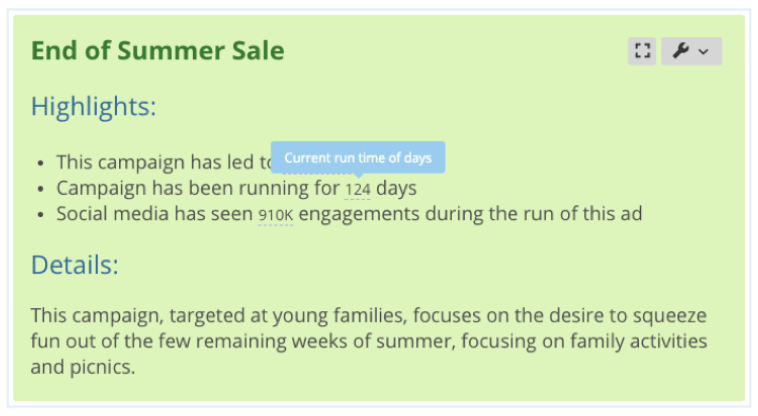
Notebook Cards now incorporate dynamic Summary Numbers into your text, similar to those that appear in your visualizations. And because they constantly update, your Notebook Cards will never go stale.
To add a Summary Number to a Notebook Card, edit the Notebook Card and choose the **Summary Number** option. Choose the DataSet with data you want to summarize, along with the column and the desired aggregation type. Once you have added a Summary Number to your Notebook Card, it will update automatically anytime the data updates.
### Dynamic Notebook Card
Notebook Cards now incorporate dynamic Summary Numbers into your text, similar to those that appear in your visualizations. And because they constantly update, your Notebook Cards will never go stale.
To add a Summary Number to a Notebook Card, edit the Notebook Card and choose the **Summary Number** option. Choose the DataSet with data you want to summarize, along with the column and the desired aggregation type. Once you have added a Summary Number to your Notebook Card, it will update automatically anytime the data updates.
 Please note that some Notebook Cards will not automatically have this functionality. Newly created Notebook Cards will have this option, but for older Notebook Cards, you may need to first do an update.
For more information, see [Adding a Notebook Card](/s/article/360043430233 "Adding a Notebook Card").
### Stories improvements
#### Background images for Pages
Create highly customized Dashboards that match your brand by setting an image as the background to your Domo Story. No need to spend extra time and effort creating custom apps as a way to show your colors; just upload an image and leverage the full power of Domo Stories to create curated and branded experiences for all your users.
Mobile, PDF, and PPT exports will include your selected background image. Scheduled Reports will *not* show a background image. These will show the default background color instead.
Please note that some Notebook Cards will not automatically have this functionality. Newly created Notebook Cards will have this option, but for older Notebook Cards, you may need to first do an update.
For more information, see [Adding a Notebook Card](/s/article/360043430233 "Adding a Notebook Card").
### Stories improvements
#### Background images for Pages
Create highly customized Dashboards that match your brand by setting an image as the background to your Domo Story. No need to spend extra time and effort creating custom apps as a way to show your colors; just upload an image and leverage the full power of Domo Stories to create curated and branded experiences for all your users.
Mobile, PDF, and PPT exports will include your selected background image. Scheduled Reports will *not* show a background image. These will show the default background color instead.
 For more information, see [Creating Domo Stories](/s/article/360043428433 "Creating Domo Stories").
#### Mobile preview for Stories
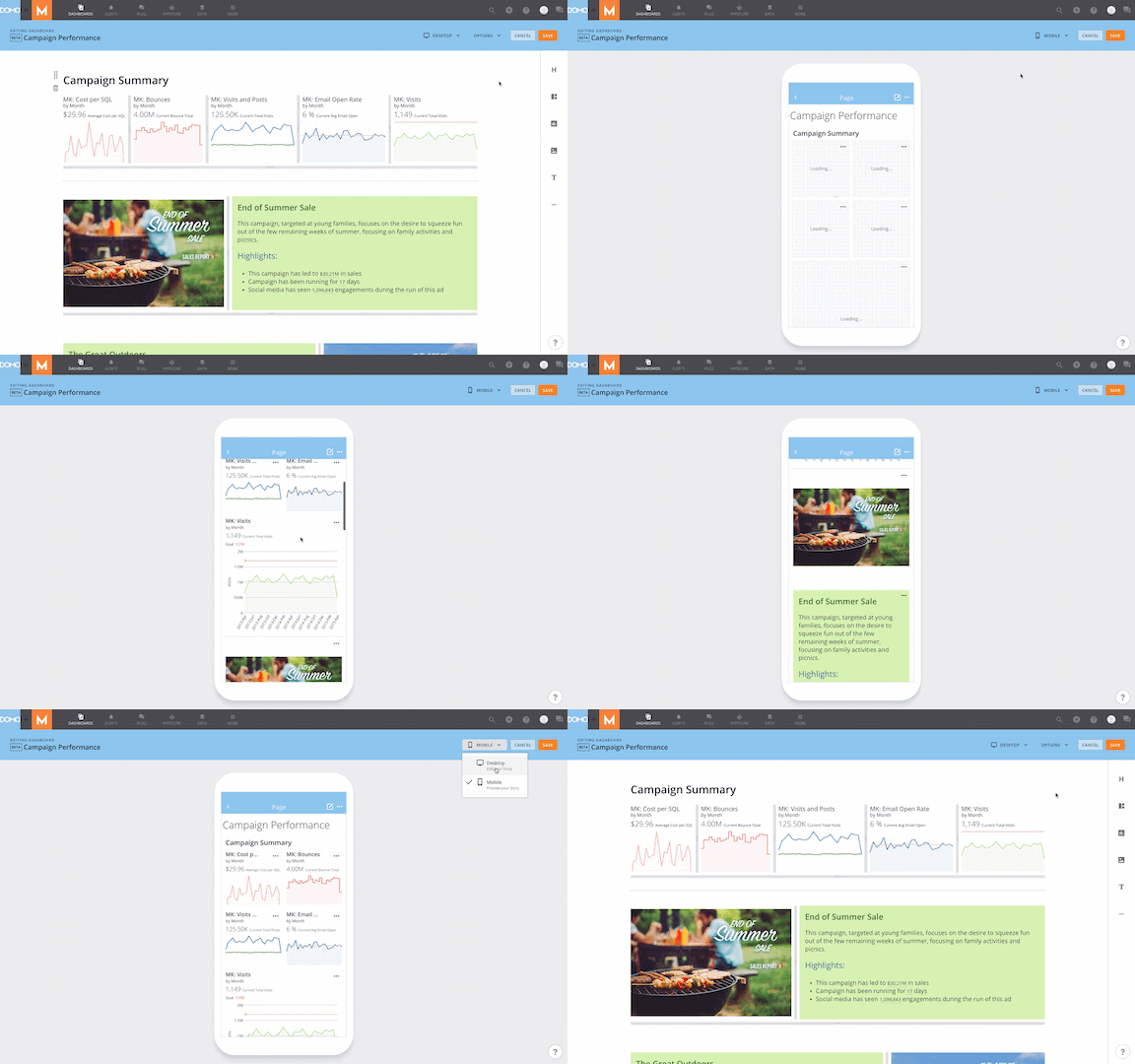
You can now create dashboards specifically for mobile consumption by previewing how your Domo Stories pages will appear when viewed on smartphones. Due to varying screen sizes for the many different screen sizes of phones that can be used for Domo, *this preview is intended only to be used as a close approximation*. Visible content for some cards (particularly Notebook Cards or tables) may vary slightly between the preview and the actual device being used.
For more information, see [Creating Domo Stories](/s/article/360043428433 "Creating Domo Stories").
#### Mobile preview for Stories
You can now create dashboards specifically for mobile consumption by previewing how your Domo Stories pages will appear when viewed on smartphones. Due to varying screen sizes for the many different screen sizes of phones that can be used for Domo, *this preview is intended only to be used as a close approximation*. Visible content for some cards (particularly Notebook Cards or tables) may vary slightly between the preview and the actual device being used.
 For more information, see [Creating Domo Stories](/s/article/360043428433 "Creating Domo Stories").
#### New Story shortcut
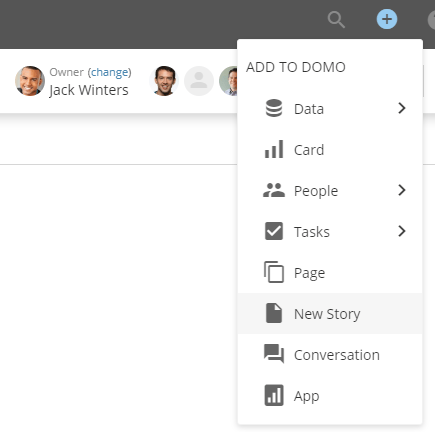
You can now create a blank Domo Story Page in seconds. To do this, you simply choose **New Story** from the menu at the top of the screen. Telling your organization's data story has never been so easy!
For more information, see [Creating Domo Stories](/s/article/360043428433 "Creating Domo Stories").
#### New Story shortcut
You can now create a blank Domo Story Page in seconds. To do this, you simply choose **New Story** from the menu at the top of the screen. Telling your organization's data story has never been so easy!
 For more information, see [Creating Domo Stories](/s/article/360043428433 "Creating Domo Stories").
### Updated Alert Center
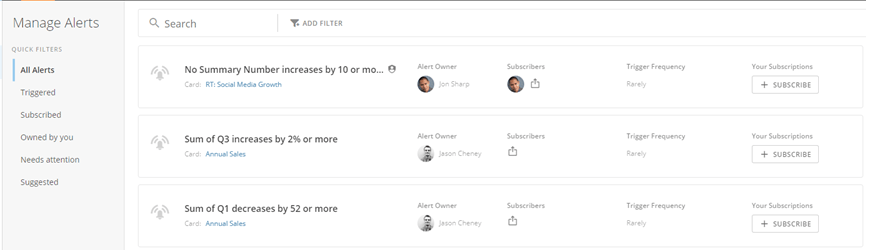
By combining our existing Alert Management and Alert Center pages in Domo, we have created an all-new experience that is both more powerful and more simple to understand. Our new Alert Center provides all of the following perks:
* Search for Alerts based on owner, subscriber, created date, or status (enabled for disabled).
* Use pre-built Quick Filters to help you quickly navigate to important Alerts. You can filter to show triggered, owned, subscribed, or suggested Alerts, or those that need attention.
* Change subscription settings for individual Alerts.
* Receive Notifications via phone call! (Not available in all regions.)
For more information, see [Creating Domo Stories](/s/article/360043428433 "Creating Domo Stories").
### Updated Alert Center
By combining our existing Alert Management and Alert Center pages in Domo, we have created an all-new experience that is both more powerful and more simple to understand. Our new Alert Center provides all of the following perks:
* Search for Alerts based on owner, subscriber, created date, or status (enabled for disabled).
* Use pre-built Quick Filters to help you quickly navigate to important Alerts. You can filter to show triggered, owned, subscribed, or suggested Alerts, or those that need attention.
* Change subscription settings for individual Alerts.
* Receive Notifications via phone call! (Not available in all regions.)
 And if you were a fan of the "hyperspace" page that used to appear when you clicked on **Alerts**, don't worry—it's still there. Just click the icon on the left side of the screen to open it.
For more information, see [Alert Center Layout](/s/article/360043430373 "Alert Center Layout").
### Improved search filters
The Global Search page in Domo has been revamped to help you find exactly what you need, when you need it. Filters have been moved into a left-hand navigation pane and are now context-sensitive, meaning you get different filter options depending on the search category you have selected. For example, if you run a search then select the **Buzz** category, Buzz-specific filter options become available, such as the ability to filter by message sender, conversation type, attachment status, and so on.
And if you were a fan of the "hyperspace" page that used to appear when you clicked on **Alerts**, don't worry—it's still there. Just click the icon on the left side of the screen to open it.
For more information, see [Alert Center Layout](/s/article/360043430373 "Alert Center Layout").
### Improved search filters
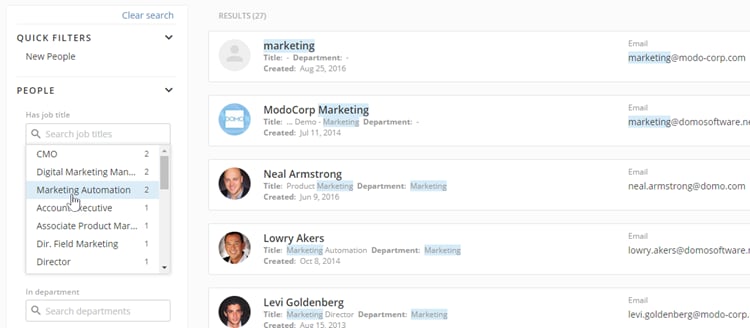
The Global Search page in Domo has been revamped to help you find exactly what you need, when you need it. Filters have been moved into a left-hand navigation pane and are now context-sensitive, meaning you get different filter options depending on the search category you have selected. For example, if you run a search then select the **Buzz** category, Buzz-specific filter options become available, such as the ability to filter by message sender, conversation type, attachment status, and so on.
 For more information, see Searching in Domo.
### DomoStats People App
With the DomoStats People App, you get access to data about your people, their roles and departments, and all of their Domo activities, all in one place. This makes it easier to see who is in your Domo instance, how actively everyone is using Domo, and who is creating content, managing security preferences, and updating cards.
For more information, see Searching in Domo.
### DomoStats People App
With the DomoStats People App, you get access to data about your people, their roles and departments, and all of their Domo activities, all in one place. This makes it easier to see who is in your Domo instance, how actively everyone is using Domo, and who is creating content, managing security preferences, and updating cards.
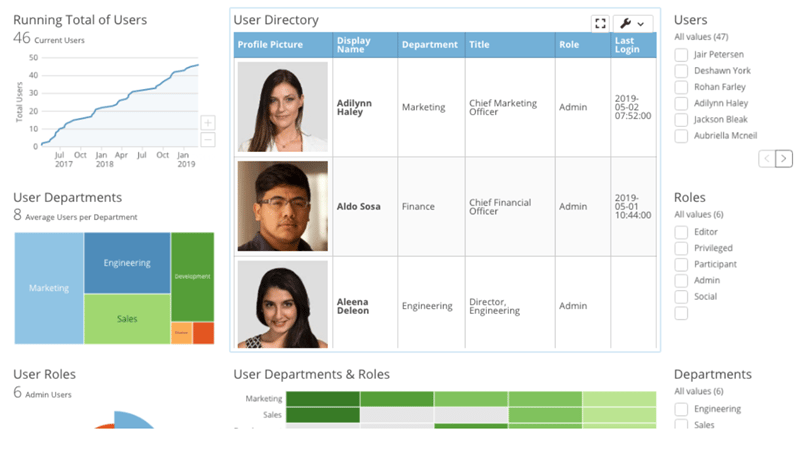 Only Admin users can install the DomoStats People App, but they can easily share the App with others in their organization.
For more information, see [DomoStats - People](/s/article/360043439273 "DomoStats - People (BETA)").
## Announcements
### Deprecation of Labs Stories
As of July 16, 2019, any existing Labs Stories (i.e. those with a URL that includes `/storyboard` ) will no longer be available. Any content from these Pages that is still needed must be recreated in a new Domo Stories Page. Any customers who are part of the Story Embed Alpha will *not* be affected. These customers will still be able to access any existing Labs Stories they have created and will be able to create new ones.
## Getting help
You can view the latest release notes information in the Help Center, which you can access from Domo by clicking by clicking in the top navigation bar.
If you have questions about Domo,
* search for a topic in the Help Center
* train in Domo University at
[http://university.domo.com](http://university.domo.com/ "http://university.domo.com")
* search for training apps in the Appstore
* get answers in the Domo Community at
[https://dojo.domo.com](https://dojo.domo.com/ "https://dojo.domo.com")
* contact Technical Support by entering a help ticket in the Domo Support Portal or by sending a Buzz message to `/support`.
* reach out to your Domo Customer Success Manager or Technical Consultant
If you have feedback, please send it from within Domo ( ****> Feedback****). Or send an email to [product.feedback@domo.com](mailto:product.feedback@domo.com "product.feedback@domo.com").
For more information about getting help, see [Getting Help](/s/article/360042922874 "Getting Help").
Only Admin users can install the DomoStats People App, but they can easily share the App with others in their organization.
For more information, see [DomoStats - People](/s/article/360043439273 "DomoStats - People (BETA)").
## Announcements
### Deprecation of Labs Stories
As of July 16, 2019, any existing Labs Stories (i.e. those with a URL that includes `/storyboard` ) will no longer be available. Any content from these Pages that is still needed must be recreated in a new Domo Stories Page. Any customers who are part of the Story Embed Alpha will *not* be affected. These customers will still be able to access any existing Labs Stories they have created and will be able to create new ones.
## Getting help
You can view the latest release notes information in the Help Center, which you can access from Domo by clicking by clicking in the top navigation bar.
If you have questions about Domo,
* search for a topic in the Help Center
* train in Domo University at
[http://university.domo.com](http://university.domo.com/ "http://university.domo.com")
* search for training apps in the Appstore
* get answers in the Domo Community at
[https://dojo.domo.com](https://dojo.domo.com/ "https://dojo.domo.com")
* contact Technical Support by entering a help ticket in the Domo Support Portal or by sending a Buzz message to `/support`.
* reach out to your Domo Customer Success Manager or Technical Consultant
If you have feedback, please send it from within Domo ( ****> Feedback****). Or send an email to [product.feedback@domo.com](mailto:product.feedback@domo.com "product.feedback@domo.com").
For more information about getting help, see [Getting Help](/s/article/360042922874 "Getting Help").