> ## Documentation Index
> Fetch the complete documentation index at: https://domoinc-openapi-sync-dataflows.mintlify.site/llms.txt
> Use this file to discover all available pages before exploring further.

# Zoom Connector

## Intro

Zoom provides a remote conferencing service that combines video conferencing, online meetings, chat, and mobile collaboration. Using Domo's Zoom connector, you can access data associated with your Zoom usage, including the number of meetings attended and time spent on Zoom calls. As an Admin Zoom user, you can access activity data for all users within your Zoom account. To learn more about the Zoom API, visit their [API Documentation](https://marketplace.zoom.us/docs/api-reference/zoom-api "API Documentation").

You connect to your Zoom account in the Data Center. This topic discusses the fields and menus that are specific to the Zoom connector user interface. General information for adding DataSets, setting update schedules, and editing DataSet information is discussed in [Adding a DataSet Using a Data Connector](https://domo-support.domo.com/s/article/360042926274?language=en_US "Adding a DataSet Using a Data Connector").

## Prerequisites

To connect to your Zoom account and create a DataSet, you must have the following:

* Your Zoom email address
* Your Zoom password

or connect to Zoom via Google, Facebook, or an SSO login.

<Warning>
  **Important:** Each account can only be used once to authenticate to Zoom.
</Warning>

## Connecting to Your Zoom Account

This section enumerates the options in the **Credentials** and **Details** panes in the Zoom Connector page. The components of the other panes in this page, **Scheduling** and **Name & Describe Your DataSet,** are universal across most connector types and are discussed in greater length in [Adding a DataSet Using a Data Connector](https://domo-support.domo.com/s/article/360042926274?language=en_US "Adding a DataSet Using a Data Connector").

### Credentials Pane

The Domo Zoom connector uses OAuth to connect, so there is no need to enter credentials within Domo. Click **Connect** (or select **Add Account** if you have existing Zoom accounts in Domo) to open the Zoom OAuth screen where you can enter your Zoom email and password. Once you have entered valid credentials, you can use the same account any time you go to create a new Zoom DataSet. You can manage connector accounts in the **Accounts** tab in the Data Center. For more information about this tab, see [Managing User Accounts for Connectors](https://domo-support.domo.com/s/article/360042926054?language=en_US "Managing User Accounts for Connectors").

<Note>
  **Note:** If you are already logged into Zoom when you connect in Domo, you are authenticated automatically when you click **Add account**. If you want to connect to an account that is different from the one you are logged into, you must first log out of Zoom.
</Note>

### Details Pane

This pane contains a primary **Reports** menu, along with various other menus which may or may not appear depending on the report type you select.

<Warning>
  **Important:** Some reports require you to be an Admin user within Zoom to access the data.
</Warning>

<table border="1" cellpadding="1" cellspacing="1" data-aura-rendered-by="33:195;a"><thead><tr><th colspan="1" rowspan="1"><p> Menu </p></th><th colspan="1" rowspan="1"><p> Description </p></th></tr></thead><tbody><tr><td colspan="1" rowspan="1"><p> Report </p></td><td colspan="1" rowspan="1"><p> Select the Zoom report you want to run. The following reports are available: </p><table border="1" cellpadding="1" cellspacing="1"><tbody><tr><td colspan="1" rowspan="1"><b> Report Name </b></td><td colspan="1" rowspan="1"><b> Description </b></td></tr><tr><td colspan="1" rowspan="1"> Account Call Logs </td><td colspan="1" rowspan="1"> Retrieve a list of account call logs. </td></tr><tr><td colspan="1" rowspan="1"> Activity Host Report </td><td colspan="1" rowspan="1"> Retrieve a list of all active or inactive host reports for a specified period of time. </td></tr><tr><td colspan="1" rowspan="1"> Activity Report </td><td colspan="1" rowspan="1"> Retrieve a list of activity logs of users under a Zoom account. </td></tr><tr><td colspan="1" rowspan="1"> Agent Status History Report </td><td colspan="1" rowspan="1"> Retrieve a list of an agent's status history reports. </td></tr><tr><td colspan="1" rowspan="1"> Agent Timesheet Report </td><td colspan="1" rowspan="1"> Retrieve a list of an agent's time sheet reports. </td></tr><tr><td colspan="1" rowspan="1"> All Meetings Report </td><td colspan="1" rowspan="1"><span> Retrieve reports on a past meeting of the users for a specified period. </span></td></tr><tr><td colspan="1" rowspan="1"> All Meetings Participants Report </td><td colspan="1" rowspan="1"> Retrieve reports on all participants of a meeting for a specified period. </td></tr><tr><td colspan="1" rowspan="1"> All Meetings Details Report </td><td colspan="1" rowspan="1"> Retrieve reports on all meetings for a specified period. </td></tr><tr><td colspan="1" rowspan="1"> All Past Meetings Report </td><td colspan="1" rowspan="1"> Retrieve reports on all past meetings for a specified period. </td></tr><tr><td colspan="1" rowspan="1"> Billing Invoice Report </td><td colspan="1" rowspan="1"> Get billing invoices reports for a specific billing period. </td></tr><tr><td colspan="1" rowspan="1"> Billing Report </td><td colspan="1" rowspan="1"> Get billing reports of a Zoom account. </td></tr><tr><td colspan="1" rowspan="1"> Cloud Recordings Report </td><td colspan="1" rowspan="1"> Retrieve cloud recordings report for a specified period. </td></tr><tr><td colspan="1" rowspan="1"> Cloud Recording Usage Report </td><td colspan="1" rowspan="1"><span> Retrieve cloud recording usage report for a specified period. </span></td></tr><tr><td colspan="1" rowspan="1"> Daily Usage Report </td><td colspan="1" rowspan="1"> Retrieve daily reports to access the account-wide usage of Zoom services for each day in a given month. </td></tr><tr><td colspan="1" rowspan="1"> Dataflow Daily Usage Report </td><td colspan="1" rowspan="1"><span> Retrieves the daily usage report for a data flow. </span></td></tr><tr><td colspan="1" rowspan="1"> Historical Detail Report </td><td colspan="1" rowspan="1"><span> Retrieve a list of historical detail reports. </span></td></tr><tr><td colspan="1" rowspan="1"> Historical Queue Agents Report </td><td colspan="1" rowspan="1"><span> Retrieve a list of a historical queue's agent reports. </span></td></tr><tr><td colspan="1" rowspan="1"> Historical Queue Report </td><td colspan="1" rowspan="1"><span> Retrieve a list of historical queue reports. </span></td></tr><tr><td colspan="1" rowspan="1"> List Meeting Details </td><td colspan="1" rowspan="1"> Retrieves a list of meeting details for past meetings. </td></tr><tr><td colspan="1" rowspan="1"> Meeting Details Report </td><td colspan="1" rowspan="1"> Get a detailed report for a past meeting. </td></tr><tr><td colspan="1" rowspan="1"> Meeting Participant Report </td><td colspan="1" rowspan="1"> Get participant reports for a past meeting. </td></tr><tr><td colspan="1" rowspan="1"> Meeting Poll Report </td><td colspan="1" rowspan="1"> Retrieve a report of poll results for a past meeting. </td></tr><tr><td colspan="1" rowspan="1"> Meeting Productivity Report </td><td colspan="1" rowspan="1"><span> Retrieves the meeting usage data for a data flow. </span></td></tr><tr><td colspan="1" rowspan="1"> Meeting Registrants Report </td><td colspan="1" rowspan="1"> Get the registrant's report for a past meeting. </td></tr><tr><td colspan="1" rowspan="1"> Meeting Report </td><td colspan="1" rowspan="1"> Retrieve report on a past meeting for a specified period of time. </td></tr><tr><td colspan="1" rowspan="1"> Operation Logs Report </td><td colspan="1" rowspan="1"> The report allows you to audit admin and user activity, such as adding a new user, changing account settings, and deleting recordings. </td></tr><tr><td colspan="1" rowspan="1"> RealTime My Agents Report </td><td colspan="1" rowspan="1"><span> Retrieve a real-time live my agents report. </span></td></tr><tr><td colspan="1" rowspan="1"> Rooms Report </td><td colspan="1" rowspan="1"><span> Retrieve a list of all existing rooms in the Zoom account. </span></td></tr><tr><td colspan="1" rowspan="1"> Telephone Report </td><td colspan="1" rowspan="1"> Allows you to view who dialed into meetings via phone (Audio Conferencing or SIP Connected Audio) and which number they dialed into and other details. </td></tr><tr><td colspan="1" rowspan="1"> User Call Logs </td><td colspan="1" rowspan="1"> Retrieve a list of user's Zoom phone call logs. </td></tr><tr><td colspan="1" rowspan="1"> Users Report </td><td colspan="1" rowspan="1"> Retrieve a user report. </td></tr><tr><td colspan="1" rowspan="1"> Webinar Details Report </td><td colspan="1" rowspan="1"> Retrieve a report containing past webinar details. </td></tr><tr><td colspan="1" rowspan="1"> Webinar Participant Report </td><td colspan="1" rowspan="1"> Get a detailed report on each attendee of a webinar. </td></tr><tr><td colspan="1" rowspan="1"> Webinar Poll Report </td><td colspan="1" rowspan="1"> Retrieve a report on past webinar poll. </td></tr><tr><td colspan="1" rowspan="1"> Webinar Registrants Report </td><td colspan="1" rowspan="1"><span> Retrieve a list of all the users that have registered for a webinar. </span></td></tr><tr><td colspan="1" rowspan="1"><p> Webinar Q\&A Report </p></td><td colspan="1" rowspan="1"> The Question & Answer (Q\&A) feature for webinars allows attendees to ask questions during the webinar and for the panelists, co-hosts, and hosts to answer their questions. </td></tr><tr><td colspan="1" rowspan="1"><p> Webinar Participant Report For All IDs </p></td><td colspan="1" rowspan="1"> Fetches the detailed report on all webinars attended by each attendee. </td></tr><tr><td colspan="1" rowspan="1"><p> Webinar Registrants Report For All IDs </p></td><td colspan="1" rowspan="1"><div><div id="user-query-content-5"><div dir="ltr"><p> Retrieves a list of all users and all the webinars for which they have registered. </p></div><span /></div></div><span /></td></tr></tbody></table><p /></td></tr><tr><td colspan="1" rowspan="1"> Billing Id </td><td colspan="1" rowspan="1"> Select a Billing Id <br /><br />
<Note><div class="info-box-wrapper"><div class="info-box-icon-container" /><div class="info-box-content-container"><div class="info-box-content"><span><b> Note: </b> Required for the Billing Invoice Report only </span></div></div></div> </Note></td></tr><tr><td colspan="1" rowspan="1"> User Id </td><td colspan="1" rowspan="1"><p> Select a User Id </p> <Note><div class="info-box-wrapper"><div class="info-box-icon-container" /><div class="info-box-content-container"><div class="info-box-content"><p><span><b> Note: </b> Required only for the following reports: </span></p><ul><li><p><span> Meeting Details Report </span></p></li><li><p><span> Meeting Poll Report </span></p></li><li><span> Meeting Productivity Report </span></li><li><p><span> Meeting Report </span></p></li><li><p><span> Webinar Details Report </span></p></li><li><p><span> Webinar Participant Report </span></p></li><li><p><span> Webinar Poll Report </span></p></li><li><span> Webinar Registrant Report </span></li><li><p><span> Webinar Q\&A Report </span></p></li></ul></div></div></div> </Note><p /></td></tr><tr><td colspan="1" rowspan="1"> Meeting Id </td><td colspan="1" rowspan="1"><p> Select a meeting Id </p> <Note><div class="info-box-wrapper"><div class="info-box-icon-container" /><div class="info-box-content-container"><div class="info-box-content"><p><span><b> Note: </b> Required only for the following reports: </span></p><ul><li><p> All Meetings Participants Report </p></li><li><span> Meeting Details Report </span><span /></li><li><p><span> Meeting Poll Report </span></p></li><li><p><span> Meeting Participant Report </span></p></li><li><span> Meeting Registrants Report </span></li><li><span> Meeting Productivity Report </span></li></ul></div></div></div> </Note><p /></td></tr><tr><td colspan="1" rowspan="1"> Webinar Id </td><td colspan="1" rowspan="1"><p> Select a Webinar Id </p> <Note><div class="info-box-wrapper"><div class="info-box-icon-container" /><div class="info-box-content-container"><div class="info-box-content"><p><span><b> Note: </b> Required only for the following reports: </span></p><ul><li><p> Webinar Details Report </p></li><li><p> Webinar Participant Report </p></li><li><p> Webinar Poll Report </p></li><li> Webinar Registrants Report </li><li><p> Webinar Q\&A Report </p></li></ul></div></div></div> </Note><p /></td></tr><tr><td colspan="1" rowspan="1"> Active Inactive Host </td><td colspan="1" rowspan="1"><p> Choose the status of the host to filter by </p> <Note><div class="info-box-wrapper"><div class="info-box-icon-container" /><div class="info-box-content-container"><div class="info-box-content"><span><b> Note: </b> Required for the Active Hosts Report only </span><span /></div><ul><li class="info-box-content"><span> Active Hosts Report </span></li></ul></div></div> </Note></td></tr><tr><td colspan="1" rowspan="1"> Date Selection </td><td colspan="1" rowspan="1"><p> Select the date range for the report </p> <Note><div class="info-box-wrapper"><div class="info-box-icon-container" /><div class="info-box-content-container"><div class="info-box-content"><p><span><b> Note: </b> Required for the following reports: </span></p><ul><li><p> Active Hosts Report </p></li><li> Activity Report </li><li> All Meeting Report </li><li> All Meeting Participant Report </li><li> Cloud Recordings </li><li> Cloud Recording Usage Report </li><li> Daily Usage Report </li><li> Dataflow Daily Usage Report </li><li> Meeting Productivity Report </li><li> Meeting Report </li><li> Meeting Registrants Report </li><li> Operation Logs </li><li> Rooms Report </li><li> Telephone Report </li><li> Webinar Registrants Report </li></ul></div></div></div> </Note><p /></td></tr></tbody></table>

<Note>
  **Note:** The time range for the report is limited to a month, and the month should fall within six months period.
</Note>

<Warning>
  **Important:** Meetings and webinars are returned only if they have two or more unique participants..
</Warning>

### Other Panes

For information about the remaining sections of the connector interface, including how to configure scheduling, retry, and update options, see [Adding a DataSet Using a Data Connector](https://domo-support.domo.com/s/article/360042926274?language=en_US "Adding a DataSet Using a Data Connector").

## FAQs

<AccordionGroup>
  <Accordion title="Why is the Zoom connector failing to pull data for some reports and not others?">
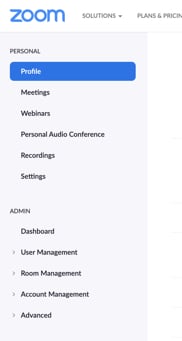
    Some reports require that you are an Admin user within Zoom. Make sure you are an Admin by logging in and navigating to your profile. If you are an Admin, you will have access to an Admin section in your profile menu.

    <Frame>
      <img alt="Zoom_Admin.jpg" src="https://mintcdn.com/domoinc-openapi-sync-dataflows/J3x-O8qWbl7BB1F9/images/kb/ka0Vq000000EDwf-00N5w00000Ri7BU-0EM5w000005vO0D.jpg?fit=max&auto=format&n=J3x-O8qWbl7BB1F9&q=85&s=202cb4fb2f442d97691b37c7d142ec18" width="182" height="341" data-path="images/kb/ka0Vq000000EDwf-00N5w00000Ri7BU-0EM5w000005vO0D.jpg" />
    </Frame>
  </Accordion>
</AccordionGroup>