> ## Documentation Index
> Fetch the complete documentation index at: https://domoinc-openapi-sync-dataflows.mintlify.site/llms.txt
> Use this file to discover all available pages before exploring further.
# Combining DataSets in Workbench 4
**Important:** Support for Workbench 4 ended on **April 15, 2021**. Workbench may continue to run on installed machines, but it will no longer receive feature enhancements and security updates. When issues are encountered in Workbench 4, the recommended course of action from the Domo Support team will be to upgrade to the latest version of Workbench 5. To see this article for Workbench 5, click [**here**](/s/article/360043437193).
You can combine DataSets in Workbench 4 by writing SQL queries (ODBC and OLAP DataSets only) or using Lookup Tables to create joins (all DataSet types). This topic focuses on using Lookup Tables. For more information about writing SQL queries for ODBC and OLAP DataSets, see [Connecting to an OLAP cube](/s/article/360047496273 "Creating a Job for Uploading Data Using Workbench 4").
In Workbench 4, a "Lookup Table" is a DataSet you combine with a primary DataSet. The Lookup Table *must* be saved as a DataSet job in Workbench or the join will not work. The Lookup Table DataSet and primary DataSet must both contain one column with unique matching values ("key columns"); that is, the values in both columns must be the same, but there cannot be duplicate values in either column. In addition, the names of the matching columns must be different. (You can change column names in Workbench if need be.) Once you match key columns, a new DataSet is created by joining all columns from both DataSets. Combining DataSets in this way is equivalent to using a LEFT JOIN in SQL.
**To combine DataSets using Lookup Tables,**
1. In Workbench, select your primary DataSet job in the
**Accounts** pane.
2. In the
**Transforms** grouping in the Buttons toolbar at the top of the Workbench window, click **Add New**.
3. In the
**Transform Type** menu, select **Lookup Table** then click **Next**.
4. Click
**Finish**.
A **Lookup Table** item is added under **Transforms** for this DataSet job.
5. Click on the new
**Lookup Table** item under **Transforms**.
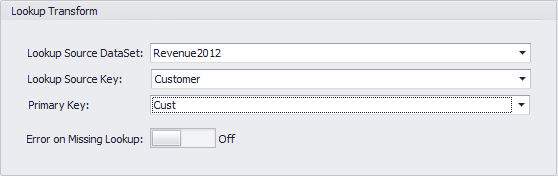
A **Lookup Transform** interface appears in the Dynamic Options panel.
 6. In the
**Lookup Source DataSet** menu, select the DataSet you intend to combine with your primary DataSet.
The DataSet you select *must* be saved as a DataSet job in Workbench.
7. In the
**Lookup Source Key** menu, select the column from the Lookup Source you intend to match with a column in your primary DataSet.
8. In the
**Primary Key** menu, select the matching column.
9. (Optional) If you want Workbench to generate an error if your Lookup Source is found to be missing, turn on
**Error on Missing Lookup**.
**Note:** If any columns in your Lookup Table have the same name as columns in your primary table, you must change those names. You can do this by selecting **Schema** for the DataSet job then making changes as necessary under **Destination Column**. If necessary, you can also remove columns by clearing the checkboxes for those columns under **Include**.
10. Click
**Save** in the **DataSet Jobs** grouping in the Buttons toolbar at the top of the Workbench window.
For information about joining DataSets in Domo, see [Data Transformation](/s/topic/0TO5w000000ZamzGAC "Prepare").
6. In the
**Lookup Source DataSet** menu, select the DataSet you intend to combine with your primary DataSet.
The DataSet you select *must* be saved as a DataSet job in Workbench.
7. In the
**Lookup Source Key** menu, select the column from the Lookup Source you intend to match with a column in your primary DataSet.
8. In the
**Primary Key** menu, select the matching column.
9. (Optional) If you want Workbench to generate an error if your Lookup Source is found to be missing, turn on
**Error on Missing Lookup**.
**Note:** If any columns in your Lookup Table have the same name as columns in your primary table, you must change those names. You can do this by selecting **Schema** for the DataSet job then making changes as necessary under **Destination Column**. If necessary, you can also remove columns by clearing the checkboxes for those columns under **Include**.
10. Click
**Save** in the **DataSet Jobs** grouping in the Buttons toolbar at the top of the Workbench window.
For information about joining DataSets in Domo, see [Data Transformation](/s/topic/0TO5w000000ZamzGAC "Prepare").