> ## Documentation Index
> Fetch the complete documentation index at: https://domoinc-openapi-sync-dataflows.mintlify.site/llms.txt
> Use this file to discover all available pages before exploring further.
# Encrypting and Decrypting Workbench 4 Data
export const InlineImage = ({src, alt = '', height = '1.6em'}) => {
return  ;
};
**Important:** Support for Workbench 4 ended on **April 15, 2021**. Workbench may continue to run on installed machines, but it will no longer receive feature enhancements and security updates. When issues are encountered in Workbench 4, the recommended course of action from the Domo Support team will be to upgrade to the latest version of Workbench 5. To see this article for Workbench 5, click [**here**](/s/article/360043437413).
You can encrypt columns of data in your DataSet in Workbench 4. After the DataSet has been pulled into Domo, it can only be decrypted in a Sumo table, by users who have been given special access in the **Data Access Management** settings for the DataSet. For more information about Sumo, see Understanding Sumo cards.
For a white paper discussing Workbench's encryption capability, click here: [Whitepaper\_Domo+Data+Security+and+Encryption+Draft.pdf](https://domosoftware.sharepoint.com/:b:/s/CS-Edu-PublicFiles/Ec5lAMNCHyxIrujDa7ZAXFIBo5jv7_53HWgO7lQJdSsbbA?e=VH4zr1 "Whitepaper_Domo+Data+Security+and+Encryption+Draft.pdf")
**To encrypt a column of data for a DataSet in Workbench 4,**
1. In the
**Accounts** pane, select the DataSet job in which you want to encrypt data.
2. In the
**Transforms** grouping in the Buttons toolbar at the top of the Workbench window, click **Add New**.
3. In the
**Transform Type** menu, select **Encrypt** then click **Next**.
4. Click
**Finish**.
An **Encrypt** item is added under **Transforms** for this DataSet job.
5. Click on the new
**Encrypt** item under **Transforms**.
6. In the
**Encrypted Columns** menu, check the boxes for all columns you want to encrypt.
7. (Optional) Turn on
**Obfuscate Values** if you want the data in the selected columns to be obfuscated.
Data that is obfuscated cannot be reconstituted into a readable state.
8. For each user who should have decryption capabilities, do the following:
1. Locate the user in the
**User Access** list.
2. Click the ellipsis (...) in the
**Disabled** field.
A **Data Password** dialog opens.
3. Set
**Access Enabled** to "On."
4. Enter a password in the
**Password** field and reenter it in the **Confirm** field.
5. Click
**Save**.
9. Click
**Save** in the **DataSet** **Jobs** grouping in the Buttons toolbar at the top of the Workbench window.
**To decrypt a data column you encrypted in Workbench 4,**
1. Open the Sumo editor or Details view for the DataSet with the encrypted column.
For more information, see Understanding Sumo cards.
2. Click the
icon on the left side of the screen.
;
};
**Important:** Support for Workbench 4 ended on **April 15, 2021**. Workbench may continue to run on installed machines, but it will no longer receive feature enhancements and security updates. When issues are encountered in Workbench 4, the recommended course of action from the Domo Support team will be to upgrade to the latest version of Workbench 5. To see this article for Workbench 5, click [**here**](/s/article/360043437413).
You can encrypt columns of data in your DataSet in Workbench 4. After the DataSet has been pulled into Domo, it can only be decrypted in a Sumo table, by users who have been given special access in the **Data Access Management** settings for the DataSet. For more information about Sumo, see Understanding Sumo cards.
For a white paper discussing Workbench's encryption capability, click here: [Whitepaper\_Domo+Data+Security+and+Encryption+Draft.pdf](https://domosoftware.sharepoint.com/:b:/s/CS-Edu-PublicFiles/Ec5lAMNCHyxIrujDa7ZAXFIBo5jv7_53HWgO7lQJdSsbbA?e=VH4zr1 "Whitepaper_Domo+Data+Security+and+Encryption+Draft.pdf")
**To encrypt a column of data for a DataSet in Workbench 4,**
1. In the
**Accounts** pane, select the DataSet job in which you want to encrypt data.
2. In the
**Transforms** grouping in the Buttons toolbar at the top of the Workbench window, click **Add New**.
3. In the
**Transform Type** menu, select **Encrypt** then click **Next**.
4. Click
**Finish**.
An **Encrypt** item is added under **Transforms** for this DataSet job.
5. Click on the new
**Encrypt** item under **Transforms**.
6. In the
**Encrypted Columns** menu, check the boxes for all columns you want to encrypt.
7. (Optional) Turn on
**Obfuscate Values** if you want the data in the selected columns to be obfuscated.
Data that is obfuscated cannot be reconstituted into a readable state.
8. For each user who should have decryption capabilities, do the following:
1. Locate the user in the
**User Access** list.
2. Click the ellipsis (...) in the
**Disabled** field.
A **Data Password** dialog opens.
3. Set
**Access Enabled** to "On."
4. Enter a password in the
**Password** field and reenter it in the **Confirm** field.
5. Click
**Save**.
9. Click
**Save** in the **DataSet** **Jobs** grouping in the Buttons toolbar at the top of the Workbench window.
**To decrypt a data column you encrypted in Workbench 4,**
1. Open the Sumo editor or Details view for the DataSet with the encrypted column.
For more information, see Understanding Sumo cards.
2. Click the
icon on the left side of the screen.
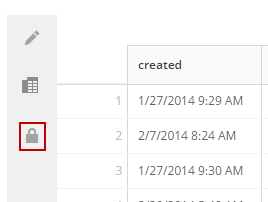 This icon *only* appears if you have enabled decryption for this DataSet for your user following the instructions in the previous section.
A dialog appears requesting your password.
3. Enter the password you entered in step 5-e in the previous section.
4. Click
**Unlock**.
You must go through this decryption process every time you access the card, even if you save the decrypted card while in the **Edit** view.
This icon *only* appears if you have enabled decryption for this DataSet for your user following the instructions in the previous section.
A dialog appears requesting your password.
3. Enter the password you entered in step 5-e in the previous section.
4. Click
**Unlock**.
You must go through this decryption process every time you access the card, even if you save the decrypted card while in the **Edit** view.