> ## Documentation Index
> Fetch the complete documentation index at: https://domoinc-openapi-sync-dataflows.mintlify.site/llms.txt
> Use this file to discover all available pages before exploring further.
# 2020 Release 2 | July
export const InlineImage = ({src, alt = '', height = '1.6em'}) => {
return  ;
};
## New features and enhancements
Features and enhancements in this release include the following:
## Card enhancements
Polish your charts for great-looking Stories.
### Table Card
#### Padding
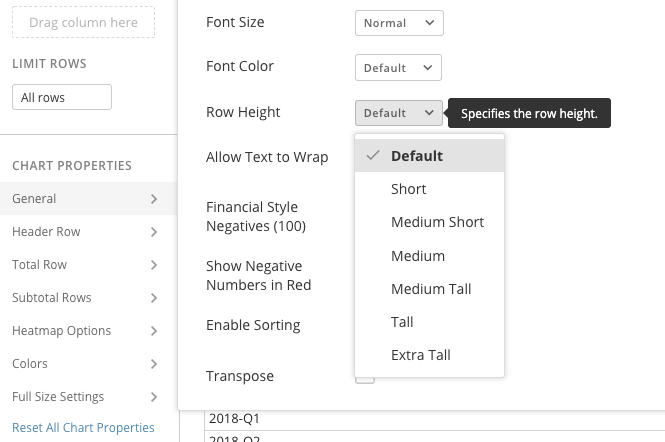
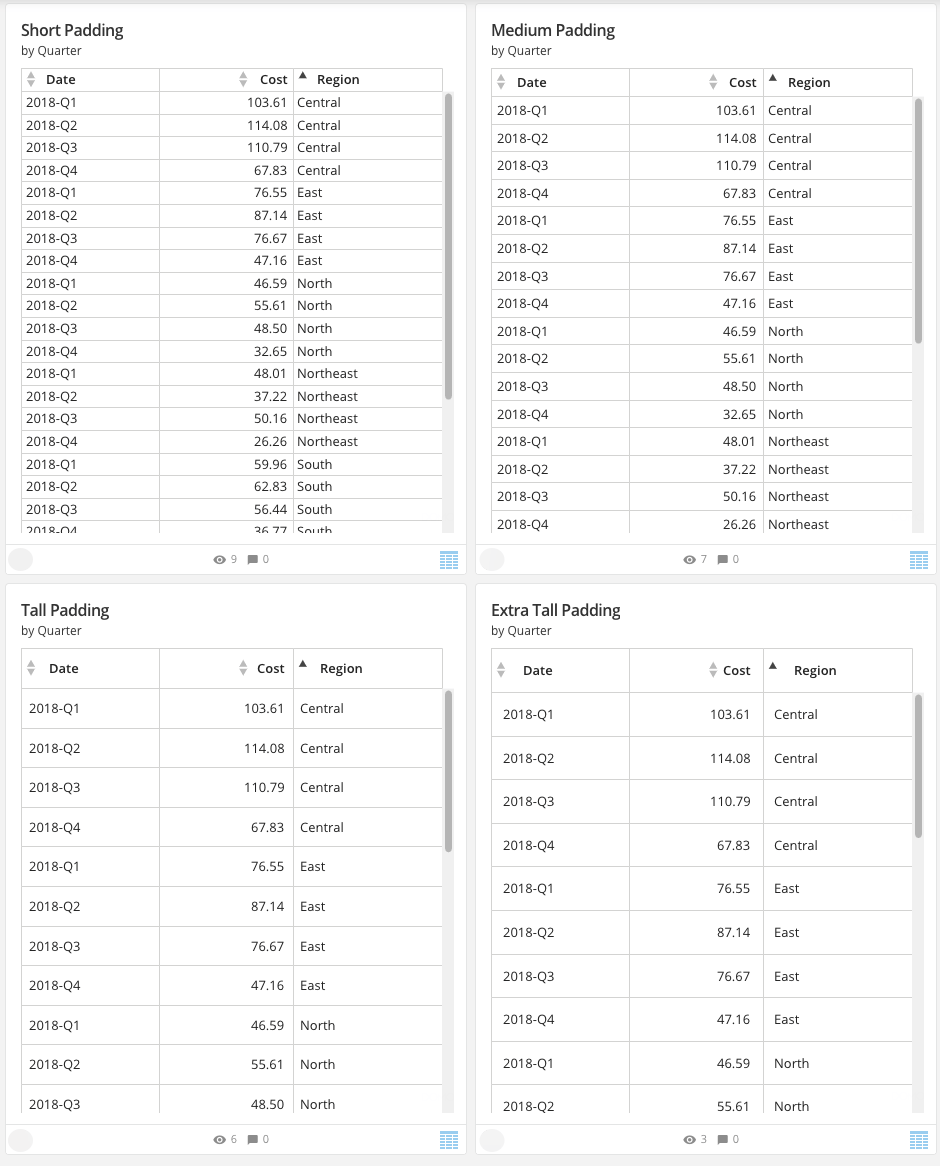
Give your tables a new clean look by adding custom padding to your tables. Now you control the look of your tables more than ever before. For more information, see [Table Chart](/s/article/360043429573 "Table Chart").
;
};
## New features and enhancements
Features and enhancements in this release include the following:
## Card enhancements
Polish your charts for great-looking Stories.
### Table Card
#### Padding
Give your tables a new clean look by adding custom padding to your tables. Now you control the look of your tables more than ever before. For more information, see [Table Chart](/s/article/360043429573 "Table Chart").
 #### Paging
Handle larger tables than ever before with dynamic paging of rows of data in your Mega Table Cards.
#### Copy
Copy has been added to your Mega Tables for easy movement of data by using copy and paste.
### Multi-Value Gauge
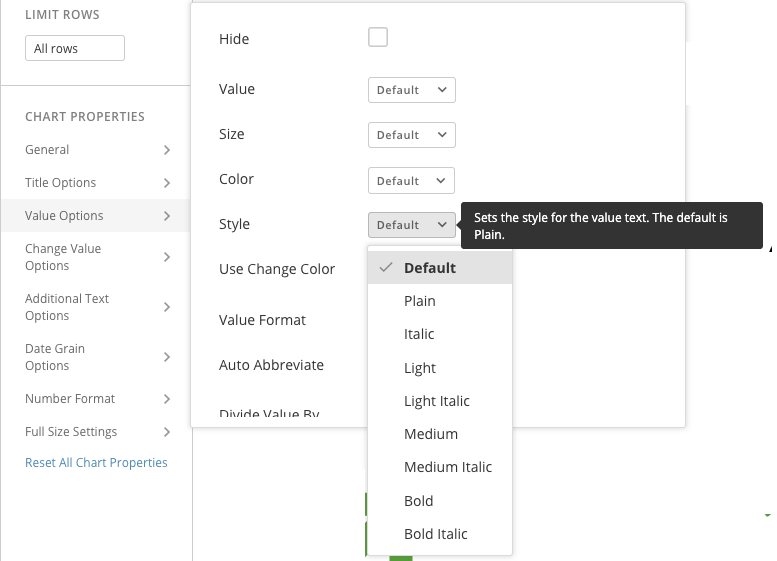
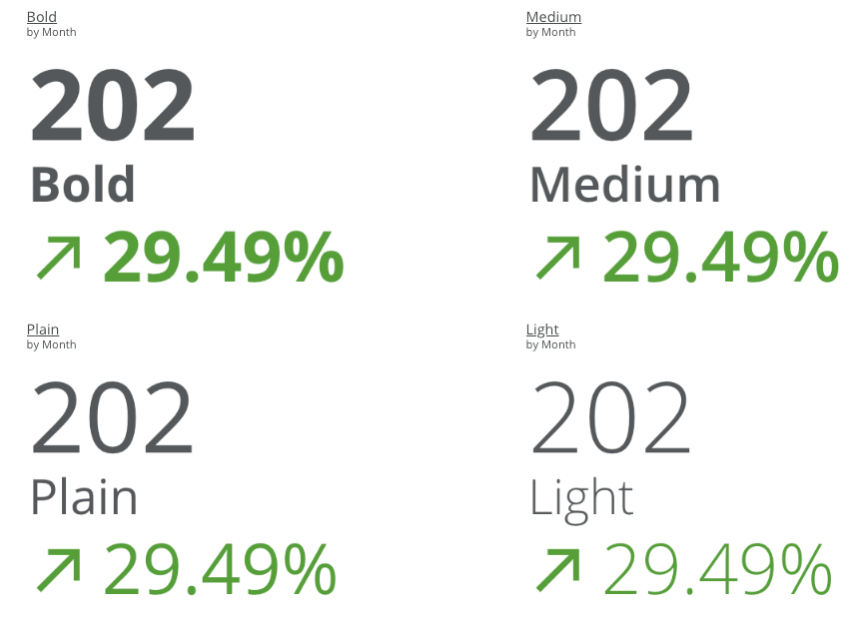
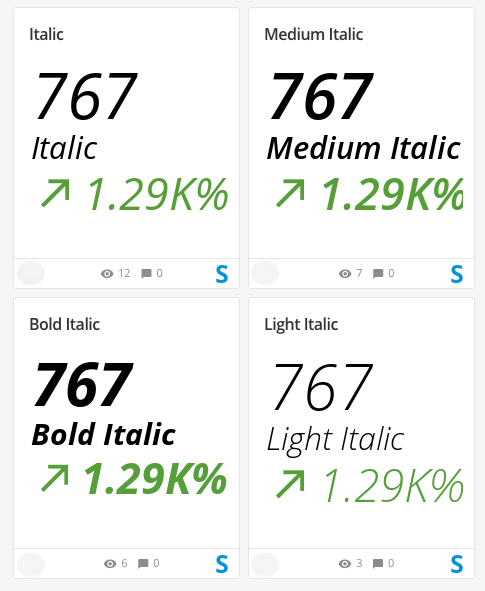
Now you have more customizable options to enhance the look of the text on your chart. Choose between new Bold and Italics options. For more information, see [Multi-Value Gauge](/s/article/360042924774 "Multi-Value Gauge").
#### Paging
Handle larger tables than ever before with dynamic paging of rows of data in your Mega Table Cards.
#### Copy
Copy has been added to your Mega Tables for easy movement of data by using copy and paste.
### Multi-Value Gauge
Now you have more customizable options to enhance the look of the text on your chart. Choose between new Bold and Italics options. For more information, see [Multi-Value Gauge](/s/article/360042924774 "Multi-Value Gauge").
 ### Map Card
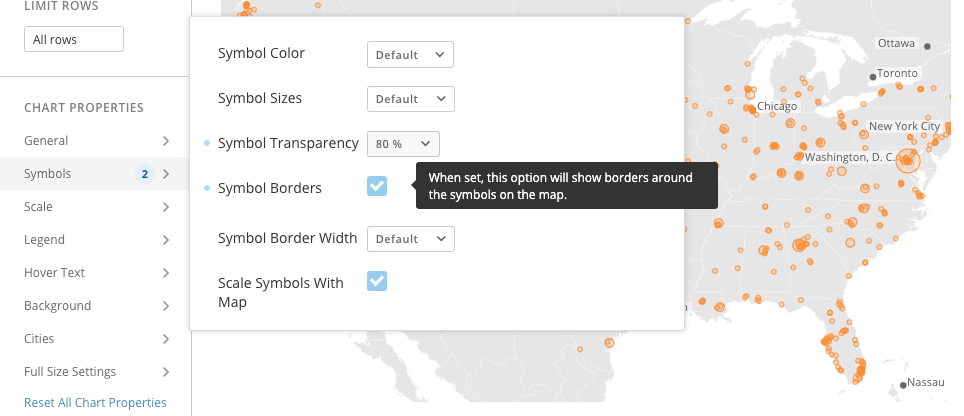
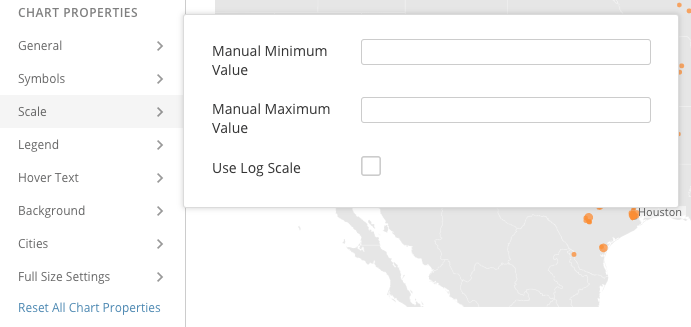
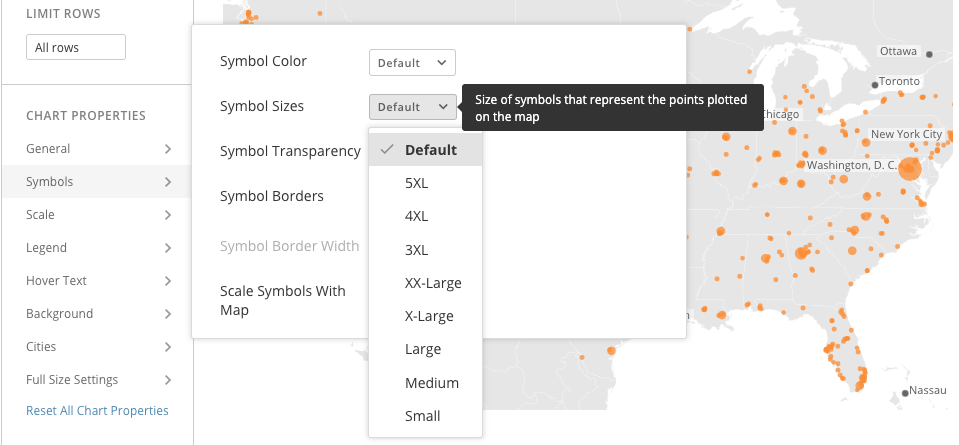
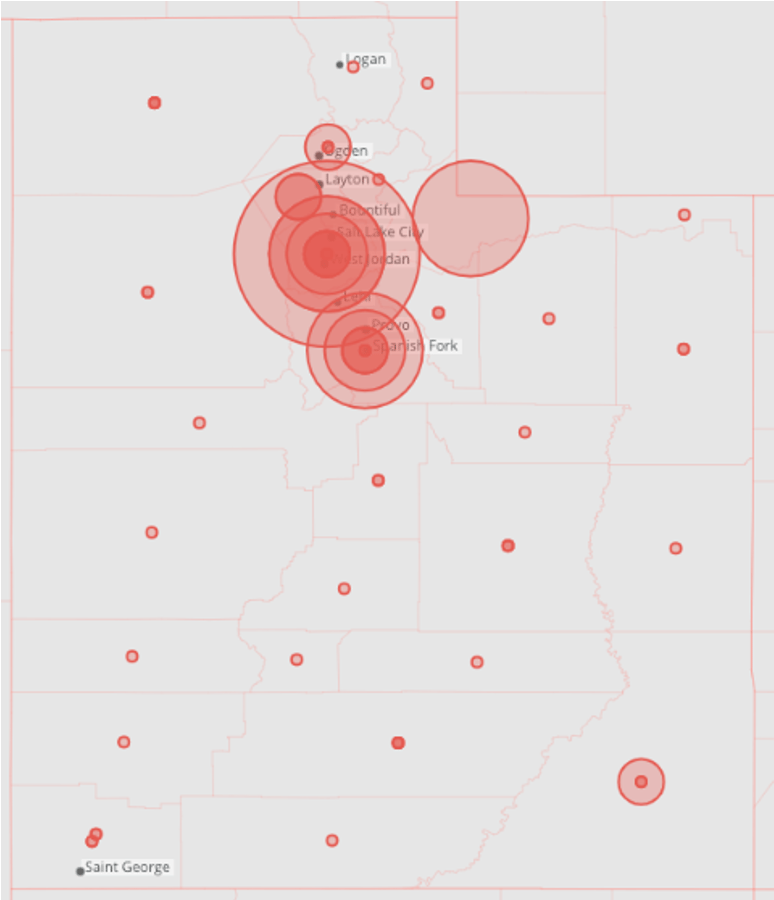
New options to make your maps pop including: border options, min and max value scales, and allow three bigger sizes on bubbles in your Lat/Long maps to really make a compelling data story. Emphasize the bigger numbers in a bold new way. For more information, see [Latitude-Longitude Map](/s/article/360043429213 "Latitude-Longitude Map").
### Map Card
New options to make your maps pop including: border options, min and max value scales, and allow three bigger sizes on bubbles in your Lat/Long maps to really make a compelling data story. Emphasize the bigger numbers in a bold new way. For more information, see [Latitude-Longitude Map](/s/article/360043429213 "Latitude-Longitude Map").
 ### Card data point limit increase
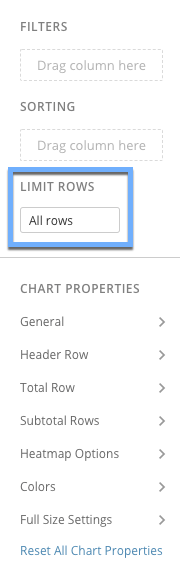
Now you have the power to render very large amounts of data in your charts. You can now use the **Limit Rows** command inside of the Analyzer to set values larger than would otherwise be possible. To keep the responsiveness fast on your Dashboards, the chart engine limits the number of rows it downloads to the browser. Now you can override these limits by explicitly setting these values. For more information, see [Card Building FAQs](/s/article/360042924214 "Card Building FAQs").
### Card data point limit increase
Now you have the power to render very large amounts of data in your charts. You can now use the **Limit Rows** command inside of the Analyzer to set values larger than would otherwise be possible. To keep the responsiveness fast on your Dashboards, the chart engine limits the number of rows it downloads to the browser. Now you can override these limits by explicitly setting these values. For more information, see [Card Building FAQs](/s/article/360042924214 "Card Building FAQs").
 ### Control messages
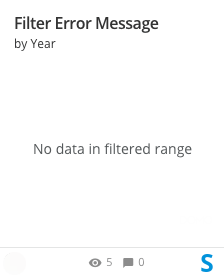
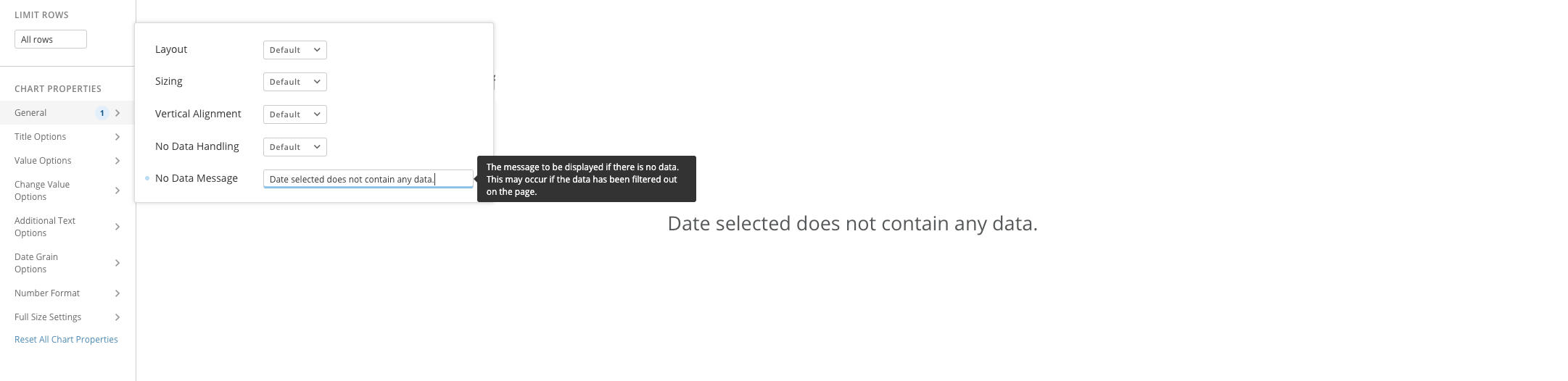
Control the messages your users see in charts when the "No data in filtered range" message is called for. Set your own personalized message instead.
### Control messages
Control the messages your users see in charts when the "No data in filtered range" message is called for. Set your own personalized message instead.
 ## Updated Radial Gauges
New Radial Gauge with options to set the look you want including:
* Gauge width
* Ticks (major and minor)
* Degrees of display
* Needle look
* Colors
For more information, see [Radial Gauge](/s/article/360042924934 "Radial Gauge").
## Updated Radial Gauges
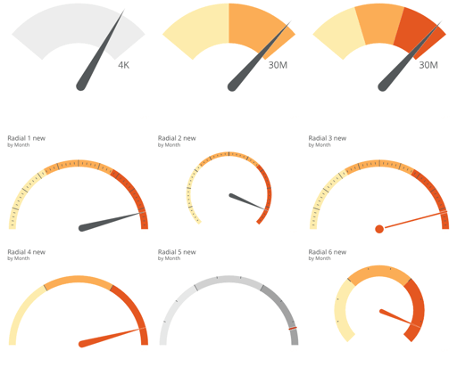
New Radial Gauge with options to set the look you want including:
* Gauge width
* Ticks (major and minor)
* Degrees of display
* Needle look
* Colors
For more information, see [Radial Gauge](/s/article/360042924934 "Radial Gauge").
 ## Dashboard Save As options
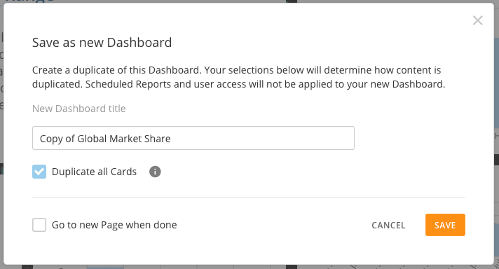
New **Duplicate all Cards** option when you choose **Save As** on a Dashboard. Saves time when creating new versions of a Dashboard as it allows you to easily reference original Cards without creating copies. Uncheck the box to use the original Cards. For more information, see [Duplicating Dashboards ("Save As")](/s/article/360043428273 "https://knowledge.domo.com/Visualize/Managing_Cards_and_Pages/01Duplicating_Pages").
## Dashboard Save As options
New **Duplicate all Cards** option when you choose **Save As** on a Dashboard. Saves time when creating new versions of a Dashboard as it allows you to easily reference original Cards without creating copies. Uncheck the box to use the original Cards. For more information, see [Duplicating Dashboards ("Save As")](/s/article/360043428273 "https://knowledge.domo.com/Visualize/Managing_Cards_and_Pages/01Duplicating_Pages").
 ## Group Management
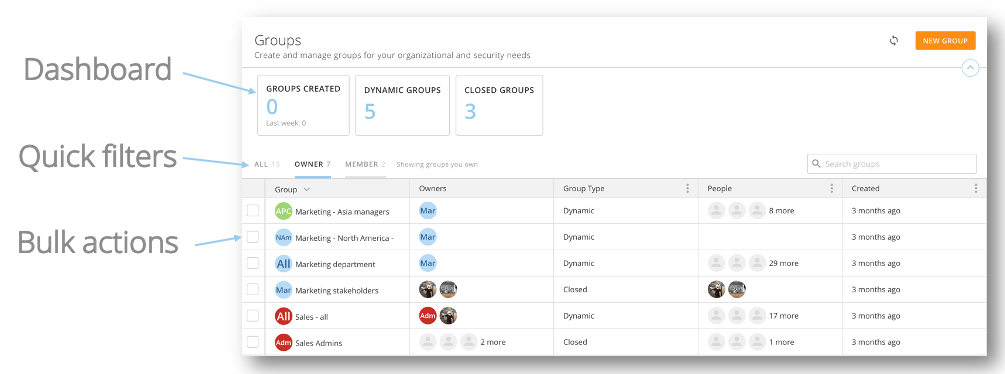
Improved Group Management to give better oversight, simpler management, and integrate with enterprise systems (such as Active Directory). For more information, see [Group Management](/s/article/360042934294 "Creating and Managing User Groups - BETA").
## Group Management
Improved Group Management to give better oversight, simpler management, and integrate with enterprise systems (such as Active Directory). For more information, see [Group Management](/s/article/360042934294 "Creating and Managing User Groups - BETA").
 ## Beast Mode Manager
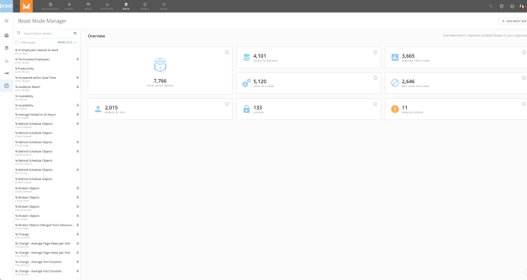
With Beast Mode Manager, you can now see all of your Beast Modes in one place. You can also perform bulk actions, see what Beast Modes are not being used, and lock Beast Modes from being edited. For more information, see [Beast Mode Manager](/s/article/360042925474 "Managing Beast Mode Calculations for Your Domo Instance - BETA").
## Beast Mode Manager
With Beast Mode Manager, you can now see all of your Beast Modes in one place. You can also perform bulk actions, see what Beast Modes are not being used, and lock Beast Modes from being edited. For more information, see [Beast Mode Manager](/s/article/360042925474 "Managing Beast Mode Calculations for Your Domo Instance - BETA").
 ## Getting help
You can view the latest release notes information in the Help Center, which you can access from Domo by clicking in the top navigation bar.
If you have questions about Domo,
* search for a topic in the Help Center
* train in Domo University at
[http://domo.com/university/](http://www.domo.com/university/ "http://www.domo.com/university/")
* search for training apps in the Appstore
* get answers in the Domo Community at
[https://dojo.domo.com](https://dojo.domo.com/ "https://dojo.domo.com")
* contact Technical Support by entering a help ticket in the Domo Support Portal
* reach out to your Domo Customer Success Manager or Technical Consultant
If you have feedback, please send it from within Domo (**More** ****> Feedback****). Or send an email to [product.feedback@domo.com](mailto:product.feedback@domo.com "product.feedback@domo.com").
For more information about getting help, see [Getting Help](/s/article/360042922874 "Getting Help").
## Getting help
You can view the latest release notes information in the Help Center, which you can access from Domo by clicking in the top navigation bar.
If you have questions about Domo,
* search for a topic in the Help Center
* train in Domo University at
[http://domo.com/university/](http://www.domo.com/university/ "http://www.domo.com/university/")
* search for training apps in the Appstore
* get answers in the Domo Community at
[https://dojo.domo.com](https://dojo.domo.com/ "https://dojo.domo.com")
* contact Technical Support by entering a help ticket in the Domo Support Portal
* reach out to your Domo Customer Success Manager or Technical Consultant
If you have feedback, please send it from within Domo (**More** ****> Feedback****). Or send an email to [product.feedback@domo.com](mailto:product.feedback@domo.com "product.feedback@domo.com").
For more information about getting help, see [Getting Help](/s/article/360042922874 "Getting Help").