> ## Documentation Index
> Fetch the complete documentation index at: https://domoinc-openapi-sync-dataflows.mintlify.site/llms.txt
> Use this file to discover all available pages before exploring further.
# Old Magic ETL Tiles: Performance
export const InlineImage = ({src, alt = '', height = '1.6em'}) => {
return  ;
};
### Intro
**Note:**
This article is for legacy Magic ETL. For information on Magic ETL v2, see
[Magic ETL](/s/topic/0TO5w000000ZanvGAC)
.
This article describes in detail all of the Edit Data tiles in Magic ETL, including the following:
* Select and Store Columns
* Restore Columns
**Note:**
These tiles are available by default for users on the Domo Consumption agreement.
For non-consumption users, they are available
*on demand*
and
*paid*
. To enable these tiles, contact your Domo account team. You may need to complete training before using the tiles.
Learn how to create a Magic ETL DataFlow.
***
* [Prerequisites](#prerequisites)
* [Select and Store Columns Tile](#select_and_store_columns)
* [Restore Columns Tile](#restore_columns_tile)
***
### Prerequisites
The Performance tiles are intended for use with either the Python or R Scripting tiles. For more information on the scripting tiles, see [Magic ETL Tiles: Scripting](/s/article/360043427773).
;
};
### Intro
**Note:**
This article is for legacy Magic ETL. For information on Magic ETL v2, see
[Magic ETL](/s/topic/0TO5w000000ZanvGAC)
.
This article describes in detail all of the Edit Data tiles in Magic ETL, including the following:
* Select and Store Columns
* Restore Columns
**Note:**
These tiles are available by default for users on the Domo Consumption agreement.
For non-consumption users, they are available
*on demand*
and
*paid*
. To enable these tiles, contact your Domo account team. You may need to complete training before using the tiles.
Learn how to create a Magic ETL DataFlow.
***
* [Prerequisites](#prerequisites)
* [Select and Store Columns Tile](#select_and_store_columns)
* [Restore Columns Tile](#restore_columns_tile)
***
### Prerequisites
The Performance tiles are intended for use with either the Python or R Scripting tiles. For more information on the scripting tiles, see [Magic ETL Tiles: Scripting](/s/article/360043427773).
 ### Select and Store Columns Tile
The Select and Store Columns tile allows you to store/remove columns that are not used as part of the script inside of a Python or R Scripting tile. Storing columns not applicable to the Scripting tiles transformations prior to the Scripting tile reduces the amount of data being loaded. Following this process will generally decrease the runtime of your Scripting tile as the tile is now only loading the necessary columns for its transformation.
### Select and Store Columns Tile
The Select and Store Columns tile allows you to store/remove columns that are not used as part of the script inside of a Python or R Scripting tile. Storing columns not applicable to the Scripting tiles transformations prior to the Scripting tile reduces the amount of data being loaded. Following this process will generally decrease the runtime of your Scripting tile as the tile is now only loading the necessary columns for its transformation.
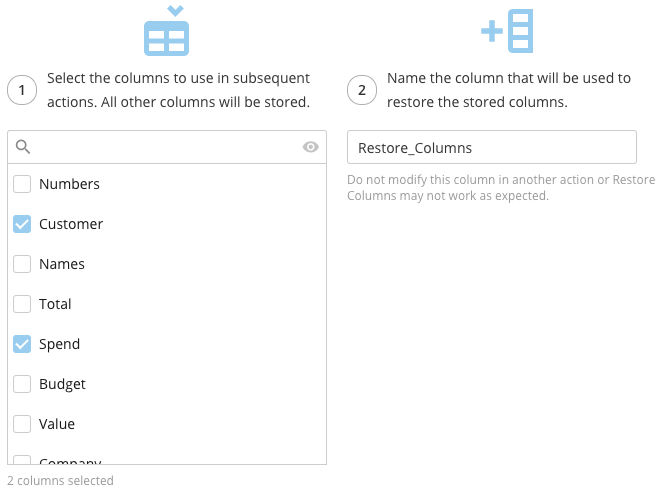 Follow these steps to configure the Select and Store Columns tile:
1. Click the
**Select and Store Columns** tile in the canvas.
2. (Optional) Rename the tile by clicking
, then entering the name you want.
3. Select the columns you want to use in the subsequent Python or R Scripting tile.
4. (Optional) To verify all desired columns have been selected, hide all non-selected columns in the list by clicking
.
5. Name the column that you will use to restore the columns to the DataFlow.
**Important:**
Do not modify the column you named in this step in any other tile in the DataFlow or the Restore Columns tile will not work as expected.
### Restore Columns Tile
The Restore Columns tile allows you to restore/add the stored columns back into your DataFlow after the script in your Python or R Scripting tile has been processed.
Follow these steps to configure the Select and Store Columns tile:
1. Click the
**Select and Store Columns** tile in the canvas.
2. (Optional) Rename the tile by clicking
, then entering the name you want.
3. Select the columns you want to use in the subsequent Python or R Scripting tile.
4. (Optional) To verify all desired columns have been selected, hide all non-selected columns in the list by clicking
.
5. Name the column that you will use to restore the columns to the DataFlow.
**Important:**
Do not modify the column you named in this step in any other tile in the DataFlow or the Restore Columns tile will not work as expected.
### Restore Columns Tile
The Restore Columns tile allows you to restore/add the stored columns back into your DataFlow after the script in your Python or R Scripting tile has been processed.
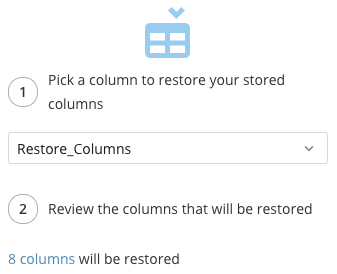 Follow these steps to configure the Restore Columns tile:
1. Click the
**Restore Columns** tile in the canvas.
2. (Optional) Rename the tile by clicking
, then entering the name you want.
3. Select the column that you named in the Select and Store Columns tile.
4. (Optional) Review the columns that will be restored by hovering over the text that states the number of columns that will be restored.
Follow these steps to configure the Restore Columns tile:
1. Click the
**Restore Columns** tile in the canvas.
2. (Optional) Rename the tile by clicking
, then entering the name you want.
3. Select the column that you named in the Select and Store Columns tile.
4. (Optional) Review the columns that will be restored by hovering over the text that states the number of columns that will be restored.