> ## Documentation Index
> Fetch the complete documentation index at: https://domoinc-openapi-sync-dataflows.mintlify.site/llms.txt
> Use this file to discover all available pages before exploring further.
# Jupyter Troubleshooting Guide
export const InlineImage = ({src, alt = '', height = '1.6em'}) => {
return  ;
};
### Intro
The following troubleshooting steps can help you solve common issues in Jupyter Workspaces. If your issue is not listed here, or the steps do not resolve your issue, contact your Account Executive (AE) or Customer Success Manager (CSM).
For general information about Jupyter, see our [Jupyter Workspaces | User Guide](/s/article/36004740075).
***
### Jupyter Workspaces Won't Start
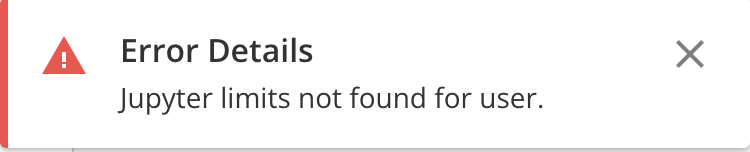
If Domo reports an error after you have attempted to start Jupyter or the status returns to "Stopped" instead of "Started," your user most likely does not have a usage policy configured by an Admin.
;
};
### Intro
The following troubleshooting steps can help you solve common issues in Jupyter Workspaces. If your issue is not listed here, or the steps do not resolve your issue, contact your Account Executive (AE) or Customer Success Manager (CSM).
For general information about Jupyter, see our [Jupyter Workspaces | User Guide](/s/article/36004740075).
***
### Jupyter Workspaces Won't Start
If Domo reports an error after you have attempted to start Jupyter or the status returns to "Stopped" instead of "Started," your user most likely does not have a usage policy configured by an Admin.
 Follow these steps to fix the issue:
1. In the navigation header, select
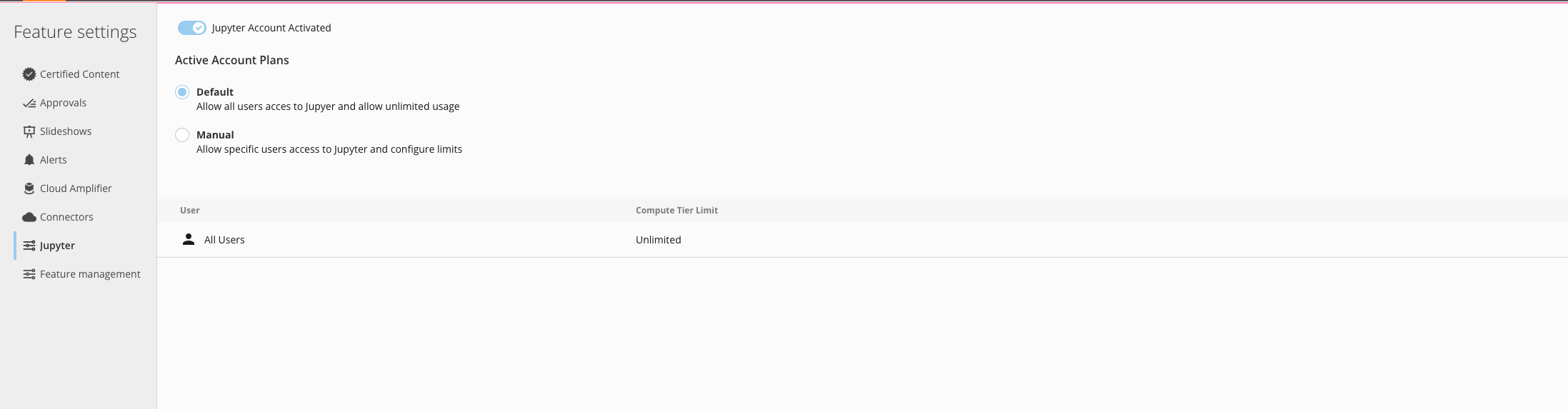
**Admin** > **Feature Settings** > **Jupyter** and make sure that:
1. The
**Jupyter Account Activated** toggle is enabled
2. If the
**Active Account Plan** is set to **Manual**, you or the user have a usage policy with an appropriate instance size limit.
Follow these steps to fix the issue:
1. In the navigation header, select
**Admin** > **Feature Settings** > **Jupyter** and make sure that:
1. The
**Jupyter Account Activated** toggle is enabled
2. If the
**Active Account Plan** is set to **Manual**, you or the user have a usage policy with an appropriate instance size limit.
 ### Kernel Restarting
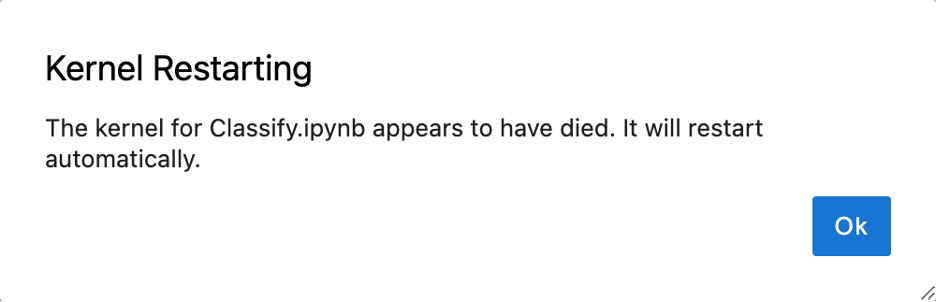
If an error message with the heading **Kernel Restarting** appears in Jupyter Workspaces, your Jupyter kernel has most likely run out of memory.
### Kernel Restarting
If an error message with the heading **Kernel Restarting** appears in Jupyter Workspaces, your Jupyter kernel has most likely run out of memory.
 Follow these steps to resolve the restart issue:
1. From the Jupyter Workspaces list, select
**Wrench** > **Edit** for the workspace.
2. In
**Workspace Configuration**, choose a higher computer tier.
Follow these steps to resolve the restart issue:
1. From the Jupyter Workspaces list, select
**Wrench** > **Edit** for the workspace.
2. In
**Workspace Configuration**, choose a higher computer tier.
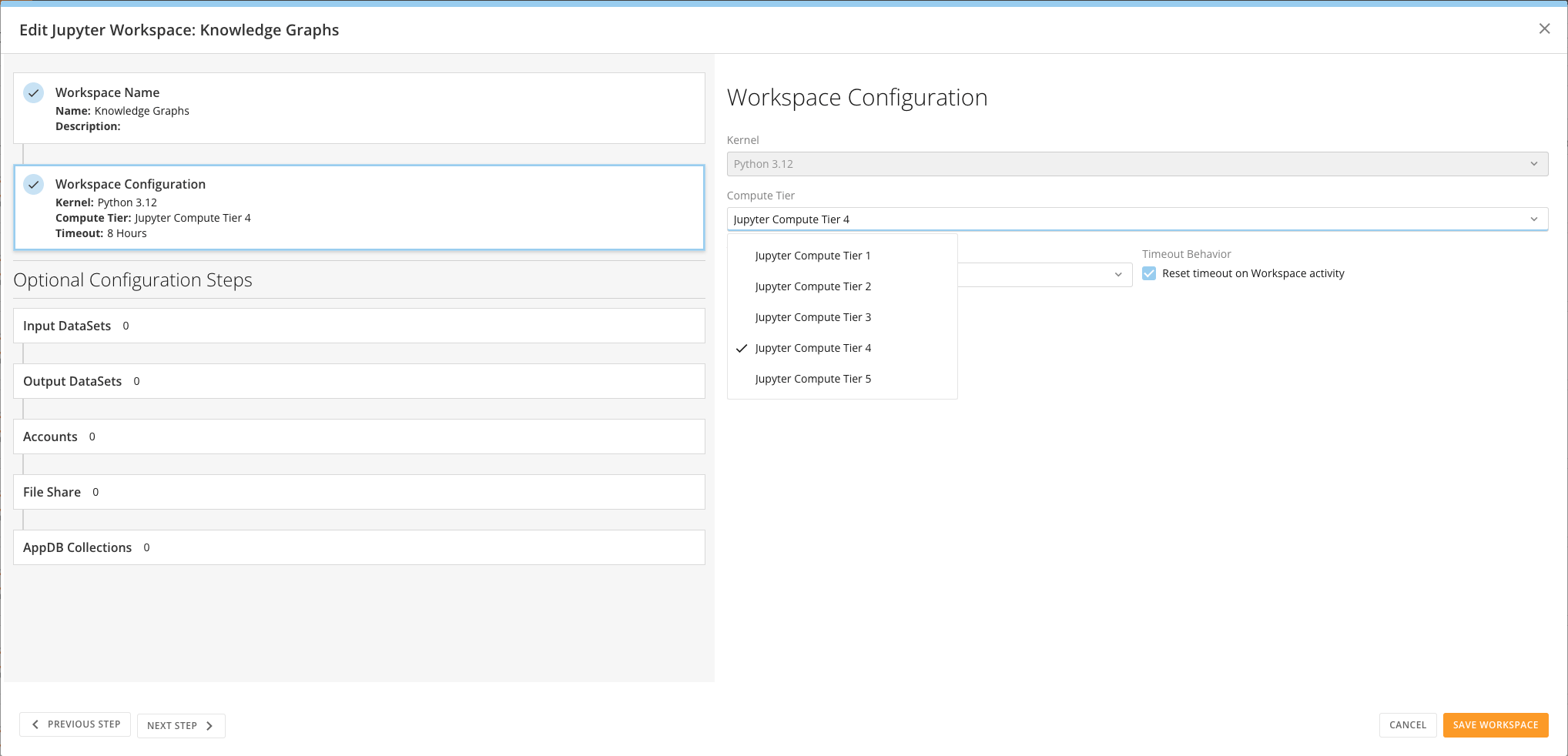 3. Select
**Save**.
### Slow Execution
When working with large amounts of data, a notebook cell execution can take longer than expected or remain in the same state for an extended period due to the workspace not having enough resources for the job.
Follow these steps to increase the size of the workspace:
1. From the Jupyter Workspaces list, select
**Wrench** > **Edit** for the workspace.
2. In
**Workspace Configuration**, choose a higher computer tier.
3. Select
**Save**.
### Error Installing Third-Party Libraries
If you receive a failure when installing third-party libraries for Python or R, the library or its dependencies are not compatible with the current conda environment.
Follow these steps to resolve the issue:
1. Install the appropriate conda pip command from a workspace terminal. Include the conda channel if necessary.
3. Select
**Save**.
### Slow Execution
When working with large amounts of data, a notebook cell execution can take longer than expected or remain in the same state for an extended period due to the workspace not having enough resources for the job.
Follow these steps to increase the size of the workspace:
1. From the Jupyter Workspaces list, select
**Wrench** > **Edit** for the workspace.
2. In
**Workspace Configuration**, choose a higher computer tier.
3. Select
**Save**.
### Error Installing Third-Party Libraries
If you receive a failure when installing third-party libraries for Python or R, the library or its dependencies are not compatible with the current conda environment.
Follow these steps to resolve the issue:
1. Install the appropriate conda pip command from a workspace terminal. Include the conda channel if necessary.
 2. If the conda install fails in the terminal, try a pip/cran command.
pip command:
```
pip install -U scikit-learn
```
R/cran command:
```
install.packages("cluster")
```
3. Navigate to the Jupyter Workspaces list, select
**Wrench** > **Edit** for the workspace.
4. Select
**Manage Kernel Snapshots**.
2. If the conda install fails in the terminal, try a pip/cran command.
pip command:
```
pip install -U scikit-learn
```
R/cran command:
```
install.packages("cluster")
```
3. Navigate to the Jupyter Workspaces list, select
**Wrench** > **Edit** for the workspace.
4. Select
**Manage Kernel Snapshots**.
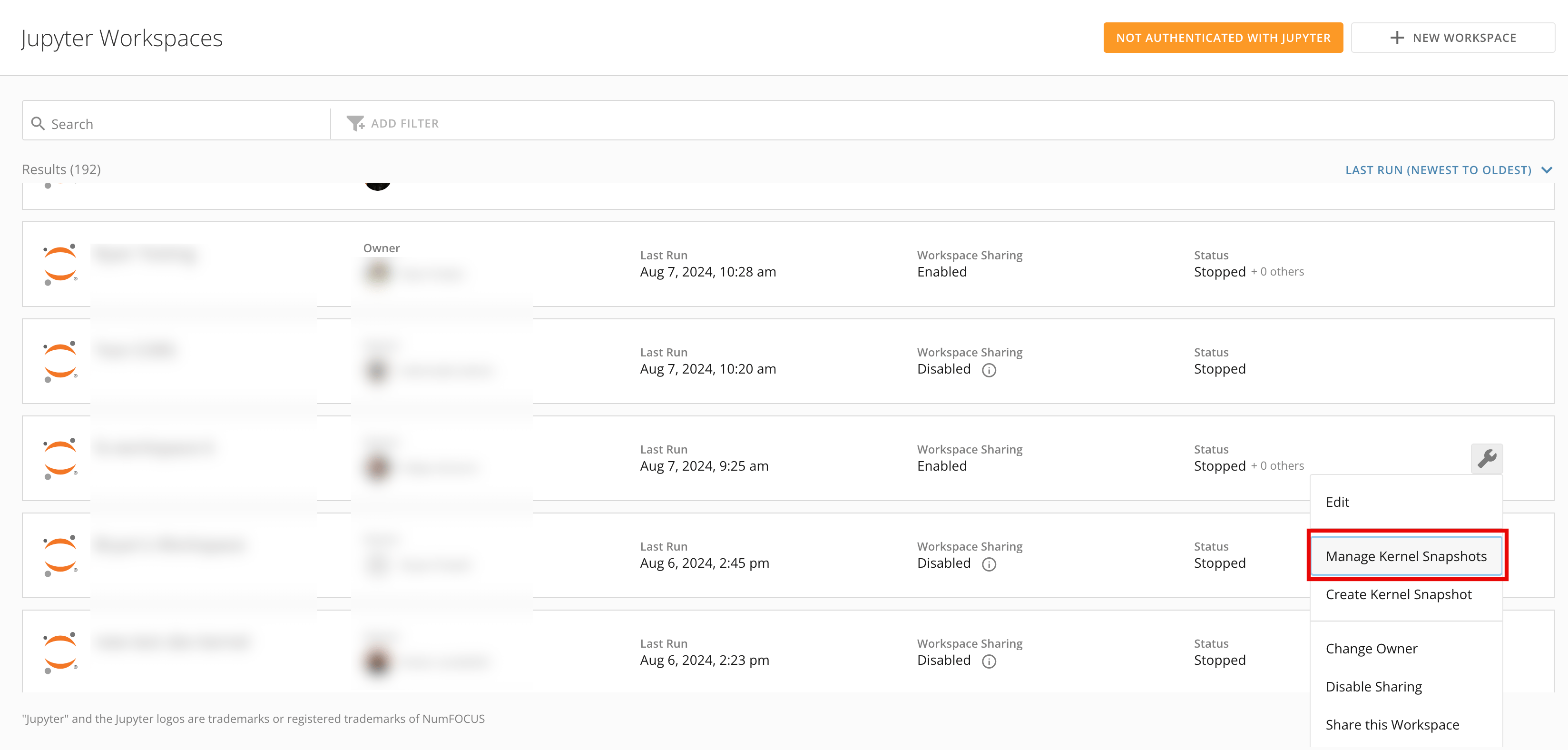 The **Manage Kernel Snapshots** modal displays.
5. In the modal, check the box labeled
**Restore to base kernel environment**.
The **Manage Kernel Snapshots** modal displays.
5. In the modal, check the box labeled
**Restore to base kernel environment**.
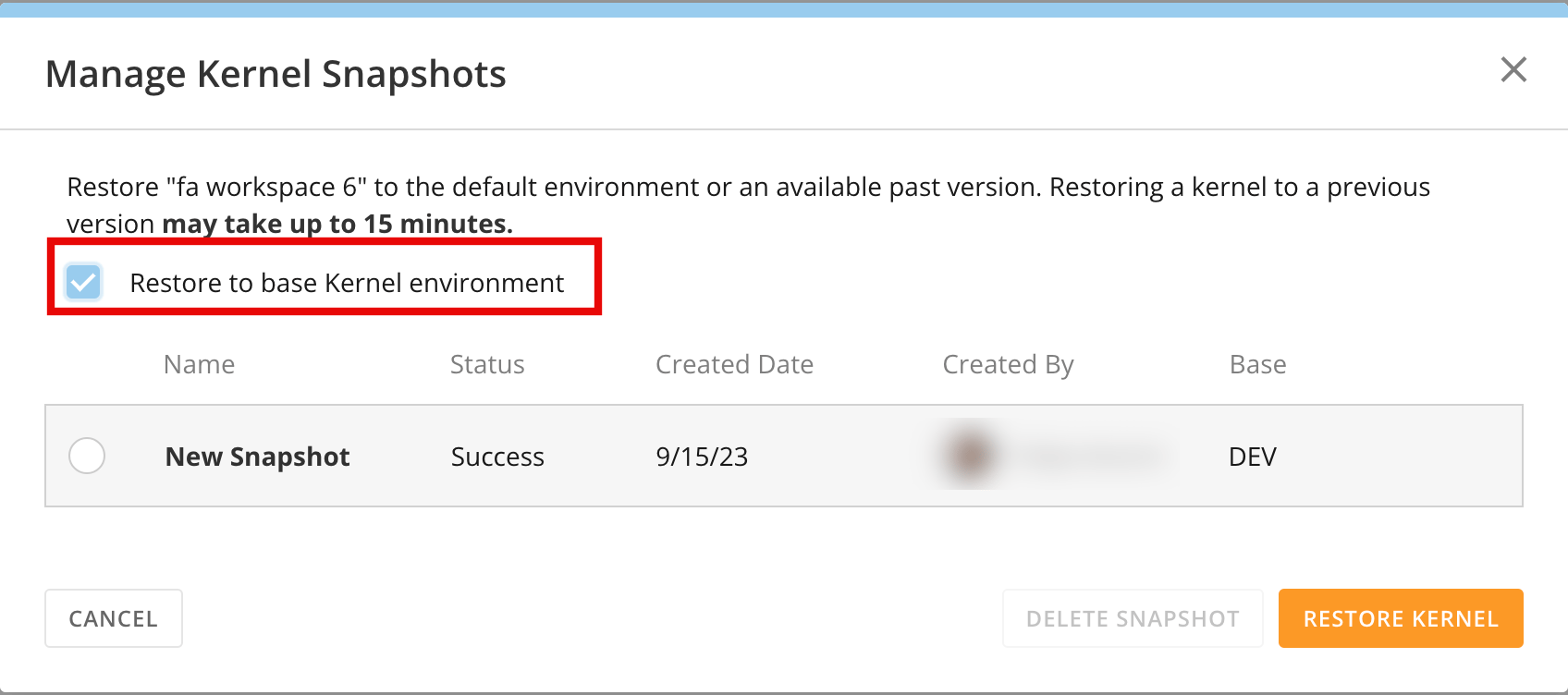 6. Select
**Restore** Kernel.
7. Uninstall any libraries installed locally using pip or cran.
### Cannot Update domojupyter Python or R sdk
If updating domojupyter to the latest version fails or if the notebook continues to display a message that a new version is available, then the new version of domojupyter is not compatible with the current conda environment.
6. Select
**Restore** Kernel.
7. Uninstall any libraries installed locally using pip or cran.
### Cannot Update domojupyter Python or R sdk
If updating domojupyter to the latest version fails or if the notebook continues to display a message that a new version is available, then the new version of domojupyter is not compatible with the current conda environment.
 Follow these steps to resolve the update issue:
1. Execute the suggested conda command from a Jupyter Workspace terminal.
2. Navigate to the Jupyter Workspaces list, select
next to the workspace, and **Edit.**
3. Select
**Manage Kernel Snapshots**.
The **Manage Kernel Snapshots** modal displays.
4. Check the box labeled
**Restore to base kernel environment**.
5. Select
**Restore Kernel**.
### Error Starting Kernel
If an error message with the heading "Error Starting Kernel" displays in Jupyter Workspaces, then an error has occurred while bootstrapping the conda environment.
Follow these steps to resolve the update issue:
1. Execute the suggested conda command from a Jupyter Workspace terminal.
2. Navigate to the Jupyter Workspaces list, select
next to the workspace, and **Edit.**
3. Select
**Manage Kernel Snapshots**.
The **Manage Kernel Snapshots** modal displays.
4. Check the box labeled
**Restore to base kernel environment**.
5. Select
**Restore Kernel**.
### Error Starting Kernel
If an error message with the heading "Error Starting Kernel" displays in Jupyter Workspaces, then an error has occurred while bootstrapping the conda environment.
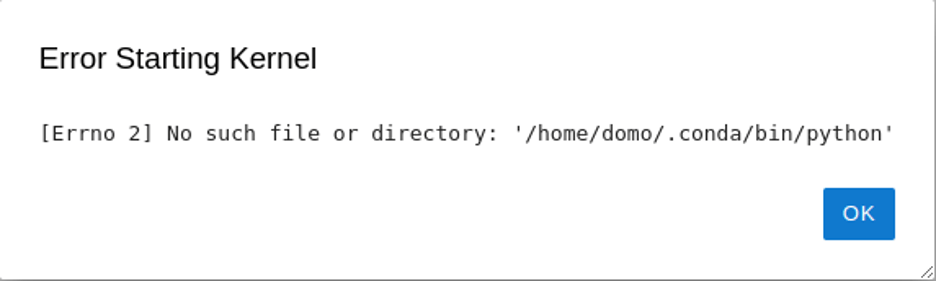 Follow these steps to resolve the "Error Starting Kernel" issue:
1. Navigate to the Jupyter Workspaces list, select
**Wrench** > **Edit** for the workspace.
2. Select
**Manage Kernel Snapshots**.
The **Manage Kernel Snapshots** modal displays.
3. In the modal, check the box labeled
**Restore to base kernel environment**.
4. Select
**Restore Kernel**.
### Scheduled Execution Failures
If a Jupyter DataFlow created from a Jupyter Workspace notebook fails to execute successfully, it may be due to one of the following reasons:
* Python/R language syntax or logic errors
* The notebook cells executed in an order resulting in an error
* The notebook file has been deleted
* Error accessing the third-party system
Follow these steps to resolve the execution failure:
1. Attempt to execute the notebook's cells in order from the Jupyter Workspace environment.
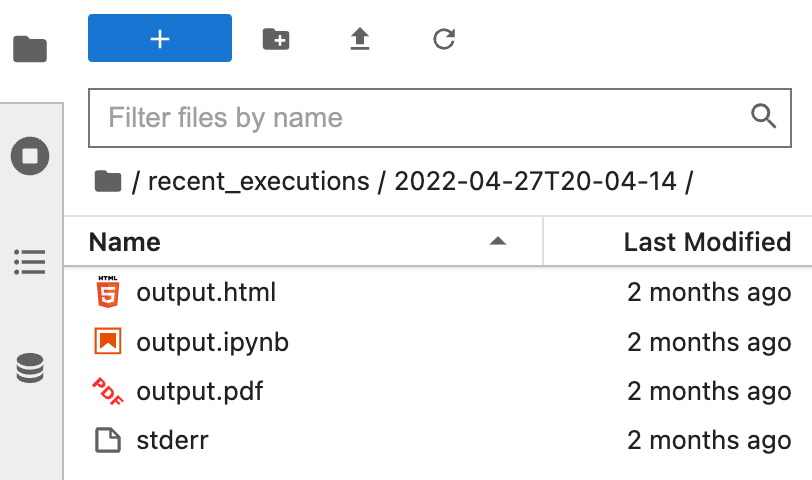
2. Review the execution details in the recent\_executions directory in your workspace.
The following files are available:
* output.jpynb
* output.html
* output.pdf
* stdout
* stderr
Follow these steps to resolve the "Error Starting Kernel" issue:
1. Navigate to the Jupyter Workspaces list, select
**Wrench** > **Edit** for the workspace.
2. Select
**Manage Kernel Snapshots**.
The **Manage Kernel Snapshots** modal displays.
3. In the modal, check the box labeled
**Restore to base kernel environment**.
4. Select
**Restore Kernel**.
### Scheduled Execution Failures
If a Jupyter DataFlow created from a Jupyter Workspace notebook fails to execute successfully, it may be due to one of the following reasons:
* Python/R language syntax or logic errors
* The notebook cells executed in an order resulting in an error
* The notebook file has been deleted
* Error accessing the third-party system
Follow these steps to resolve the execution failure:
1. Attempt to execute the notebook's cells in order from the Jupyter Workspace environment.
2. Review the execution details in the recent\_executions directory in your workspace.
The following files are available:
* output.jpynb
* output.html
* output.pdf
* stdout
* stderr