

Intro
This article explains how to connect to the Domo Essentials MCP Server using standard OAuth.Prerequisites
Note: While this feature is in beta, your Domo domain must be added to the allowlist before you can use the OAuth connector. Request allowlisting by reaching out to your Customer Success Manager (CSM) or Account Executive (AE). They will need to reach out to the AI Product Manager.
- You need AI Chat or AI Library enabled to use MCP.
- You also need the Use MCP grant enabled.
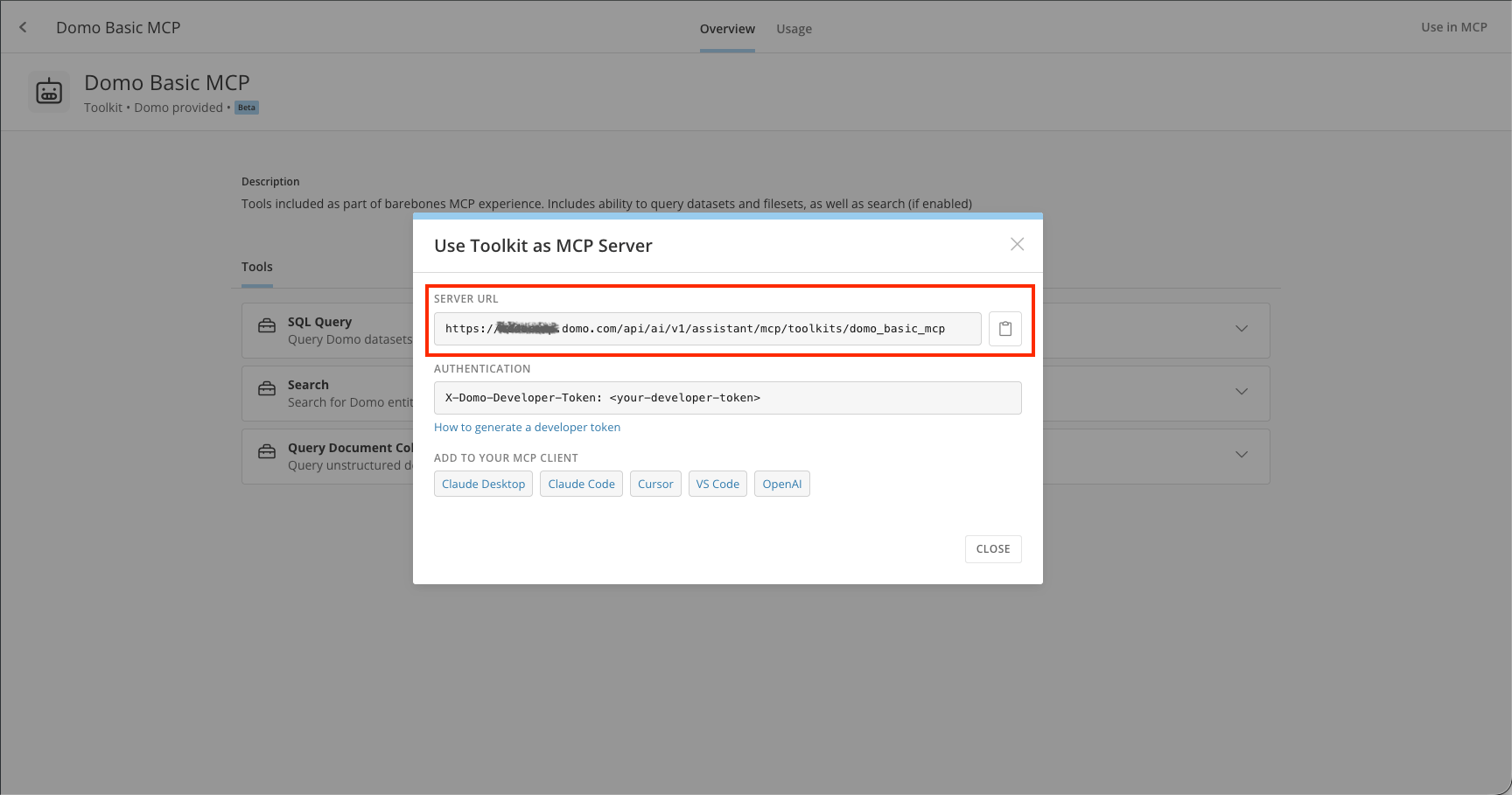
Add a Custom Connector
In Claude Cowork or Chat, customization lets you tailor your AI agent using the Customize menu on the left sidebar of the Claude Desktop app.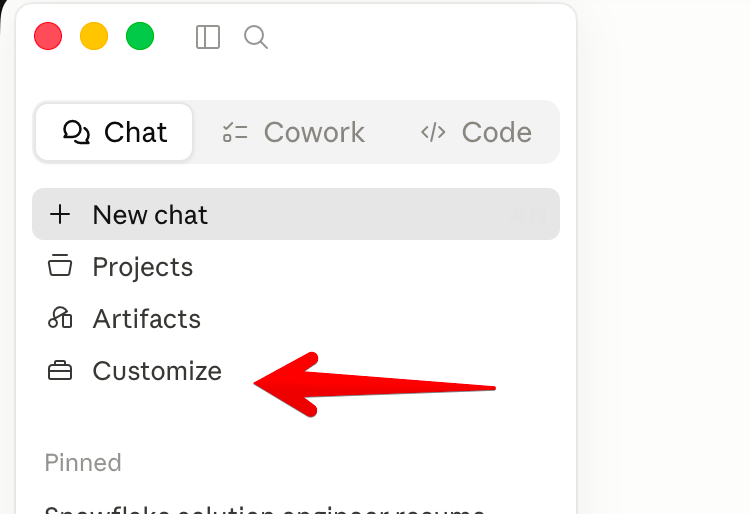
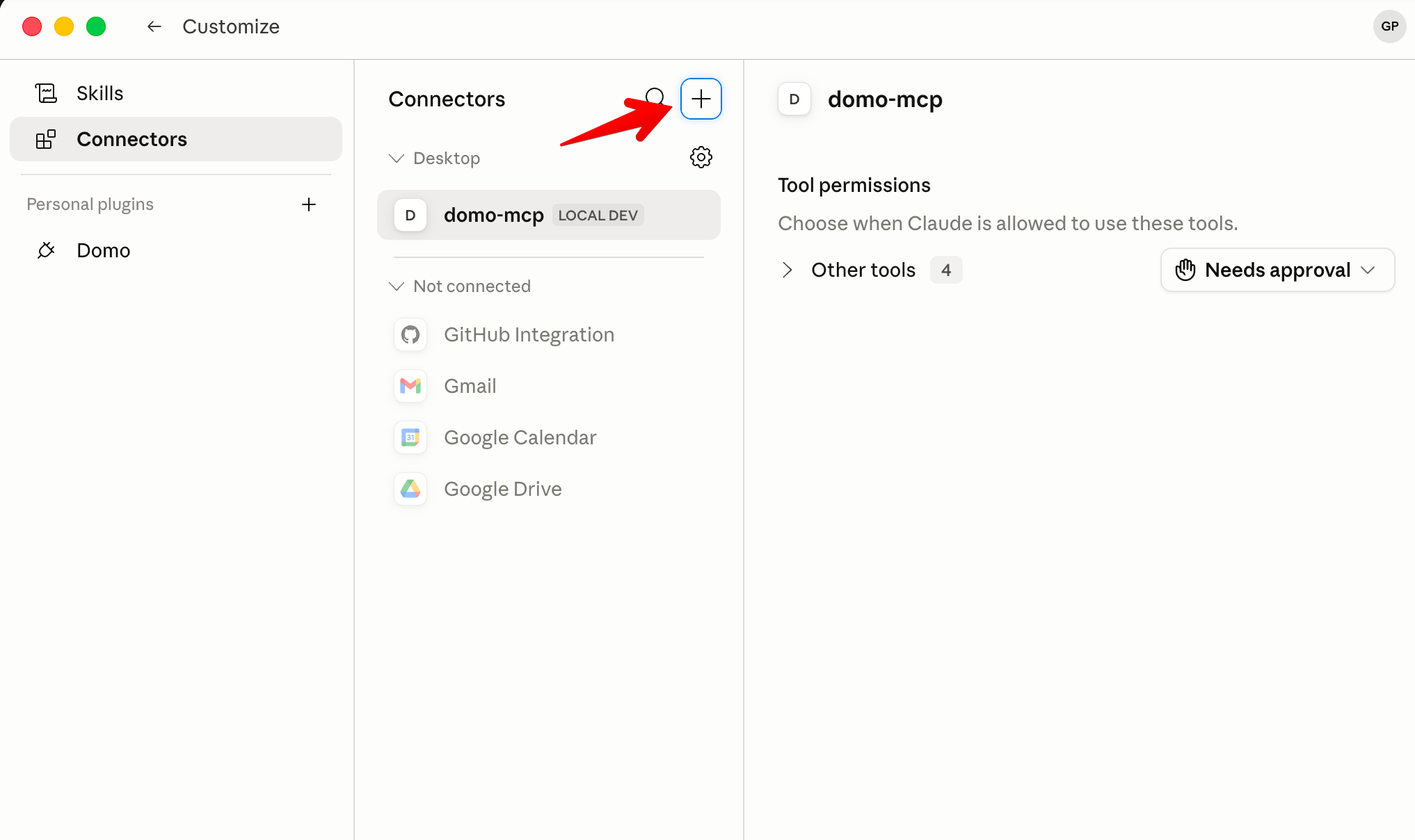
Note: Replace
<DOMO_DOMAIN> with your actual Domo instance domain (for example, mycompany.domo.com).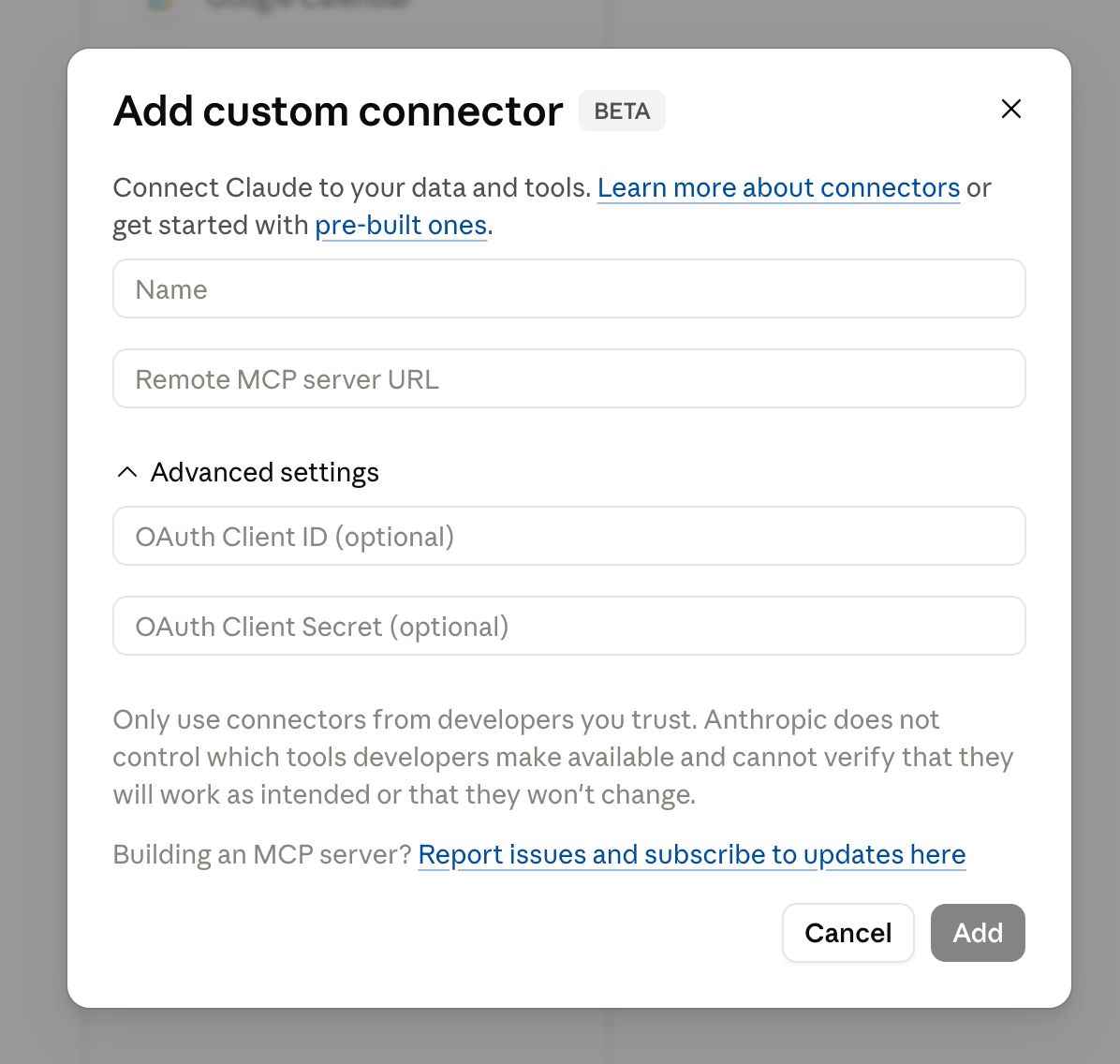
Authenticate with OAuth
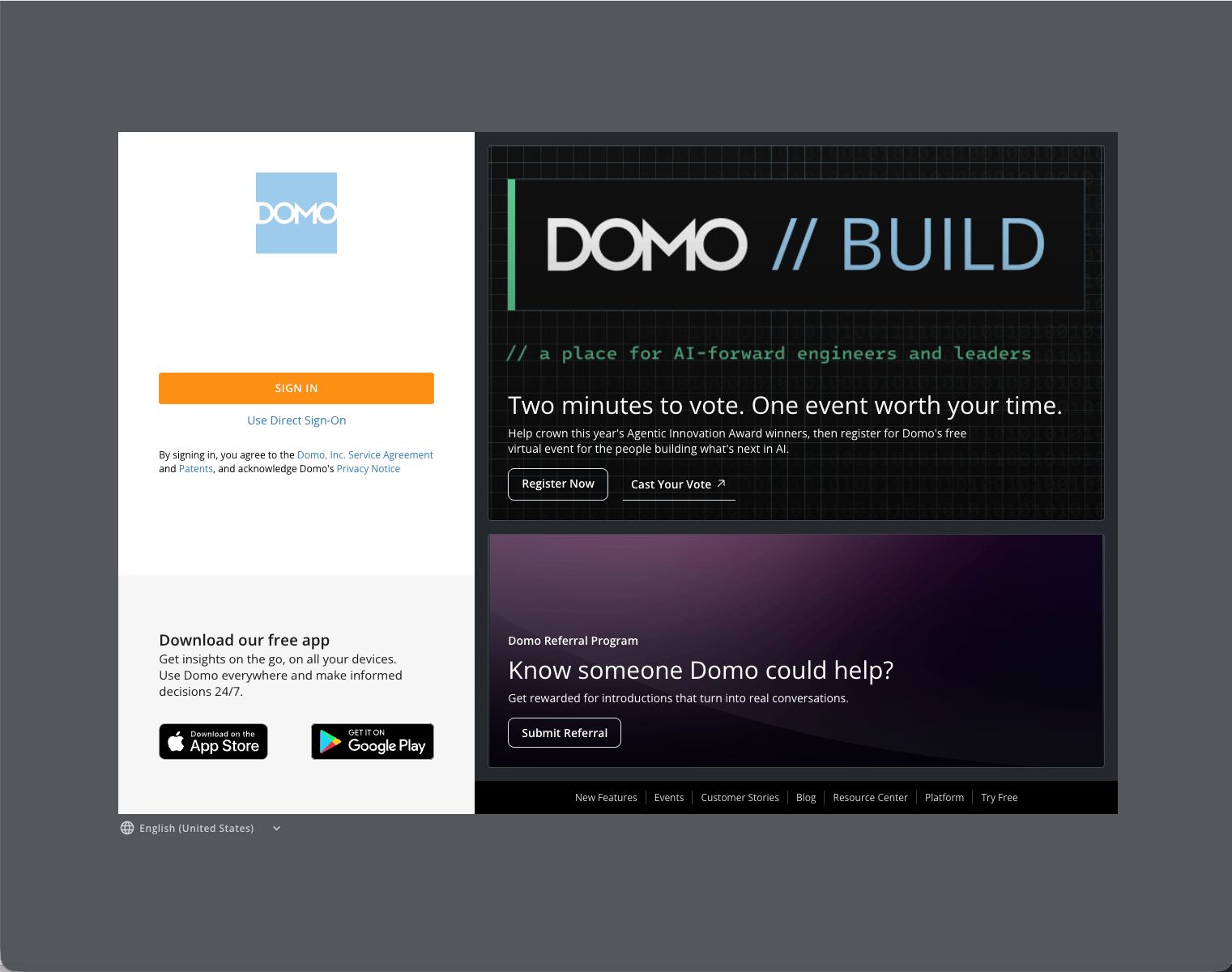
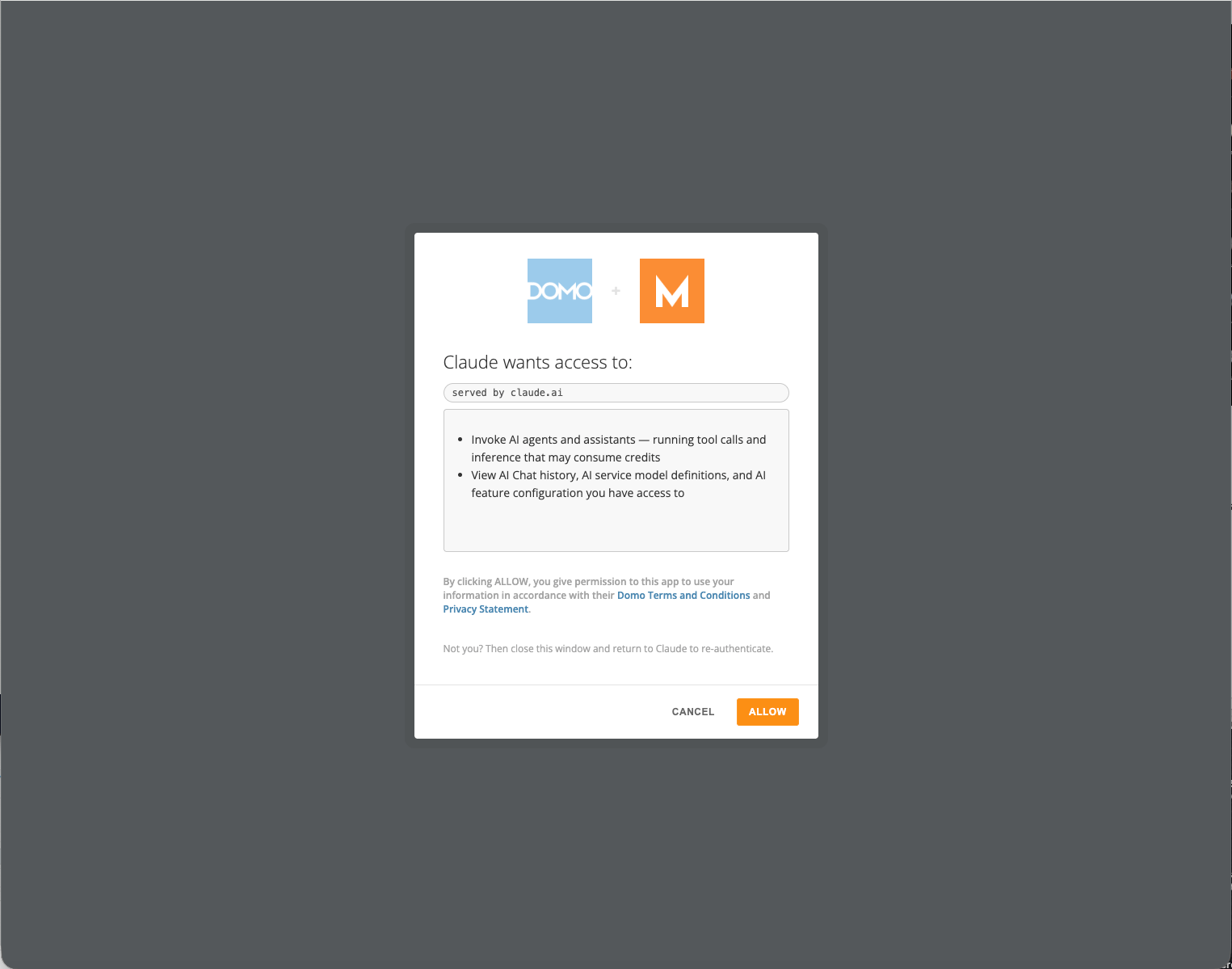
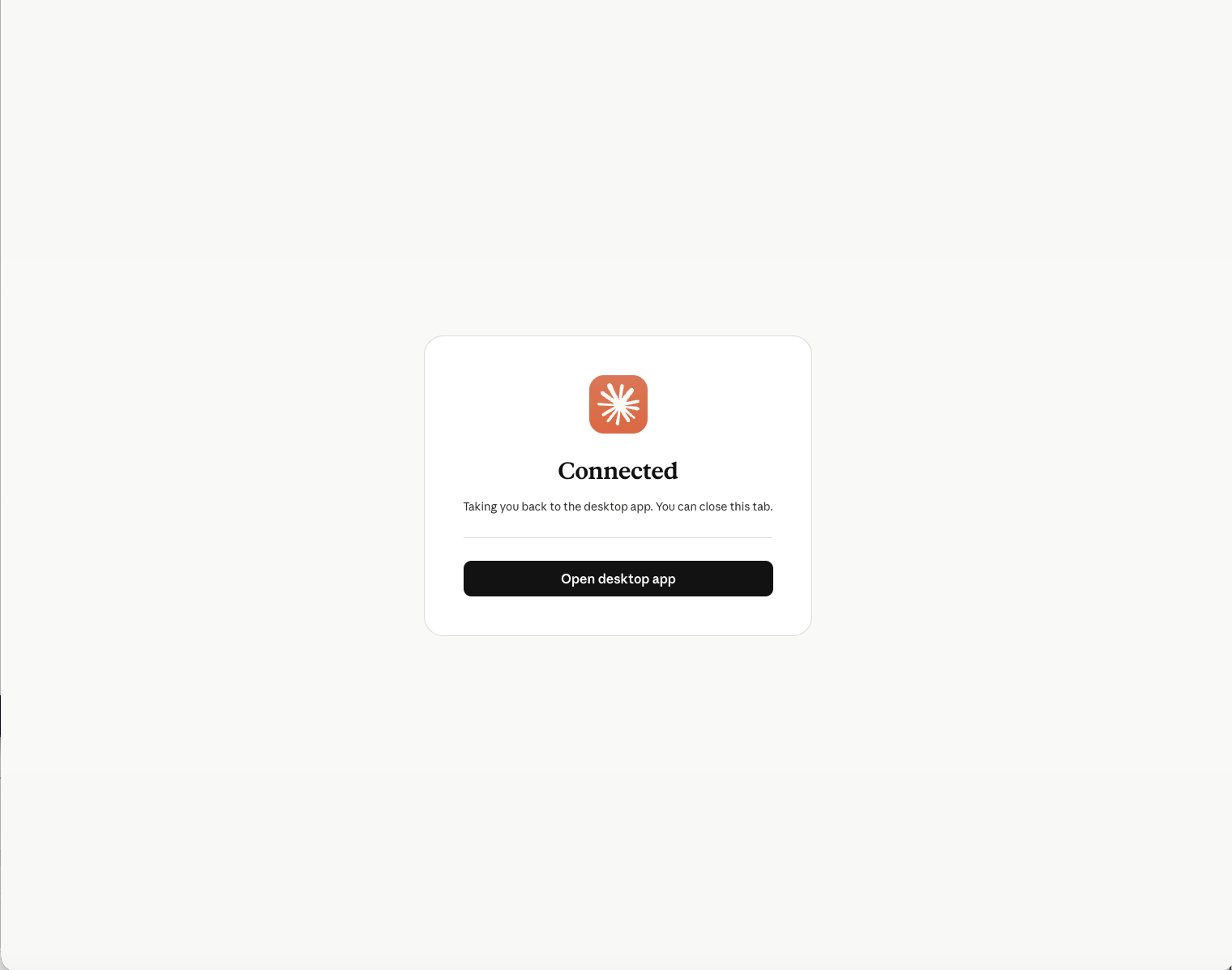
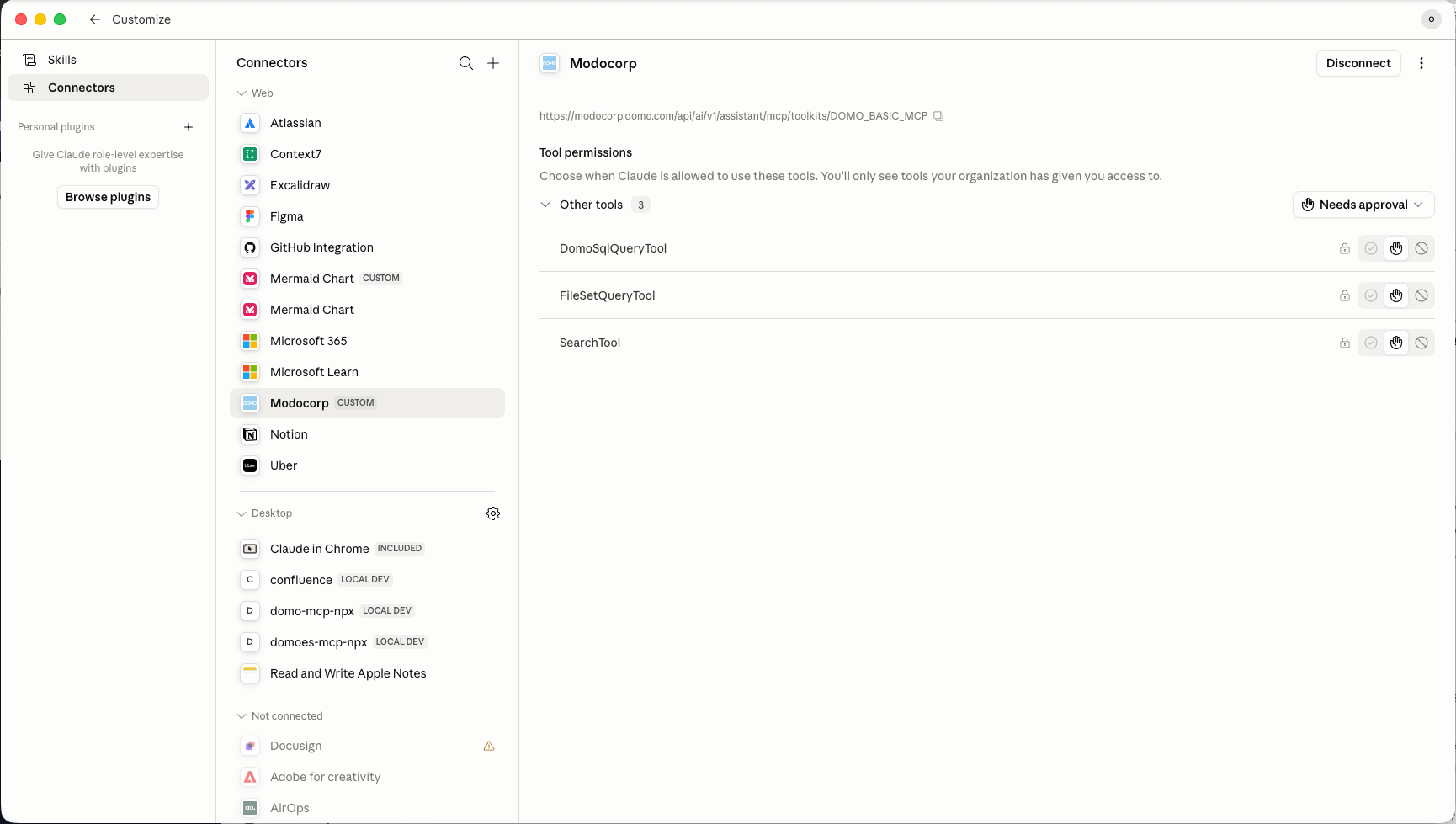
Select Connect and follow the prompts to log into your Domo instance.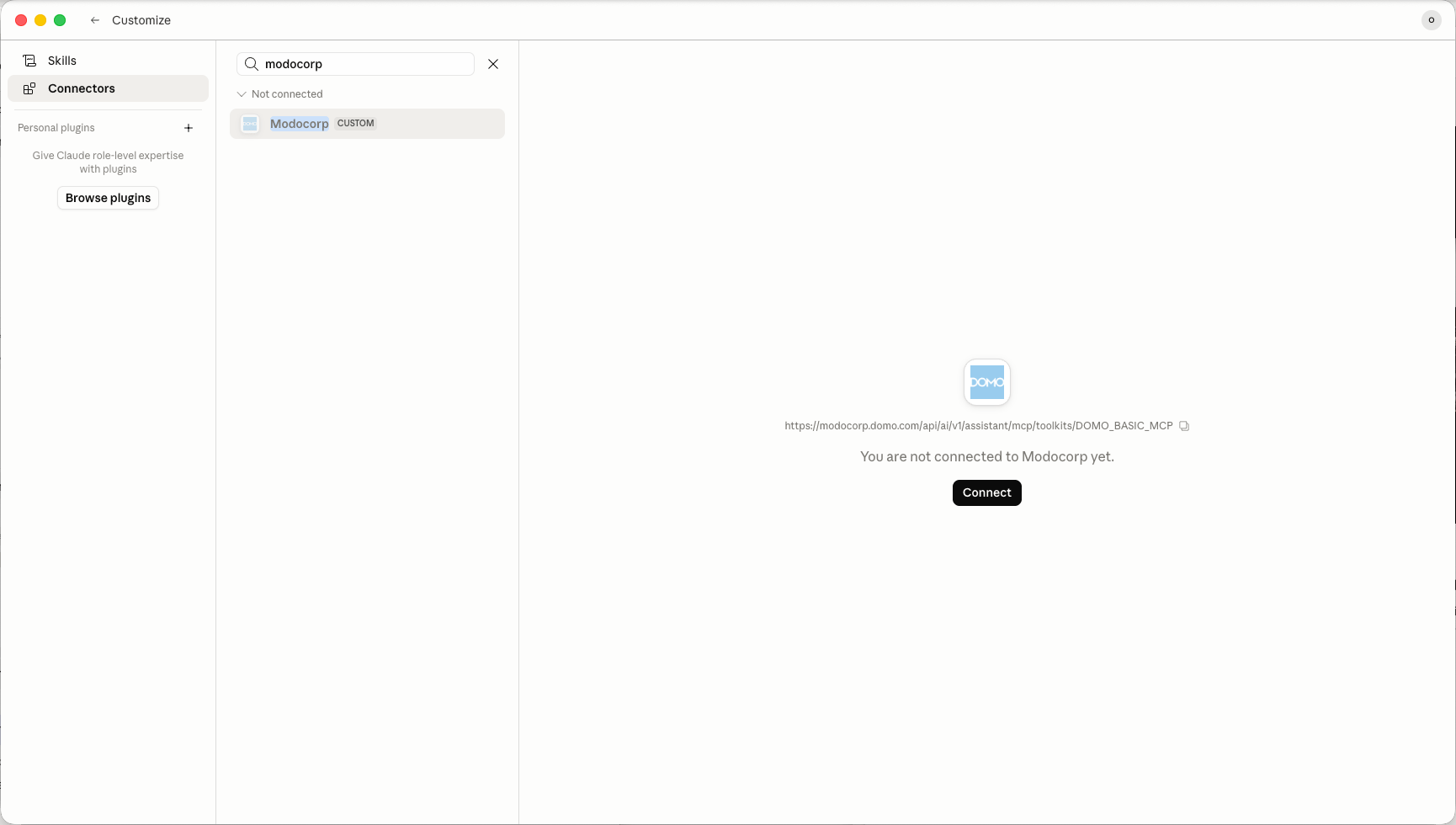
OAuth FAQ
What if I don't know my Domo domain?
What if I don't know my Domo domain?
Your Domo domain is the subdomain in the URL you use to log into Domo — for example, if you access Domo at
mycompany.domo.com, your domain is mycompany.domo.com. Contact your Domo admin if you are unsure.Can I connect multiple Domo instances?
Can I connect multiple Domo instances?
Yes. Repeat the steps in this article for each instance, using a unique connector name and the corresponding domain in the MCP server URL for each.
What data does Claude have access to once connected?
What data does Claude have access to once connected?
Claude can access the data and tools exposed by the Domo Basic MCP toolkit, which includes querying DataSets and interacting with Domo features available through the MCP API. Access is scoped to what your Domo user account is permitted to see.